How do i delete emails in Zoho Mail?
Delete a single email
- Web
- Android
- iOS
To delete an email directly from the folder, from the email listing pane, click on the Delete icon across the email. You can also hit the 'Delete' key on your Keyboard to Trash the email.

To delete an email after opening it, follow the steps given below.
- Login to Zoho Mail.
- Open the email you want to delete.
- Click the More Actions icon.
- Choose Delete from the listing.
The email will be moved to the trash folder.
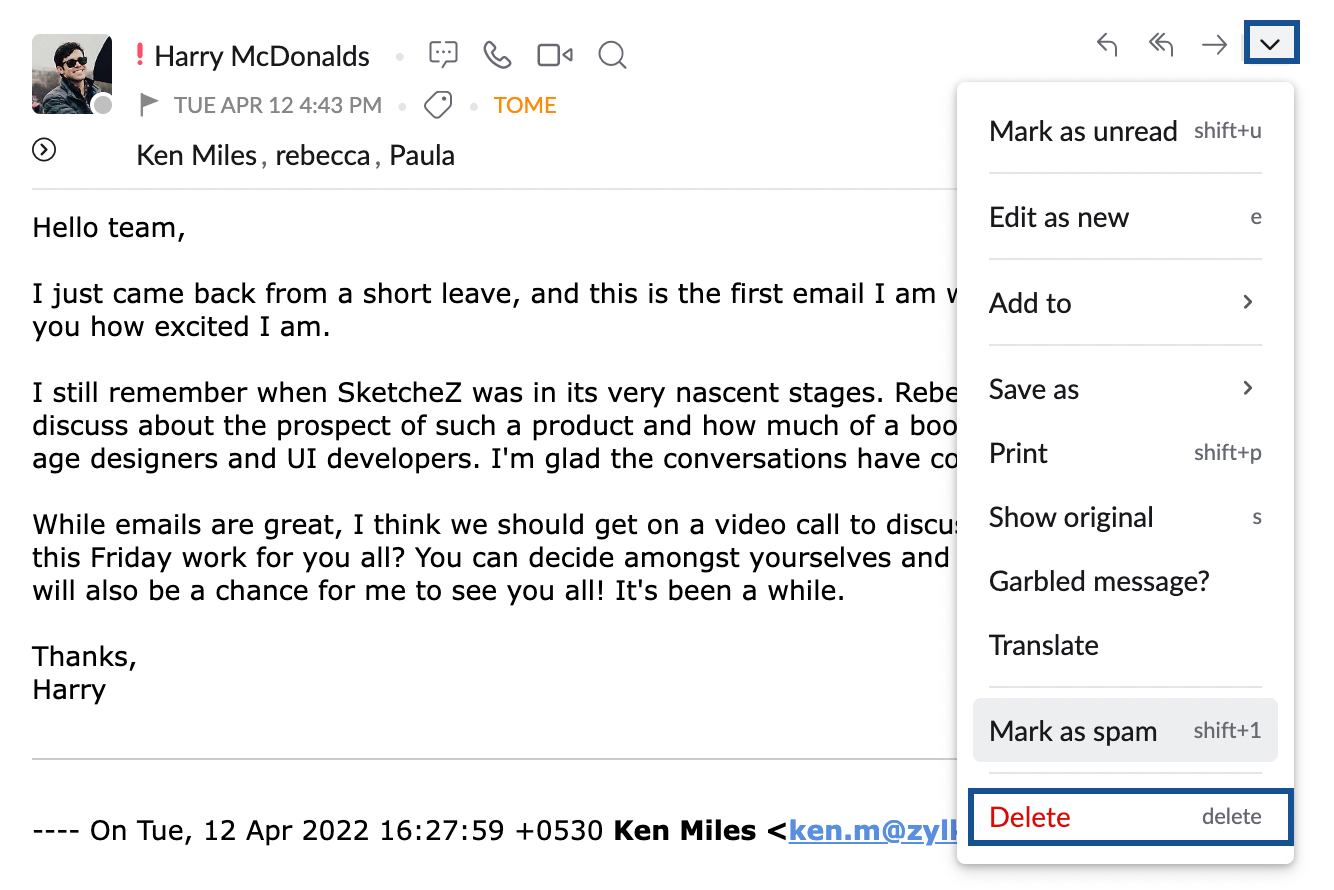
Deleting emails helps you keep your mailbox organized by removing emails you no longer need. After deleting emails, they will be moved to the Trash folder. By default, emails in the Trash folder will be permanently deleted after 30 days. You can modify the junk cleanup interval from Zoho Mail web settings. There are multiple ways to delete an email.
To delete a single email from the email list in the Zoho Mail Android app:
- Open the Zoho Mail Android app.
- Navigate to the Email module.
- Long-press the email you want to delete.
- Tap the Trash icon that appears on top of the screen.
The email will be moved to the trash folder.

To delete a single email from the email detail view in the Zoho Mail Android app:
- Open the Zoho Mail Android app.
- Navigate to the Email module.
- Open the email you want to delete.
- Tap the Trash icon located at the top.
The email will be moved to the trash folder.

Note: You can use swipe actions to delete a email once you set the left or right swipe action as Delete from Settings.
Deleting emails helps you keep your mailbox organized by removing emails you no longer need. After deleting emails, they will be moved to the Trash folder. By default, emails in the Trash folder will be permanently deleted after 30 days. You can modify the junk cleanup interval from Zoho Mail web settings. There are multiple ways to delete an email. To delete a single email from the email list in the Zoho Mail iOS app:
To delete a single email from the email list in the Zoho Mail iOS app:
- Open the Zoho Mail iOS app:
- Navigate to the Email module.
- Long-press the email or tap the profile picture in the email you want to delete.
- Tap the More Options icon at the bottom-right corner of the app.
- Tap Delete.
The email will be moved to the trash folder.

To delete a single email using swipe action in the Zoho Mail iOS app:
- Open the Zoho Mail iOS app.
- Navigate to the Email module.
- Swipe left on the email you want to delete.
- Tap the Delete option.
The email will be moved to the trash folder.

To delete a single email from the email detail view in the Zoho Mail iOS app:
- Open the Zoho Mail iOS app.
- Navigate to the Email module.
- Open the email you want to delete.
- Tap the More Options icon at the bottom-right.
- Tap Delete.
The email will be moved to the trash folder.

Alternatively, you can also tap the Trash icon at the bottom to delete the email.

Delete multiple emails
- Web
- Android
- iOS
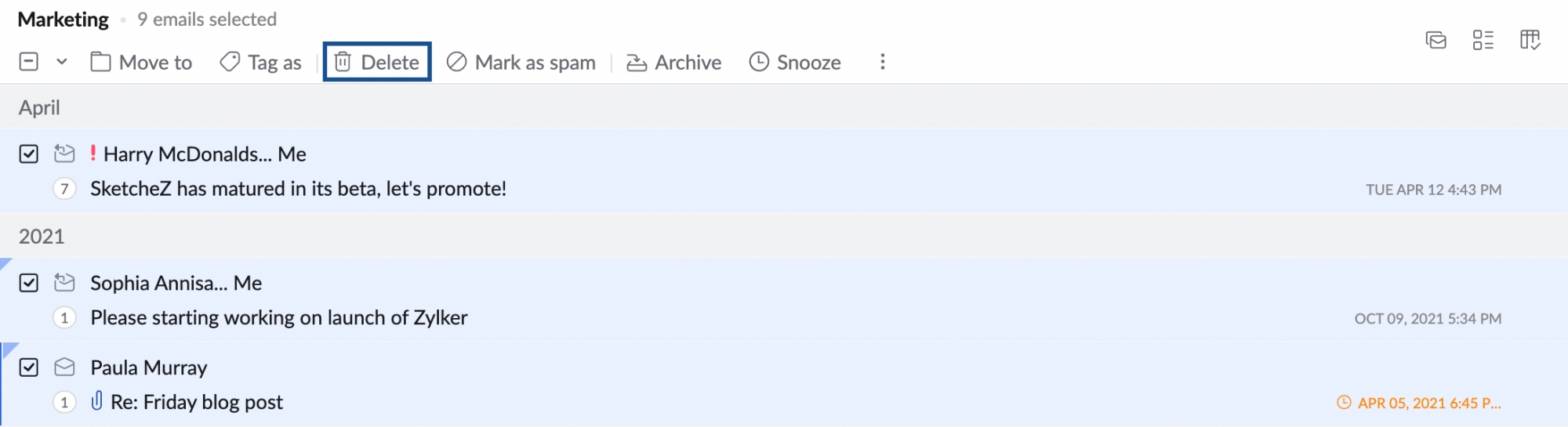
To delete multiple emails from the email list view:
- Login to Zoho Mail.
- Select the emails that you want to delete.
- Click the Delete icon from the top menu bar.
Note:
- You can select up to 50 emails at once in the chosen email view using the Select All option. If you want to select more than 50 emails, scroll down the list and click the Select All button on the top menu. You can delete only 300 emails at once.
- If you want to delete more than 300 emails, you will have only the option to delete all emails in that folder. You can also use the Empty folder option if you wish to delete all emails in a folder.
You can select up to 50 emails at once in the chosen email view using the Select All option. If you want to select more emails, deselect the emails, scroll down to load more emails and use the select all option. You can select and delete only 200 emails at once.

To delete multiple emails in the Zoho Mail Android app:
- Open the Zoho Mail Android app.
- Navigate to the Email module.
- Long press an email or tap a profile picture to enter multi-select mode.
- Select the emails you want to delete.
- Tap the Trash icon in the top-right corner.
The emails will be moved to the trash folder.

You can select up to 50 emails at once in the chosen email view using the Select All option. If you want to select more than 50 emails, scroll down the list and click the Select All button on the top. You can select and delete only 300 emails at once.

To delete multiple emails in the Zoho Mail iOS app:
- Open the Zoho Mail iOS app.
- Navigate to the Email module.
- Long press an email or tap a profile picture to enter multi-select mode.
- Select the emails you want to delete.
- Tap the More Options icon at bottom-right of the screen.
- Tap Delete.
The emails will be moved to the trash folder.

Alternatively, you can also tap the Trash icon that appears when you select emails to delete them.

Delete folder
You can delete an entire folder along with its contents. Right-click the folder to be deleted, and choose the Delete this Folder option from the listing.
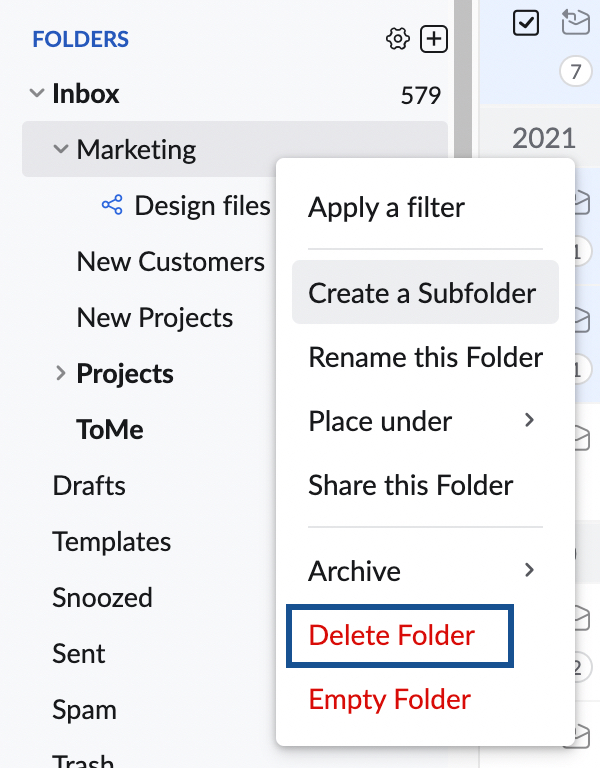
The entire folder along with its contents will be moved as a sub-folder under the trash folder. Right-click on the sub-folder and click on Delete Folder to permanently delete the folder along with its content.
Empty folder
- You can clear the messages in a folder using the Empty Folder option.
- Right-click the folder that you want to empty.
- Choose Empty Folder from the listing.
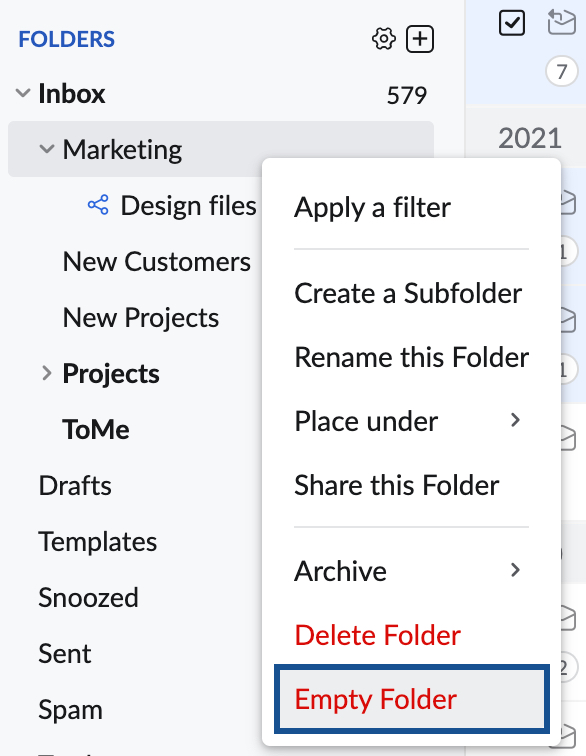
- The following options will be displayed.
- Delete all messages in the folder.
- Delete all messages that arrived up to (enter a date to delete messages till the specific date).
- Delete all messages except the recent (enter a number to delete all messages older than the number specified).
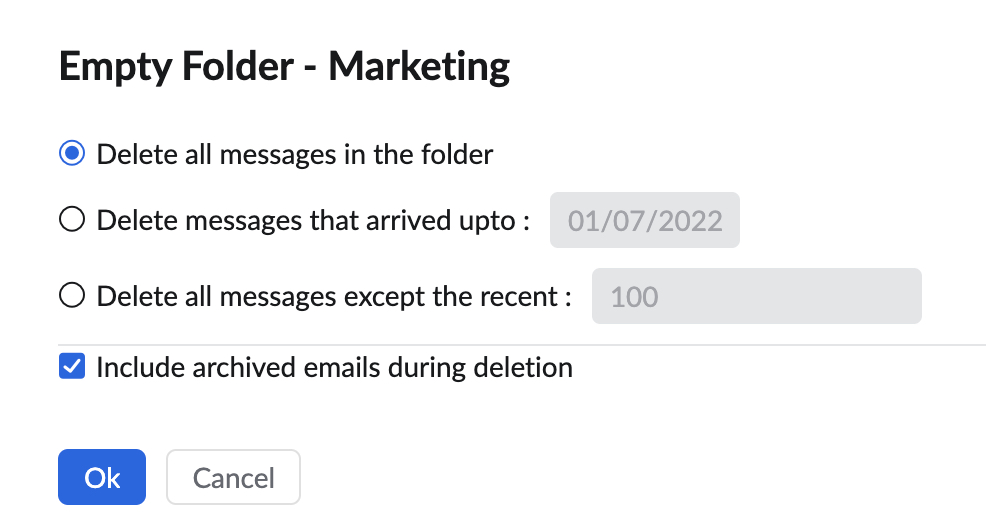
- Select your preference from the options listed.
- If you would like to include the archived emails in the folder too, select the Include archived emails during deletion checkbox, and click Ok.
Trash folder
The emails, when deleted will be moved to the Trash folder, by default. From the Trash folder, you can move the email to any folder of your choice, to recover it back. You can permanently delete the sub-folders under Trash by right-clicking on them and choosing the Delete folder option.
If your account storage is full, you can delete items from the Trash to free up space. After you clear your Trash, the account storage will be re-calculated. If the re-calculated account size is within the allotted limit, the account will not get blocked.
Junk Cleanup Interval
The emails in Trash and Spam folders are retained for a fixed period of time after which they are permanently deleted. By default, the emails that are older than (received before) 30 days, in the Trash folder will be automatically cleared periodically. You can configure this value according to your convenience.
- Login to Zoho Mail
- Click the Settings icon
- Open the System settings card
- Navigate to the Junk Cleanup Interval section
- Next to Spam and Trash folders will be cleaned up based on the interval specified here, enter the desired value from 5 to 180 days.

Delete archived emails
Zoho Mail also provides options to delete all the archived emails from a particular folder. Follow the below instructions to trash all the archived emails in a specific folder.
- Right-click the required folder from the listing in the left menu.
- From the options listed, select Archive options.
- Select the Delete all the archived emails in this folder option.
- All the archived emails in this folder will be moved to the trash.
Note:
The delete archived emails option will not be listed if you haven't archived any emails from this folder.