Zoho WorkDrive Integration in Zoho Mail
Zoho WorkDrive is a content collaboration platform for teams to store, share, and manage files in one place. Zoho Mail supports Zoho WorkDrive integration to use those files in your mailbox. You can add them as attachments as you compose your emails. You can also add, access and share them to your teammates using eWidget in Zoho Mail.
Using Zoho WorkDrive Integration in Zoho Mail
In eWidget:
The files in Zoho WorkDrive can be accessed and shared from eWidget in Zoho Mail. Zoho WorkDrive integration is enabled by default in the eWidget, hence no further configuration is required. You can access and share the files in Zoho WorkDrive using the following steps.
- Login to your Zoho Mail account.
- Click on the eWidget icon
- Select Workdrive from the apps listed
- Choose the file from your folders listed.
- After selecting the necessary files, click Pick.
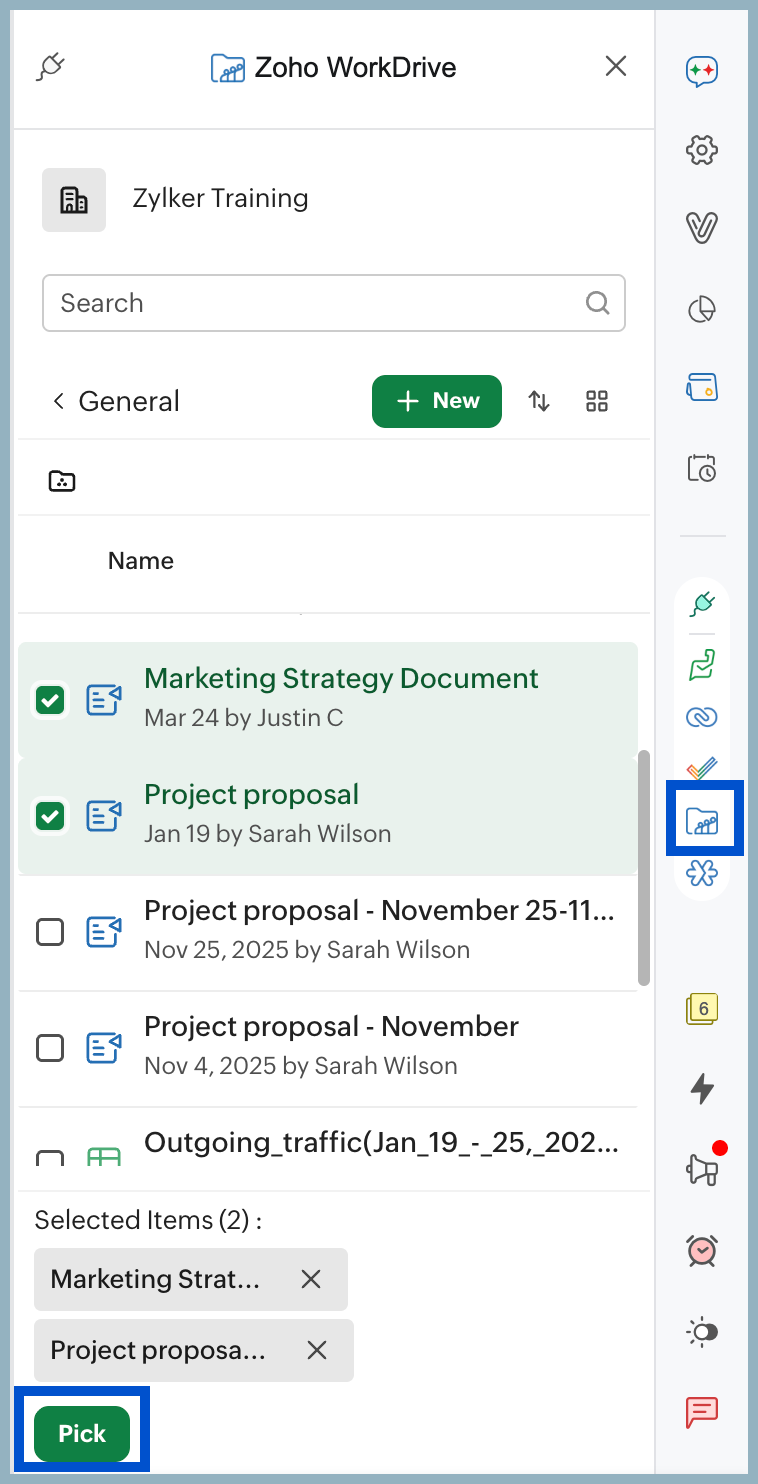
- Choose how you want to attach the file(s) and share.
How to Attach files from WorkDrive in email
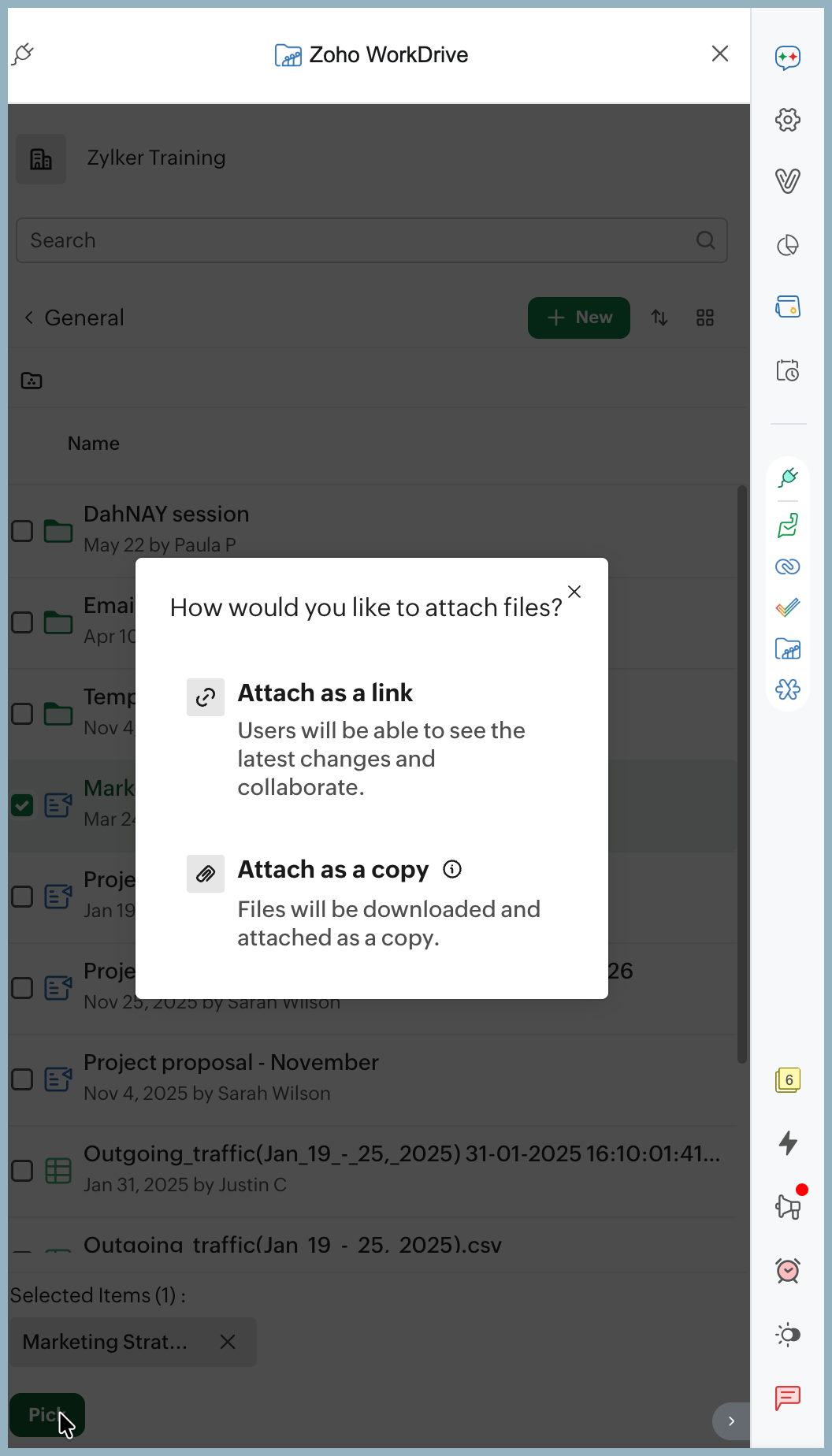
Once you select the files that you want to share with others, you can choose how you would like to attach them to your emails. You can either:
- Attach as a link: Share the file(s) as a link in your email. Users with the required access can view the latest version of the file, including any updates you make after sending the email.
- Attach as a copy: Download the file(s) and attach them as copies to your email. Recipients will receive a snapshot of the file at the time of sending and won't see any changes you make later to the original file.
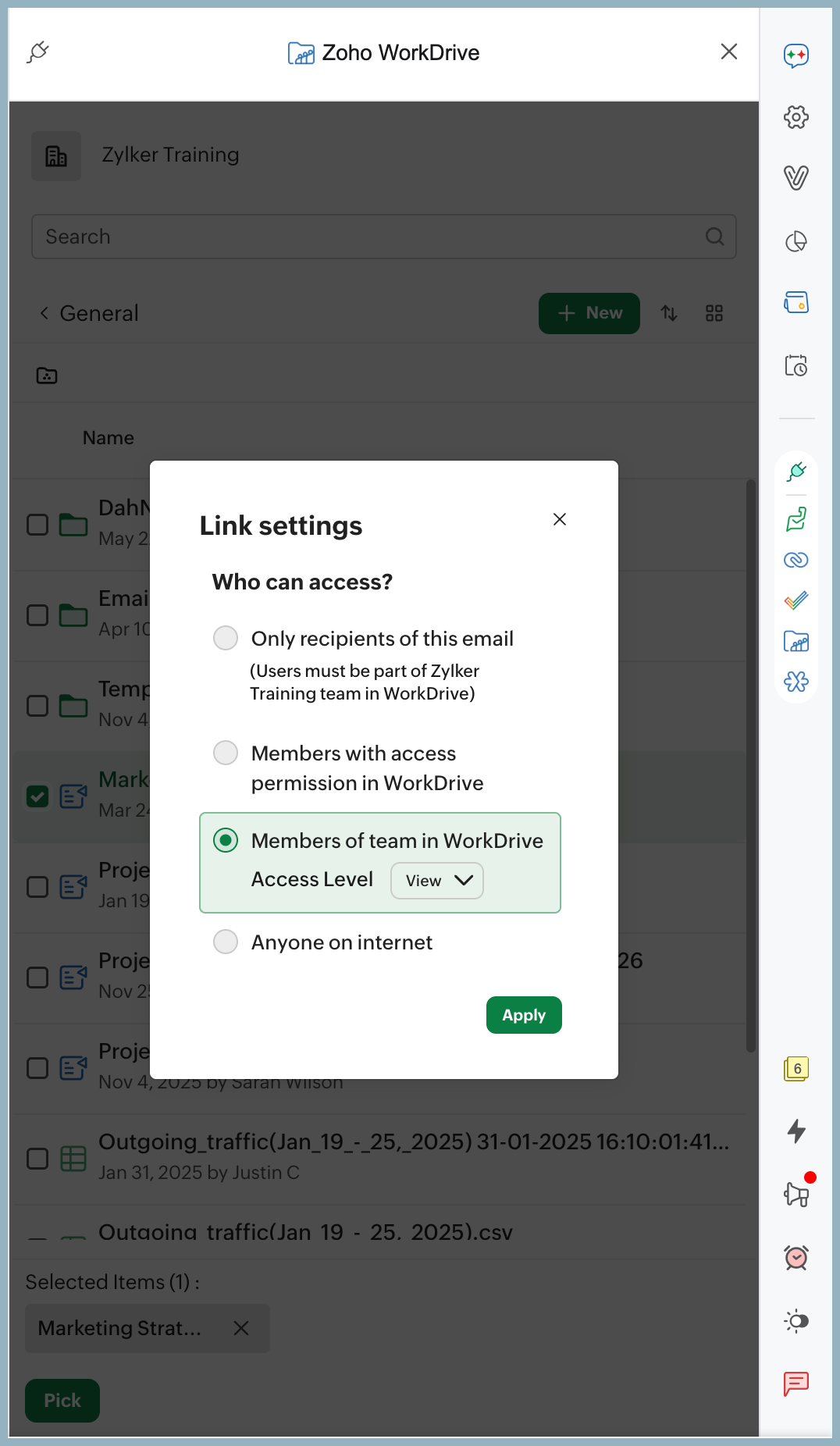
Sharing Permissions:
When you attach files as links, you can choose who can access them using the available sharing permissions. By default, the permission is set to Members of Team in WorkDrive.
- Only recipients of this email: Only the email recipients can access the file. Recipients must belong to your organization and be members of the WorkDrive team.
- Members with access permission in WorkDrive: Only users who already have the required access permissions in WorkDrive can view the file.
- Members of Team in WorkDrive: Anyone who is part of the WorkDrive team from which the files are shared can access them.
- Anyone on the internet: Anyone with the shared link can view the file.
In Composer:
You can use and attach the files in Zoho WorkDrive while sending an email in Zoho Mail.
- Login to your Zoho Mail account
- Click New Mail.
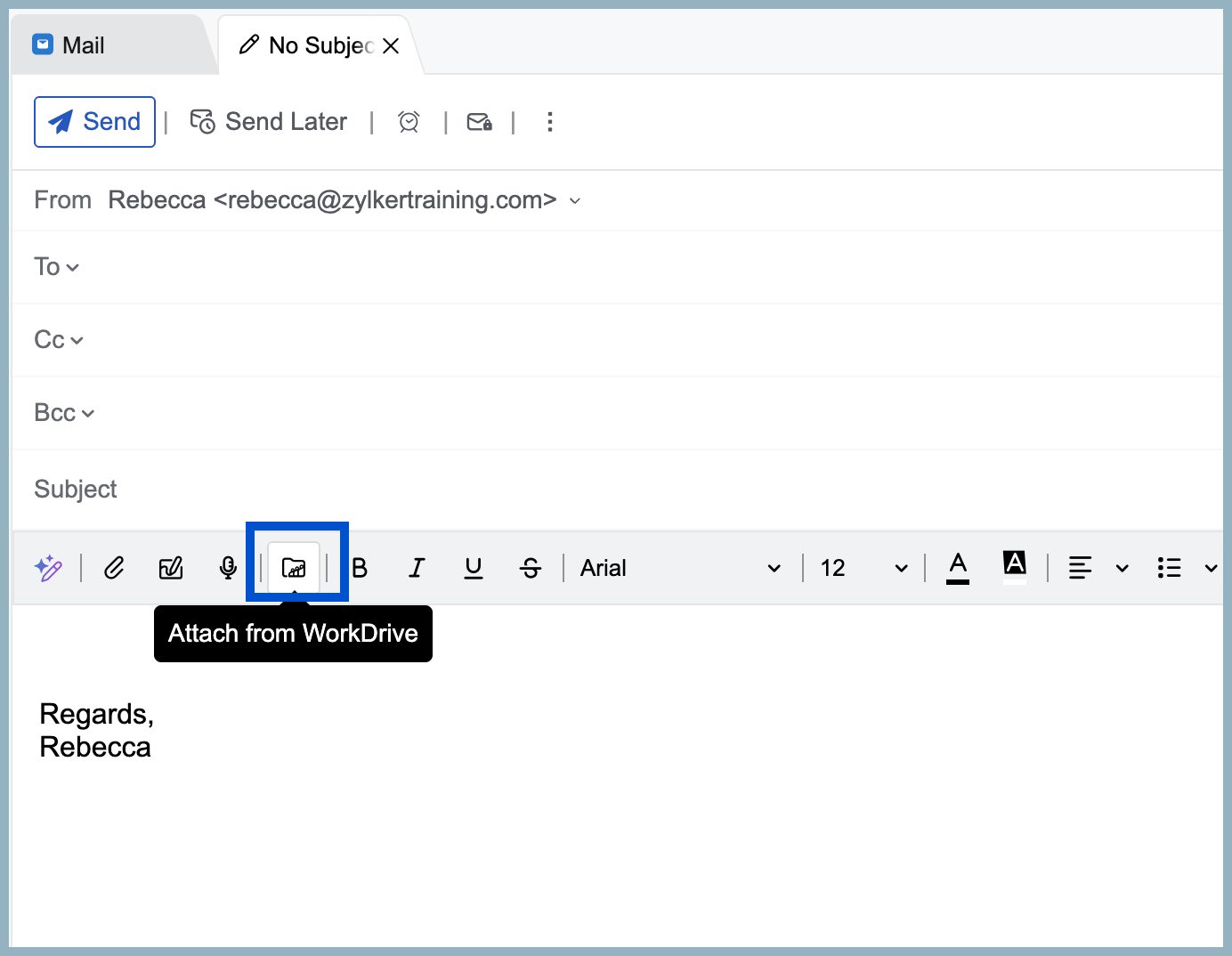
- In the composer, select the Attach from WorkDrive icon from the formatting toolbar.
- Select the required files from Zoho WorkDrive when it opens in eWidget.
- Choose Pick.
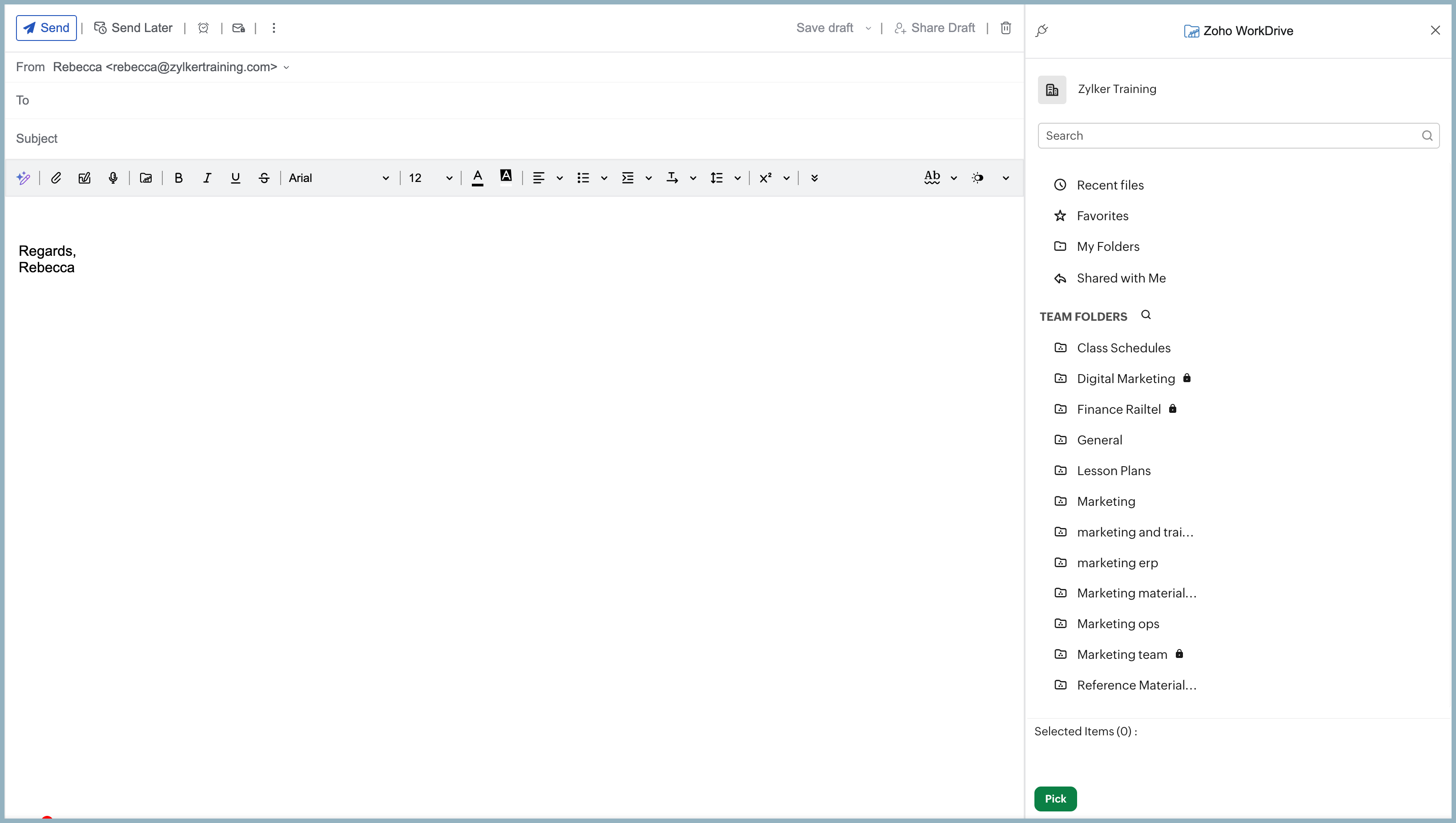
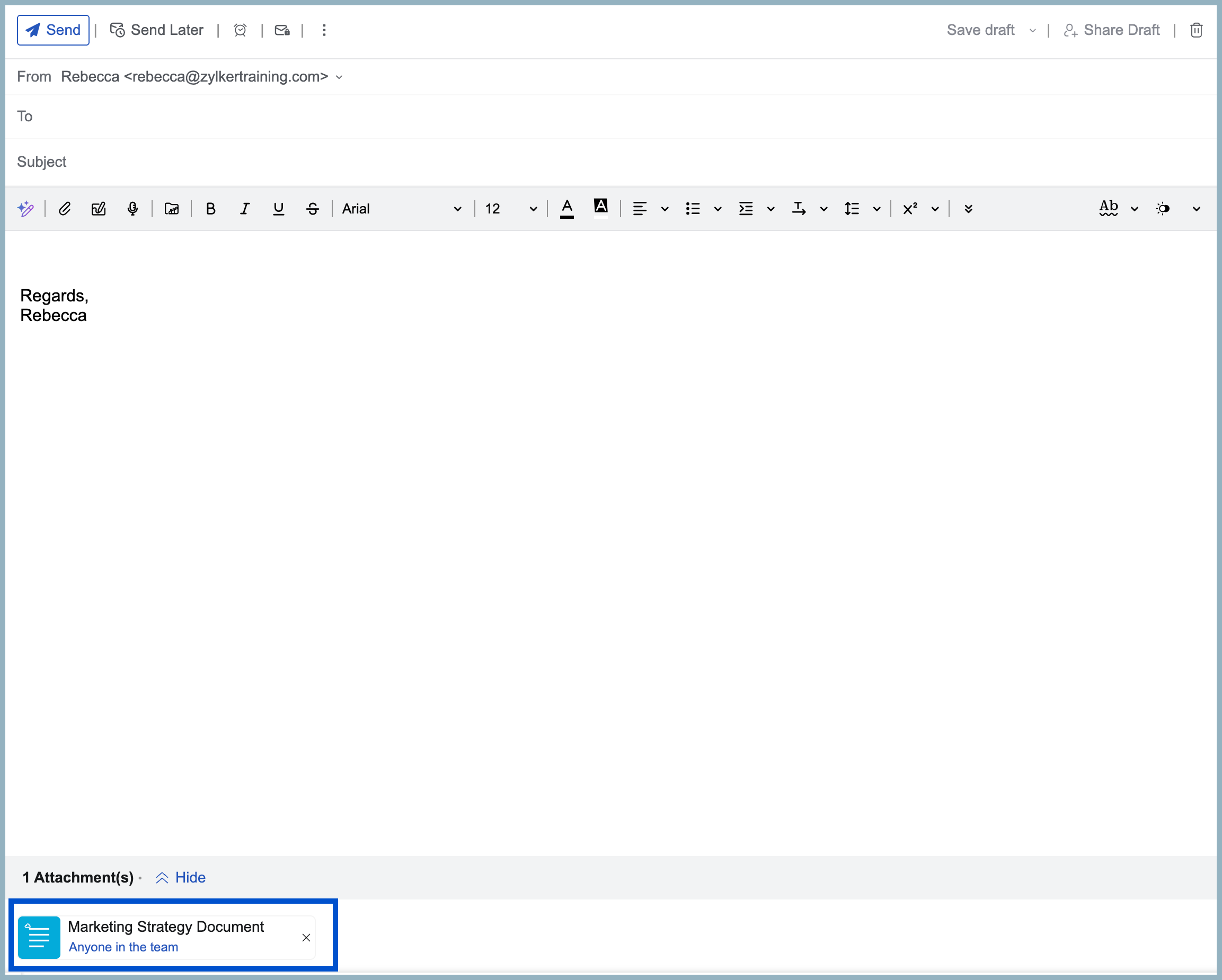
- In the Attach file pop-up, select your preferred option.
- Your file will be added as an email attachment or link which can be viewed and accessed by the recipients depending on the sharing permissions chosen by you.
Add files to WorkDrive
You can add the attachments and files you receive in emails, streams posts, notes, and tasks to your WorkDrive account.
- Log in to your Zoho Mail account
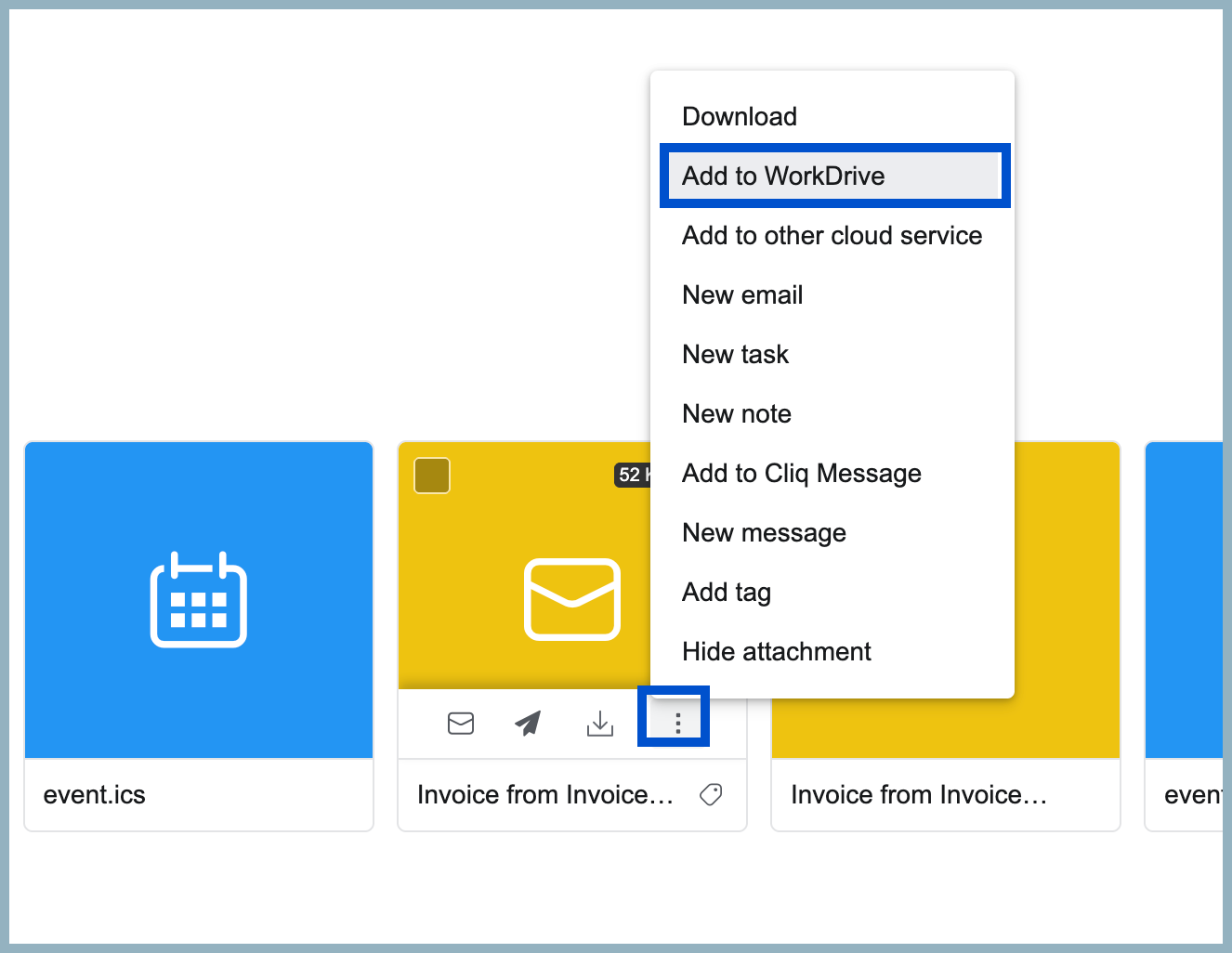
- Go to Attachment viewer, and locate the attachment you want to add to your WorkDrive account.
- Click the More options icon.
- Select Add to WorkDrive.
- Choose the destination folder to add the attachment/file when WorkDrive is open in eWidget.
- Click Add.
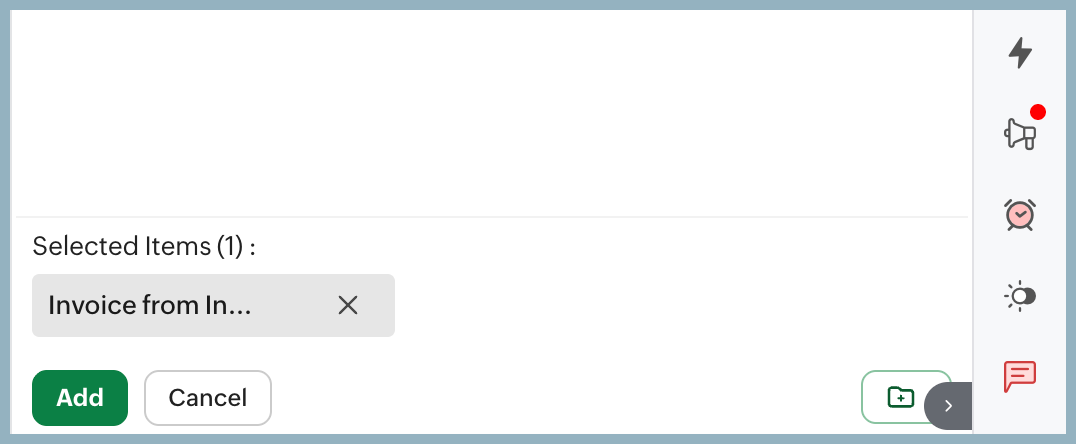
- The file will be added to your WorkDrive account.
You can also set filter conditions to automatically add attachments to Zoho WorkDrive.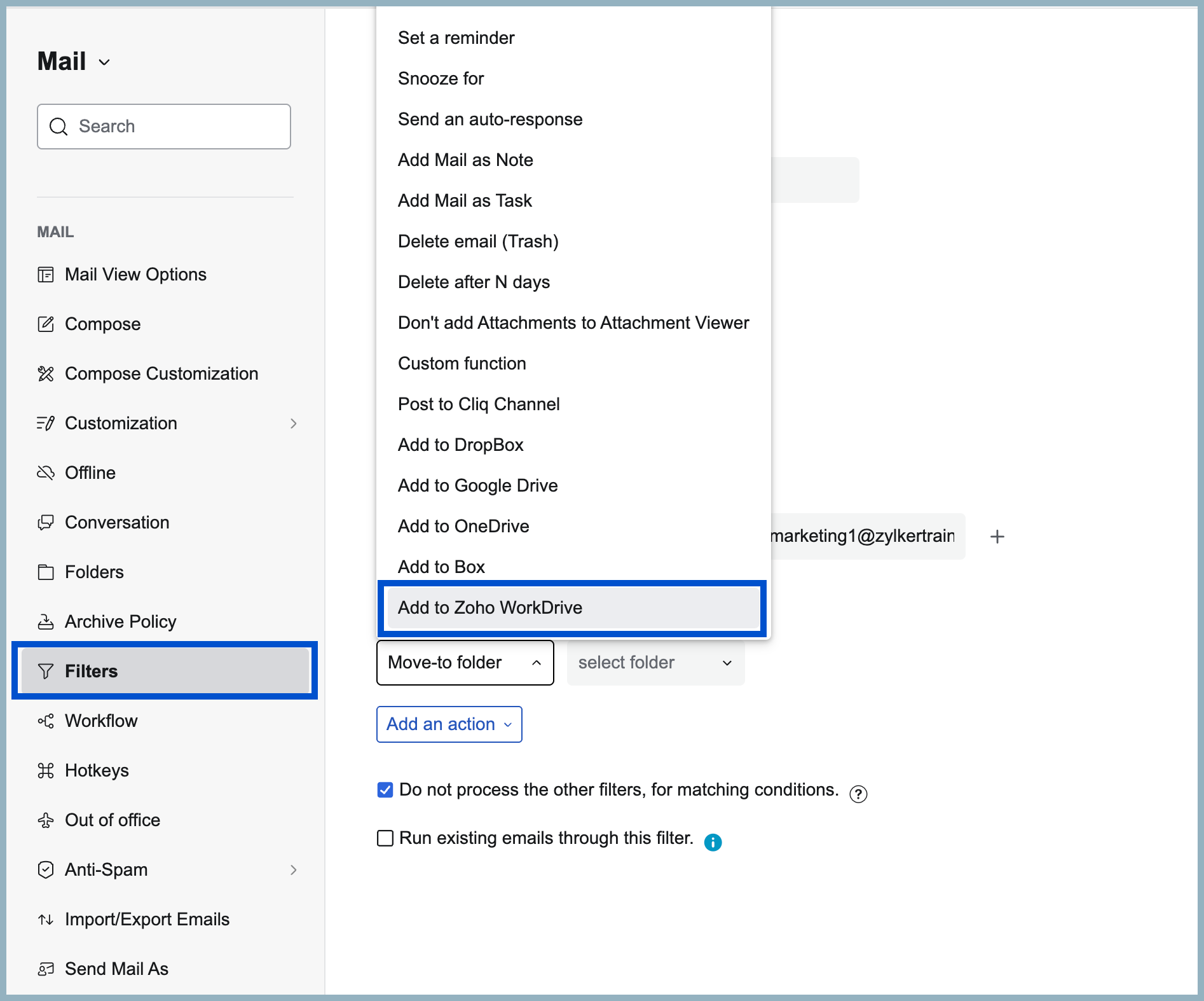
Add emails to WorkDrive
You can add multiple emails to a Zoho WorkDrive folder right from your mailbox without switching between tabs. The emails will be saved as EML files in the selected WorkDrive folder. To add emails to Zoho WorkDrive:
- Log in to your Zoho Mail account
- Click on the Zoho WorkDrive eWidget and choose the folder, you would like to add emails to.
- Select the emails you want to add to WorkDrive.
- Drag and drop the selected emails in the WorkDrive eWidget.
- Click on the 'Add' button to add the emails to WorkDrive.
