

Annual Submission

The Annual Submission of adjustments and allowances is a year-end process under Making Tax Digital (MTD) for Income Tax. After submitting your quarterly updates, you can use this submission to make adjustments and claim allowances, such as capital allowances on business assets, to ensure that your taxable profit is accurate before completing your final declaration with HMRC.
Unlike a Business Source Adjustable Summary (BSAS), which applies adjustments to a specific business source after quarterly updates, the annual submission confirms your overall year-end position before the final declaration is submitted to HMRC.
Generate Annual Submission
In Zoho Books, you can generate an Annual Submission to record adjustments and allowances for all your businesses for the relevant tax year. Before generating an Annual Submission, you must first create an Annual Submission form. Here’s how:
- Go to Filing & Compliance on the left sidebar and select Income Tax.
- Click Create Additional Submission in the top right corner.
- In the Create Additional Submission pop-up, fill in the following fields:
- Select the tax year in which you want to make adjustments in the Tax Year field.
- Select the applicable submission type in the Submission Type field. You can select Annual Submission (Self Employment) or Annual Submission (UK Property), depending on your business.
- Click Create.
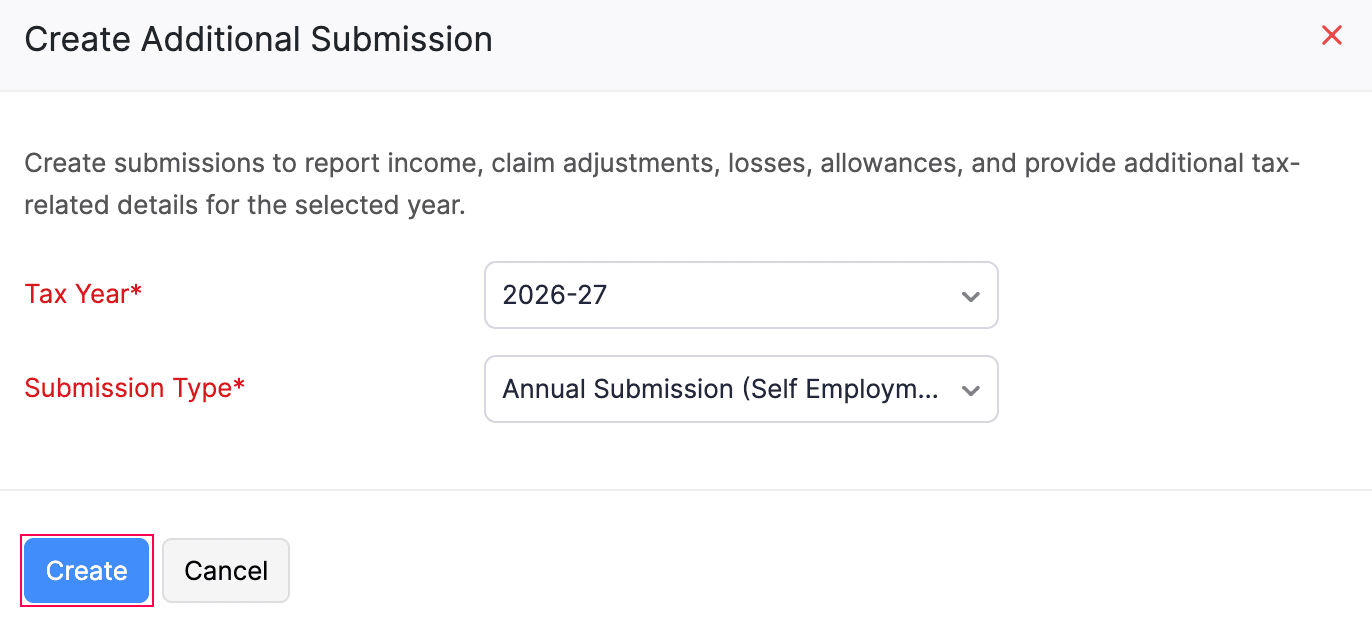
The Annual Submission will now be created in the Draft status and listed under the End of Year section of the To Be Filed tab.
To generate an Annual Submission:
- Click the newly created Annual Submission form listed in the End of Year section.
- On the Annual Submission page, review the Adjustments, Allowances and Non Financials categories.
- Enter the required adjustment or allowances amounts against the respective categories.
- Once you have entered all the values, click Save and Generate.
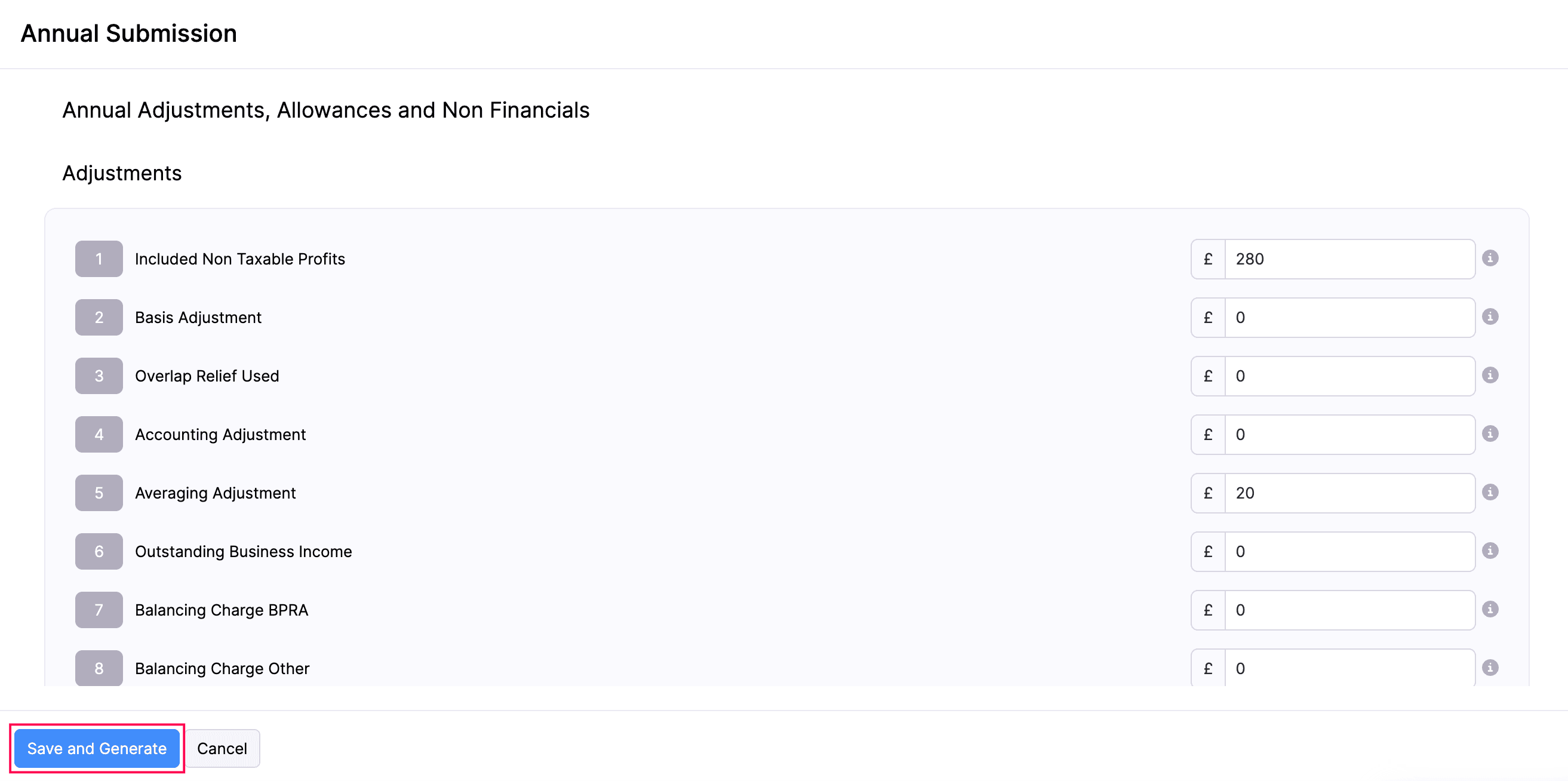
- In the confirmation pop-up that appears, click Finalise Update.
The changes made will now be saved in Zoho Books and the status will be changed to Finalised.
Edit Annual Submission
To make changes to your Annual Submission that is in the Finalised status before submitting it to HMRC:
- Go to Filing & Compliance on the left sidebar and select Income Tax.
- Select the Annual Submission in the Finalised status that you want to edit.
- In the Annual Submission page, click the More icon in the top right corner and select Edit.
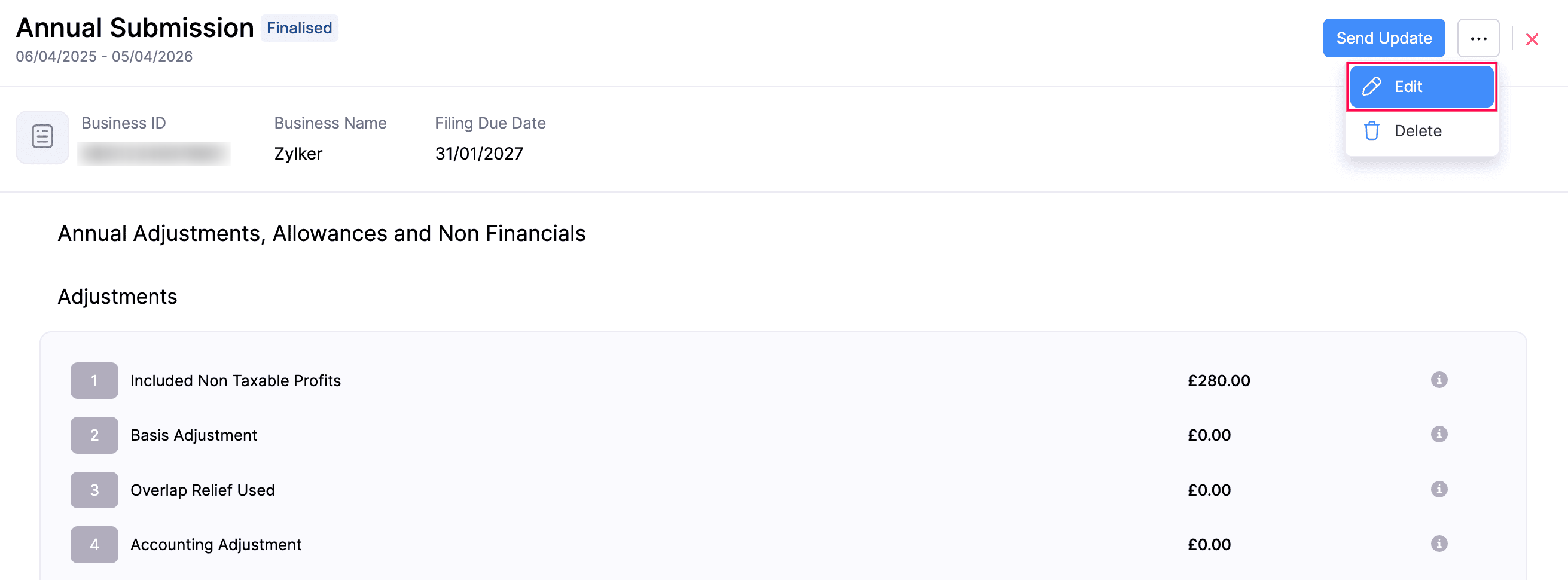
- In the confirmation pop-up that appears, click Continue to Edit.
- Make the necessary changes and click Save and Generate.
Your Annual Submission will now be updated with the latest changes provided.
Delete Annual Submission
To delete your Annual Submission:
- Go to Filing & Compliance on the left sidebar and select Income Tax.
- Hover over the Annual Submission in the Finalised status and select Delete.
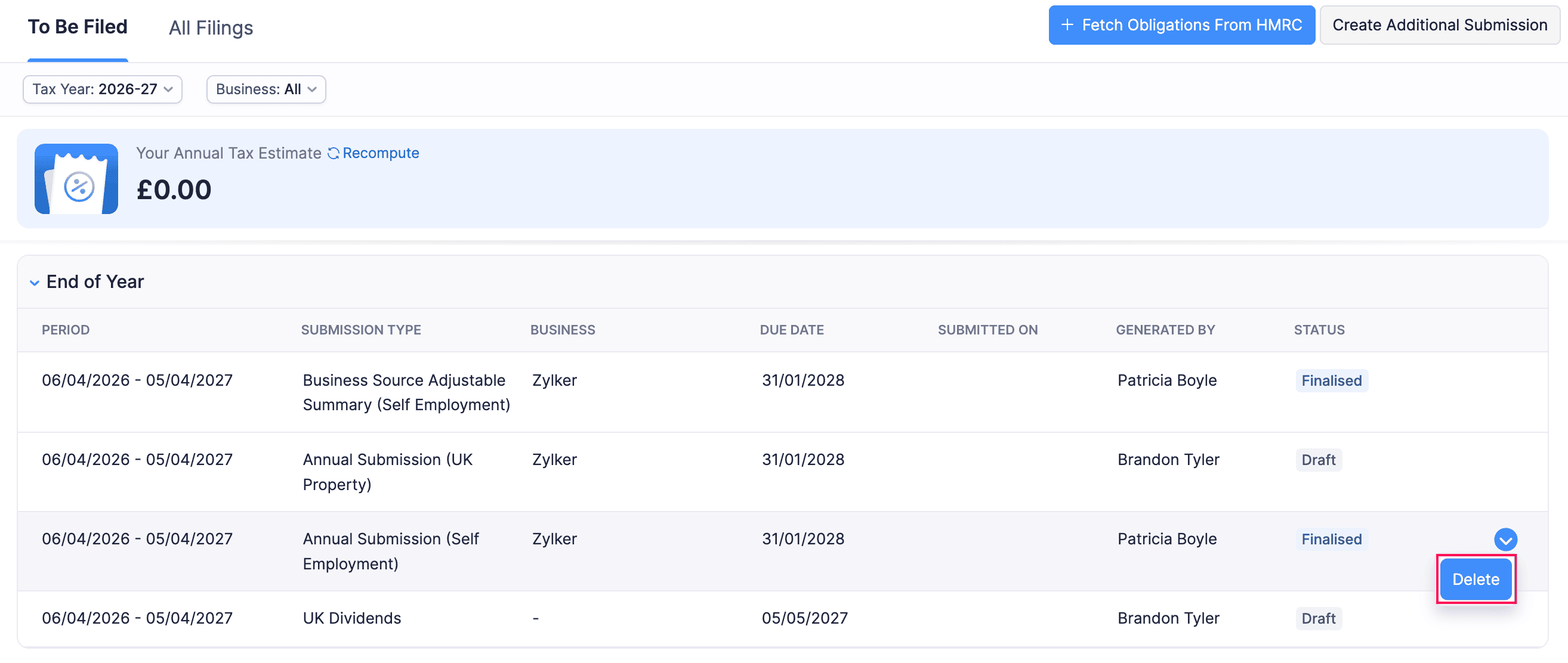
(or)
- Select the Finalised Annual Submission that you want to delete.
- In the Annual Submission page, click the More icon in the top right corner and select Delete.
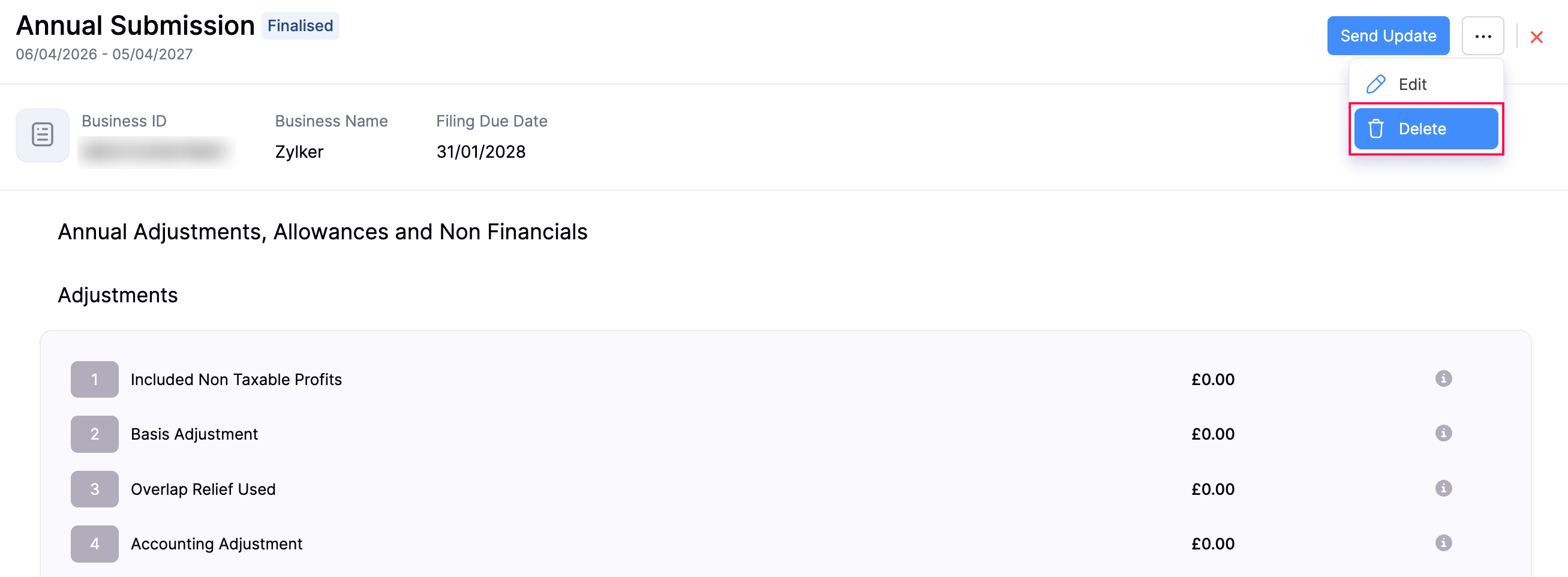
The Annual Submission will now be deleted.
Note:
Deleting an Annual Submission after submitting it to HMRC in Zoho Books, will delete it in the HMRC portal as well. You need to then generate and submit it again.
Submit Annual Submission
Once you have added all the necessary adjustments and allowances and your Annual Submission is finalised, you can submit it to HMRC.
Here’s how:
- Go to Filing & Compliance on the left sidebar and select Income Tax.
- Select the Annual Submission in the finalised status that you want to submit to HMRC.
- In the Annual Submission page, click Send Update in the top right.
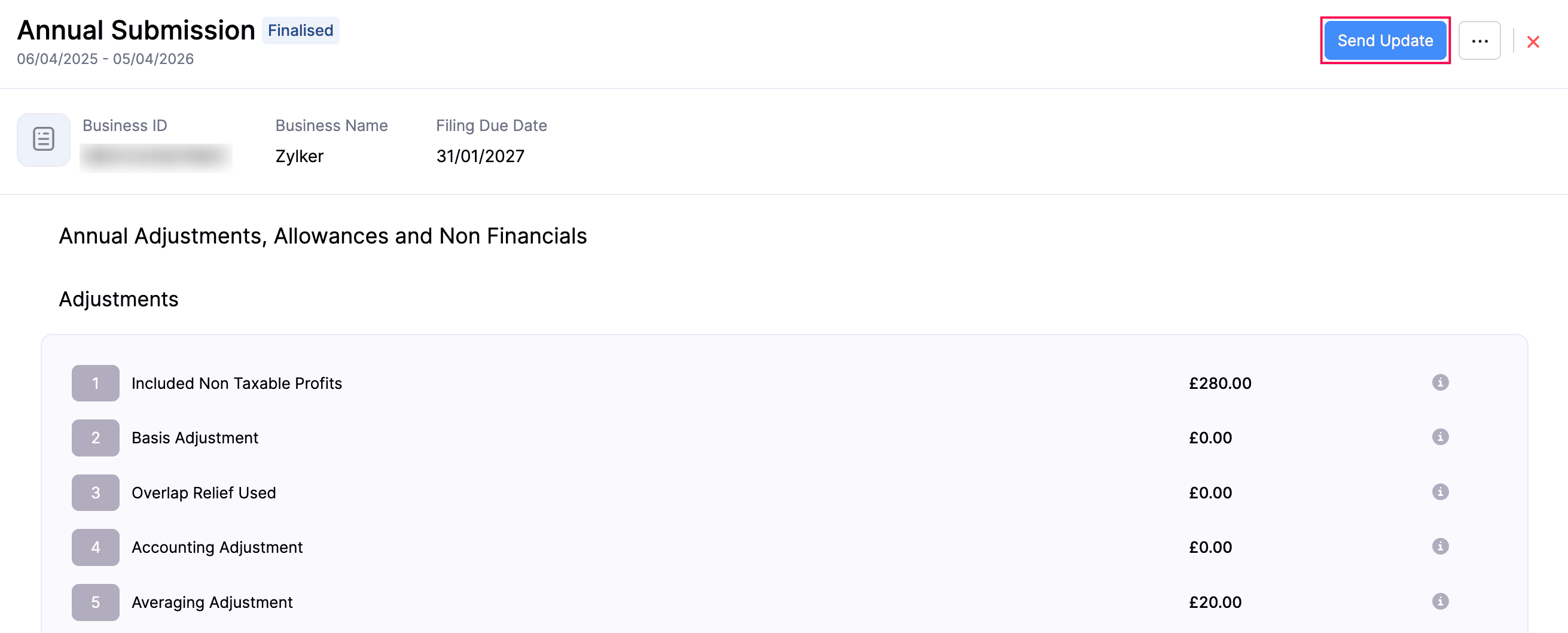
- In the confirmation pop-up that appears, read the terms and click Send Update again.
The Annual Submission will be sent to HMRC and marked as Submitted in Zoho Books.
Note:
You can generate and submit multiple Annual Submissions before submitting your Final Declaration for the tax year.
 Yes
Yes