

Making Tax Digital for Income Tax

Note:
Making Tax Digital for Income Tax is available in all the plans of Zoho Books.
Making Tax Digital (MTD) for Income Tax is an initiative by HMRC (His Majesty’s Revenue and Customs) that requires sole traders and landlords with an annual income over £50,000 to maintain digital records and submit income tax submissions to HMRC using compatible software such as Zoho Books.
Instead of filing a single annual Self Assessment tax return, you submit income and expense updates every quarter, keeping HMRC informed throughout the tax year.
You can connect your Zoho Books organisation with HMRC to stay compliant and maintain accurate financial records. Once connected, you can fetch your submission obligations, map accounts, and submit your income tax submissions directly from Zoho Books.
Note:
Currently, in Zoho Books, MTD for Income Tax is supported only for sole traders and landlords with UK properties.
Prerequisites:
- You can use MTD for Income Tax in Zoho Books only if the Business Type is set to Sole Trader or Landlord during your organisation setup. If you’re an existing user, you can update this under Settings > Organisation > Profile.
- You need an HMRC online account to connect Zoho Books with HMRC. If you don’t have one, go to the HMRC online services page, click Create sign in details, and follow the on-screen instructions to set up your account.
- You must sign up for MTD for Income Tax with HMRC before submitting income tax submissions through Zoho Books. Go to the HMRC sign-up page for MTD for Income Tax, sign in with your HMRC credentials, and follow the instructions to register your business.
Enable Making Tax Digital for Income Tax
To enable Making Tax Digital for Income Tax in your Zoho Books organisation:
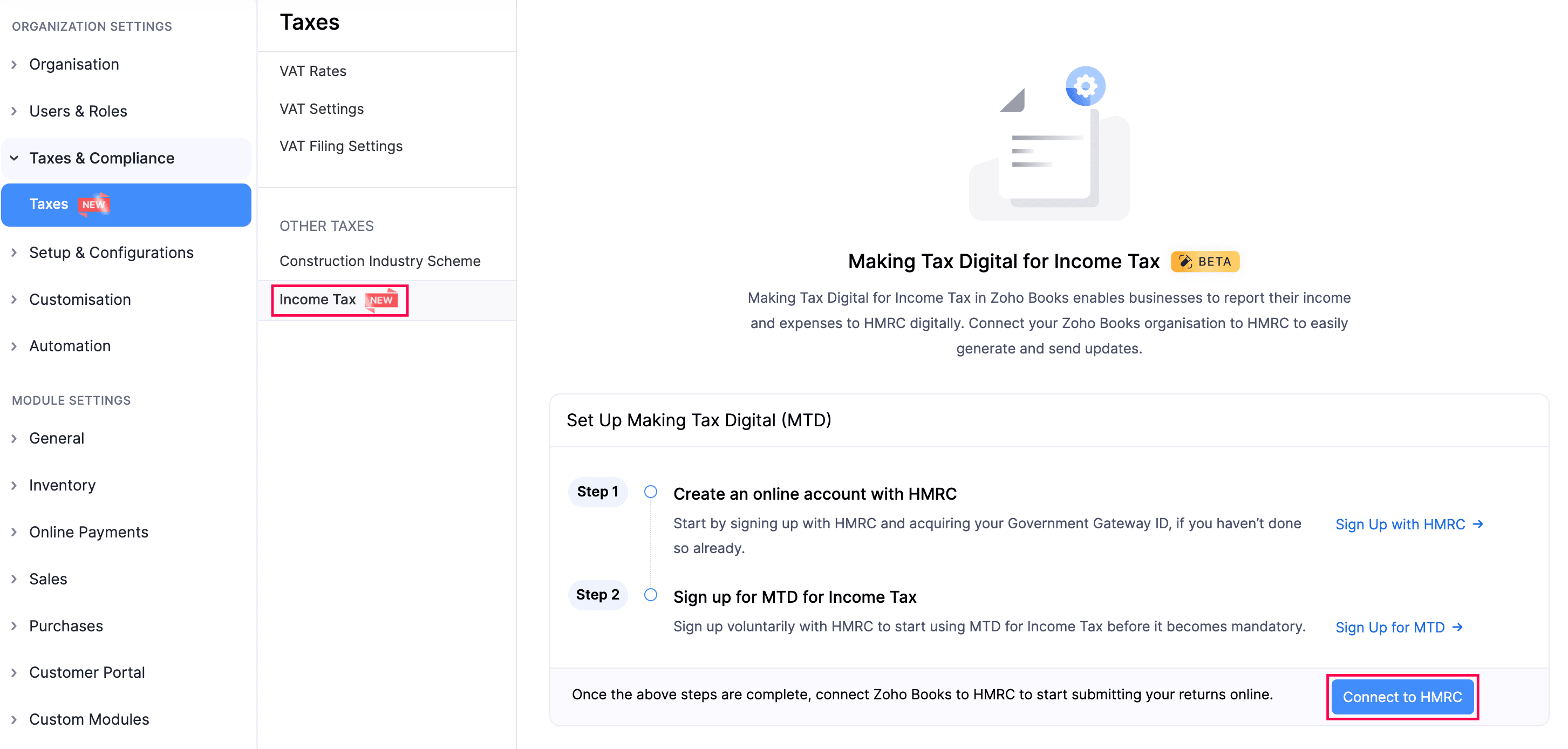
- Go to Settings.
- Select Taxes under Taxes & Compliance.
- In the Taxes pane, select Income Tax under Other Taxes.
- In the Income Tax page, click Connect to HMRC.
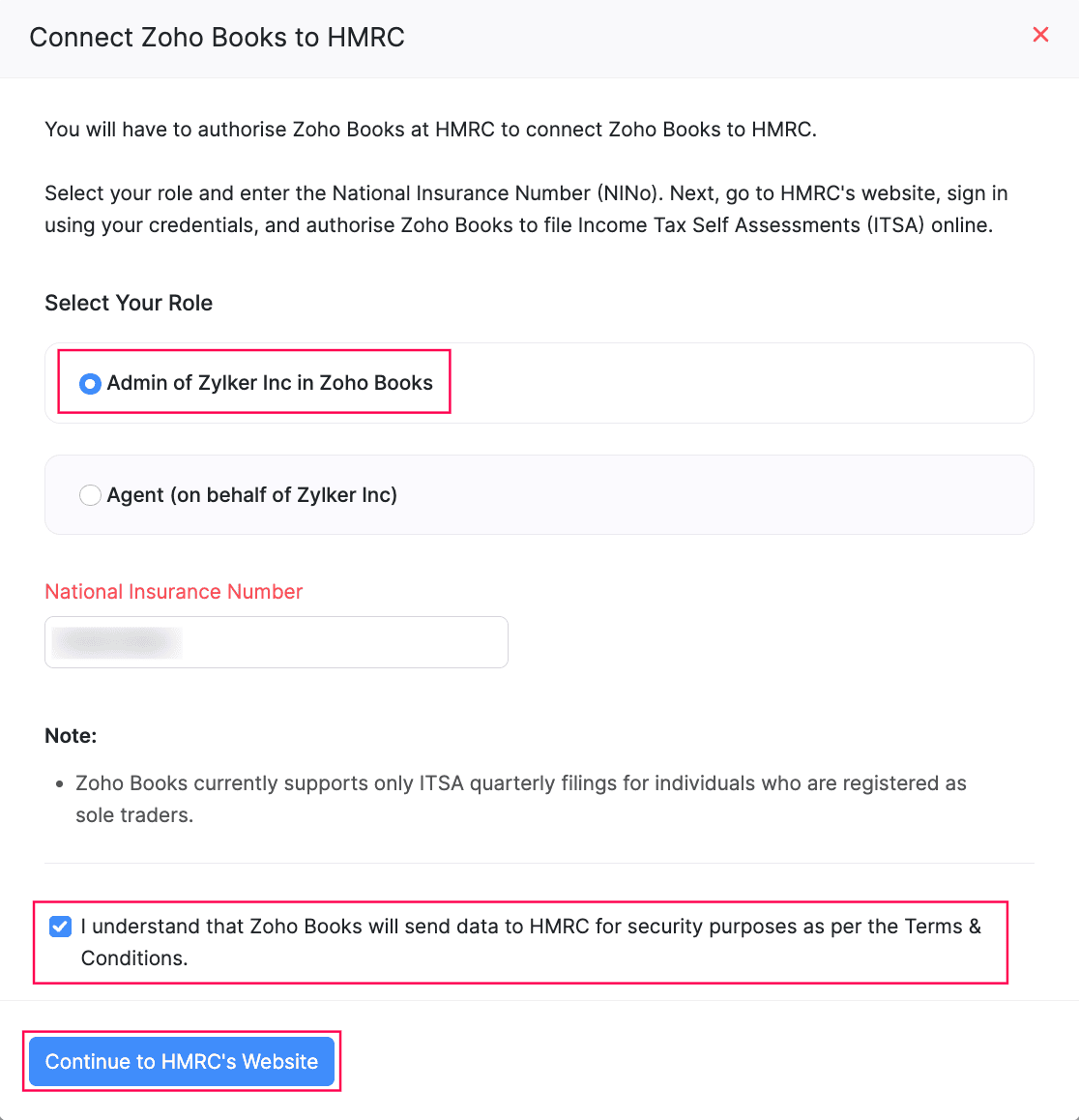
- In the Connect Zoho Books to HMRC pop-up, choose:
- Admin if you’re the business owner submitting income tax submissions to HMRC through Zoho Books, or
- Agent if you’re an accountant submitting income tax submissions on behalf of your client. Ensure that you’re authorised as an agent by HMRC before making any submissions.
Enable MTD for Income Tax for Admins
- If you choose Admin, enter your National Insurance Number issued by HMRC.
- Read and agree to the Terms & Conditions.
- Click Continue to HMRC’s Website.
- Enter the required credentials and click Sign in. You’ll be redirected to your Zoho Books organisation.
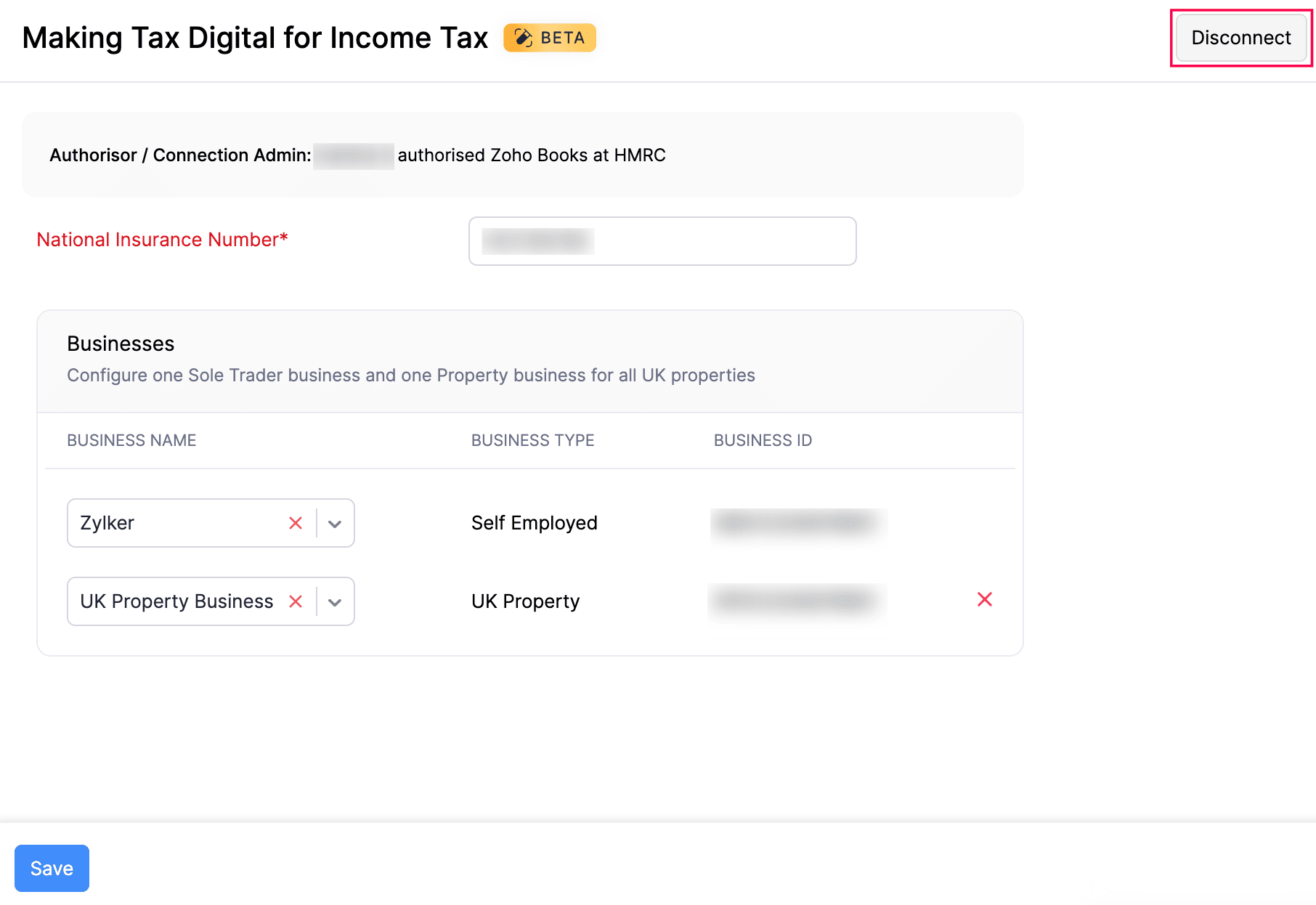
- In the Making Tax Digital for Income Tax page, under the Businesses section, configure your business details based on your income type:
- If you are a sole trader: Select your Self Employed business registered with HMRC from the dropdown in the Business Name column.
- If you are a landlord with UK property income: Select your UK Property business registered with HMRC from the dropdown in the Business Name column.
- If you are both a sole trader and a landlord: Select your Self Employed business from the dropdown, then click + Add UK Property and select your UK Property business. This lets you manage both your self-employed and UK property income from a single Zoho Books organisation.
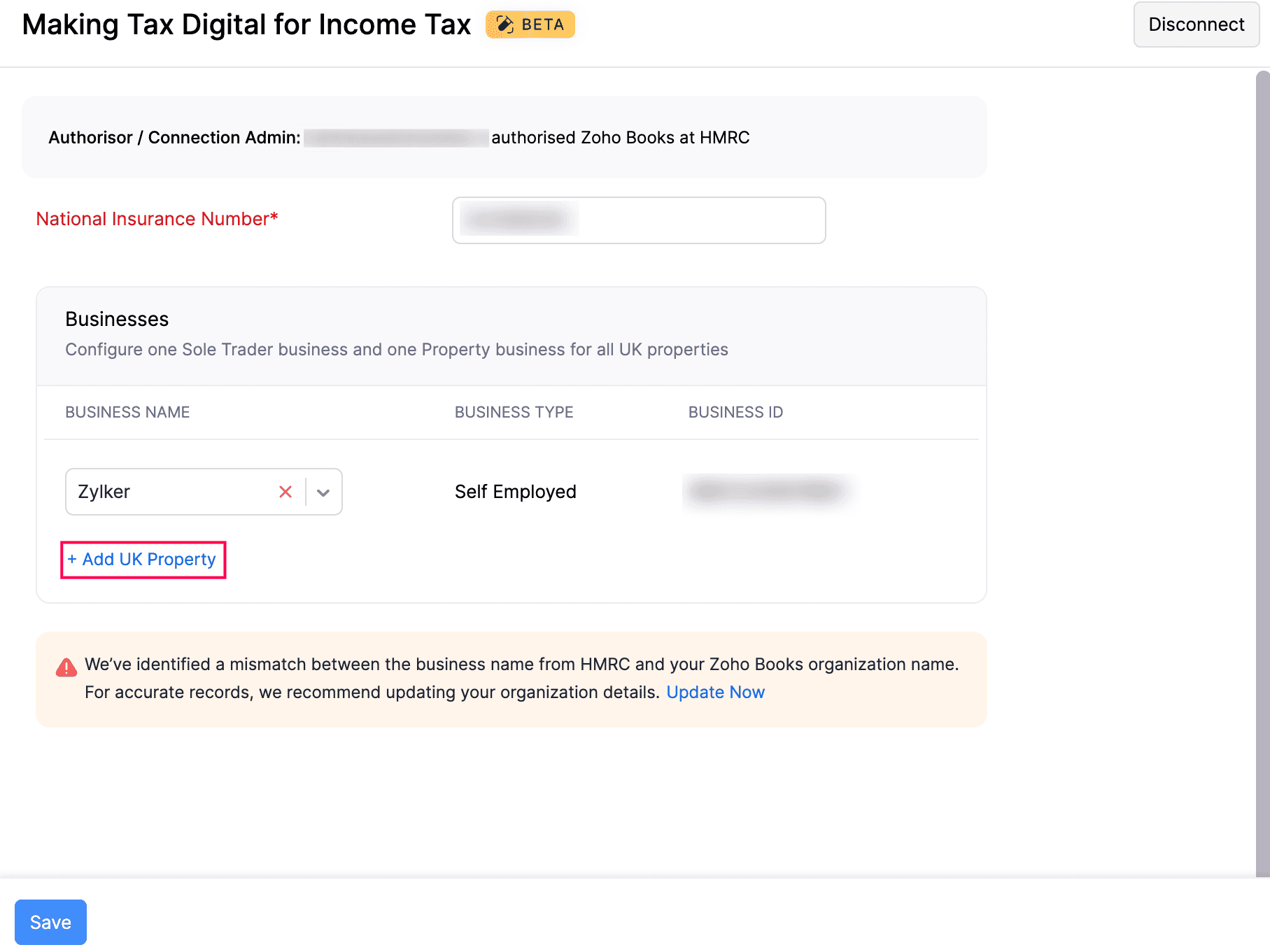
The corresponding Business Type and Business ID will be displayed automatically. These business details are fetched from HMRC using the National Insurance Number (NINO) associated with your account.
Note:
Foreign property income is currently not supported in Zoho Books.
- If a mismatch is identified between the business name from HMRC and your Zoho Books organisation name, a warning will be displayed. Click Update Now to update your organisation details for accurate records.
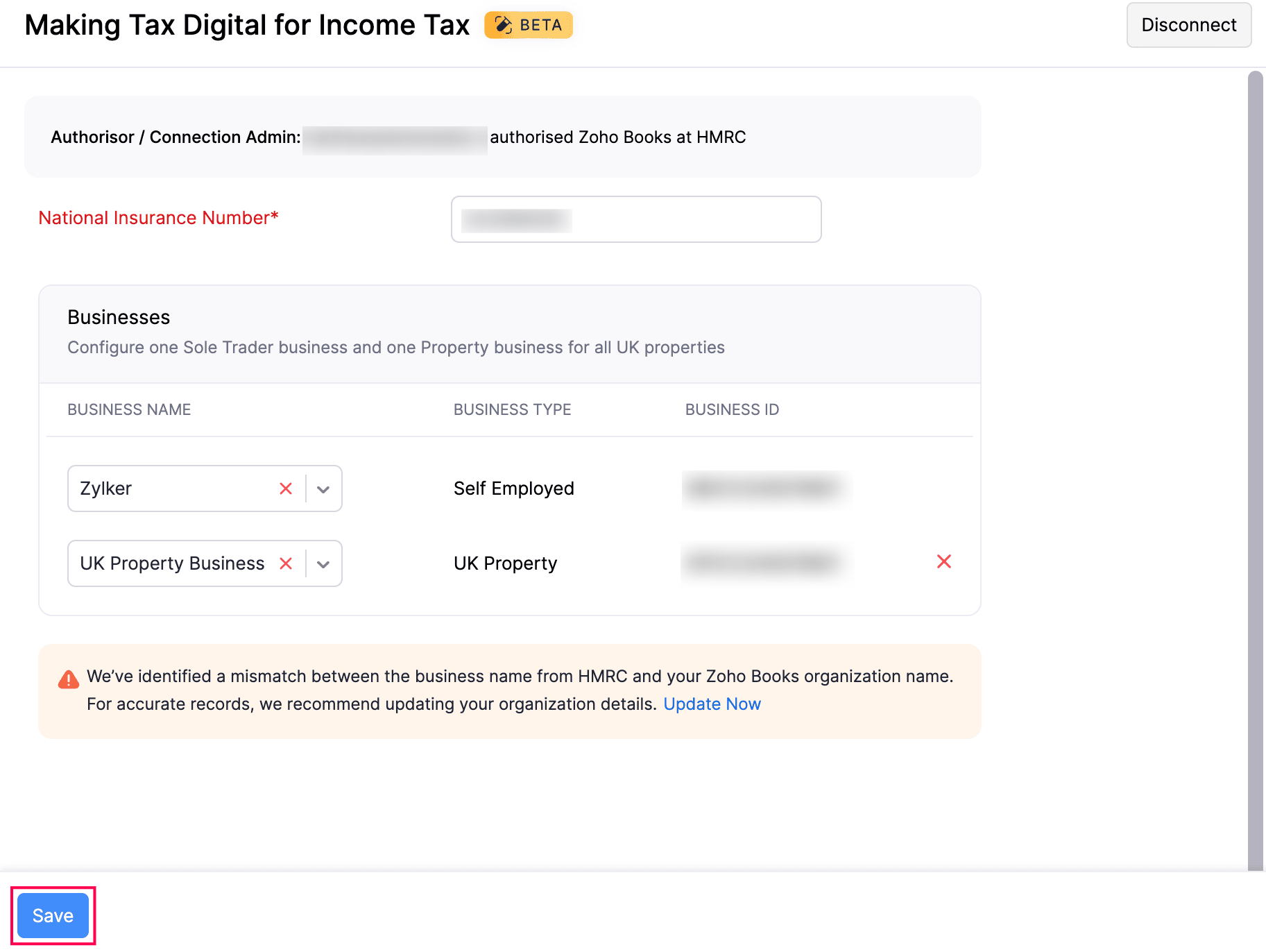
- Verify the details and click Save.
Note:
The option to add multiple businesses will be available only if your Business Type is set to Sole Trader in your organisation profile. If your Business Type is set to Landlord, only a UK Property business can be selected.
Enable MTD for Income Tax for Agents
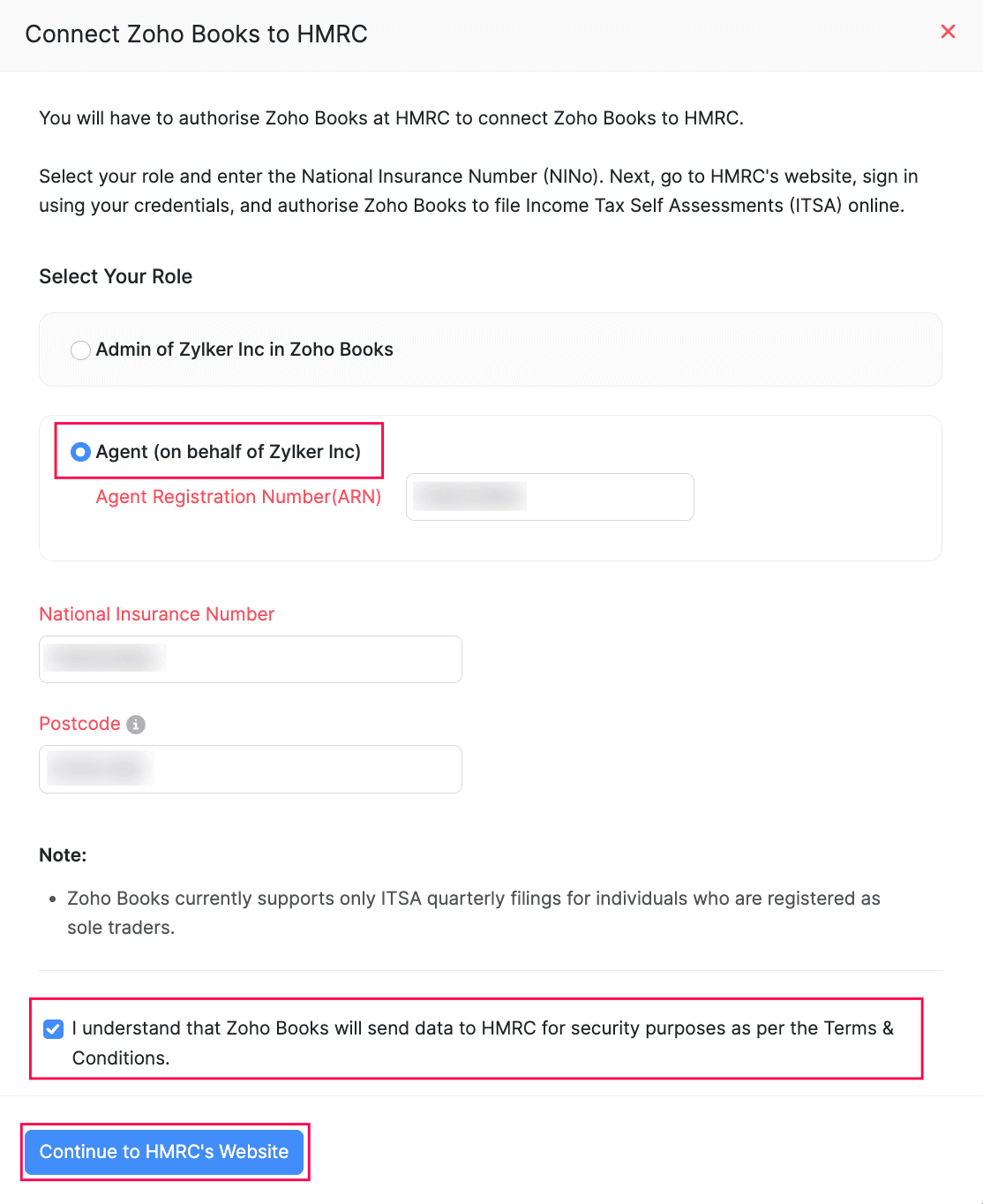
- If you choose Agent, fill in the following fields:
- Agent Registration Number (ARN): Enter the unique number issued by HMRC when you were authorised as an agent eligible to submit income tax submissions.
- National Insurance Number: Enter the unique number issued by HMRC to your client.
- Postcode: Enter the postcode of your client’s business for verification.
- Read and agree to I understand that Zoho Books will send data to HMRC for security purposes as per the Terms & Conditions.
- Click Continue to HMRC’s Website.
- Enter the required credentials and click Sign in. You’ll be redirected to your Zoho Books organisation.
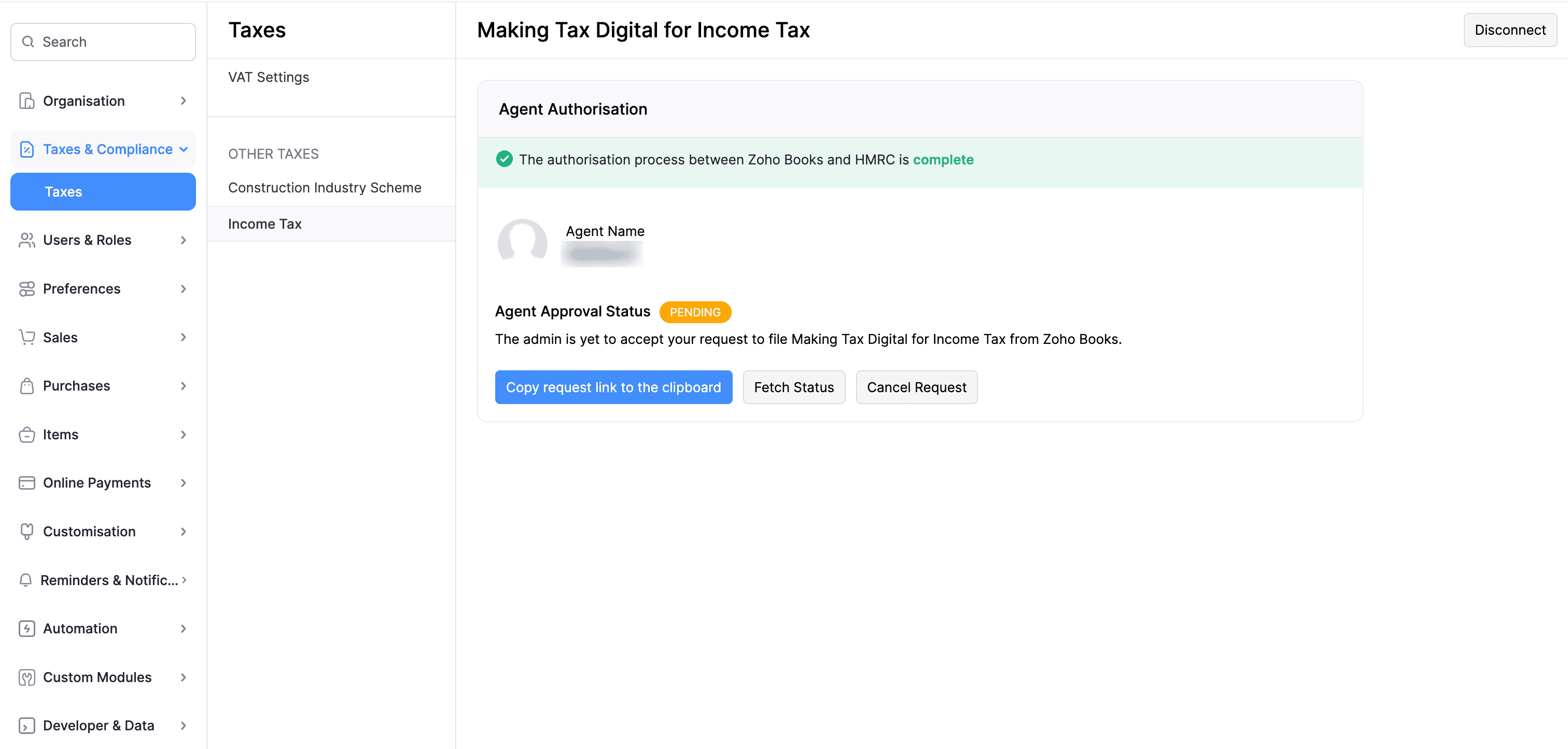
- In the Making Tax Digital for Income Tax page, the request for authorisation will appear with the Pending status. An email will be sent to your client’s Zoho Books organisation for approval. After approval, you can start submitting income tax submissions on their behalf. You can also perform the following actions:
- Copy request link to the clipboard: Click to copy the request link and send it manually to your admin.
- Fetch Status: Click to check if your admin has approved your request to submit income tax submissions. If approved, the request’s status will be changed to Accepted.
- Cancel Request: Click to cancel the approval sent to your admin. Once cancelled, the request’s status will be changed to Cancelled. To send the approval request to your admin, click Send Request.
- Once your client approves the request, select their Business Name registered with HMRC. Their business details will be displayed.
- Verify the details and click Save.
You can now fetch and submit income tax submissions to HMRC directly from your Zoho Books organisation.
Create a Role for MTD Income Tax
You can create a role to let users access MTD Income Tax features such as viewing and managing submissions, income tax settings, and agent invitation details. Based on your preferences, enable the permissions you want the role to have access to.
To create the role:
- Go to Settings.
- Select Roles under Users and Roles.
- Click New Role in the top right corner.
- On the New Role page, enter the Role Name.
- Under the MTD Income Tax section, select the permissions you need:
- Quarterly Updates: Check this to enable all of the following options. You can also check them individually based on your requirements:
- View and Generate Quarterly Updates: Allow users to view and create updates.
- Send Updates to HMRC: Allow users to send updates to HMRC.
- Export Quarterly Updates: Allow users to export updates.
- Settings: Check this to enable all of the following options. You can also check them individually based on your requirements:
- View Income Tax Settings: Let users view tax settings.
- Manage Income Tax Settings: Let users change tax settings.
- View Agent Invitation Details: Let users view agent invitation details.
- Manage Agent Invitation: Let users edit agent invitation details.
- Set other permissions for the role based on your requirements, and click Save.
You can now assign this role to any existing or new users in Zoho Books. These users will then have the necessary access. You can also edit existing roles and enable these permissions for them, if needed. Learn how to add or edit users with the necessary roles in Zoho Books.
Insight: All user changes and the time they occurred are recorded in the Activity Logs & Audit Trail report. To view it, go to Reports > Activity > Activity Logs & Audit Trail.
Generate End of Year Filings
At the end of the tax year, you can create and submit End of Year (EOY) filings to HMRC based on what applies to your business. The EOY filings supported in Zoho Books include Business Source Adjustable Summary (BSAS), Annual Submissions, Individual Losses, and Other Income Sources forms such as UK Dividends, UK Savings Account, and Employment Income.
To generate End of Year (EOY) filings in Zoho Books:
- Go to Filing & Compliance on the left sidebar and select Income Tax.
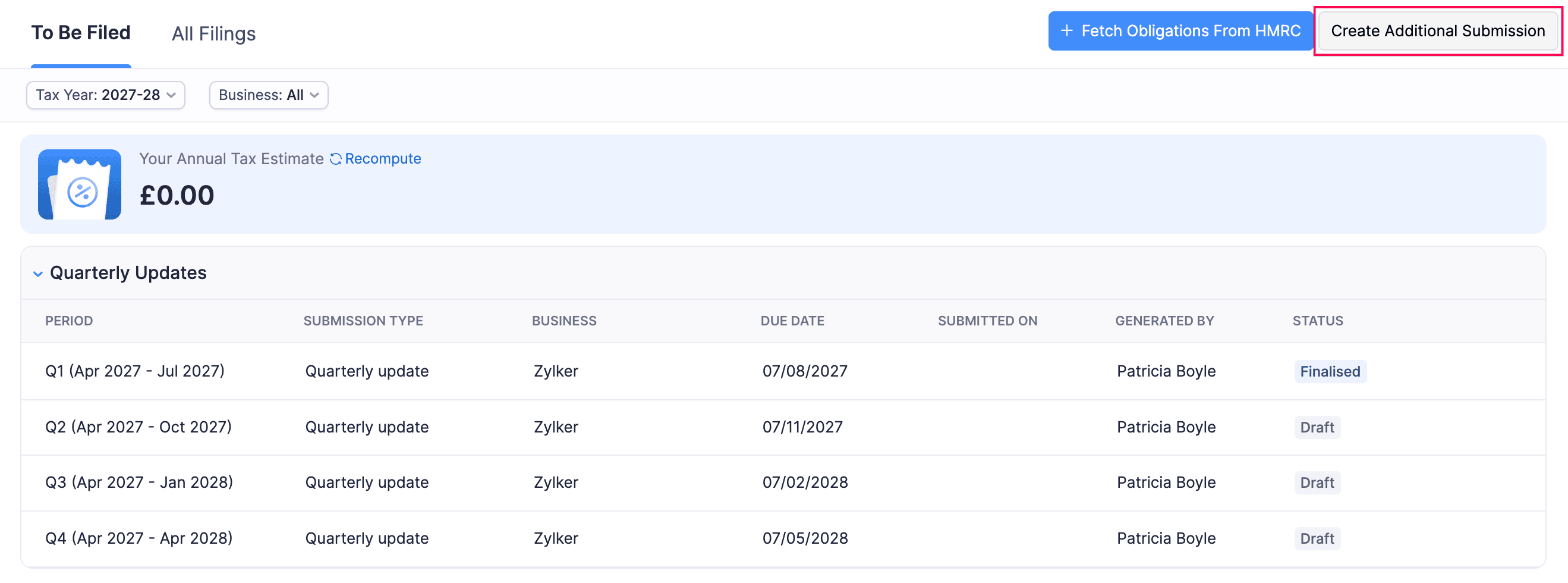
- Click Create Additional Submission in the top right.
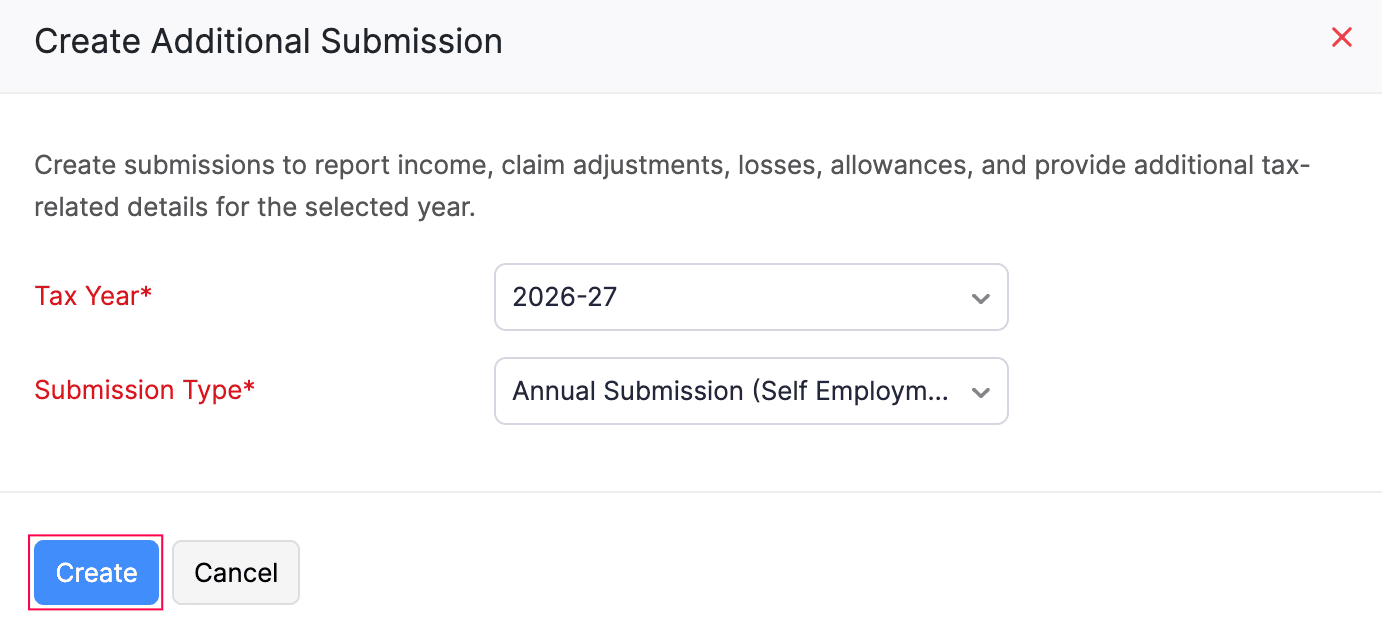
- In the Create Additional Submission pop-up, select the relevant Tax Year and the required Submission Type (such as Annual Submission, Business Source Adjustable Summary, or an Other Income Sources form), and then click Create.
The submission will be created in the Draft status and listed under the End of Year section of the To Be Filed tab. You can select the newly created form and enter the required details.
For more details on each submission type, refer to:
Reauthorise Connection With HMRC
Your Zoho Books organisation’s connection with HMRC is valid for up to 18 months. Once it expires, or if the authorisation token becomes invalid due to changes in your HMRC account, you must reauthorise the connection before you can continue using MTD for Income Tax.
To reauthorise your connection:
- Go to Settings.
- Select Taxes under Taxes & Compliance.
- In the Taxes pane, select Income Tax under Other Taxes.
- Depending on the reason for reauthorisation:
- If the 18-month validity has lapsed, a warning banner will be displayed. Click Do It Now > in the banner.
- If the token is invalid for other reasons, a Reauthorise button will appear near the Disconnect button. Click Reauthorise.
- You’ll be redirected to HMRC’s website. Enter your credentials and click Sign in.
Your connection will be refreshed, and you can continue submitting income tax submissions.
Disconnect Making Tax Digital for Income Tax
If you no longer want to submit income tax submissions to HMRC, you can disconnect Making Tax Digital for Income Tax. To do this:
- Go to Settings.
- Select Taxes under Taxes & Compliance.
- In the next page, select Income Tax in the Taxes pane.
- In the Income Tax page, click Disconnect in the top right corner.
- In the pop-up that appears, click Disconnect to confirm.
Making Tax Digital for Income Tax will be disconnected from your Zoho Books organisation.
 Yes
Yes