


Integrate Zoho Inventory with Zoho Cliq

Zoho Cliq is a chat application that helps you connect and collaborate with your team at your workplace. It helps you to keep your team in the loop about your business activities.
Benefits of integrating Zoho Inventory with Zoho Cliq
- You can collaborate with Zoho Cliq users from within Zoho Inventory using the quick chat bar; and
- Receive important Zoho Inventory notifications in your preferred Cliq channel.
To better understand how this integration will help you, let us look at a scenario of a company using Zoho Inventory for accounting and Zoho Cliq for internal communication.
Scenario: The Sales team in the company contacts customers regarding sales but they don’t have access to the Zoho Inventory account. As a result, they don’t know whether the customer has viewed the quote, has accepted it or rejected etc. However, by integrating Zoho Inventory with Zoho Cliq, the Sales team will be able to receive notifications in the Sales team’s Zoho Cliq channel whenever a customer:
- Views a quote
- Comments on a quote
- Accepts or rejects a quote
- Views an invoice
- Comments on an invoice, or
- Makes payments towards invoices.
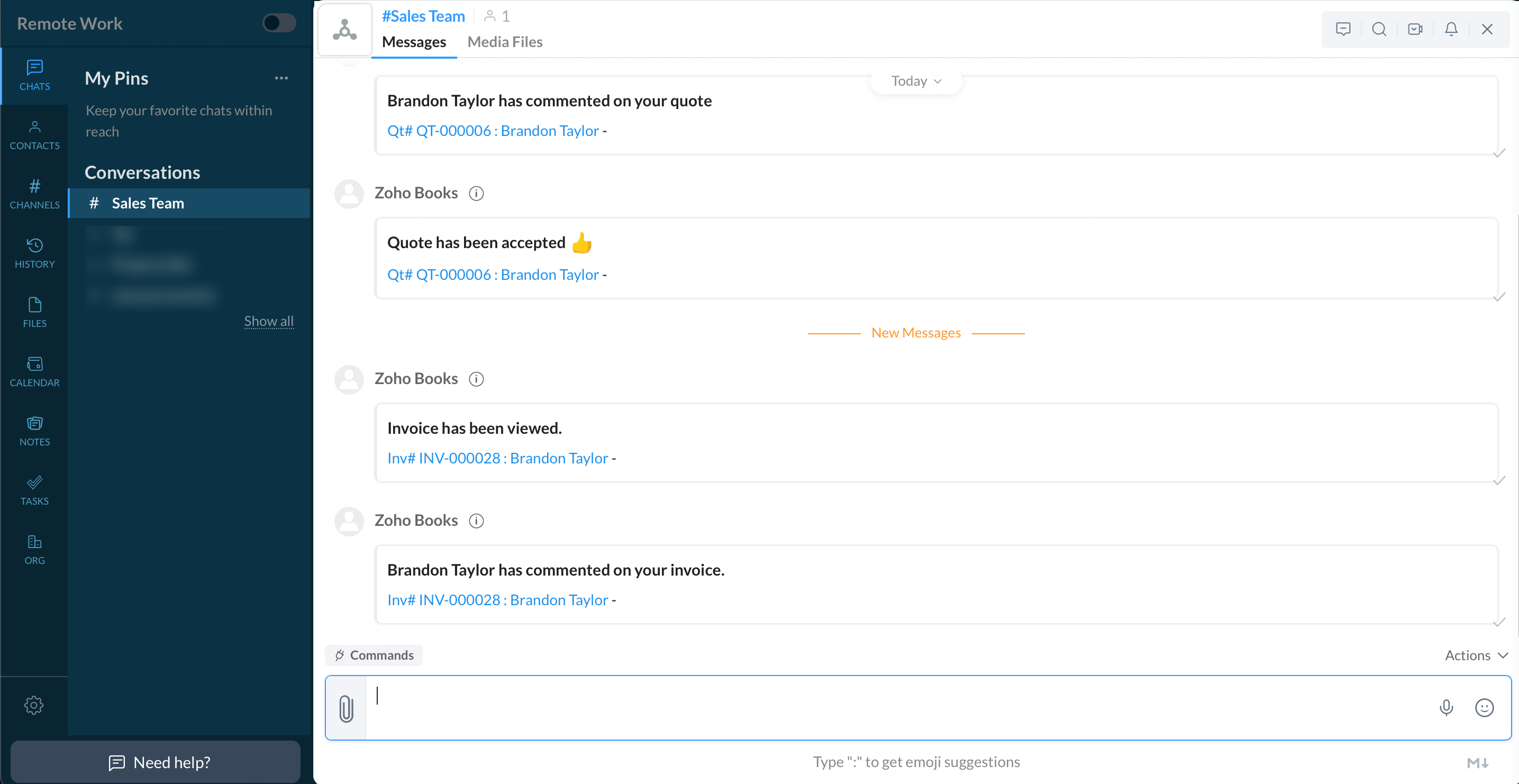
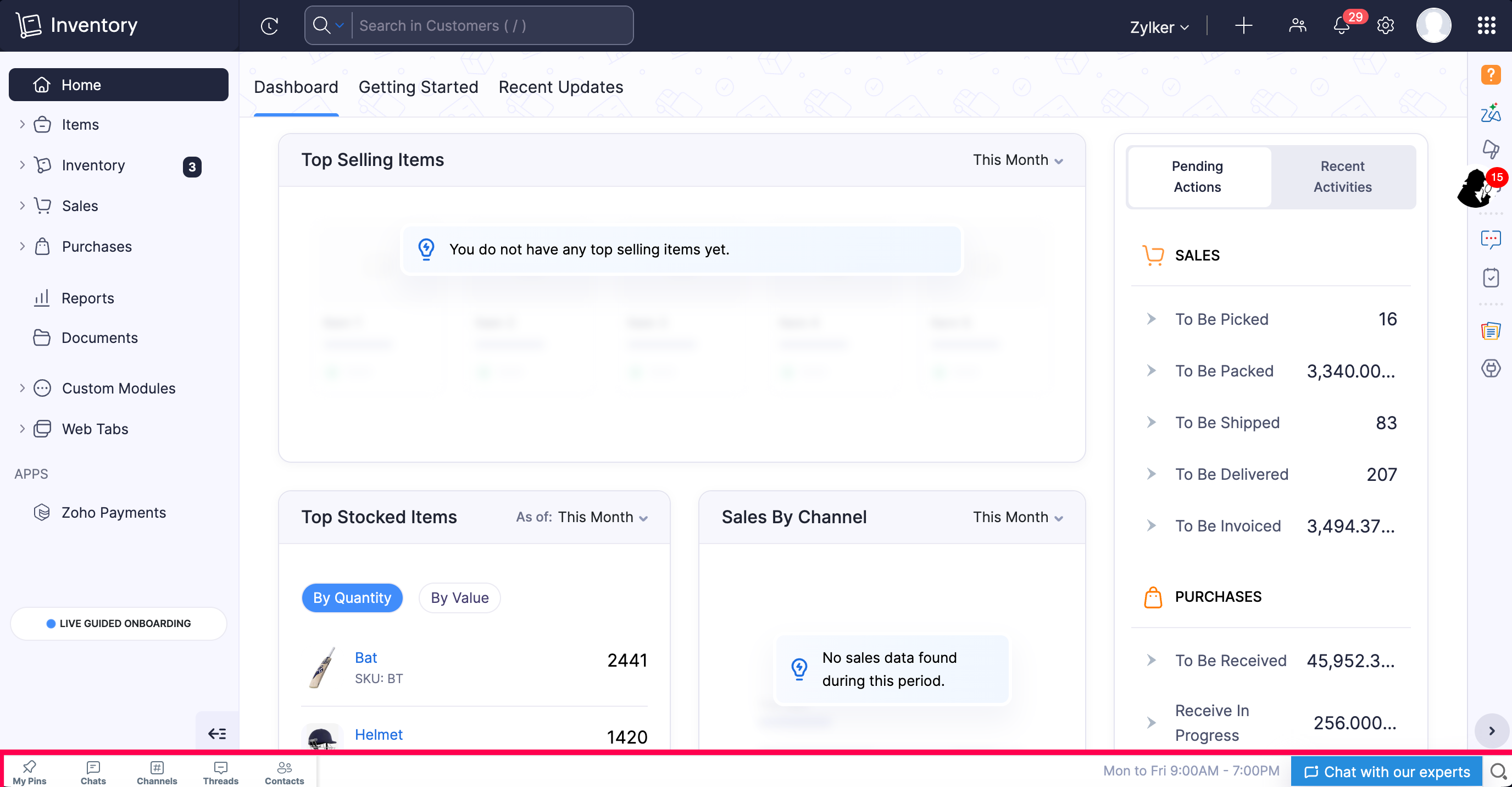
Similarly, the Finance team in a company will be using Zoho Inventory predominantly and they can collaborate with other Zoho Cliq users directly from Zoho Inventory using the Zoho Cliq chat bar.
Prerequisites:
- You must have an active Zoho Cliq account for which you have signed in using the same Zoho account that you’ve used to sign in to Zoho Inventory.
- An active channel in Zoho Cliq with the necessary team members who should receive the updates from Zoho Inventory.
Integrate Zoho Inventory with Zoho Cliq
Setting up the Zoho Inventory - Zoho Cliq integration is easy.
Log in to your Zoho Inventory account.
Go to Settings on the top right corner of the page.
Select Zoho Apps under Integrations.
On the Zoho Apps page, click Connect next to Zoho Cliq.
Enable the Zoho Cliq Chat Bar Within Zoho Inventory option to have the quick chat bar appear at the bottom of the page in Zoho Inventory.
Enable the Zoho Inventory Notification in Zoho Cliq option.
Select a channel to connect with Zoho Inventory. Notifications from Zoho Inventory will be posted in this channel.
Click Connect.
Once you finish integrating with Zoho Cliq, you will start receiving notifications from Zoho Inventory in your Cliq Channel based on your customers’ activity in the Customer Portal.
You will receive notifications in the selected channel every time a customer:
- Views a quote
- Comments on a quote
- Accepts or rejects a quote
- Views an invoice
- Comments on an invoice, or
- Makes payments towards invoices.
Disable Integration
When you don’t want Zoho Inventory to be integrated with Zoho Cliq anymore, you can disable the integration easily. You will have to disable the options in the integration to deactivate the integration.
Note: The messages in Zoho Cliq will continue to remain in Zoho Cliq even after you disable the integration.
To disable:
Go to Settings on the top-right corner of the page.
Select Zoho Apps under Integrations. Click the Zoho Apps tab and you will find listed under it.
On the Zoho Apps page, click Show Details next to Zoho Cliq.
Disable the Zoho Inventory Notifications in Zoho Cliq option.
Click Deactivate in the popup and you will no longer receive Zoho Inventory’ notifications in your Zoho Cliq channel.
Similarly, disable the Zoho Cliq Chat Bar Within Zoho Inventory option to remove the quick chat bar from the bottom of the page in Zoho Inventory.
Now, Zoho Inventory will be disabled from Zoho Cliq. You can enable it again when needed.