

Other Actions for Projects

Let’s have a look at the different actions available for projects.
Edit Project
You can edit a project to update its details at any time.
To edit a project:
- Go to Time Tracking in the left sidebar and select Projects.
- Select the project you want to edit.
- Click Edit at the top of the page.
- Make the necessary changes.
- Click Save.

Clone Project
Cloning a project creates a duplicate with the same details, saving you the time of setting it up from scratch.
To clone a project:
- Go to Time Tracking in the left sidebar and select Projects.
- Select the project you want to clone.
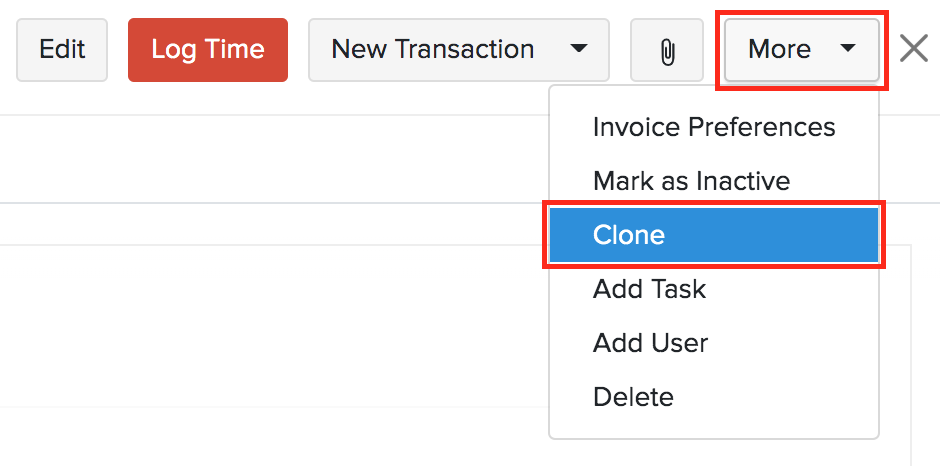
- Click More and select Clone.
- Review the details of the new project.
- Click Save.
Add Project Task or Service
You can add a task or a sellable service to a project after it has been created, without editing the project.
To add a project task or service:
- Go to Time Tracking in the left sidebar and select Projects.
- Select the project to which you want to add a task or service.
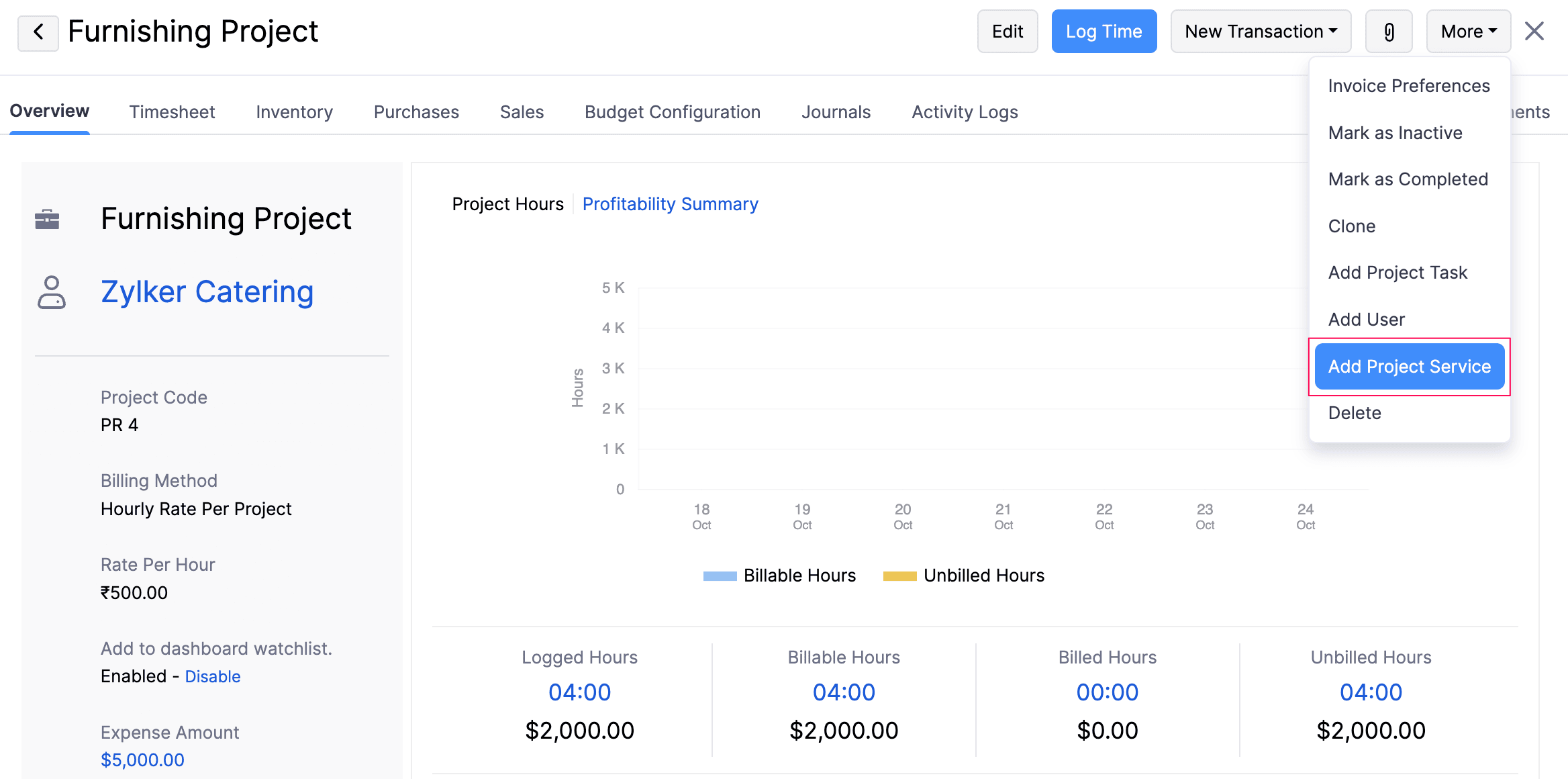
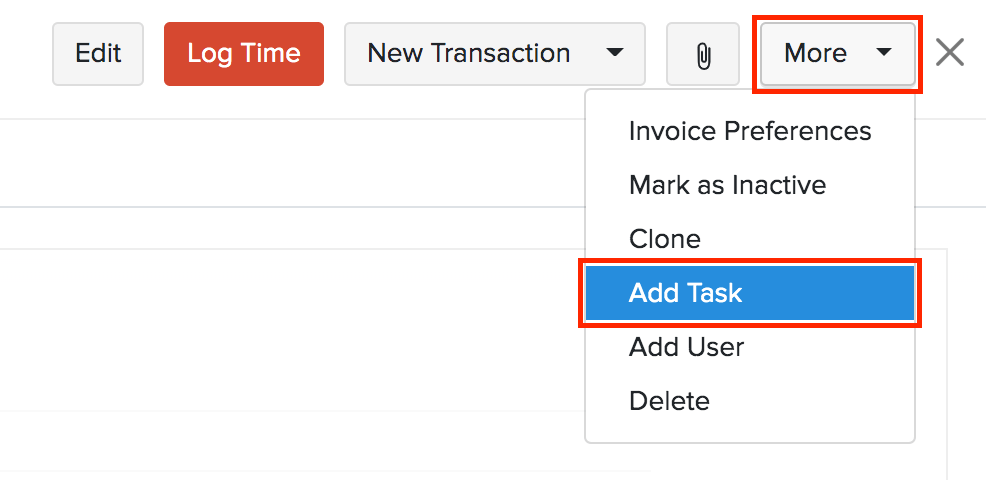
- Click More and select one of the following:
- Add Project Task to add a task.
- Add Project Service to add a sellable service.
- If you selected Add Project Task, enter the Task Name and Description.
- If you selected Add Project Service, select the Service from the dropdown and enter a Description, if required.
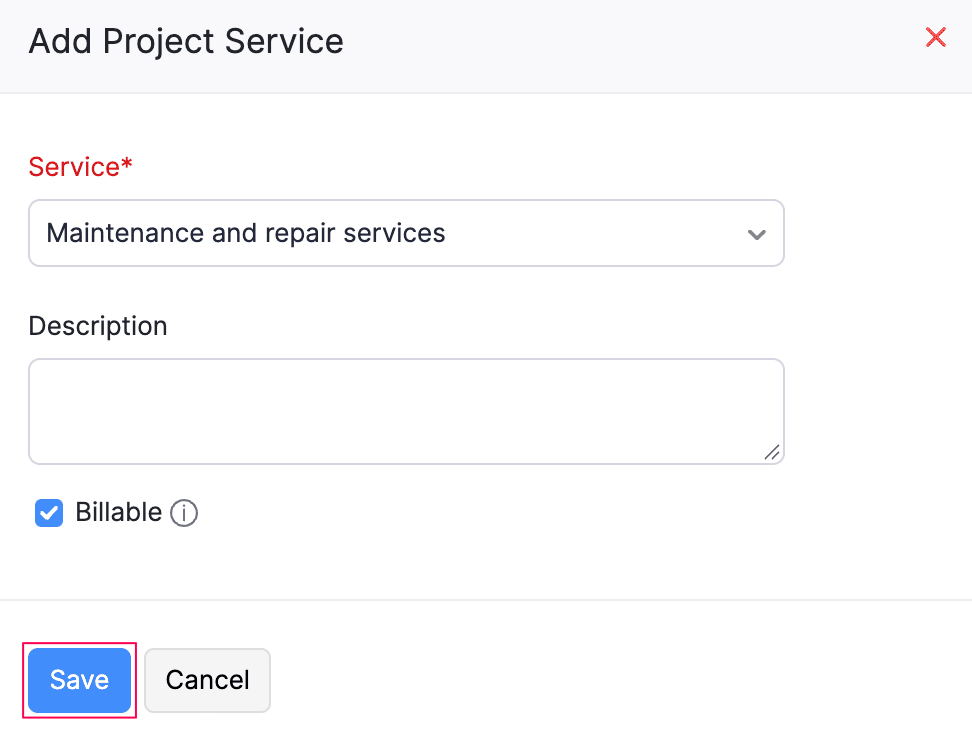
- Check the Billable checkbox if you want to charge your customer for the task or service.
- Click Save.
The task or service is added to the project.
Add User
You can add users to an existing project to give them access to log time and work on services and tasks.
To add a user to a project:
- Go to Time Tracking in the left sidebar and select Projects.
- Select the project to which you want to add a user.
- Click More and select Add User.
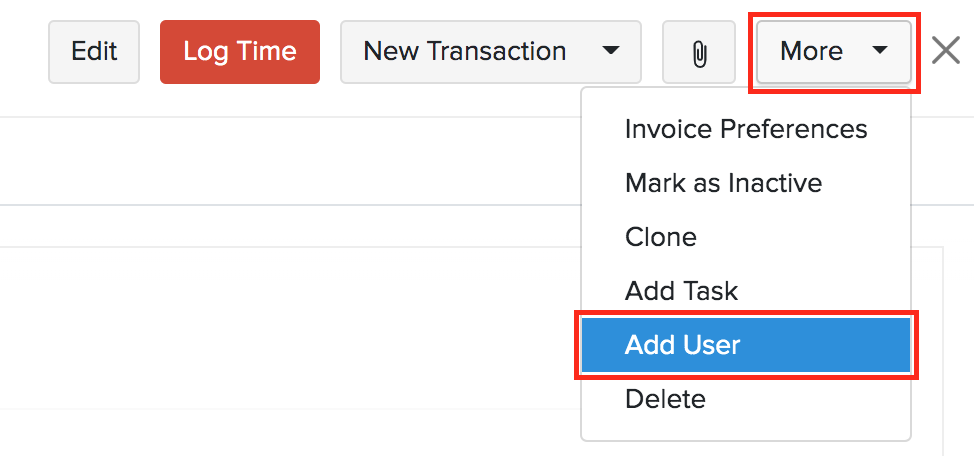
- Enter the user details in the pop-up.
- Click Add User.
Mark as Inactive
If you want to temporarily disable a project without deleting it, you can mark it as inactive.
To mark a project as inactive:
- Go to Time Tracking in the left sidebar and select Projects.
- Select the project you want to mark as inactive.
- Click More and select Mark as Inactive.
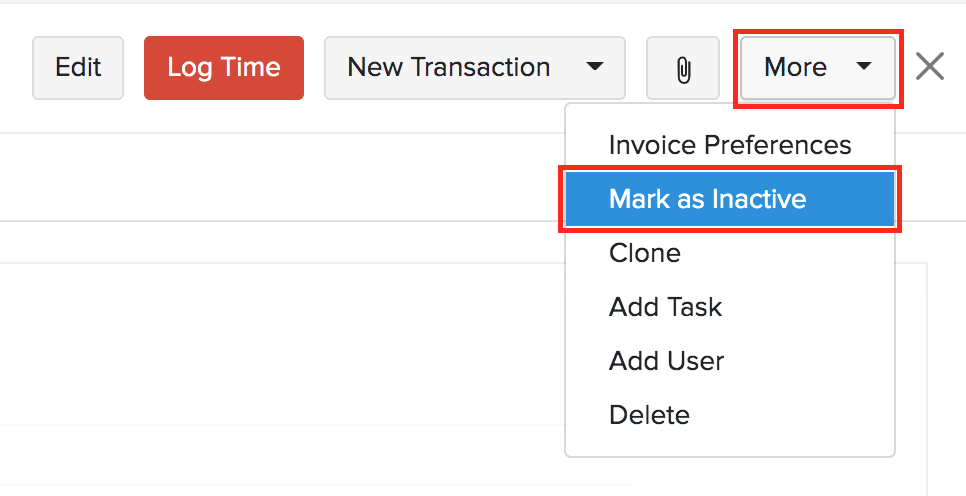
The project will be marked as inactive and will no longer appear in the active projects list.
To reactivate it:
- Go to Time Tracking in the left sidebar and select Projects.
- Select the inactive project.
- Click More and select Mark as Active.
Mark as Completed
When a project is finished, you can mark it as completed to differentiate it from the active projects you are currently working on.
To mark a project as completed:
- Go to Time Tracking in the left sidebar and select Projects.
- Select the project you want to mark as completed.
- Click More and select Mark as Completed.
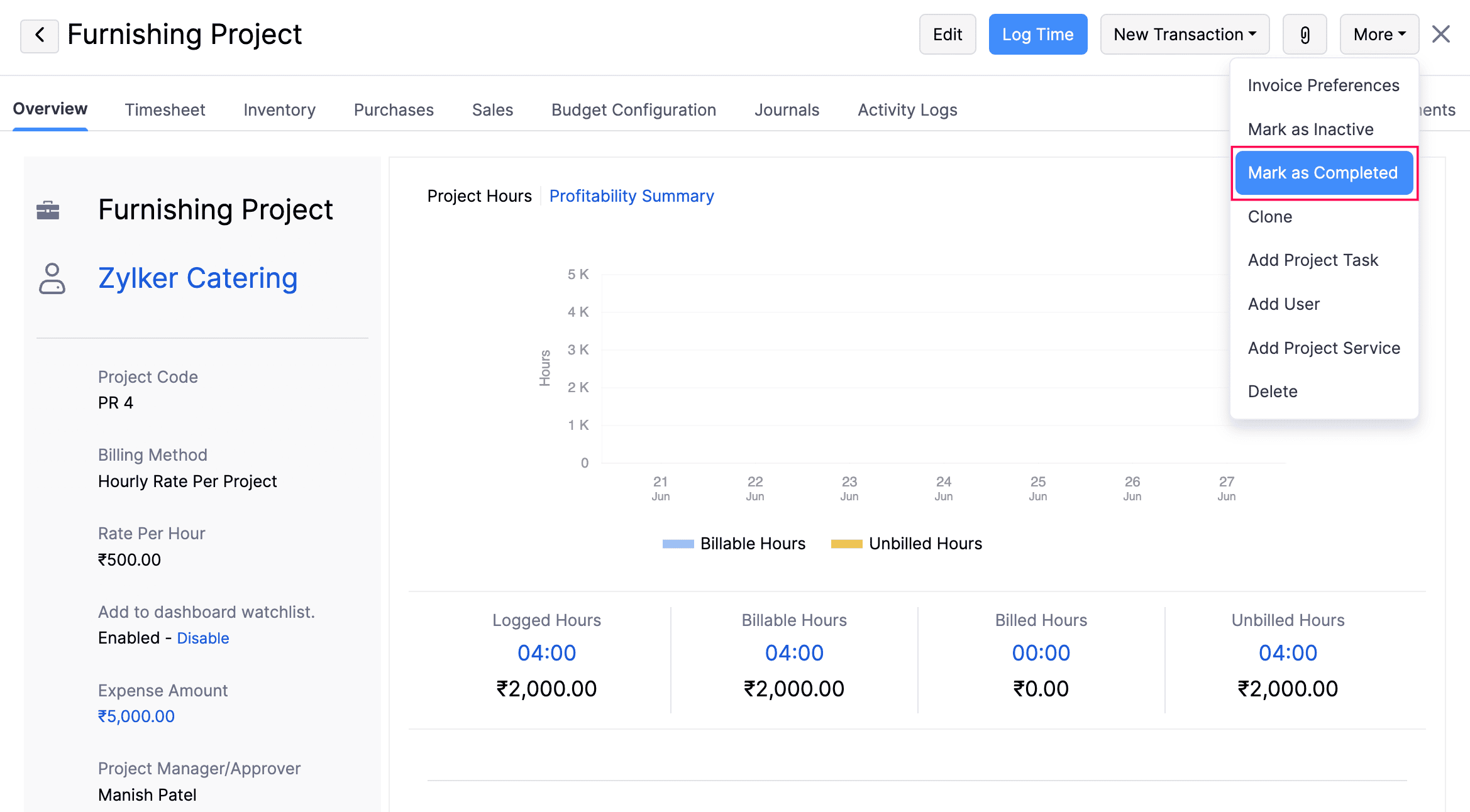
The project will be marked as completed and will no longer appear in the active projects list.
Delete Project
You can permanently delete a project that you no longer need.
To delete a project:
- Go to Time Tracking in the left sidebar and select Projects.
- Select the project you want to delete.
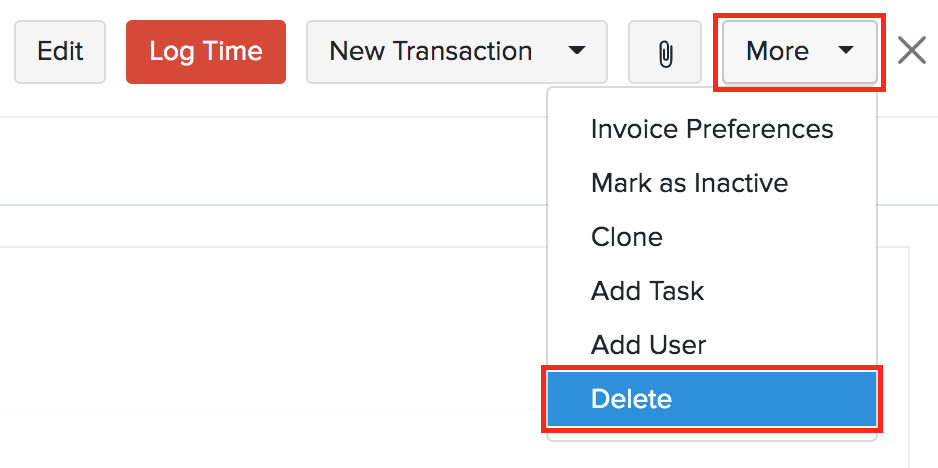
- Click More and select Delete.
- Click Proceed in the confirmation pop-up.
Bulk Update
Use Bulk Update to update a specific field across multiple projects at once.
To bulk update projects:
- Go to Time Tracking in the left sidebar and select Projects.
- Select the projects you want to update.
- Click Bulk Update at the top of the page.
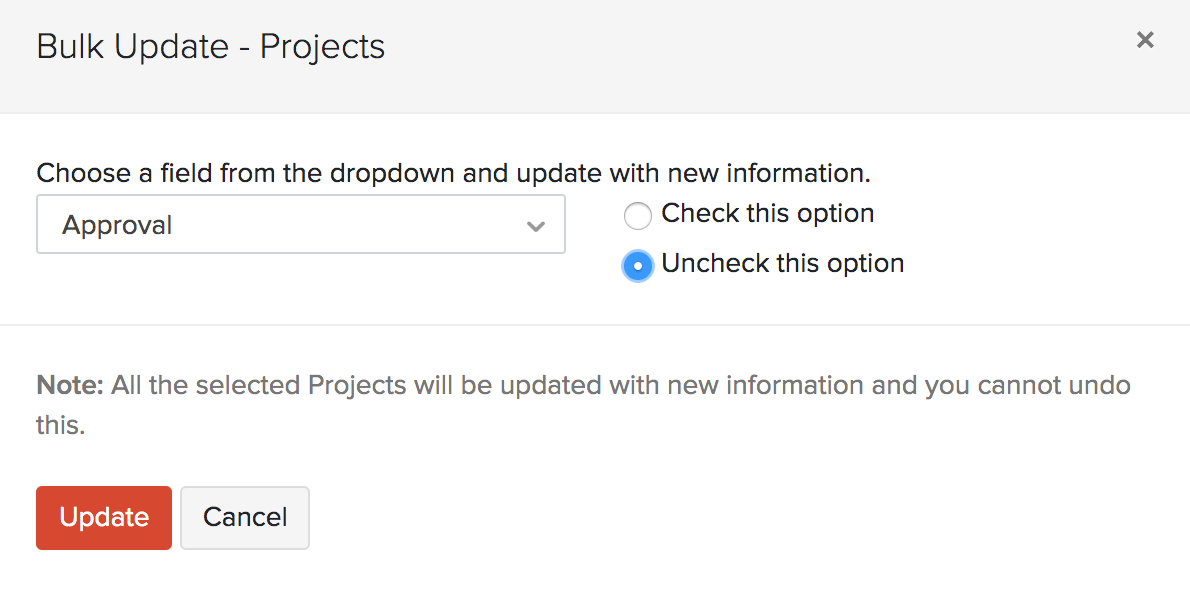
- Select the field you want to update and enter the new value.
- Click Update.
Bulk Actions
You can perform the following actions on multiple projects at once:
- Bulk Update
- Create Invoice
- Mark as Active
- Mark as Inactive
- Mark as Completed
- Delete
To perform a bulk action:
- Go to Time Tracking in the left sidebar and select Projects.
- Select the projects on which you want to perform the action.
- Click the desired action at the top of the page. To delete projects in bulk, click the More icon and select Delete.
Export Projects
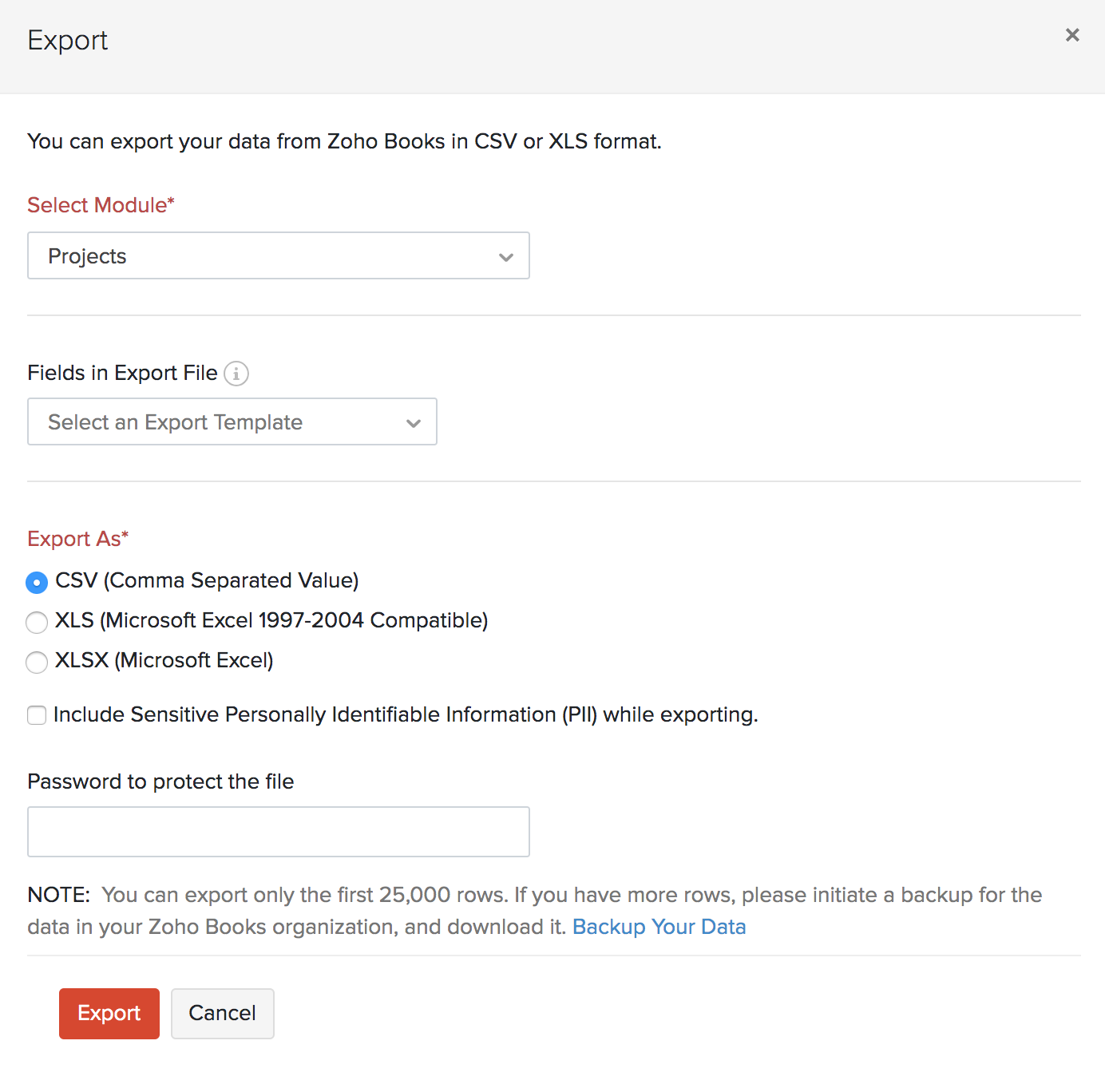
You can export your projects from Zoho Books in CSV, XLS, or XLSX format to save or share the data.
To export projects:
- Go to Time Tracking in the left sidebar and select Projects.
- Click the More icon in the top right corner and select Export.
- Select Export Projects.
- Fill in the following fields:
| Field | Description |
|---|---|
| Module | By default, Projects will be selected. |
| Export Template | Select an export template to export only specific fields. This is optional. |
| Decimal Format | Select the decimal format for numeric values in the export file. |
| Export File Format | Select the format of your export: CSV, XLS, or XLSX. |
| Include Sensitive Personally Identifiable Information (PII) while exporting | Check this checkbox if the export includes PII data. |
| File Protection Password | Enter a password to secure your export file. The password must be at least 12 characters and include one uppercase letter, lowercase letter, number, and special character. |
- Click Export.
Next >
Projects Preferences
Related
 Yes
Yes