


Avalara AvaTax Integration

Avalara is a tax service that helps you calculate the right sales tax for each transaction. It uses your customer’s location, what you’re selling, and the latest tax rules to determine the correct rates. This means you do not have to check tax rates manually or track changes yourself.
If your business sells in multiple states or regions, tax rates can vary often. Managing this manually takes time and increases the chance of errors. When you connect Avalara with Zoho Inventory, it automatically applies the correct tax rates and exemptions for each sale, helping you stay compliant with tax laws effortlessly.
How Avalara Works
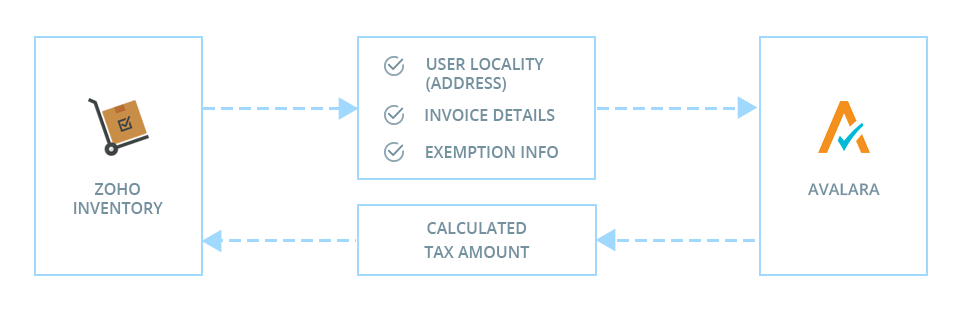
- First, connect Avalara to your Zoho Inventory organization by entering the required credentials.
- When you add or edit an item, choose the correct tax code from the list.
- When you add or update a customer, make sure you enter a valid address to ensure correct tax calculations. If the customer is tax-exempt, add their exemption number or select the appropriate entity code.
- When you create sales transactions and add items, Avalara automatically checks whether each item is taxable, verifies the customer’s tax status, and applies the correct tax rate based on the customer’s address.
- In the Tax Details section, you can review the tax rates Avalara applied and update them manually for individual items or the whole transaction.
Set Up Avalara in Zoho Inventory
Prerequisite:
- Keep your Avalara account number, license key, and company code ready before setting up the integration.
- If you do not have an Avalara account yet, set up your Avalara AvaTax account.
- Avalara cannot be enabled if the Sales Receipts module is enabled in Zoho Inventory, because it requires tax to be calculated before the transaction is completed.
To set up Avalara in Zoho Inventory:
Log in to your Zoho Inventory organization.
Go to the Settings gear icon.
Select Taxes.
In the Taxes pane, click Use Avalara Integration in the top right corner.
In the Integrate with Avalara pop-up, complete the following details:
- Account Number: Enter your Avalara account number.
- License Key: Enter your Avalara license key. This key is unique to your account and is required for integration.
- Company Code: Enter the company code provided by Avalara. This code links the correct company in your Avalara account to this integration.
Select the correct mode of connection.
Check I understand how the Avalara integration works.
Click Integrate.
Insight: When you set up the integration, Zoho Inventory shares your address, country, and account details securely with Avalara. AvaTax is Avalara’s cloud service that automatically calculates sales tax for every transaction. It checks where your customer is, what you are selling, and the latest tax rules to give you the correct tax amount.
Select a Customer Address to Apply Taxes
For accurate tax calculations, Avalara needs to know which customer address to use when applying tax rates. By default, Zoho Inventory uses the customer’s billing address, but you can change this based on your business needs. To choose a different address:
- Go to Settings in the top right corner.
- Select Taxes.
- In the Taxes pane, select Avalara.
- Under Configure Integration, click Change next to Applicable For and choose one of the following:
- Use Billing Address: Selected by default. Applies taxes based on the customer’s billing address.
- Use Shipping Address: Applies taxes based on the customer’s shipping address.
- Click Save.
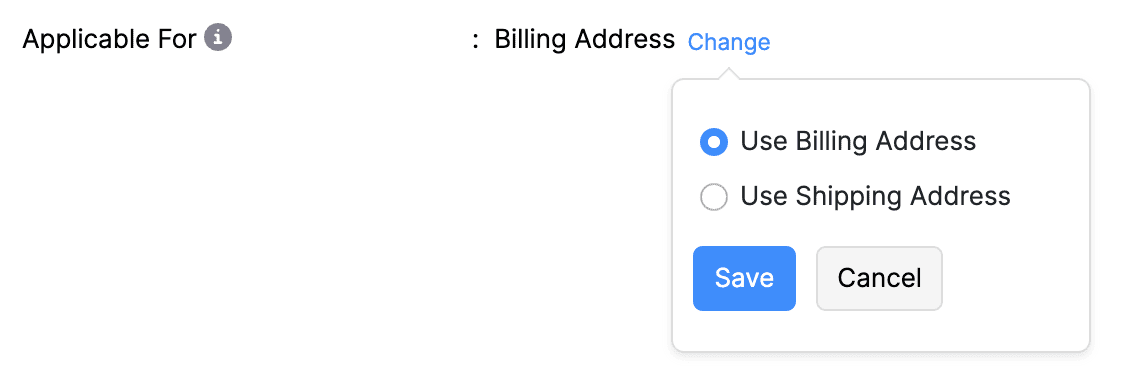
The selected address will now be used to fetch accurate taxes for transactions through Avalara.
Apply Discounts in Transactions
When you integrate Zoho Inventory with Avalara for automatic tax calculation, it is important to handle discounts carefully because they directly affect how tax is calculated. Discounts can reduce the taxable amount, and Avalara needs to know how these discounts apply to ensure accurate tax rates. Zoho Inventory lets you apply discounts in different ways:
- At Line Item Level: The discount is applied directly to individual line items.
- At Transaction Level: The discount is applied proportionately across all items in the transaction.
- At Transaction Level with Item Selection: If you enable the discount preference at the line item level, a new Apply Discount column appears in the item table of your transactions. You can then choose which line items to apply the transaction-level discount to.
This flexibility ensures that tax is calculated correctly based on how discounts are applied within each transaction.
Note: If you choose At the Line Item Level, item rates cannot be tax-inclusive. The discount, amount, subtotal, and total are recalculated by Avalara after you save the transaction.
Automate Tax Calculation with Avalara
Enter a Tax Code for an Item
After integrating Avalara with Zoho Inventory, enter a tax code for each item to tell Avalara how to tax it in different locations. Avalara then automatically checks whether the item is taxable and applies the correct tax rate in your transactions. To enter a tax code:
- Go to Items on the left sidebar.
- Click + New in the top right corner. To edit an existing item, select it and click the edit icon.
- In the item details page, enter the Tax Code and add the required details.
- Click Save.
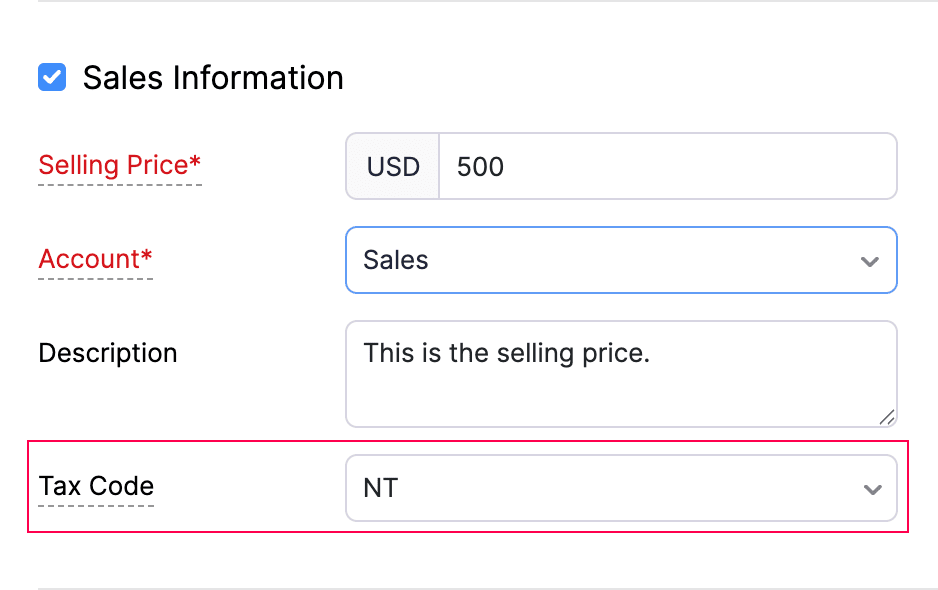
Once you enter a tax code for an item, Zoho Inventory will apply taxes based on that tax code in any transaction that includes the item. Later, when creating new items, you can select the same tax code from the dropdown if you want to use it again.
Configure Avalara Details for a Customer (If Applicable)
Avalara automatically calculates tax based on the customer’s address. For tax-exempt customers, you can assign an entity/use code and exemption number. You can also enter a customer code to identify the corresponding customer record in Avalara. Here’s how:
- Go to Contacts on the left sidebar.
- Click + New to add a new customer. To edit an existing one, select the customer and click Edit.
- In the customer details page, go to the Tax and Payment Details tab and complete the following fields:
- Customer Code: Enter the customer code from Avalara if you want to match this customer with an existing customer record in your Avalara account.
- Entity/Use Code: Choose the correct entity/use code if the customer is tax-exempt.
- Exemption Number: If the customer has a government-issued tax exemption certificate, enter the exemption number to make them tax-exempt.
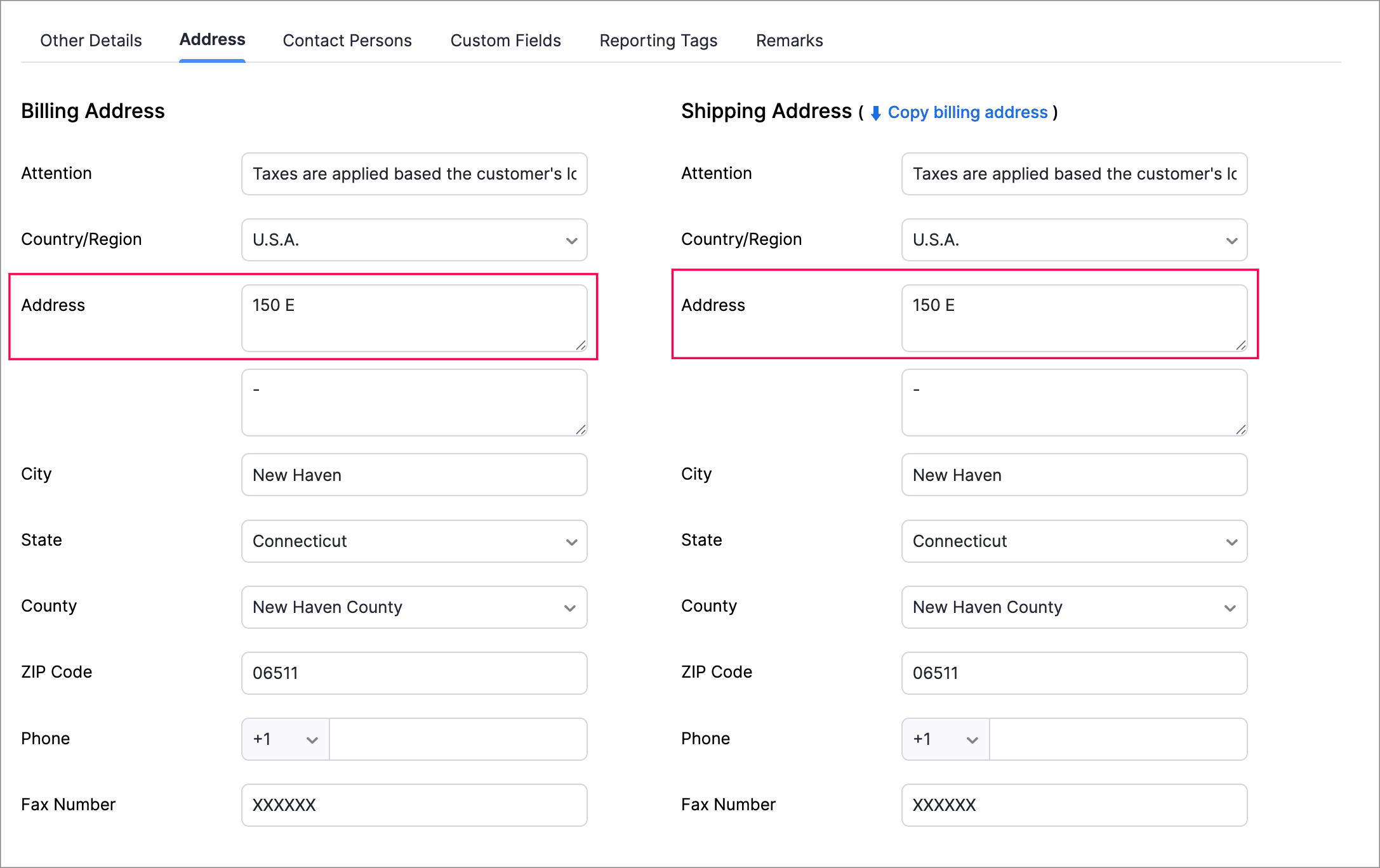
- Click the Address tab and enter a valid billing and shipping address. Avalara verifies the addresses using geolocation technology to ensure accurate tax rates.
Insight: Ensure that you enter the customer’s complete address in the first address line. Avalara uses information only from the first address field to calculate sales tax. If the full address is not entered, or if a part of it is entered in the second line, the sales tax in a transaction may not be applied based on the correct location.
- If the address is not verified, you will see Not verified below the address. In this case, tax rates will be fetched using the ZIP code, but accuracy may be affected.
- To verify the address, click Verify Address next to the Address field. Avalara then checks the address, corrects errors, and formats it according to postal standards.
Modify the Entity/Use Code in a Transaction
You can modify an item’s tax status or a customer’s tax exemption code directly within a transaction for exceptions like:
- A normally taxable customer needing tax exemption for a specific transaction.
- A different shipping address affecting tax rates.
To modify the entity/use code in a transaction:
- Go to Sales on the left sidebar and select the transaction you want to create for the customer.
- Click + New to create a new transaction.
- In the new transaction page, choose the customer from the Customer Name dropdown.
- In the Entity/Use Code field, click the edit icon to update the code.
The entity/use code you updated will now be applied to the customer for that specific transaction.
Add Shipping Charges as a Line Item in a Transaction
Adding shipping charges as a line item ensures they are included in tax calculations where applicable. If Zoho Inventory is integrated with Avalara, it determines whether shipping is taxable based on the customer’s location. To add shipping charges as a line item in a transaction:
- Go to Sales on the left sidebar and select the transaction you want to create.
- Click + New in the top right corner.
- Enter the required details.
- In the item table, select the items for the transaction.
- Click + Add New Row and enter Shipping Charges as the item name. In the Tax Code column, enter the relevant tax code for the item.
- Click Save.

The shipping charges item will now be automatically applied based on the selected tax code.
Alternatively, you can create shipping charges as an item and then add it to the transaction:
- Go to Items on the left sidebar.
- Click + New in the top right corner.
- Under Sales Information, choose the account as Shipping Charge and fill in the other details.
- Click Save.
Now, you can add shipping charges to any transaction by selecting it from the item table.
Update Your Avalara Credentials
If your Avalara credentials expire, change, or you need to switch the connection mode while keeping the integration active, you will need to update your credentials in Zoho Inventory. To update your credentials:
- Go to Settings in the top right corner.
- Select Taxes.
- In the Taxes pane on the right, select Avalara.
- Click Update Credentials in the top right corner.
- Update the required details and click Save.
Your Avalara credentials will now be updated.
Disable the Integration
You can disable the Avalara integration at three levels:
- Disable Tax Calculation: Taxes will not be calculated on any new transaction created after this option is disabled.
- Disable Address Verification: Avalara will no longer verify customer addresses to ensure accurate tax rates.
- Disable Avalara Integration: The integration with Avalara will be completely disabled, and you can go back to using sales tax rates set up manually in Zoho Inventory.
Disable Tax Calculation
To disable tax calculation for Avalara:
- Go to Settings in the top right corner.
- Select Taxes.
- In the Taxes pane on the right, select Avalara.
- Under Configure Integration, disable the Tax Calculation toggle.
Taxes will no longer be calculated on new transactions created after this change.
Disable Address Verification
To disable address verification:
- Go to Settings in the top right corner.
- Select Taxes.
- In the Taxes pane on the right, select Avalara.
- Under Configure Integration, disable the Address Verification toggle.
Avalara will no longer verify your customers’ addresses.
Disable the Entire Integration
To disable the entire integration:
- Go to Settings in the top right corner.
- Select Taxes.
- In the Taxes pane on the right, select Avalara.
- Click Disable Avalara Integration in the top right corner.
- In the pop-up that follows, click Yes to confirm.
The integration will be completely disabled, and you will revert to using the sales tax rates configured manually in Zoho Inventory.