Customizing Geo Maps
Customize how your Geo Map looks and behaves from the Settings panel. You can change the base map, choose which countries the map shows, style markers and clusters, add data labels, set up the legend, and decide what Zia Insights analyzes.
To open the settings:
- Open the Geo Map in edit mode.
- Click the Settings icon (gear) at the top-right corner of the report. The Settings panel opens on the right.
- Make your changes. They show on the map right away.
Click Save to keep them.
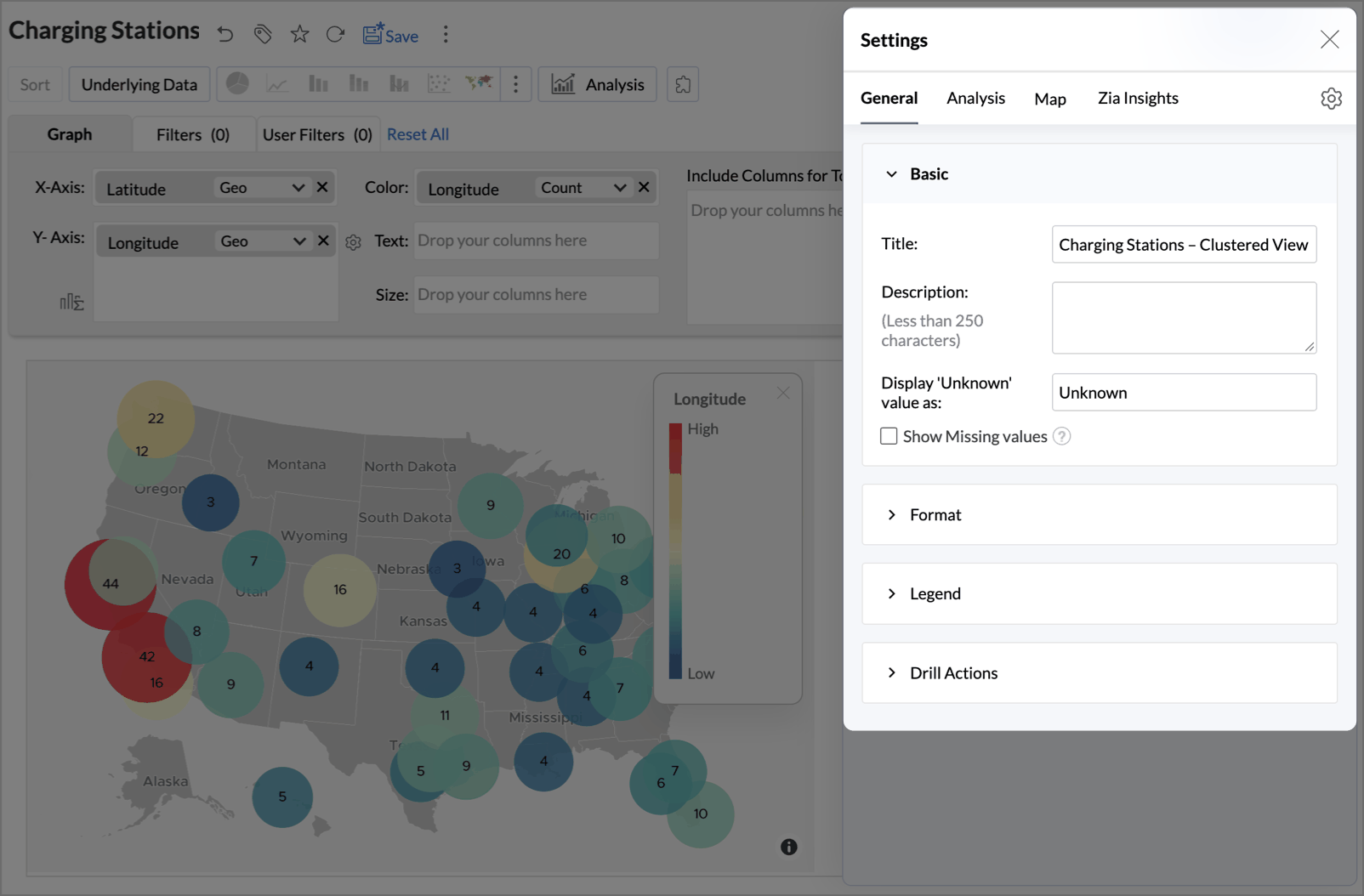
The Settings panel has four tabs. Most map-specific options are in the Map tab, so this page covers it first.
| Tab | Use it to |
|---|---|
| Map | Change the base map, projection, country view, markers, clusters, and data labels |
| General | Edit the title and description, column formats, legend, and drill options |
| Analysis | Add analysis such as trend lines or outliers, where supported |
| Zia Insights | Choose what Zia analyzes when it generates insights |
Note: The available options depend on the map type.
Map tab
The Map tab has four sections: Map Styles sets the background, Map Controls sets the area and labels the map shows, Markers styles the data on the map, and Data Label adds values to it.
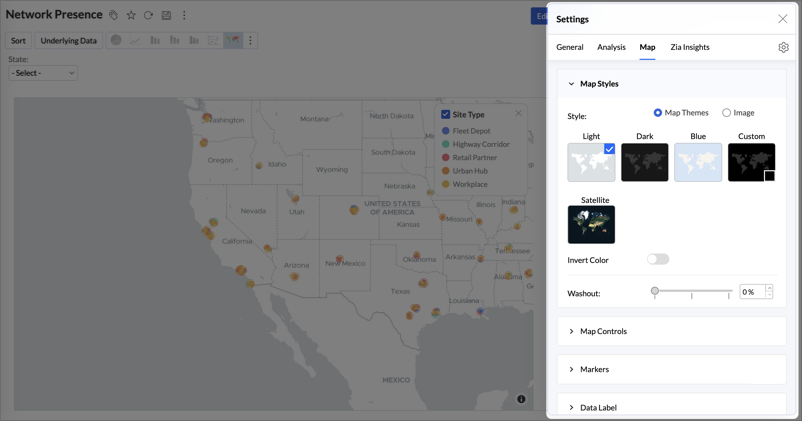
Map Styles
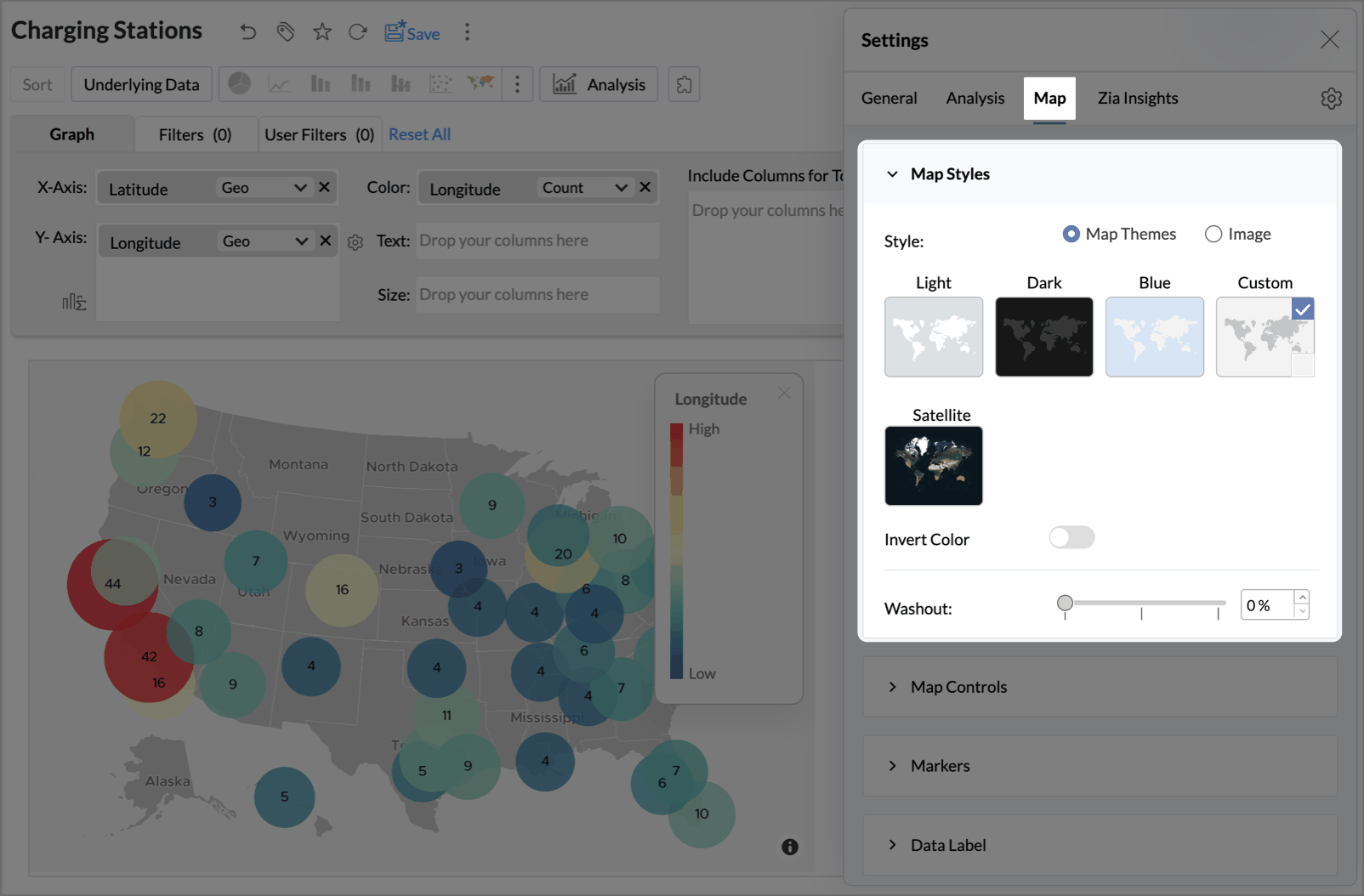
Use the Style option to choose the map's background. Select Map Themes for a built-in base map, or Image to plot data over your own image. The default is Map Themes.
Map Themes
| Theme | Appearance |
|---|---|
| Light | Light gray water and white land |
| Dark | Dark gray water and lighter land |
| Blue | Light blue water and white land |
| Custom | Any custom colour can be picked for the map. |
| Satellite | Satellite imagery |
Other theme customization options available are
- Invert Color: Turn on this toggle to swap the water and land colors. Not available for Satellite.
- Washout: Fades the base map so the points and layers on top stand out more clearly. The default is 0 %.
Image
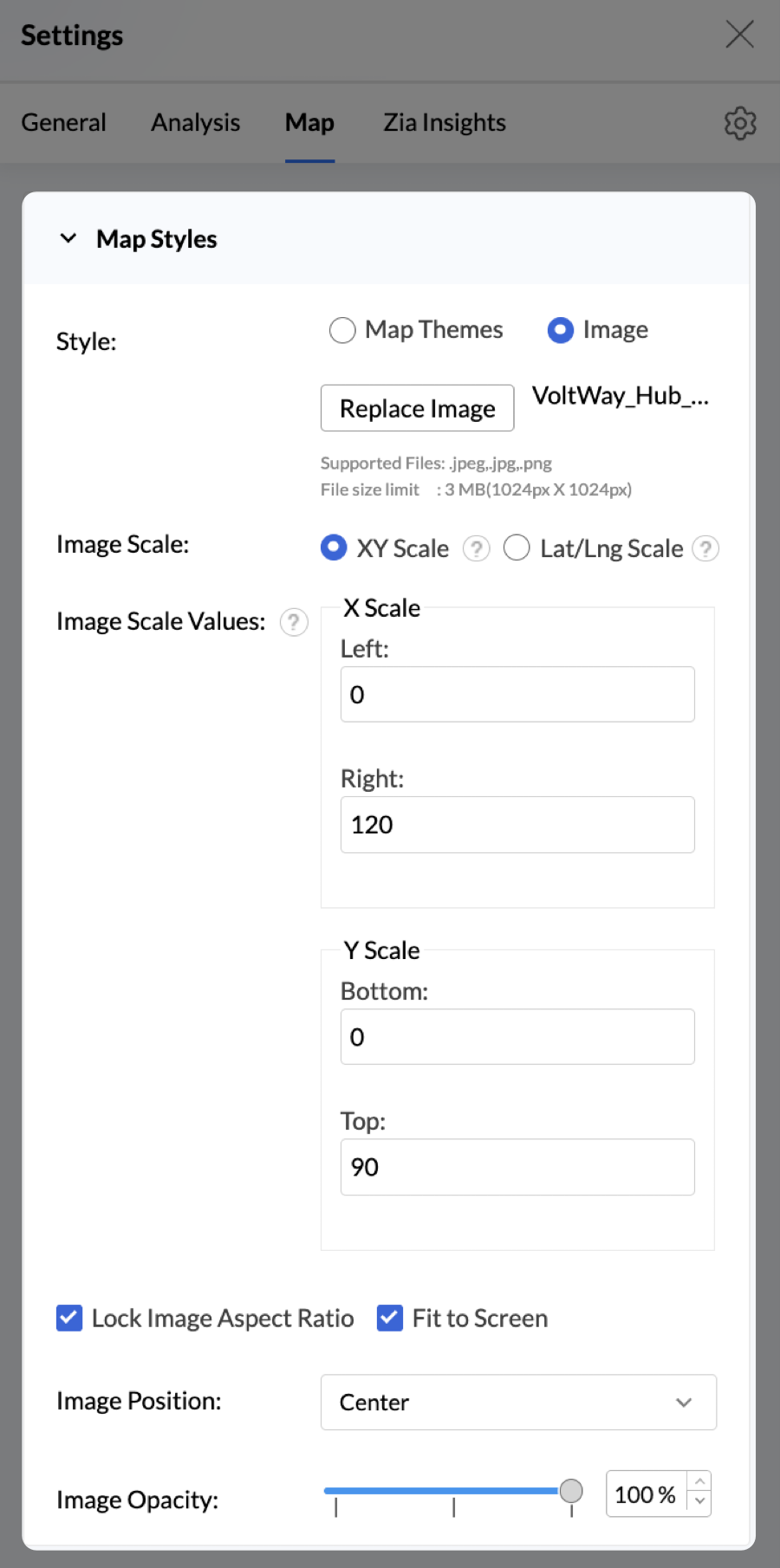
Plot coordinates or geo locations over your own image, such as a floor plan or a sports field. For a complete example, see Maps with an image background in Creating Geo Maps.
Before you switch to an image, make sure the columns in the X-Axis and Y-Axis shelves are geo columns. If they aren't, click the function drop-down on each column and select Geo > Longitude for X and Geo > Latitude for Y.
- Replace Image: Upload or select the background image.
- Image Scale: Choose XY Scale for image coordinates or Lat/Lng Scale for geo locations, so the points line up with the image.
- Image Scale Values: Set the boundaries of the plot area. Points outside these boundaries aren't plotted.
- Lock Aspect Ratio: Keeps the image's original proportions. When off, the image may stretch as the chart size changes.
- Fit to Screen: Expands the image to fill the chart area. Use it with Lock Aspect Ratio to scale the image evenly.
- Image Position: Sets where the image sits in the chart area. Choose a position from the drop-down.
- Image Opacity: Sets how see-through the image is, so both the image and your data stay visible.
Map Controls
Use Map Controls to choose the projection and the area the map shows, and to control map labels, layers, and the background.
Projections
A projection decides how the map is drawn. Choose one based on where your data is.
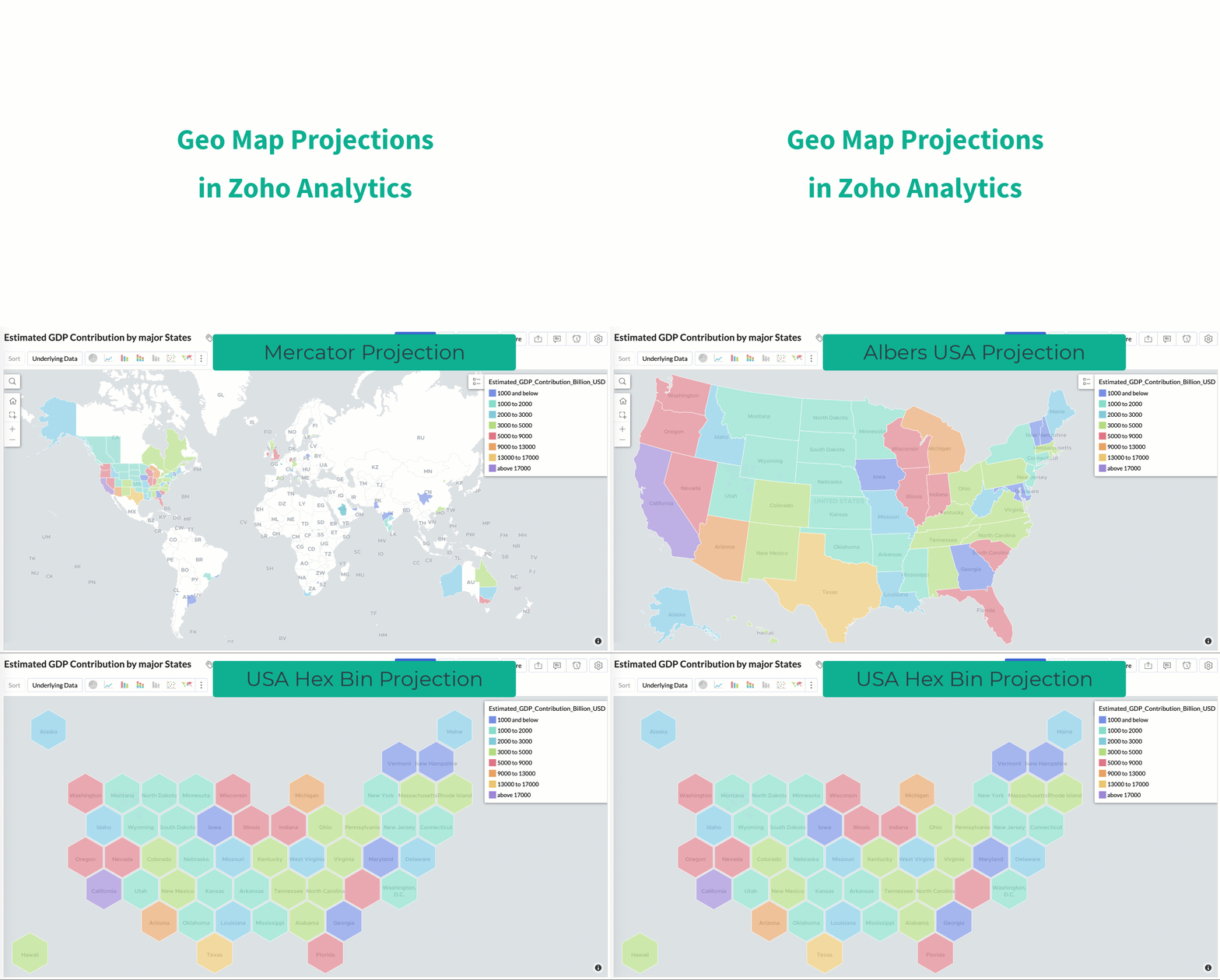
- Mercator Projection - This is a conformal cylindrical projection that is widely used and is the default projection used while creating a map view in Zoho Analytics. By default, the world (all the countries) map will be displayed. You can choose a specific country map to be on display.
Albers USA Projection - This projection could be the ideal choice for visualizing US-centric data, as it shows Alaska and Hawaii in close proximity to the other states.
Note: If the data has values of other countries, using Albers USA Projection will display only the US data and ignore the other countries' data. Not Available for Map - Hexbin.
USA Hex Bin Projection - This projection represents each U.S. state as equally sized hexagons arranged in a structured grid, regardless of their actual geographic size. It helps eliminate visual size bias and enables clearer, more accurate comparison of data values across all states.
Note:
This works similar to the Albers USA projection and supports only State-level visualization; city or county-level mapping is not supported, and non-US locations will be automatically filtered. Only State labels will be displayed in this projection. Not Available for Map - Hexbin.
Display a specific country or state map
- Select the Display Specific Country Map check box.
- From the drop-down next to it, select a projection.
- In the Countries field, select All Countries to show the world map, or select the countries you want.
In the State field, select All States or the states you want. The list shows states from the countries you selected.
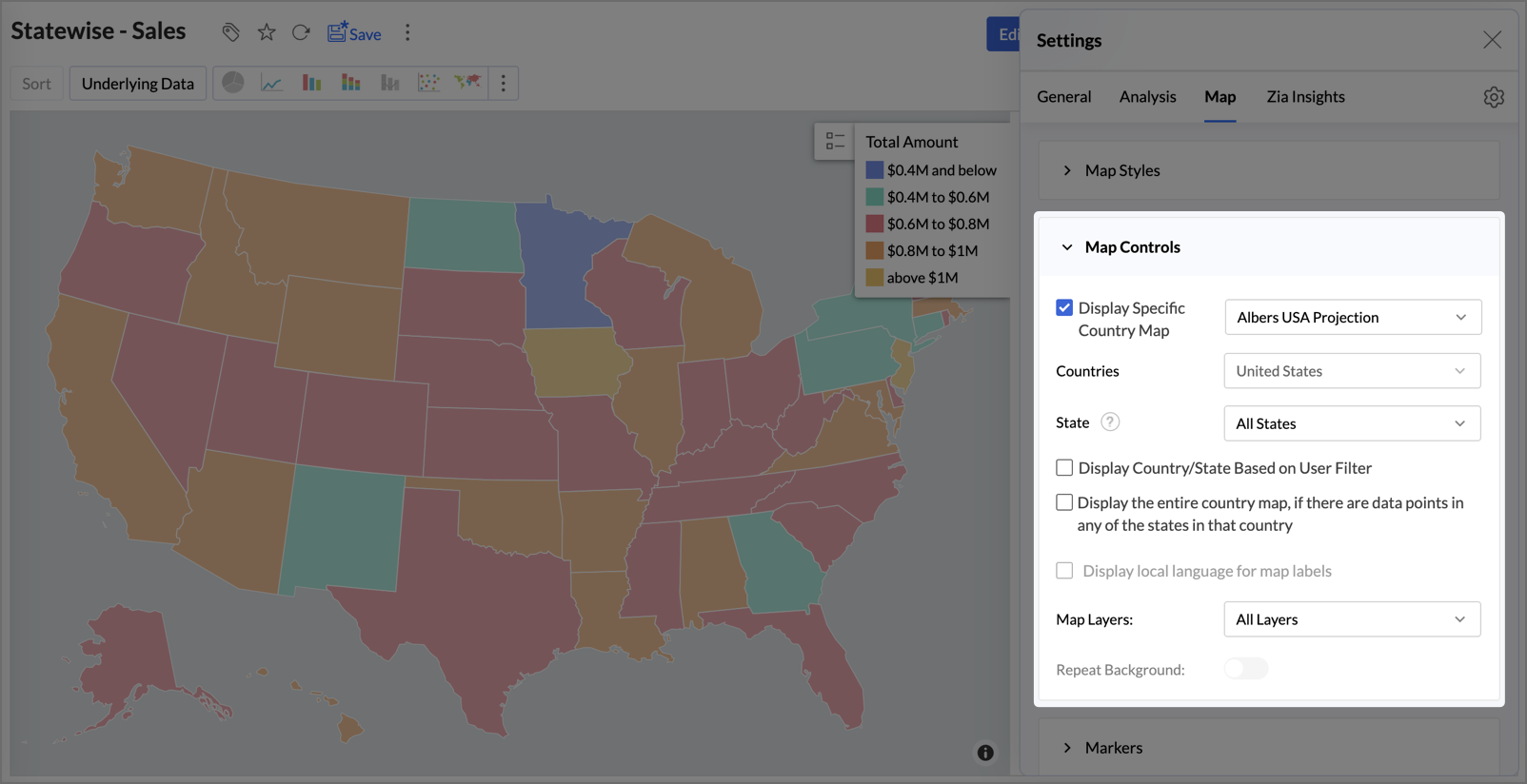
Two more options control which areas appear:
- Display Country/State Based on User Filter: In view mode, shows only the countries or states selected in a user filter. The filter column is matched to the countries the map supports. Available only when Display Specific Country Map is on.
- Display the entire country map, if there are data points in any of the states in that country: Shows the full country whenever any of its states has data.
Map labels, layers, and background
Display local language for map labels: Enable the Display local language for map labels checkbox to render map labels including country, state, city, and continent names, in the native language of each geographic entity. When disabled, all map labels display in English, which is the default behavior.
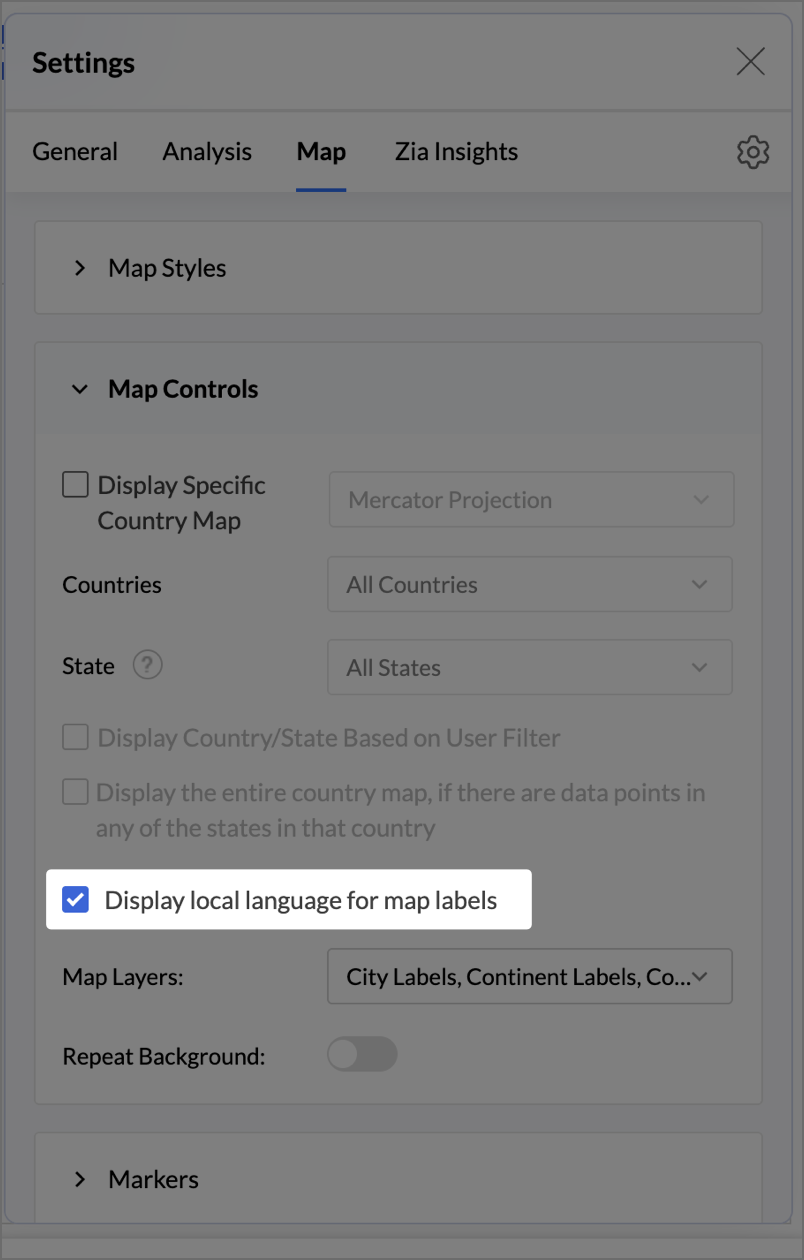
- Map Layers: This option allows you to add/remove different layers of data and data labels in the selected geo map. You can add/remove data like country/state borders, water borders, roadway lines, airports, railways, etc.,
- Repeat Background: Enabling this option allows the background map to tile or repeat itself across the chart area. This ensures that the map remains visible and consistent, even when zooming or panning to different regions of the chart.
Note:
- Display local language for map labels isn't available when Display Specific Country Map is on. For the Albers USA and USA Hex Bin projections, it makes no visible change, since US names show in English.
- The local language setting changes map labels only. Data values, legends, tooltips, and axis labels don't change.
- Labels of visible layers, such as city labels, follow the language setting. Removing a layer from Map Layers hides its labels.
- Repeat Background is on by default for Satellite maps and isn't available for country-specific maps.
Markers
The Markers section changes how points, bubbles, pies, regions, heat, and clusters look. The options depend on the map type.
| Map type | Marker options |
|---|---|
| Map - Scatter | Marker Type, Marker Fill Color, Stroke Color, Marker Size |
| Map - Bubble | Marker Fill Color, Stroke Color, Marker Size, Fill Opacity |
| Map - Pie | Marker Size, Fill Opacity |
| Map - Bubble Pie | Marker Size, Fill Opacity |
| Map - Filled | Fill Opacity |
| Geo Heat Map | Heat Radius, Heat Intensity, Heat Opacity |
| Cluster Map | Cluster Type (default Bubble), Font Size, Cluster Area, Cluster Opacity, and Marker Size |

What each option does:
- Marker Type: Sets the point shape for Map - Scatter. Six marker types are available.
- Marker Fill Color: Sets the marker color, as Solid or Pattern.
- Stroke Color: Sets the outline color of markers, so they stand out from the map.
- Marker Size: Sets the size of markers or individual points.
- Fill Opacity: Sets how see-through markers or regions are.
- Heat Radius: Sets the area around each point that adds to the heat.
- Heat Intensity: Sets how strongly the heat shows differences in density.
- Heat Opacity: Sets how see-through the heat layer is.
- Cluster Type: Switches between Bubble clusters and Hex cells. The map updates right away and keeps your color, area, and opacity settings.
- Font Size: Sets the size of the count shown on each cluster.
- Cluster Area: Sets the size of each bubble or hexagon, from 0 % to 100 %.
- Cluster Opacity: Sets how see-through clusters are, so map labels underneath stay readable.
Note: You can't change the Marker Fill Color option when a column is in the Color shelf. Change the colors from the Legend section in the General tab instead.
Data Label
Data labels show values directly on the map, so users can read them without hovering.
| Option | What it does | Default |
|---|---|---|
| Show corresponding Y axis value as data label on the chart | Shows the value on each marker or region | Off |
| Font | Sets the label font, size, style, and color | Default |
| Data Label Opacity | Sets how see-through labels are. Available when labels are on. | 100 % |
| Overlap Data Label | Shows all labels even when they overlap. When off, some labels are hidden to avoid overlap. | Off |

General tab
Use the General tab to change the report's title and description, column formats, legend, and drill behavior.
Basic
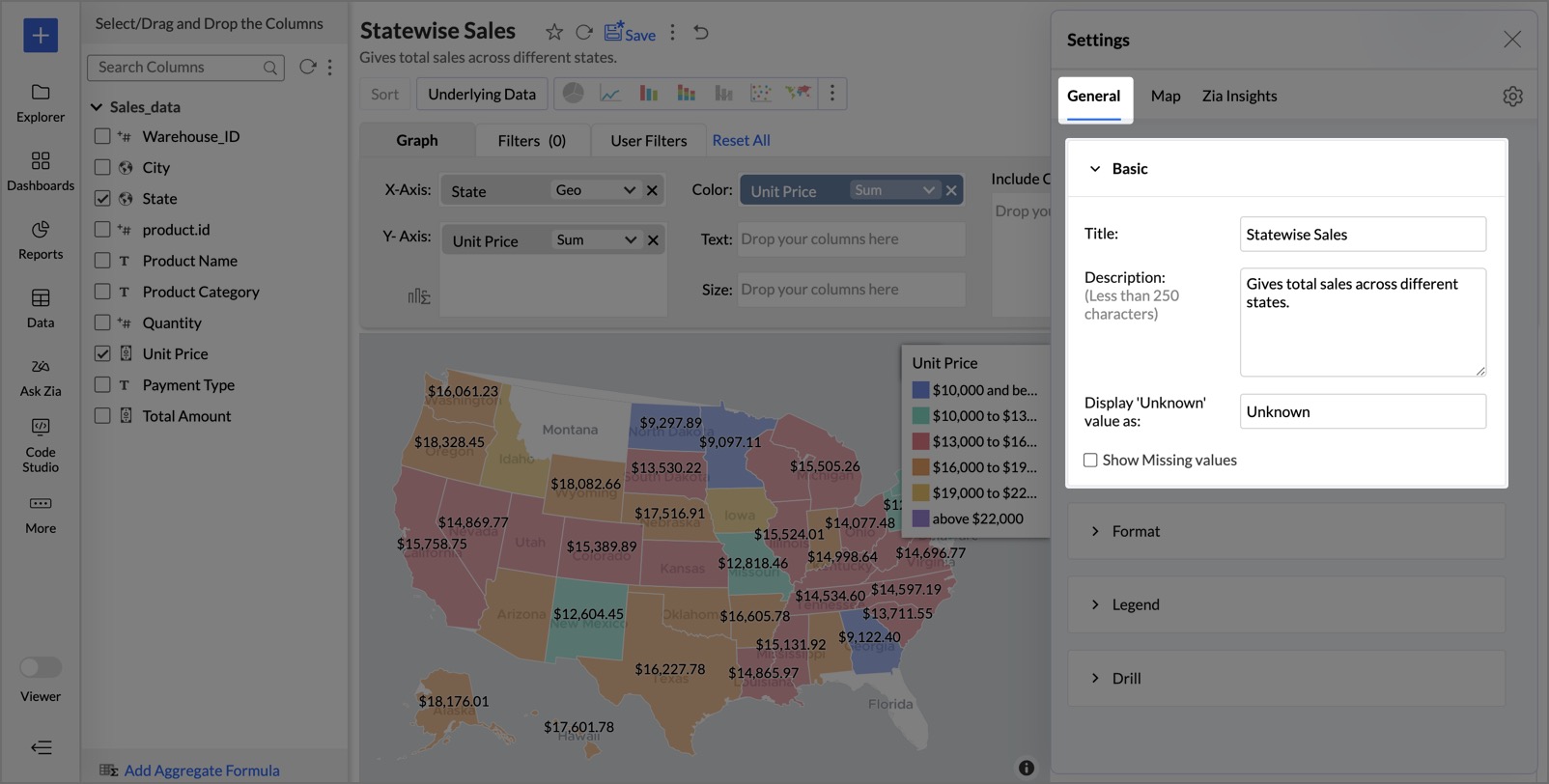
Change the report title, add a description, set the label shown for missing values (default Unknown), and choose whether to Show Missing values.
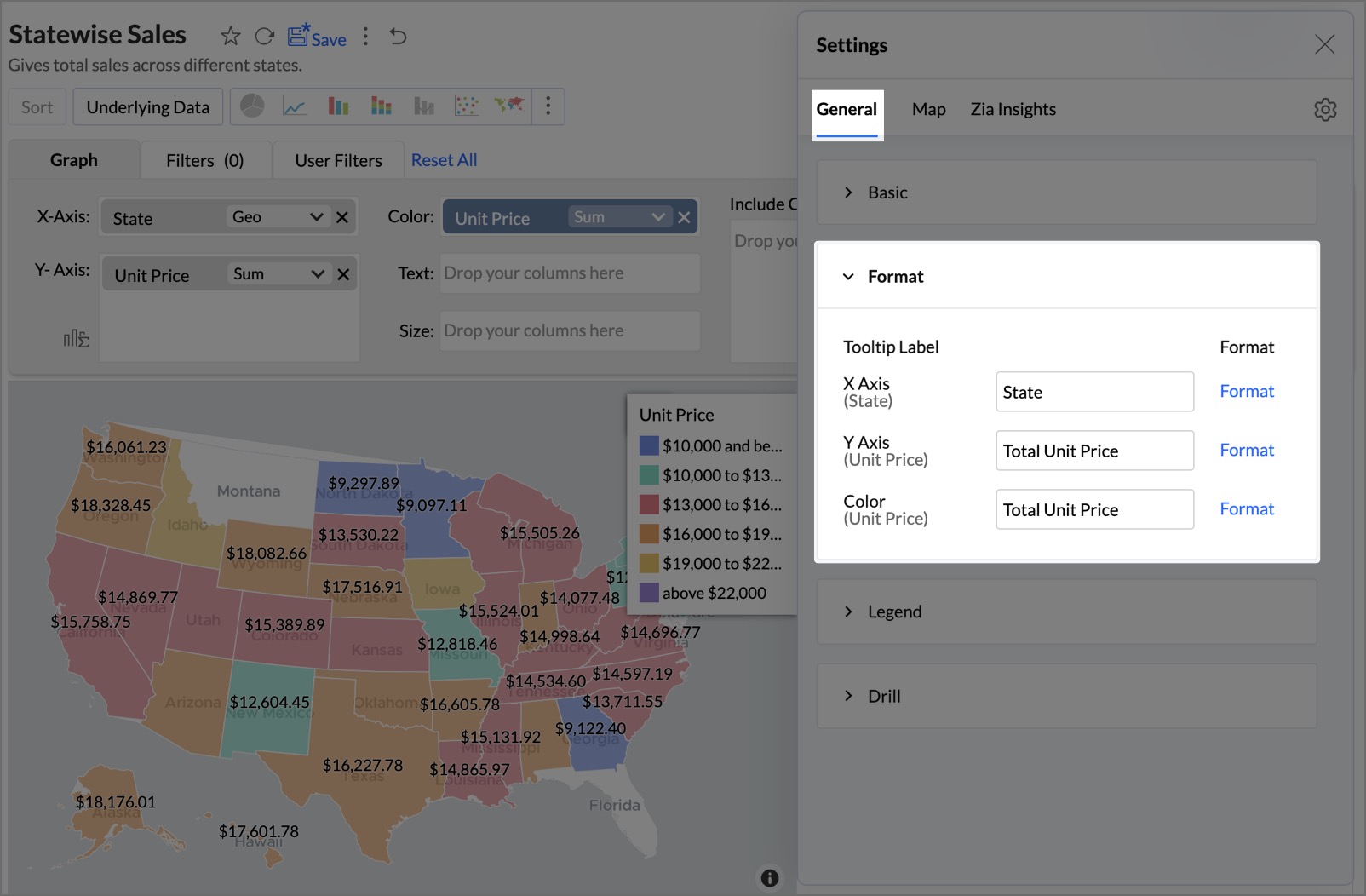
Format
You can modify the Format of the columns used in the reports whenever needed.
Legend
The legend in a chart provides a quick overview of the different data series involved in the chart along with the color associated with each series. Legend comprises Legend Title and Legend Items. Each legend item comprises a colored box that indicates the data series and the name of the data series.
In Zoho Analytics, by default, the legend will be placed on the right side of the chart, and legend items will be added to it depending on the data series involved in the chart. You can customize the legend position, legend title, legend filters, and the colors of each data series easily.
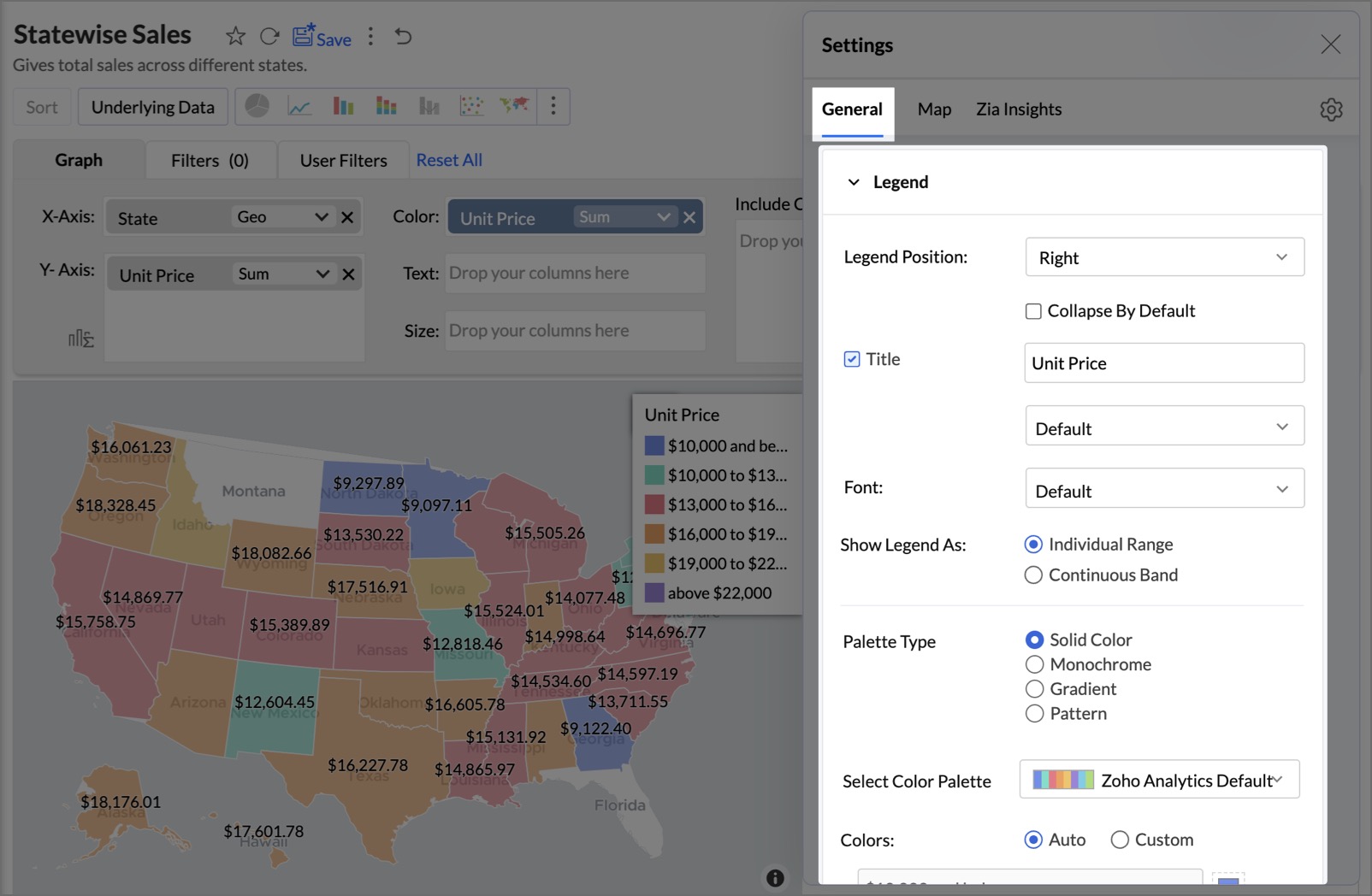
The following table describes the options available in the Legend tab:
| Option | Description |
|---|---|
| Legend Position | This option allows you to set the position of the Legend in a chart. Supported positions are:
Enable the Collapse by Default checkbox to have an expand and collapse type legend. |
| Title | This option has two fields. The checkbox allows you to show or hide the legend title. In the text field, you can change the default and customize the font style of the legend title. |
| Font | Using this option, you can customize the font style of the legend items. |
| Legend Filters | Select this option to enable legend items to act as filters in chart view mode. This allows users to dynamically filter the data series using the legend items. Refer here to know how to use the Legend filters to filter a data series. |
| Palette Type | Select the Palette type. Zoho Analytics offers four types of palettes. They are:
|
| Color Palette | Select the color palette to apply color for your data series. You can also select a color palette based on the palette type that is selected. Zoho Analytics has a predefined set of color palettes that you can choose from. Apart from this, you can also add new color palettes. |
| Colors | Using this option, you can override the colors of the individual series of the chart. Once you override the palette, you will find the following options.
|
Note:
- To use a continuous color range, for example from low to high sales, set Palette Type to Gradient.
- Geo Heat Map and Cluster Map share the same legend options, with a Low to High gradient.
- Pattern isn't supported for map charts.
Drill
Drill options let users explore the data behind a location at different levels of detail.
- Drill down- Enables users to click on a data point within a chart to explore underlying data in greater detail, facilitating deeper analysis.
- Drill through - Allows users to navigate from a specific data point in a chart to a related, detailed report or dashboard, providing comprehensive insights into that particular data segment.
- Drill Actions: Act on a location directly from the map, instead of only analyzing it. Trigger parameterized actions, such as opening a record, creating or updating an entry, or starting a workflow in an external application. To learn more about drill actions, click here.
Analysis tab
The Analysis tab lists Forecast, Trend Line, Anomaly / Outlier, and Cluster Analysis. Which options you can use depends on the map type and the columns in it.
Zia Insights tab
Zoho Analytics offers customizable insights to align with your specific business requirements. Zia Insights provides answers (narratives) to the various questions that arise while trying to interpret data and directs towards meaningful conclusions by offering Descriptive, Predictive, and Diagnostic insights.
Zia Insights tab offers two customizing options:
1. Explain by Columns
You can select the key metrics and dimensions that Zia will analyze to generate relevant insights. All the columns in the report are selected by default.
Choose at least one metric (numerical data) and one dimension (categorical data) to ensure comprehensive analysis. Click Add Column to include additional relevant metrics or dimensions for Zia to consider.

2. Insight Categories
Determine the types of insights Zia generates, allowing focus on areas most pertinent to your analysis.
You can customize the following insight categories.
- Contribution Analysis: Evaluates the impact of various factors on overall results, identifying key contributors.
- Time Series Insights: Analyzes data trends over time, detecting patterns, anomalies, and forecasting future values.
- Comparison Between Dimensions: Compares metric performance across different dimensions to highlight relative strengths and weaknesses.
- Analysis of Measures: Examines relationships between multiple metrics to uncover correlations and proportional differences.

By tailoring these settings, Zia delivers insights that are both relevant and actionable, enhancing your data-driven decision-making process. To learn more about customizing Zia Insights, click here.
Set the default map view
By default, the map opens fitted to your data. To open it at a specific area and zoom level instead, pan and zoom to that view, then select Set current view as Home from the Home option in the map toolbar. To go back to the original view, select Reset to Default.
Frequently Asked Questions
1.Where do I find the map settings?
Open the map in edit mode and click the Settings icon (gear) at the top-right corner of the report. The Settings panel opens on the right.
2. Why can't I change the marker color?
A column is in the Color shelf, so the colors come from the legend. Change them from the Legend section in the General tab.
3. Can I change where the legend appears?
Yes. In the General tab, set the Legend Position option. The default is Right. To start with the legend collapsed, select Collapse By Default.
4. How do I show a continuous color range, such as low to high sales?
In the Legend section, set the Palette Type option to Gradient.
5. How do I show only one country on the map?
In the Map tab, open Map Controls, select the Display Specific Country Map check box, and choose the country in the Countries field.
6. Why are my map labels still in English after I turn on local language?
Local language labels aren't available for country-specific maps or for the Albers USA and USA Hex Bin projections. The setting also changes only map labels, not data values, legends, or tooltips.
7. How do I make my data stand out from the base map?
Increase the Washout option in Map Styles to fade the base map. You can also try the Light theme or lower the Fill Opacity option of your markers.
8. How do I make the map open at a specific area?
Pan and zoom to the view you want, then select Set current view as Home from the Home option in the map toolbar. Select Reset to Default to go back.