Creating Geo Maps
Once your location data is ready, you can turn it into a map in a few clicks. Zoho Analytics offers eight map types, each suited to a different question, from pinpointing exact locations to revealing hotspots and comparing regions.
This page walks you through building each map type, and shows you how to plot coordinates, airport codes, custom images, spatial data, and multiple layers. If your location column doesn't have a geo data type yet, start with Preparing Geo Data.
The examples on this page use sample data from VoltWay, a fictional EV charging network deciding where to build new stations. Each map answers the next question in that decision.
Shelves used in Geo Maps
| Shelf | What to add |
|---|---|
| X-Axis | The geo column, for example Country, State, or City. For coordinate maps, add Latitude or Longitude here. |
| Y-Axis | For coordinate maps, the other coordinate column. |
| Color | A measure or dimension that sets the color of points, regions, or pie slices. Required for Cluster Map. |
| Size | A measure that sets the size of bubbles or pies. Used only by Map - Bubble and Map - Bubble Pie. |
| Text | A column to show as text on the map. |
| Include Columns for Tooltip | Extra columns to show when users hover over a location. |
To build any of the maps below, open the chart designer, drag your columns to these shelves, and select the map type. Click the Map Chart icon in the chart type toolbar, or click the Other Possible Charts icon (⋮) at the end of the toolbar to see all map types.
Map - Scatter
Map - Scatter plots each location as a small, equal-size point at its exact position, colored by the column in the Color shelf. Hover over a point to see its details, or zoom in to separate nearby points. It's best for showing where things are, such as stores, customers, or assets, when position matters more than amount.
In the example, VoltWay plots every station by its coordinates and colors it by site type to see how the network is spread across the country.
To build Scatter Map - Charging Stations by Site Type from the VoltWay_Stations table:
- Drag Longitude to the X-Axis shelf and Latitude to the Y-Axis shelf.
- Drag Site Type to the Color shelf.
- Drag Station Name, Total Ports, and Status to the Include Columns for Tooltip shelf.
- Click the Other Possible Charts icon (⋮) and select Map - Scatter.
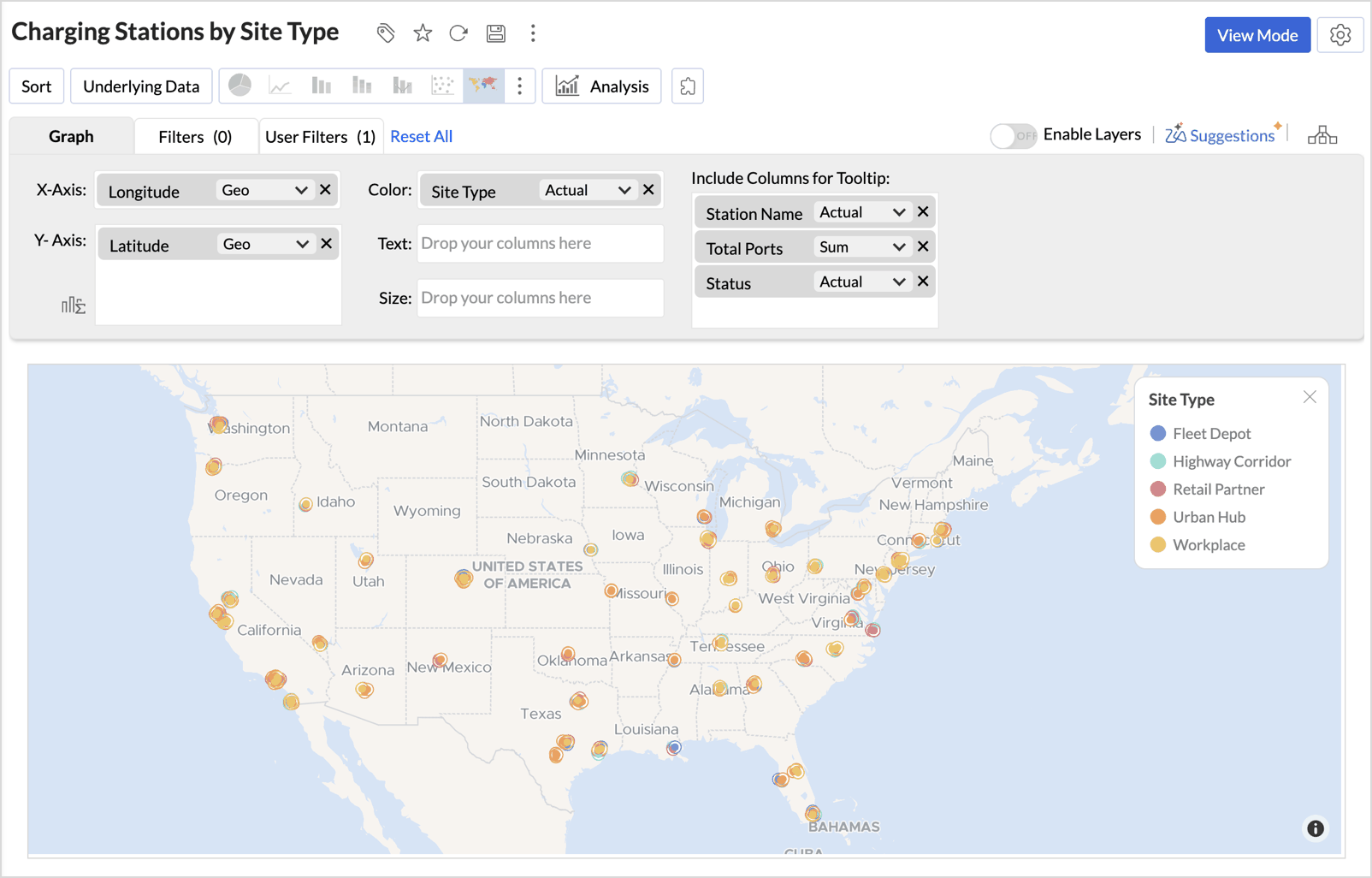
Each station appears as a point colored by its site type, and hovering over a point shows its name, total ports, and status. To change the point shape, go to Settings > Map > Markers. For more details on customization options please check, Customizing Geo Maps.
Cluster Map
Cluster Map groups nearby points into clusters, each labeled with the number of points it holds and colored on a Low to High gradient (default palette Heat). Click a cluster or zoom in, and it breaks into smaller clusters until individual points appear. It's best when points overlap at a wide zoom, such as customers in a metro or incidents across a region.
In the example, VoltWay's stations crowd together in busy metros on the scatter map, so the same data is clustered to show how many stations sit in each area.
To build Charging Stations - Clustered View from the VoltWay_Stations table:
- Drag Latitude and Longitude to the X-Axis and Y-Axis shelves. Coordinates give the most detailed clusters.
- Drag a measure to the Color shelf, for example Longitude as Count to count stations. If the Color shelf is empty when you select Cluster Map, Zoho Analytics adds a measure for you. You can change it afterward.
- Click the Other Possible Charts icon (⋮) and select Cluster Map. The map uses Bubble clusters by default.
- You can show hexagon cells instead, click Settings > Map > Markers and set the Cluster Type option to Hex.
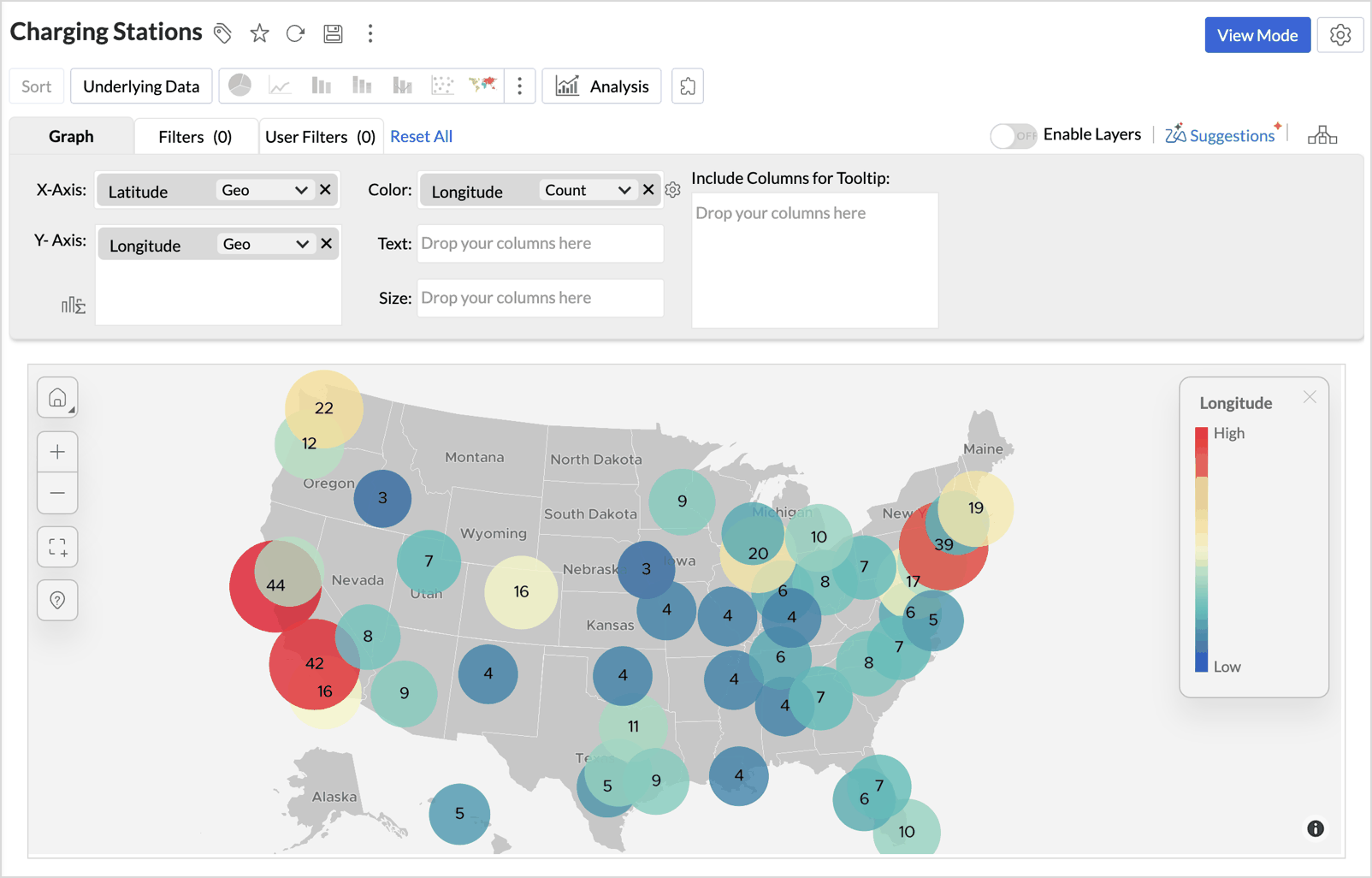
The largest clusters, in Northern California and the New York area, show where the network is densest. To learn more about other customization options, click here.
How Cluster Map works
- Zoom into a cluster: Click a cluster to zoom in one level. The map re-centers on that cluster and re-clusters the points. Keep clicking to break up dense clusters.
- Individual points: At maximum zoom, individual points appear. Their tooltip menu offers View Underlying Data, Drill Down, Drill Through, and drill actions.
- Same coordinates: Points with exactly the same latitude and longitude stay as one cluster, even at maximum zoom. Use View Underlying Data to see all their rows.
- Drill Through: Available only from an individual point at maximum zoom, not from a cluster, because a cluster represents many rows.
Map - Hexbin
Map - Hexbin groups points into a fixed grid of equal-size hexagons and colors each one by its point count or a measure. The grid stays the same as you zoom, so you can compare density across regions and view the rows behind any hexagon. It's best for large point data sets, such as customers, deliveries, or incidents.
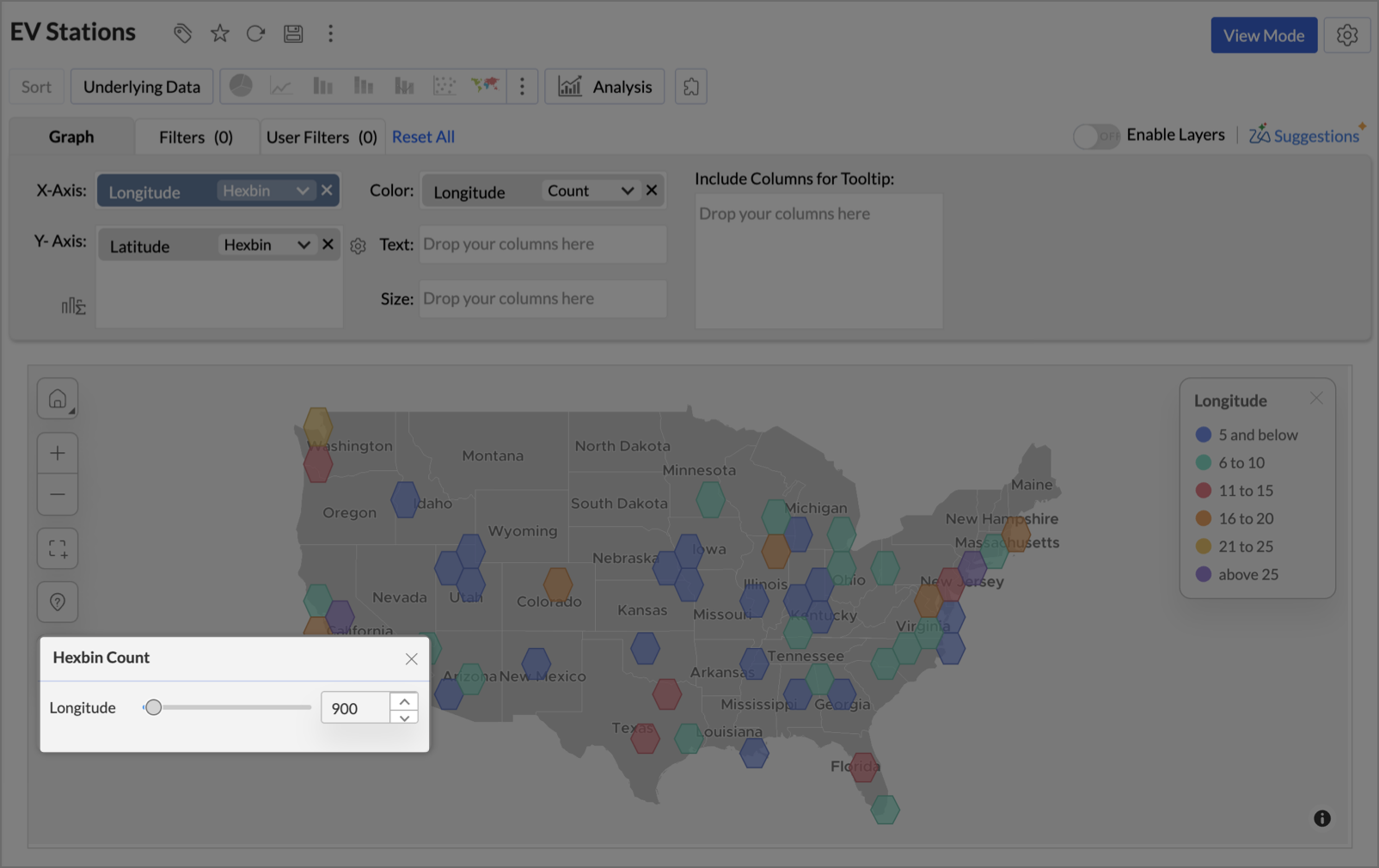
In the example, VoltWay bins its stations into hexagons to compare station density across the country on a grid that stays the same at every zoom level.
To build EV Stations from the VoltWay_Stations table:
- Drag Longitude to the X-Axis shelf and Latitude to the Y-Axis shelf. Hexbin needs a column on both axes.
Click the function drop-down on either column and select Geo Location > Hexbin. The other axis is set to Hexbin automatically.
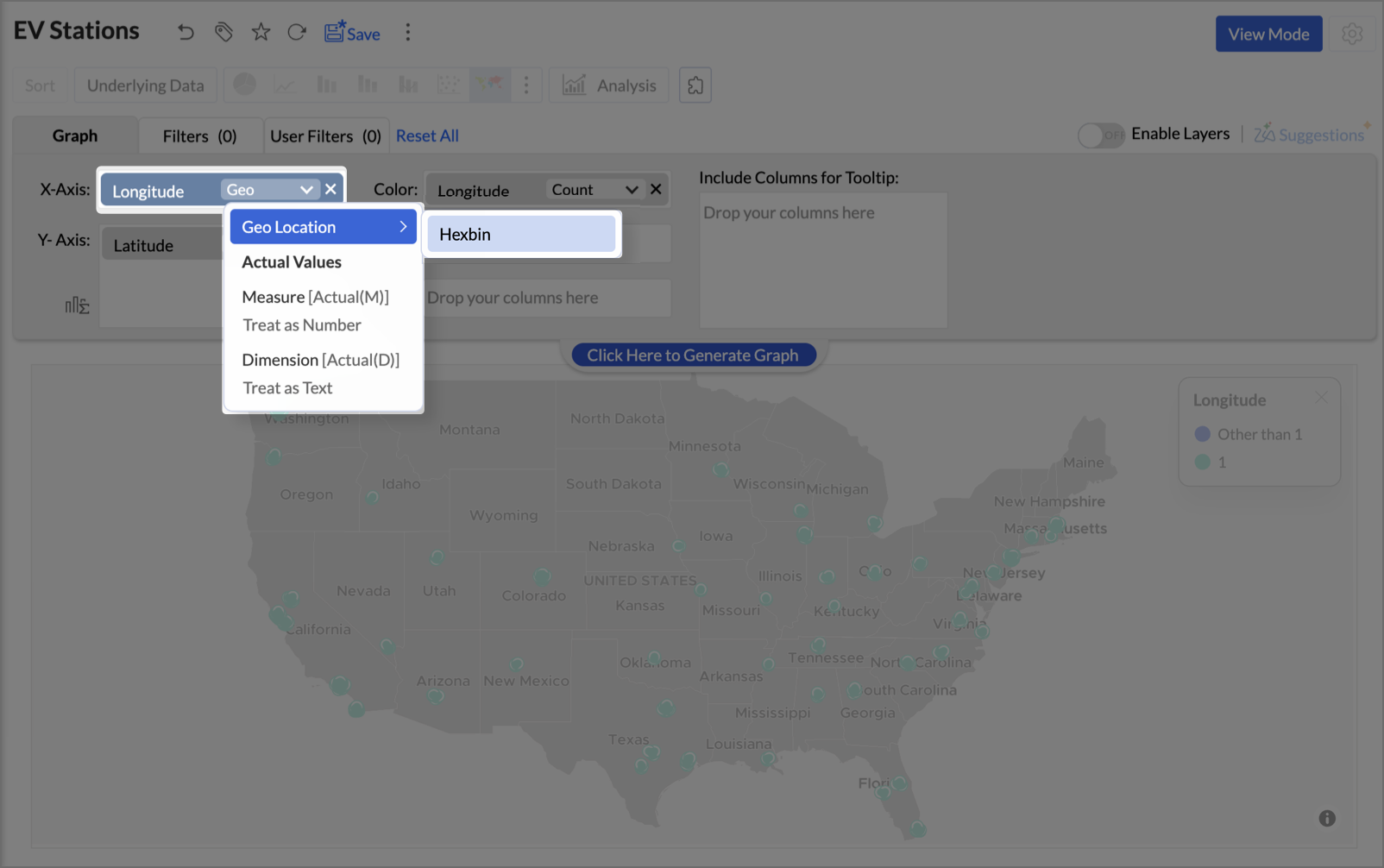
- In the Hexbin dialog, choose how the hexbin count is set:
- Auto: Zoho Analytics sets the count based on how widely your data is spread and how many points it has.
Custom: Set the Hexbin count with the slider or type a value. A higher count gives more, smaller hexagons and finer detail. A lower count gives fewer, larger hexagons.
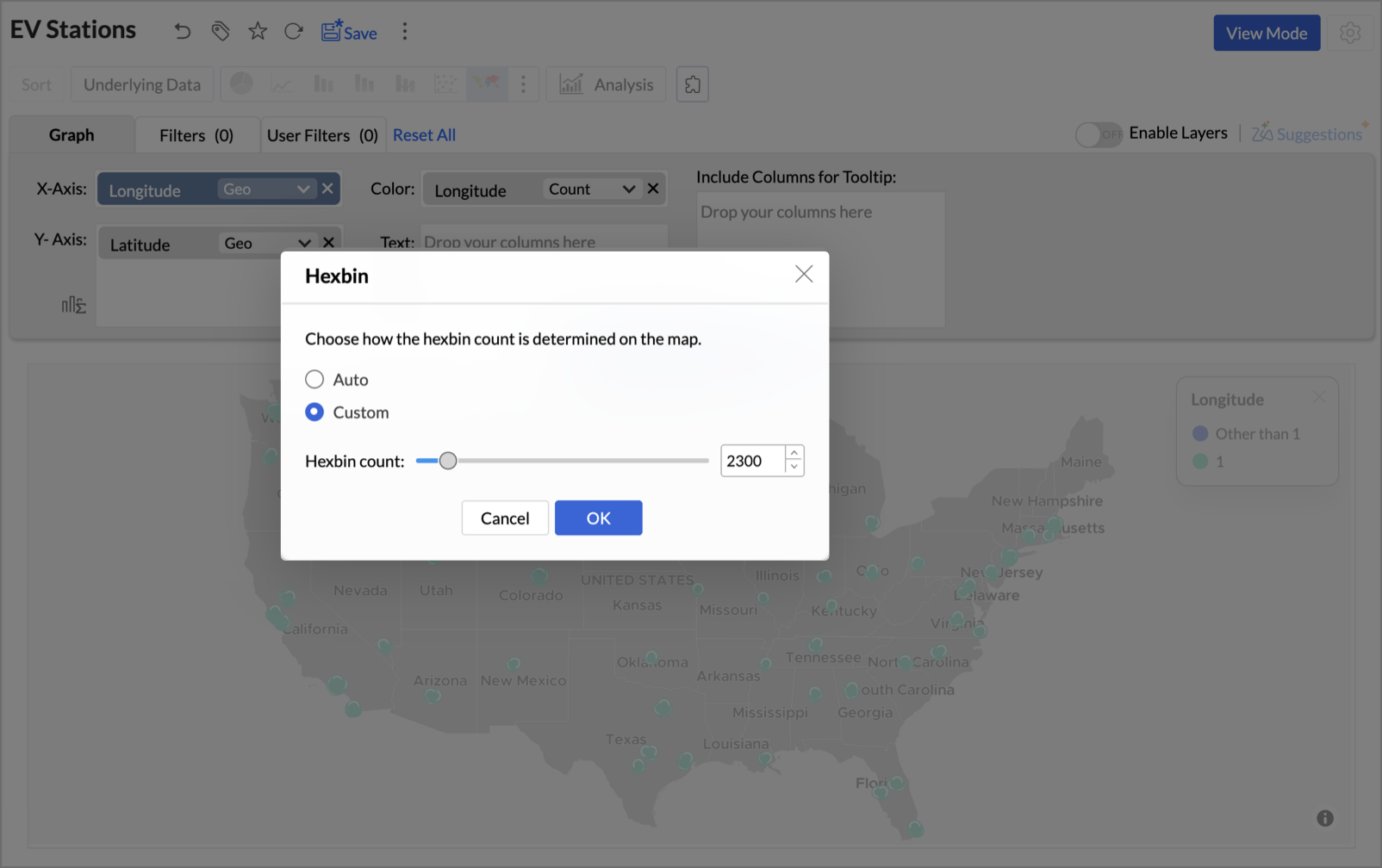
- Click OK. A count is added to the Color shelf, so each hexagon is colored by the number of points it holds.
Click Here to Generate Graph. The map opens as Map - Hexbin.
Adjust the hexbin count
To change the count after you build the map, reopen the Hexbin dialog from the function drop-down on either axis, or click the Hexbin Count control in the map toolbar. The control opens a panel with the same slider, so you can adjust density while looking at the map.
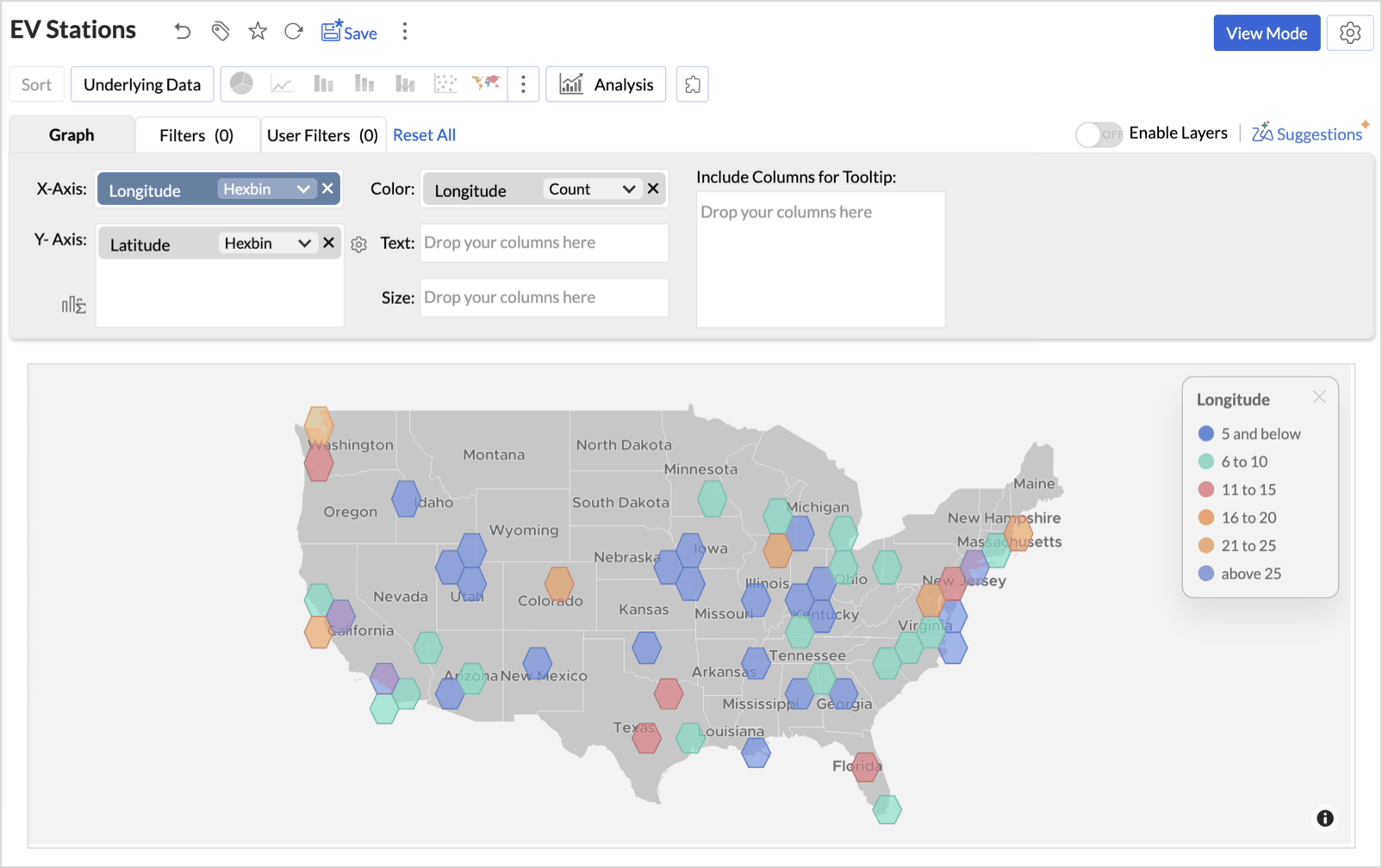
- In edit mode: Your change is saved with the report, and the setting switches to Custom.
- In view mode: Your change lasts only for the current session and resets when the report reloads. Viewers don't need edit permission to use it.
Note:
- Map - Hexbin stays grayed out in the chart type list until Hexbin is set on both axes.
- While Hexbin is on, Cluster Map, Image as Markers, Drill Through, and using the report as a filter aren't available.
- Hexbin doesn't work with the Albers USA or USA Hex Bin projections. The USA Hex Bin Projection is a different feature: it draws each US state as a hexagon, while Map - Hexbin groups your data points into hexagons.
Map - Bubble
Map - Bubble draws a bubble at each location and sizes it by the measure in the Size shelf, with the Color shelf setting its color. Larger values get larger bubbles, and hovering over a bubble shows the exact figures. It's best for comparing amounts across locations, such as sales, orders, or usage.
In the example, VoltWay sizes each state's bubble by the energy its stations deliver, to see where the network carries the most load.
To build Map Bubble - Energy Delivered by State from the VoltWay_Stations table:
- Drag State to the X-Axis shelf.
- Drag Energy Delivered (kWh) to both the Color and Size shelves, and set its function to Sum.
- Drag Station ID to the Include Columns for Tooltip shelf and set its function to Count, to show the number of stations in each state.
- Click the Other Possible Charts icon (⋮) and select Map - Bubble.
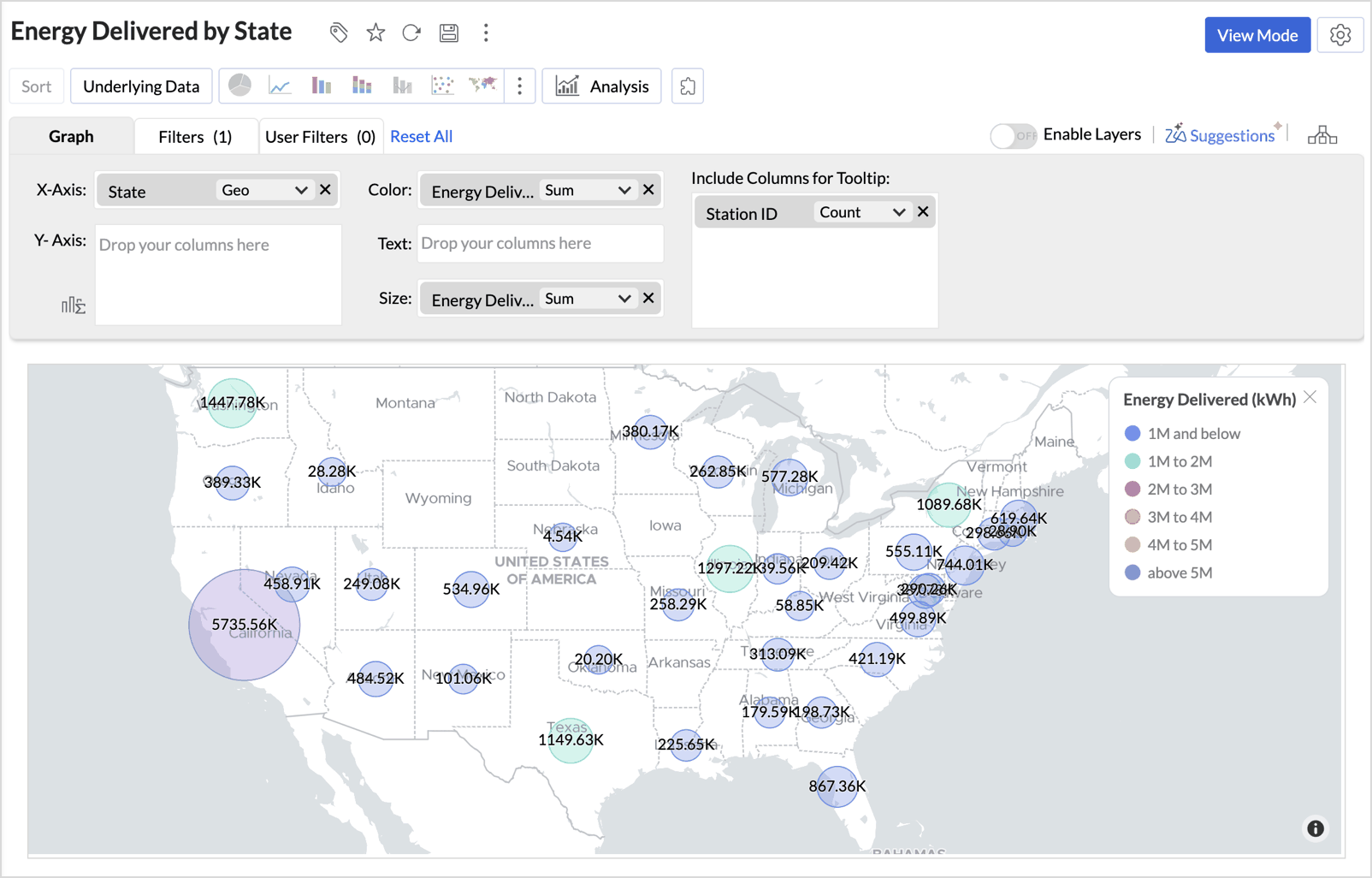
California's bubble is far larger than the rest, marking it as the state with the heaviest load on the network. Because one measure drives both color and size, the legend groups states into energy ranges.
Map - Pie
Map - Pie places a pie at each location, with one slice for each value of the dimension in the Color shelf. All pies are the same size, so the map compares the mix in each location rather than its volume, and hovering over a slice shows its share. It's best for showing composition by place, such as the product mix in each region.
In the example, VoltWay splits each city's chargers by type to find cities that rely on slower chargers.
To build Map Pie - Charger Port Mix by City from the VoltWay_Station_Chargers table:
- Drag City to the X-Axis shelf.
- Drag Charger Type to the Color shelf.
- Click the Other Possible Charts icon (⋮) and select Map - Pie.
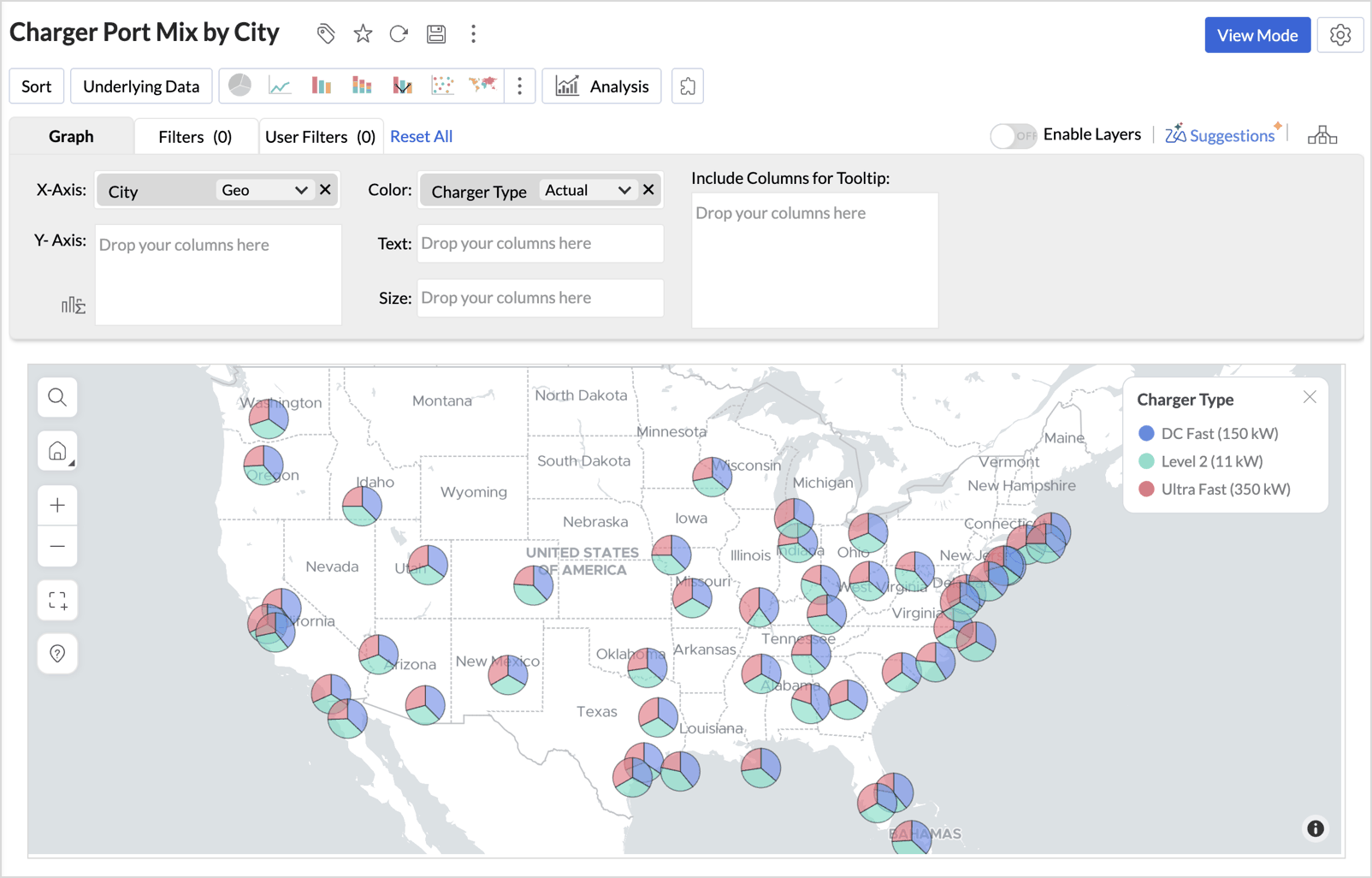
Each city shows its split of DC Fast (150 kW), Level 2 (11 kW), and Ultra Fast (350 kW) chargers. Cities with a large Level 2 slice are candidates for fast-charger upgrades.
Note: Keep the dimension in the Color shelf to a few values. Pies become hard to read beyond about five slices.
Map - Bubble Pie
Map - Bubble Pie combines the two: each location gets a pie split by the dimension in the Color shelf and sized by the measure in the Size shelf. This keeps a small town from looking as important as a large metro, which is a limit of Map - Pie. It's best when both the mix and the total matter, such as revenue by product line in each region.
In the example, VoltWay sizes each state's pie by revenue and slices it by site type, to see where it earns the most and from which kinds of sites.
To build Bubble Pie Map - Revenue by State by Site Type from the VoltWay_Stations table:
- Drag State to the X-Axis shelf.
- Drag Site Type to the Color shelf.
- Drag Revenue (USD) to the Size shelf and set its function to Sum.
- Click the Other Possible Charts icon (⋮) and select Map - Bubble Pie.
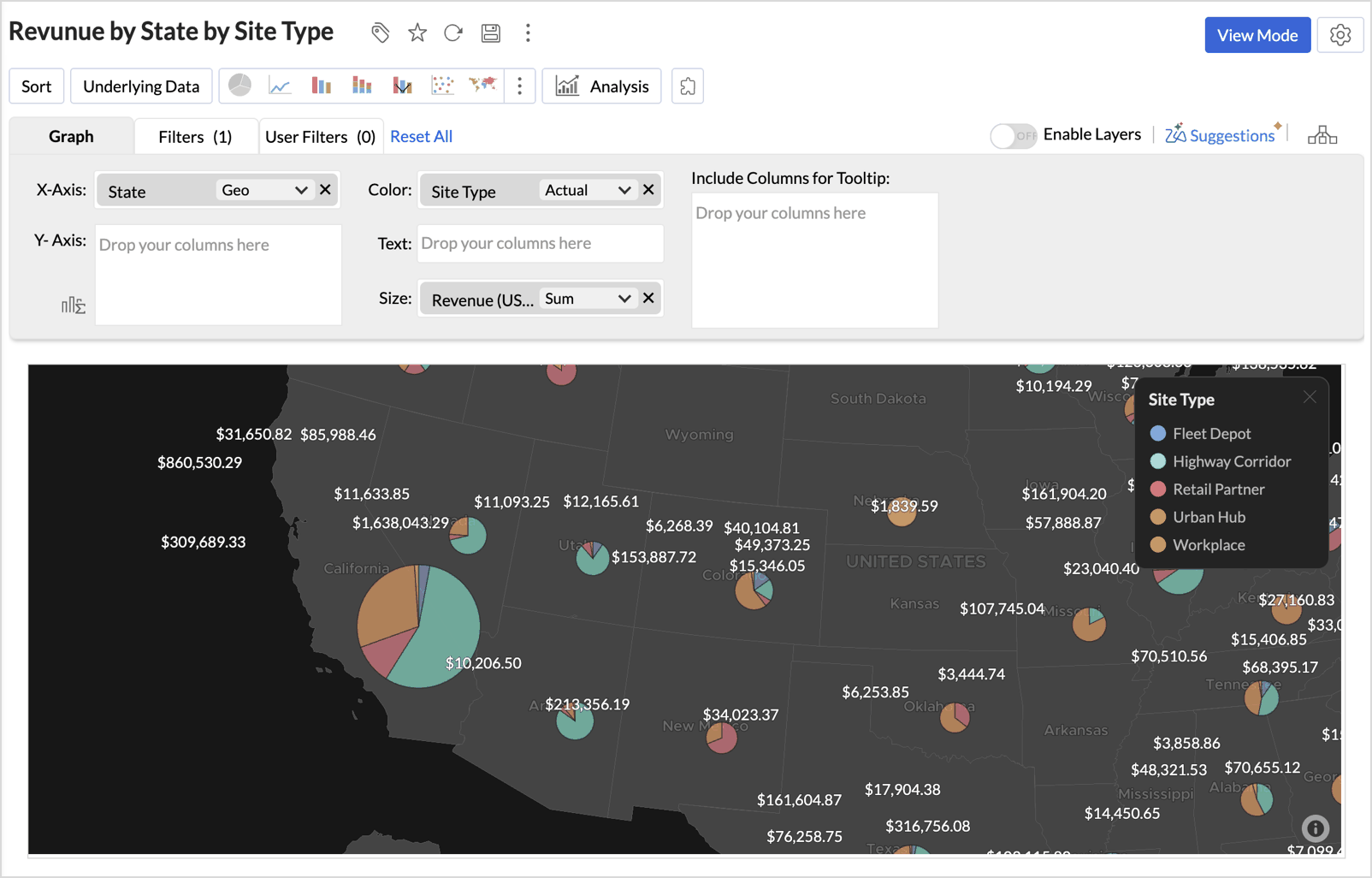
The largest pie, California, shows the highest revenues and its slices show each site type's share.
Map - Filled
Map - Filled shades whole regions, such as countries, states, or counties, by the value in the Color shelf, using region boundaries instead of markers. Hover over a region to see its values. It's best for comparing regions side by side, such as sales by territory or adoption by state.
In the example, VoltWay shades each state by its EV registrations, since high adoption signals where new stations will be used.
To build Filled Map - EV Registrations Count from the VoltWay_State_EV_Market table:
- Drag State to the X-Axis shelf.
- Drag EV Registrations to the Color shelf and set its function to Sum.
- Drag Population (Millions), Market Public Ports, and Coverage Status to the Include Columns for Tooltip shelf.
- Click the Other Possible Charts icon (⋮) and select Map - Filled.
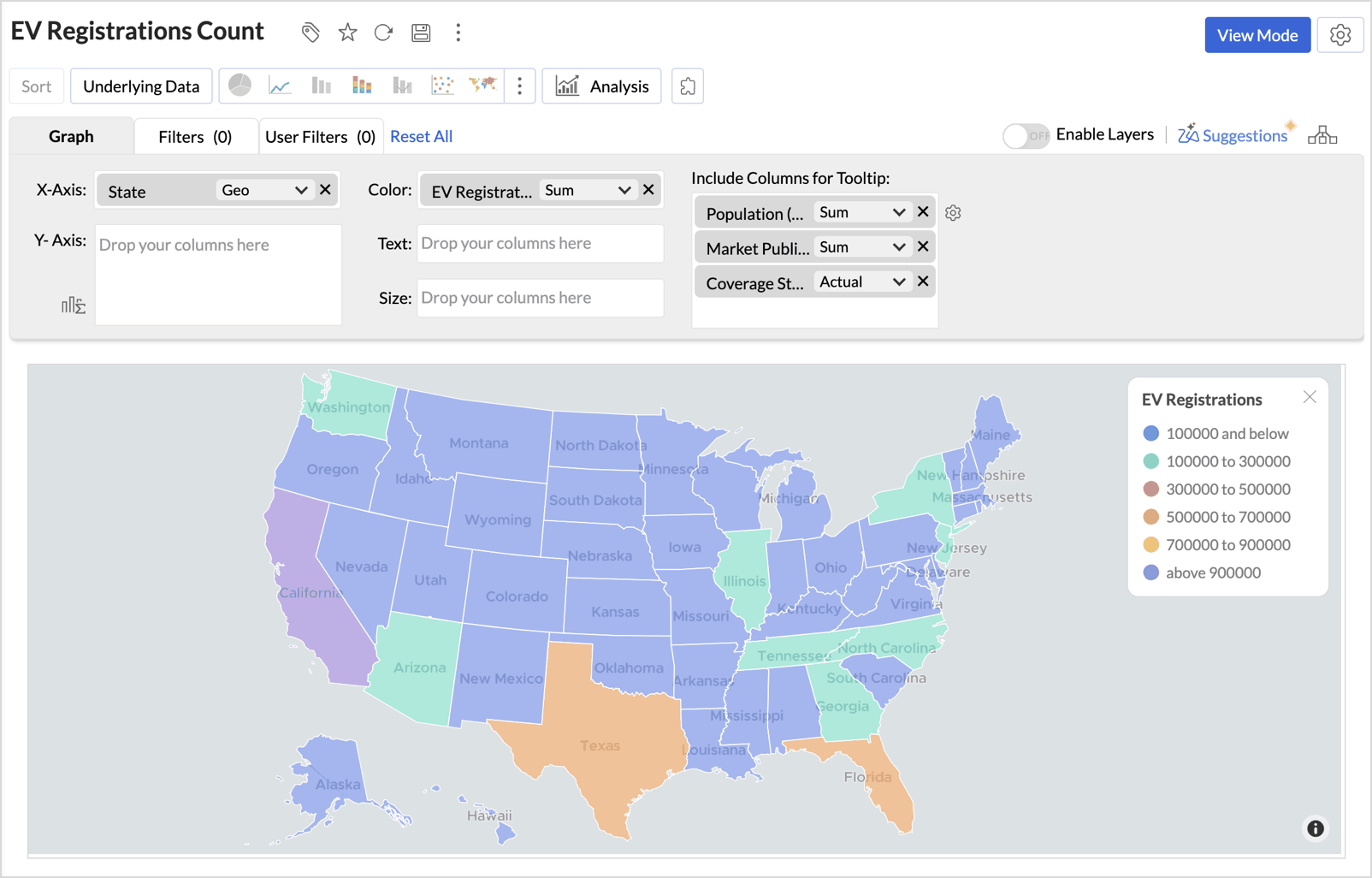
California leads in the above 900000 range, followed by Texas and Florida. Hover over a state to compare its registrations with its population, public ports, and coverage status.
Note: Map - Filled needs region boundaries. Use a column such as Country or State, not latitude and longitude.
Geo Heat Map
Geo Heat Map turns individual points into a continuous color surface, where areas with more points or higher values glow from Low to High. The surface adjusts as you zoom, so hotspots stay visible at every level. It's best for spotting concentrations that individual markers can hide, such as delivery density or service requests.
In the example, VoltWay plots only the charging requests that went unserved, weighted by energy requested, to find where new stations would have the most impact.
To build Geo Heat Map - Unserved Charging Demand from the VoltWay_Charging_Demand table:
- Drag Latitude and Longitude to the X-Axis and Y-Axis shelves.
- Drag Energy Requested (kWh) to the Color shelf and set its function to Sum, to weight each hotspot by the energy requested.
- In the Filters tab, filter Served to keep only unserved requests.
- Click the Other Possible Charts icon (⋮) and select Geo Heat Map.
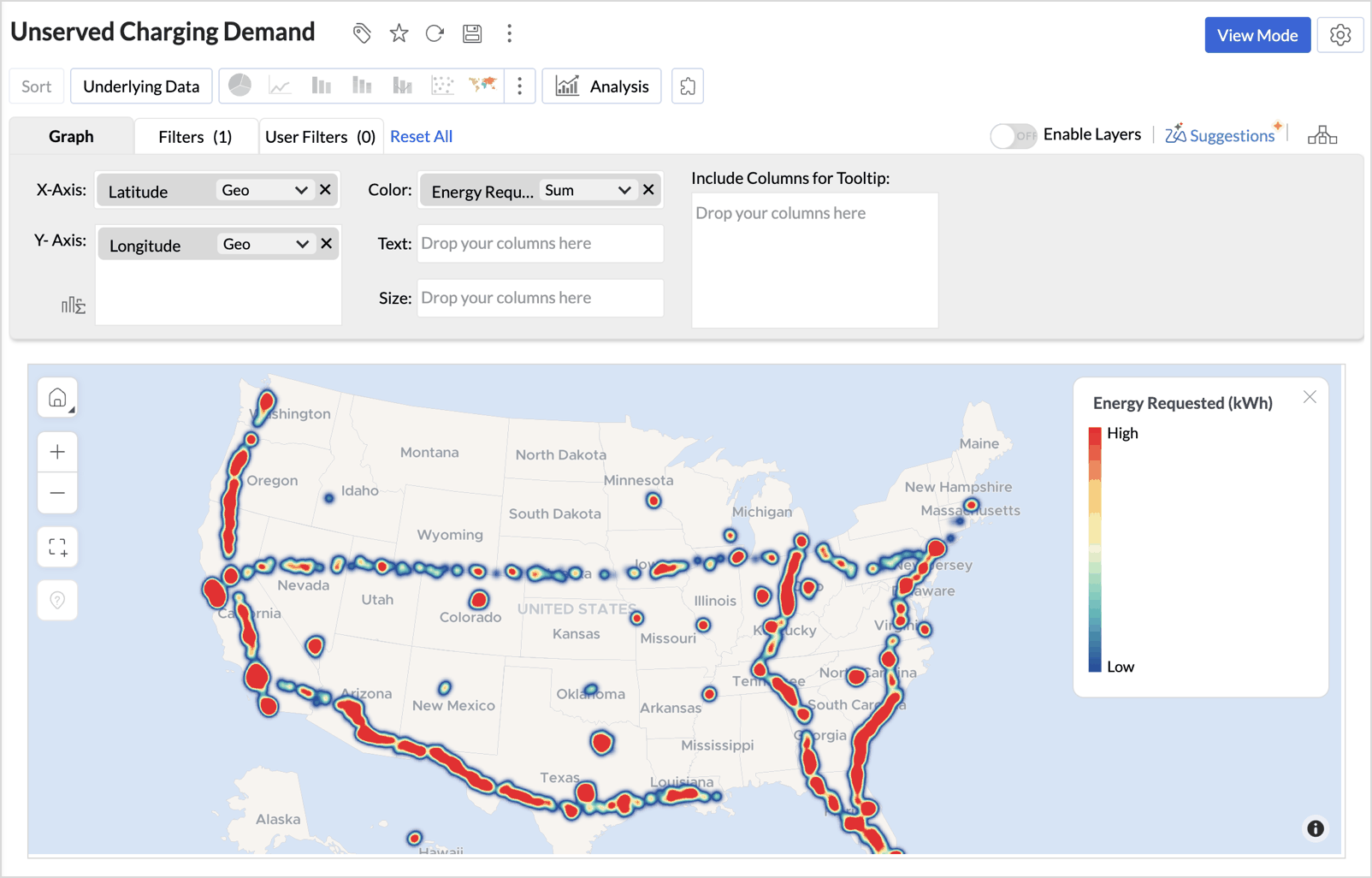
The hottest areas run along the West Coast, the southern highway corridor, and Florida. Without the filter, the map would mostly mirror the population. With it, the gaps in the network stand out. To adjust the radius and intensity of the heat, see Markers in Customizing Geo Maps.
Map layers
Map layers stack several data sets in one chart, each with its own map type, such as a filled layer of regions under a layer of points. You can show, hide, or change each layer independently. It's best when the answer comes from comparing two data sets, such as demand against coverage.
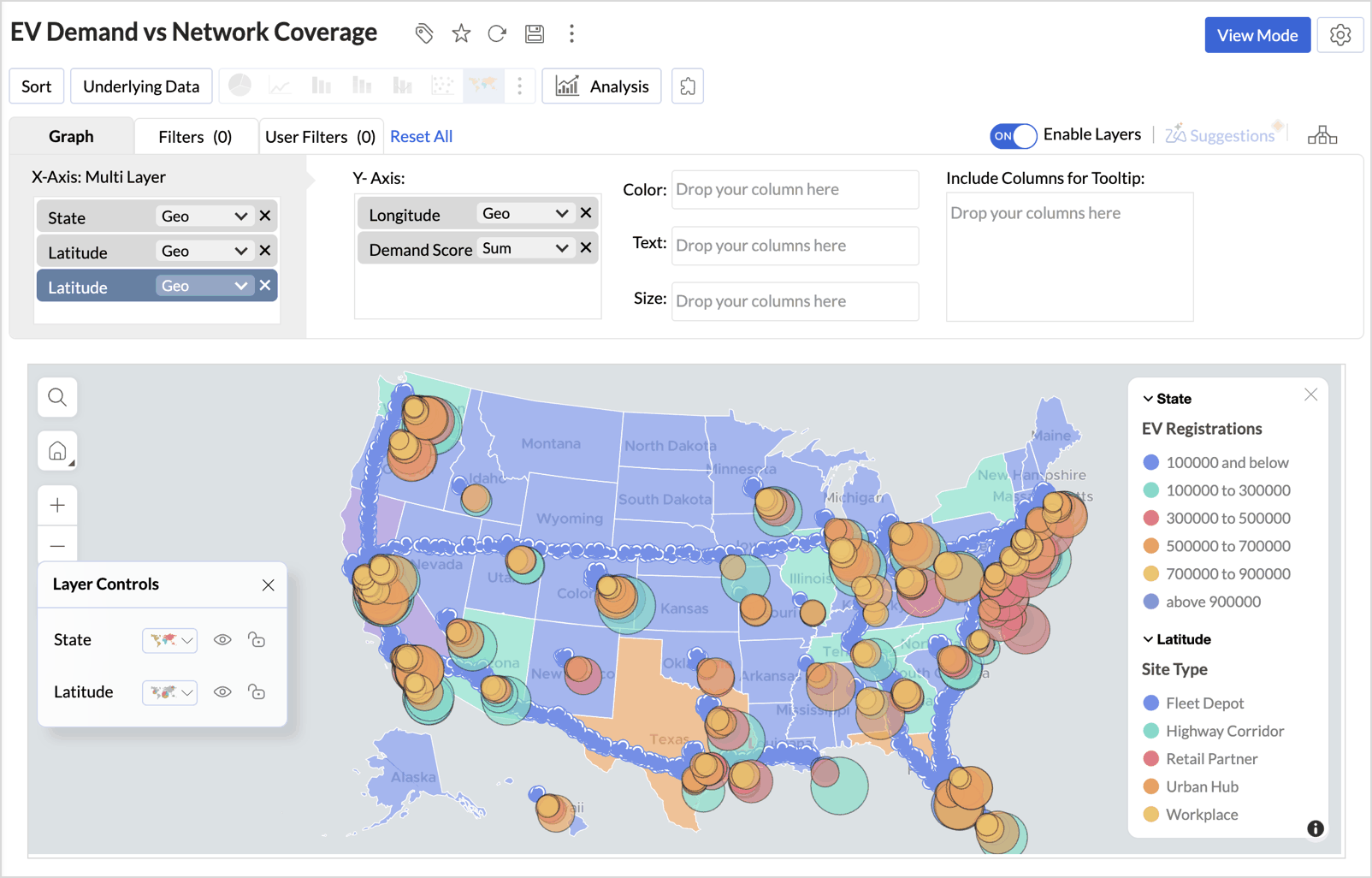
In the example, VoltWay shades states by EV registrations and overlays its stations and demand, so states shaded dark but with few stations stand out as places to build next.
To build Map Layering - EV Demand vs Network Coverage:
- Turn on the Enable Layers toggle at the top-right of the chart designer, next to Suggestions. The X-axis shelf changes to the X-Axis Multi Layer shelf.
- Drag a geo column to the X-Axis Multi Layer shelf for each layer, for example State for the filled layer and Latitude for each coordinate layer.
- Drag the columns each layer needs to the other shelves, for example Longitude and Demand Score to the Y-Axis shelf.
Use the Layer Controls panel at the bottom-left of the map to manage the layers. Change a layer's map type from its drop-down, or show and hide it with the eye icon. The legend groups items by layer, so each layer's colors stay easy to read. To learn in detail about the map layer function, click here.
Note:
- While layers are on, you can't change the chart type. To switch types, turn off the Enable Layers toggle first.
- Cluster Map isn't supported with layers.
- Hexbin is supported with layers, so one layer can show hexagons while another shows individual points.
Maps using latitude and longitude
Use coordinates when you need exact positions rather than named places. In the VoltWay examples, Map - Scatter, Geo Heat Map, and Cluster Map all use coordinates to place each station or request precisely.
- Make sure the columns have the data types Latitude and Longitude.
- Drag Latitude and Longitude to the X-Axis and Y-Axis shelves.
- Drag the columns you want to analyze to the other shelves, and select a map type.
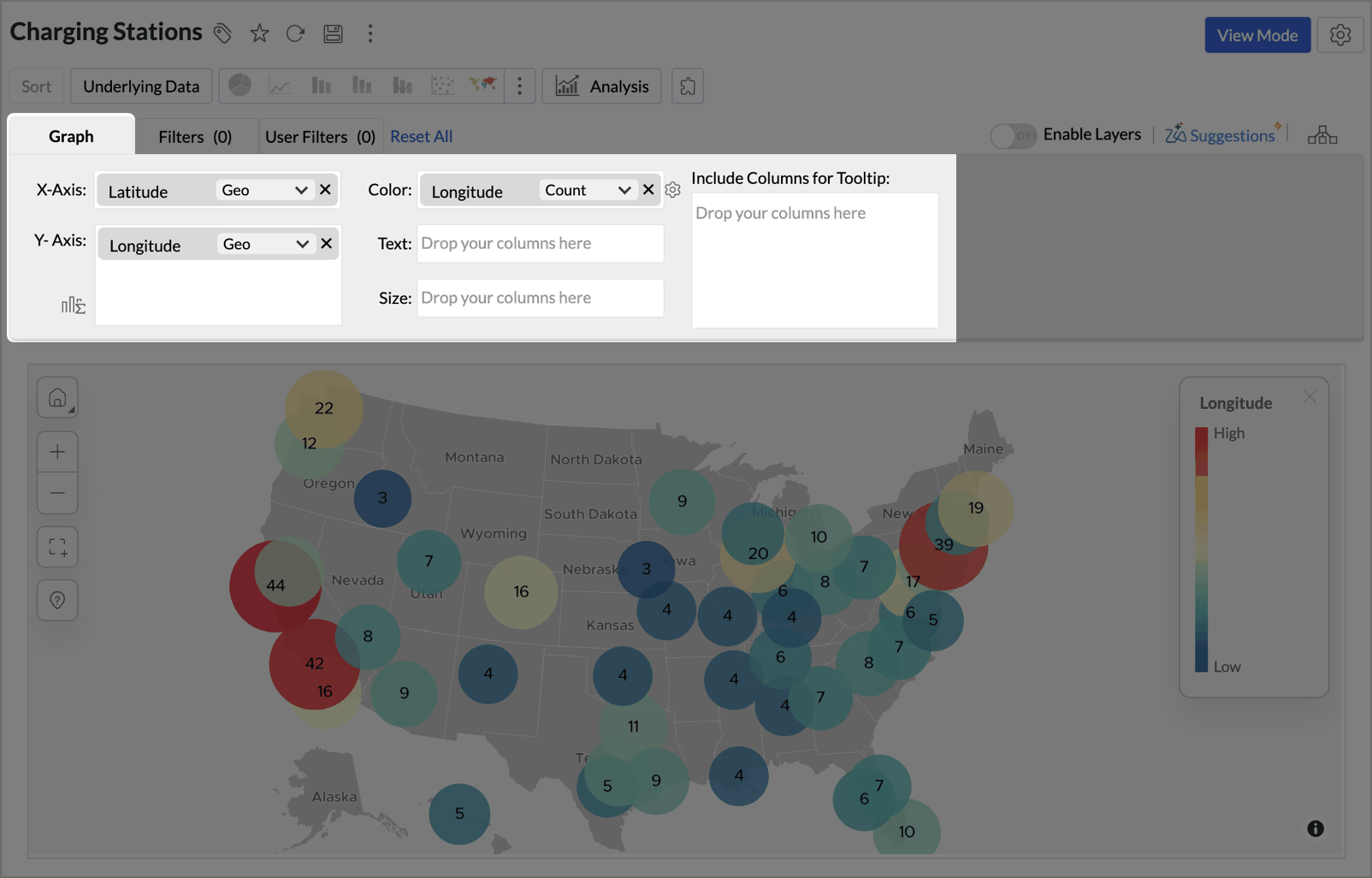
Note: The default tooltip doesn't show the coordinate values. To show them, drag the Latitude and Longitude columns to the Include Columns for Tooltip shelf.
Maps using airport codes
Set the column's data type to Airport, drag it to the X-Axis shelf, and add a measure, for example the number of flights per day. Each airport is plotted at its location.
Map projections and country-specific maps
A projection decides how the round earth is drawn on a flat map, which affects how large each region looks.
Zoho Analytics offers three projections:
- Mercator Projection (the default) for world and country maps,
- Albers USA Projection for US-focused data, and
- USA Hex Bin Projection to compare US states at an equal size.
For details on each, see Map Controls in Customizing Geo Maps.
World maps with the Mercator projection
Use the Mercator projection for world maps. It keeps local shapes and directions accurate, but it stretches areas as you move away from the equator, so regions near the poles, such as Greenland or Northern Europe, look larger than they are. Points and bubbles keep the same size wherever they sit, so they compare values fairly on world scale, while filled regions take on the stretch.
In the example, VoltWay plots its global charging hubs by tier to see its presence across continents. Because each hub is a point, a hub in Oslo and a hub in Singapore are drawn at the same size, even though the land around Oslo is stretched.
To build Network Presence (Global) - Scatter Map (Mercator) from the VoltWay_Global_Hubs table:
- Drag Latitude and Longitude to the X-Axis and Y-Axis shelves.
- Drag Hub Tier to the Color shelf.
- Click the Other Possible Charts icon (⋮) and select Map - Scatter.
Each hub appears as a point colored by its tier, Flagship, Pilot, or Regional, with most hubs in North America, Europe, and East Asia.
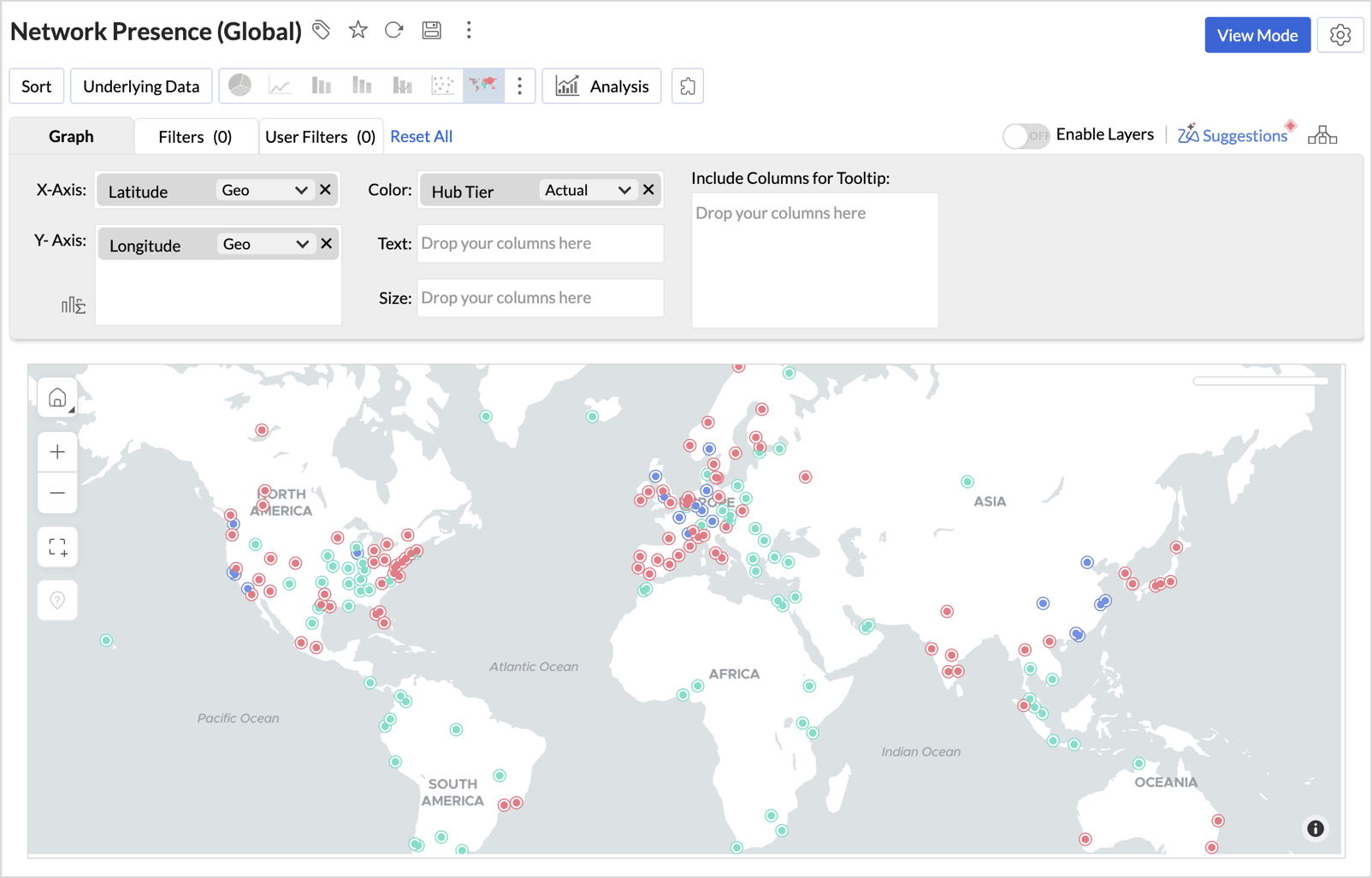
Note: To compare values across countries on a world map, use bubbles rather than filled regions. On a filled map, large high-latitude countries can look more important than their values warrant.
Country-specific maps
When your data covers only one or a few countries, show just those countries and hide the rest of the world. A country-specific map is a fixed map of the selected countries and their states, which keeps the focus on your data. The live world map, by contrast, lets you zoom in to street level.
To display a country-specific map:
- Click Settings > Map > Map Controls.
- Select the Display Specific Country Map check box.
- From the drop-down next to it, select a projection. For US data, choose Albers USA Projection or USA Hex Bin Projection.
- In the Countries field, select the countries you want, and in the State field, select the states.
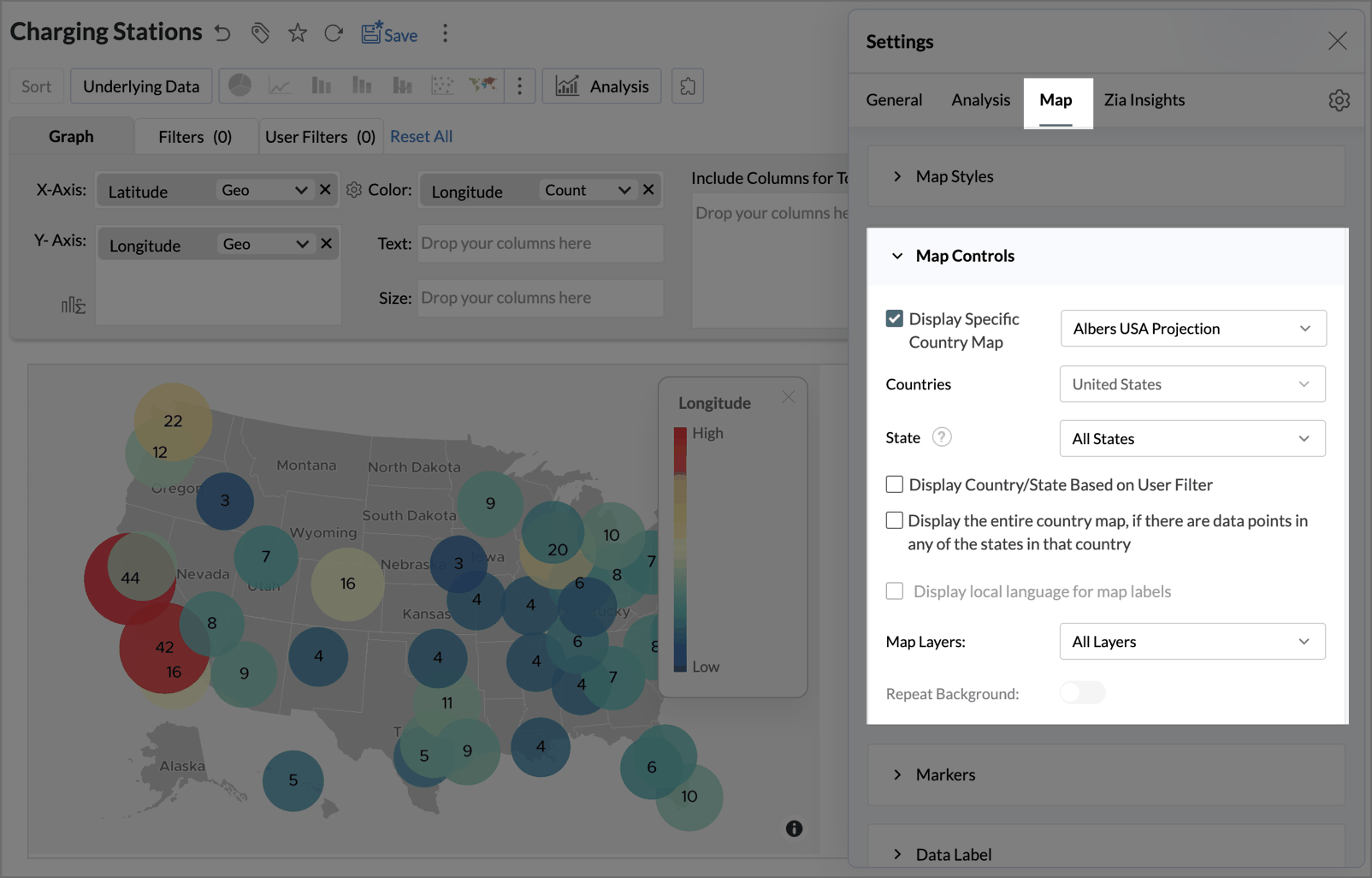
Note:
- Country-specific maps don't support the Display local language for map labels and Repeat Background options.
- When Hexbin is on, only points inside the selected countries are binned.
Maps with an image background
An image map plots your data over your own image instead of a world map, such as a floor plan, a store layout, or a sports field. Each point is placed by its X and Y position on the image rather than by latitude and longitude, which makes it the right choice when a real map is too coarse to be useful. Hover over a point to see its details, as on any other map.
In the example, VoltWay zooms all the way in to one flagship charging hub and plots each charging stall on its site plan, to see which stalls are in service, under maintenance, or offline.
You can plot two kinds of values over an image:
- Coordinate values (XY): Positions specific to the image, such as points on a floor plan. If you don't have them, you can generate them with a third-party image annotation tools.
- Geo locations (Lat/Lng): Place names or latitude and longitude values.
Supported image formats are .jpeg, .jpg, and .png.
To build Image Map - Floor Plan from the VoltWay_Hub_Floorplan table:
- Drag and drop the coordinates to the X-Axis and the Y-Axis shelf.
- If the columns aren't geo columns, click the function drop-down on each column and select Geo > Longitude for X and Geo > Latitude for Y.
- Drag Status to the Color shelf.
Drag Charger Type, Stall ID, Zone, and Zone Code to the Include Columns for Tooltip shelf.
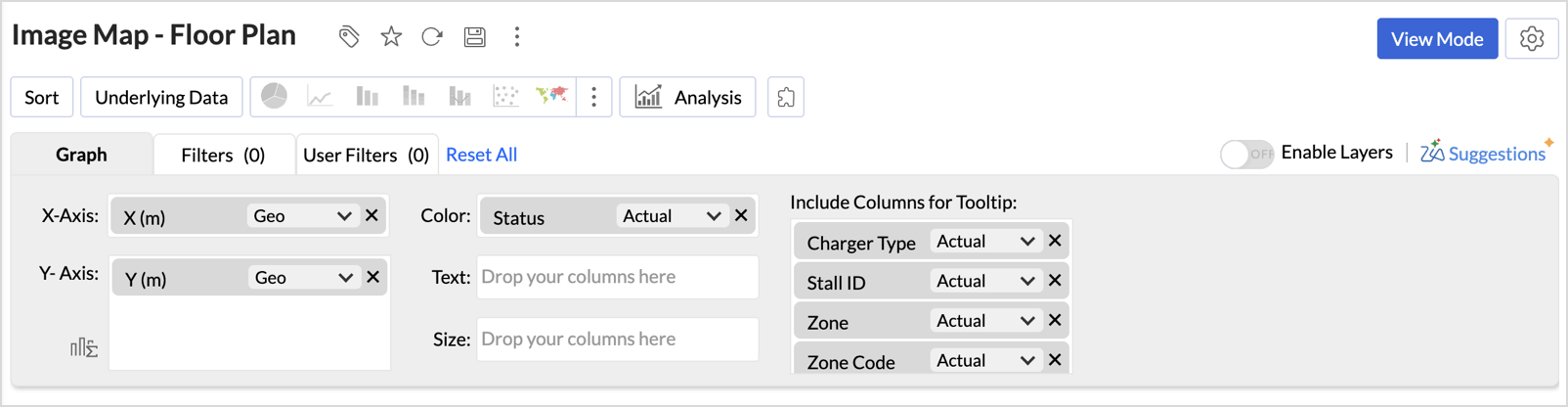
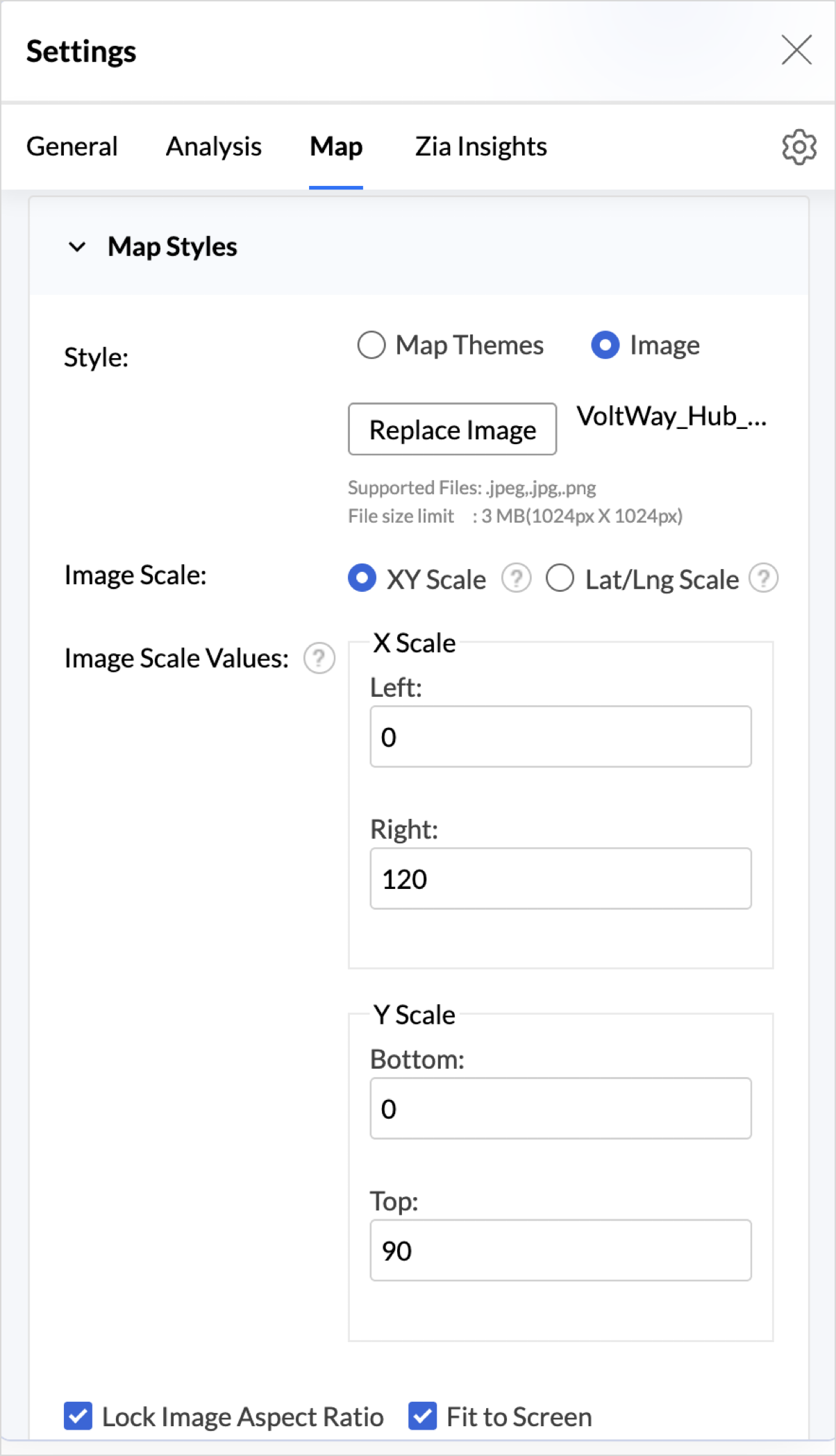
- Click Settings > Map > Map Styles and set the Style option to Image.
Upload the floor plan, set the Image Scale option to XY Scale, and enter Image Scale Values that match your data's coordinate range. In the example, X runs from 0 to 120 m and Y from 0 to 90 m.
- Click Save.
Each stall appears at its bay on the site plan, colored In Service, Maintenance, or Offline, so idle or faulty stalls stand out at a glance.
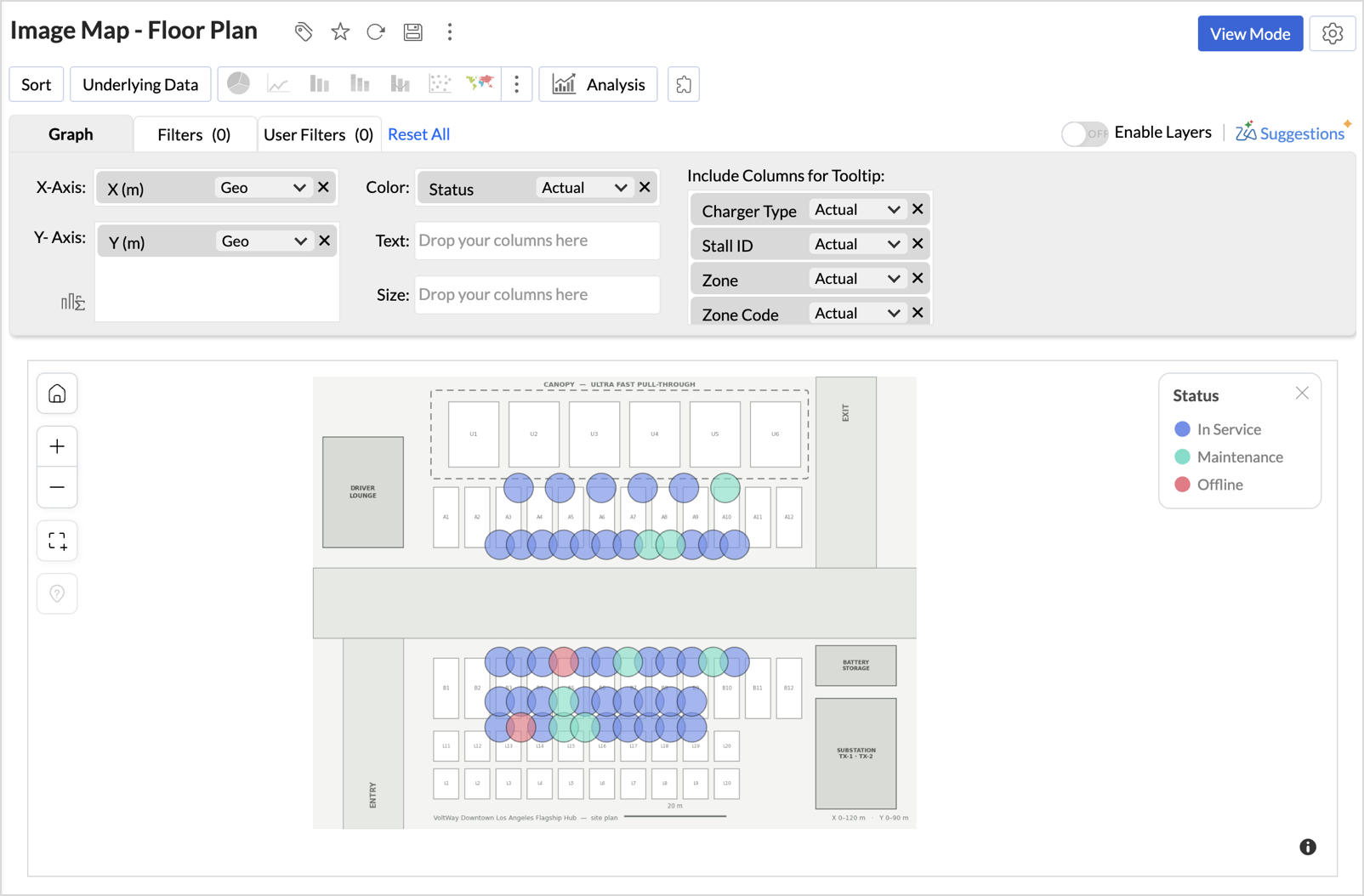
Image Scale Values describe the coordinate range of your data, not the image size in pixels. Values outside this range aren't plotted. For all image options, see Map Styles in Customizing Geo Maps.
Note:
- Keep the image's proportions the same as the coordinate range, and turn on the Lock Aspect Ratio option, so points stay aligned with the image. In the example, the 120 by 90 m range matches the 4:3 floor plan.
- If the map types don't appear, check that the coordinate columns are set as geo columns.
- If the coordinates and the data you want to analyze are in separate tables, join them with a lookup relationship and use columns from both tables.
Maps from spatial data
After you import a spatial file, drag its Geometry or Custom Geometry column to the X-Axis shelf like any other geo column. Zoho Analytics draws the points or shapes from the file. See Spatial data files in Preparing Geo Data for supported formats and limits.
Interact with Geo Maps
The map toolbar appears on the left side of the map when you hover over it.
- Search: Finds a place on the map.
- Home: Fits the map back to the default view.
- Grab Area: Zooms in on an area you select.
- Zoom in and Zoom out: Changes the zoom level, down to street level on live maps. You can also scroll to zoom.
- Hexbin Count: Changes the size and number of hexagons. Appears only when Hexbin is on.
You can also use the regular chart interactions on markers and the legend:
- Hover over a location to see its tooltip.
- Click a location to Drill Down or View Underlying Data.
- Click legend items to show or hide series when Legend Filters is on.
FAQs
1. Why can't I see the map chart types when I create a chart?
The column on the X-Axis shelf isn't a geo column. Change its data type to a geo type, or use Treat as Geo. See Preparing Geo Data.
2. Which map type should I choose?
Start from your question. You can use
- Map - Scatter to show where things are
- Map - Bubble to compare amounts
- Map - Pie or Map - Bubble Pie to show a mix
- Map - Filled to compare regions
- Geo Heat Map to find hotspots
- Cluster Map or Map - Hexbin when points overlap.
The comparison table on the Geo Maps page sums up each type.
3. I added a measure to the Size shelf, but the map didn't change. Why?
Only Map - Bubble and Map - Bubble Pie use the Size shelf. Other map types keep the column on the shelf but ignore it, and it applies again when you switch back.
4. Can I use a dimension in the Color shelf for a Cluster Map?
No. Cluster Map needs a measure in the Color shelf. To count points, use a column with the Count function.
5. Why do some points stay as one cluster even at maximum zoom?
They exactly have the same latitude and longitude, so they can't be separated. Use View Underlying Data on the cluster to see every row.
6. Why don't my points line up with my background image?
The Image Scale Values don't match your data's coordinate range, or the image's proportions differ from that range. Enter the range your data uses, keep the proportions the same, and turn on the Lock Aspect Ratio option.
7. Can I plot data from two tables on one map?
Yes. Join the tables with a lookup relationship and use columns from both, or turn on Enable Layers to show each data set as its own layer.
8. How do I show the coordinates in the tooltip?
The default tooltip doesn't include them. Drag the Latitude and Longitude columns to the Include Columns for Tooltip shelf.
9. Why is Map - Hexbin grayed out in the chart type list?
Map - Hexbin is available only when Hexbin is the function on both axes. Add Longitude to the X-Axis shelf and Latitude to the Y-Axis shelf, then select Geo Location > Hexbin from the function drop-down on either column.
10. How is Map - Hexbin different from Cluster Map and the USA Hex Bin projection?
Cluster Map groups points into clusters that regroup as you zoom, so their size and position change. Map - Hexbin uses a fixed grid of hexagons that stays the same at every zoom level, so you can compare areas fairly. The USA Hex Bin Projection is a map projection that draws each US state as a hexagon. It doesn't group your data points.