Preparing Geo Data
Every Geo Map starts with clean location data. When Zoho Analytics recognizes the places in your table, whether country names, zip codes, airport codes, or exact coordinates, it can plot each one accurately on the map.
This page shows you how to get your data map-ready: which location types are supported, how to set the right geo data type, how to fix places that can't be plotted, and how to bring in custom shapes from spatial files.
Supported geo data types
| Geo data type | Use it when the column contains | Identified automatically on import |
|---|---|---|
| Continent | Continent names or codes | Yes |
| Country | Country names, or alpha-2 and alpha-3 country codes | Yes |
| State/Province | State or province names | Yes |
| County | County or district names | Yes |
| City | City names | Yes |
| Zip Code | Postal codes | No. Identified as Positive Number data type, so change it to Zip Code. |
| Latitude and Longitude | Coordinates, in decimal or DMS format | Only in a supported DMS format. Decimal values are identified as decimal numbers. |
| Airport | Three-letter IATA airport codes | Yes |
| Geometry and Custom Geometry | Points or shapes from a spatial data file | Yes, when you import a spatial file |
Note: Zoho Analytics doesn't identify a column as a location when:
- Location names are misspelled. Correct them with Find and Replace, or with Zoho DataPrep during import.
- Latitude or longitude values use a DMS format that isn't supported. See Latitude and longitude below for the supported formats.
Set the geo data type of a column
You can set the data type in the Data Preview section while importing, or later from the table.
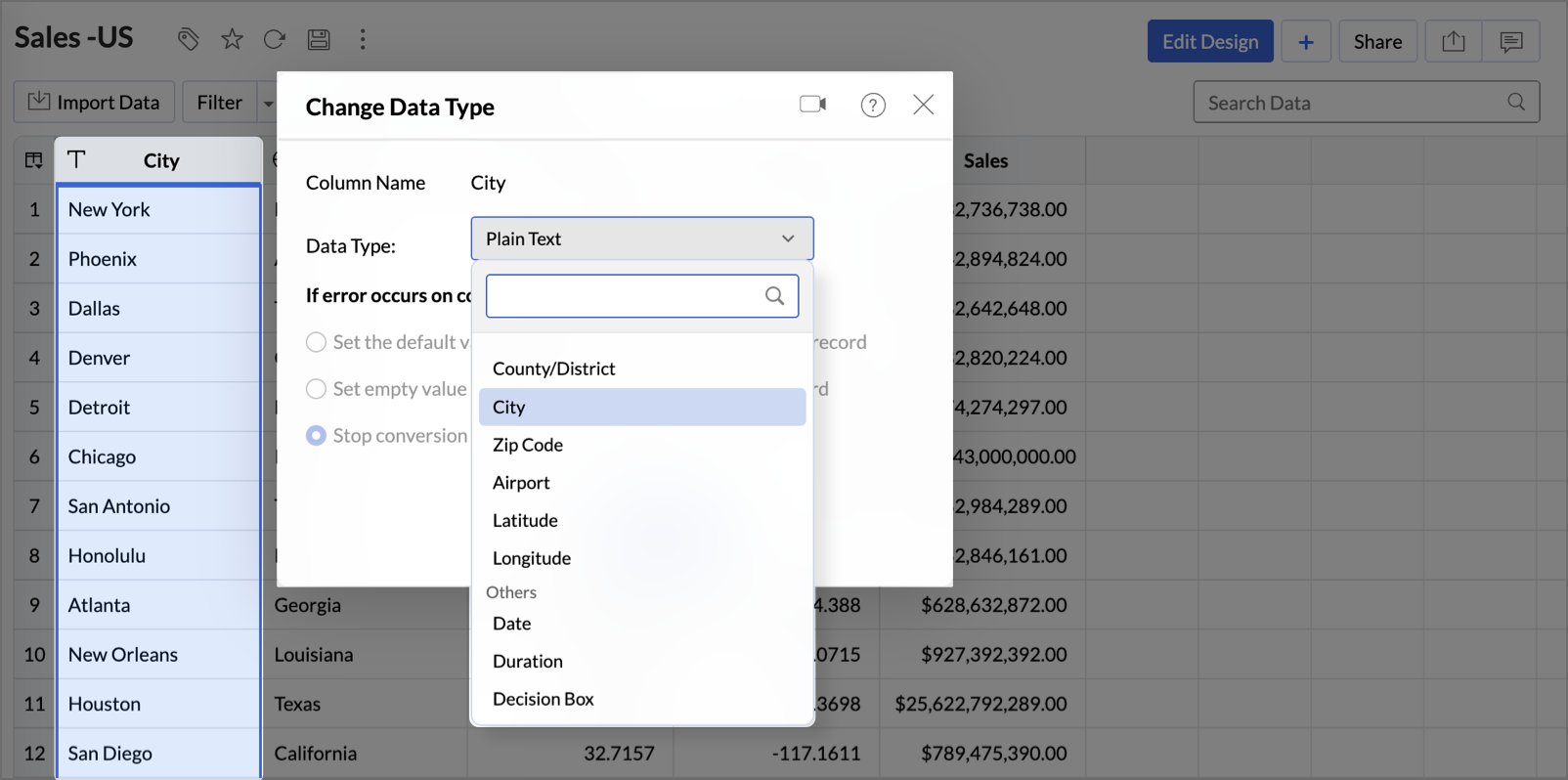
- Open the table and right-click the column header.
- Select Change Data Type.
- Select the geo data type from the Data Type drop-down, for example Country, Zip Code, Airport, Latitude, or Longitude.
- Click OK.
Use a column as geo for one report only
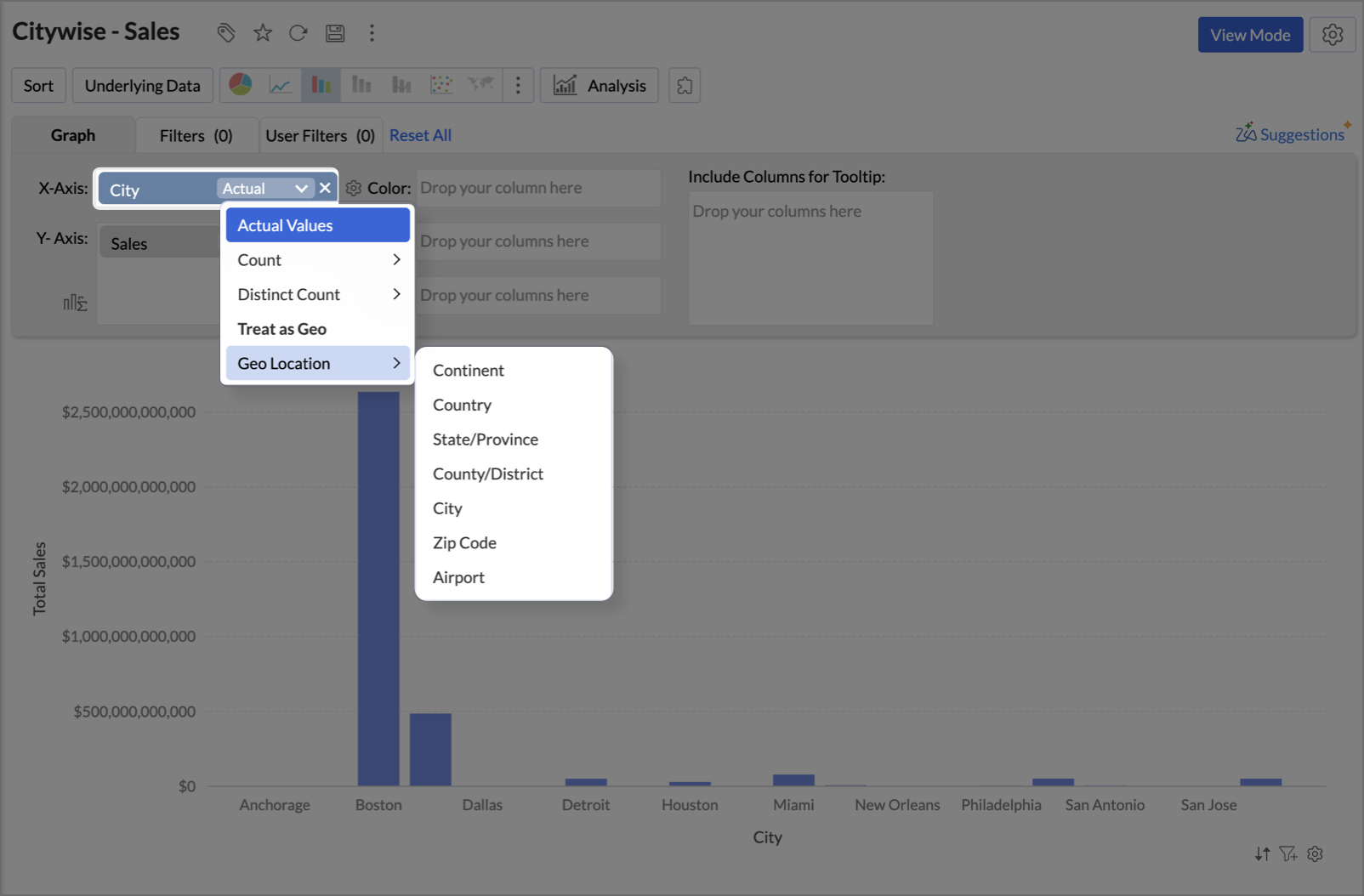
If you don't want to change the column's data type in the table, use Treat as Geo in the chart designer. The column is treated as geo data only in that report. For example, you can plot a City column that is stored as text without changing the table.
Latitude and longitude
To plot exact positions, keep latitude and longitude in two separate columns and set their data types to Latitude and Longitude.
To change how the coordinates are displayed:
- Right-click the Latitude or Longitude column and select Format Column.
- In the Format Column dialog, set the Alignment.
- Choose a format from the Display Format drop-down.
- Click OK.
Supported display formats:
- Decimal: (+/-) 12.3456789
- Degrees Minutes Seconds (DMS):
- (+/-) 12° 34' 56"
- 12° 34' 56" (N|S|E|W)
- (+/-) 12d 34m 56s
- 12d 34m 56s (N|S|E|W)
- (+/-) 12.3456°
- 12.3456° (N|S|E|W)
Note: These formats are available only when the data type is Latitude or Longitude.
Latitude and longitude columns can also be binned. In the chart designer, select Geo Location > Hexbin from the function drop-down to group points into hexagonal cells. See Map - Hexbin in Creating Geo Maps.
Zip codes and airport codes
- Zip codes: Postal codes import as Positive Number data type. Change the data type to Zip Code before you create the map.
- Airport codes: Three-letter IATA codes are identified as Airport automatically. If they aren't, change the data type to Airport.
Unresolved locations
An unresolved location is a place Zoho Analytics can't identify, so it isn't plotted on the map. This usually happens when:
- A name is duplicated or ambiguous, for example a city name that exists in several countries.
- A name is misspelled, for example Hongkong for Hong Kong or Broklyn for Brooklyn.
- A place is entered by an informal or colloquial name.
During import, these values can show the error Invalid GEO LOCATION.
Find unresolved locations
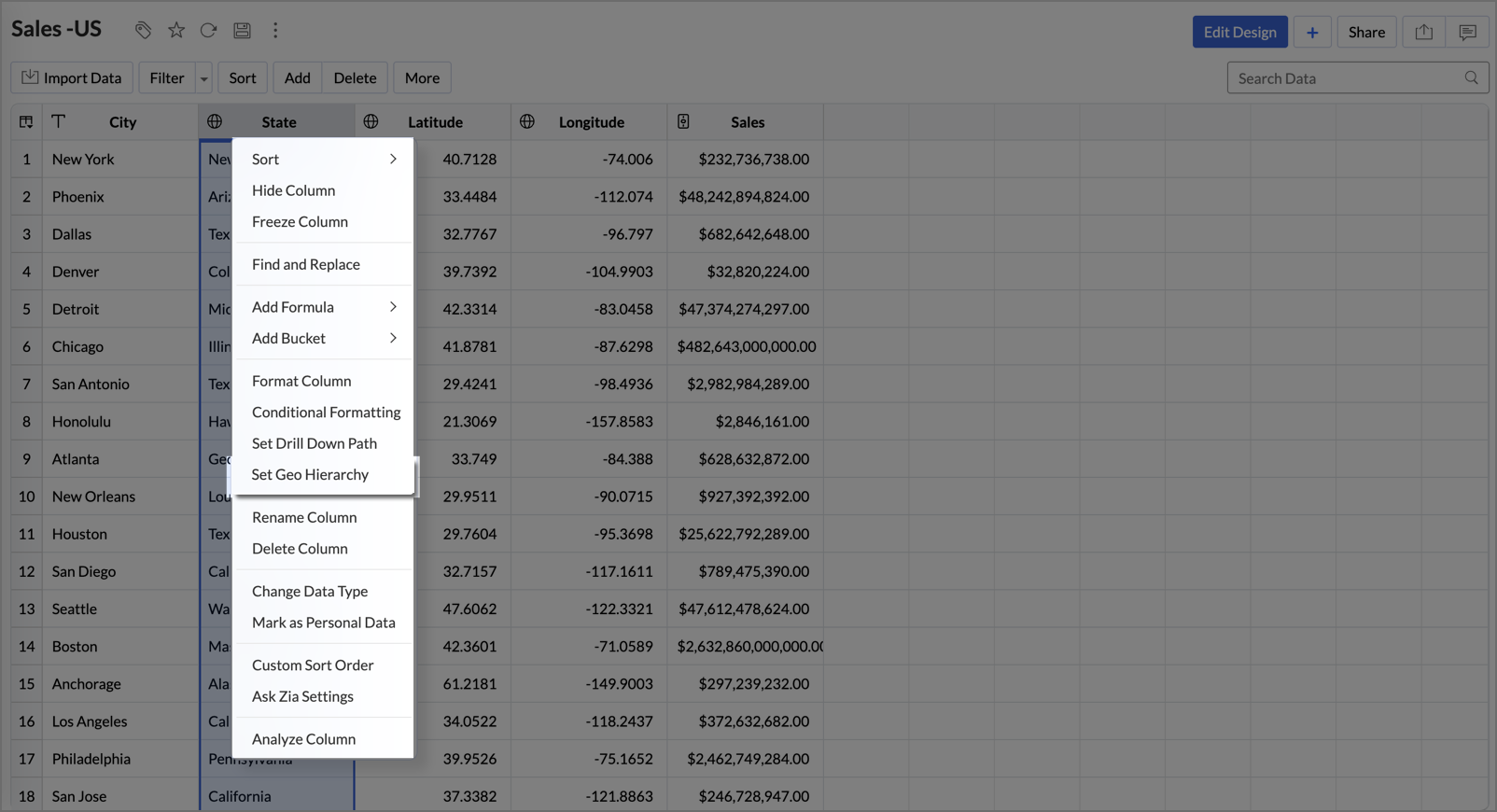
From a table: Right-click the geo column and select Set Geo Hierarchy.
From a map: Open the map in edit mode and hover over it. Click the Unresolved Location(s) icon that appears in the map toolbar.
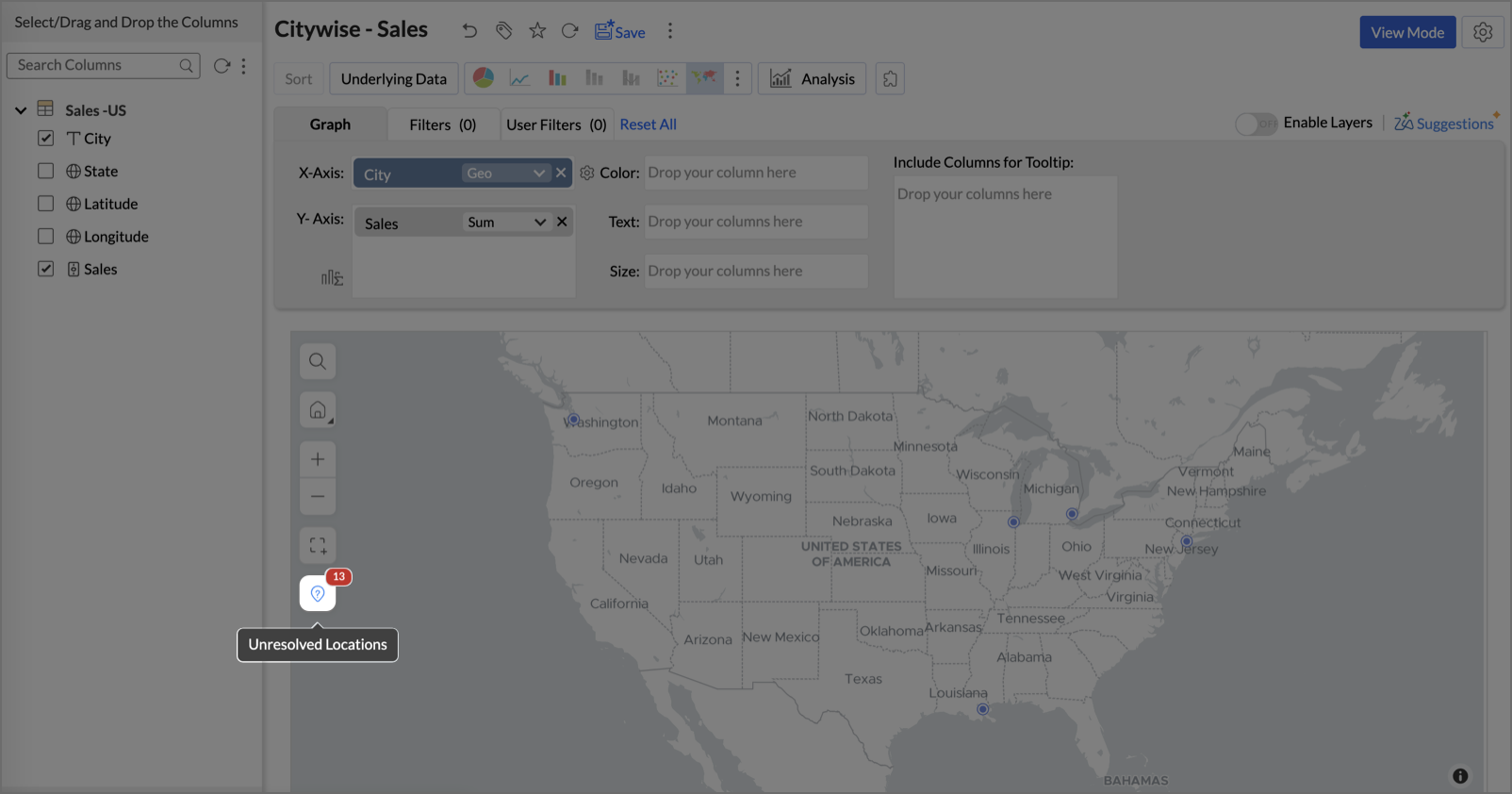
Both options open the Edit Unresolved Locations dialog, which lists the places that couldn't be plotted.
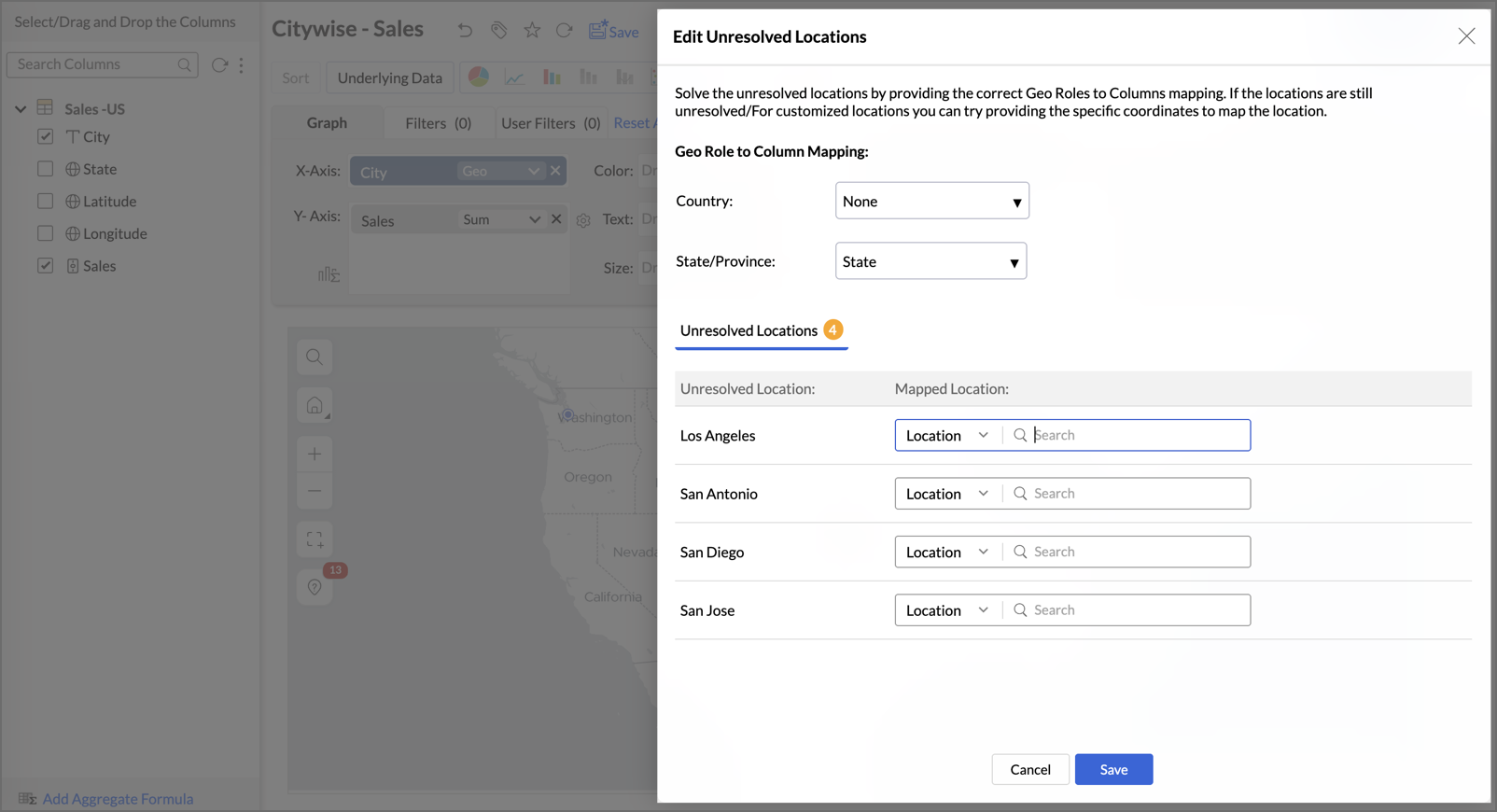
Resolve unresolved locations
Choose a method based on the data you have.
| Method | Use it when | How it works |
|---|---|---|
| Map to a country column | Your table has a country column | Map the place to the country column so Zoho Analytics knows which country it belongs to. If all places are in one country and you have no country column, select Provide the Location and enter the country name. |
| Map to a state column | Places are still ambiguous within a country | Map the place to a state column as well. If all places are in one state, use Provide the Location and enter the state name. |
| Correct the spelling | Names are misspelled | Fix the name in the source data and re-import, or edit it in the Zoho Analytics table. |
| Enter latitude and longitude | You know the exact coordinates | Type the latitude and longitude for the place in the Edit Unresolved Locations dialog. |
| Pick Location | You know where the place is but not its coordinates | Click Pick Location, search for the place, move the picker to the correct spot, and click Apply. The coordinates fill in automatically. |
Spatial data files
A spatial data file stores the location, size, and shape of geographic features. Import one to plot custom boundaries or shapes, such as sales territories or delivery zones.
| Item | Supported |
|---|---|
| File formats | Shapefiles (a ZIP file with all dependent files), TopoJSON, GeoJSON |
| Geometry types | Point, Polygon, Multi-Polygon |
| File size | Up to 15 MB of spatial data |
To import a spatial file, select the Spatial File option in the Files/Feeds tab of the import wizard.
- Geometry column: Holds the shape data used to plot locations. Zoho Analytics identifies it automatically. A spatial file can't be imported without one.
- Custom Geometry column: A column with unique values that Zoho Analytics maps to the geometry column. You can use it in place of the geometry column when you build a map.
Import spatial data into an existing table
You can import spatial data only into a table that already contains spatial data, and only with the Delete existing records and add option.
- Open the spatial table.
- Click Import Data > Import Data into this Table.
- Complete the import wizard as you would for a new spatial file.
Limitations of spatial tables
- A spatial file can't have more than one geometry column.
- You can't delete the geometry column or exclude it when sharing the table.
- You can't use a geometry column in a lookup relationship, a formula, or Auto Analysis. Auto-generated reports don't include it.
- Other file formats can't be imported into a spatial table.
- Exported or backed-up spatial tables aren't saved as spatial files.
FAQs
1. Why isn't my location column identified as a geo column?
This usually happens when place names are misspelled, coordinates use an unsupported DMS format, or the column holds zip codes, which import as Positive Number data type. Correct the values, then change the column's data type to the right geo type. To use it as geo data in one report only, use Treat as Geo in the chart designer.
2. Should I change the data type or use Treat as Geo?
Change the data type when the column always holds locations. The change applies to the table and every report built on it. Use Treat as Geo when you need the column as geo data in a single report and want to leave the table unchanged.
3. Why are some of my locations missing from the map?
Zoho Analytics couldn't identify them, so they're unresolved. Hover over the map in edit mode and click the Unresolved Location(s) icon in the map toolbar to see them, then resolve each one in the Edit Unresolved Locations dialog.
4. A city name exists in more than one country. How do I plot the right one?
Map the place to your country column, and to your state column if it's still ambiguous. If all your places are in one country or state, select Provide the Location and enter its name instead.
5. Can I use decimal latitude and longitude values?
Yes. Decimal coordinates import as decimal numbers, so change the columns' data types to Latitude and Longitude before you build the map.
6. Do latitude and longitude need to be in separate columns?
Yes. Keep them in two columns, each with its own data type. A single column that holds both values can't be plotted.
7. Which spatial file formats can I import?
You can import Shapefiles (as a ZIP file with all dependent files), TopoJSON, and GeoJSON files with up to 15 MB of spatial data.
8. Can I add more data to a spatial table later?
Yes, you can import only spatial data, and only by using the Delete existing records and add option. Note that the import will delete all existing rows before adding the new data.