Get your favorite apps talking to Zoho Sign with Zapier

Your business didn't come together overnight. It's something you've built, refined, and fine-tuned over time. Every tool you use has a purpose, carefully handpicked to help you run your business exactly the way you envisioned it.
At Zoho Sign, we believe your paperwork should flow just as easily as the rest of your work. We aim to make digital signing so effortless that it doesn't feel like a separate chore but a natural part of how you already work. That's why Zoho Sign integrates with a growing list of the essential apps you rely on every day, so your workflows remain simple and uninterrupted.
However, we know businesses rarely fit a standard mold. Sometimes, your workflow needs something a little more specific. For instance, every time a new lead gets added to your CRM, you might want to send them an agreement or onboarding form for signature through Zoho Sign. But if you're doing that manually each time, that extra step slowly eats into your day. Wouldn't it be easier if the document just went out for signing the moment the lead was created?
Well good news, there's probably a zap for that!
Automate your work with Zoho Sign + Zapier
Zapier, the integration powerhouse, helps connect Zoho Sign with over 8,000 apps from its catalog to make your workflows practically run themselves.
With this integration, you can create a Zap to link Zoho Sign with the tools you already use.
Each Zap starts with a trigger (an event in one app) and follows through with actions (tasks that run automatically in other apps).
For example, when a document is completed in Zoho Sign (trigger), you can automatically do any of the following:
Update a deal stage in your CRM.
Send a confirmation message to your team.
Store the signed file on a shared drive.
Create an invoice in your accounting tool.
It works both ways, too. For instance, when a new lead is added to your CRM (trigger), Zoho Sign can automatically send them a document for signature (action).
Over time, these automations help you reclaim hours of manual work, speed up everyday tasks, and keep things running without a hitch.
Pre-built Zaps to get you started
If you're wondering where to begin, start here! We've put together some ready-made Zaps to show how Zoho Sign can blend right into your app stack.
Here are a few to help you get started:
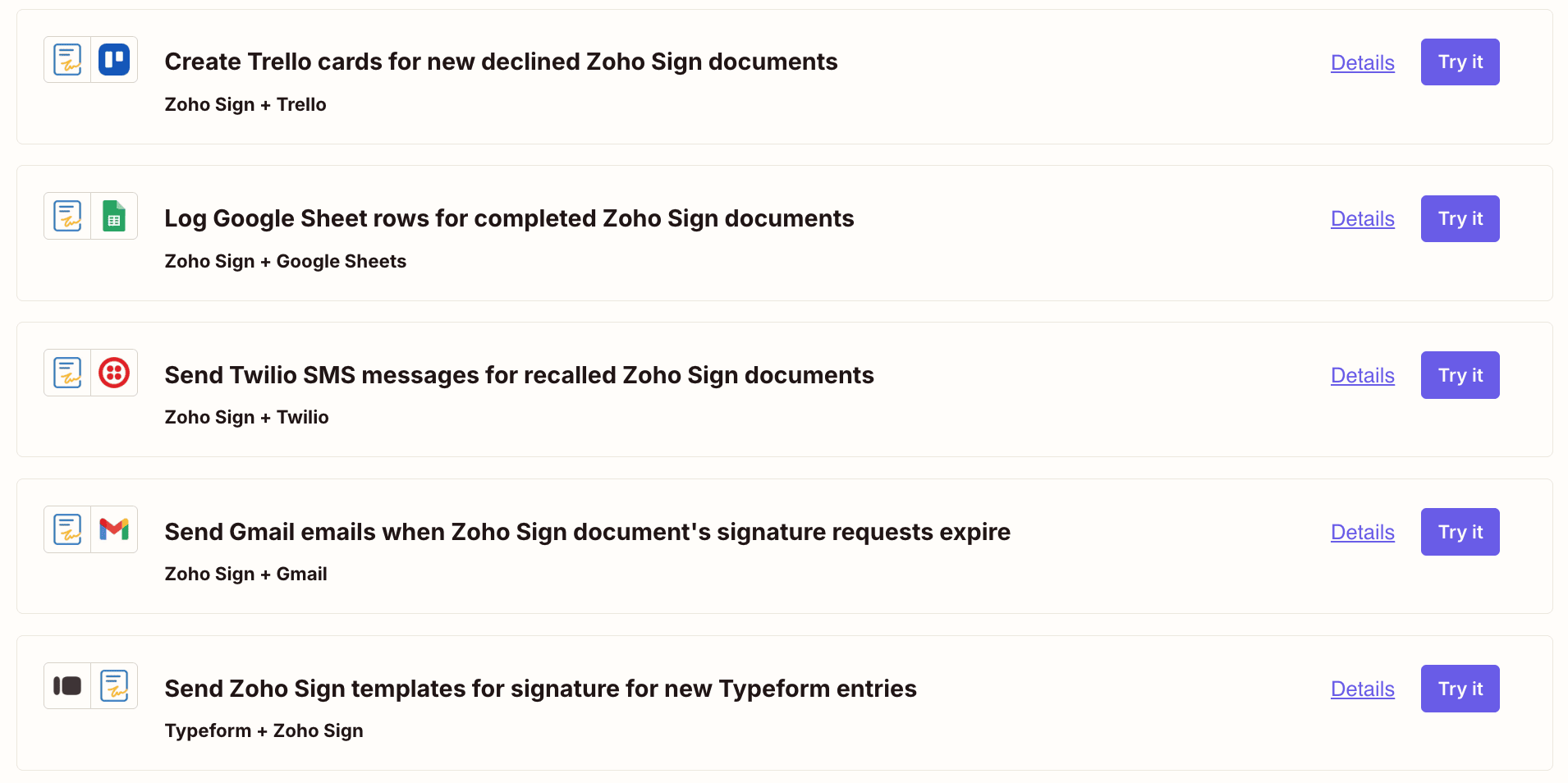
Of course, don't feel limited by what's already available. If you're feeling inspired, build your own Zaps to match your workflow or create new ones using the available triggers and actions.
Just pick the apps you want to connect with Zoho Sign, set up your trigger and action, give it a quick test, and turn it on. Zapier handles the rest while you get on with your day.
What's a trigger, you ask?
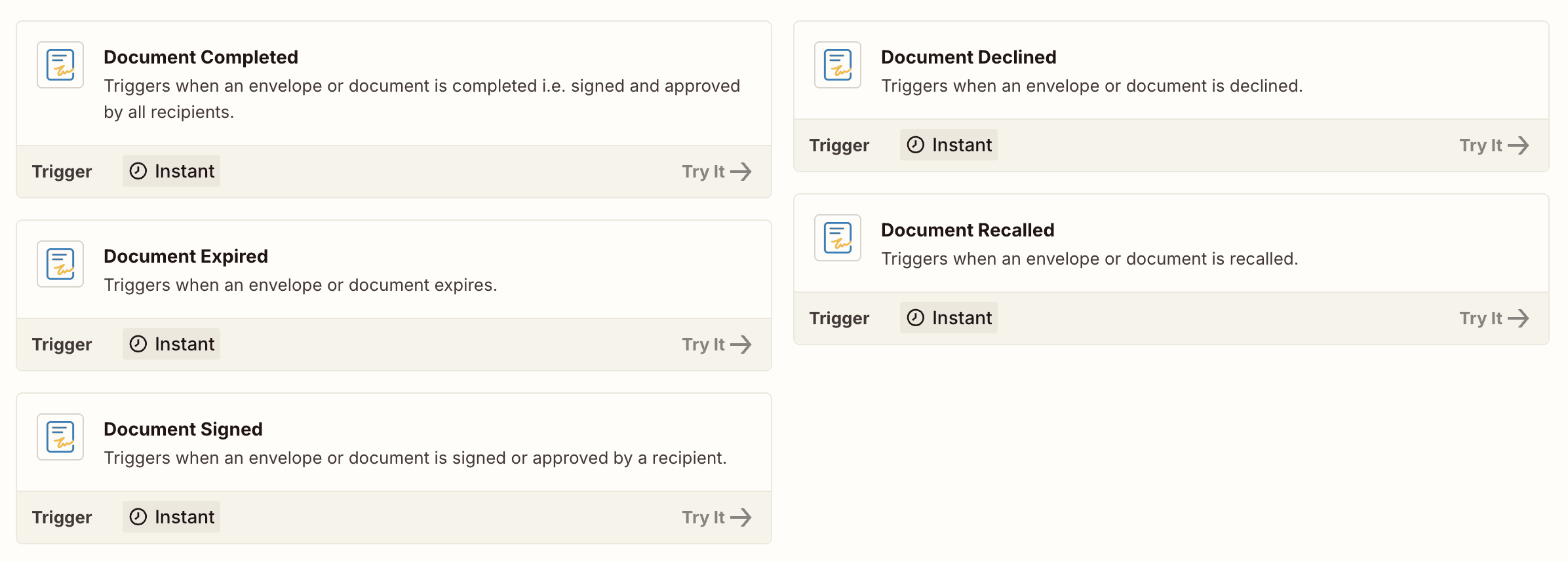
A trigger is the spark that sets your automation in motion—the "when this happens…" part of your workflow. In Zapier, every Zap begins with a trigger, and Zoho Sign supports five, each tied to a specific document event:
Document Completed – All required signatures and approvals are in place.
Document Signed – One of the signatories has added their signature.
Document Declined – A signatory has chosen not to sign the document.
Document Recalled – The sender has withdrawn the document from the signing process.
Document Expired – The document's signing period has ended before completion.
When any of these events occur, Zapier takes over, executing the actions you've set up so your workflows keep moving without you having to do a thing.
Actions: What happens next
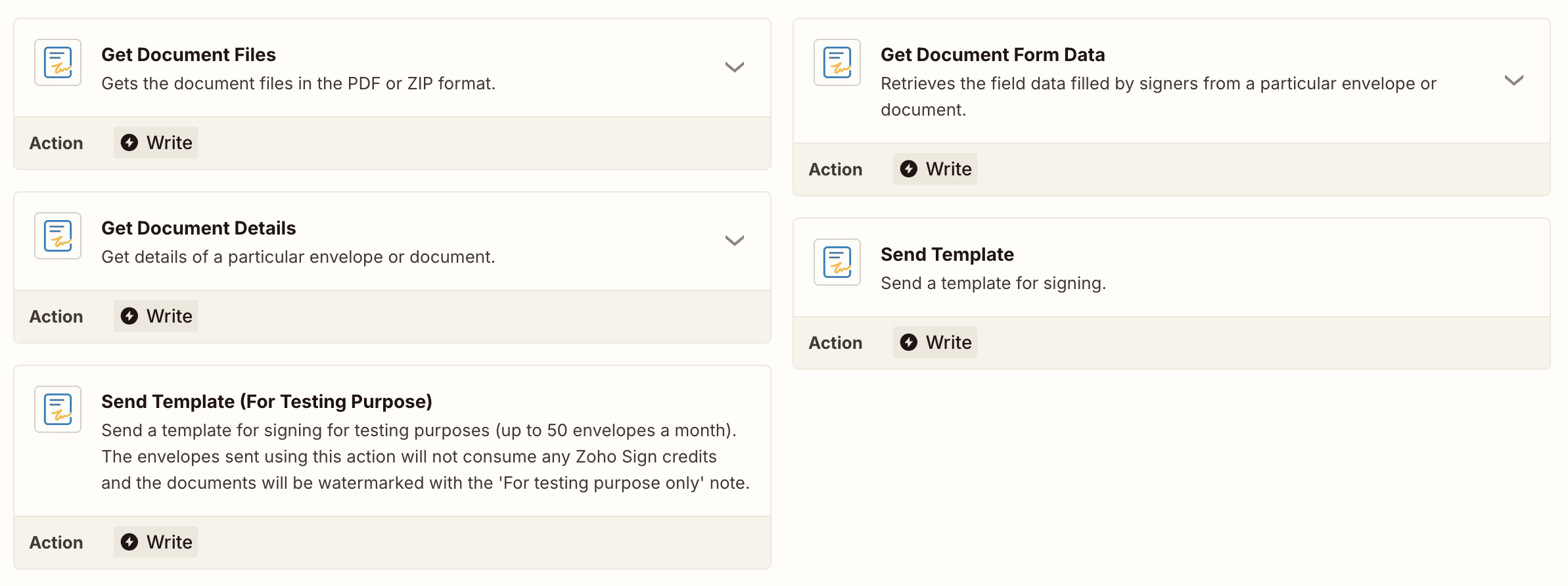
While a trigger signals the start, an action is what actually happens next—the "now do this" part of your workflow. It's a task or function carried out by one or more apps in your Zap once the trigger condition is met. Zoho Sign supports five actions, each designed to help you manage documents and workflows efficiently:
Get Document Files – Retrieve a document in PDF or ZIP format.
Get Document Details – Pull all the essential information of a specific document.
Get Document Form Data – Access the data entered in a document's fields.
Send Template – Send a pre-filled document template out for signature.
Send Template (Testing Purpose) – Send a template for signing using test credits. The document will not consume Zoho Sign credits and will be watermarked as “For Testing Purpose Only.” This option is available for up to 50 test sends per month.
Actions are the hands that make your workflow move. When a trigger fires, these actions spring into motion, handling the work for you.
How to connect Zoho Sign with Zapier
Getting started with Zoho Sign and Zapier is easier than you think. And no, it doesn't require any coding knowledge. All you need are your Zoho Sign and Zapier accounts. Visit our integration page on Zapier, connect your accounts, and you're all set to start automating your workflows! Check out our help guide for a simple, step-by-step walkthrough.
Start using this integration today and create Zaps with the apps you love. Not on Zoho Sign yet? Sign up for a free 14-day enterprise trial at zoho.com/sign. Got questions or feedback? Just write to us at support@zohosign.com, and we'll be happy to help!


Comments