
- HOME
- Product blogs
- How to boost holiday sales with Zoho Commerce
How to boost holiday sales with Zoho Commerce
There is no doubt that the holiday season is one of the most profitable times of the year. Around 50% of small businesses earn up to a quarter of their annual revenue during this period.
But while the demand is high, capturing it takes serious effort, and it all starts with getting your online store ready.
This article will walk you through how you can use Zoho Commerce to prepare your store and drive more holiday sales.
7 Ways to boost holiday sales with Zoho Commerce
1. Launch holiday product bundles
2. Create coupons and automatic discounts
3. Offer more flexible ways to pay
4. Turn social followers into buyers with a microstore
5. Retain customers with post-purchase follow-ups and loyalty points
6. Keep track of holiday sales to find what works
7. Build holiday page sections with the AI Section Generator
1. Launch holiday product bundles
A holiday-themed product bundle helps simplify options for gift buyers and lets you raise order values without marking down every item. The sweet spot for holiday product bundle discounts to attract customers while protecting profits is usually between 5% and 20%.
Zoho Commerce builds bundles as composite items. First, enable the option:
Go to Settings > General > Items.
Check Composite Items under the Preferences tab, and click Save.
Then create the composite item under Items, including the individual items it contains.
To add the bundleto stock, go to Items > Assemblies and create an assembly. You can add more items or services as rows, such as gift wrapping.
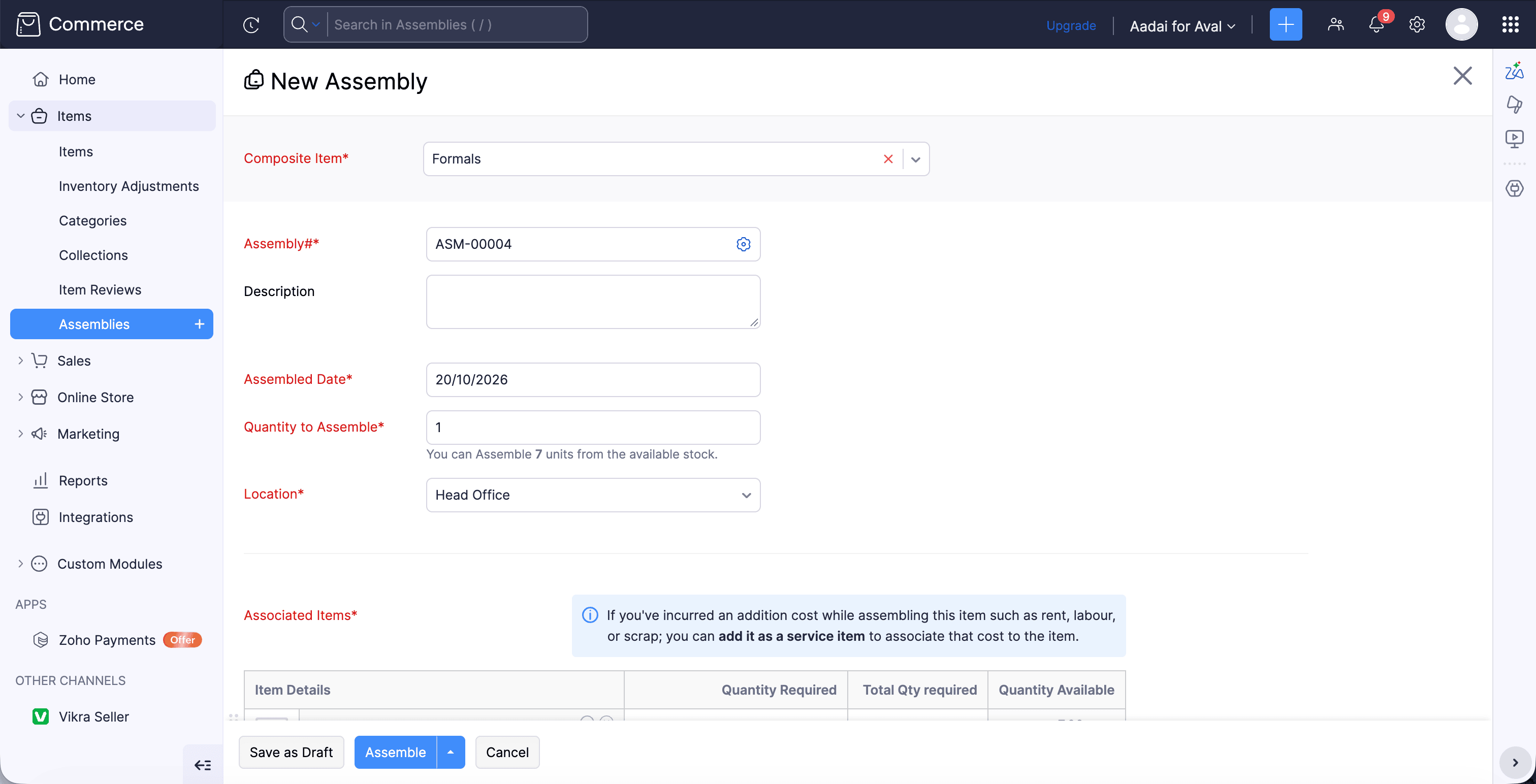
Once you confirm the assembly, Zoho Commerce deducts the components from stock, accounts for the assembly cost, and raises the stock of the composite item by the quantity you built.
2. Create coupons and automatic discounts
Zoho Commerce offers two ways to discount, each suited to different marketing goals.
To start, click Settings in the top-right corner and enable Coupons by navigating through Settings > Online store > Preferences. Then go to Marketing > Coupons and click + New.
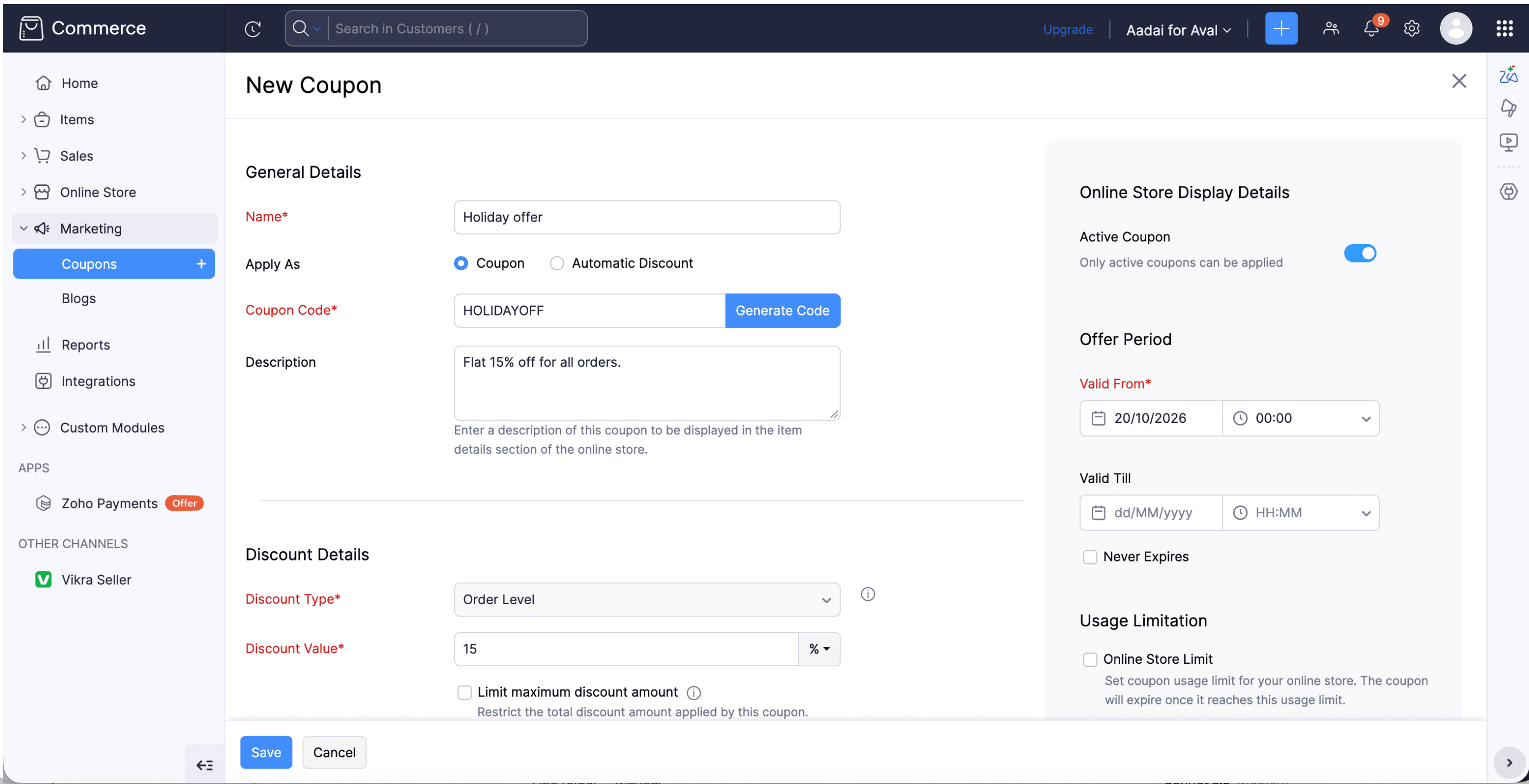
Here, you can either create a coupon that requires customers to enter a code at checkout, or create an automatic discount that applies at checkout without a code.
You can also configure coupon rules, such as minimum cart value, customer usage limits, or online store limits. You can also control which automatic discount applies first when more than one is available.
Display these coupons or discounts on your storefront to attract potential customers. This can be done by switching on Show Item Coupons under Coupons in the storefront settings. By toggling Show Coupon Validity, you can show the time left before expiry; Show Coupon Usage will display the percentage of a coupon that has been used; and List Coupons During Checkout shows all active coupons on the checkout page.
3. Offer more flexible ways to pay
Flexible payments drove nearly $20 million in holiday sales during 2025, and that figure is estimated to increase exponentially in 2026.
With more first-time buyers visiting your site, a new shopper who cannot pay the way they want will probably leave.
In Zoho Commerce, you can integrate several payment gateways, such as Razorpay, Stripe, or PayPal.
Through any of these payment gateway integrations, you can offer flexible payment options, like BNPL, depending on the provider. You can do this by going to Settings > Payment Gateways under Integrations, and clicking Set Up Now.
Note: This depends on the payment provider. Some payment providers offer pay-later options only in some regions, so check with them before setting it up.
4. Turn social followers into buyers with a microstore
A microstore is a mobile-friendly, shareable page that holds your brand, specific products, and social links in one place.
It is often described as a link-in-bio page, where followers tap the link in your Instagram or other social profile, browse your products, and order without leaving the feed. It does not require a full website.
To create one, go to Online Store > Microstore and click Create Microstore. Enter a unique name and click Save.
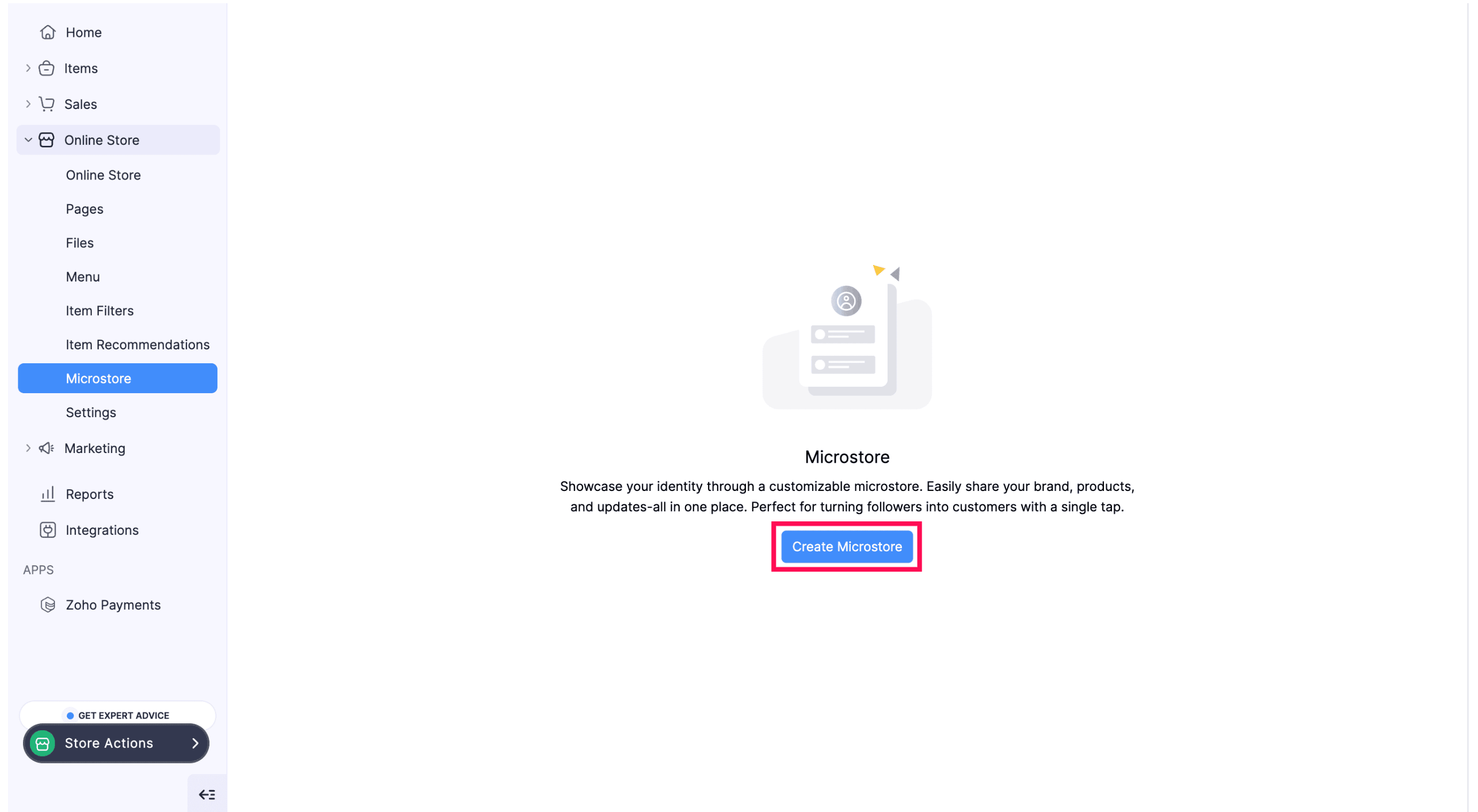
The editor opens with two tabs:
Links – Add your logo, title, and bio. Then add content blocks like an Item block (added by default), a Category block, a Video block, or a Rich Text block.
Appearance – Install a template, set the top-bar background (an image or a color), pick colors and a font family, and customize the overall visual style of your microstore.
Preview it in mobile and desktop views, then click Publish in the top-right corner.
For the holidays, you can put your best-selling gifts in an Item block as Feature Cards. You can also add a Category block for something like "Gifts under $50," a Video block with a short unboxing, and a Rich Text block with your last order date for delivery by December 24.
5. Retain customers with post-purchase follow-ups and loyalty points
A holiday buyer who gets a gift for someone else is also a future customer for themselves. A loyalty program can give them a reason to return to your store even after the holiday season is over.
Go to Settings > Setup & Configurations > Loyalty Program, click Enable, then Programs > + New Loyalty Program. You can set your preferences like:
Allow users to adjust the loyalty points of customers.
Round off the loyalty points to the nearest whole number.
Deduct loyalty points when items are returned.
Restrict awarding loyalty points when they are redeemed.
Exclude the tax amount while calculating loyalty points.
Retain the existing loyalty points when switching programs.
You can strategize by setting redemption rules with a minimum number of points before redemption, and a redemption window.
Preferences also let you deduct points when items are returned, which protects you from holiday return abuse.
6. Keep track of holiday sales to find what works
During a sale, when you are already held up with processing high orders, keeping track of inventory, and making sure orders get delivered on time, you probably do not have time to open report after report.
Ask Zia, a conversational assistant inside Zoho Commerce, can help you pull reports on your sales with conversational queries. You can type a question in plain language, and it gives you information, drafts content, or guides you through a task.
To turn it on, go to Settings > AI Integration > Preferences, switch on Ask Zia, and click Save.
You can try prompts like these:
Which products sold the most yesterday?
How many carts were abandoned this week?
Which products are running low on stock?
How many orders did we receive this week compared with last week?
Who are our top customers this month?
Which coupon was used the most this week?
7. Build holiday page sections with the AI Section Generator
For the holiday season, give your homepage a themed update, such as a sale banner, a gift guide, or a shipping cutoff notice.
The AI Section Generator creates a section for your online store from a prompt. You describe the layout or content you want, and it drafts the section.
To turn it on, go to Settings > AI Integration > Preferences, switch on AI Section Generator and click Save.
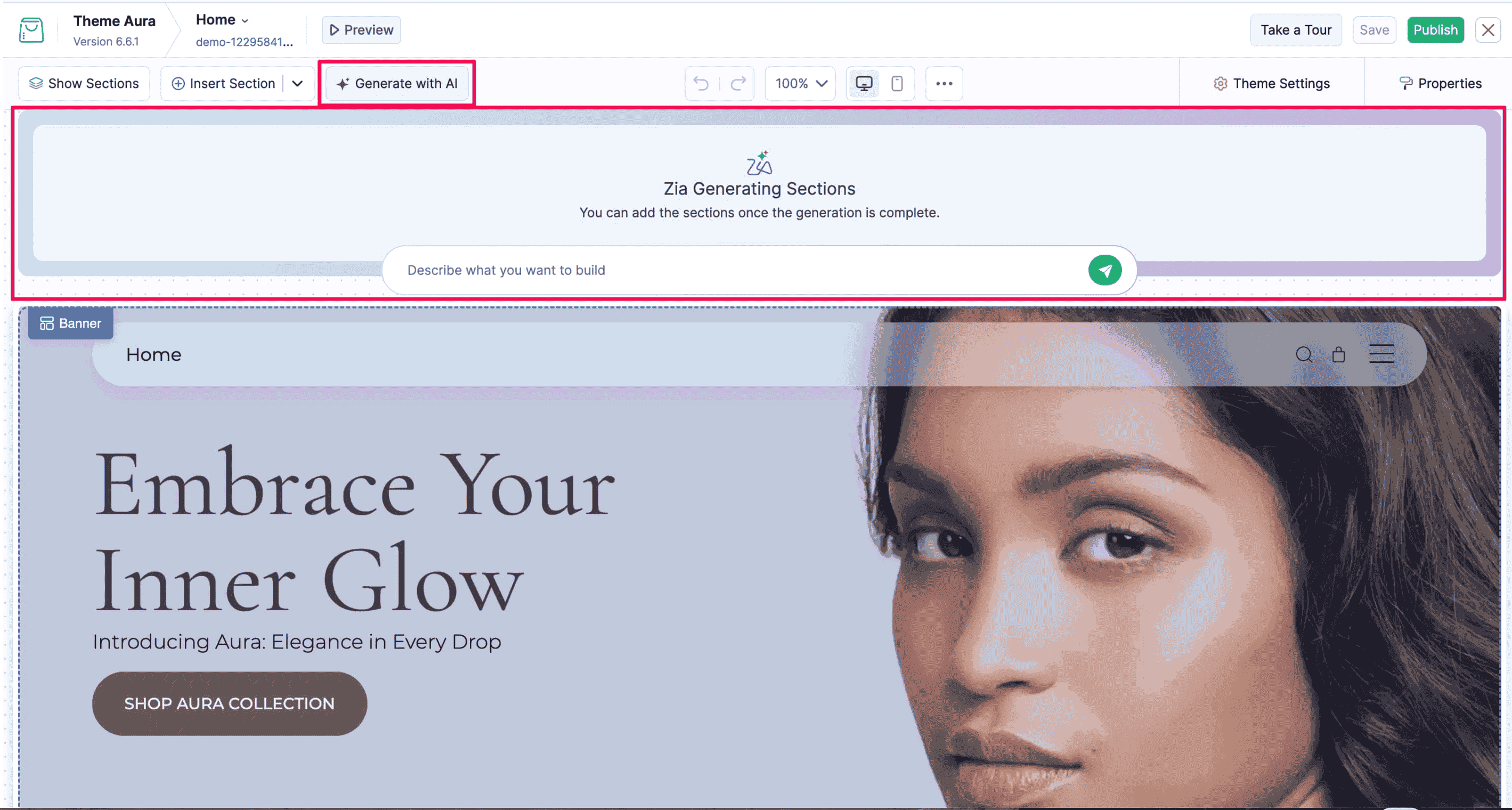
A good prompt names the purpose, the content, and what shoppers should do next. Some good ideas are:
A hero section announcing your holiday gift sets, with a headline, one line of supporting text, and a button to the gift set collection.
A strip below the header saying the last day to order for delivery by December 24 is December 15.
A section showing three featured gifts under $50, each with an image, a name, and a price.
Conclusion
Prepare your store before the holiday season to capture as many sales as possible. Some of the features above may differ by plan. If you do not see one in your account, contact our support team at support@zohocommerce.com.
 Divyashree Durai
Divyashree Durai is a content marketer at Zoho Commerce, a key product within Zoho's finance suite. As the lead voice behind the platform's Academy blogs, she draws on extensive industry research and close collaboration with the product team to deliver practical, research-informed insights that support meaningful growth for online businesses. Her work spans a wide range of ecommerce topics, including digital selling trends, global market shifts, business strategy, and the core fundamentals shaping modern commerce.