How to send HTML emails from CPaaS
- Published : October 5, 2026
- Last Updated : October 7, 2026
- 100 Views
- 6 Min Read

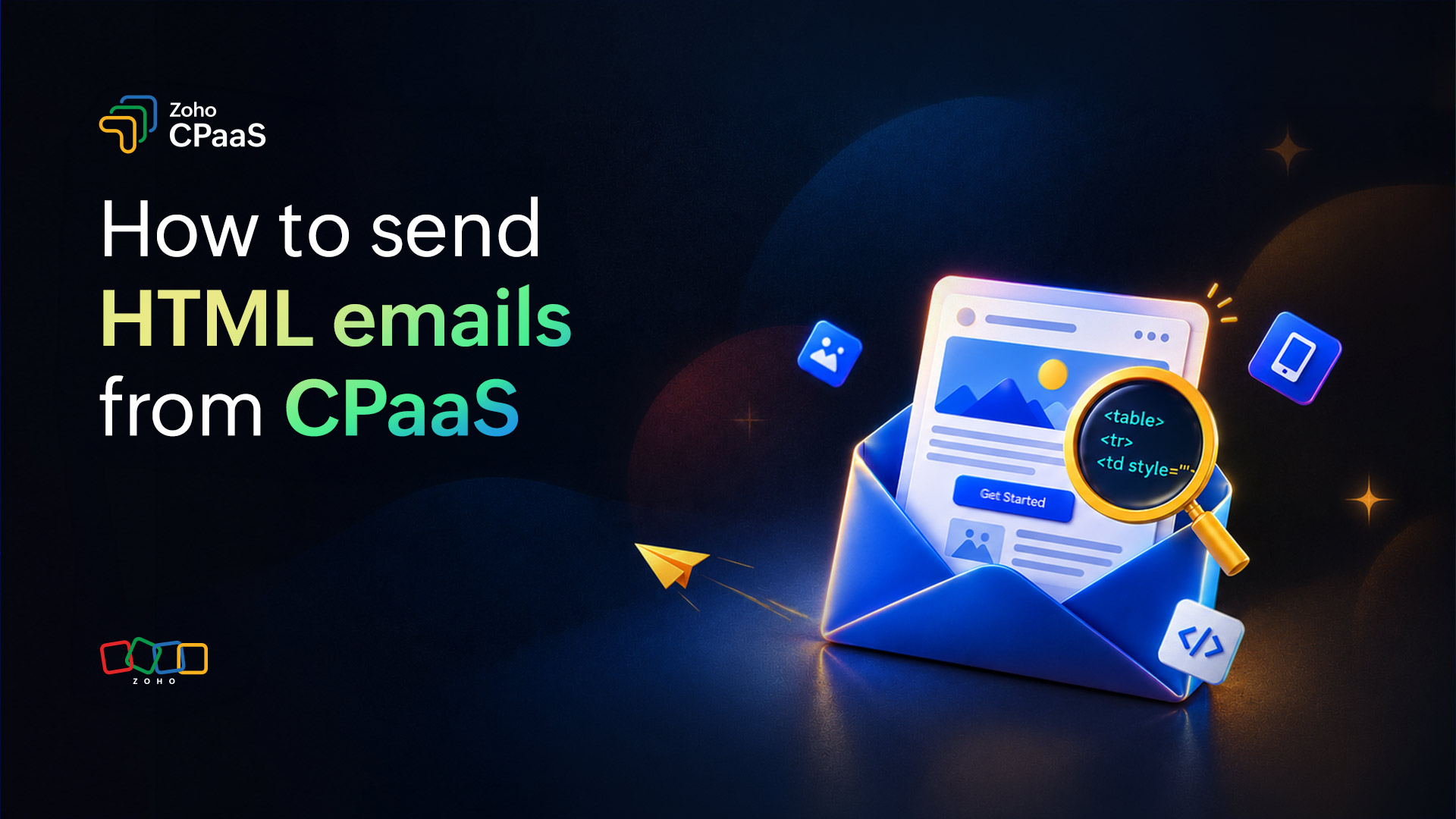
An HTML email is a message created using HyperText Markup Language and sent through Multipurpose Internet Mail Extensions (MIME) encoding. HTML emails are different from webpages viewed in browsers because these emails are processed by email clients, each using their own unique rendering engines. Because most email clients don’t support modern CSS styling, HTML emails rely on tables for layout and inline CSS for styling.
How to create and send an HTML email
Plan the email content and layout
Before sending the emails, plan the email layout. In a transactional email, the recipient just needs to know why they received the email and what action should be taken. The email content should be clear, organized, and easy to read. There are a few key things to include in an HTML email template.
Use tables for the layout
Email clients don’t support HTML and CSS in the same way browsers do. You can use tables to create consistent email layouts.
<table role="presentation" width="100%" cellspacing="0" cellpadding="0" border="0">
  <tr>
    <td align="center">
      <!-- Email content -->
    </td>
  </tr>
</table>
Use inline CSS
Instead of relying on stylesheets, apply important styles directly to the HTML elements. This helps reduce rendering differences between email clients.
<p style="font-family:Arial,sans-serif;
 font-size:16px;
          line-height:24px;
          color:#333333;">
  Your order has been confirmed.
</p>
Make your email responsive
Your recipients may open an email on a desktop, tablet, or phone. Use a responsive template layout that can also be adapted to smaller screens.
<table role="presentation"
       width="600"
       cellspacing="0"
       cellpadding="0"
       border="0"
       style="width:100%; max-width:600px;">
Add a preheader
The preheader is the short preview text that is displayed next to or below the subject line. It gives recipients additional context before they open the email.
<span style="display:none!important;
             max-height:0;
             max-width:0;
             opacity:0;
             overflow:hidden;">
  Your order has been confirmed.
</span>
Create accessible buttons
Use HTML text for the CTA button so it remains usable when images are blocked. Use descriptive link text and make sure the text has sufficient contrast against the background.
<a href="https://example.com/reset"
   style="display:inline-block;
          padding:12px 24px;
          background:#2f6fed;
          color:#ffffff;
          text-decoration:none;
          font-family:Arial,sans-serif;
          font-size:16px;
          border-radius:4px;">
  Reset password
</a>
Send HTML emails from CPaaS
CPaaS is designed for transactional emails triggered by user actions, such as OTPs, password resets, account notifications, and order confirmations. You can send HTML emails through CPaaS using two methods: the email sending API or SMTP. Both methods let you send HTML content through CPaaS’s transactional email infrastructure.
Send via the email sending API
If your application uses an API-based email workflow, you can send HTML content directly through the CPaaS email sending API. The API gives you a structured, programmable way to trigger emails directly from your application code.
Send HTML content directly using the API
For a simple HTML email, include the HTML content in the html-body parameter of your API request.
const response = await fetch("https://cpaas.zoho.com/v1.1/email", {
  method: "POST",
  headers: {
    "Authorization": "Zoho-enczapikey [YOUR_API_KEY]",
    "Content-Type": "application/json"
  },
  body: JSON.stringify({
    from: {
      address: "noreply@yourdomain.com",
      name: "[Sender Name]"
    },
    to: [
      {
        email_address: {
          address: "recipient@example.com",
          name: "[Recipient Name]"
        }
      }
    ],
    subject: "Your order has been confirmed",
    htmlbody: "<h1>Hello!</h1><p>Your order has been confirmed.</p>"
  })
});

const data = await response.json();
console.log(data);
Send an HTML email template using the API
You can use a stored CPaaS sample template or create a new template in the template manager using the HTML editor, and use its template key or alias when making the API request. You just need to define merge tags in the template and pass their values from your application.
This method is useful when your email design is maintained separately from your application code. Your application only needs to reference the template and provide the required dynamic values.
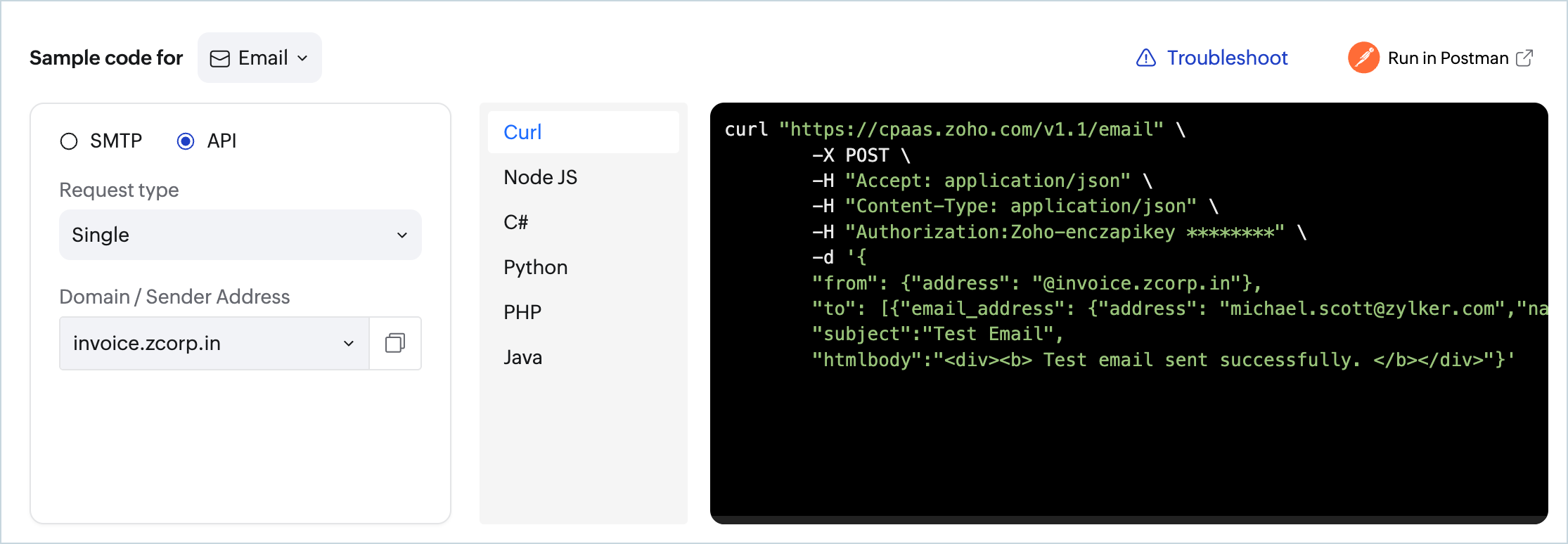
A successful send returns an HTTP 200 status code with a 202 status in the response body. If authentication fails, you will receive a 401 error. If a required field is missing, you will receive a 400 error along with a description of the issue.
Send email via SMTP
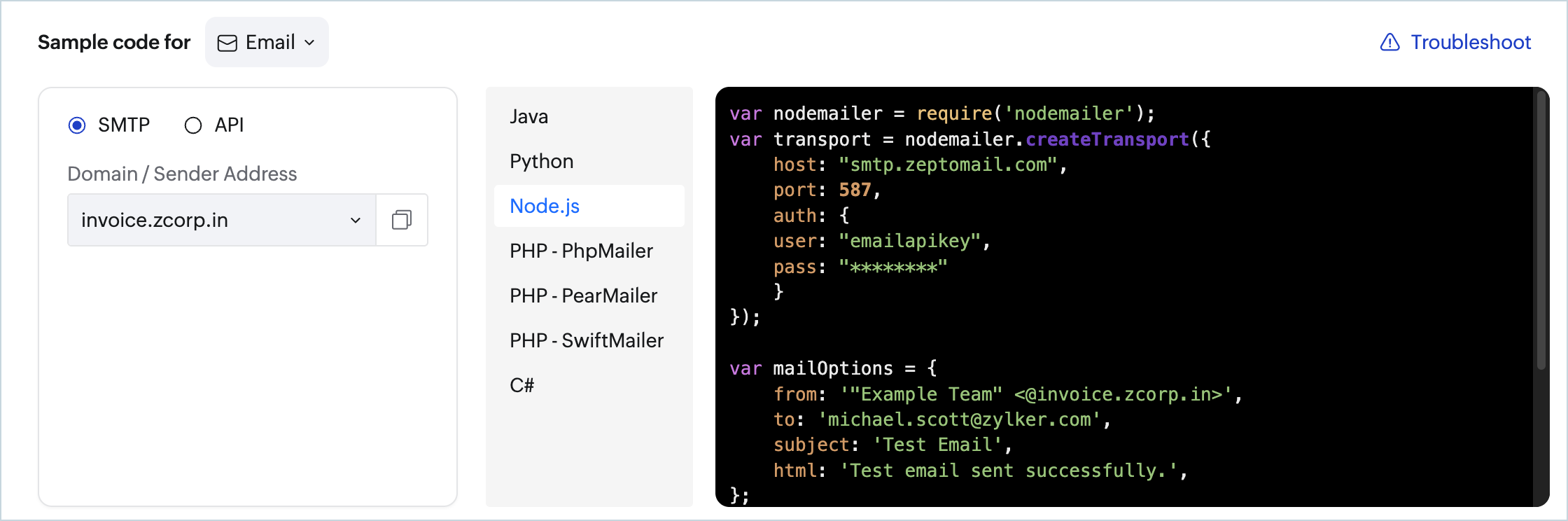
If your application already uses SMTP via a framework mailer, a library such as PHPMailer, or a platform such as Laravel or Django, simply configure it to use CPaaS’s SMTP server and set your API key as the password.
Switching to CPaaS requires only a configuration change, meaning you don’t need to change your email-sending workflow, just update the SMTP credentials.
Host:    smtp.zeptomail.com
Port:    587 (STARTTLS)|465(SSL)
Username: emailapikey
Password: [YOUR_API_KEY]
Encryption: STARTTLS (port 587) or SSL/TLS (port 465)
Use port 587 with STARTTLS as your default. Once configured, your application can continue using its existing SMTP-based email workflow while CPaaS handles the email delivery.
How to test an HTML email
Test your template throughout development, after completion, and whenever you make significant changes.
1. Check your HTML
Look for missing closing tags, invalid attributes, broken links or image URLs, missing alt text, incorrect merge tags, unexpected spacing, and unescaped special characters. A clean HTML structure helps prevent rendering issues.
2. Check CTA links
Click every CTA and verify that URLs, destinations, and dynamic values work as expected.
3. Check the plain-text version
Make sure the message remains readable without HTML and that important links and information are still accessible.
4. Send a test email for preview
For CPaaS, use a test email to check the dynamic content appearance. Test across common clients such as Gmail, Outlook, and Apple Mail, and check fonts, buttons, tables, images, and dark mode.
5. Test across screens
Check your email on desktop and mobile screens. Make sure the text is readable, buttons are easy to tap, images fit the screen, and columns don’t overflow.
HTML email code and deliverability
Your HTML emails might break, be marked as spam, or render inconsistently if you don’t use inline CSS, test across multiple email clients, and follow best practices. Email deliverability also depends on your email sender service, sending domain authentication, sender reputation, recipient engagement, and email content.
Here are a few best practices to improve deliverability for HTML emails.
Use simple HTML
Email clients render HTML and CSS differently than web browsers. Avoid broken code, unnecessary markup, and complex layouts. Don’t copy large amounts of HTML from webpages or word processors.
Keep images optimized
Use appropriately sized images with meaningful alt text. Don’t embed large images as Base64 data. Instead, host images externally and reference them using standard <img src="https://..."> URLs.
Don’t use image-only emails
Emails composed entirely of an image can cause accessibility and usability issues. Users who have blocked images may see a blank or incomplete message. To avoid this, you can include critical information or a call-to-action as HTML text.
Include a plain-text version
A plain-text version works as a backup when HTML isn’t available or there are any issues. It can also improve accessibility and give a simpler reading experience.
Authenticate your sending domain
Before sending transactional emails, add and verify your sending domain. Domain verification confirms that you own the domain you’re sending from. CPaaS uses DNS records, including DKIM and CNAME records, as part of domain verification process.
Coding vs. no-code email builders
You don’t always have to write HTML from scratch. A no-code builder can be a better option when you need to create emails quickly without maintaining HTML manually.
| Feature | HTML code | No-code builder |
|---|---|---|
| Design control | You can control every single detail. | Control is limited to the parts and blocks the tool offers. |
| Personalization | You can easily connect with any user-data system. | Changes depend on which tool you choose. |
| Display quality | Depends on your skills and how well you write the code. | Depends on how good the builder's system is. |
| Editing | Can be done by a web developer. | Anyone can use it to update text or pictures. |
| Best used for | System emails such as receipts, alerts, and passwords. | Marketing emails such as newsletters and sales campaigns. |
Conclusion
Create your HTML email using table-based layouts, inline CSS, and keep a plain-text version to improve compatibility across email clients. Once your HTML email is ready, test it across major clients to make sure it renders correctly. You can then send it through CPaaS using the REST API or SMTP relay.
FAQ
How do you write HTML code for an email?
Start with a simple HTML structure and use tables to build the layout for better compatibility across email clients. Use inline CSS for important styles and add elements such as headings, text, images, and CTA buttons. Test the code across different email clients before using it in production.
How do you make an HTML email responsive?
Use a fluid layout with a maximum width instead of fixed dimensions that can overflow on smaller screens. Set images to scale within their containers and use readable font sizes and touch-friendly buttons. Test the email on both desktop and mobile devices.
How do you test an HTML email before sending it?
Send a test email and check how it renders across the email clients and devices your recipients use. Verify links, images, spacing, fonts, CTA buttons, and merge-tag values. Also check how the email looks when images are blocked.
Is it possible to send HTML email at scale?
Yes. You can use a transactional email service such as CPaaS to send HTML emails at scale. Create reusable templates with dynamic values and send them through SMTP or API based on your application.
What is the basic structure of an HTML email?
A basic HTML email includes a pre header, header or logo, main content, CTA, and footer. Tables are commonly used for the layout, while inline CSS controls the styling. Keep the structure simple so it renders consistently across email clients.