Receiving and Managing your Emails
When you receive emails, to sort them in an organized manner, different actions may be needed depending on the emails you receive. You may want to move the email to a folder, apply a label or add a flag, filters emails and so on. Zoho Mail provides multitude of options to achieve a clean, hassle-free inbox.
Actions in the Email Listing pane
What is Email Status indicator?
The email status indicator icon is displayed when you hover over the emails in the email listing. This icon shows the Read/Unread status of the email and whether the email has been replied to or forwarded.
- Read

- Unread

- Replied to

- Forwarded

- Replied to and Forwarded

What is email selection?
In certain cases, you might want to select a group of emails to perform a bulk action on them. For example, you might select emails with tags or flags associated with them and move them to a different folder. In such cases, you can make use of the group email selection option. To select a particular view, click the dropdown list next to the checkbox icon in the top left corner of each folder. This option lists several views. Select the required view and you'll further be able to perform any operations on these emails. 
Note:
More than 300 email conversations cannot be selected at the once to perform bulk actions.
Views in Zoho Mail
Zoho mail offers several views which make your email listing more organized and provides multiple options to locate the emails that you're searching for easily. You can view all the unread emails, emails that you've added a specific tag/flag to, emails that are archived and those that contain attachments from the Views, View archived and Attachment options icons in the menu pane.
Refer this help page for more details on each of these views.
Zoho Mail also offers attachment based views that let you view the attachments in each folder, and the emails containing attachments. Refer this help page for instructions.
How to sort emails?
Zoho Mail lets you sort your emails according to your preference. You can sort your emails based on either the time they're received or the size of the emails by clicking the Sort by drop down.
- Sort by Date
To view the oldest emails on top, click the Date: Oldest to Latest option. You can later change it back to the latest emails on top by clicking the Date: Latest to Oldest option in the same drop down menu. - Sort by Size
On clicking the Size: Largest to Smallest option, the mails of larger size are listed first. You can change that by clicking on Size: Smallest to Largest option to view the emails of smaller size first.

Note:
You can sort your emails only when the conversation view is switched off.
How to tag emails?
While viewing your emails from the email listing pane, you can select a few emails and add a particular tag to them. To add a tag to emails, select the checkbox next to the emails and click the Tag as icon from the top menu pane. Choose the relevant tags from the options listed.
Learn more about tagging emails here.
Other Email Options
Further, actions such as Mark as unread, Print, Flag as, Forward as attachment, Mark folder read and Scrub can be performed on the multiple emails from the More Actions menu. 
How to forward multiple emails?
When you select multiple emails, in the More Options menu, you will be able to see the Forward Multiple Emails option. When you pick this option, the selected emails will get attached to a new email in the compose window. On the receiving end, these emails will be visible as separate forwarded emails.
Since the emails are sent as attachments when this option is used, a maximum attachment size of 40 MB is only permissible.
Actions in the Email Preview pane
In the vertical three-pane view, you can quickly navigate between emails and read them at ease. The different icons along with the drop down menu help you to perform the common actions in the email. To Reply, Reply All or Forward, use the icons near the drop-down menu. For specific actions on the particular email, you can use the options in the More Actions drop-down.

Additionally, you can switch to a different reply mode(Reply/Reply All) or Forward in the compose page when you respond to an email.

- When you send, forward or reply to emails that contain EML files with attachments, those attachments will automatically be added to the compose page.
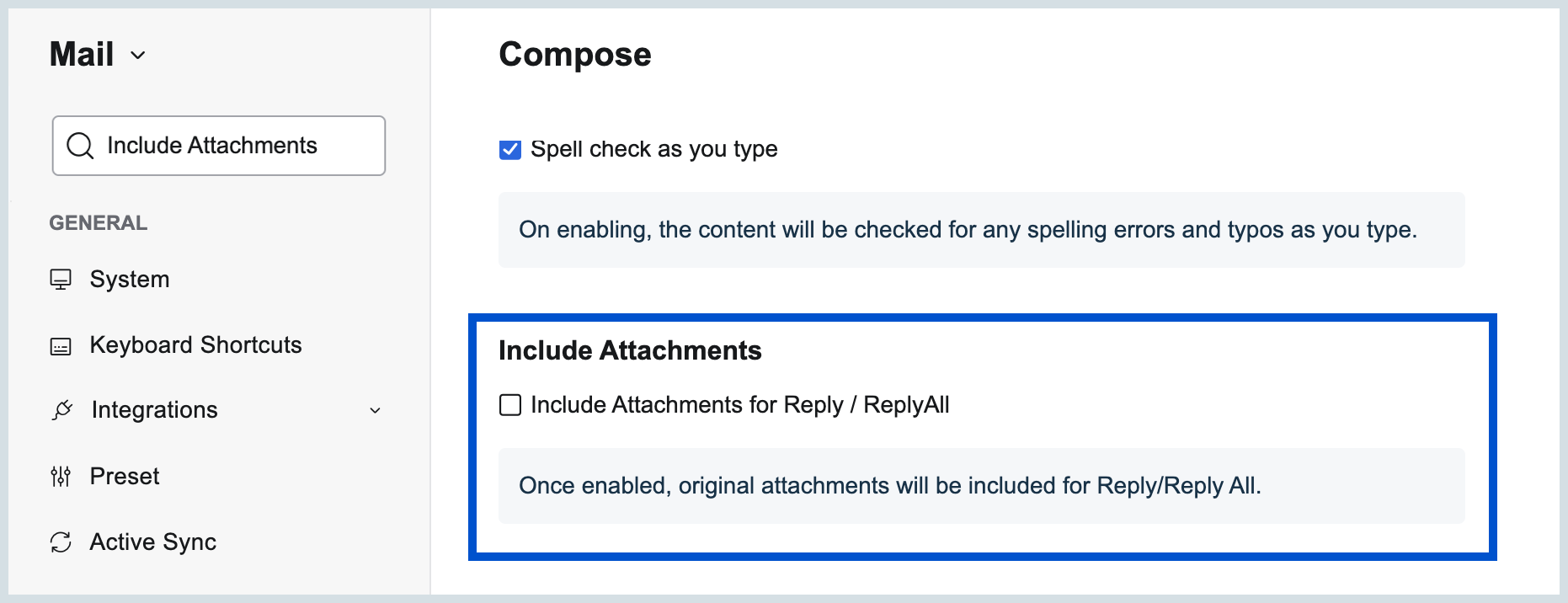
- When you Reply or Reply all to an email, you can include all original attachments by default in your reply email if the Include Attachments setting is enabled in Mail settings.
Note:
This article mainly explains managing the received emails in Zoho Mail. If you have trouble receiving emails in your domain based account in Zoho Mail, refer here.
How do I move emails to a different folder in Zoho Mail?
- Web
- Android
- iOS
You can select single or multiple emails and move them to a folder of your choice directly from the email listing pane. Choose the Move to option in the menu bar, and select the required folder from the options listed. The selected emails will now be moved to the respective folder.

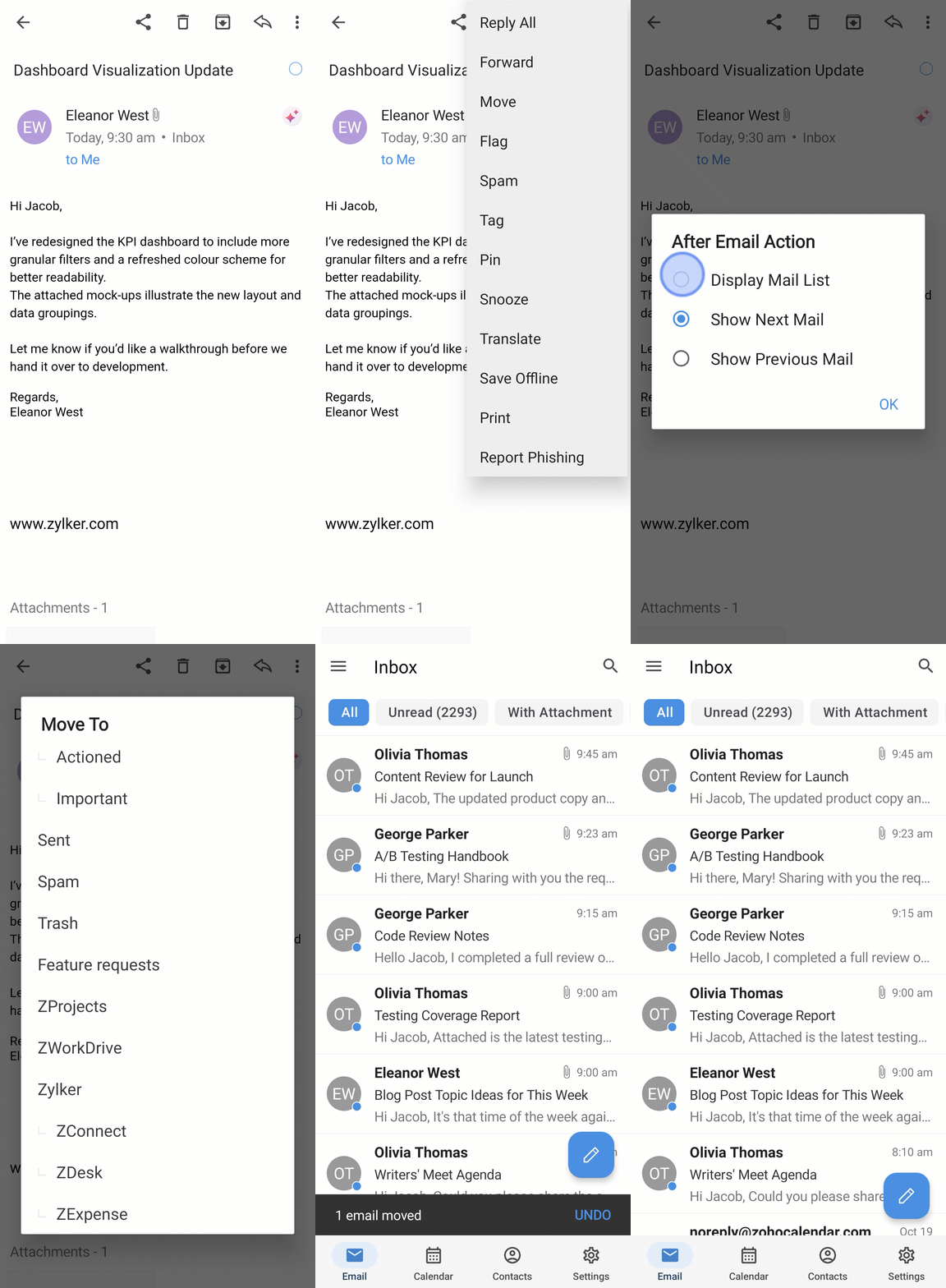
Moving emails to folders helps you organize your mailbox and keep related conversations together. You can move a single email or multiple emails to any folder in your account. If you are moving an email for the first time from the mail detail view, you will asked to choose what screen should be displayed after the email is moved. You can change this preference from app settings anytime later. The options available are:
- Display Mail List
- Show Next Email
- Show Previous Mail
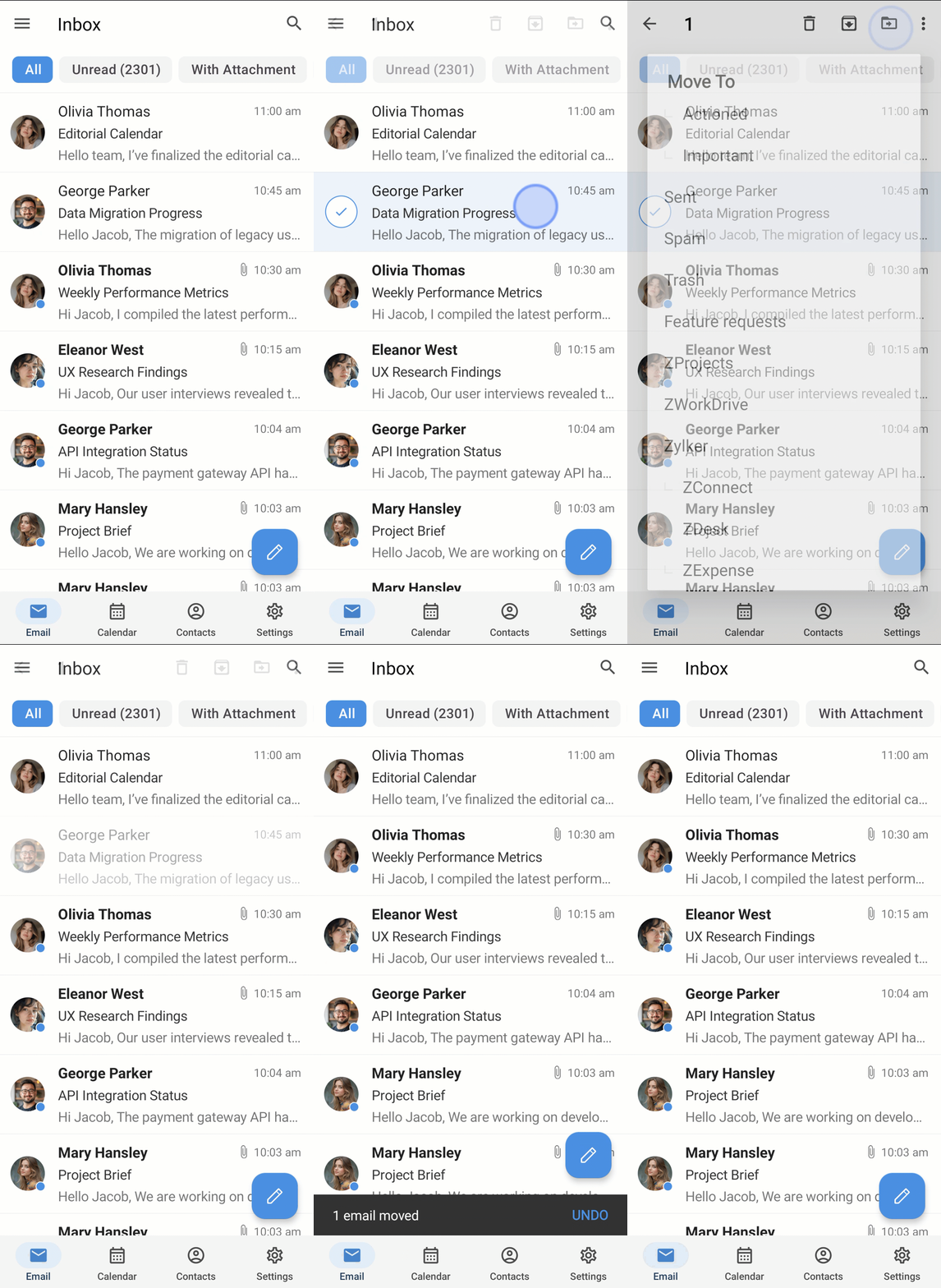
To move an email from the list view in the Zoho Mail Android app:
- Open the Zoho Mail Android app.
- Navigate to the Email module.
- Tap the email you want to move.
- Tap the Move To icon that appears on top.
- Search for the destination folder and tap it to move the email.
The email will be moved to the selected folder.
To move an email after you've opened it in the Zoho Mail Android app:
Open the Zoho Mail Android app.
Navigate to the Email module.
Open the email you want to move.
Tap the More Options icon on the top-right corner of the app.
Tap Move from the list of options.
Tap the destination folder you want to move the email to.
The email will be moved to the selected folder.
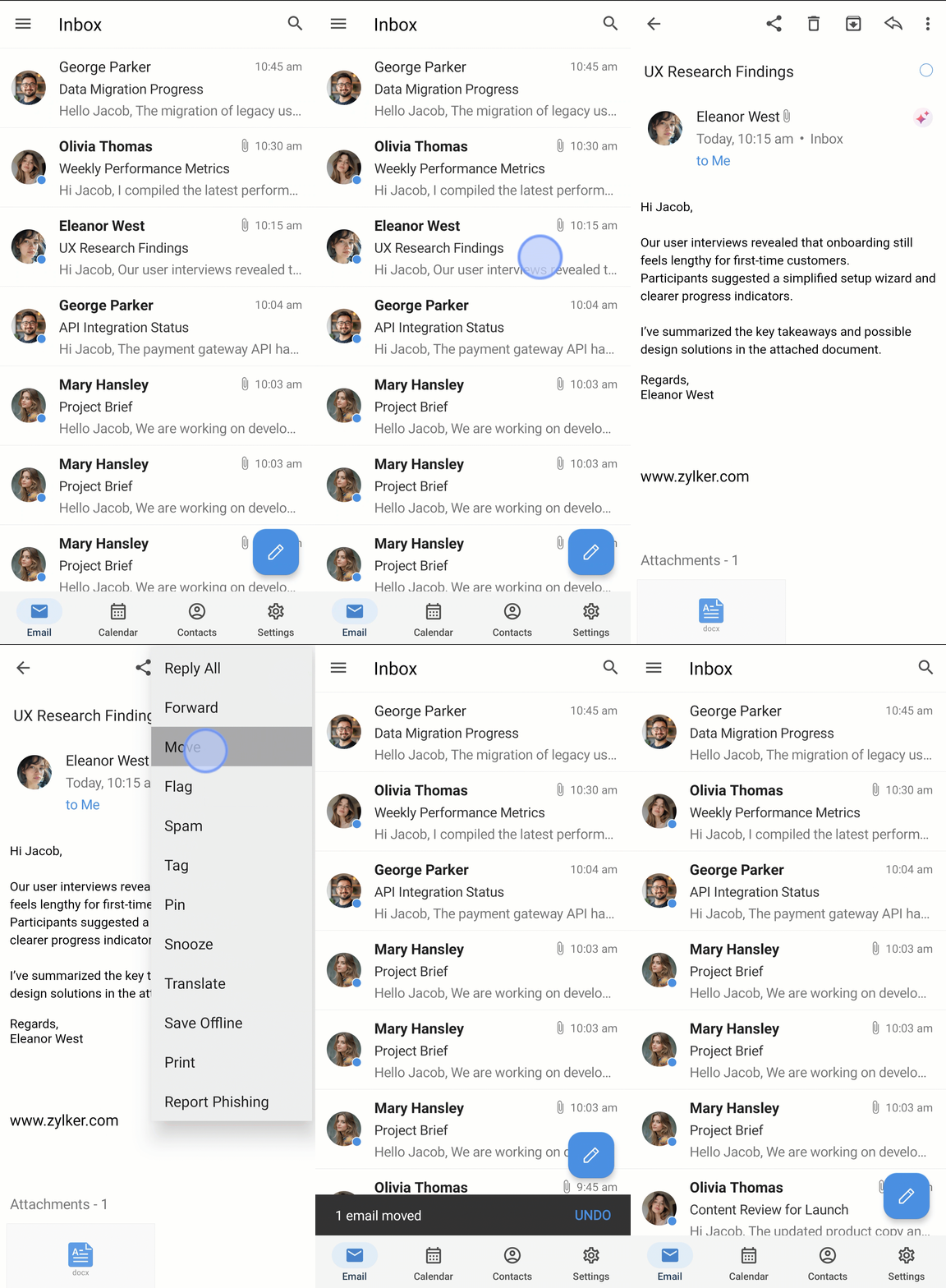
Moving emails to folders helps you organize your mailbox and keep related conversations together. You can move a single email or multiple emails to any folder in your account.
To move an email fin Zoho Mail iOS app:
- Open the Zoho Mail iOS app.
- Navigate to the Email module.
- Tap the email you want to move.
- Tap the More Options icon at the bottom-right of the screen.
- Tap Move to.
- Search for the destination folder and tap it to move the email.
The email will be moved to the selected folder.
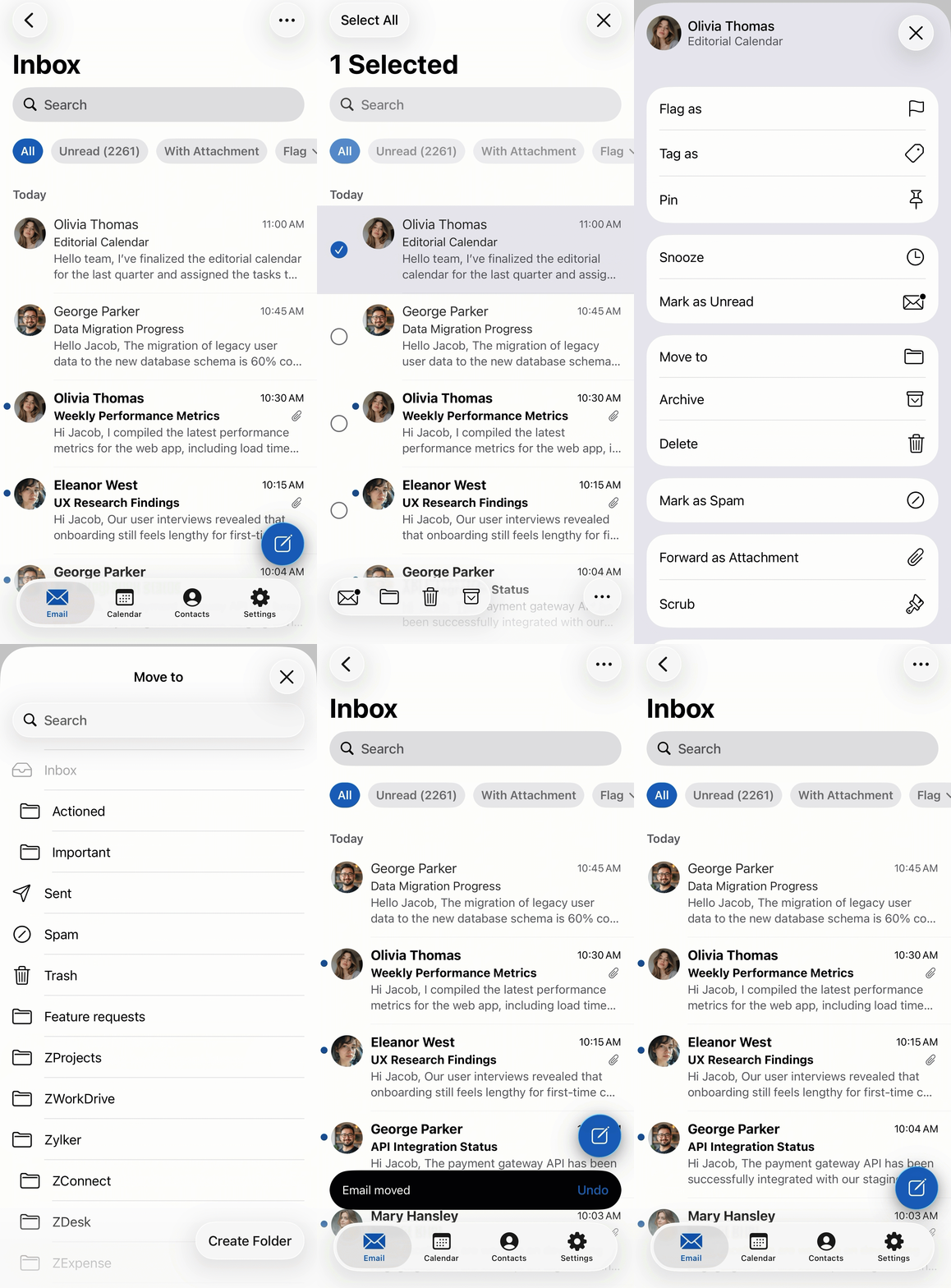
Alternatively, you can tap the folder icon that appears when you select an email to move emails from the list view.

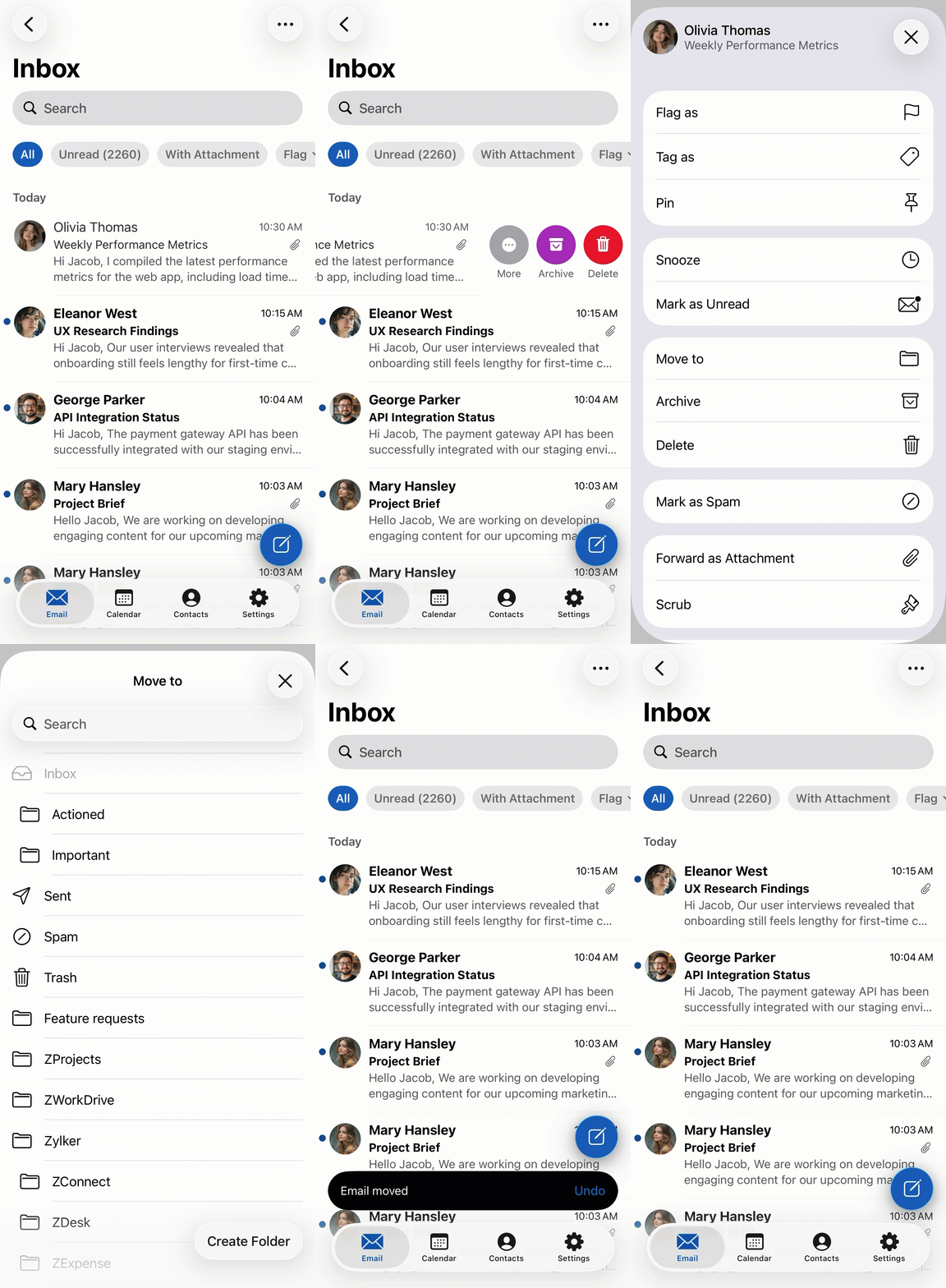
You can also move the email using swipe action. To move an email in the Zoho Mail iOS app using swipe action:
Open the Zoho Mail iOS app.
Navigate to the Email module.
Swipe left on the email and tap the More Options icon.
Tap Move to.
Search for the destination folder and tap it to move the email.
The email will be moved to the selected folder.
To move an email after you've opened it in the Zoho Mail iOS app:
Open the Zoho Mail iOS app.
Navigate to the Email module.
Open the email you want to move.
Tap the More Options icon on the bottom-right corner of the app.
Tap Move from the list of options.
Tap the destination folder you want to move the email to.
The email will be moved to the selected folder.
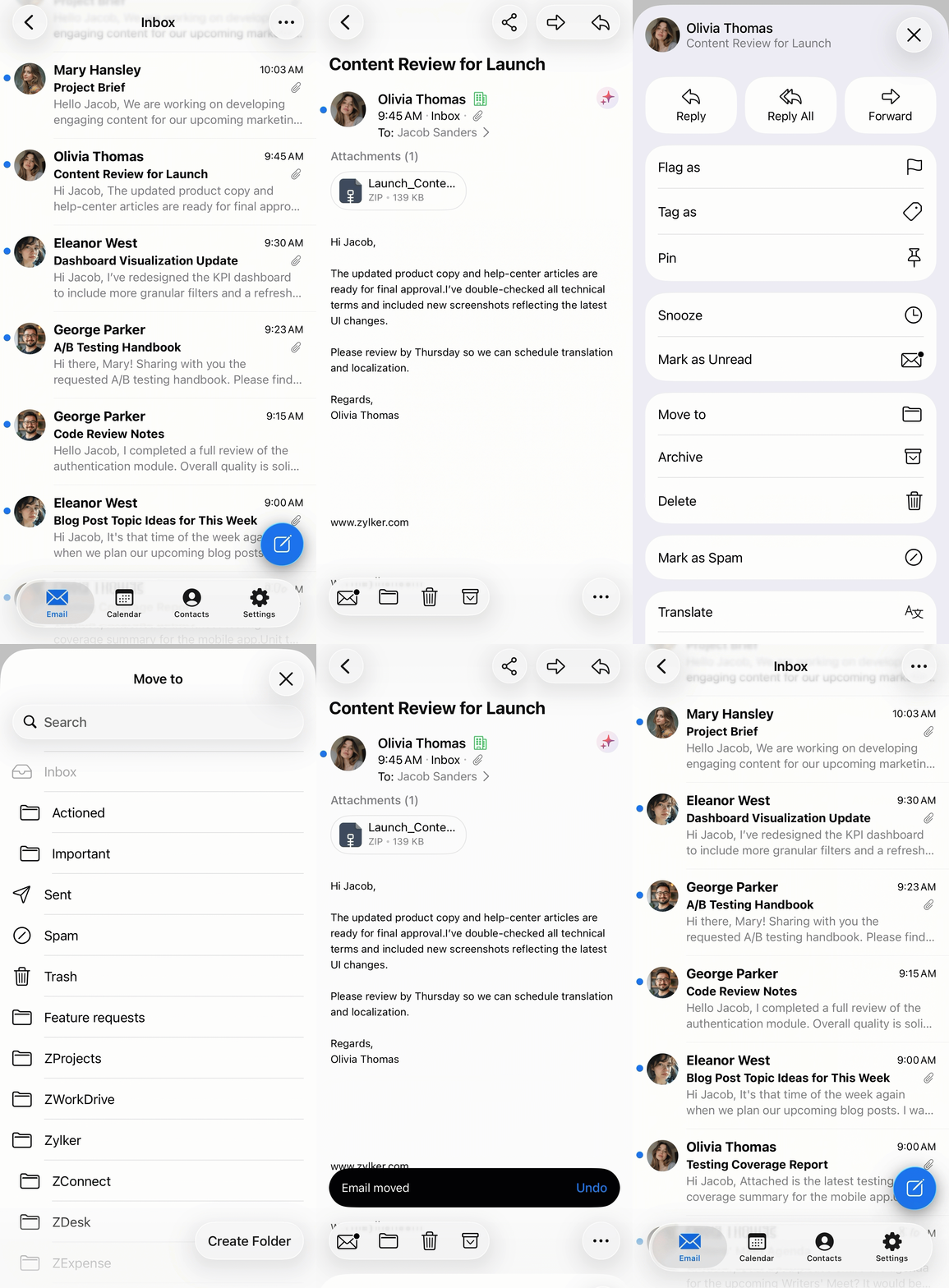
Alternatively, you can tap the folder icon that appears below to move the email to another folder.

Move multiple emails to a different folder
- Web
- Android
- iOS
If you want to move all the emails in a specific folder to a different folder, you can make use of the Bulk Actions option. Click the email selection icon, and choose All from the listing. This will select only the emails that are currently displayed in the view. If you choose the Select all conversation in this folder option, all messages in the folder will be listed.
You can choose the Move to option to bulk move all these emails. The action will be scheduled and the emails will be moved gradually.
Similarly, bulk selection of emails can also be done for a specific view. For example, when you choose the List Emails with attachments or any such view in a specific folder and select All emails, you'll be shown the Select all messages matching the current view option. This option only selects all the emails with attachments in that folder.
Note:
Bulk Actions for Tag As, Mark as Spam and other such actions can also be performed by the same method as mentioned above.
You can move multiple emails to a different folder. To move multiple emails in the Zoho Mail Android app:
Open the Zoho Mail mobile app.
Navigate to the Email module.
Long press an email or tap the profile picture to enter multi-select mode.
Select the emails you want to move.
Tap the Move To icon in the top-right corner.
Tap the destination folder to move the selected emails.
The emails will be moved to the selected folder. 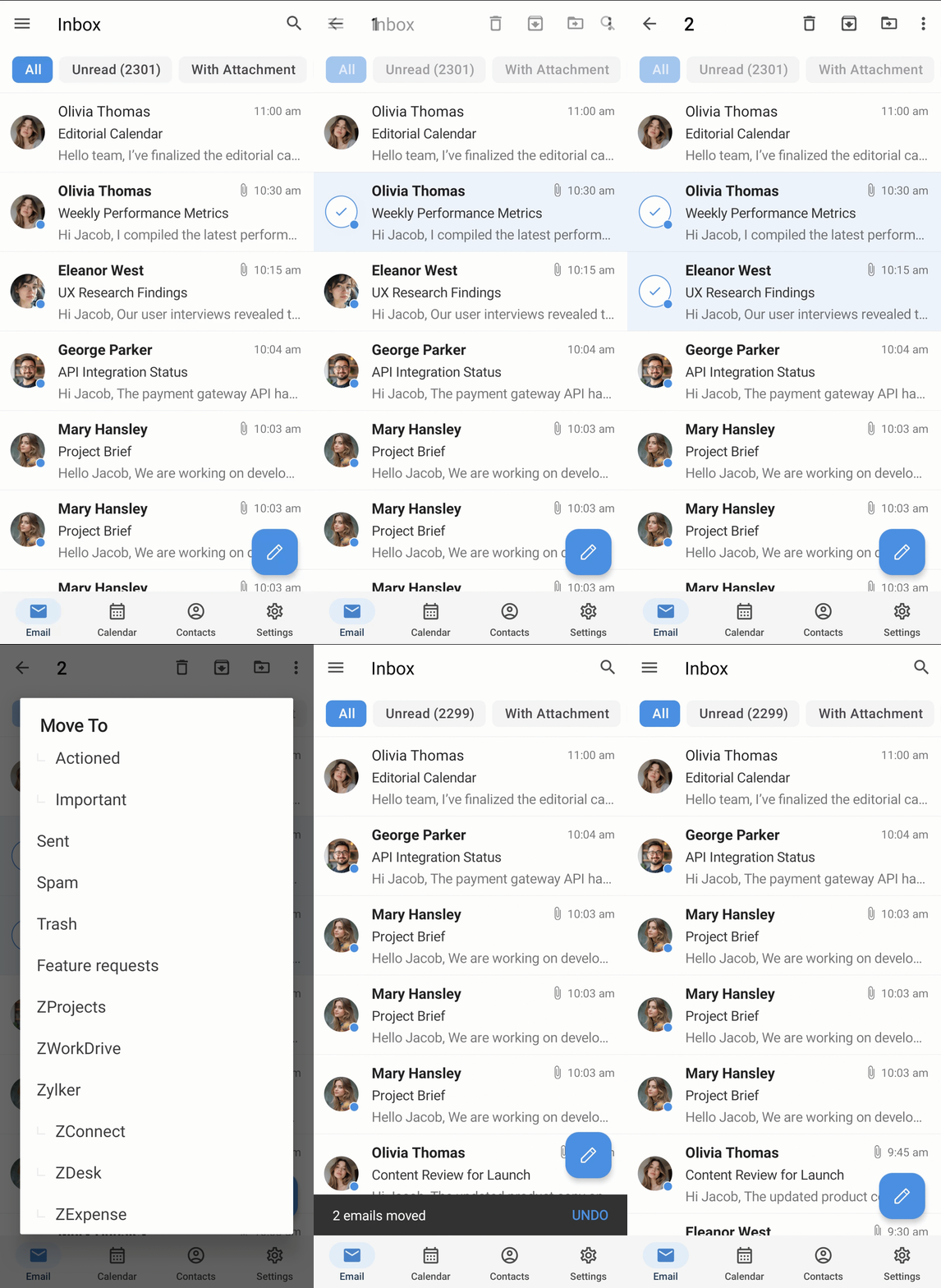
You can move multiple emails to a different folder. To move multiple emails in the Zoho Mail iOS app:
- Open the Zoho Mail iOS app.
- Navigate to the Email module.
- Long press an email or tap the profile picture to enter multi-select mode.
- Select the emails you want to move.
- Tap the More Options icon in the bottom-right corner.
- Tap Move to.
- Search for the destination folder and tap it to move the selected emails.
The emails will be moved to the selected folder.
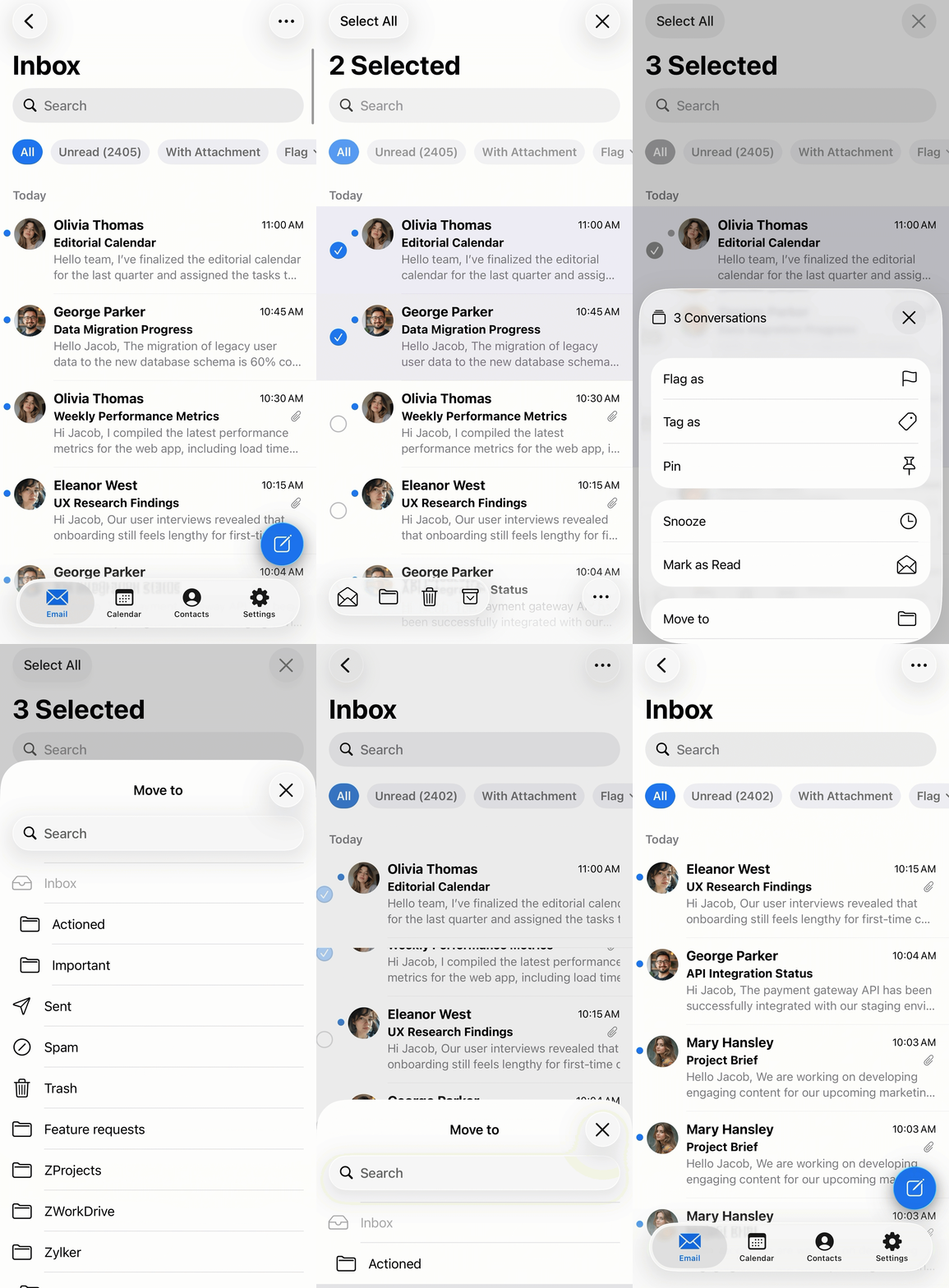
Alternatively, you can tap the folder icon that appears when you select an email to move emails from the list view.

How do I mark emails as Spam in Zoho Mail?
- Web
- Android
- iOS
If you want to mark some of your emails as spam from the email listing pane, you can use the Mark Spam option from the top menu bar. Select the required emails and click the Mark Spam icon from the menu bar. The email addresses will be blacklisted and these emails will be moved to the spam folder. 
You can also mark an email as spam from the more options drop-down in the email preview.
You can mark emails as spam from the list view. To mark emails as Spam in the Zoho Mail Android app:
- Open the Zoho Mail Android app.
- Navigate to the Email module.
- Long press an email to enter multi-select mode.
- Select one or more emails you want to mark as Spam.
- Tap the More Options icon on the top-right corner of the app.
- Tap the Spam option from the menu list.
Selected emails will be moved to the Spam folder.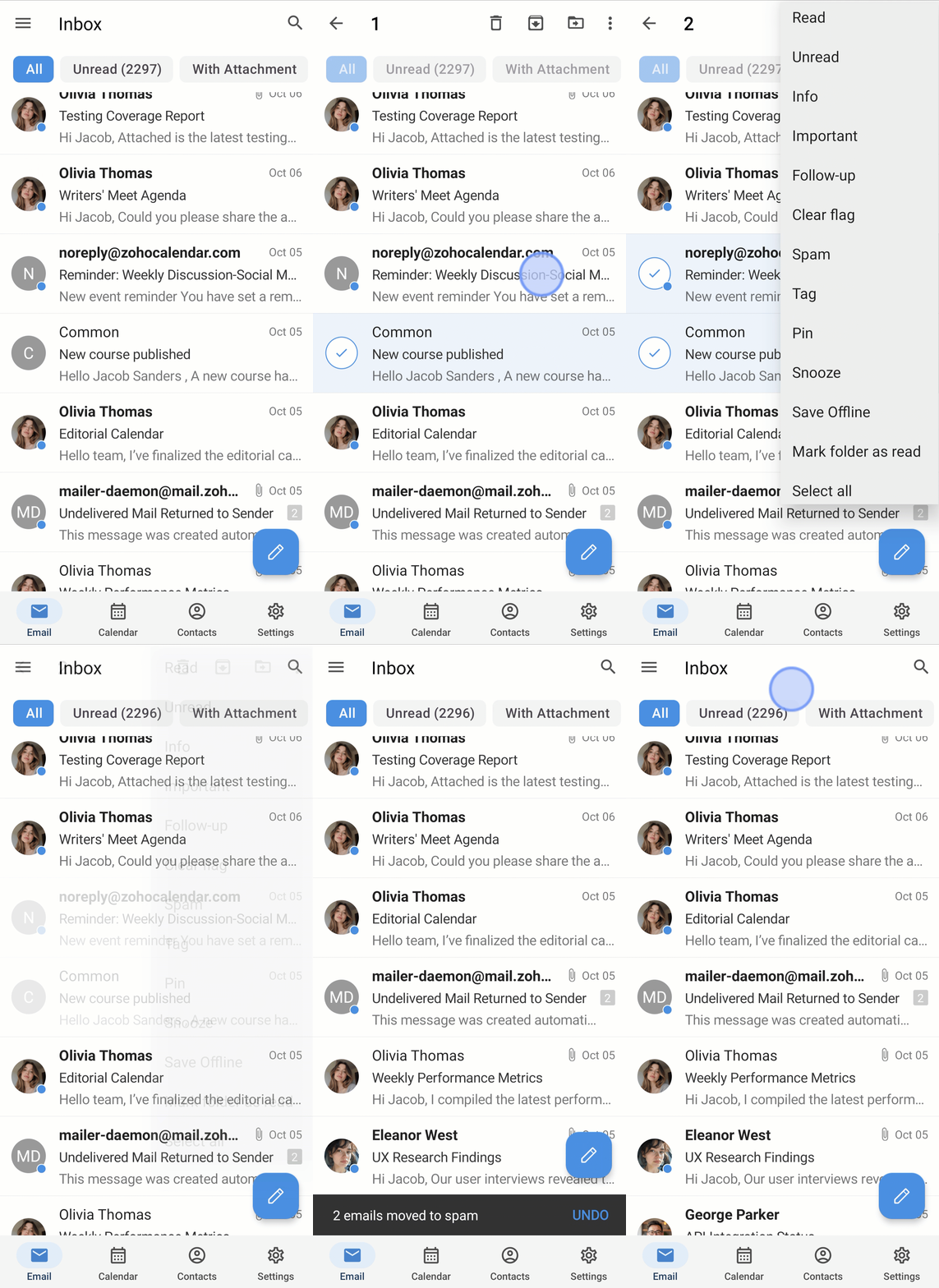
To mark an email as spam after opening it:
- Open the Zoho Mail Android app.
- Navigate to the Email module.
- Open the email you want to mark as spam.
- Tap the More Options icon on the top-right corner of the app.
- Tap the Spam option from the menu list.
The email will be moved to the Spam folder. 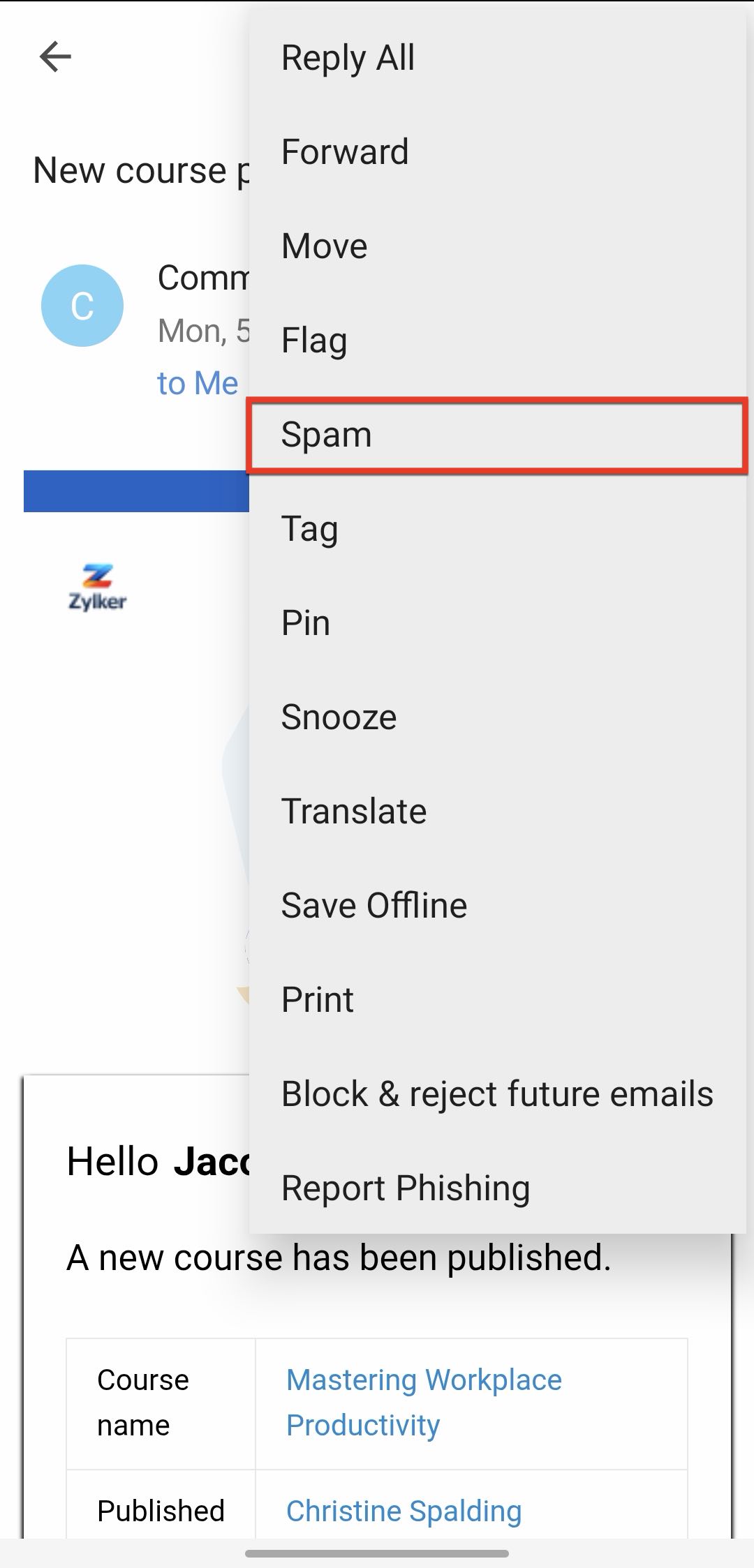
There are multiple ways to mark an email as spam. To mark one or more emails as Spam from the email list view in the Zoho Mail iOS app:
- Open the Zoho Mail iOS app.
- Navigate to the Email module.
- Long press an email or tap the profile picture to enter multi-select mode.
- Select the emails you want to mark as spam.
- Tap the More Options icon on the bottom-right corner of the app.
- Tap the Mark as Spam option from the menu list.
The email will be moved to the Spam folder.
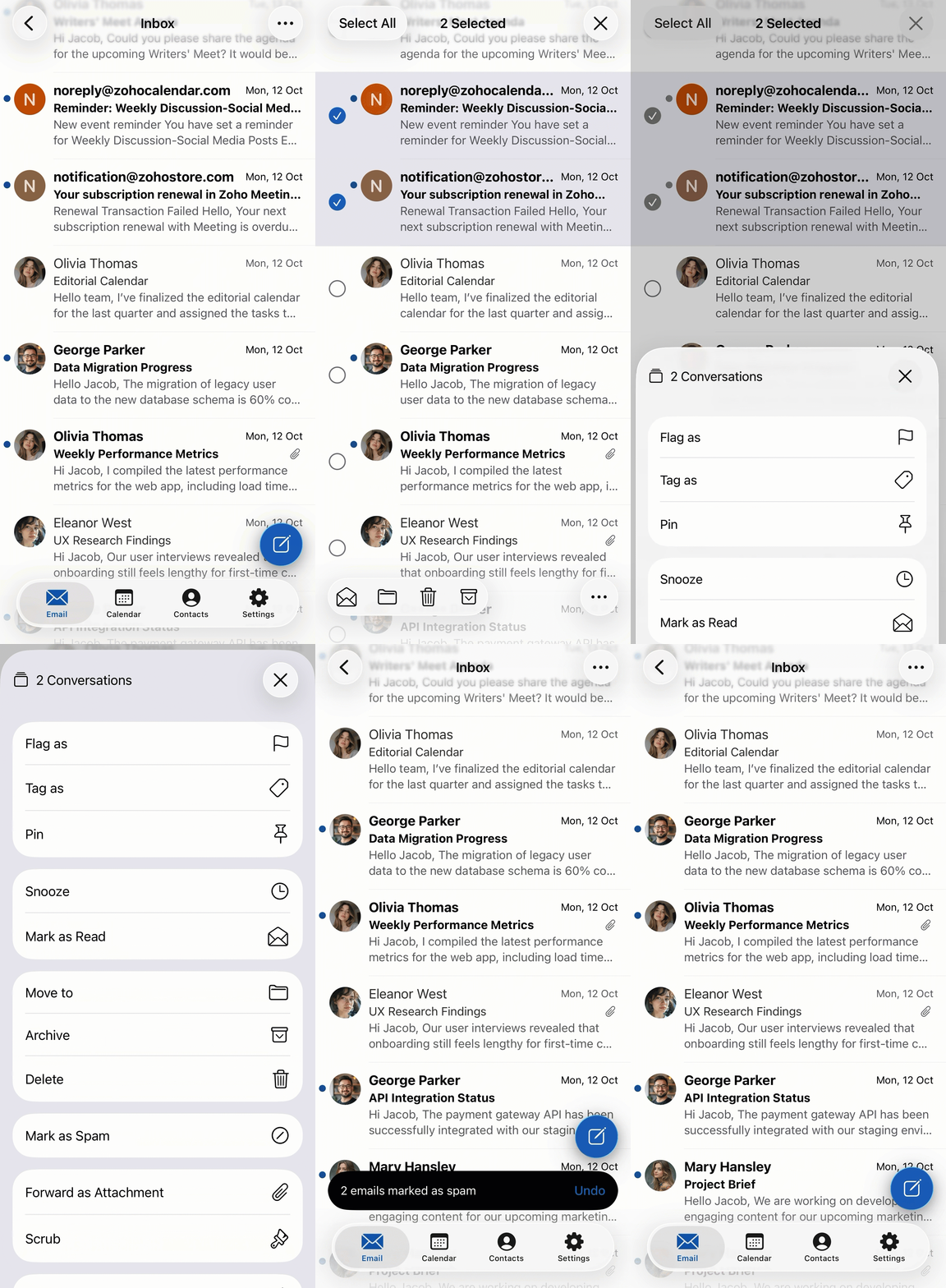
To mark an email as spam using swipe gestures in the Zoho Mail iOS app: :
- Open the Zoho Mail iOS app.
- Navigate to the Email module.
- Swipe left on the email to view email actions.
- Tap the More Options icon.
- Tap Mark as Spam option from the menu list.
The email will be moved to the Spam folder.
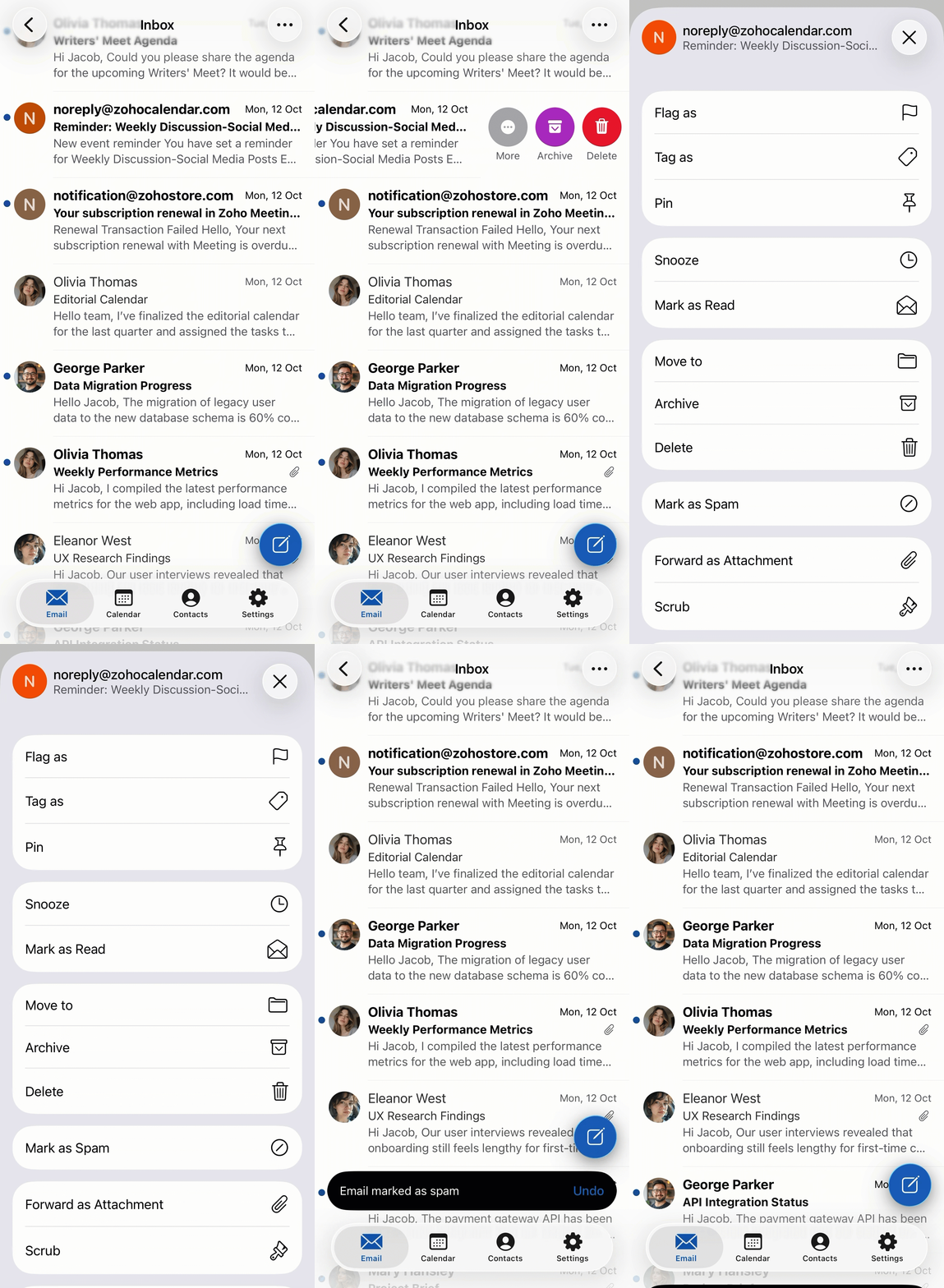
The email will be moved to the Spam folder.
To mark an email as spam after opening it in the Zoho Mail iOS app: :
- Open the Zoho Mail iOS app.
- Navigate to the Email module.
- Open the email you want to mark as spam.
- Tap the More Options icon at the bottom-right corner.
- Tap the Mark as Spam option from the menu list.
The email will be moved to the Spam folder.
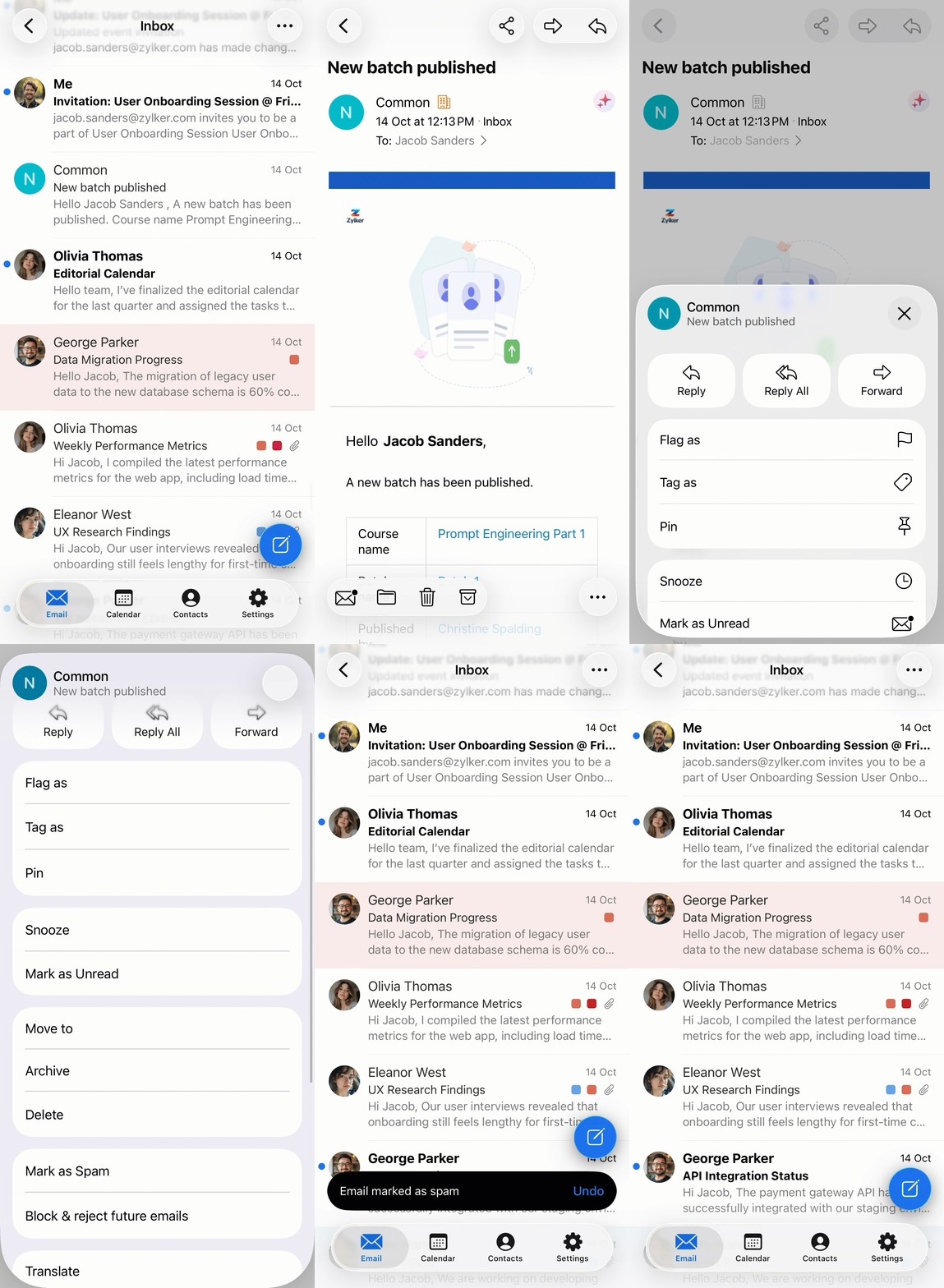
Mark emails as not spam
- Web
- Android
- iOS
If legitimate emails are being delivered to your Spam folder, you can mark them as Not Spam from the Spam folder to move it back to your inbox and help improve future spam detection for similar emails.
Note:
There is also the option to block users from who you receive spam emails. Learn more
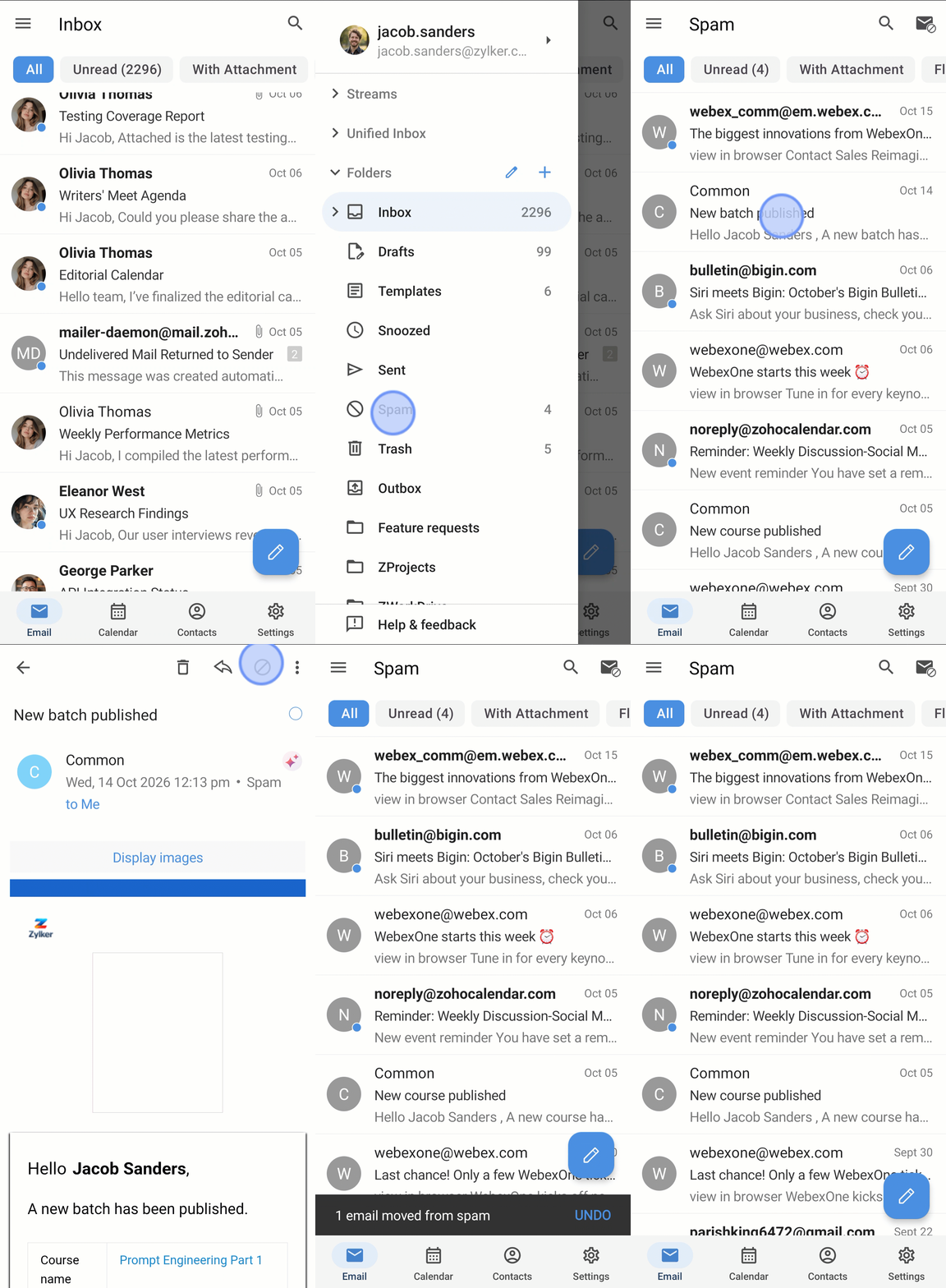
If legitimate emails are being delivered to your Spam folder, you can mark them as Not Spam from the Spam folder to move it back to your inbox and help improve future spam detection for similar emails. You can mark one or more emails as not spam from the email list view in the Spam folder. To mark emails as not spam in the Zoho Mail Android app:
- Open the Zoho Mail Android app.
Navigate to the Email module.
Tap the Main Menu icon in the top-left corner.
Go to the Spam folder.
Long press an email or tap the profile picture to enter multi-select mode.
Select the emails you want to mark as not spam.
Tap the Not Spam icon in the top-right corner.
The selected email will be moved to your Inbox.

To mark an email as not spam after opening it in the Zoho Mail Android app:
Open the Zoho Mail Android app.
Navigate to the Email module.
Tap the Main Menu icon in the top-left corner.
Go to the Spam folder.
Tap the email you want to mark as Not Spam.
In the email detail view, tap the Not Spam icon.
The email will be moved to your Inbox.
If legitimate emails are being delivered to your Spam folder, you can mark them as Not Spam from the Spam folder to move it back to your inbox and help improve future spam detection for similar emails. You can mark one or more emails as not spam from the email list view in the Spam folder. To mark emails as not spam in the Zoho Mail iOS app:
Open the Zoho Mail iOS app.
Navigate to the Email module.
Go to the Spam folder.
Long press an email or tap the profile picture to enter multi-select mode.
Select the emails you want to mark as not spam.
Tap the More Options icon at the bottom-right corner of the app.
Tap Mark as Not Spam.
The emails will be moved to the Inbox.
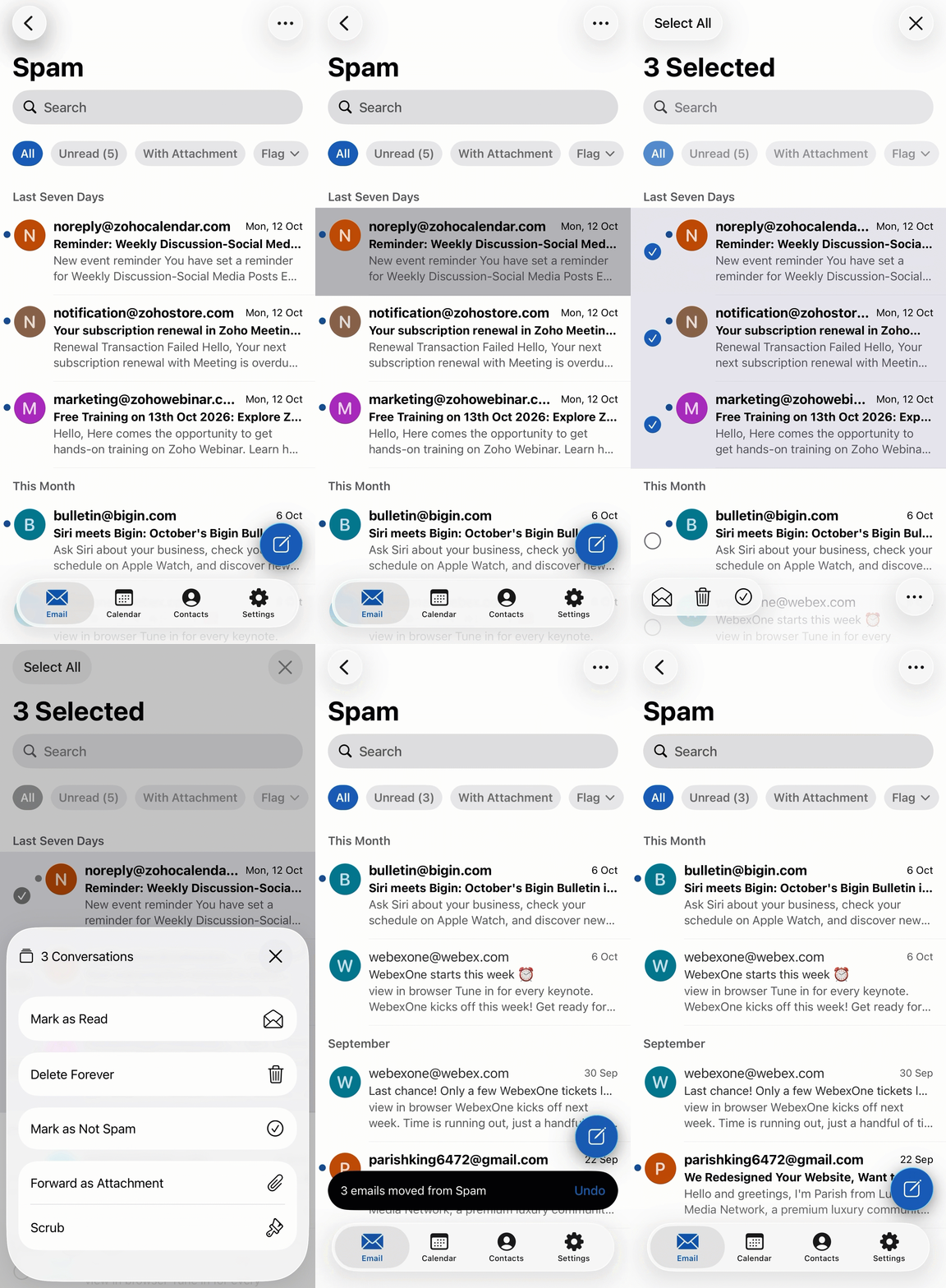
You can also mark emails as Not Spam using the Tick icon at the bottom.

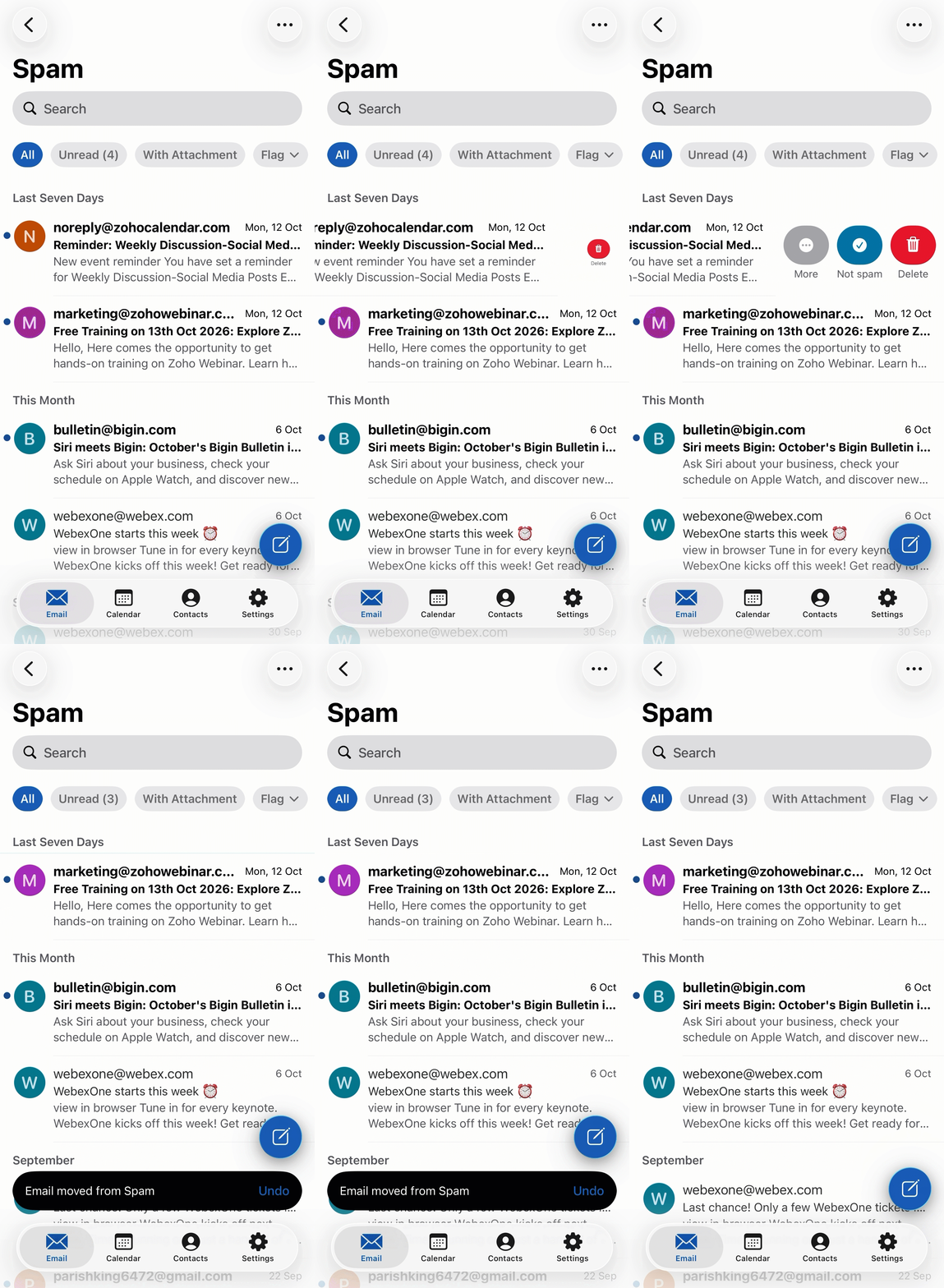
You can also mark an email as not spam using swipe gestures. To mark an email as not spam using swipe gestures in Zoho Mail iOS app:
Open the Zoho Mail mobile app.
Navigate to the Email module.
Go to the Spam folder.
Swipe left on the email to view email actions.
Tap the Tick icon.
The email will be moved to your Inbox.
To mark an email as not spam after you've opened it:
Open the Zoho Mail iOS app.
Navigate to the Email module.
Go to the Spam folder.
Open the email you want to mark as not spam.
Tap the More Options icon at the bottom-right corner of the app.
Tap Mark as Not Spam.
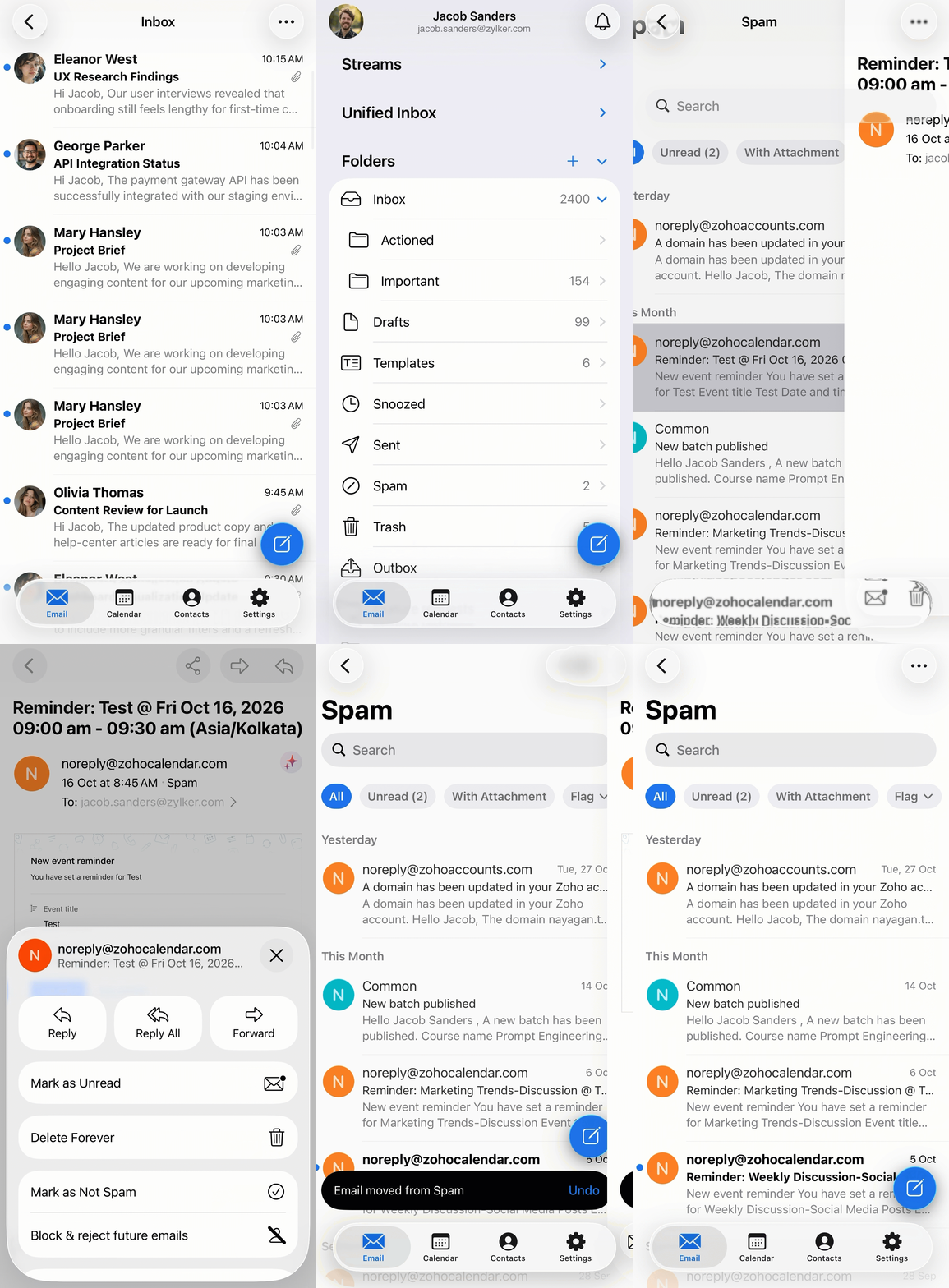
You can also mark the email as Not Spam using the Tick icon at the bottom.

How do I report phishing in Zoho Mail?
- Web
- Android
Phishing is an attempt at retrieving important personal information through emails by pretending to be from reputed companies. You can mark an email as a phishing attempt by using the Report Phishing option in the More options drop-down in the mail preview.

Zoho Mail allows you to report email that may be phishing attempts. After you report an email:
- All future emails from that sender are marked as spam.
- The email content will be used to prevent phishing attempts in the future.
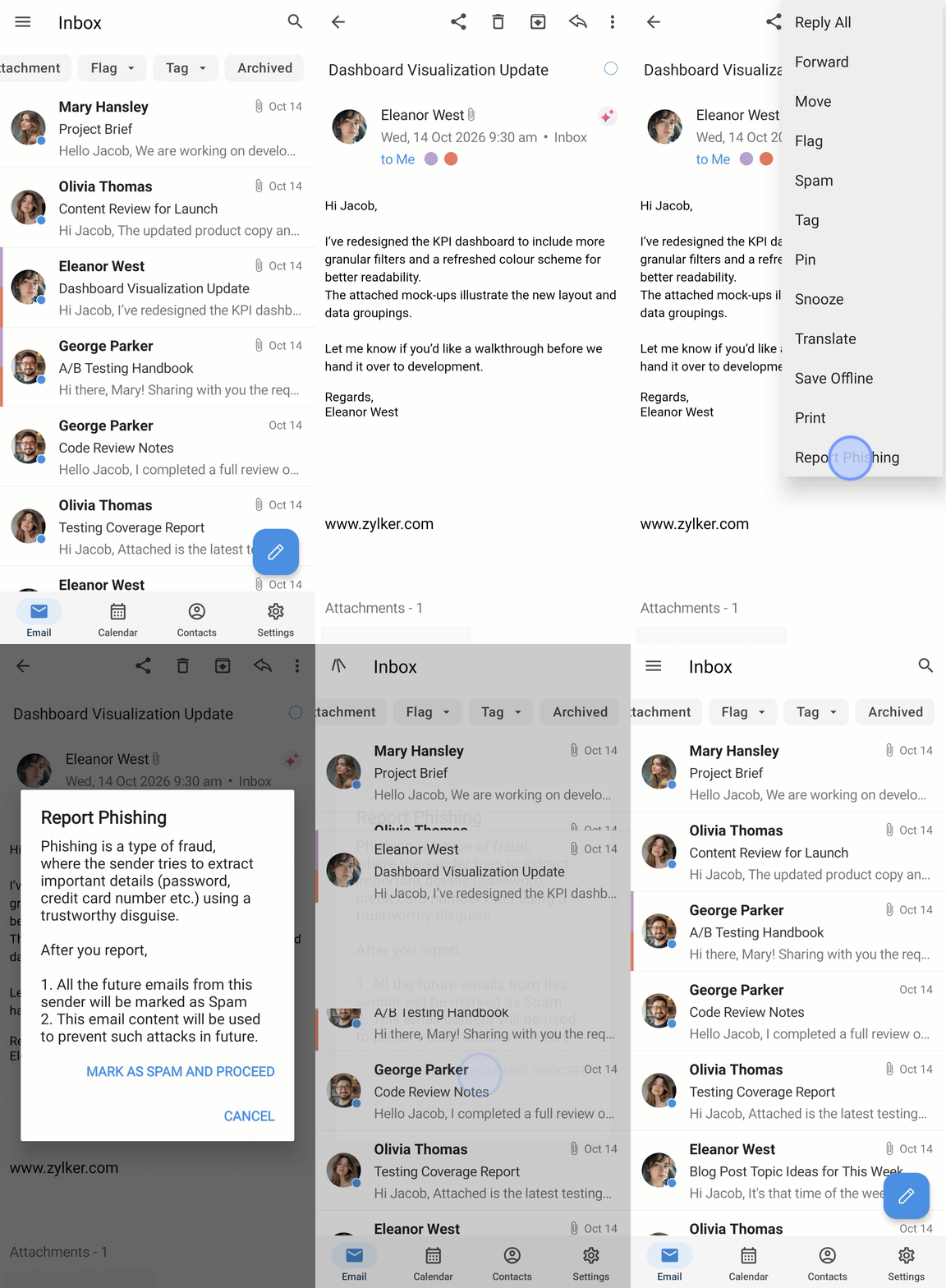
To report an email as a phishing attempt in the Zoho Mail Android app:
- Open the Zoho Mail Android app.
- Navigate to the Email module.
- Open the email you want to report.
- Tap the More Options icon at the top-right corner of the app.
- Tap the Report Phishing option from the menu list.
- Tap Mark as Spam and Proceed in the pop-up that appears.
The email will be moved to the Spam folder.
Note
Reporting emails for phishing is not yet supported in the Zoho Mail iOS app and will be available in future updates.
Undo Actions
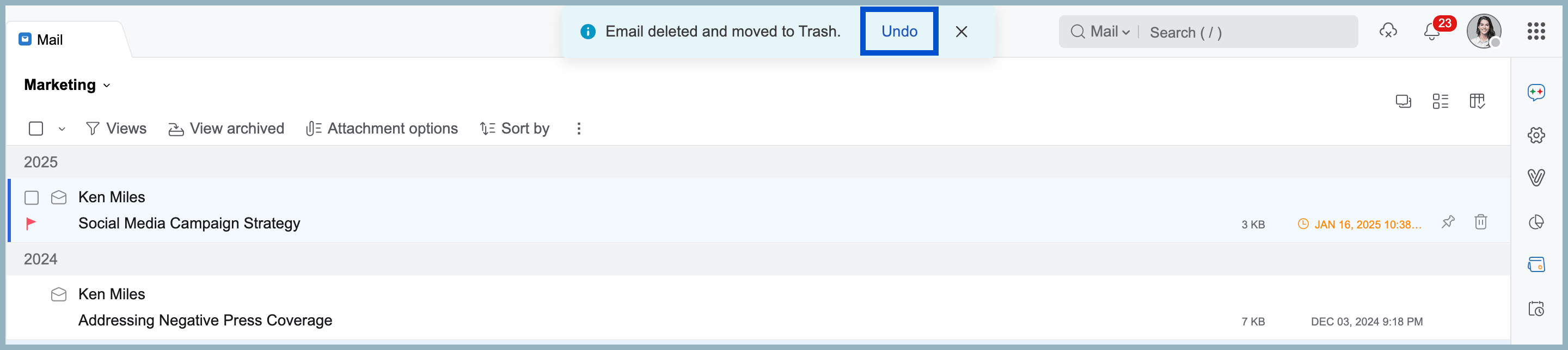
You can undo most of the actions, such as marking emails as read, deleting emails, and more, using the Undo action. To undo an email action,
- You can simply click the Undo button from the pop-up banner after performing such action.
- You can use the keyboard shortcut (Ctrl + z by default for both Mac and Windows) to perform Undo. You can also edit the Keyboard shortcut to something else you prefer.
Undo can be performed over these below-mentioned actions.
- Delete Mail
- Move Mail
- Archive Mail
- Spam Mail
- Not Spam Mail
- Archive or Unarchive mail
- Tagging mail—Add Tag or Remove Tag
- Flag or unflag mail
- Mark mail as read
- Mark mail as unread
- Mark this folder as read
Note:
The Undo banner will show up only when the mail disappears from view. But in such cases, you can use the keyboard shortcut to perform Undo.