- HOME
- How to automate HR and payroll workflows across your business apps
How to automate HR and payroll workflows across your business apps
- Last Updated : September 29, 2026
- 62 Views
- 8 Min Read
Key takeaways
- HR and payroll teams often depend on the same employee data, but when they work in different systems, keeping that data in sync usually falls on someone to do manually.
- Integrating your HR and payroll systems removes the manual handoff, and employee updates flow automatically, reducing errors and saving time for both teams.
- With automation, a single employee event can trigger actions across IT, finance, communication, and task management tools.
HR teams handle everything from onboarding and employee changes to payroll and offboarding—but the applications used for these processes aren't always connected.
Employee information recorded in an HR system often needs to be reflected in the payroll application as well. When the two aren't connected, the same information has to be updated in multiple places, and everything needs to be in order before payroll is processed.
Connecting these applications keeps employee data in sync and reduces that manual work. With an integration platform like Zoho Flow, you can connect your HR and payroll applications with the rest of your business tools and automate the follow-up work as part of a single workflow.
In this article, we'll look at how you can automate HR and payroll workflows and extend them across the other applications involved in your employee processes.
Automating your employee operations: HR, payroll, and beyond
New hire onboarding
When a new employee is hired, adding them to payroll is one of the many tasks that follow. Your HR and payroll apps may already have a native integration that creates a payroll record when an employee is onboarded; but the follow-up tasks still happen manually.
With Zoho Flow, you can connect all of these steps into a single automated workflow that kicks off the moment a new employee is added in BambooHR.
Here's how the flow works:
Trigger: A new employee is added in BambooHR.
- Create employee record in Zoho Payroll: The employee's details are passed directly to Zoho Payroll, creating their payroll record without any manual re-entry.
- Create work account in Office 365: Zoho Flow creates a new user account in Office 365, giving the employee their work email and access to the Microsoft suite from day one.
- Add to relevant groups and channels: The employee is added to the Office 365 groups and channels relevant to their role and department.
- Notify manager and IT: A message is sent to the hiring manager and IT team in Slack with the new hire's details and start date.
- Generate a role-specific onboarding checklist with Zia: The generate checklist action in Zia Utilities, an AI text utility available in Zoho Flow, creates a tailored onboarding checklist based on the new hire's job title and department.
- Create onboarding task list: The create task action in Zoho Projects converts the generated checklist into assigned tasks for the relevant team members.
Salary revision
Say an employee gets a salary revision. HR updates the new amount in their system, but payroll needs the same information too. When the systems aren't connected, this usually means passing the update to the payroll team and making sure they change it before the next pay run. It's one more manual step, and if it gets missed, the old salary could still be processed.
But a salary change recorded in Zoho People can trigger a sequence of updates across payroll and finance tools automatically.
Here's how the flow works:
Trigger: A salary record is updated in Zoho People.
- Create a task in Zoho Sprints: The create item action adds a new task to the payroll team's salary revision project in Zoho Sprints, with the employee's name, revised salary, and effective date—so the update is tracked and assigned before the next pay run.
- Log the change in Google Sheets: The create row action in Google Sheets adds a record of the change to a salary log, including the employee name, revised salary, and effective date.
- Notify the finance team in Microsoft Teams: The post message action in Microsoft Teams sends a notification to the finance channel with the employee's details and the revised salary.
Employee loan
When a loan is approved for an employee, a few things need to happen immediately. Payroll has to set up the deduction, finance has to keep track of the loan, and the employee needs to know what will be deducted from their salary. Handling these steps one by one adds more follow-up work for HR, especially when there are several loan requests being processed.
Creating a loan in Zoho Payroll can set off all the follow-up steps on time.
Trigger: A new loan is added for an employee in Zoho Payroll
- Associate deduction with the employee: The associate deduction action in Zoho Payroll sets up the repayment schedule, ensuring the monthly deduction is reflected in the employee's upcoming pay runs.
- Notify the employee via Zoho Mail: The send email action in Zoho Mail sends the employee a confirmation with the loan amount, repayment schedule, and effective date of the first deduction
- Log the loan details in Zoho Sheet: The create row action in Zoho Sheet adds a record of the loan with the employee name, loan amount, repayment amount, and start date.
- Notify the finance team in Zoho Cliq: The post message in channel action in Zoho Cliq sends a notification to the finance channel with the employee's name, loan amount, and repayment start date.
Employee offboarding
When an employee resigns or is let go, the offboarding process touches just as many systems as onboarding. Payroll needs to be updated, IT has to remove access to company systems, managers need to take care of handovers, and HR needs to make sure all the exit formalities are completed. When these tasks are handled across different teams and systems, it's easy for a step to be delayed or missed.
With Zoho Flow, you can connect the exit process across HR, payroll, IT, and task management, which is triggered the moment an employee's departure is recorded in the HR tool.
Here's how the flow works:
Trigger: An employee's status is updated to reflect their exit in SmartHR
- Initiate exit process in Zoho Payroll: Zoho Flow triggers the exit process in Zoho Payroll, ensuring the employee's final pay run is calculated correctly and their payroll record is updated with the exit date.
- Update exit information: The employee's exit details, like last working day, reason for leaving, and settlement information, are updated in Zoho Payroll, keeping records accurate for compliance and reporting.
- Update user account in Office 365: The update user action in Office 365 updates the employee's account details and flags the account for IT review, so access revocation happens before the last working day.
- Notify manager and IT: The post message in channel action in Zoho Cliq sends the departure details, final working date, and a handover prompt to the employee's manager and IT team.
- Create offboarding task list: The create task action in Asana generates an offboarding task list and assigns it to the relevant team member.
Employee transfer
An employee transfer might look like a simple update in the HR system, but there's usually more happening behind it. Their payroll details may need to change, the new manager needs to know about the move, and the previous team may have handover tasks to complete. If each of these is handled separately, HR has to keep checking that everything is done.
But with automation, a department change recorded in Zoho People can set off all those follow-up actions automatically.
Here's how the flow works:
Trigger: An employee record is updated in Zoho People.
- Notify the payroll team in Zoho Mail: The send email action in Zoho Mail sends an automatic notification to the payroll team with the employee's name, current department, and new department, prompting them to update the cost center in Zoho Payroll.
- Notify the outgoing and incoming managers: The send message action in Slack sends separate notifications to both the outgoing and incoming managers. The message confirms the transfer date and prompts managers to coordinate on pending work and access requirements.
- Create a handover task in ClickUp: The create task action in ClickUp, a project management tool, generates a handover task assigned to the outgoing manager. The task covers knowledge transfer, access updates, and any outstanding responsibilities before the transfer is complete.
Confirming probation completion
Once an employee completes their probation period, there are usually a few things to take care of. If their confirmation comes with a salary change, payroll needs to be updated. The manager and HR team need to know that the process is complete, and a record of the confirmation needs to be maintained for audit and reporting purposes.
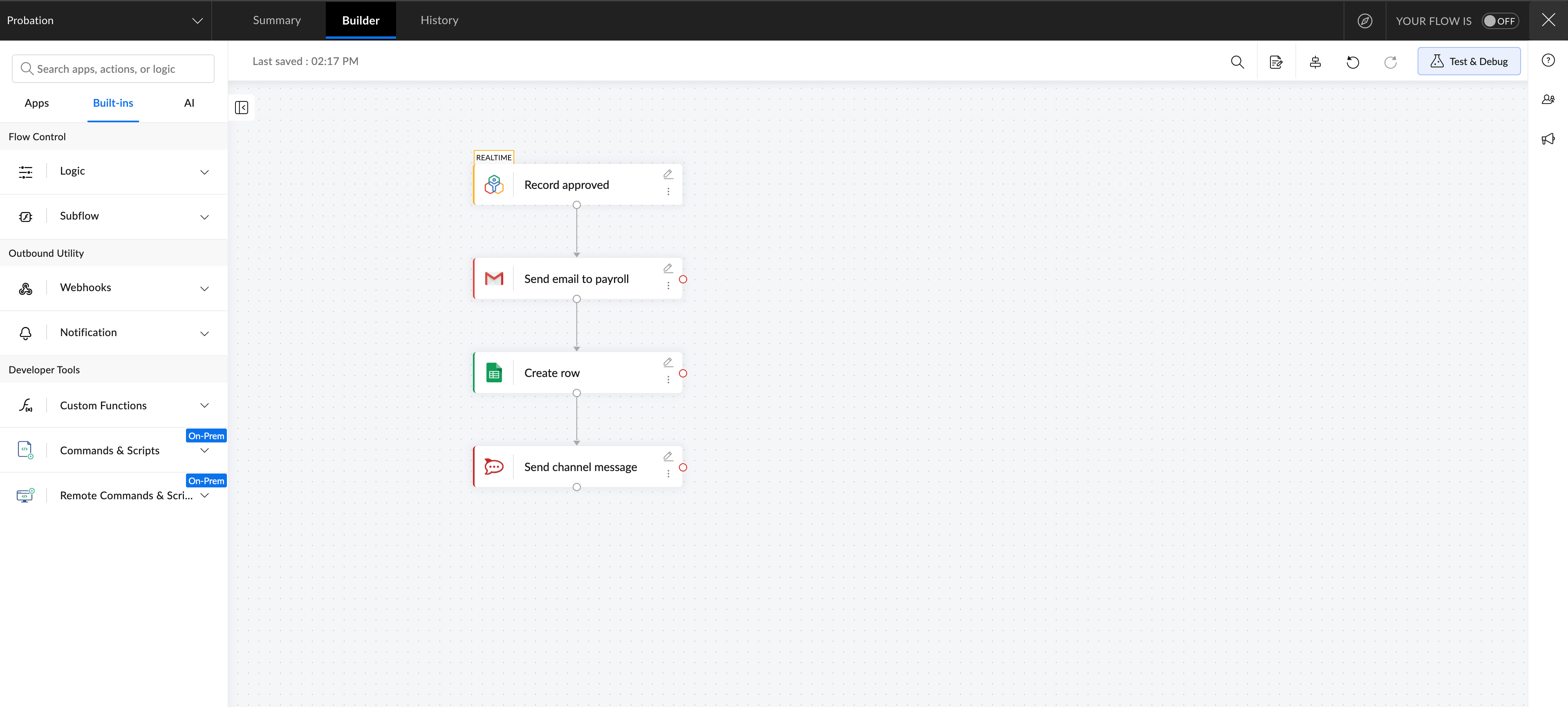
A probation approval in Zoho People can automatically trigger every follow-up action in Zoho Flow.
Here's how the flow works:
Trigger: A probation record is approved in Zoho People.
- Alert the payroll team via Gmail: The send email action notifies the payroll team as soon as the probation is confirmed, giving them the employee's name, role, and effective date to update the salary in Zoho Payroll without delay.
- Log the confirmation in Google Sheets: The create row action adds a record of the probation completion with the employee's name, department, confirmation date, and manager, giving HR and payroll team a running log for audits and reporting.
- Notify the manager and HR team in Rocket.Chat: The send message action in Rocket.Chat, an open-source team messaging platform, sends a notification to the manager and HR channel confirming the probation approval.
The use cases above show how much time gets spent on follow-up tasks that could run automatically. Zoho Flow lets you connect your HR and payroll apps with the rest of your business tools and automate these follow-up tasks easily. With 1,000+ apps to connect, you can pick where to start and add more workflows as you go.
Sign up for Zoho Flow and get started today!
Related reading
- What is HR automation? A complete guide to streamlining HR management using Zoho Flow
- Employee onboarding automation: A practical guide for HR teams
- HR workflow automation
- How to evaluate if your team needs an integration platform
Frequently asked questions
1. What is HR and payroll integration?
HR and payroll integration is the process of connecting your HR system and payroll software so that employee data flows automatically between them. When a change is made in one system, such as a new hire, a salary revision, or an exit, the update is reflected in the other, without manual intervention.
2. What is the difference between native integration and an integration platform?
A native integration is a direct, built-in connection between two specific apps—for example, Zoho People and Zoho Payroll syncing employee records automatically. An integration platform like Zoho Flow goes further by letting you connect multiple apps in a single workflow, add conditional logic, include AI steps to generate content or process data, and automate follow-up actions across systems that don't have a native connection.
3. Can I automate HR and payroll workflows without coding?
Yes. Tools like Zoho Flow use a no-code, drag-and-drop builder that lets you connect apps and build workflows without writing any code. You select your trigger app, define the actions, set any conditions, and the platform handles the rest.
4. When should a business consider integrating its HR and payroll systems?
If your HR and payroll teams are regularly exchanging data manually through emails, spreadsheets, or verbal updates, integration is worth considering. Other signals include frequent payroll errors caused by outdated data, delays in onboarding or offboarding, and time spent on repetitive data entry tasks that could be automated.
5. What should I look for in an HR and payroll integration tool?
Look for a tool that supports the apps you already use, offers a no-code interface for building workflows, and can handle multi-step automations. It should also provide error monitoring so you're notified if a workflow fails, and the flexibility to add more apps and workflows as your business grows.
6. How much does Zoho Flow cost?
Zoho Flow offers a free plan that lets you build and run basic workflows at no cost. Paid plans are available for teams that need more flows, advanced workflow elements, or higher usage limits. You can start with a free trial to explore the platform before committing to a plan.
 Gayathri Babu
Content writer for Zoho Flow. Passionate about creating engaging content that truly resonates with the readers.