



View All Reports
View all reports in Zoho Expense for a centralized view of every expense report submitted by users in the organisation. It helps you track how much needs to be reimbursed for each report and ensures reimbursements are made on time. Monitor the status of each report — whether it’s awaiting approval, overdue, awaiting reimbursement, rejected, reimbursed, archived, or exported — and identify which approvers have pending approvals.
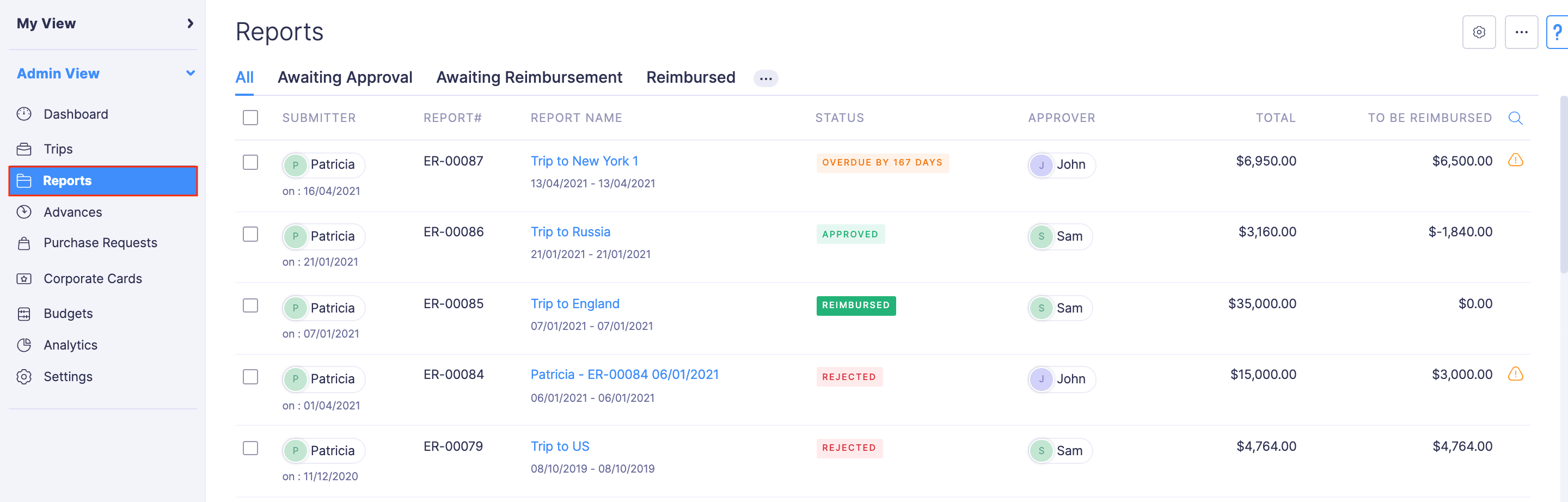
Under the Reports module in the Admin view, you can view all the expense reports submitted by users across the organisation.
It helps you to know how much amount has to be reimbursed for every expense report and to make your reimbursements on time. You can also view the status of the expense reports and the approvers from whom the approval is due. To know more about the report’s details, click the report and the report’s details along with the details of the expenses and the advances applied to it will be displayed.
If you would like to view only the reports that are yet to be reimbursed, you can apply a filter and view the list of reports that are yet to be reimbursed. Similarly, to view reports based on their status, apply filters and view the list of reports under the selected filter.
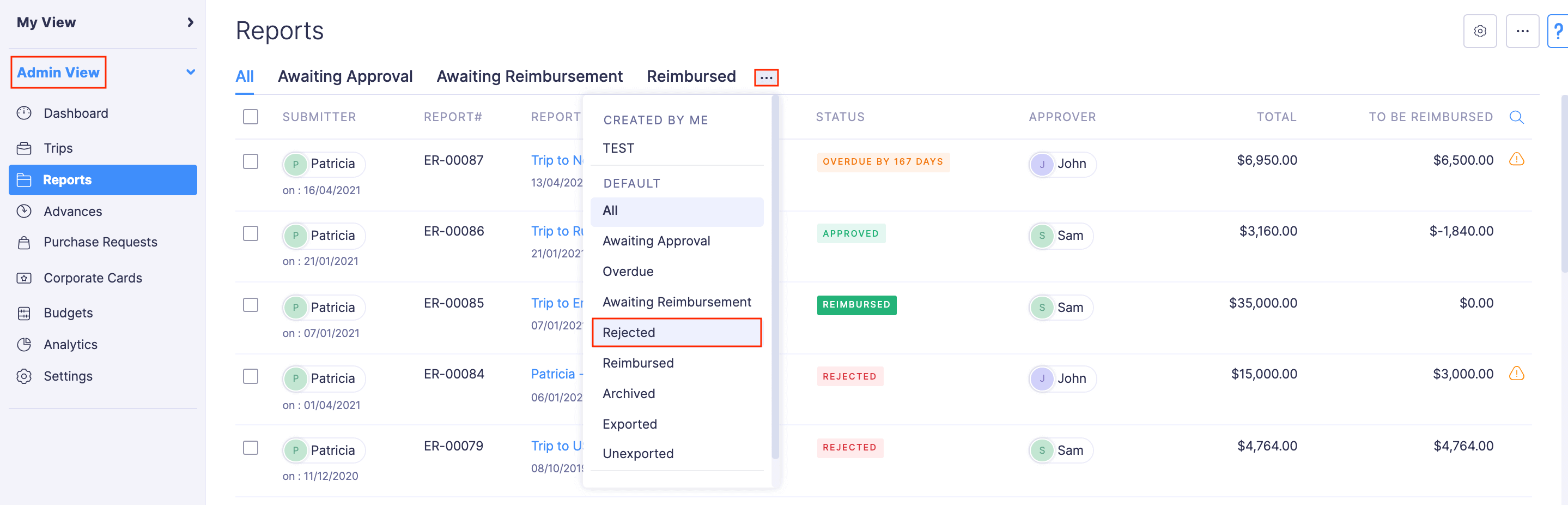
To apply a filter, click the More icon next to the fourth filter in the top band and select the status with which you want to filter your reports. The reports will be listed based on the filter you’ve selected.
| FILTER | DESCRIPTION |
|---|---|
| Awaiting Approval | Reports that are yet to be approved by the approver will be listed in the Awaiting Approval filter. |
| Overdue | All the reports that have exceeded their approval due date will be listed in the Overdue filter. |
| Awaiting Reimbursement | All the approved reports that are yet to be reimbursed will be listed in the Awaiting Reimbursement filter. |
| Rejected | All the reports that are rejected by the approver will be listed in the Rejected filter. |
| Reimbursed | All the reimbursed reports will be listed in the Reimbursed filter. |
| Archived | All the archived reports will be listed in the Archived filter. |
| Exported | All the reports that were exported will be listed in the Exported filter. |
| Unexported | If any report has not been exported, it will be listed in the Unexported filter. |
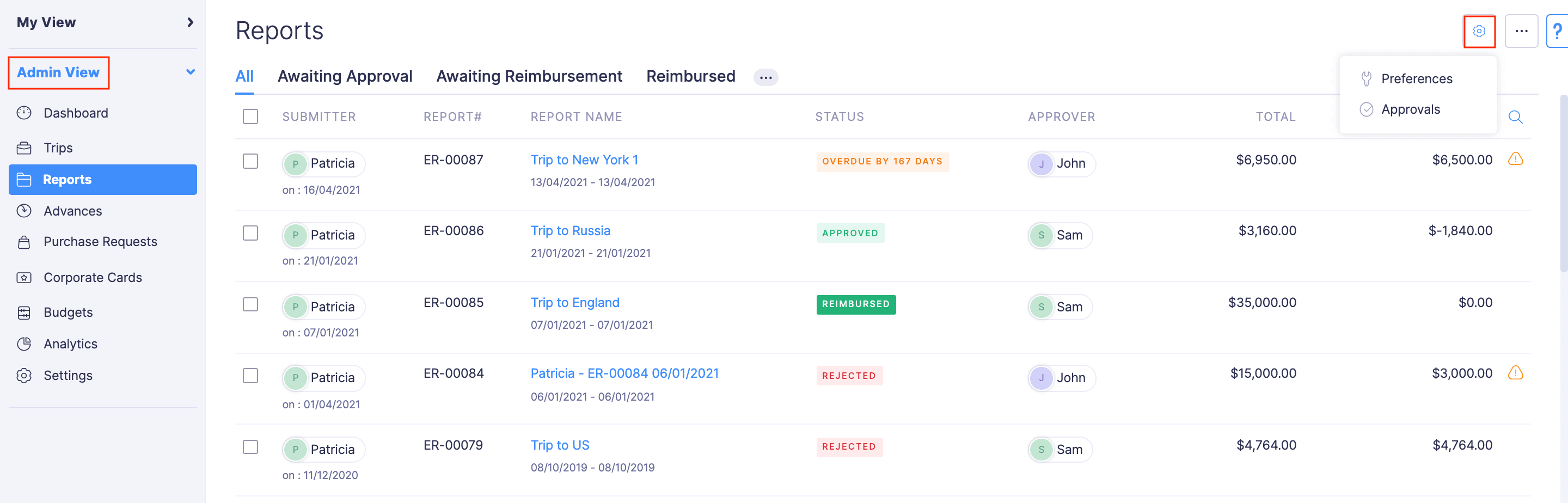
If you want to configure or edit the preferences for the Reports module, click the Gear icon at the top right side of the page and select Preferences. To customise and configure the approval preferences, click Approvals.
If you would like to view only the reports that are yet to be reimbursed, you can apply a filter and view the list of reports that are yet to be reimbursed. Similarly, to view reports based on their status, apply filters and view the list of reports under the selected filter.
To apply a type filter:
- Open the Zoho Expense app on your device.
- Tap the Menu icon in the top left corner.
- Select Reports Approval. The reports will be listed based on the filter you’ve selected.
- All Approvals: All expense reports submitted for approval will be listed.
- My Approvals: Expense reports submitted to you for approval will be listed.
To apply a status filter:
- Open the Zoho Expense app on your device.
- Tap the Menu icon in the top left corner.
- Select Reports Approval.
- Tap the Filter By dropdown at the top left corner. The reports will be listed based on the filter you’ve selected.
- Overdue: All the reports that have exceeded their approval due date will be listed in the Overdue filter.
- Rejected: All the reports that are rejected by the approver will be listed in the Rejected filter.
- Reimbursed: All the reimbursed reports will be listed in the Reimbursed filter.
- Archived: All the archived reports will be listed in the Archived filter.
- Approved: Reports that are approved by the approvers will be in Approved status.
- To be Reimbursed: Approved reports that are not yet reimbursed will be in To be Reimbursed status.
- Pending: Expense reports that are pending approval will be in Pending status.
 Yes
No
Yes
No
Thank you for your feedback!