- HOME
- Work Culture
- External collaboration in Zoho WorkDrive: A guide to secure sharing
External collaboration in Zoho WorkDrive: A guide to secure sharing
- Last Updated : September 30, 2026
- 155 Views
- 7 Min Read

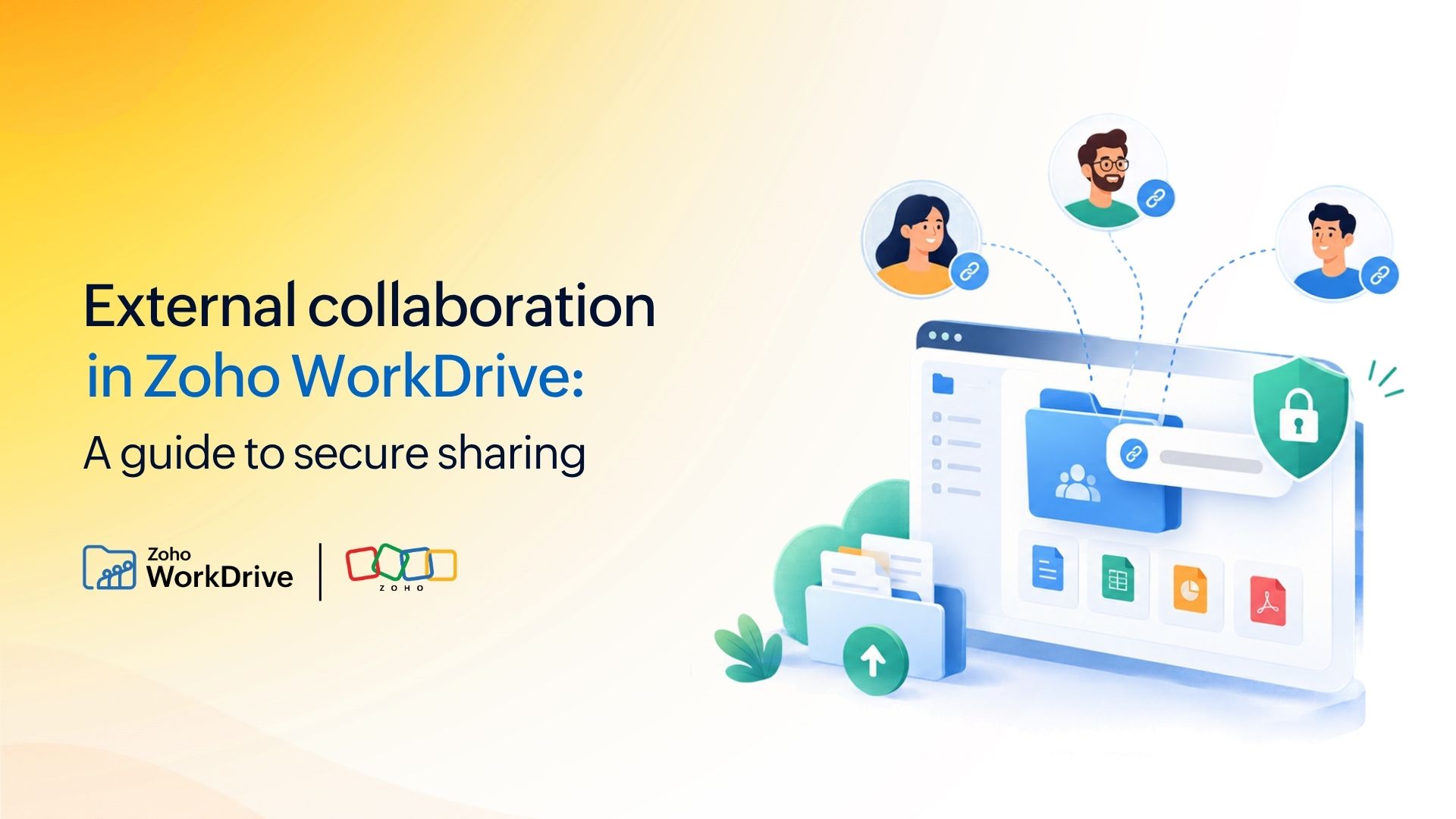
Working with people outside your organization is part of everyday business. Customers send documents, vendors exchange deliverables, agencies collaborate on projects, and partners need access to shared resources. But external collaboration also introduces an important question: How do you make content easy to access without giving up control over it?
External collaboration in Zoho WorkDrive gives teams different ways to share files, work with clients, and collect content from people outside their organization. Depending on the requirement, you can share directly with a specific person, create a controlled external link, add recurring collaborators as client users, or use Collect Files to receive documents securely.
The key is choosing the right method for the type of collaboration involved.
What external collaboration options does Zoho WorkDrive provide?
WorkDrive supports multiple approaches to external collaboration because sharing a proposal with a customer is disparate from sharing files with an agency or collecting documents from hundreds of applicants.
There are multiple ways on how teams can do this:
Share directly for collaborating with specific people by email address.
Send external share links with controlled link-based access.
Collect Files for requesting and receiving files from people outside the organization.
Each method provides a different balance of identity, access, collaboration, and administration.
Choosing the right external collaboration method
Method | Best suited for | Does the recipient need an account? | Typical interaction |
Direct sharing | Working with known external collaborators | No WorkDrive account required | View, comment, or edit based on permissions |
External share link | Controlled link-based distribution | No | View, download, comment, edit, or upload depending on the content and permissions |
Client user | Long-term collaboration with customers, agencies, contractors, or partners | Client user access is provisioned by the organization | Ongoing access to selected Team Folders |
Collect Files | Receiving documents or submissions | No | Upload files through a collection link |
Rather than using the same sharing option for every external interaction, organizations can match the method to the level and duration of collaboration required.
1. Direct sharing: Collaborate with specific external users
Direct sharing works well when you know exactly who needs access. Instead of sending an unrestricted link, you can share a file or folder with a person's email address and assign the appropriate level of access. External users with a WorkDrive or Zoho account can sign in to access the shared content. People without a Zoho account can verify their email address using OTP authentication.
This makes direct sharing suitable for scenarios such as:
Sending a contract to a customer for review
Sharing project documents with a freelancer
Collaborating on content with an external agency
Giving a vendor access to a specific folder
Requesting comments or edits from a known stakeholder
Depending on the file type and permissions assigned, external collaborators can view, comment on, or edit supported content. For Zoho Writer, Sheet, and Show files, external collaborators can also participate directly in document collaboration.
When should you use direct sharing?
Use direct sharing when the recipient's identity matters and you want access associated with a specific email address rather than distributing a general-purpose link.
It is particularly useful for one-to-one or small-group collaboration where you want to know exactly who has been invited.
2. External share links: Controlled access without adding collaborators
Sometimes you need a simpler way to distribute content. An external share link lets you share a file or folder through a link while applying additional controls to that link. WorkDrive lets teams configure measures such as:
Protect files with password
Set expiration links
Collection of recipient information
Access tracking
External share links are available on paid WorkDrive plans and works well when sharing product collateral with customers, a document with several external stakeholders, time-sensitive files with a vendor, event or campaign resources or a folder containing assets for an external agency.
External share links do not require recipients to become members of your WorkDrive team. However, because anyone who receives the link may potentially access it, organizations should apply the security controls appropriate for the content—for example, setting a password or expiration date when sharing sensitive or temporary information.
Can external users edit or upload files through a share link?
Permissions depend on what is being shared. For supported Zoho-format files, external users can be given view, comment, or edit access. Folder share links can also provide different levels of access, including View, Upload, and Edit. Upload access lets an external user add files to the shared folder, while Edit access enables broader collaboration within it.
This makes an external share link useful when external participants need more than read-only access but do not need to become long-term members of your workspace.
3. Client users: Give recurring collaborators a controlled workspace
A customer you send one document to probably doesn't need ongoing workspace access. A customer, agency, contractor, or partner working with your team every week might. For these relationships, WorkDrive provides client users.
Client users are external users who are added to a WorkDrive team with limited permissions. Administrators can add them to specific Team Folders and assign the appropriate role for each workspace. Client users are supported across WorkDrive's paid Starter, Team, and Business plans and require separate client-user licenses.
For example, a marketing team working continuously with a design agency could add agency representatives as client users to the relevant Team Folder. Instead of repeatedly sending links to new files, both teams can work through a defined shared workspace.
Administrators retain control over:
Which Team Folders a client user can access.
The role assigned within each Team Folder.
Account expiration and client user status.
External sharing privileges from the client's My Folders.
Storage limits.
When should you use client users?
Client users make sense when the relationship is recurring, rather than a one-time file exchange, project-based, involving multiple files or folders, collaborative, with regular uploads, edits, or reviews and structured, requiring clearly defined access to particular Team Folders.
Think of direct sharing and external links as ways to provide access to content. Client users are better suited to giving an external stakeholder a controlled place to work with your team over time.
4. Collect Files: Receive content without giving access to your folders
External collaboration isn't always about giving somebody access to your files. Sometimes you only need them to send files to you.
Collect Files lets teams create a collection link through which team members or external users can upload files directly into a designated WorkDrive folder. The person submitting the files doesn't need access to the rest of the folder or your WorkDrive workspace.
For example, teams can use Collect Files to request:
Customer onboarding documents
Vendor invoices
Applicant resumes
Event submissions
Project deliverables
Compliance documentation
Signed forms
Creative assets
Files submitted through the collection link are automatically stored in the folder selected by the collection creator. Collections can also be configured with options such as an expiration date and submission notifications. Collect Files is currently available with WorkDrive Team and Business plans.
Why use Collect Files instead of sharing a folder?
The difference is access. If you give an external user upload permission to a shared folder, that person is collaborating within a folder you have exposed to them.
With Collect Files, the interaction is focused on submission. The external person receives a place to upload what you requested without needing general access to the destination folder. That makes it particularly useful when collecting information from customers or larger groups of external users.
Best practices for securing external access in WorkDrive
External sharing should remain controlled throughout the life of the content. WorkDrive provides multiple layers of access and sharing controls to help teams manage this consistently.
Control whether external sharing is allowed
Team admins can enable or disable external sharing across WorkDrive and control sharing from members’ My Folders. Team Folder admins can separately decide whether content within a specific Team Folder can be shared externally.
This lets organizations allow external collaboration where needed while restricting it for sensitive or internal-only content.
Grant only the access required
Not every external collaborator needs the same permissions. Depending on the sharing method and file type, teams can allow viewing, commenting, editing, uploading, or downloading.
Assigning only the access required helps limit unnecessary exposure while still supporting collaboration.
Set access to expire
Temporary collaboration does not need permanent access. External share links, client users, and Collect Files links can be configured with expiration controls where supported.
This is useful for time-bound projects, campaigns, vendor engagements, and other temporary collaboration.
Protect externally shared links
External share links can be secured with controls such as passwords, expiration dates, download restrictions, and recipient-information collection.
Admins can also require visitors to provide details such as their name, email address, or phone number before accessing shared content.
Review and revoke access regularly
Authorized users can use the Shared Items view in My Folders and Team Folders to review externally shared content, including direct shares, external links, internet visibility, and download links.
Sharing settings can then be updated or access removed when it is no longer required.
Frequently asked questions
1. Can a whole Team Folder be shared externally?
No. You can share individual files and folders within a Team Folder when external sharing is enabled. For ongoing collaboration, client users can be added to selected Team Folders.
2. Can external users edit or comment on files?
Yes, depending on the file type, sharing method, and permissions assigned. Supported files can allow external users to view, comment, or edit content.
3. Do clients need a WorkDrive account?
Not for all sharing methods. External share links and Collect Files can be used without joining your WorkDrive team. Direct sharing can also support non-Zoho users through email verification. Client users, however, are added to your WorkDrive team as external users.
4. What is the difference between a client user and an external link recipient?
A client user is added to your WorkDrive team and can access selected Team Folders for ongoing collaboration. A separate client-user license is required.
An external link recipient only accesses the content shared through that link and does not become a member of your WorkDrive team.
5. Can external users upload files into a shared folder?
Yes. Folder share links can provide upload access where supported. If you only need to receive files without exposing the folder contents, use Collect Files instead.
6. How can admins see who accessed or downloaded a file?
You can remove a directly shared collaborator, delete an external share link, change permissions or expiration settings, or remove or suspend a client user. Admins can also disable external sharing for a Team Folder, selected users’ My Folders, or the entire team.
7. Can external access be removed in bulk?
Yes. Admins can disable external sharing for multiple users’ My Folders or at the team level. Team Folder admins can also disable external sharing for a specific Team Folder.
8. Which sharing methods work on the Free Essentials plan?
Free Essentials supports basic sharing from My Folders, including sharing with individual users and sharing content publicly where supported.
Advanced options such as custom external share links require a paid plan. Client users are available on paid WorkDrive plans with separate licenses, while Collect Files is available on Team and Business plans.