- HOME
- Work Culture
- Secure external file sharing: How Zoho WorkDrive helps businesses stay in control
Secure external file sharing: How Zoho WorkDrive helps businesses stay in control
- Last Updated : October 27, 2026
- 37 Views
- 6 Min Read

Sharing a file takes seconds. But managing what happens after it's shared is a different challenge.
Consider a sales team sending a confidential proposal to a prospective customer. What if the link gets forwarded to someone else? What if the proposal remains accessible after negotiations end? Or what if the recipient downloads a copy that can no longer be controlled?
As businesses exchange more documents with customers, vendors, and external partners, secure sharing is about more than providing access. It's about ensuring the right people can access the right content, with the right permissions, for only as long as necessary.
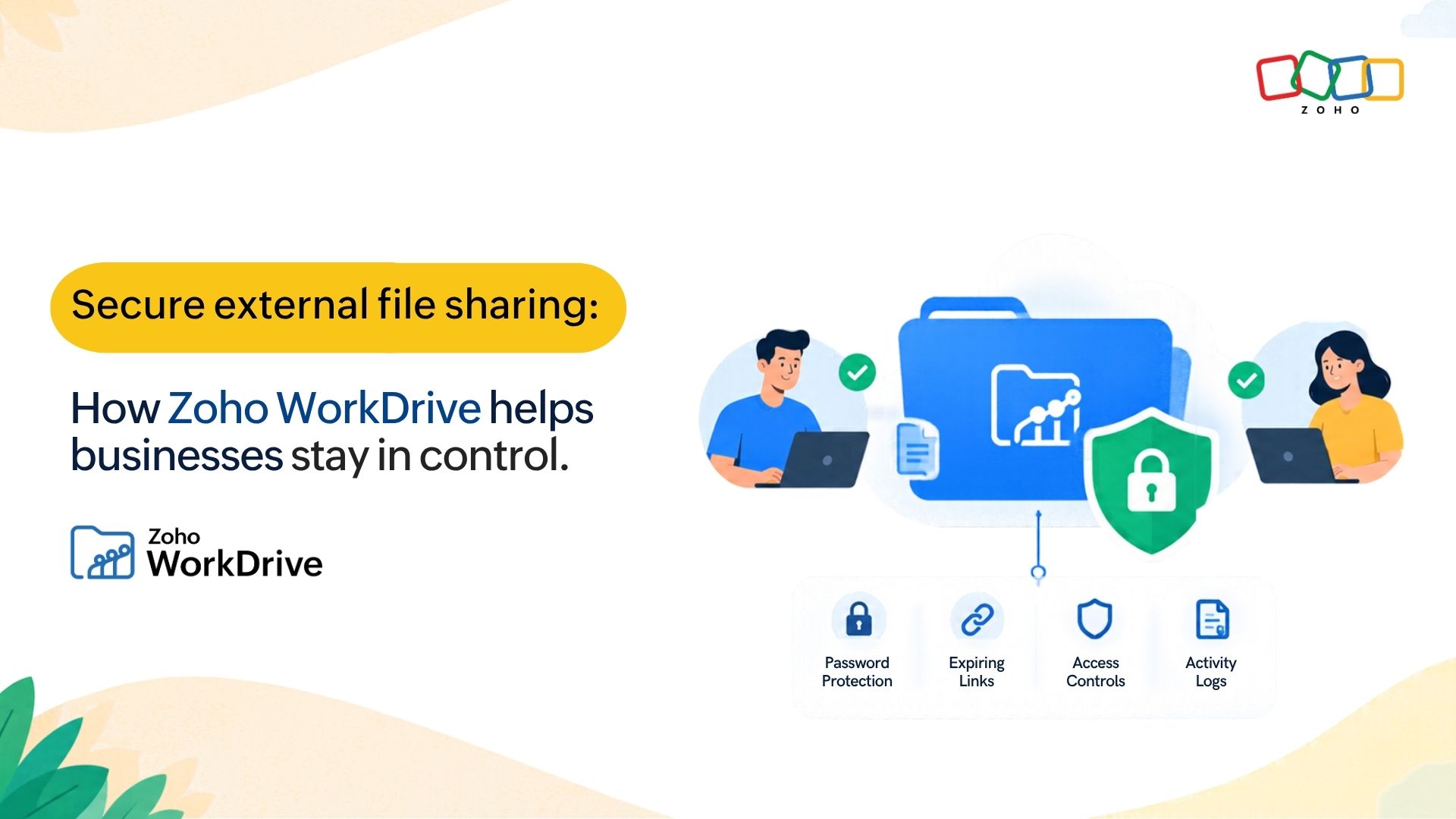
Zoho WorkDrive helps businesses manage external file sharing through password-protected links, recipient verification, expiration dates, download restrictions, and configurable access controls—all within a centralized content management platform.
Why external file sharing needs more than a shareable link
Not all business documents require the same level of protection. A product brochure intended for broad distribution and a confidential financial agreement shouldn't have identical sharing permissions.
Before sharing a file externally, businesses should consider three questions:
Who should have access? Should anyone with the link have access or only identified recipients.
What can recipients do? Define the actions they can perform like view, comment, edit, download, or print.
How long should access last? Until a project ends, a review is completed, or a specific date.
These decisions help businesses choose the right sharing method and apply appropriate security controls.
Choose the right sharing method for your business needs
WorkDrive offers different ways to share files externally, depending on the sensitivity of the content and the level of collaboration required.
External share links for flexible distribution
External links are convenient when content needs to reach multiple recipients. For example, a marketing team sharing a product presentation with prospective customers can create a shareable link with viewing permissions and an expiration date.
WorkDrive lets users create multiple external links for the same file, each with its own access settings. This allows teams to share content with different audiences without creating duplicate files.
Direct email sharing for recipient-specific access
When a document should be accessible only to ientified individuals, direct email sharing offers greater control.
Consider a legal team sharing a confidential agreement with a client. Instead of distributing a general link, the team can share the document directly with the client's email address and assign the required permissions.
WorkDrive supports recipient authentication for direct sharing, including OTP verification for external recipients without Zoho accounts. In short, external links are useful for controlled distribution, while direct sharing is better suited to recipient-specific collaboration.
For a broader understanding of external sharing methods, client collaboration, and file collection, explore our guide to external collaboration in Zoho WorkDrive.
Five ways to secure external file sharing in Zoho WorkDrive
Once you've chosen a sharing method, the next step is to apply security controls appropriate to the document and its intended audience.
1. Protect confidential files with passwords
A shareable link can be forwarded beyond its intended audience. Password protection adds another access requirement, reducing the likelihood of unintended access.
For example, a sales representative sharing a confidential pricing proposal can create a password-protected shareable link and communicate the password separately.
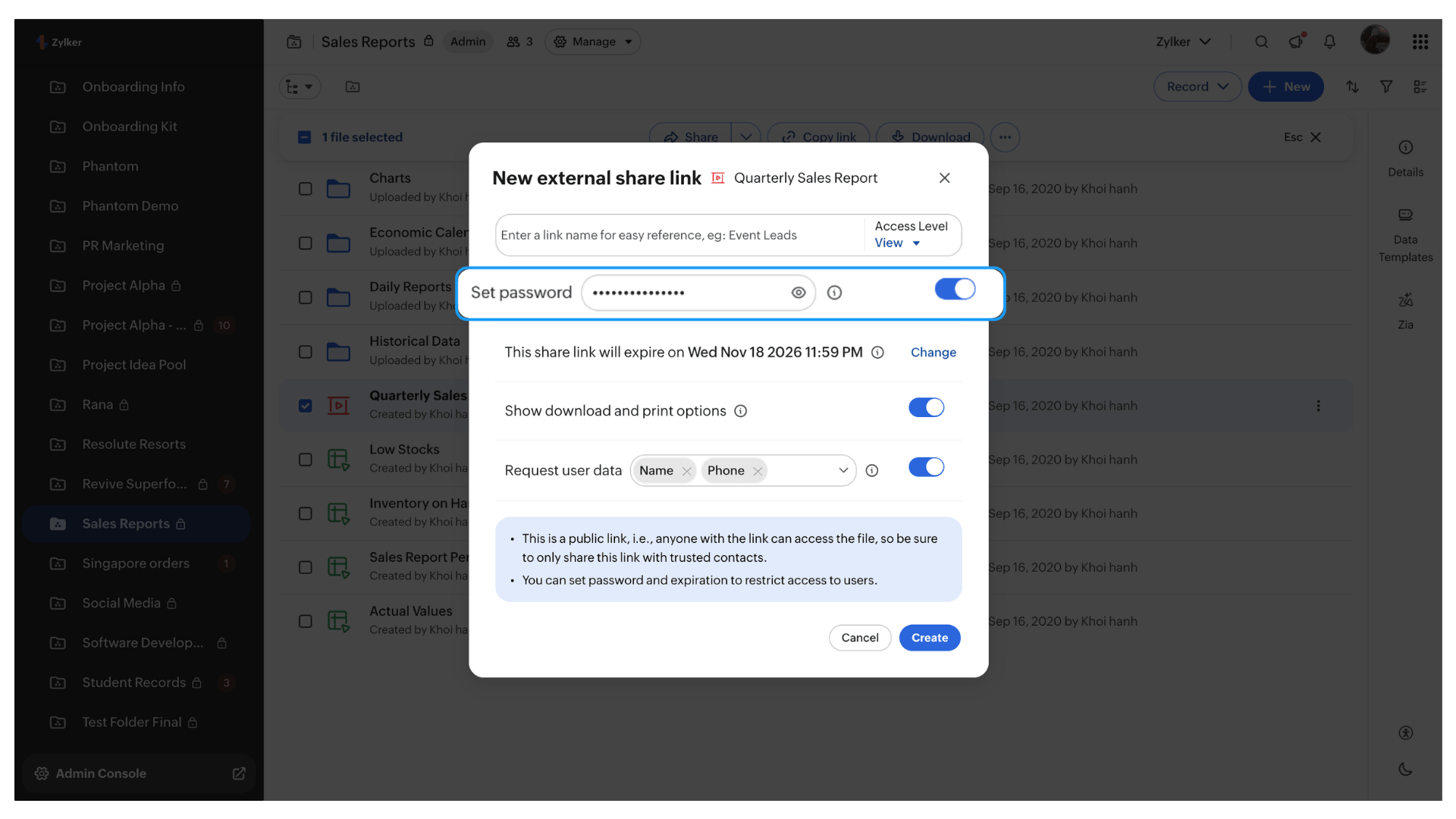
Users can enable Set password when creating external share links. WorkDrive administrators can also enforce password protection and configure password requirements. Keep in mind that anyone with both the link and password may still be able to access the content.
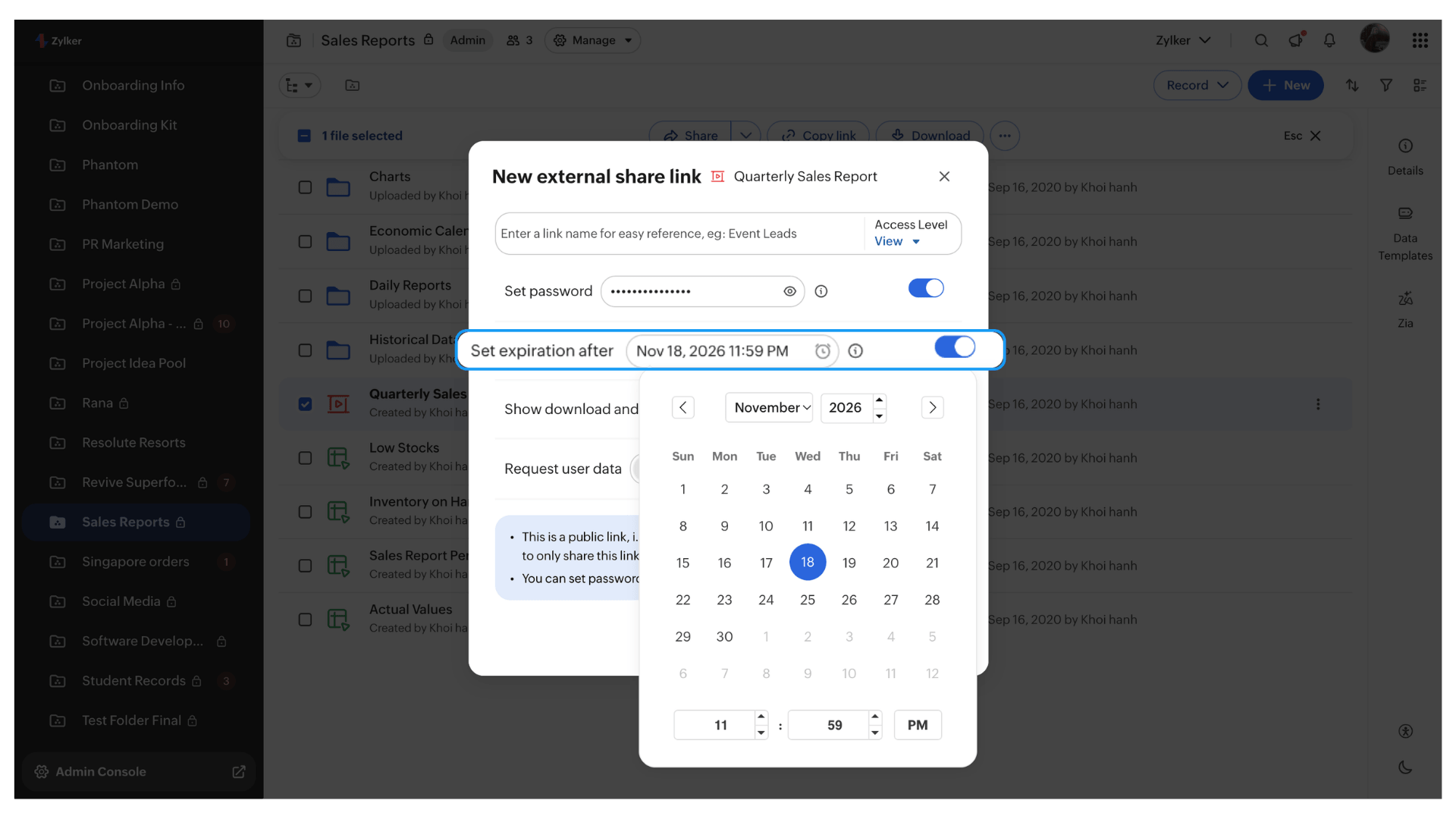
2. Limit access with expiration dates
External access often serves a temporary business purpose. A vendor may need project specifications until delivery is complete, while a customer might require a pricing proposal for only a few days.
WorkDrive allows users to set expiration dates for external share links, automatically ending access after the specified period.
For instance, a sales team can configure a proposal link to expire once the customer's review period ends. Administrators can also establish default link expiration settings to encourage time-bound sharing.
3. Restrict downloads and printing
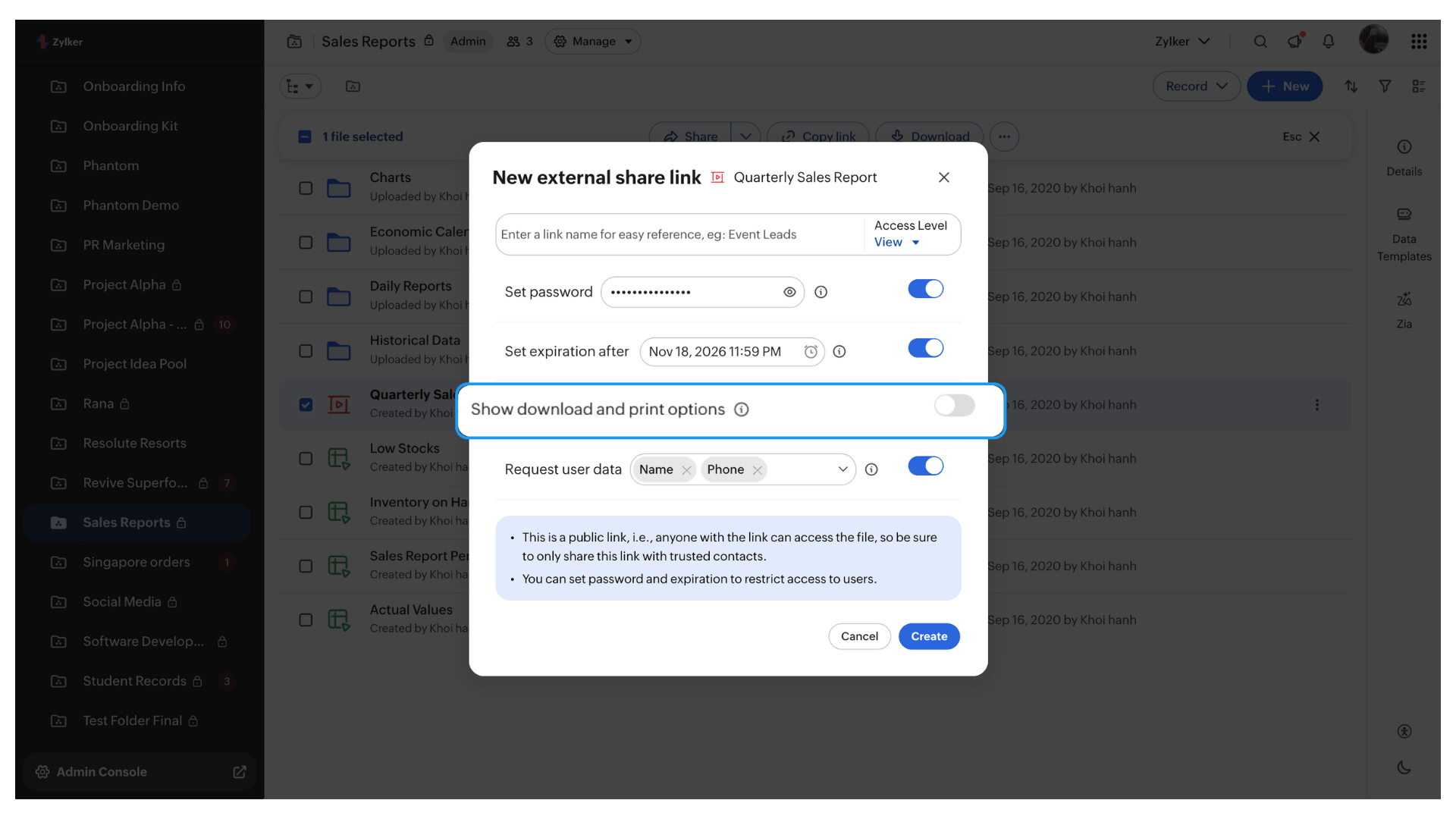
Not every external recipient needs a local copy of a shared document. A potential partner reviewing a presentation may only need viewing access, while an external consultant working on a project document may require additionals permissions.
WorkDrive allows users to disable downloads for supported external share links. Team Folder administrators can also manage download and print permissions for certain access roles.
These controls help limit unnecessary distribution, although they cannot completely prevent screenshots or other forms of content reproduction.
4. Collect recipient details before granting access
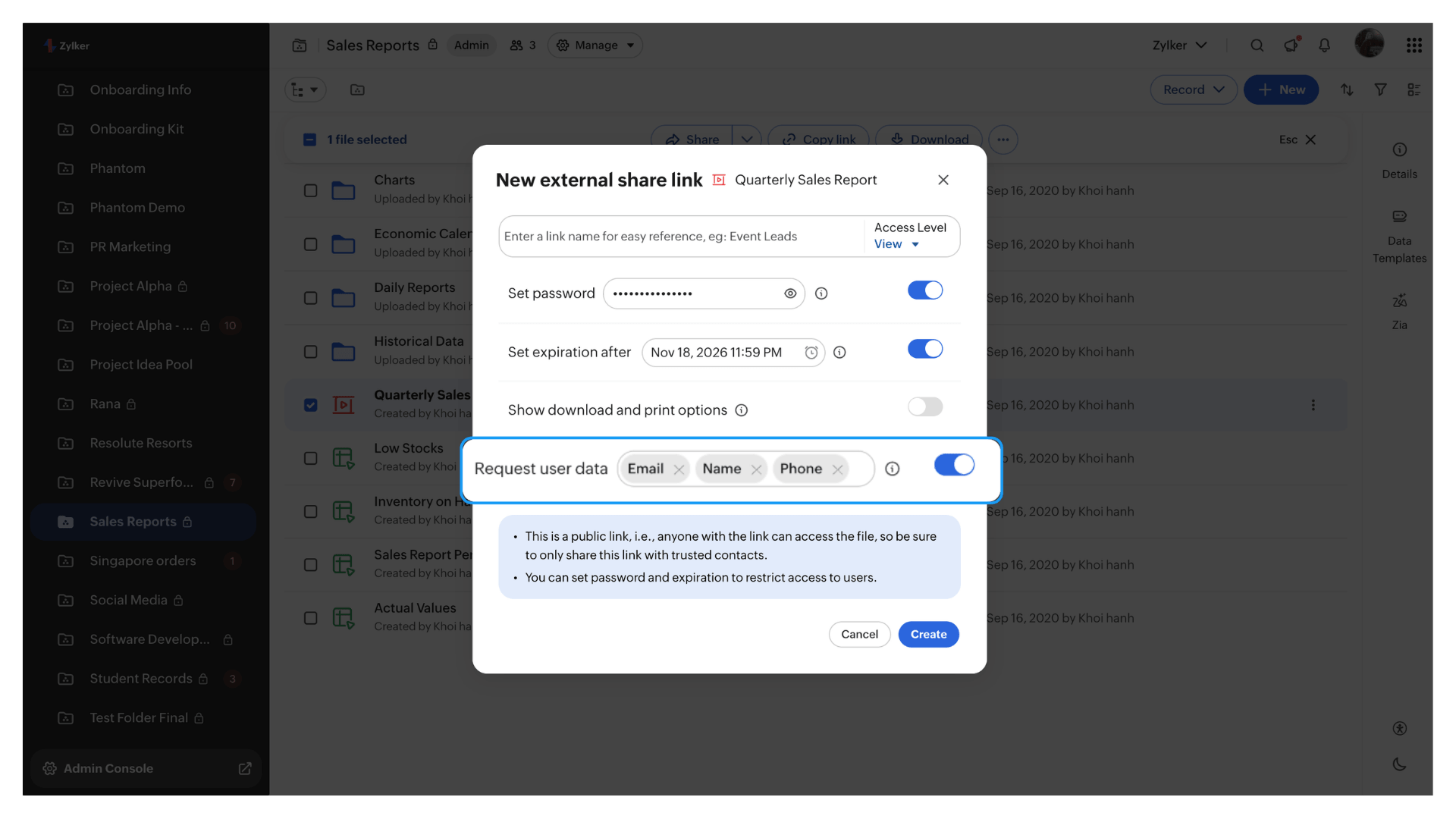
When distributing files through external links, businesses may want to know who is accessing the content.
For example, a real estate company sharing property documents with prospective buyers may want to collect visitor details for follow-up.
With WorkDrive's Request user data option, teams can ask external recipients to provide information such as their name, email address, or phone number before accessing a shared link.
Administrators can also configure default user information requirements for newly created links.
This provides additional visibility into external sharing without requiring recipients to have WorkDrive accounts. However, the information is self-reported and shouldn't be treated as verified identity.
5. Use recipient verification for sensitive collaboration
For documents intended for specific individuals, email-based authentication offers greater control than a general shareable link.
For example, an HR team exchanging confidential documents with an external consultant can use WorkDrive's direct email sharing.
Recipients without Zoho accounts verify their email addresses through a one-time password (OTP), while existing Zoho users authenticate using their accounts. Once authenticated, recipients can access the shared content according to their assigned permissions.
Keep external access manageable after sharing
Security controls are important when creating a share, but access also needs to be managed as projects and business relationships evolve. Here are four best practices for maintaining control over externally shared content.
1. Organize links by recipient or purpose
When sharing the same file with multiple stakeholders, create separate external links with identifiable names and permissions.
For example, a project team can create different links for a customer, implementation partner, and external consultant. If the consultant's engagement ends, their link can be revoked without affecting the others.
WorkDrive supports multiple external links for the same file, making it easier to manage access for different audiences.
2. Review sharing activity and outdated permissions
Regularly reviewing active shares helps teams identify unnecessary access and permissions that no longer match business requirements.
WorkDrive provides external share-link statistics, including available information about views and downloads. File owners can review sharing activity, modify link settings, or revoke access when necessary.
For example, if a vendor completes a project early, the project manager can remove access immediately rather than waiting for the link to expire.
Administrators can also use WorkDrive's Data Administration capabilities to review shared items across the team and manage access permissions.
3. Establish consistent external sharing policies
As external collaboration increases, organizations need consistent policies to prevent unrestricted sharing of sensitive information.
WorkDrive administrators can configure team-level external sharing settings, including controls for direct email sharing, external share links, and download links.
They can also establish password requirements and default expiration settings to encourage consistent sharing practices across teams.
4. Use client access for long-term collaboration
While external links work well for occasional exchanges, ongoing projects may require more structured access.
For example, a marketing agency working with a business over several months may need regular access to campaign assets, reports, and project documents.
Instead of generating links for every exchange, businesses can add collaborators as client users in WorkDrive and assign appropriate roles within selected Team Folders.
This allows teams to manage access and collaborate on shared content throughout the engagement.
Frequently asked questions
How can I secure an external link in Zoho WorkDrive?
Create an external share link and configure password protection, expiration dates, access permissions, and download restrictions as needed. For recipient-specific access, use direct email sharing with the appropriate authentication method.
Can a WorkDrive link be restricted to one recipient?
A standard external share link isn't inherently restricted to one person. Anyone with the link who meets its security requirements may access it. Use direct email sharing to grant access to a specific recipient.
Can users disable downloading or printing shared files?
Yes. WorkDrive supports download restrictions for external links, subject to applicable settings. Team Folder administrators can also configure download and print permissions for certain roles.
Can a shared link be revoked before it expires?
Yes. File owners can delete an external share link through its sharing settings to revoke access immediately.
Can the same WorkDrive link be shortened?
A third-party URL-shortening service may be used if permitted by your organization's security policy. Shortening the URL doesn't change the original link's security settings.
Can root Team Folders be shared externally?
No. The root Team Folder itself cannot be shared using an external share link. However, authorized users can share individual files and subfolders within it when external sharing is enabled. Client users can also be granted access to selected Team Folders for ongoing collaboration.
How are external link access attempts recorded?
WorkDrive provides external share-link statistics, including available information about views and downloads. The level of detail depends on the sharing method and settings. These statistics shouldn't be treated as a complete log of every failed authentication attempt.
Secure collaboration beyond organizational boundaries
External collaboration is essential to how businesses operate, but sharing content shouldn't mean losing control over it.
With password-protected links, recipient verification, expiration dates, download restrictions, and configurable permissions, Zoho WorkDrive helps teams balance accessibility with security.
By bringing these controls into an intelligent content management platform, WorkDrive enables organizations to share files, manage external access, and collaborate with customers and partners without relying on disconnected tools or duplicating business content.
With Zoho WorkDrive you can now take control of external file sharing, protect sensitive content, manage access, and collaborate securely.