How to migrate from Google Workspace to Zoho WorkDrive
- Last Updated : September 29, 2026
- 126 Views
- 7 Min Read

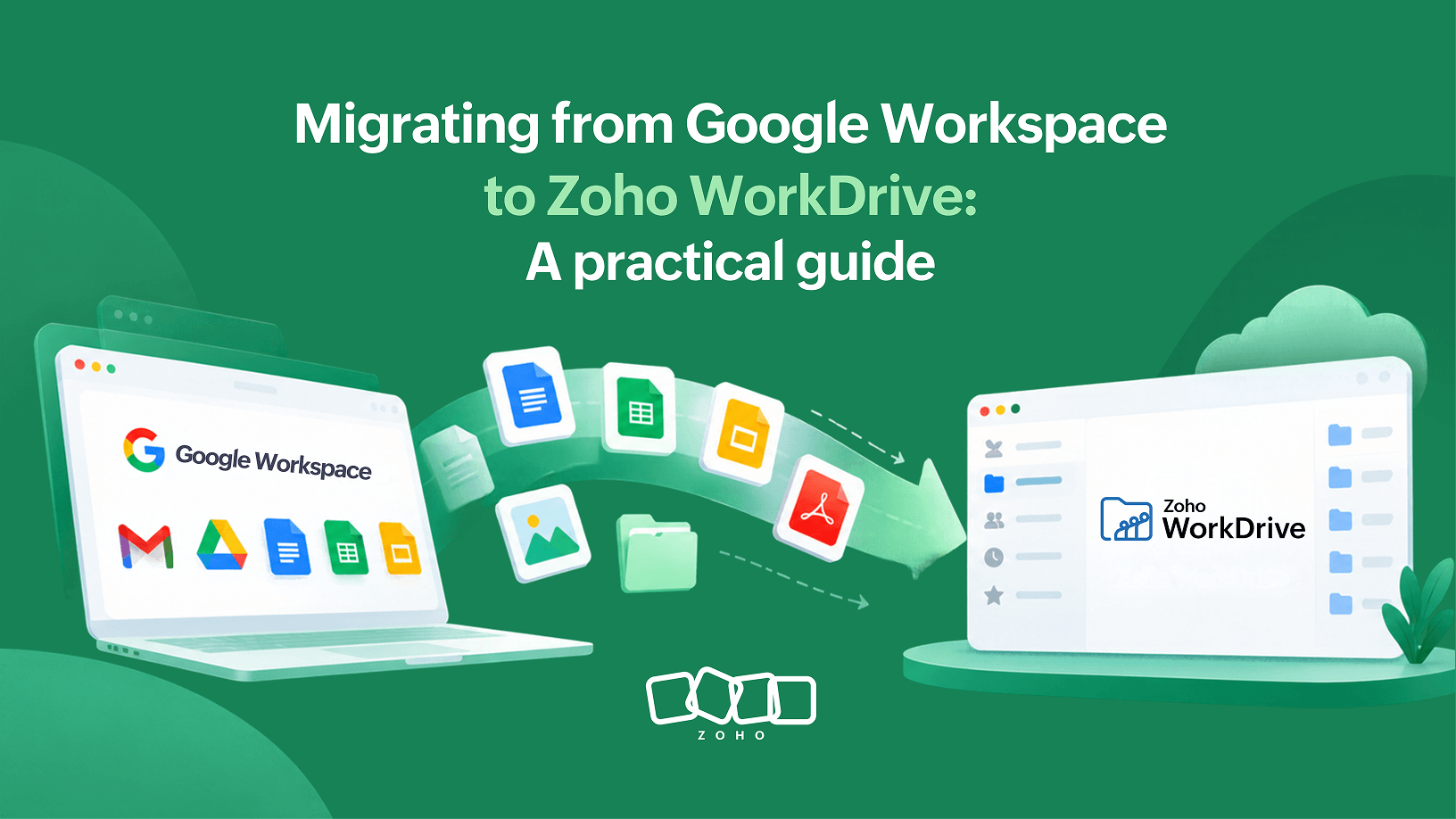
Moving years of business content out of Google Workspace can sound deceptively simple: move the files, check that they arrived, and switch over.
In practice, the files are usually the easy part.
A Google Workspace environment also carries years of context around those files. People own content in My Drive. Teams work from Shared Drives. Files are shared across departments. Some employees have changed email addresses or left the company. Google Docs, Sheets, and Slides behave differently from regular uploaded files. And access permissions that made sense in Google Workspace need to make sense in WorkDrive after the move.
That's why a good migration isn't measured only by how much data gets moved. It's measured by whether people, content, and access come together correctly at the destination.
Our built-in Google Workspace migration handles the movement from My Drive and Shared Drives to WorkDrive while supporting user mapping, supported sharing relationships, Google-native file conversion, migration reporting, and validation.
If you're planning the migration from scratch, our migration planning guide covers the broader journey from preparation to cutover. Here, we'll focus on the decisions that matter specifically when Google Workspace is your starting point.
Start with your users, not your files
Before thinking about terabytes or folder structures, work out who is moving.
The Google Workspace users whose content you want to migrate need corresponding active accounts in WorkDrive. For many organizations, those identities will match neatly. For others, the migration may coincide with a new domain, renamed accounts, organizational changes, or employees moving between teams.
Imagine Alex used alex@oldcompany.com in Google Workspace but now uses alex@newcompany.com in WorkDrive. That doesn't mean Alex's content has to be left behind. The two identities can be mapped as part of the migration.
What matters is resolving those relationships before content starts moving.
This becomes particularly important when sharing is involved. A document isn't useful simply because it reached WorkDrive. The people who need it must also be able to find and access it.
So before migration day, answer three basic questions: Who needs to move? Which WorkDrive account should each person map to? Are those users already active in WorkDrive?
Don't start with files. Start with identities.
Think about My Drive and Shared Drives differently
Google Workspace mixes personal working spaces with organizational ones, and that distinction follows your content into the migration.
Content from a mapped user's My Drive can move into WorkDrive along with supported sharing information. But My Drive often contains relationships that aren't obvious from the folder structure alone.
For example, suppose Priya owns a project file and shares it with Marcus. Marcus adds that shared resource to his own My Drive. During migration, both users can end up with a copy. That's not necessarily accidental duplication; it's a consequence of how the content existed in Google Workspace.
Shortcuts are another example. The underlying content can migrate, but Google Drive shortcuts themselves don't recreate the same network of references in WorkDrive.
Shared Drives require a different mindset.
They represent team-owned content rather than an individual's workspace. During the first migration, Google Shared Drives move into WorkDrive as private Team Folders, bringing organizational content into spaces designed around teams.
That makes Shared Drives one of the areas worth reviewing before you start. At least one member needs to be mapped for a Shared Drive to migrate, and Shared Drives can't simply be added through a later migration. Individual file and folder sharing inside them also doesn't carry over in the same way.
So don't evaluate the result by asking only, "Did our Shared Drive arrive?"
Ask, "Did it become the right Team Folder, with the right people able to work in it?"
Treat permissions as something to validate, not just migrate
Google Workspace environments accumulate sharing decisions over time.
A folder may have been shared years ago. Someone may have changed departments. An external collaborator may still have access to an old project. A parent folder may be broadly shared while one of its subfolders is deliberately restricted.
Some supported sharing relationships can migrate to WorkDrive, but the two platforms don't model every access relationship identically. External sharing permissions, for example, aren't retained, and users who aren't properly mapped or active can affect how access carries over.
This is one place where migration can actually become an opportunity.
Rather than trying to reproduce every historical permission mechanically, identify the content where access really matters: finance folders, HR content, customer projects, leadership documents, cross-functional workspaces, and other sensitive repositories.
After migration, test those spaces with the people who actually use them.
The useful question isn't:
Did every old permission survive unchanged?
It's:
Can the right people access the right content in WorkDrive now?
Know what happens to the files your teams work on every day
Not every Google Workspace file is an ordinary uploaded file.
Google Docs, Sheets, and Slides are native to Google's environment. During migration, supported files are converted to their corresponding Zoho formats: Writer, Sheet, and Show.
That means a finance team working heavily in Google Sheets can continue working with migrated spreadsheets in Zoho Sheet rather than ending up with unusable references back to Google.
Microsoft Office files take a different route. Word, Excel, and PowerPoint files remain in their original formats after migration and can be converted to the corresponding Zoho formats when editing requires it.
There are also files that need separate attention. Very large files, oversized Google-native files, trashed content, comments, revision history, certain Google-specific formats, shortcuts, and content stored in some Google Drive locations aren't handled like ordinary Drive files.
You don't need to memorize every exception before starting.
Instead, identify the formats and content types your teams depend on most. If your organization lives in Sheets, test Sheets. If design teams regularly work with large files, inspect those. If a department relies heavily on comments and historical revisions, account for that before the move.
Don't judge a migration by the progress bar
Watching thousands of files move can make the migration percentage feel like the most important number on the screen.
It isn't.
A migration reaching 100% tells you that the process has finished. It doesn't tell you whether every expected item migrated, why something failed, whether permissions make sense, or whether teams can actually work from the destination.
That's what the migration report is for.
Once content has moved, use the report to identify successful and failed items and understand exceptions that need attention. Some failed items can simply be retried; others may need to be handled separately.
But even the report isn't the final test.
Open a few business-critical Team Folders. Ask representative users to find their working files. Open migrated Docs, Sheets, and Slides. Check sensitive folders. Compare unexpected failures with the source. Make sure the teams who will work in WorkDrive tomorrow can do what they need to do today.
A technically completed migration and a usable destination are not always the same thing.
Use the overlap between Google Workspace and WorkDrive
One advantage of the migration process is that it doesn't delete the original Google Workspace data.
Use that overlap deliberately.
For a period, the source can act as your reference while you validate WorkDrive. If something looks different, compare it. If a user can't find something, check where it lived originally. If access doesn't behave as expected, review the old sharing relationship and decide what the appropriate WorkDrive access should be.
The goal isn't to make WorkDrive look exactly like Google Workspace. The platforms organize shared content, ownership, roles, and permissions differently. Trying to reproduce the source pixel for pixel can miss the larger purpose of the migration.
What you want to establish is simpler:
Your important content has arrived. Known exceptions are understood. The right people can access what they need. Teams can continue working without depending on Google Workspace.
Once those conditions are true, WorkDrive can become the operational home for that content.
A good Google Workspace migration comes down to three questions
When the technical details start to feel complicated, come back to these:
1. Who is moving?
Make sure the right users are active in WorkDrive and their identities are mapped correctly.
2. What is moving?
Understand how My Drive, Shared Drives, Google-native files, permissions, and important exceptions will behave.
3. Did it move correctly?
Use migration reports and real-world validation to confirm that your content isn't merely present, but usable.
The Google Cloud configuration and migration settings make the transfer possible. But preparation determines whether the move makes sense, and validation determines whether it's actually finished.
That's the difference between moving files and moving your organization's work.
Planning your move from Google Workspace? Explore WorkDrive for your organization or contact our support team for your migration requirements.
Frequently asked questions
Can I migrate Google Shared Drives to WorkDrive?
Yes. Google Shared Drives can migrate as private Team Folders in WorkDrive during the first migration. At least one Shared Drive member needs to be mapped to WorkDrive. Because Shared Drives can't be added through a later migration, review them carefully before beginning your first move.
What happens to Google Docs, Sheets, and Slides?
Supported Google Docs, Sheets, and Slides are converted to Zoho Writer, Sheet, and Show during migration. This lets teams continue working with those files in the corresponding Zoho productivity apps after the move.
Will Google Workspace sharing permissions move to WorkDrive?
Supported sharing information for individually shared My Drive content can be retained when sharing migration is enabled, but not every Google sharing relationship carries over. External sharing permissions aren't retained, and Shared Drive file- and folder-level sharing has its own limitations. Review important access after migration rather than assuming the source and destination will behave identically.
Does migration delete my Google Workspace data?
No. The migration doesn't perform delete operations on your Google Workspace data. Keeping the source available while you validate WorkDrive gives you a useful reference before completing your cutover.
Can I test the migration process while evaluating WorkDrive?
Migration access during an evaluation can be enabled on request. If migration is important to your WorkDrive evaluation, reach out to our presales team so the required access can be reviewed and enabled for your trial.