How to troubleshoot WorkDrive login, OTP, and browser access issues
- Last Updated : October 1, 2026
- 204 Views
- 8 Min Read

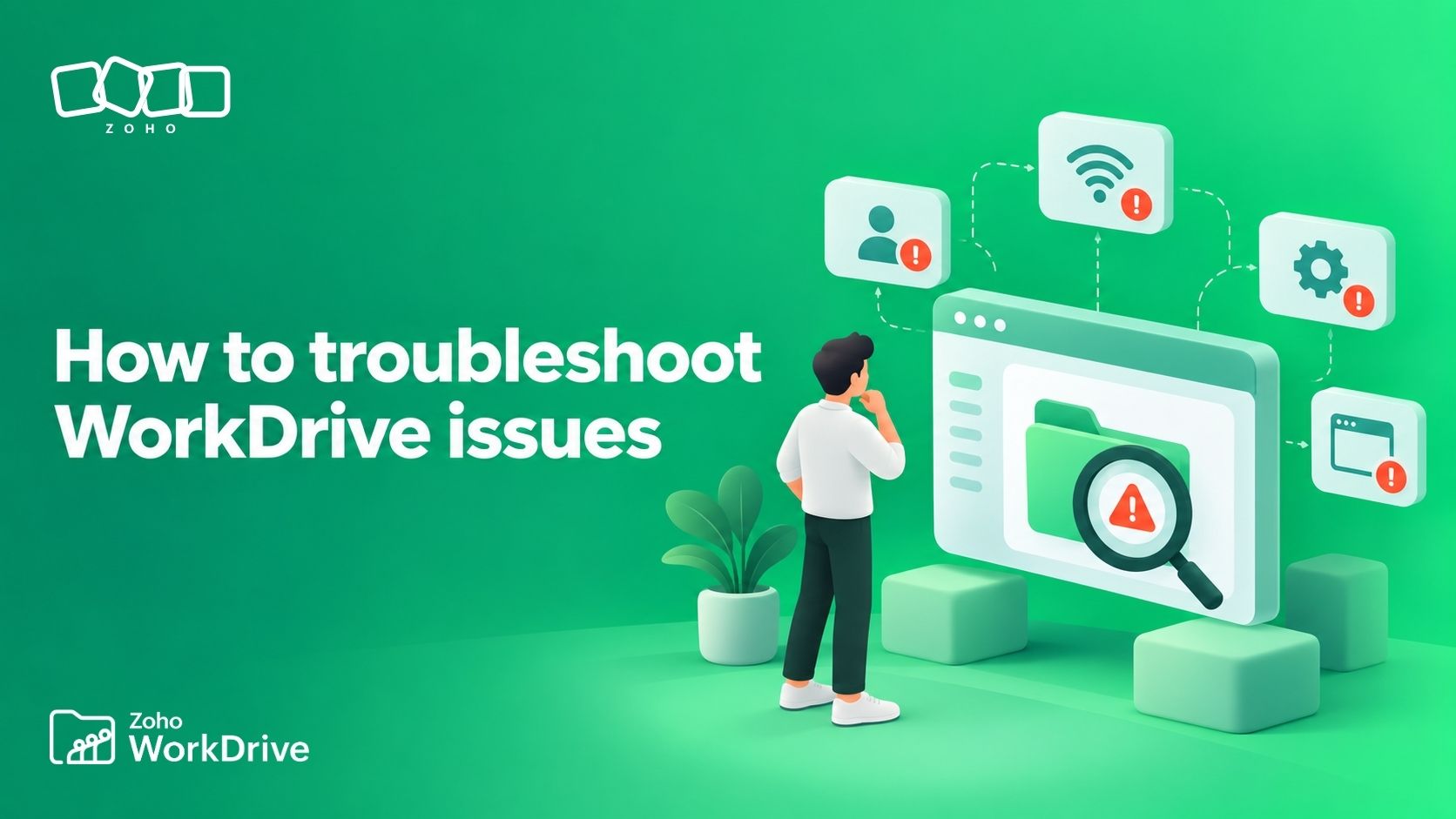
The meeting starts in five minutes and you know the file you need is definitely in WorkDrive, but suddenly your browser has decided that today is the day to question your identity.
Perhaps, the password is rejected. Maybe the OTP never arrived. Maybe WorkDrive opens perfectly in Chrome but stares back at you with a blank page on Firefox. Or perhaps the sign-in succeeds, but the Team Folder you were working in yesterday seems to have vanished.
These problems can look remarkably similar from the outside, but they often belong to completely different layers of your access.
Your Zoho account establishes who you are; your WorkDrive team determines which collaborative workspace you are viewing; Team Folder membership and permissions determine which content you can access inside that team.
We covered that broader account-and-team model in our guide to getting started with Zoho WorkDrive. This time, we are staying on the troubleshooting side of the fence: What should you check when WorkDrive access does not behave the way you expect?
The trick is not to try every fix you have ever heard of. Closing browser tabs, clearing cookies, resetting passwords, reinstalling apps—trying to do it all at once makes focused troubleshooting harder.
Instead, let’s narrow down where the problem actually lives.
Start by finding the layer that failed
Before changing anything, ask one question: How far did I get?
That gives us a surprisingly effective diagnostic tree:
Situation | Most likely layer to investigate | First thing to check |
You cannot get past the username/password screen | Zoho account identity or password | Confirm the email address and reset the password if necessary |
Password works, but verification fails | OTP, MFA, or additional verification | Identify which verification method is being requested |
WorkDrive works in one browser but not another | Browser configuration | Browser version, cookies, extensions, site permissions |
You sign in successfully but files are missing | Account/team context | Signed-in email and active WorkDrive team |
A particular file or folder will not open | Permission/share context | Correct account, permissions, link validity |
WorkDrive reports an expired or suspended account | Subscription or administrator state | Team plan and member status |
Web works but the desktop app does not | Desktop/network layer | App version, firewall, proxy, IP restrictions, system time |
One device works but another does not | Device/app/browser-specific layer | Compare the working and non-working environments |
Common reasons a file or folder may fail to open include insufficient or revoked permissions, signing in with a different account, expired share links, moved or deleted content, and invalid URLs. WorkDrive also lets a user belong to multiple team accounts and switch between them using the account switcher, which affects what the user has can access at any given time.
So, before resetting anything, work out which door is actually locked.
When the password or OTP is the problem
This is an important thing to note: Not every code that appears during sign-in is the same kind of OTP.
Zoho Accounts supports several verification mechanisms, including email verification, SMS-based OTP, authenticator-generated OTPs, OneAuth, security keys, backup verification codes, and additional verification triggered during certain sign-ins. The right troubleshooting path depends on which one you are seeing.
he password is not working
Make sure the email address or mobile number belongs to the Zoho identity that actually has access to the WorkDrive team. If you have simply forgotten the password, Zoho Accounts allows you to reset it using configured recovery options such as a recovery email address or mobile number. Organization users who cannot access their recovery options may need their administrator to help reset the password or recover the account.
Recover the existing identity first. Do not create another account to get access to files during troubleshooting; this just adds to any existing complications regarding access levels.
An expected OTP is not arriving by SMS
If the verification code is being sent by SMS, Zoho recommends checking the device and network before assuming the account itself is broken.
That includes reconnecting the phone to the mobile network, checking whether promotional or unknown senders are blocked, updating the device and SMS application, using the device's standard SMS app, restarting the phone, and wherever practical, testing the SIM in another device. If the message still does not arrive, the telecom provider is the next layer to eliminate before escalating the issue to Zoho Accounts support.
The verification email is not arriving
For email-based verification, allow a few minutes for delivery, then check Spam, Junk, or Promotions and ensure mailbox rules are not filtering the message. Zoho Accounts also provides other options when another verification method is available.
The authenticator OTP arrives but keeps saying it is incorrect
A time-based OTP is generated locally by the authenticator rather than delivered over SMS. That means an incorrect OTP error can have a completely different cause from a missing SMS.
Incorrectly synchronized device time is a possible reason authenticator codes are rejected, and the recommended fix is to ensure automatic date and time synchronization is enabled on the phone or computer producing the code.
If the authenticator device is unavailable entirely, Zoho supports recovery through previously generated backup verification codes or other configured MFA methods; otherwise, account recovery or administrator assistance may be necessary.
When WorkDrive works in one browser but not another
Let’s say WorkDrive normally behaves in Chrome but not on Firefox. Or Safari opens it, while another browser gets stuck loading.
WorkDrive officially supports current versions of Chrome, Firefox, Safari, MS Edge, Opera, and Ulaa, with its supported-browser guidance recommending the latest version. If one current supported browser works while another does not on the same machine and network, it is reasonable to investigate browser-specific state or policy, which can include cookies, cache behavior, extensions, security software, site permissions, or organization-managed browser policies.
Why is the page blank or stuck loading?
Treat a blank or indefinitely loading page as a browser/environment problem initially.
First, ensure the browser is current and supported. Then compare the result with another supported browser or a clean browser profile. If the second environment works with the same account, network, and WorkDrive URL, you have narrowed the problem considerably.
Next, look for settings or extensions that alter cookies, scripts, cross-site requests, tracking protection, or local-app communication. WorkDrive's custom-domain documentation specifically identifies browser privacy controls and third-party extensions as possible causes of blocked WorkDrive requests.
There are also increasingly browser-specific permissions around communication with desktop applications. For example, WorkDrive documents newer Chrome and Edge security controls that can block communication between the WorkDrive website and the WorkDrive Genie desktop application unless the browser is permitted to access apps on the device.
Before clearing every cookie in your browser, however, remember that doing so may end existing sessions and remove trusted-browser state. Test narrowly first.
When you can sign in but the WorkDrive team or files are missing
A successful sign-in only tells you which Zoho identity authenticated. The content you see after that depends on the WorkDrive team and account context you are currently viewing.
Check the signed-in email address first
Suppose someone shared a folder with alexsomeone@company.com, but you have signed in using a different Zoho account.
The link may still open WorkDrive, but the permissions attached to the intended account will not magically follow you. Always verify the currently signed-in email address when a shared file cannot be accessed, because the solution may be as simple as signing in to a different WorkDrive account.
Then check the active WorkDrive team
WorkDrive allows users to join multiple team accounts and switch between them from the Switch Account menu. Choosing another joined team loads that team's WorkDrive workspace.
For example, you can be correctly signed in to both Zylker Consultants and Zylker Corp. and still be looking at the wrong set of Team Folders.
The simplest solution is therefore to check whether the team you have open currently is the one you wanted to have active.
Regional URLs can change the account context too
Zoho operates its services across multiple data centers, and WorkDrive has corresponding regional domains. This does not mean you should manually cycle through every other domain until one happens to work.
Zoho now supports secondary accounts for certain cross-data-center scenarios. When a primary Zoho identity has a secondary account in another data center, Zoho can redirect authentication through the primary account and then into the secondary account's data-center context.
So, when a regional URL seems wrong, start from the actual WorkDrive invitation or official sign-in flow rather than guessing the region.
What if the email is already tied to another Zoho organization?
This question needs a slightly more precise answer over a simple “yes” or “no”.
An email address that is already associated with a Zoho account cannot simply be used to create a second, unrelated Zoho account identity; Zoho Accounts reports an “email address already exists” condition when that address is already linked to another Zoho account. But that does not indicate that this identity can participate in only one WorkDrive team.
WorkDrive explicitly allows a user to belong to multiple team accounts as an Admin or Member. The restriction is that one email address can create only one WorkDrive team as its Super Admin. So, when you see an account or organization conflict, avoid solving it by immediately creating another identity. First determine whether you are dealing with an existing Zoho identity, a WorkDrive team membership, an organization membership, or a regional secondary account.
The WorkDrive subscription or trial may have expired
An account-level subscription state can also interrupt access. an expired trial can leave the team suspended until an administrator upgrades it, extends the trial where eligible, moves the team to the available Essentials option, or deletes the team.
A “402 Payment Required” error could also occur. This is a condition where the license has expired or in a potentially suspended state. So, if you encounter a 402-style response or explicit suspended/expired-account message, the next conversation should generally be about the WorkDrive subscription or account state rather than the browser being a core issue.
WorkDrive may be coming from a bundle or integration
WorkDrive can be purchased independently, but it is also available through Zoho bundles and integrations, including environments such as Zoho One, Zoho Workplace, and integration-backed Essentials configurations.
This affects the levels of access an account has. When somebody says their WorkDrive portal doesn't look like yours, check how their WorkDrive account was provisioned before assuming the interface or access controls are broken.
Isolating the problem across devices
One of the most useful troubleshooting techniques is also one of the simplest: Trying the same account through another WorkDrive access channel.
If WorkDrive web works but the desktop app does not
That tells you the Zoho account, password, and basic WorkDrive service access are probably functioning. The remaining suspects become much more desktop-specific.
WorkDrive documents several causes for TrueSync connection failures, including internet connectivity, firewall rules, blocked HTTPS access, IP restrictions, proxy configuration, and incorrect system date or time. WorkDrive uses HTTPS over port 443, and incorrect system time can cause SSL certificate validation problems.
So, if web access works but TrueSync does not, investigate the desktop environment before touching the account password.
If desktop or web works but mobile does not
The WorkDrive mobile app uses the same WorkDrive account identity and supports password-based sign-in and MFA verification; the iOS flow also supports OTP sign-in.
That means a failure confined to one mobile device is useful evidence. Check the mobile app, device connectivity, and verification method before assuming the whole WorkDrive account is inaccessible.
If nothing works anywhere for WorkDrive
Now the investigation moves back up the stack.
If the same credentials fail in multiple current browsers, the mobile app, and the desktop environment, a single-browser cookie problem becomes much less likely.
At that point, prioritize: Identity → password/recovery → MFA → account/member status → subscription → service/network policy
If several colleagues begin experiencing the same WorkDrive problem at roughly the same time, it is also sensible to check Zoho's service-status information before making local configuration changes.
Start with the symptom, identify the layer, and change one variable at a time. In most cases, that's the fastest way to get back to your actual work on WorkDrive.