How to automate helpdesk workflows: 6 use cases your support team can start with
- Last Updated : October 5, 2026
- 4.6K Views
- 6 Min Read
Key takeaways
- Support gets slower when information is spread across your help desk, CRM, project management, and communication tools. Connecting them helps tickets move to the right people without unnecessary back and forth.
- Zoho Flow can take care of the handoffs between these apps, whether it’s turning a form submission into a ticket, updating customer details, or escalating an important request.
- Zia Utilities and agentic actions can add more intelligence to these workflows by understanding ticket sentiment, drafting replies, and deciding when a ticket needs to be escalated.
Support teams have customers to help, but a lot of their time can get taken up by smaller tasks in between, like copying form responses into tickets, looking up customer details in the CRM before replying, or checking on chats that haven't been attended to yet.
These are things that need to get done, but your team doesn't have to do them manually every time. With Zoho Flow, you can connect your support tools and automate these steps, giving your team more time to focus on customer conversations.
6 helpdesk workflow examples you can build in Zoho Flow
Here are six helpdesk workflows with the specific apps, triggers, and steps so you can set them up without starting from scratch.
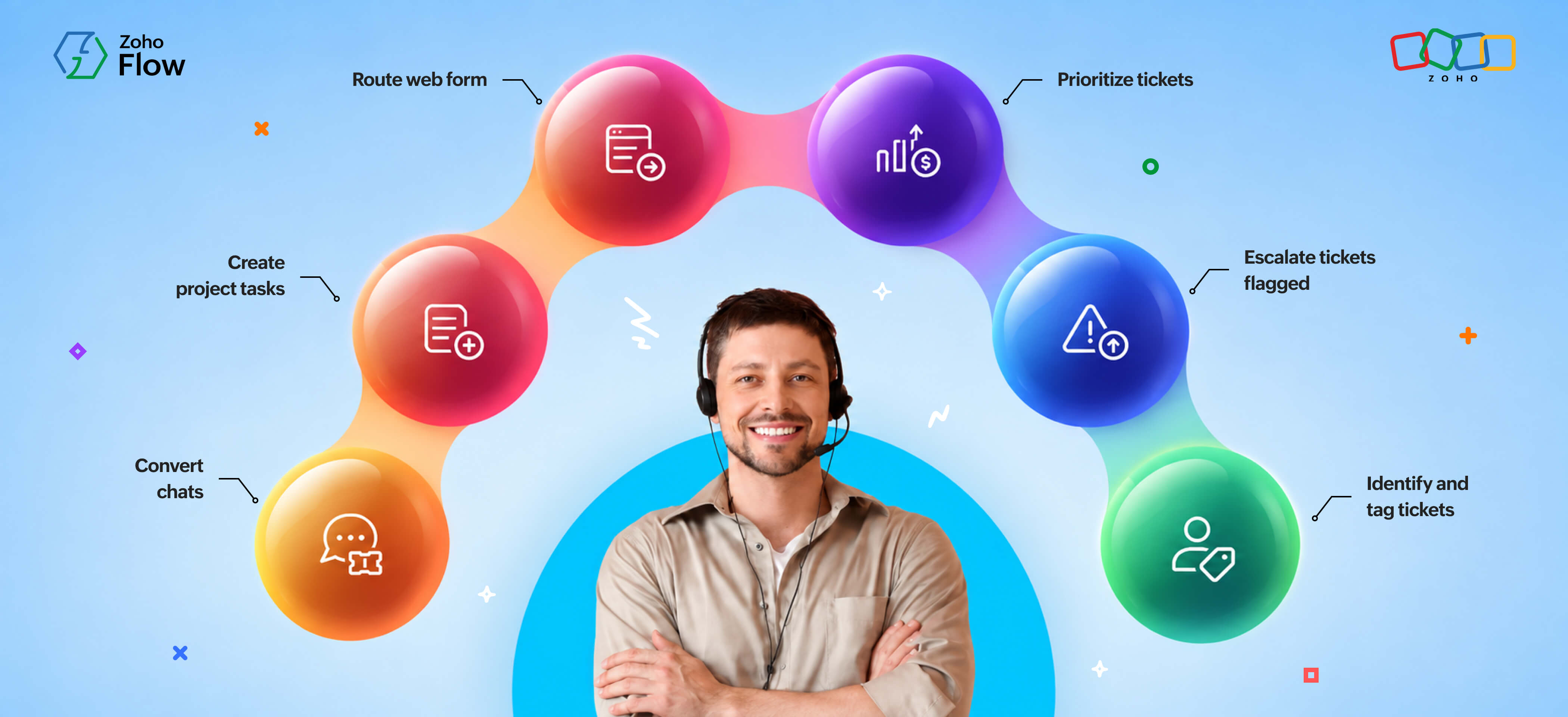
1. Convert unattended chats into support tickets
When a customer reaches out over live chat and no agent is available, that conversation goes unnoticed unless someone manually follows up. By the time the team checks the chat history, the customer is already frustrated.
Using Zoho Flow, you can connect Zoho SalesIQ to Zoho Desk so that every missed chat automatically becomes a support ticket. The flow triggers when a chat ends without an agent response in Zoho SalesIQ and creates a new ticket in Zoho Desk with the visitor's details and chat transcript. It also sends a notification to your team in Zoho Cliq so someone can follow up on time.

2. Create project tasks directly from your help desk
When a support ticket reveals a bug or a recurring feature request, someone has to manually log it in the project management tool and pass it to the right team. That handoff gets delayed or missed more often than it should.
With automation, you can connect Freshdesk to Zoho Sprints so that a work item is created automatically when a ticket is updated with a specific tag, like "bug" or "feature request." The ticket details carry across, so your development team has the context they need without anyone having to copy it over.
3. Route web form submissions as tickets
Forms cover a lot of use cases: demo requests, feedback, support queries, and more. But when a form sits disconnected from your help desk, someone has to check it manually and create a ticket by hand. That's how responses pile up, and follow-ups get delayed.
With Zoho Flow, you can connect Zoho Forms to Zendesk and create a separate flow for each form type. When someone submits a demo request form, Zoho Flow creates a ticket in Zendesk so your team can follow up and schedule a time. When a customer submits a feedback form with a complaint, a separate flow creates a ticket in Zendesk under a different category so it gets routed to the right team.
4. Prioritize support tickets based on deal value
Not every ticket has the same urgency, but your help desk treats them all the same by default. A ticket from a customer mid-way through a high-value deal looks identical to every other request in the queue.
You can connect Zoho Desk and Zoho CRM to make sure high-priority tickets get flagged before they're missed. When a new ticket comes in, the flow looks up the customer's email in Zoho CRM to check the associated deal value. If the deal crosses a set threshold and the ticket hasn't been responded to within an hour, the right people get notified automatically.
You can take this further with Zoho Flow's agentic actions. Instead of relying on a fixed deal value threshold, Zia evaluates the full context of the ticket, including deal stage, customer history, and ticket priority, and decides whether to escalate without you having to define every condition manually.

5. Escalate tickets flagged with negative sentiment
Support agents can't always tell from a quick scan whether a ticket needs immediate attention. A frustrated customer doesn't always use words like "urgent", but the tone of their message makes it clear.
To automate this, you can add Zia Utilities as a step inside your helpdesk workflow. When a new ticket is created in Jira Service Management, Zia Utilities analyzes the ticket text and detects the emotional tone. If the sentiment comes back as negative, Zoho Flow sends an alert to the relevant channel in Zoho Cliq so your team can prioritize a response before it escalates further.
6. Identify and tag tickets from existing CRM leads
When a lead already in your CRM reaches out to support, your agents usually can't identify them unless they check manually. That context matters, as leads need a faster response than a regular support query.
Connect Zoho Desk to HubSpot CRM and every new ticket gets automatically checked against your lead list. When a ticket comes in, the flow fetches the contact from HubSpot CRM using the ticket's email address. If a matching lead is found, the ticket gets tagged as "lead" in Zoho Desk so your team knows to prioritize it.
And you can go a step further with Zia Utilities. Once the ticket is tagged, Zia can generate an email reply based on the ticket content, so your agent has a starting point ready before they even open the ticket.

Your help desk works better when it's connected to the rest of your stack. The six workflows above cover the most common points where support teams lose time. But if you're not sure where to start, you don't have to build them from scratch.
With Zoho Flow's ability to prompt your workflows, you can describe what you want to automate in plain text and Zia builds the flow for you. Just pick one workflow that matches a problem your team runs into regularly and set it up. The rest can follow.
Try Zoho Flow and start automating your helpdesk workflows now!
Related reading
- How to automate customer support workflows using Zoho Flow
- 10 text-heavy tasks you can finally automate with AI-powered workflows
- Transform support with customer experience automation
- 8 workflow automation ideas that teams commonly implement
Frequently asked questions
1. What are the benefits of automating helpdesk workflows?
Automating helpdesk workflows reduces the time your team spends on repetitive tasks like copying data between tools, routing tickets, or sending follow-up notifications. It also means tickets reach the right people faster, with the right context already attached.
2. How do I automate helpdesk workflows without coding?
Zoho Flow uses a visual drag-and-drop builder where you pick a trigger, add actions, and set conditions. No code required. If you want to get started even faster, describe your workflow in plain English and Zoho's AI assistant Zia builds the flow for you.
3. Does Zoho Flow integrate with helpdesk tools?
Yes. Zoho Flow connects with Zoho Desk, Zendesk, Freshdesk, Jira Service Management, and several other helpdesk platforms. You can browse available triggers and actions for each app in the Zoho Flow app gallery.
4. Is Zoho Flow free to use?
Zoho Flow has a free plan that lets you build and run basic workflows. Paid plans unlock higher flow limits, additional actions per flow, and access to advanced features. You can check the full pricing details on the Zoho Flow pricing page.
5. Is my data secure with Zoho Flow?
Yes. Zoho Flow is built on Zoho's infrastructure, which is compliant with major security standards, including GDPR, ISO 27001, and SOC 2. All data transmitted between your apps is encrypted, and you control which apps and accounts are connected. You can read more on Zoho's compliance page.
 Gayathri Babu
Content writer for Zoho Flow. Passionate about creating engaging content that truly resonates with the readers.