
Managing Connections & Logs


Once your MCP server is configured and connected to a client, use this page to manage how your server authenticates with services and to monitor all tool executions. Set up connections to authorize API calls on behalf of users, and use logs to track activity, troubleshoot failures, and audit tool usage across your organization.
Connection
A connection provides your MCP client with the credentials it needs to execute tools against Zoho Payments and other external services. These credentials, such as OAuth access tokens and refresh tokens, are what allow the MCP server to authenticate API requests on behalf of a user. Without a configured connection, your MCP client can receive prompts and identify the right tool, but cannot perform any action.
You can let each user authorize individually through their MCP client, or set up a single shared connection at the admin level that handles all tool executions across the organization. Both approaches are supported, and you can switch between them at any time from the Connection tab in your MCP console.
Configure Authorization Type
Choose how credentials are managed for Zoho and third-party tools in your MCP server. Configure these settings from the Connection tab in your MCP console.
You can choose one of the following authorization types based on whether you want each user to authorize individually under their own identity, or use a single shared authorization for everyone in your organization:
Authorize on Demand
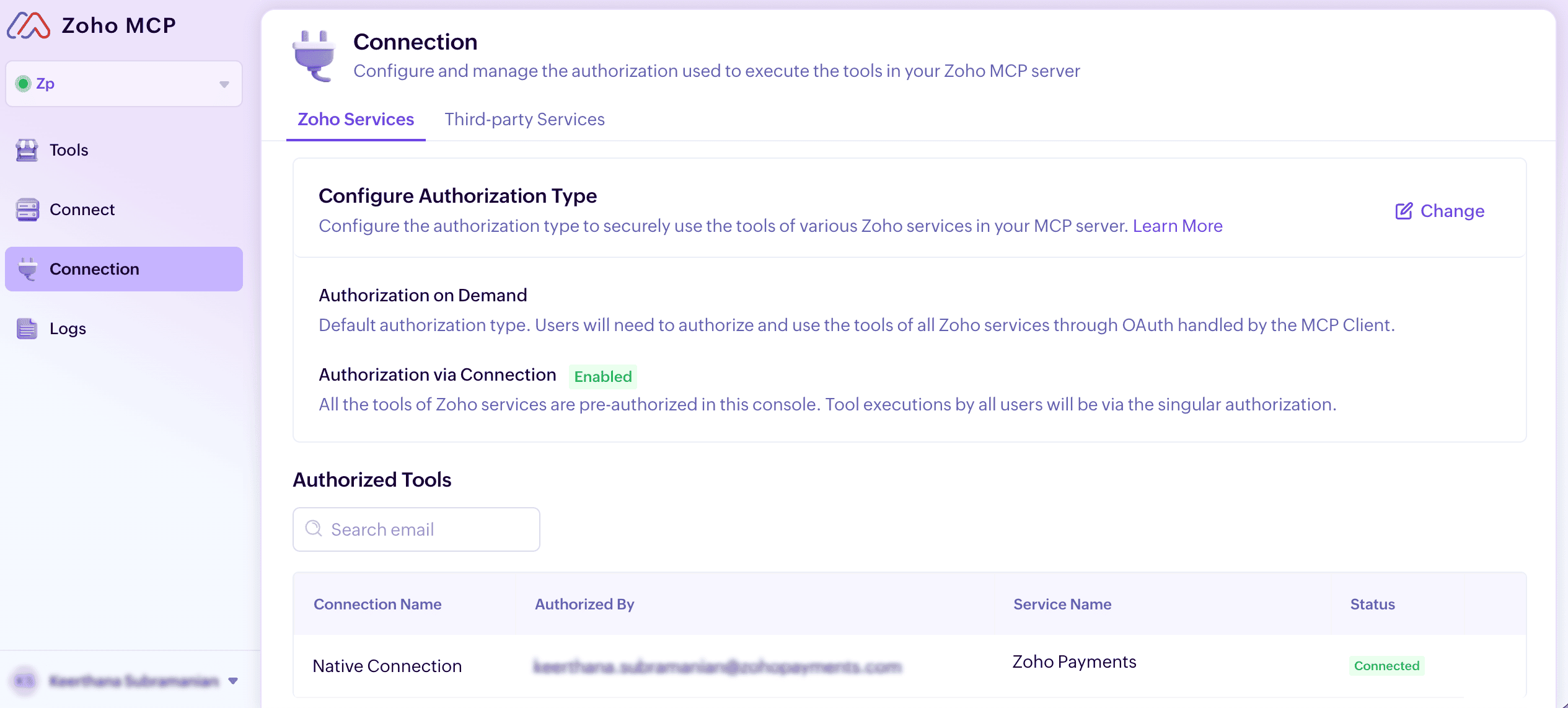
This is the default authorization type. When you select this option, each user authorizes and uses the tools of all Zoho services through OAuth handled by their MCP client. Authentication is triggered when a user’s AI agent invokes a tool, ensuring that actions are performed under their own identity and permissions.
Authorize via Connections
All Zoho service tools are pre-authorized in this console. Tool executions by all users will be via the singular authorization. This option is useful when you want a centralized authorization for all tool executions, eliminating the need for each user to authenticate separately.
To configure the authorization type:
- Log in to your Zoho MCP console.
- Select the MCP server you want to configure.
- Go to Connection on the left sidebar.
- Click Change next to Configure Authorization to switch to a different authorization type.
- Click Rotate and Switch in the Switch to Authorization popup.
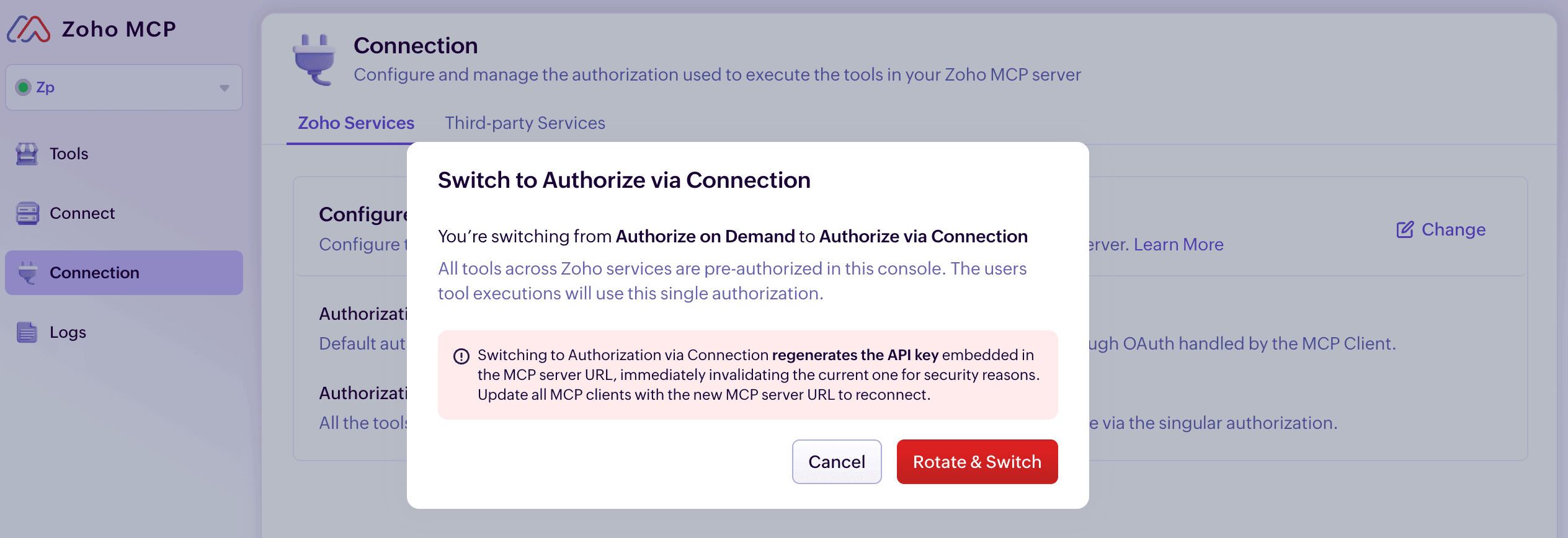
- Copy the Updated Server URL and update each MCP client with this URL to reconnect.
- Click Close.
Warning: When you switch from Authorize via Connection to Authorize on Demand, you’ll be asked to type the server name to confirm. Switching deletes all saved connections for this server, so every pre-authorized Zoho application must be authorized again through the MCP client.
Note: Clients using the old server URL will remain disconnected until you update them with the new URL.
Once the switch is complete, the authorized tools and connection details are displayed in the Authorized Tools section below.
Authorize via Connection
Each tool of third-party services is pre-authorized in this console. Tool executions by all users will be via the pre-authorized authorization. This means you configure the connection once, and all users' AI agents will use that shared authorization when calling third-party tools through the MCP server.
To set up third-party authorization:
- Log in to your Zoho MCP console.
- Select the MCP server you want to configure.
- Go to Connection on the left sidebar.
- On the Third-party Services tab, click Authorize next to the service you want to connect.
- Complete the authorization flow for the third-party service.
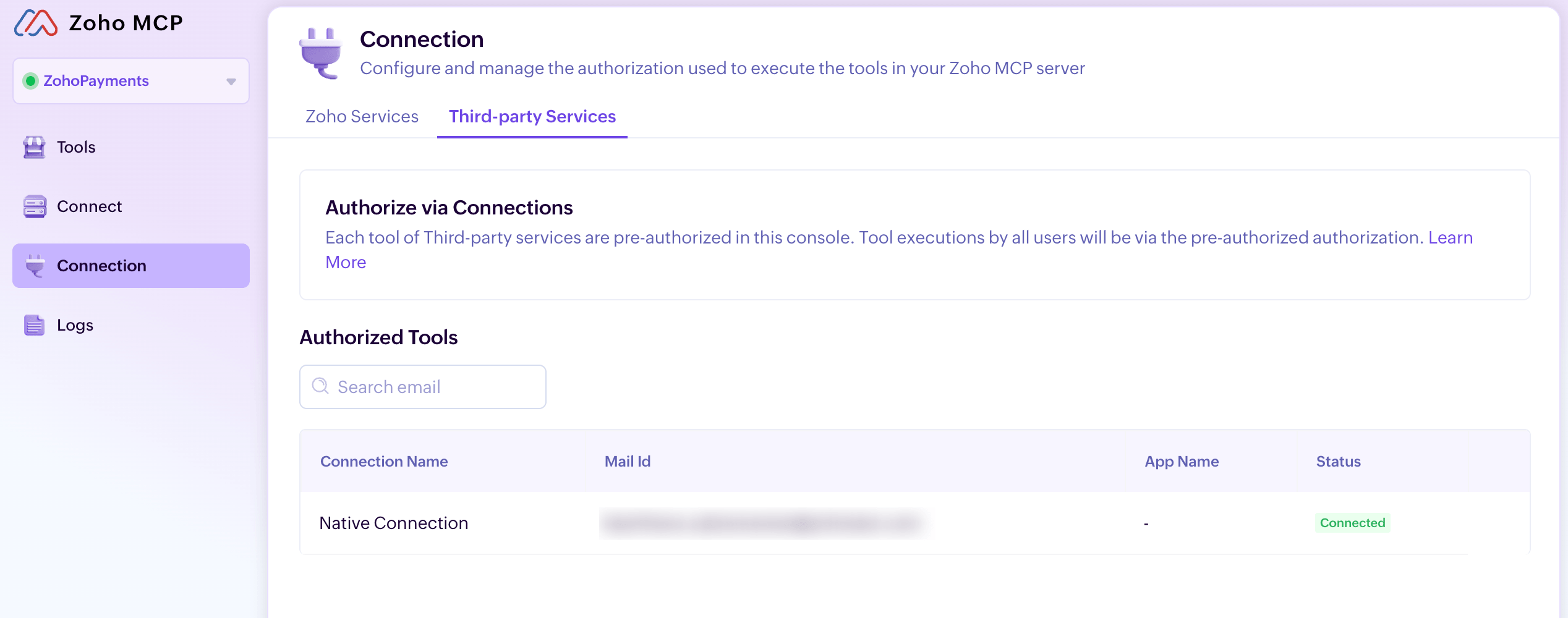
Note: Once a third-party service is authorized, all tool executions for that service will use the pre-authorized connection. Ensure that the authorized account has the necessary permissions for all intended tool operations.
Logs
Every time your MCP client performs an action in Zoho Payments through the MCP server, whether it creates a refund, retrieves a customer record, or generates a payment link, that action is logged. The Logs page gives you a complete, searchable record of all tool calls made through your MCP server, along with their outcomes.
To view logs for your MCP server:
- Log in to your Zoho MCP console.
- Select the MCP server for which you’d like to view activity logs.
- Go to Logs in the left sidebar.
- Set filters such as Date, Time, Timezone, Status, Tool, ZUID, or Execution ID to narrow down the results. Each log entry in the results includes the following details:
| Field | What It Tells You |
|---|---|
| Tool Name | The specific Zoho Payments action that was called, such as Create Refund or Get Customer. |
| Status | Whether the tool call succeeded or failed. |
| Response Code | The HTTP status code returned for the tool call, such as 200 for a successful call or 401 for an authorization failure. Use it to find out why a call failed. |
| ZUID | The Zoho User ID of the person whose MCP client triggered the action. |
| User Agent | Identifies the MCP client that made the call, such as Claude or Cursor, so you can see which client triggered the action. |
| Execution ID | A unique identifier for that specific tool call, useful when escalating an issue or cross-referencing with API logs. |
-
Click Search to view matching log entries.
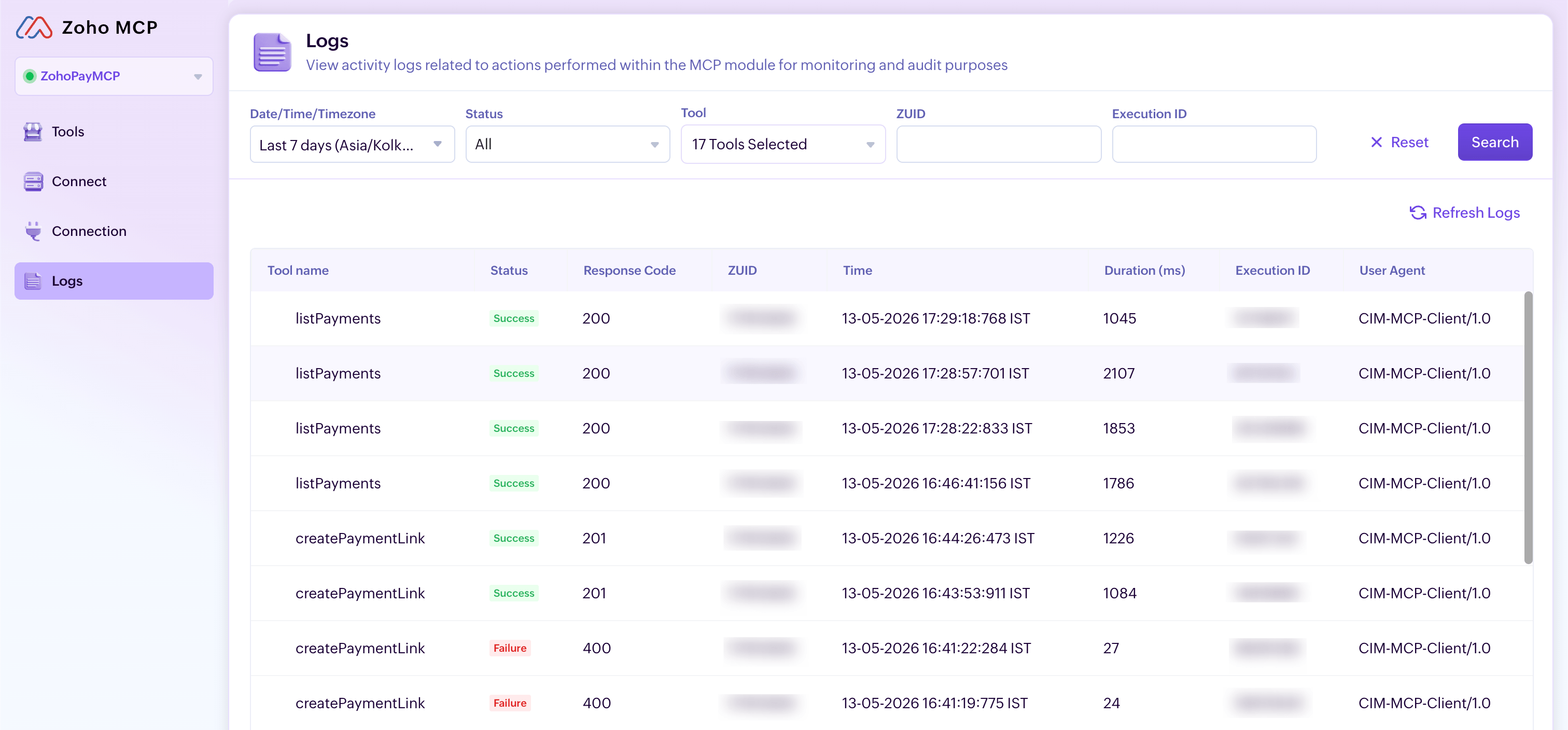
All matching log entries will be displayed based on the filters you applied.
Pro tip: You can combine multiple filters in a single search. For example, filtering by both a specific Tool and a Status of Failed will show you all unsuccessful calls to that tool within your chosen date range, making it easier to pinpoint issues without scrolling through unrelated entries.

 Walkthrough of Zoho Payments personalized to your business needs