

Glossary
AI Tools
Open in ChatGPT
Open in ChatGPT to ask questions about this page
Open in Claude
Open in Claude to ask questions about this page
Copy as Markdown
Copy this page as markdown to use with AI assistants
View as Markdown
Open this page as markdown in a new tab
Open in ChatGPT
Open in ChatGPT to ask questions about this page
Open in Claude
Open in Claude to ask questions about this page
Copy as Markdown
Copy this page as markdown to use with AI assistants
View as Markdown
Open this page as markdown in a new tab
Every resource in Zoho Cliq, such as chats, messages, channels, users, and bots, is uniquely identified by an ID or a unique name. These identifiers are crucial and appear as path parameters in API endpoint URLs.
For example, in the endpoint
GET /api/v2/chats/{CHAT_ID}/messages, the{CHAT_ID}is a path parameter that specifies which chat or conversation to retrieve messages from.Understanding which identifier to use and how to find it is a common challenge when integrating with the API for the first time.
For instance, a channel has both a
CHANNEL_ID(used to manage the channel object) and aCHAT_ID(used to send or receive messages within that channel). Knowing which identifier an endpoint requires and where to find it can save significant debugging time.
This glossary page lists all identifiers used across the Zoho Cliq REST API. It provides details on what each identifier represents, along with instructions for retrieving it via the Cliq UI and the API endpoint that returns it.
CHAT_ID
The unique identifier of a conversation, whether it's a direct message, group chat, channel, or thread, which is used across messaging endpoints to send, retrieve, or act on messages.
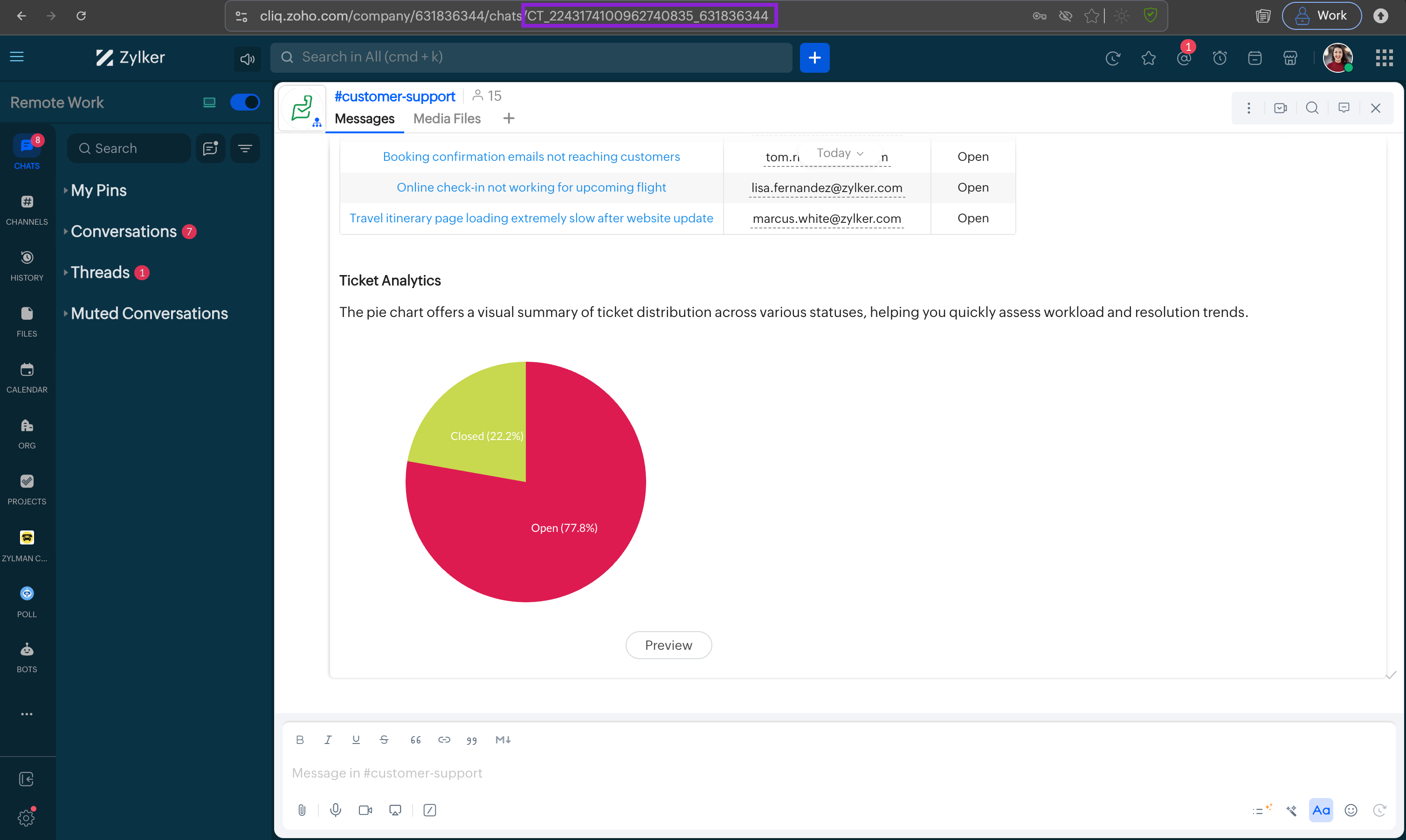
CHANNEL_ID (the channel object) and a CHAT_ID (the message stream). The two values are different. Do not use them interchangeably.- In the Cliq app, open the chat or channel. The
CHAT_IDis the numeric value in the browser URL, for example, inhttps://cliq.zoho.com/app/chats/CT_1847392056173920481_748291635, the CHAT_ID isCT_1847392056173920481_748291635.
- For direct and group chats, use the Retrieve all direct chats (
GET /api/v3/chats) and look for thechat_idfield. - For channel chat streams, use the List Channels API (
GET /api/v3/channels) and look for thechat_idfield (distinct from the channel'sidfield).
{
    "chats": [
        {
            "chat_id": "2890538000000012345",
            "name": "Alice Johnson",
            "chat_type": "direct_message",
            "participant_count": 2,
            "created_time": "2024-06-01T09:00:00.000Z",
            "last_modified_time": "2025-04-10T14:30:00.000Z",
            "pinned": false,
            "removed": false,
            "creator": {
                "id": "70027934",
                "name": "Tim Harrison"
            },
            "last_message_info": {
                "message_id": "1773813859592_51531973059",
                "sender": "70027934",
                "time": "2025-04-10T14:30:00.000Z",
                "content": {
                    "text": "See you at the standup!"
                },
                "type": "text"
            }
        },
        {
            "chat_id": "2890538000000067890",
            "name": "Bob Carter",
            "chat_type": "direct_message",
            "participant_count": 2,
            "created_time": "2024-09-15T11:00:00.000Z",
            "last_modified_time": "2025-04-09T09:45:00.000Z",
            "pinned": true,
            "removed": false,
            "creator": {
                "id": "70027934",
                "name": "Tim Harrison"
            }
        }
    ]
}
MESSAGE_ID
The unique identifier of a message within a conversation, used to target a specific message for actions such as editing, deleting, reacting, forwarding, pinning, or starting a thread.
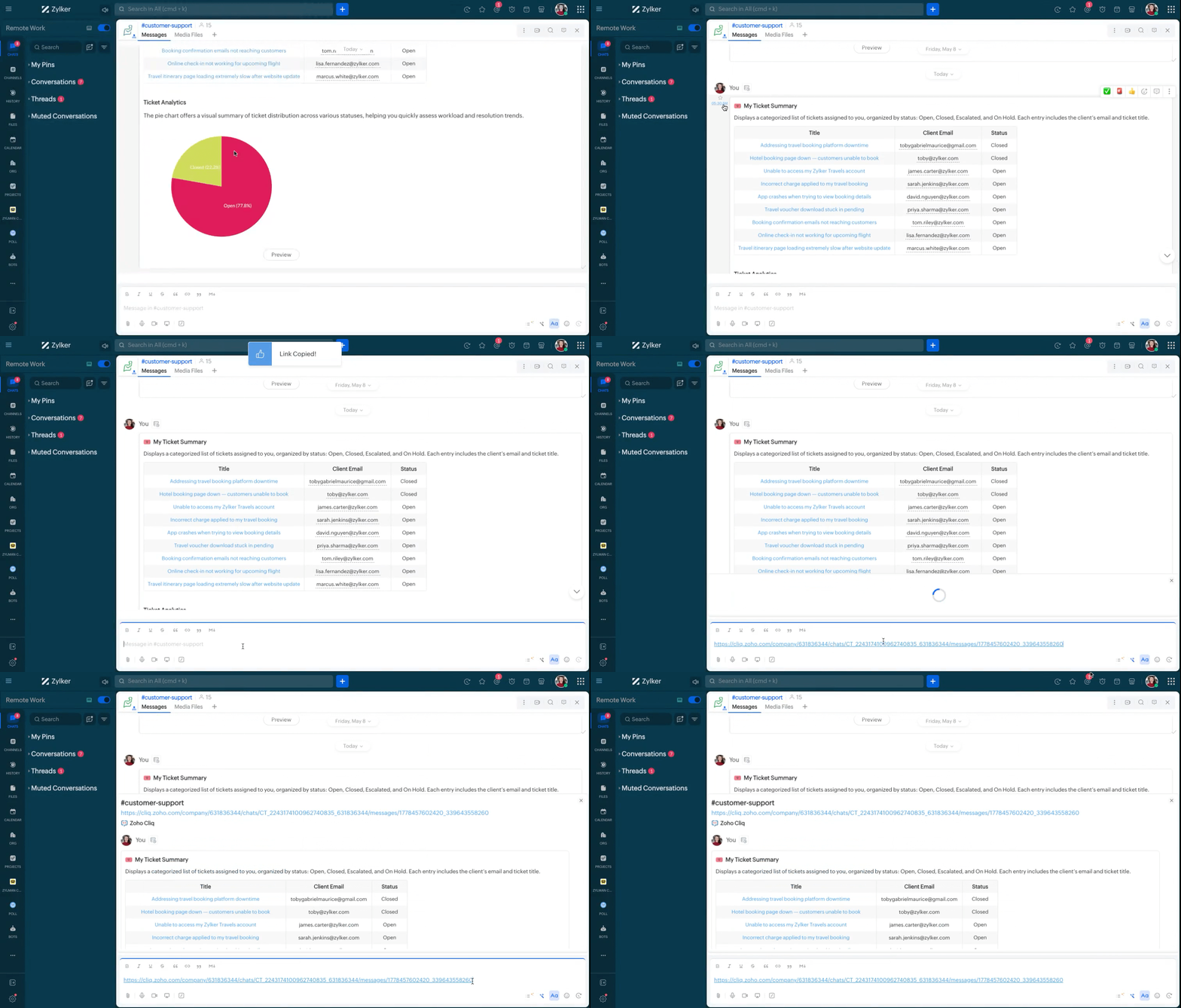
- Inside the Cliq app, hover over any message and right-click to see the Copy message link option. Alternatively, click the timestamp displayed to the left of a message to retrieve its permalink. In both cases, the
MESSAGE_IDis the numeric value embedded in the copied link.
- Use the Get Messages API (
GET /api/v2/chats/{CHAT_ID}/messages) and look for theidfield per message. Usefromtimeandtotime(epoch milliseconds) to narrow results to a time range.
{
    "data": [
        {
            "sender": {
                "name": "John Doe",
                "id": "55743307"
            },
            "id": "1542711601585_349430767610289",
            "time": 1542798001273,
            "type": "file",
            "content": {
                "thumbnail": {
                    "height": 230,
                    "width": 400,
                    "blur_data": "/9j/4AAQSkZJRgABAgAAAQABAAD/2wBD..."
                },
                "file": {
                    "name": "Feature-overview.jpg",
                    "type": "file",
                    "dimensions": {
                        "height": 3510,
                        "width": 2552,
                        "size": 559008
                    },
                    "id": "f3791c2279a67f6e5cbc8e1beb41ded85da2bdc672e2496ba9af50c0c24c8e2e453862a8a28becb86f859ab142d44633b05a8fb2ff34955c9e9824527c15cd03"
                },
                "comment": "Hey Emily! Hope you understand the above design"
            }
        },
        {
            "sender": {
                "name": "John Doe",
                "id": "55743307"
            },
            "id": "1542711601585_349430767610289",
            "time": 1542798001273,
            "type": "file",
            "content": {
                "thumbnail": {
                    "height": 230,
                    "width": 400,
                    "blur_data": "/9j/4AAQSkZJRgABAgAAAQABAAD/2wBD..."
                },
                "file": {
                    "name": "Feature-overview.jpg",
                    "type": "file",
                    "dimensions": {
                        "height": 3510,
                        "width": 2552,
                        "size": 559008
                    },
                    "id": "f3791c2279a67f6e5cbc8e1beb41ded85da2bdc672e2496ba9af50c0c24c8e2e453862a8a28becb86f859ab142d44633b05a8fb2ff34955c9e9824527c15cd03"
                },
                "comment": "Hey Emily! Hope you understand the above design"
            }
        }
    ]
}
THREAD_CHAT_ID
The CHAT_ID of a thread conversation. Threads have their own CHAT_ID that is separate from the parent channel's CHAT_ID. Used in thread-level operations: send message to thread, add/remove followers, close/reopen, get main message.
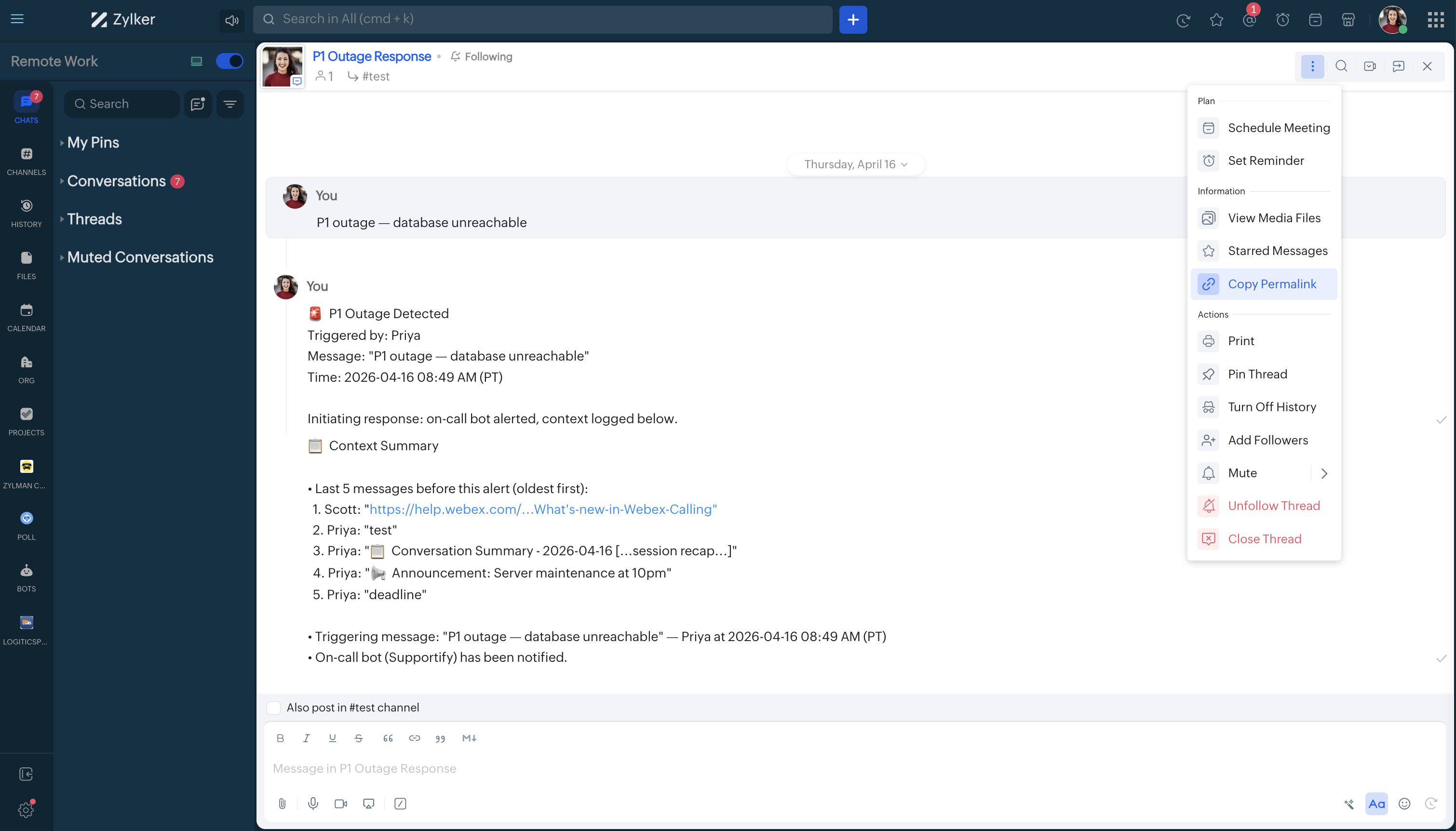
- In the Cliq app, open a channel and click into a thread. The browser URL updates to show the thread's
CHAT_ID.
- Use the List Threads API (
GET /api/v2/chats/{parent_chat_id}/threads) and look for thechat_idfield per thread.
{
  "type": "chat_thread",
  "data": [
    {
      "chat_id": "CT_9001245010012354810_3467821-T-9001245010938461210",
      "parent_chat_id": "CT_9001245010012354810_3467821",
      "follower_count": 5,
      "is_follower": true
    }
  ]
}
SCHEDULED_MESSAGE_ID
The unique identifier of a scheduled message, used to modify its content or delivery time before it is sent.
SCHEDULED_MESSAGE_IDis not displayed in the Zoho Cliq UI.
- Use the List Scheduled Messages API (
GET /api/v2/chats/{CHAT_ID}/scheduledmessages) and look for theidfield per scheduled message.
{
    "url": "/v2/chats/2684315214835428158/scheduledmessages",
    "next_token": "es_cXsdfasdeiwlal",
    "type": "scheduledmessages",
    "data": [
        {
            "chat_id": "CT_2684315214835428158_697322516",
            "creator": "697322516",
            "created_time": 1740456316369,
            "scheduled_time": 1740556970477,
            "id": 4000000131002
        }
    ]
}
FILE_ID
The unique identifier for a file shared in a conversation. Used in the Get File endpoint to download or retrieve file metadata.
FILE_IDis not retrievable via the Zoho Cliq UI.
- Use the Get Messages API (
GET /api/v2/chats/{CHAT_ID}/messages) and look for theidfield inside thecontent.fileobject of messages with"type": "file".
{
  "data": [
    {
      "sender": {
        "name": "Scott",
        "id": "12345678"
      },
      "id": "1543384891842_351840917549285",
      "time": 1543384891842,
      "type": "file",
      "content": {
        "thumbnail": {
          "height": "230",
          "width": "400",
          "blur_data": "/9j/4AAQSkZJRgABAgAAAQABAiZ2hnPk1xeXBkeFxlZ2P/..."
        },
        "file": {
          "name": "Feature-overview.jpg",
          "type": "image/jpeg",
          "dimensions": {
            "height": 3510,
            "size": 559008,
            "width": 2552
          },
          "id": "f3791c2279a67f6e5ca8ab2ff34955c9e9824527c15cd03"
        },
        "comment": ""
      }
    }
  ]
}
CHANNEL_ID
The unique numeric identifier of a channel, required for managing channel configurations and its members, including actions such as updating and deleting.
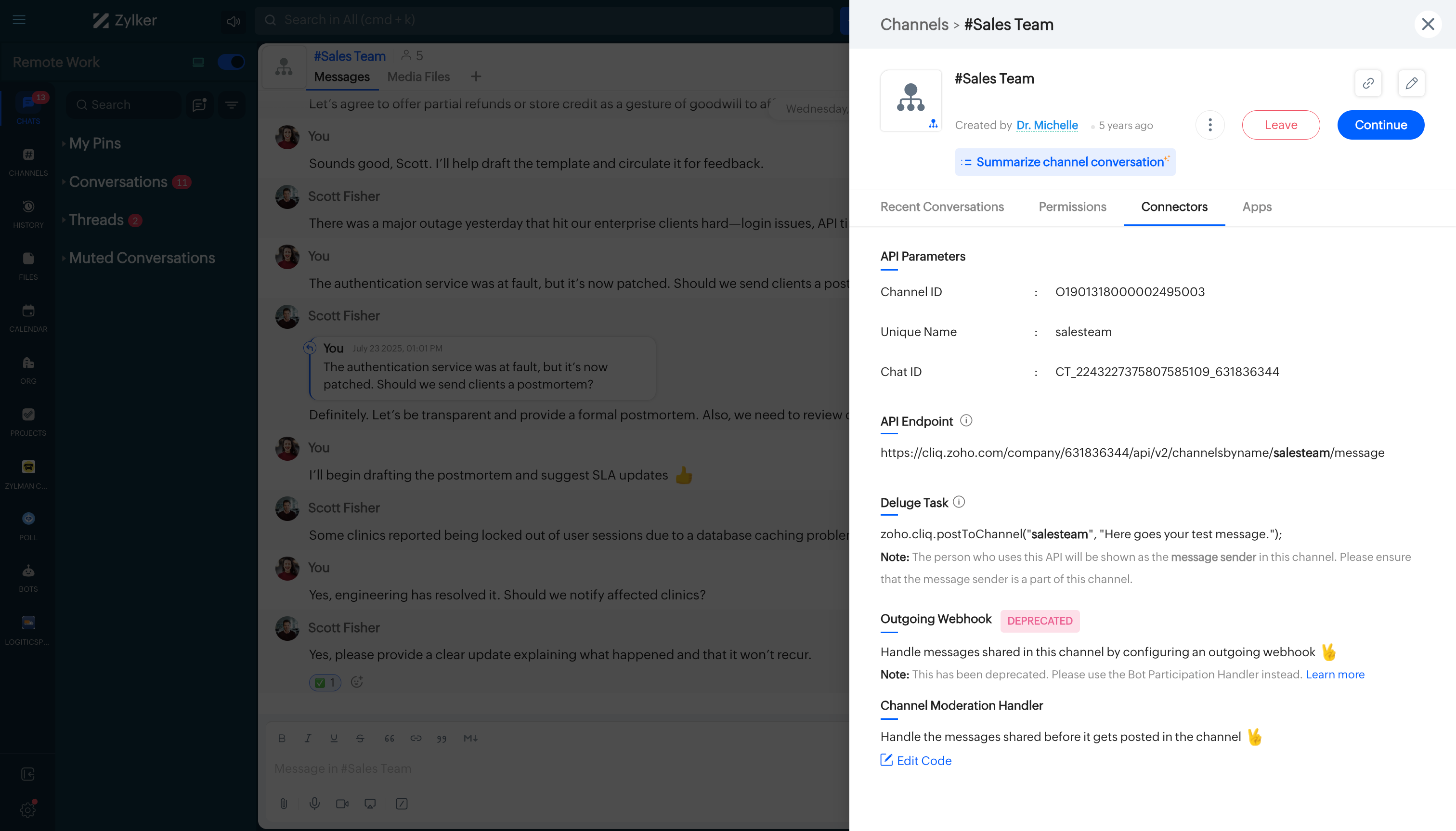
CHANNEL_ID identifies the channel object. CHAT_ID identifies the message stream inside that channel. Most messaging endpoints require CHAT_ID, not CHANNEL_ID.- Navigate to the top right corner of your preferred channel and click on the three dots.
- In the menu that appears, select "Channel info." A pop-up will display detailed information about the channel.
- Hover over the "Connectors" section and click on it.
- Under "API Parameters," you will find the CHANNEL ID.
- Use the List Channels API (
GET /api/v2/channels) and look for theidfield. Use thenamequery parameter to filter by channel name.
{
 "channels": [
    {
      "pinned": false,
      "level": "organization",
      "chat_id": "CT_2230642524712404875_64396981",
      "joined": true,
      "creator_name": "Scott",
      "unique_name": "marketing",
      "total_message_count": "1349",
      "organization_id": "87610291",
      "admin_permission": {
		"add_participant": true,
		"archive_channel": true,
		"audio_conference": true,
		"clear_all_messages": true,
		"delete_channel": true,
		"delete_my_msg": true,
		"delete_others_message": true,
		"edit_channel_info": true,
		"edit_my_msg": true,
		"leave_channel": true,
		"mention_users": true,
		"post_reply": true,
		"prime_time": true,
		"remove_participant": true,
		"send_message": true,
		"special_mentions": true,
		"sticky_message": true,
		"unarchive_channel": true,
		"video_conference": true
      },
      "muted_interval": "292278994-08-16T23:12:55-08:00",
      "channel_id": "O1775998000013036075",
      "creator_id": "948218",
      "invite_only": false,
      "unread_time": "2019-11-29T05:15:35-08:00",
      "moderator_permission": {
		"add_participant": true,
		"archive_channel": false,
		"audio_conference": true,
		"clear_all_messages": false,
		"delete_channel": false,
		"delete_my_msg": true,
		"delete_others_message": false,
		"edit_channel_info": true,
		"edit_my_msg": true,
		"leave_channel": true,
		"mention_users": true,
		"post_reply": true,
		"prime_time": true,
		"remove_participant": true,
		"send_message": true,
		"special_mentions": false,
		"sticky_message": true,
		"unarchive_channel": false,
		"video_conference": true
      },
      "unread_message_count": 19,
      "last_message_info": {
        "sender_id": "666730117",
        "message_type": "text",
        "time": "2020-01-07T23:10:26-08:00",
        "text": "Team, please check for the marketing updates for 2019 ASAP.",
        "sender_name": "Olivia Palmer"
      },
      "last_modified_time": "2020-01-07T23:10:26-08:00",
      "status": "created",
      "description": "Marketing Updates",
      "member_permission": {
 		"add_participant": true,
		"archive_channel": false,
		"audio_conference": true,
		"clear_all_messages": false,
		"delete_channel": false,
		"delete_my_msg": true,
		"delete_others_message": false,
		"edit_channel_info": false,
		"edit_my_msg": true,
		"leave_channel": true,
		"mention_users": true,
		"post_reply": true,
		"prime_time": false,
		"remove_participant": false,
		"send_message": true,
		"special_mentions": false,
		"sticky_message": false,
		"unarchive_channel": false,
		"video_conference": true
      },
      "creation_time": "2017-04-11T02:10:51-07:00",
      "participant_count": 51,
      "current_user_role": "member",
      "teams": {},
      "name": "#Marketing"
    }
	...
	...
	...
  ],
  "has_more": true,
  "next_token": "2fd152c0c1b5ee5b2a1d5fd1d3b233421cd1b8f67b2038cac5c27264b7ee1c616221ab489ea0bc2d7c43fa7a14f9c851cb11f4693804e0b43019786cc6580824",
  "sync_token": "2fd152c0c1b5ee5b2a1d5fd1d3b233422031afe47d55506a59fb92d55ea3a5ca9298862a157ff52c12ce6fb8be2c59b88d86d22368d8b17a1c484589b6c50225"

}
CHANNEL_UNIQUE_NAME
Unique URL-friendly slug of a channel, set at creation time, used to target a channel by name in message-posting endpoints.
- Navigate to the top right corner of your preferred channel and click on the three dots.
- In the menu that appears, select "Channel info." A pop-up will display detailed information about the channel.
- Hover over the "Connectors" section and click on it.
- Under "API Parameters," you will find the Channel Unique Name.
- Use the List Channels API (
GET /api/v2/channels) and look for theunique_namefield in the response.
{
  "channels": [
    {
      "pinned": false,
      "level": "organization",
      "chat_id": "CT_2230642524712404875_64396981",
      "joined": true,
      "creator_name": "Scott",
      "unique_name": "marketing",
      "total_message_count": "1349",
      "organization_id": "87610291",
      "admin_permission": {
		"add_participant": true,
		"archive_channel": true,
		"audio_conference": true,
		"clear_all_messages": true,
		"delete_channel": true,
		"delete_my_msg": true,
		"delete_others_message": true,
		"edit_channel_info": true,
		"edit_my_msg": true,
		"leave_channel": true,
		"mention_users": true,
		"post_reply": true,
		"prime_time": true,
		"remove_participant": true,
		"send_message": true,
		"special_mentions": true,
		"sticky_message": true,
		"unarchive_channel": true,
		"video_conference": true
      },
      "muted_interval": "292278994-08-16T23:12:55-08:00",
      "channel_id": "O1775998000013036075",
      "creator_id": "948218",
      "invite_only": false,
      "unread_time": "2019-11-29T05:15:35-08:00",
      "moderator_permission": {
		"add_participant": true,
		"archive_channel": false,
		"audio_conference": true,
		"clear_all_messages": false,
		"delete_channel": false,
		"delete_my_msg": true,
		"delete_others_message": false,
		"edit_channel_info": true,
		"edit_my_msg": true,
		"leave_channel": true,
		"mention_users": true,
		"post_reply": true,
		"prime_time": true,
		"remove_participant": true,
		"send_message": true,
		"special_mentions": false,
		"sticky_message": true,
		"unarchive_channel": false,
		"video_conference": true
      },
      "unread_message_count": 19,
      "last_message_info": {
        "sender_id": "666730117",
        "message_type": "text",
        "time": "2020-01-07T23:10:26-08:00",
        "text": "Team, please check for the marketing updates for 2019 ASAP.",
        "sender_name": "Olivia Palmer"
      },
      "last_modified_time": "2020-01-07T23:10:26-08:00",
      "status": "created",
      "description": "Marketing Updates",
      "member_permission": {
 		"add_participant": true,
		"archive_channel": false,
		"audio_conference": true,
		"clear_all_messages": false,
		"delete_channel": false,
		"delete_my_msg": true,
		"delete_others_message": false,
		"edit_channel_info": false,
		"edit_my_msg": true,
		"leave_channel": true,
		"mention_users": true,
		"post_reply": true,
		"prime_time": false,
		"remove_participant": false,
		"send_message": true,
		"special_mentions": false,
		"sticky_message": false,
		"unarchive_channel": false,
		"video_conference": true
      },
      "creation_time": "2017-04-11T02:10:51-07:00",
      "participant_count": 51,
      "current_user_role": "member",
      "teams": {},
      "name": "#Marketing"
    }
	...
	...
	...
  ],
  "has_more": true,
  "next_token": "2fd152c0c1b5ee5b2a1d5fd1d3b233421cd1b8f67b2038cac5c27264b7ee1c616221ab489ea0bc2d7c43fa7a14f9c851cb11f4693804e0b43019786cc6580824",
  "sync_token": "2fd152c0c1b5ee5b2a1d5fd1d3b233422031afe47d55506a59fb92d55ea3a5ca9298862a157ff52c12ce6fb8be2c59b88d86d22368d8b17a1c484589b6c50225"
}
REMINDER_ID
The unique identifier for a reminder. Used across all reminder management endpoints: retrieve, update, delete, snooze, dismiss, mark complete/incomplete, assign/unassign users, and notify assignees.
REMINDER_IDis not displayed in the Zoho Cliq UI.
- Use the List Reminders API (
GET /api/v2/reminders) and look for theidfield per reminder. Use thecategoryfilter to narrow results:mine,others,mine-completed, orothers-completed.
{
    "category": "mine",
    "list": [
        {
            "creation_time": 1506398400000,
            "creator": {
                "name": "Ryan West",
                "id": "2343536"
            },
            "completed": false,
            "content": "Annual sales review report due tomorrow",
            "time": 1506571200000,
            "users": [
                {
                    "deleted": false,
                    "name": "Scott Fisher",
                    "completed": false,
                    "id": "1234567"
                }
            ],
            "id": "11360000000204033",
            "message": {
                "sender_id": "2343536",
                "message_id": 1536853438313,
                "chat_id": "CT_1277744254305568677_53600857"
            }
        }
    ]
}
EVENT_ID
The unique identifier for a calendar event. Used in Get Event Details, Edit Event, Delete Event, Update RSVP Status, and Upload Event Attachment endpoints. Requires calendar_id alongside it in most event endpoints.
EVENT_IDis not displayed in the Zoho Cliq UI.
- Use the Get Events API (
GET /api/v2/events) and look for theidfield. Use thefromandtodate filters to narrow results to a time range.
{
    "data": [
        {
            "location": "Conference Room 21",
            "entity_id": "47f78d99-049f-4e313-08ef-6b588976b4c4",
            "is_big_chat_event": false,
            "type": "video_conference",
            "isallday": false,
            "creator": {
                "name": "Scott Fisher",
                "email": "scott.fisher@zylker.com",
                "id": "9087651"
            },
            "entity_type": 8,
            "end_time": 1738942200000,
            "attendees": [
                {
                    "status": "accepted",
                    "name": "Ryan West",
                    "email": "ryan.west@zylker.com",
                    "id": "89472161"
                }
            ],
            "edit_tag": "1738835150914",
            "start_time": 1738938600000,
            "id": "427812df9891223aca537f0e8e7ad2a7c@zoho.com",
            "meeting_link": "https://cliq.zoho.com/meeting/1BK4IK987W6W",
            "timezone": "Asia/Kolkata",
            "description": "Join the Zylker Marketing Forum to discuss trends.",
            "calendar_id": "NDg4MTc3NTAwMDAwMDAwOTAwM3wzMzMyY2NjMQ==",
            "organizer": {
                "name": "Scott Fisher",
                "email": "scott.fisher@zylker.com",
                "id": "9087651"
            },
            "title": "Zylker Marketing Forum",
            "role": "organizer"
        }
    ]
}
BOT_UNIQUE_NAME
Unique and URL-friendly slug identifier for a bot that is set at creation time. Used in messaging endpoints to target the bot by name.
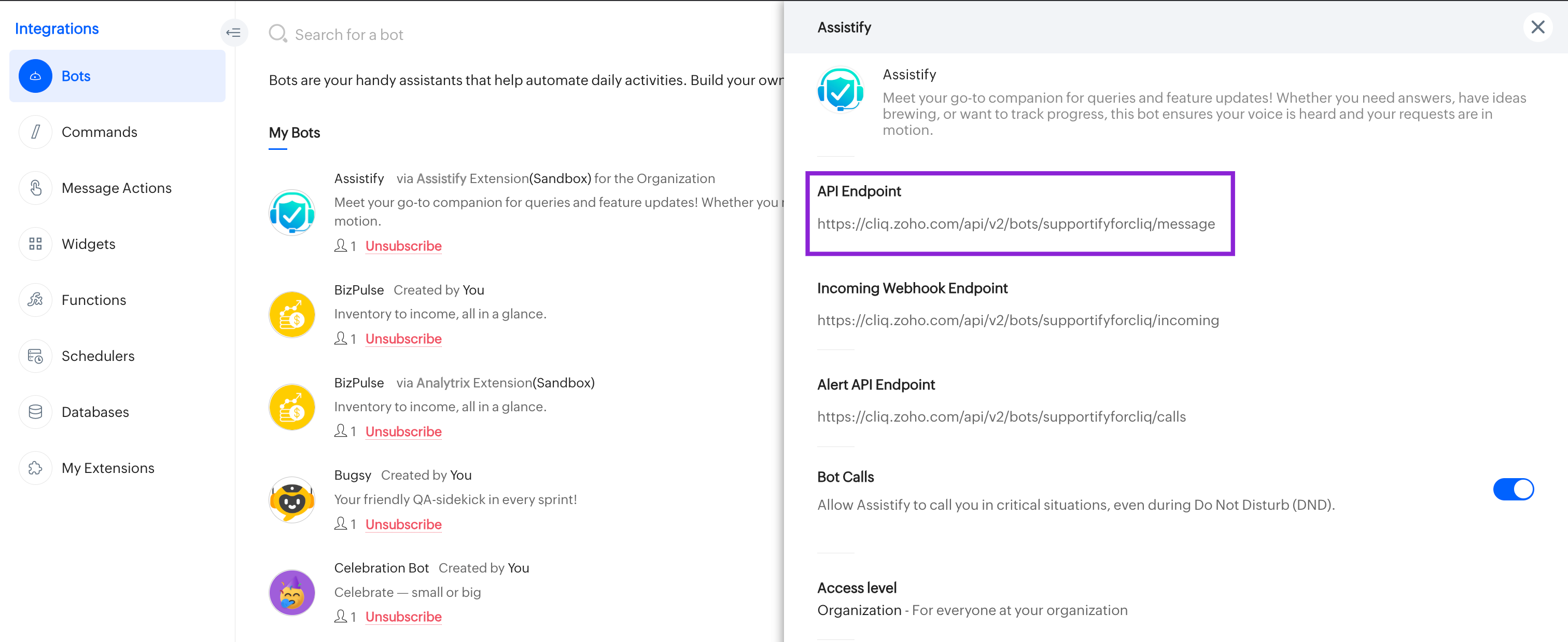
- Click the top right corner of your profile in Cliq and navigate to Bots & Tools, and under the bots section, select your preferred bot.
- Copy the API endpoint URL. The bot's unique name is located between "bots/" and the next slash "/".
- For example, if the API endpoint URL is
https://cliq.zoho.com/company/2345678/api/v2/bots/crmupdatesincliq/message, the bot's unique name iscrmupdatesincliq.
- Use the List Bots API (
GET /api/v3/bots) and look for theunique_namefield in the response.
{
  "url": "/api/v3/bots",
  "next_token": "NTB8MTc1NjM2MjA5MzQ5OHw1MzcxOTAwMDAwMTYyMDAwMw==",
  "type": "bot",
  "sync_token": "NTB8MTc3NzM0MjEyNzQ3OHw1MzcxOTAwMDAwMTg3ODAxMQ==",
  "data": [
    {
      "unique_name": "supportbot",
      "name": "Support Bot",
      "id": "53719000001878011",
      "channel_participation": [
        "listen_message",
        "send_message",
        "auto_follow_thread"
      ],
      "handlers": [
        {
          "type": "call_handler"
        },
        {
          "type": "welcome_handler"
        },
        {
          "type": "context_handler"
        },
        {
          "type": "message_handler"
        },
        {
          "position": 1,
          "sub_actions": [
            {
              "name": "Sub Action",
              "icon": "wand/627282"
            }
          ],
          "name": "Action",
          "icon": "wand/627282",
          "type": "menu_handler",
          "id": "53719000001878017"
        }
      ],
      "creator": {
        "name": "James",
        "id": "65113112"
      },
      "execution_type": "deluge",
      "status": "enabled",
      "type": "custom",
      "default": false,
      "subscriber_count": 1,
      "description": "Handles support workflows",
      "scope": "organization",
      "calls": "disabled"
    }
  ]
}
BOT_ID
A unique numeric identifier for a bot, used in API endpoints for bot management tasks such as creating, updating, and deleting bots and their handlers.
- Navigate to the bot's profile in the Cliq app. The
BOT_IDis in the browser URL. For example, inhttps://cliq.zoho.com/app/bots/b-1901318000009075007, the BOT_ID isb-1901318000009075007.
- Use the List Bots API (
GET /api/v3/bots) and look for theidfield in the response.
{
  "url": "/api/v3/bots",
  "next_token": "NTB8MTc1NjM2MjA5MzQ5OHw1MzcxOTAwMDAwMTYyMDAwMw==",
  "type": "bot",
  "sync_token": "NTB8MTc3NzM0MjEyNzQ3OHw1MzcxOTAwMDAwMTg3ODAxMQ==",
  "data": [
    {
      "unique_name": "supportbot",
      "name": "Support Bot",
      "id": "53719000001878011",
      "channel_participation": [
        "listen_message",
        "send_message",
        "auto_follow_thread"
      ],
      "handlers": [
        {
          "type": "call_handler"
        },
        {
          "type": "welcome_handler"
        },
        {
          "type": "context_handler"
        },
        {
          "type": "message_handler"
        },
        {
          "position": 1,
          "sub_actions": [
            {
              "name": "Sub Action",
              "icon": "wand/627282"
            }
          ],
          "name": "Action",
          "icon": "wand/627282",
          "type": "menu_handler",
          "id": "53719000001878017"
        }
      ],
      "creator": {
        "name": "James",
        "id": "65113112"
      },
      "execution_type": "deluge",
      "status": "enabled",
      "type": "custom",
      "default": false,
      "subscriber_count": 1,
      "description": "Handles support workflows",
      "scope": "organization",
      "calls": "disabled"
    }
  ]
}
SLASH_COMMAND_ID
The unique numeric identifier for a slash command in the Cliq platform. Used in command management endpoints (get, update, delete) and all handler-level endpoints under /commands/{SLASH_COMMAND_ID}/handlers.
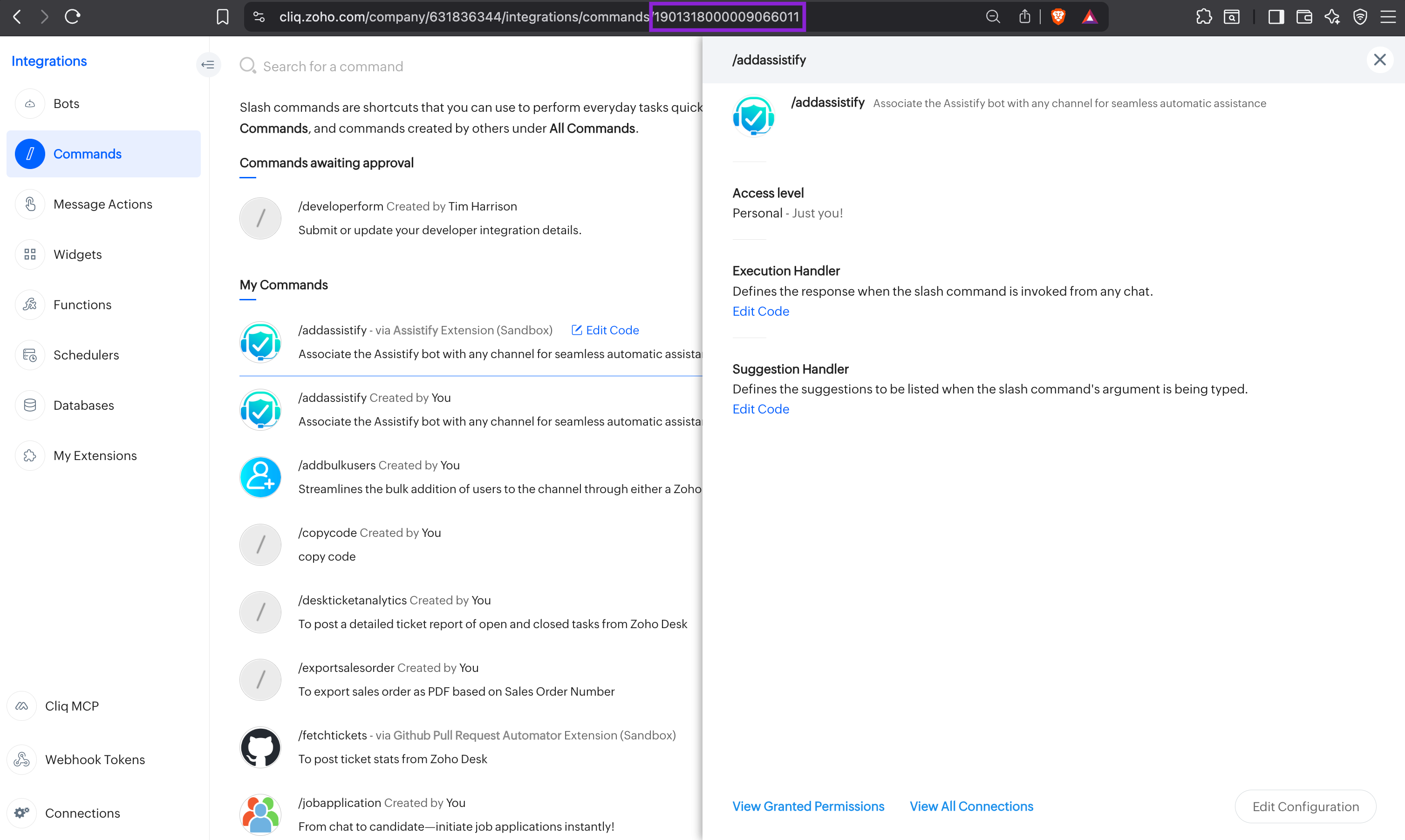
- In the Cliq app, go to Profile → Bots & Tools → Slash Commands → select the command. The
SLASH_COMMAND_IDappears in the browser URL or the command settings page.
- Use the List all commands API (
GET /api/v3/commands) and look for theidfield in each command object in the response.
{
    "url": "/api/v3/commands",
    "type": "command",
    "sync_token": "MTB8MTc3NzM2MDM5OTQ5Mnw=",
    "data": [
        {
            "name": "report",
            "id": "227828000000128011",
            "handlers": [
                {
                    "type": "execution_handler"
                }
            ],
            "creator": {
                "name": "Ryan West",
                "id": "119440882"
            },
            "execution_type": "deluge",
            "hint": "Generate a sales or activity report",
            "status": "enabled",
            "type": "custom",
            "description": "Generates a report for the specified date range and team",
            "scope": "organization",
            "options": {
                "type": "Report type (e.g. sales, activity, attendance)",
                "period": "Date range (e.g. today, this_week, last_month)"
            }
        },
        {
            "name": "ticket",
            "id": "227828000000128009",
            "handlers": [
                {
                    "type": "execution_handler"
                },
                {
                    "type": "suggestion_handler"
                }
            ],
            "creator": {
                "name": "Ryan West",
                "id": "119440882"
            },
            "execution_type": "deluge",
            "hint": "Create or look up a support ticket",
            "status": "enabled",
            "max_suggestions": 5,
            "type": "custom",
            "description": "Creates a new support ticket or retrieves an existing one by ID",
            "scope": "team",
            "options": {
                "action": "Action to perform (create or lookup)",
                "priority": "Ticket priority (low, medium, high, critical)"
            }
        }
    ]
}
MESSAGE_ACTION_ID
The unique numeric identifier for a Message Action in the Cliq platform. Used in message action management endpoints (get, update, delete) and all handler-level endpoints under /messageactions/{MESSAGE_ACTION_ID}/handlers.
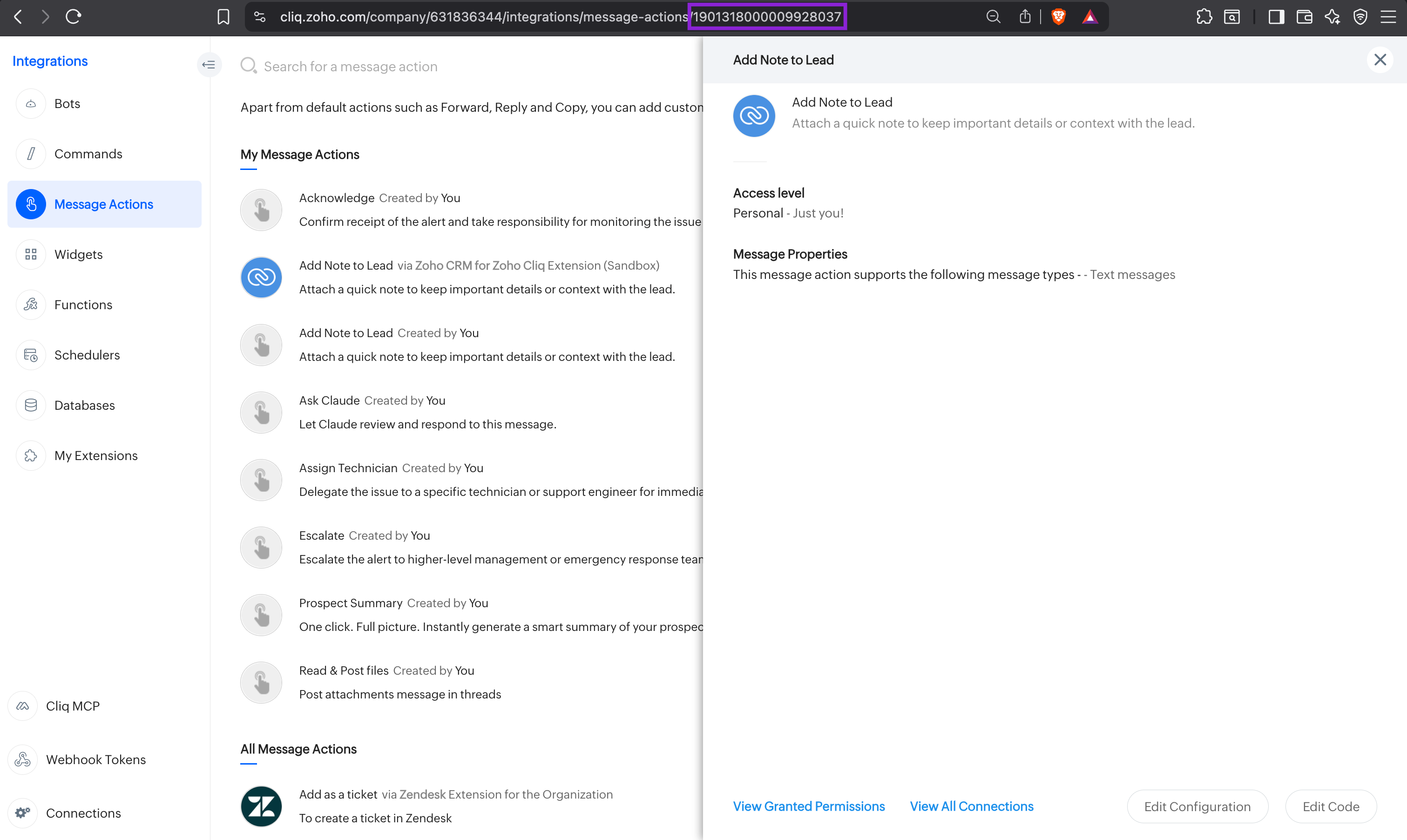
- In the Cliq app, go to Profile → Bots & Tools → Message Actions → select the action. The
MESSAGE_ACTION_IDappears in the browser URL or the action settings page.
- Use the List all message actions API (
GET /api/v3/messageactions) and look for theidfield in each message action object in the response.
{
    "url": "/api/v3/messageactions",
    "type": "messageaction",
    "sync_token": "NTB8MTc3NzQzMjI3NjY1OHw1MzcxOTAwMDAwMjEyNDAxMA==",
    "data": [
        {
            "multi_selectable": true,
            "name": "Create Ticket",
            "id": "53719000002124010",
            "handlers": [
                {
                    "type": "execution_handler"
                }
            ],
            "creator": {
                "name": "James",
                "id": "65113112"
            },
            "execution_type": "deluge",
            "hint": "Create a helpdesk ticket",
            "status": "enabled",
            "type": "custom",
            "message_types": [
                "text",
                "link"
            ],
            "scope": "organization"
        },
        {
            "multi_selectable": false,
            "name": "Translate",
            "id": "53719000002124013",
            "handlers": [
                {
                    "type": "execution_handler"
                }
            ],
            "creator": {
                "name": "James",
                "id": "65113112"
            },
            "execution_type": "deluge",
            "hint": "Translate selected message to English",
            "status": "enabled",
            "type": "custom",
            "message_types": [
                "text"
            ],
            "scope": "private"
        }
    ]
}
EXTENSION_ID
The unique numeric identifier for an installed Extension (Application) in the Cliq platform. Used in extension management endpoints (install, upgrade, properties) and all handler-level endpoints under /extensions/{EXTENSION_ID}/handlers.
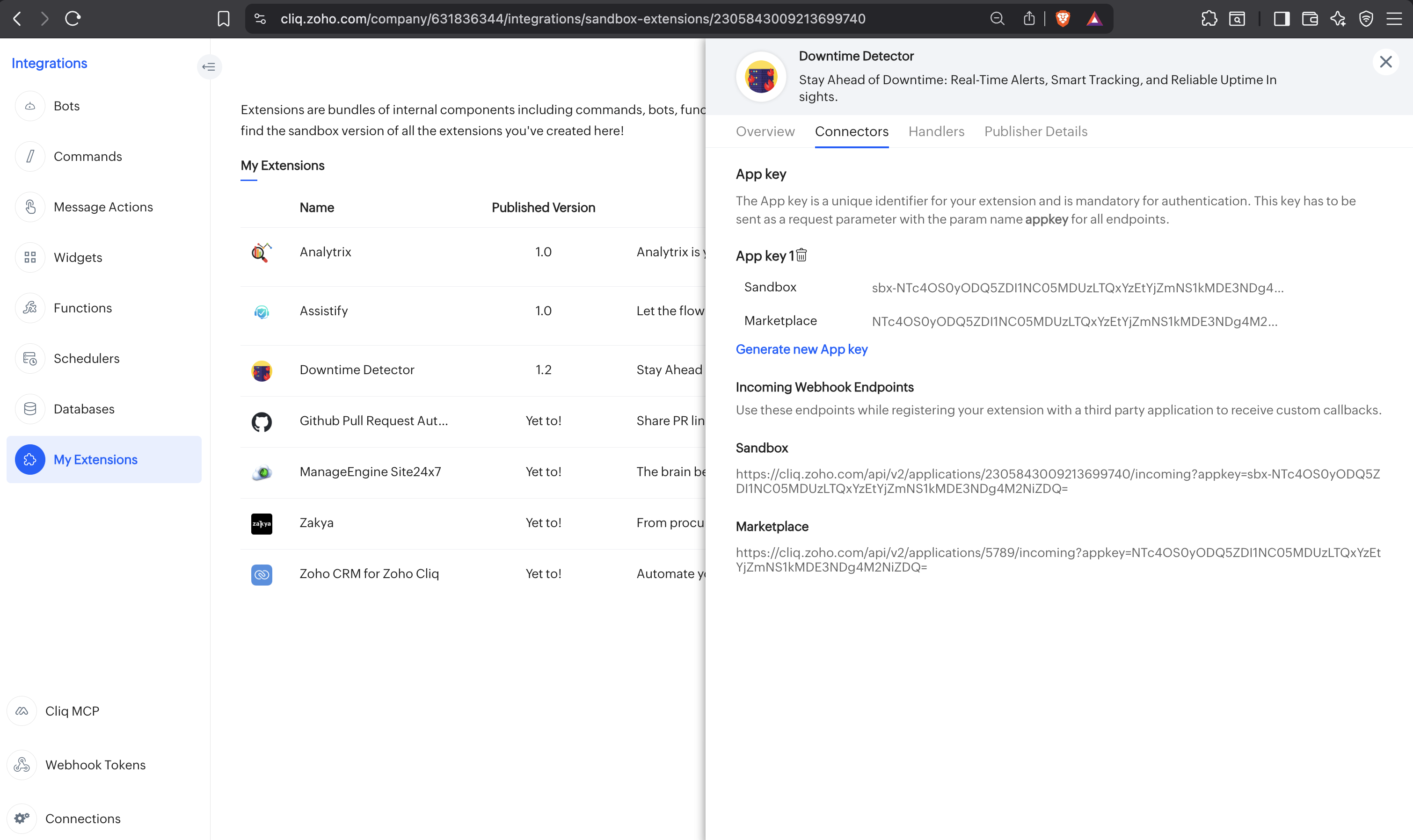
- Head to your profile and navigate to Bots and Tools → My Extensions.
- Select the preferred extension - a popup will open displaying the extension information.
- Switch to the Connectors tab.
- Both Sandbox and Marketplace URLs will be present - the numeric value after
/applications/in the URL is your Extension ID.
Example: https://cliq.zoho.com/api/v2/applications/2305843009213700356/incoming?appkey=...
Here, 2305843009213700356 is the Extension ID.
EXTENSION_IDis not retrievable via API.
EXTENSION_KEY
An encrypted string identifying the app ID of an installed extension. Required when accessing datastores, bots, or other resources scoped to an extension rather than the organisation directly. Passed as a query parameter.
- Head to your profile and navigate to Bots and Tools → My Extensions.
- Select the preferred extension - a popup will open displaying the extension information.
- Switch to the Connectors tab.
- Both Sandbox and Marketplace URLs will be present - the
appkeyparameter value in the URL is your Extension Key. - Sandbox key - use this for internal development, debugging, and testing.
- Marketplace key - use this for the published, installed extension.
EXTENSION_KEYis not retrievable via API.
EXTENSION_PROPERTY_KEY_NAME
The string key that uniquely identifies a single Extension Property within an installed extension. Used as a path parameter in the Get a Specific Extension Property and Delete a Specific Extension Property endpoints. Keys must consist only of lowercase letters and underscores, matching the pattern ([a-z_]+), with a maximum length of 30 characters. Each key maps to a string value that stores runtime configuration for the extension (e.g. API keys, webhook URLs, region identifiers, feature flags).
zoho.cliq.extension.setProperties Deluge task in the Installation Handler). They are not visible in the Cliq UI and cannot be retrieved via any list API — you must know the key name from your own extension code. Cliq supports a maximum of 10 properties per extension, and property values can be up to 1,000 characters long. Learn more about Extension Properties.- Use the Get Extension Properties API (
GET /api/v3/extensions/{EXTENSION_ID}/properties?keys=api_key,region) to retrieve one or more property values by their key names.
// Example: GET /api/v3/extensions/53719000001887001/properties?keys=api_key,region
{
    "api_key": "my_secret_api_key_value",
    "region": "us-east"
}
FUNCTION_ID
The unique numeric identifier for a Function in the Cliq platform. Used in function management endpoints (get, update, delete) and all handler-level endpoints under /functions/{FUNCTION_ID}/handlers.
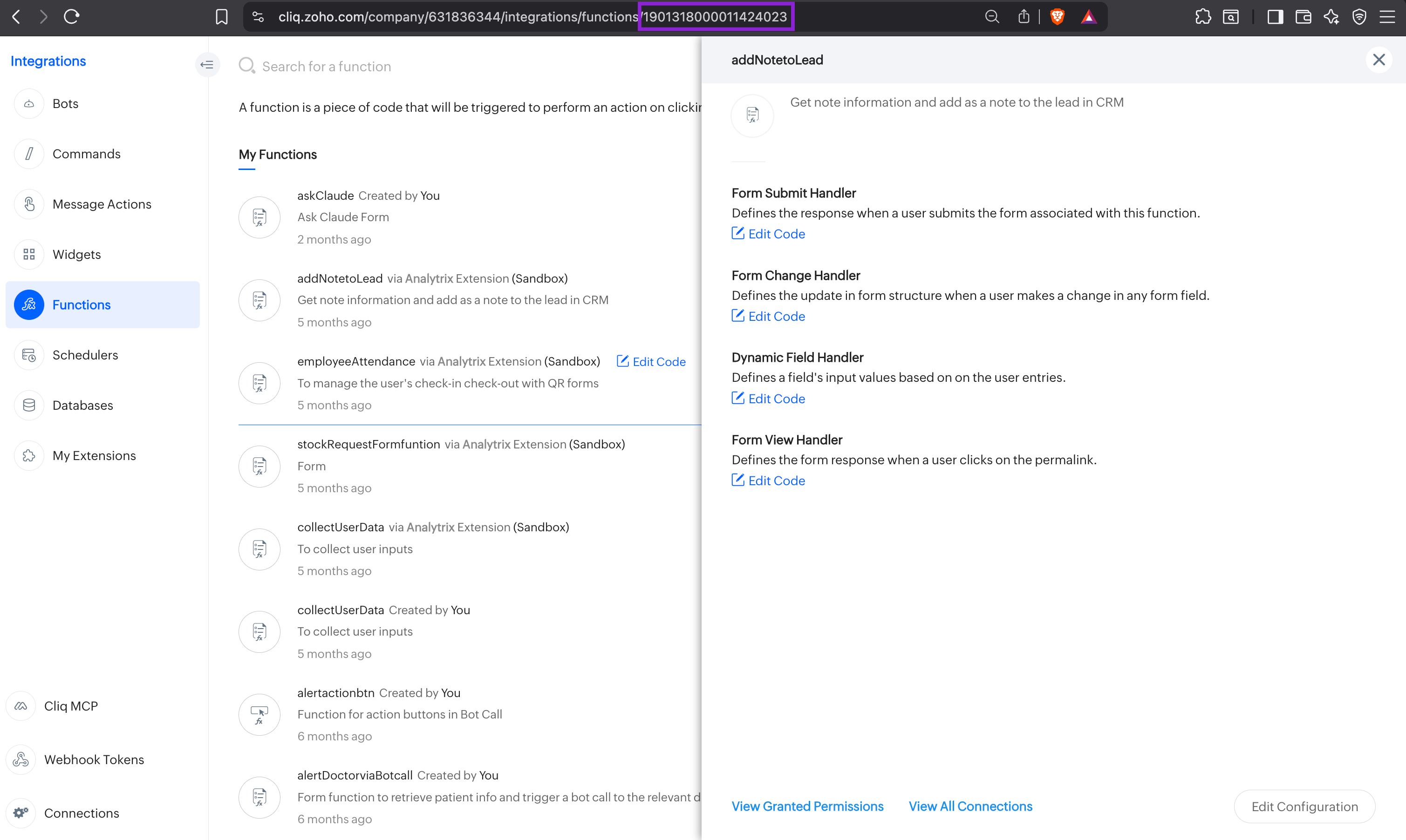
- In the Cliq app, go to Profile → Bots & Tools → Functions → select the function. The
FUNCTION_IDappears in the browser URL or the function settings page.
- Use the List all functions API (
GET /api/v3/functions) and look for theidfield in each function object in the response.
{
    "url": "/api/v3/functions",
    "next_token": "NTB8LTF8NTM3MTkwMDAwMDAyNDUwMTE=",
    "type": "function",
    "sync_token": "NTB8MTc3NzQzMjg2NjI1MXw1MzcxOTAwMDAwMjEyNDAxMQ==",
    "data": [
        {
            "name": "createTask",
            "id": "53719000002124011",
            "function_type": "button",
            "handlers": [
                {
                    "type": "button_handler"
                }
            ],
            "creator": {
                "name": "James",
                "id": "65113112"
            },
            "execution_type": "deluge",
            "status": "enabled",
            "type": "custom",
            "description": "Creates a task in integrated system",
            "scope": "personal"
        },
        {
            "name": "SubmitFeedback",
            "id": "53719000002124012",
            "function_type": "form",
            "handlers": [
                {
                    "type": "form_submit_handler"
                }
            ],
            "creator": {
                "name": "James",
                "id": "65113112"
            },
            "execution_type": "deluge",
            "status": "enabled",
            "type": "custom",
            "description": "Processes feedback form submissions from users",
            "scope": "personal"
        }
    ]
}
WIDGET_ID
The numeric identifier for a Widget (also called an Applet internally). Used in widget management endpoints and as a path parameter in the Map Tickers API alongside MAP_ID.
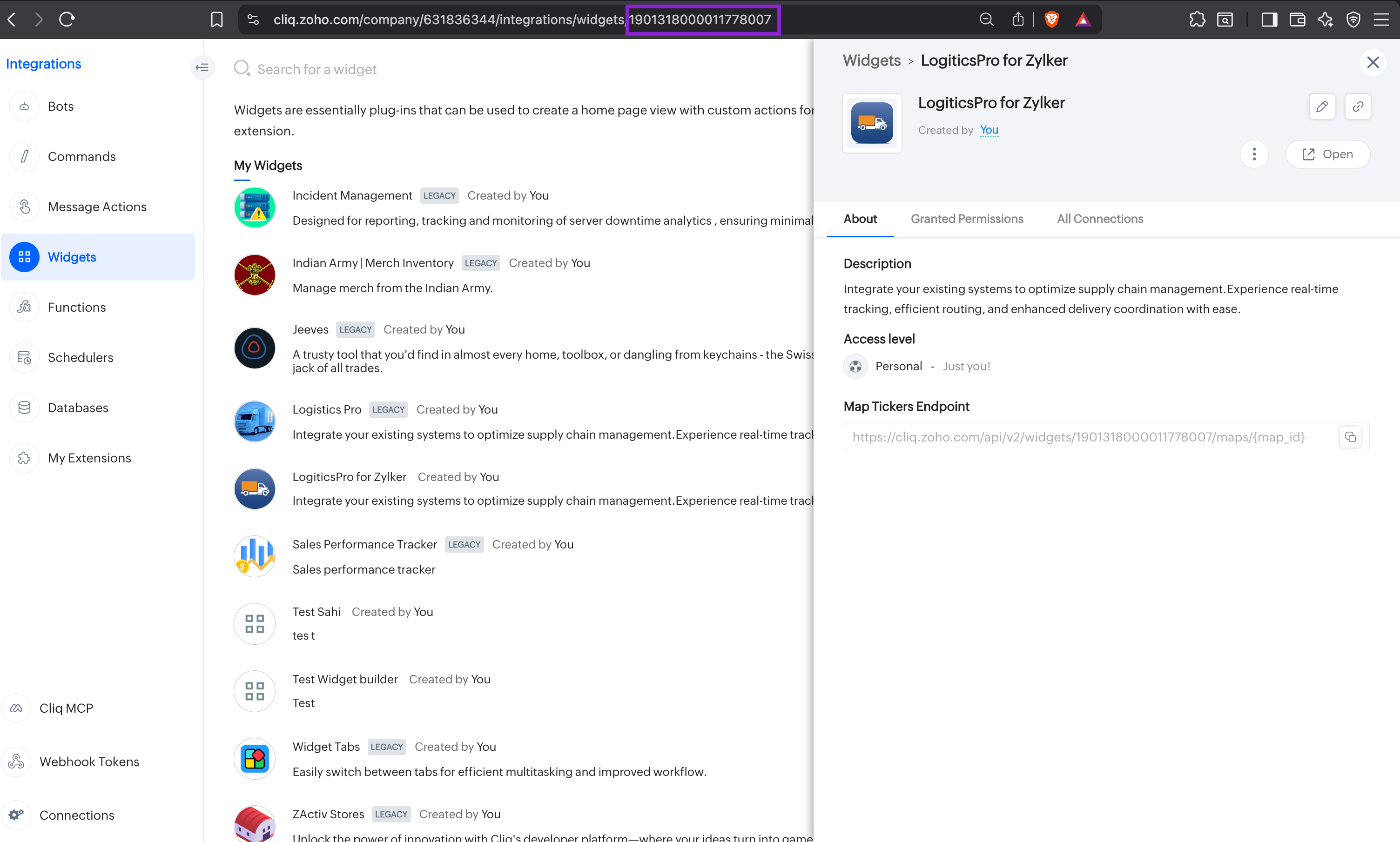
/applets. "Applet" is the internal name. "Widget" is the product-facing term. Both refer to the same component.- In the Cliq app, go to Profile → Bots & Tools → Widgets. Select the widget. The
WIDGET_IDappears in the browser URL or on the widget settings page.
- Use the List Widgets API (
GET /api/v3/widgets) and look for theidfield per widget.
{
  "url": "/api/v3/widgets",
  "type": "widget",
  "data": [
    {
      "id": "1901318000016789001",
      "name": "Sales Dashboard",
      "status": "enabled"
    }
  ]
}
MAP_ID
The unique identifier of a map component inside a Widget, defined by the developer directly in the widget's Deluge code. Each map component within a widget must have a unique MAP_ID to distinguish it from other map components in the same widget. Used in the Add/Update Ticker and Delete Ticker endpoints alongside WIDGET_ID.
- Open the widget in the Cliq developer console and view its Deluge or Zoho Catalyst code.
- Look for the
returnstatement that contains amapobject. - The
idfield inside thatmapobject is yourMAP_ID.
currentDate = zoho.currenttime.toString();
UnixTime = currentDate.unixEpoch(user.get("timezone"));
return {
   "type":"applet",
   "data_type":"map",
   "map":{
      "id":"texas_fleet_map",
      "title":"Texas Fleet",
      "tickers":{
         "dallas_van":{
            "title":"TX-VAN-1001",
            "type":"van",
            "last_modified_time":UnixTime,
            "latitude":32.7767,
            "longitude":-96.7970,
            "info":"Out for delivery",
            "color":"green"
         },
         "houston_van":{
            "title":"TX-VAN-1002",
            "type":"van",
            "last_modified_time":UnixTime,
            "latitude":29.7604,
            "longitude":-95.3698,
            "info":"At pickup point",
            "color":"yellow"
         },
         "austin_van":{
            "title":"TX-VAN-1003",
            "type":"van",
            "last_modified_time":UnixTime,
            "latitude":30.2672,
            "longitude":-97.7431,
            "info":"Route 40 percent done",
            "color":"green"
         },
         "sanantonio_van":{
            "title":"TX-VAN-1004",
            "type":"van",
            "last_modified_time":UnixTime,
            "latitude":29.4241,
            "longitude":-98.4936,
            "info":"Traffic delay",
            "color":"red"
         },
         "controlhub":{
            "title":"Dallas Hub",
            "type":"office",
            "last_modified_time":UnixTime,
            "latitude":32.8975,
            "longitude":-97.0404,
            "info":"Fleet command center",
            "color":"green"
         }
      }
   }
};
Here, texas_fleet_map is the MAP_ID. This value is developer-defined and must match exactly when calling the ticker endpoints - any mismatch will result in the target map component not being found.
MAP_ID is not retrievable via the UI or any API - it exists only in the widget's Deluge code and must be tracked by the developer who defined it.DATASTORE_ID
The numeric identifier for a datastore (database) in the Cliq platform. Used as a path parameter in datastore record endpoints.
- In the Cliq app, go to Profile → Bots & Tools → Databases.
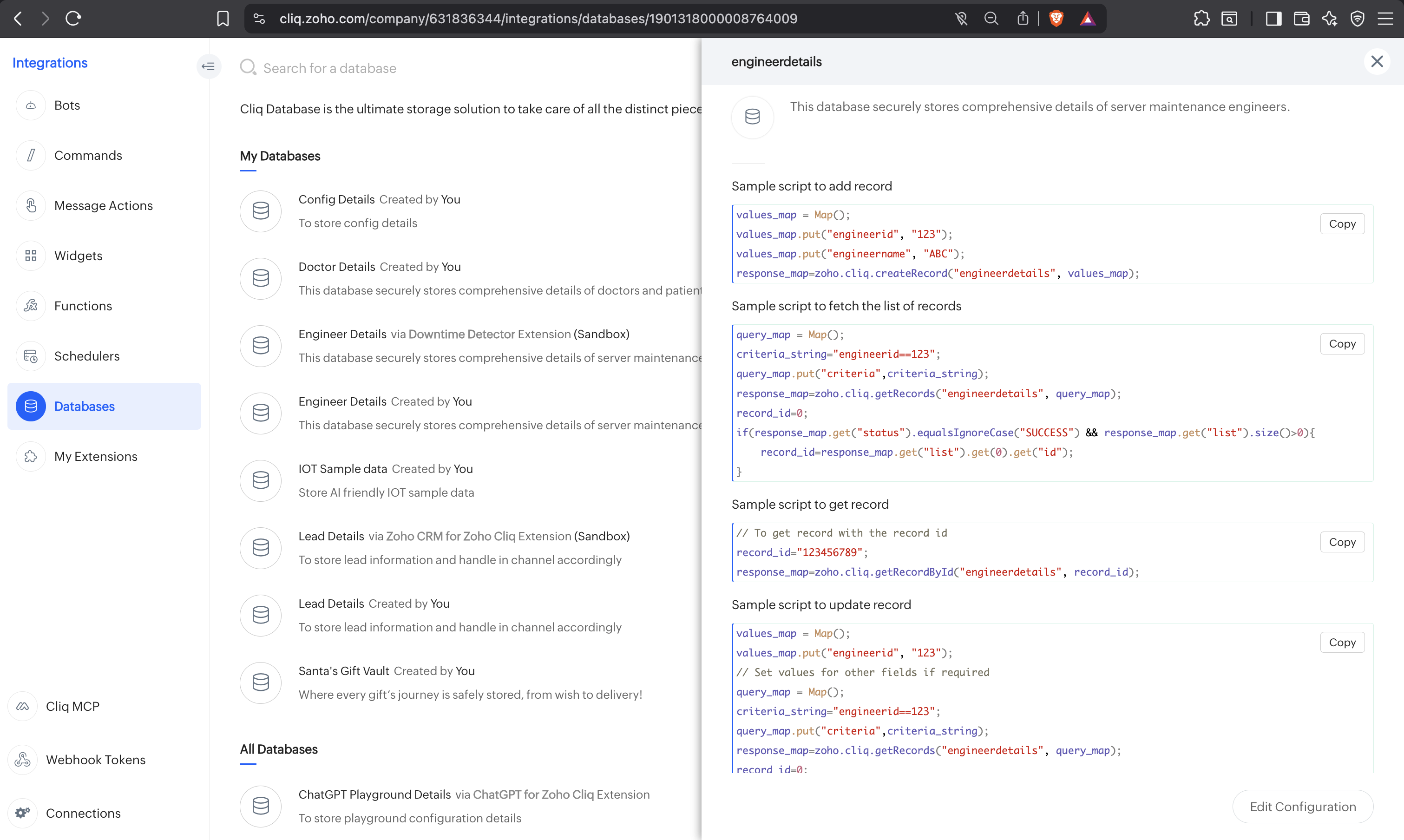
- Select a datastore - the
DATASTORE_IDis the numeric value after/databases/in the browser URL.
Example: https://cliq.zoho.com/company/7271293/integrations/databases/138201392392384009
Here, 138201392392384009 is the Datastore ID.
- Use the List Datastores API (
GET /api/v3/datastores) and look for theidfield per datastore object.
{
    "url": "/api/v3/datastores",
    "type": "datastore",
    "data": {
        "unique_name": "empdir",
        "name": "Employee Directory",
        "id": "227828000000132001",
        "status": "enabled",
        "type": "custom",
        "description": "V3 API test datastore",
        "scope": "personal"
    }
}
DATABASE_UNIQUE_NAME / DATASTORE_UNIQUE_NAME
The unique name identifier for a database (V2) or datastore (V3) is used as a path parameter in all record-level CRUD endpoints. It is also referred to as datastore_unique_name in V3 endpoints.
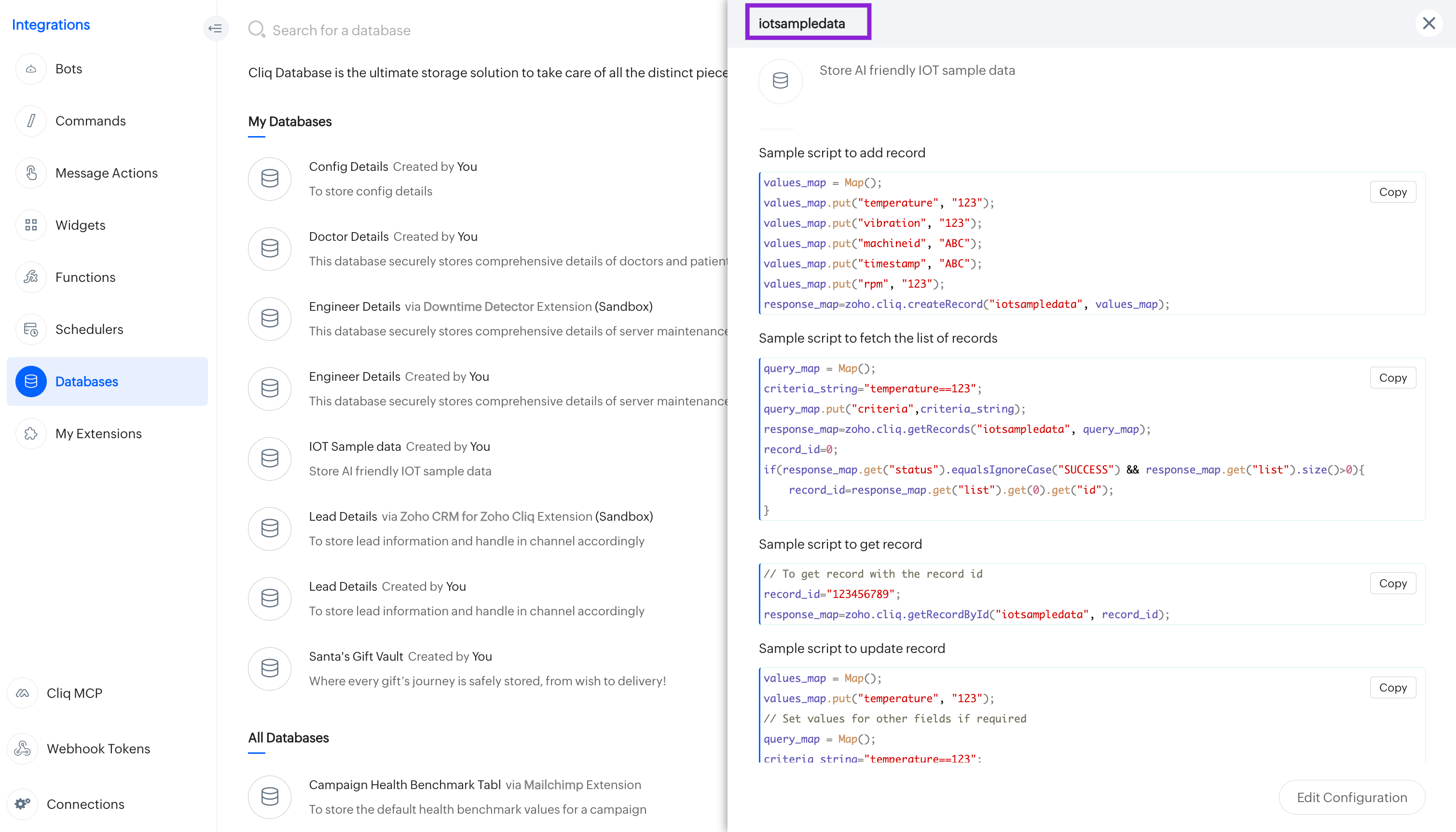
- To access your preferred database in Cliq, click on the top right corner of your profile and navigate to "Bots & Tools." Under the "Databases" section, select your desired database.
- A popup window will appear, displaying sample scripts for adding, updating, or removing records in the database or datastore. The unique name of the database will be shown at the top of this window.
- Use the List Datastores API (
GET /api/v3/datastores) and look for theunique_namefield.
{
    "url": "/api/v3/datastores",
    "type": "datastore",
    "data": {
        "unique_name": "empdir",
        "name": "Employee Directory",
        "id": "227828000000132001",
        "creator": {
            "name": "NP NTC",
            "id": "119440882"
        },
        "status": "enabled",
        "fields": [
            {
                "default_value": "",
                "masked": false,
                "name": "Notes",
                "unique_name": "notes",
                "type": "large-text",
                "mandatory": false,
                "id": "17202020414617773604009000"
            },
            {
                "default_value": "0",
                "masked": false,
                "name": "Employee ID",
                "unique_name": "empid",
                "type": "number",
                "mandatory": true,
                "id": "17202020414617773604009001"
            },
            {
                "default_value": "",
                "masked": false,
                "name": "Employee Name",
                "unique_name": "empname",
                "type": "limited-text",
                "mandatory": true,
                "id": "17202020414617773604009002"
            },
            {
                "default_value": "true",
                "masked": false,
                "name": "Active Status",
                "unique_name": "isactive",
                "type": "boolean",
                "mandatory": false,
                "id": "17202020414617773604009003"
            }
        ],
        "type": "custom",
        "description": "V3 API test datastore",
        "unique_keys": [
            [
                "empid"
            ]
        ],
        "scope": "personal"
    }
}
RECORD_ID
The unique numeric identifier for a single record in a database (V2) or datastore (V3). Used in Retrieve Record, Update Record, and Delete Record endpoints.
RECORD_IDis not visible in the Zoho Cliq UI.
- V2: Use the List Records API (
GET /api/v2/storages/{DATABASE_UNIQUE_NAME}/records) and look for theidfield per record. - V3: Use the List Records API (
GET /api/v3/datastores/{datastore_unique_name}/records) and look for theidfield per record.
{
  "data": [
    {
      "id": "1901318000011234001",
      "ticket_number": "TKT-0042",
      "status": "open",
      "priority": "high"
    }
  ]
}
USER_ID
The unique numeric identifier for a user across all Zoho services. Most endpoints that accept {userEmailOrId} as a path parameter also accept the user's email address as an alternative.
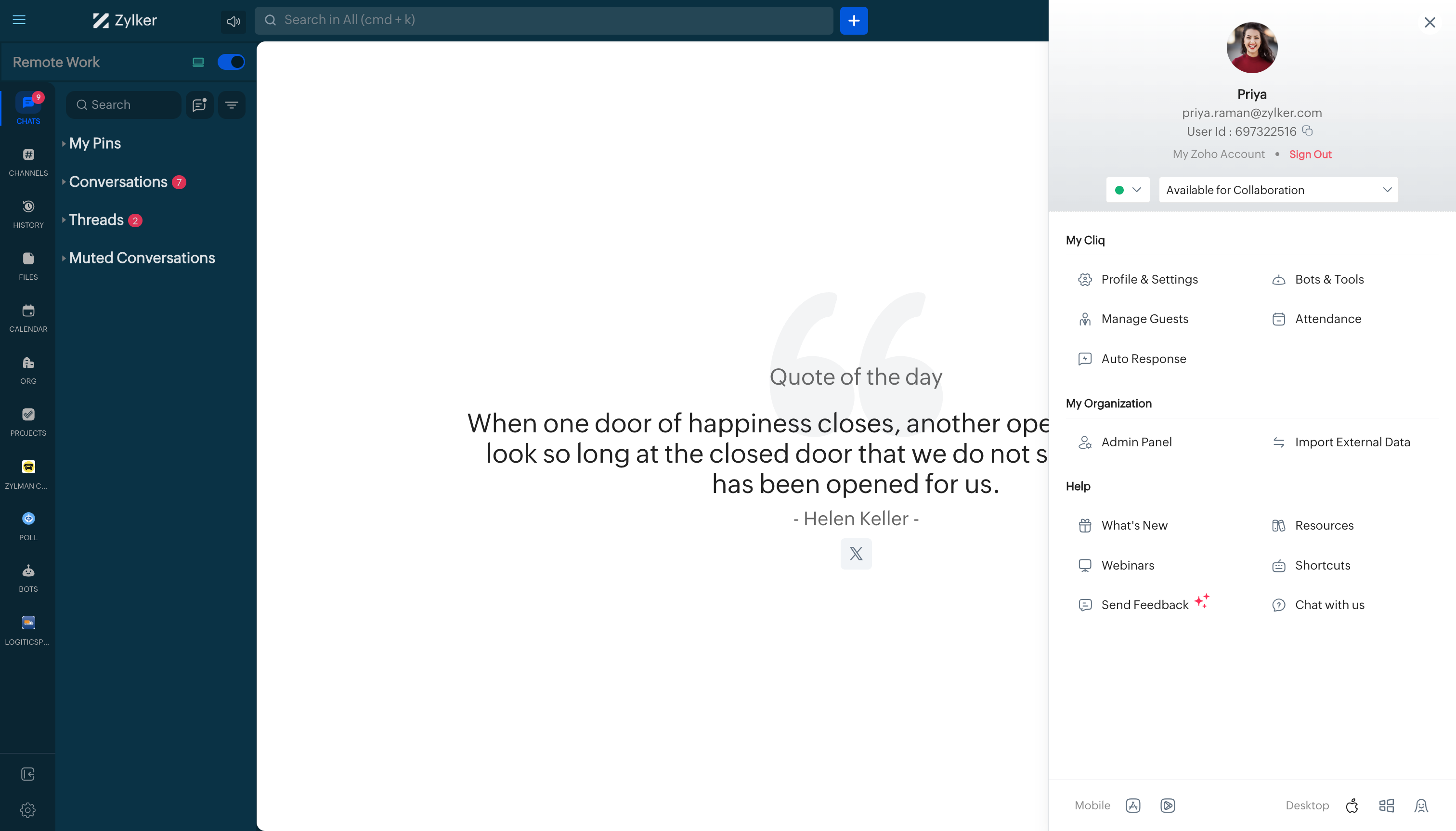
- In the Cliq app, click on a user's profile. The
USER_IDis shown in the profile card.
- Use the List Users API (
GET /api/v2/users) and look for theidfield per user. - Or use
GET /api/v2/users/{email}to retrieve a specific user by their email address and get theirid.
{
    "next_token": "359868eb5dca56ghs721hak082ynoy85hakqovfewjbf41533",
    "has_more": true,
    "data": [
        {
            "email_id": "yoda@zylker.com",
            "zuid": "163315760",
            "zoid": "54107592",
            "display_name": "Yod",
            "name": "Yod Agbaria",
            "organization_id": "631836344",
            "id": "163315760"
        },
        {
            "email_id": "noweit@zylker.com",
            "zuid": "163317679",
            "zoid": "54107592",
            "display_name": "No-Wei",
            "name": "No-Wei Ting",
            "organization_id": "631836344",
            "id": "163317679"
        },
        {...},
        {...}
    ]
}
EMAIL_ID
The email address of a user, used as a path parameter in direct message and file-sharing endpoints. Accepted as an alternative to USER_ID in endpoints that use {userEmailOrId} as the path parameter.
EMAIL_ID when you know the user's email but not their numeric USER_ID. Both are accepted by the same endpoints. Check the endpoint documentation for the exact path parameter name.- In the Cliq app, click on a user's profile. Their email address is shown in the profile card.
- Use the List Users API (
GET /api/v2/users) and look for theemail_idfield per user.
{
    "next_token": "359868eb5dca56ghs721hak082ynoy85hakqovfewjbf41533",
    "has_more": true,
    "data": [
        {
            "email_id": "yoda@zylker.com",
            "zuid": "163315760",
            "zoid": "54107592",
            "display_name": "Yod",
            "name": "Yod Agbaria",
            "organization_id": "631836344",
            "id": "163315760"
        },
        {
            "email_id": "noweit@zylker.com",
            "zuid": "163317679",
            "zoid": "54107592",
            "display_name": "No-Wei",
            "name": "No-Wei Ting",
            "organization_id": "631836344",
            "id": "163317679"
        },
        {...},
        {...}
    ]
}
STATUS_ID
The unique identifier for a custom user availability status. Used in the Update Current Status and Delete Status endpoints.
STATUS_ID.STATUS_IDis not shown in the Zoho Cliq UI.
- Use the List Statuses API (
GET /api/v2/statuses) and look for theidfield per custom status.
{
    "data": [
        {
            "message": "Arise awake and stop not till the goal is reached",
            "id": 1775998000028408800
        },
        {
            "message": "Coffee break",
            "id": 1775998000030383900
        },
        {
            "message": "Opportunities don't happen. You create them.",
            "id": 1775998000034330400
        },
        {
            "message": "All progress takes place outside the comfort zone",
            "id": 1775998000034476000
        }
    ]
}
USER_FIELD_ID
The unique identifier for a custom user profile field. Used in Retrieve User Field, Update User Field, and Delete User Field endpoints. This refers to custom fields in user profiles, not datastore fields.
USER_FIELD_IDis not displayed in the Zoho Cliq UI.
- Use the List User Fields API (
GET /api/v2/userfields) and look for theidfield per user field.
{
    "data": [
        {
            "id": "1901318000000086005",
            "name": "description",
            "field_type": "text",
            "is_mandatory": false
        },
        {
            "id": "1901318000000086007",
            "name": "Extension",
            "field_type": "text",
            "is_mandatory": false
        },
        {
            "id": "1901318000000086009",
            "name": "Date of Joining",
            "field_type": "date",
            "is_mandatory": false
        }
    ]
}
DEPARTMENT_ID
The numeric identifier for a department within the organisation. Used in department member management endpoints.
DEPARTMENT_IDis not displayed in the Zoho Cliq UI.
- Use the List Departments API (
GET /api/v2/departments) and look for theidfield. Use thesearchquery parameter to filter by name.
{
    "data": [
        {
            "name": "Zylker Widgets Inc",
            "is_default": true,
            "id": "1901318000001071001",
            "members_count": "7",
            "lead": {
                "name": "Scott Fisher",
                "id": "631830849",
                "country": "us",
                "email_id": "scott.fisher@zylker.com",
                "zoid": "54107592",
                "timezone": "Asia/Kolkata",
                "first_name": "Scott",
                "full_name": "Scott Fisher",
                "zuid": "631830849",
                "display_name": "Scott Fisher",
                "last_name": "Fisher"
            },
            "parent_department_id": "1901318000001424001",
            "lead_zuid": "631830849"
        }
    ],
    "next_token": "2a4e39fab27032f106ced7277c5b336d"
}
DESIGNATION_ID
The numeric identifier for a designation (job title) within the organisation. Used in Get Designation Details and Get/Add/Delete Designation Members endpoints.
DESIGNATION_IDis not displayed in the Zoho Cliq UI.
- Use the List Designations API (
GET /api/v2/designations) and look for theidfield.
{
    "data": [
        {
            "name": "Leadership Staff",
            "id": "1901318000001072003"
        },
        {
            "name": "Web Developer",
            "id": "1901318000001072007"
        },
        {
            "name": "Content Writer",
            "id": "1901318000001072013"
        },
        {
            "name": "UX Designer",
            "id": "1901318000001072019"
        },
        {
            "name": "iOS Developer",
            "id": "1901318000001072025"
        }
    ]
}
TEAM_ID
The numeric identifier for a team within the organisation. Used in team management and channel filtering endpoints.
TEAM_IDis not displayed in the Zoho Cliq UI.
- Use the List Teams API (
GET /api/v2/teams) and look for theteam_idfield per team. Add?joined=trueto list only the authenticated user's teams.
{
    "teams": [
        {
            "name": "Zylker Support",
            "creation_time": "2016-12-13T16:50:44+05:30",
            "organization_id": "53787097",
            "is_active": true,
            "is_moderator": false,
            "description": "Exclusive team with Zylker Support Professionals",
            "team_id": 53797404,
            "joined": true,
            "participant_count": 3
        }
    ]
}
ROLE_ID
The unique identifier for a Role in the organisation. Used in Retrieve Role Details, Edit Role, Delete Role, Get/Update Role Permissions, and Add/Get/Delete Role Members endpoints.
ROLE_ID, this identifies a Role. Role management in Cliq uses the /profiles path internally.ROLE_IDis not displayed in the Zoho Cliq UI.
- Use the List Roles API (
GET /api/v2/profiles) and look for theidfield per role.
{
    "data": [
        {
            "is_custom_admin": false,
            "name": "Admin",
            "creation_time": "2020-08-10T12:27:35+05:30",
            "last_modified_time": "2020-08-10T12:27:35+05:30",
            "organization_id": "62914174",
            "is_default": true,
            "profile_type": "Admin",
            "id": "42405000000004047"
        },
        {
            "is_custom_admin": false,
            "name": "Members",
            "creation_time": "2020-08-10T12:27:35+05:30",
            "last_modified_time": "2020-08-10T12:27:35+05:30",
            "organization_id": "62914174",
            "is_default": true,
            "profile_type": "Members",
            "id": "42405000000004049"
        },
        {
            "is_custom_admin": false,
            "name": "Test Member",
            "creation_time": "2022-02-17T15:37:39+05:30",
            "last_modified_time": "2022-02-17T15:37:39+05:30",
            "organization_id": "62914174",
            "is_default": false,
            "profile_type": "Members",
            "id": "42405000000189003",
            "description": "123"
        }
    ]
}