


Taxes

If your business operates in the United States, you are required to withhold federal, state, and local taxes from your employees’ wages. Your organization must also contribute to employer taxes such as Social Security, Medicare, and State Unemployment Insurance. These amounts must be reported and paid to the appropriate government agencies.
With Zoho Payroll, you can efficiently manage these taxes in the Tax Information page under Settings. This page allows you to:
- Configure Tax Information
- Authorize Tax Reporting Agent
- Update Tax Information
Configure Tax Information
Configuring your tax information in Zoho Payroll helps:
- Calculate federal, state, and local taxes
- Determine the taxes to be withheld from employee wages
- Generate federal, state, and local tax forms
- Identify your deposit schedule
On the Tax Information page, you can configure the following:
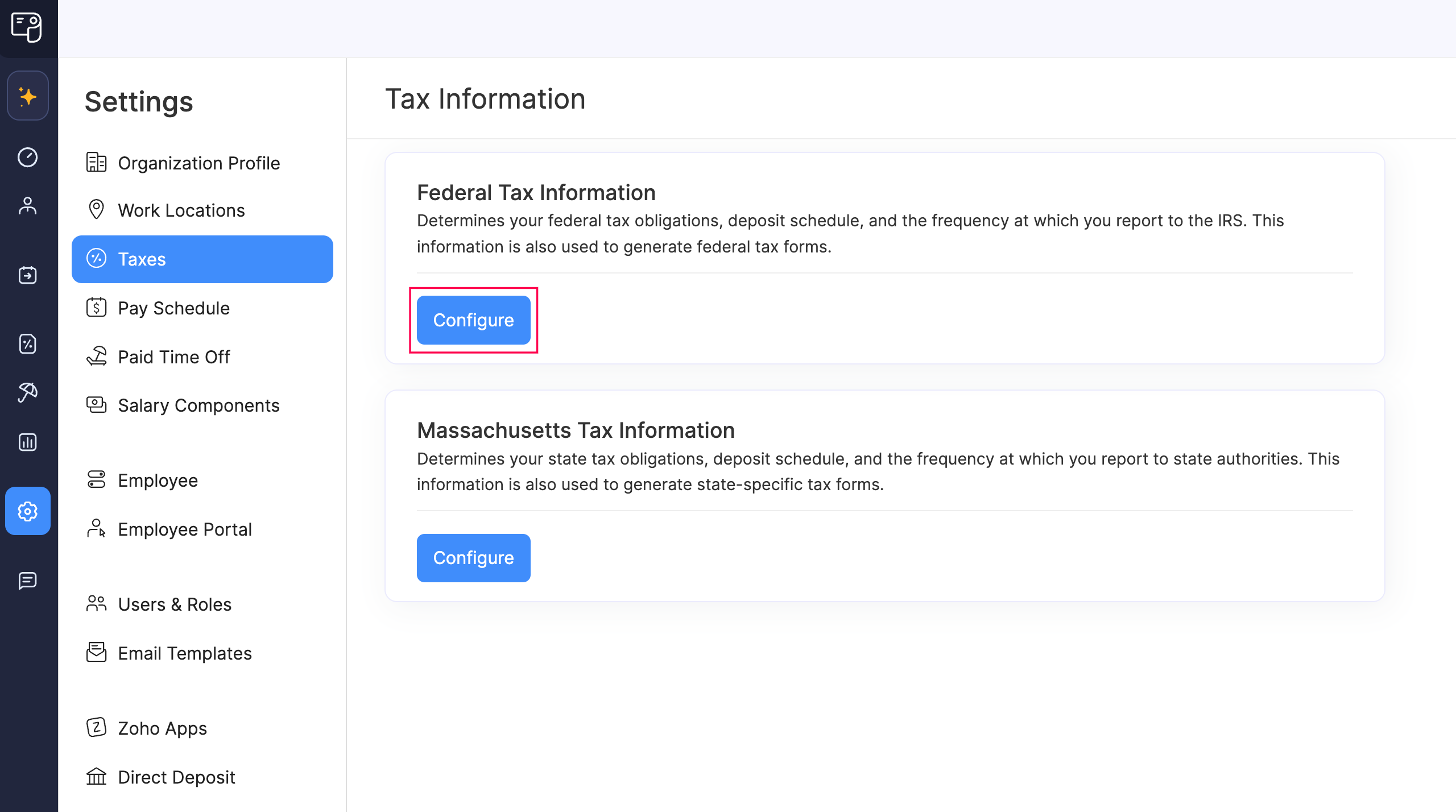
Federal Tax Information
Zoho Payroll uses the details you provide in the Federal tab to calculate your federal tax liabilities, determine your deposit schedules, and generate IRS-compliant forms.
To configure federal taxes:
- Click Settings in the left sidebar.
- Select Tax Information under Taxes.
- In the Federal tab, enter the following details:
| Field | Description |
|---|---|
| Federal Employer Identification Number (FEIN) | Enter your organization’s Federal Employer Identification Number. |
| Federal Tax Deposit Frequency | Select the federal tax deposit frequency assigned by the IRS.
If you are unable to locate this information or have queries about your deposit schedule, contact your local IRS office for assistance. |
| Federal Unemployment Tax Deposit Frequency | Select the tax deposit frequency for your federal unemployment taxes assigned by the IRS.
If you are unable to locate this information or have queries about your deposit schedule, contact your local IRS office for assistance. |
| Is your organization recognized as an agricultural employer by the IRS? | Select whether the IRS recognizes your organization as an agricultural employer. If you’re unsure of your organization’s status, check with the IRS or your tax advisor before proceeding. |
| Is your organization categorized as a 501(c)(3) non-profit entity by the IRS, and if so, what type? | Select whether your organization is registered as a 501(c)(3) non-profit entity with the IRS and, if applicable, choose the type that matches your registration. If you’re unsure of your organization’s status, check with the IRS or your tax advisor before proceeding. |
Note: Zoho Payroll uses Form 941 by default. If you’re eligible for Form 944 and have IRS approval, contact support.usa@zohopayroll.com.
Warning: Once you configure these details, the Federal Employer Identification Number (FEIN) cannot be modified after processing your first pay run. Hence, ensure accuracy before proceeding.
- Click Save.
Once saved, Zoho Payroll will use these federal tax information to calculate and report your federal payroll taxes.
State Tax Information
Zoho Payroll uses the details you provide in the State(s) tab to determine your state tax liabilities, deposit schedules, and generate state-specific forms.
When you add a work location (via Settings > Work Locations) for a new state, you’ll need to configure that state’s tax information here.
To configure state taxes:
- Click Settings in the left sidebar.
- Select Tax Information under Taxes.
- Switch to the State(s) tab.
- Enter the required details, which may vary depending on your state’s requirements.
- Click Save.
Zoho Payroll will now calculate applicable state taxes and generate the corresponding forms for this state. The state tax setup will be complete once you configure tax information for all available states.
Authorize Tax Reporting Agent
After configuring tax information, you or someone with authority in your organization must authorize Zoho Payroll as your tax reporting agent. This allows Zoho Payroll to file taxes and submit forms on your behalf.
To authorize your tax reporting agent:
- Click Settings in the left sidebar.
- Select Tax Information under Taxes.
- Once you save your federal and state tax details, an authorization banner appears at the top of the Tax Information page.
- Click Authorize on the banner.
- In the popup that appears, confirm that you have the authority to authorize and click Proceed.
- For each form listed, click Sign and Submit.
Once all forms are submitted, your authorization will be complete.
Note: This authorization must be completed every time you add a work location for a new state.
Update Tax Information
Tax rates, such as State Unemployment Insurance (SUI) and State Disability Insurance (SDI), may change annually, or you might need to adjust your deposit schedule. In such cases, you can update your tax details in Zoho Payroll.
There are three scenarios that affect how you can edit your tax information in Zoho Payroll:
| Pay Run Status | Level of Control |
|---|---|
| Before processing your first payroll | You have full control to edit all tax information. |
| After processing your first payroll, but before approving it | You have full control to edit all tax information. |
| After processing and approving your first payroll | You can edit specific fields, with changes taking effect from the selected Effective Date. |
Here’s how you can update the tax information for the pay runs in these statuses:
Cases 1 and 2:
- Click Settings in the left sidebar.
- Select Tax Information under Taxes.
- Click the Federal or State(s) tab, based on the information you want to update.
- Update the necessary fields.
- Click Save.
Your changes will take effect immediately.
Case 3: To update tax information after approving at least one pay run:
- Click Settings in the left sidebar.
- Select Tax Information under Taxes.
- Click Change next to the field which you want to update.
- In the popup that appears, modify the required information and select an effective date in the Effective From field.
- Click Save.
Your changes will take effect from the specified date.