
End Employment

When an employee leaves your organisation, use End Employment to set their final working day, choose when to pay them, and create a Final Settlement Payroll for their last pay.
Warning: Ending employment updates the employee’s status for payroll. Complete final pay carefully before you approve the Final Settlement Payroll.
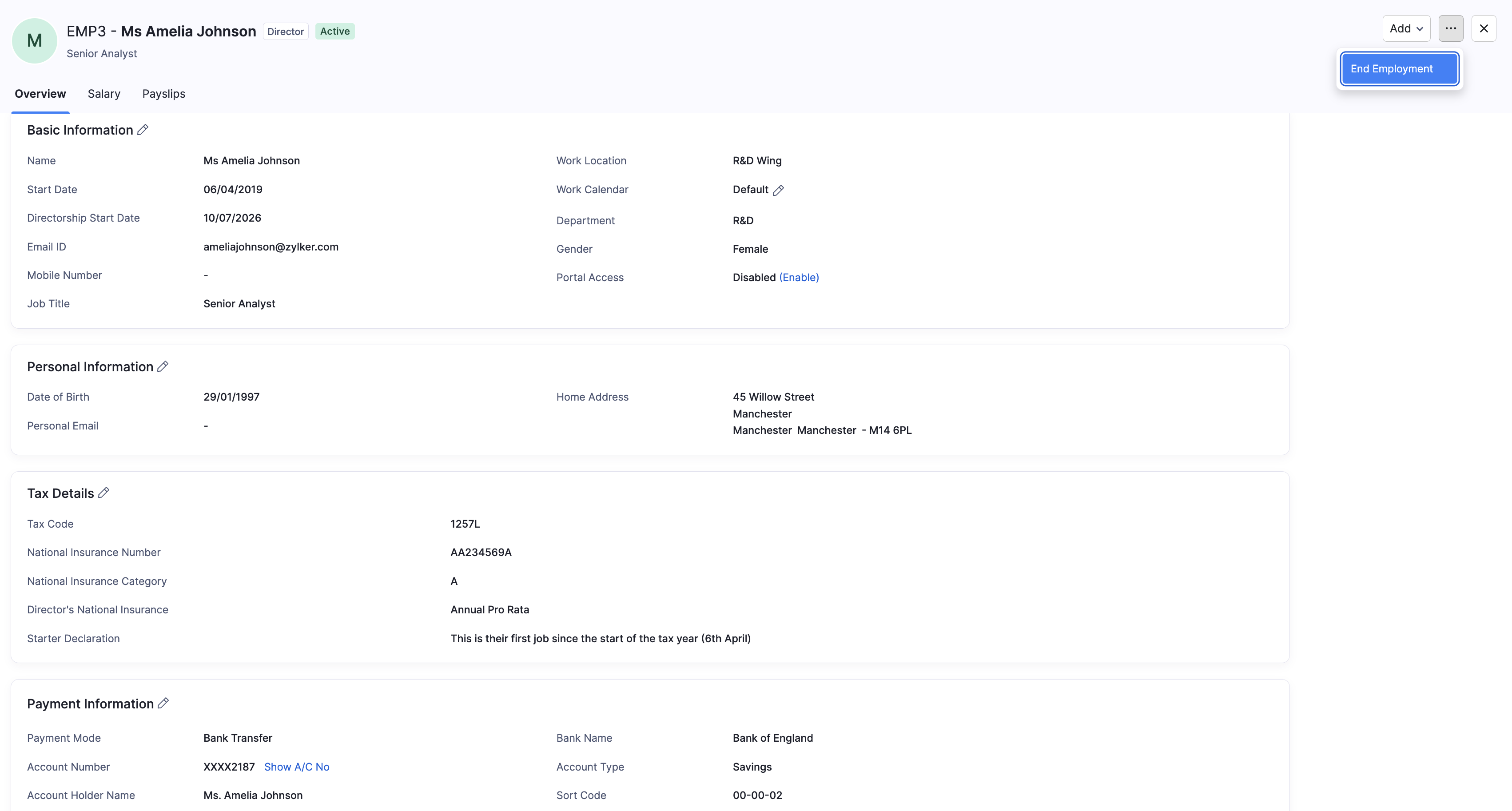
Start End Employment
- Go to Employees.
- Open the employee who is leaving.
- Click End Employment.
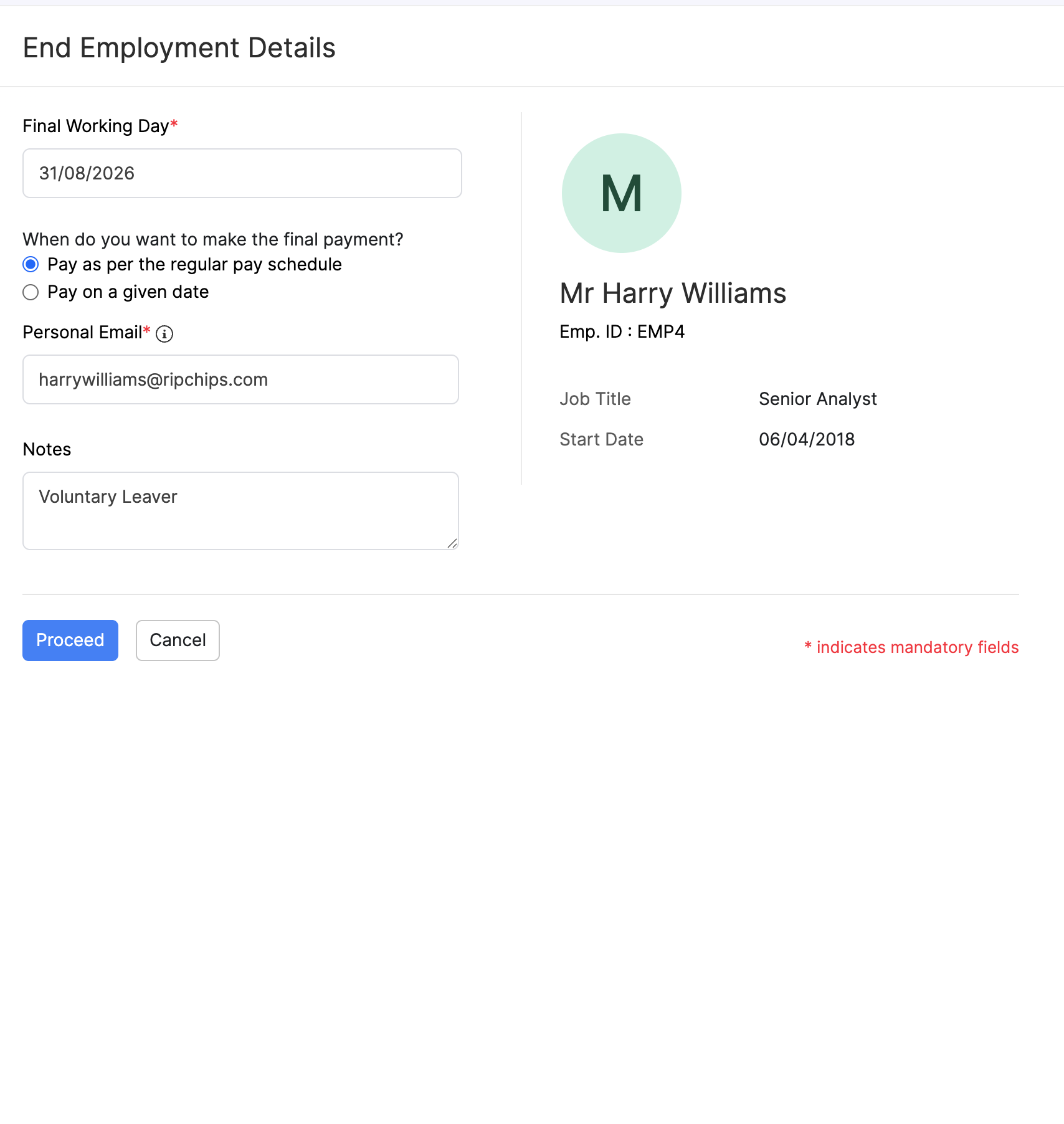
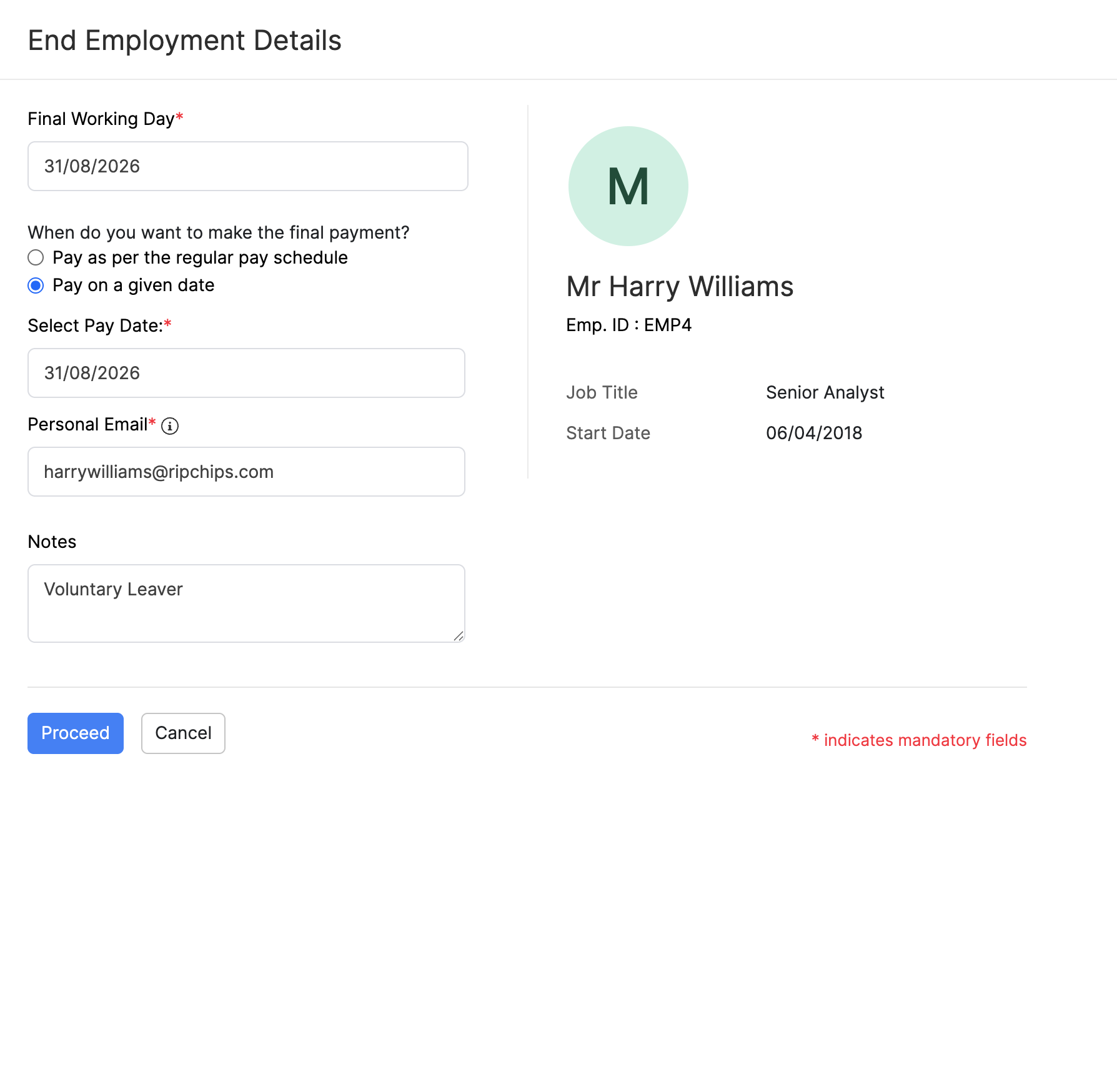
Enter End Employment Details
- Enter the Final Working Day.
- Choose when to make the final payment:
| Option | Description |
|---|---|
| Pay as per the regular pay schedule | Pay the final amount with the regular pay run. |
| Pay on a given date | Choose a specific pay date for the final payment. |
- Enter the employee’s Personal Email for any post-employment contact.
- Optionally add Notes (for example that the employee is a voluntary leaver).
- Click Proceed.
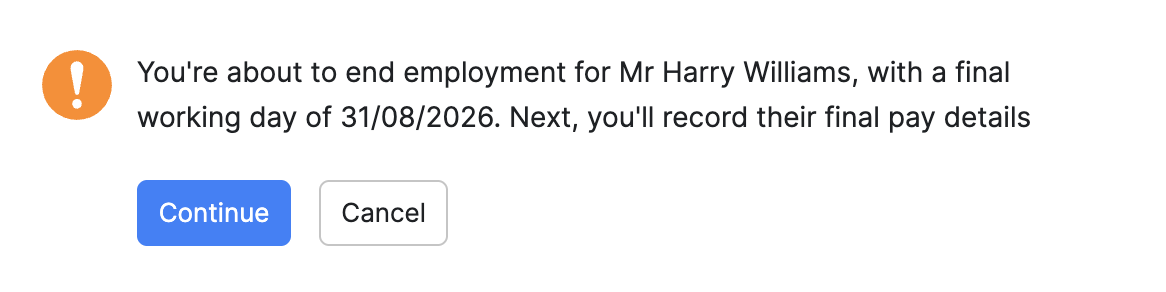
Confirm when prompted so Zoho Payroll can continue to final pay details.
Record Final Pay Details
Zoho Payroll opens Final pay details for the employee. Review the pay period, pay date, and final working day, then enter any hours and additional earnings for the final pay.
Typical additional earnings can include:
| Item | When you might use it |
|---|---|
| Bonus or Commission | Final bonus or commission due. |
| Pay in Lieu of Notice (PILON) | Pay instead of working the notice period. |
| Statutory Redundancy Pay | Redundancy pay that applies to the leaving. |
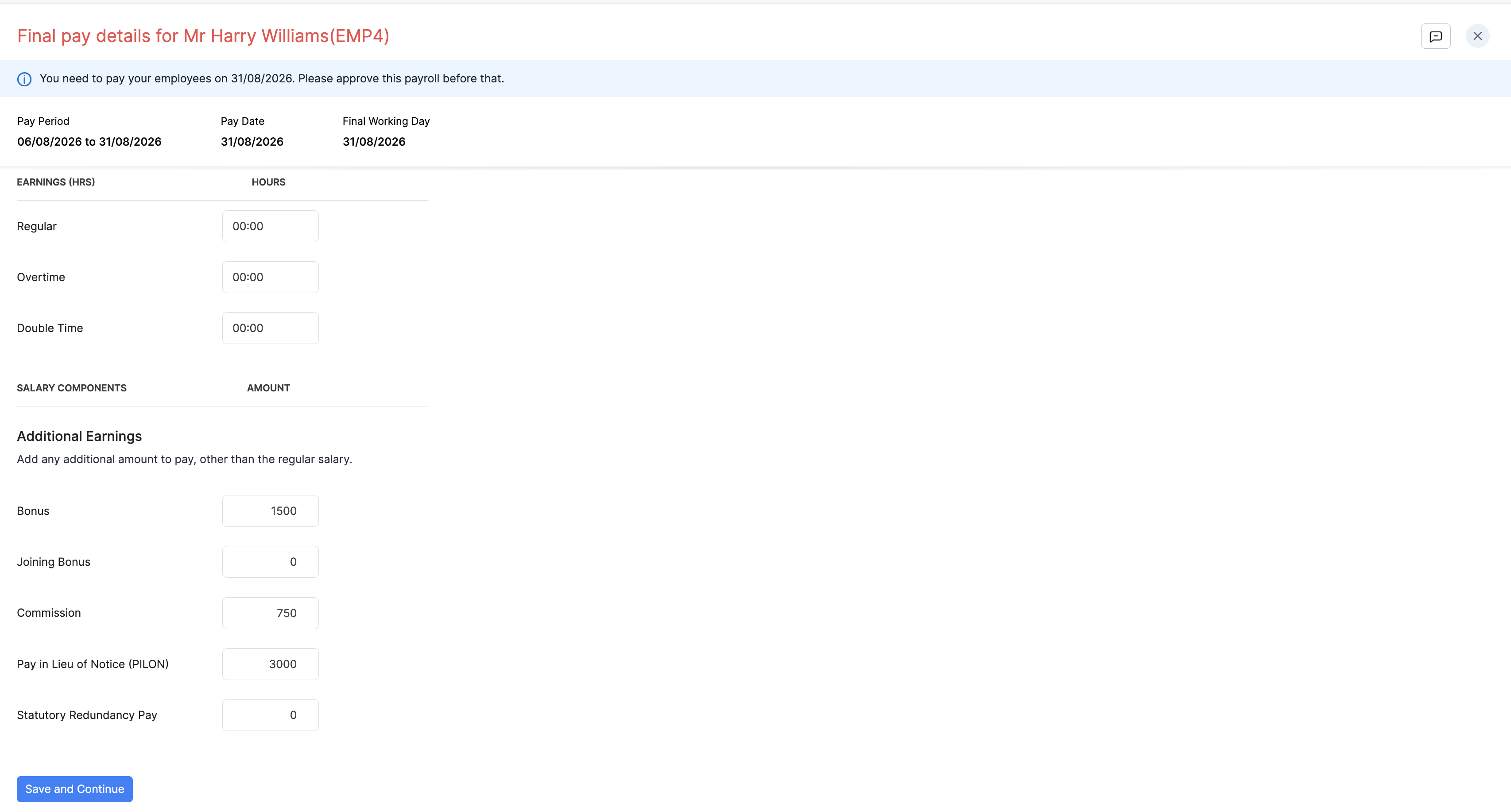
Click Save and Continue when the figures are ready. Zoho Payroll opens the Final Settlement Payroll for that employee so you can review and process it straight away. You do not need to go to Pay Runs first.
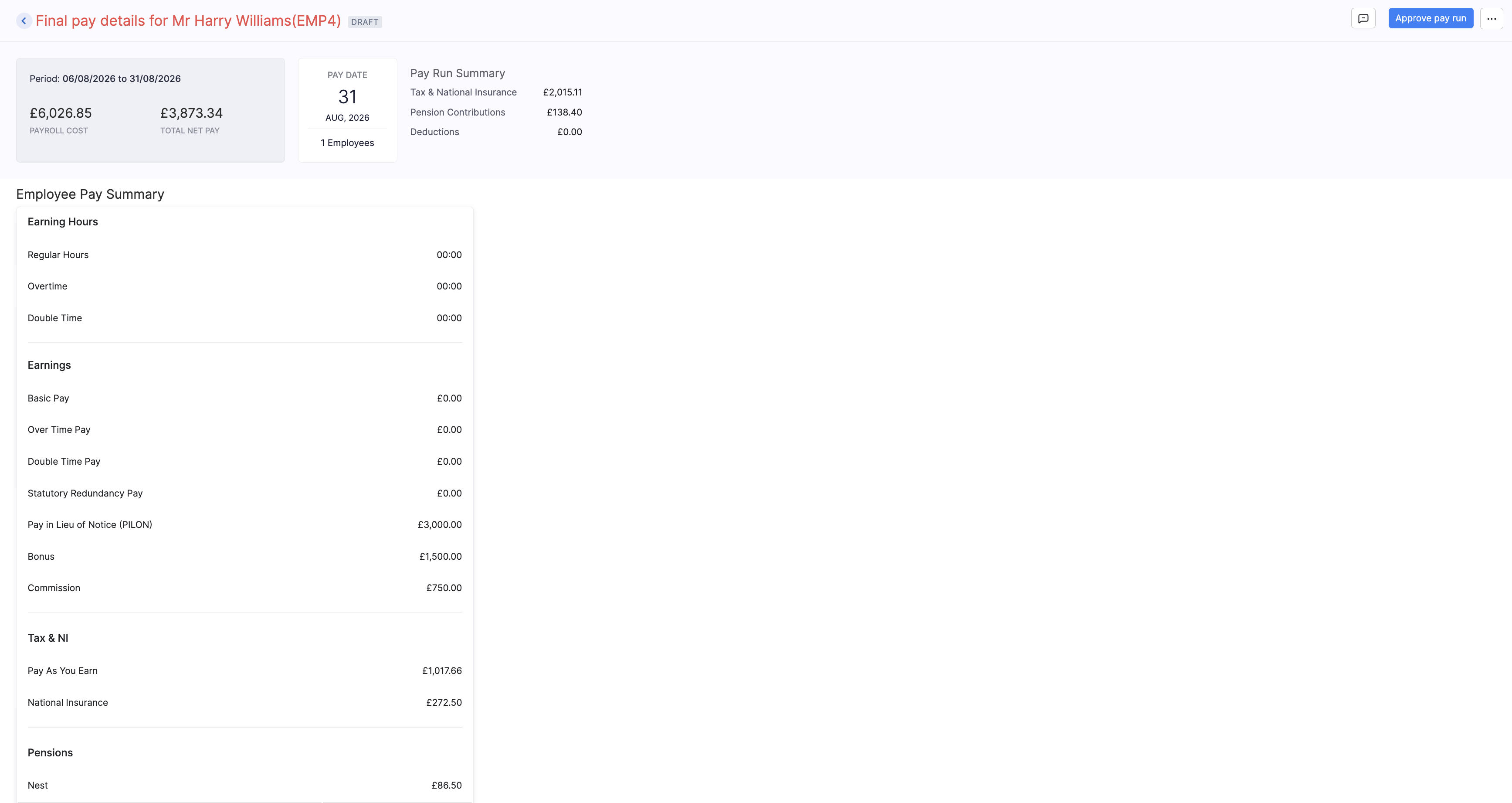
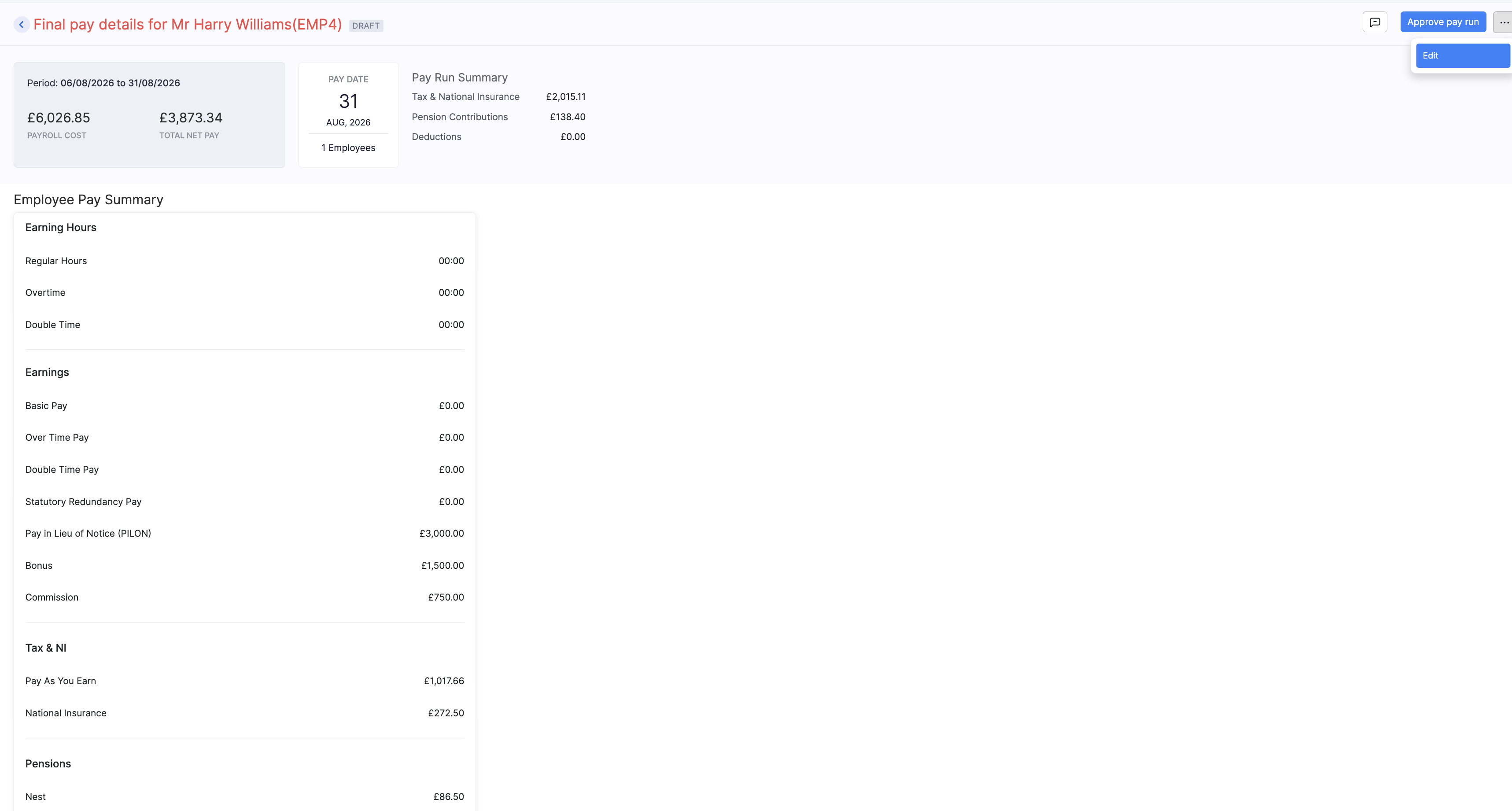
If something needs changing before you approve, click Edit and update the final pay details.
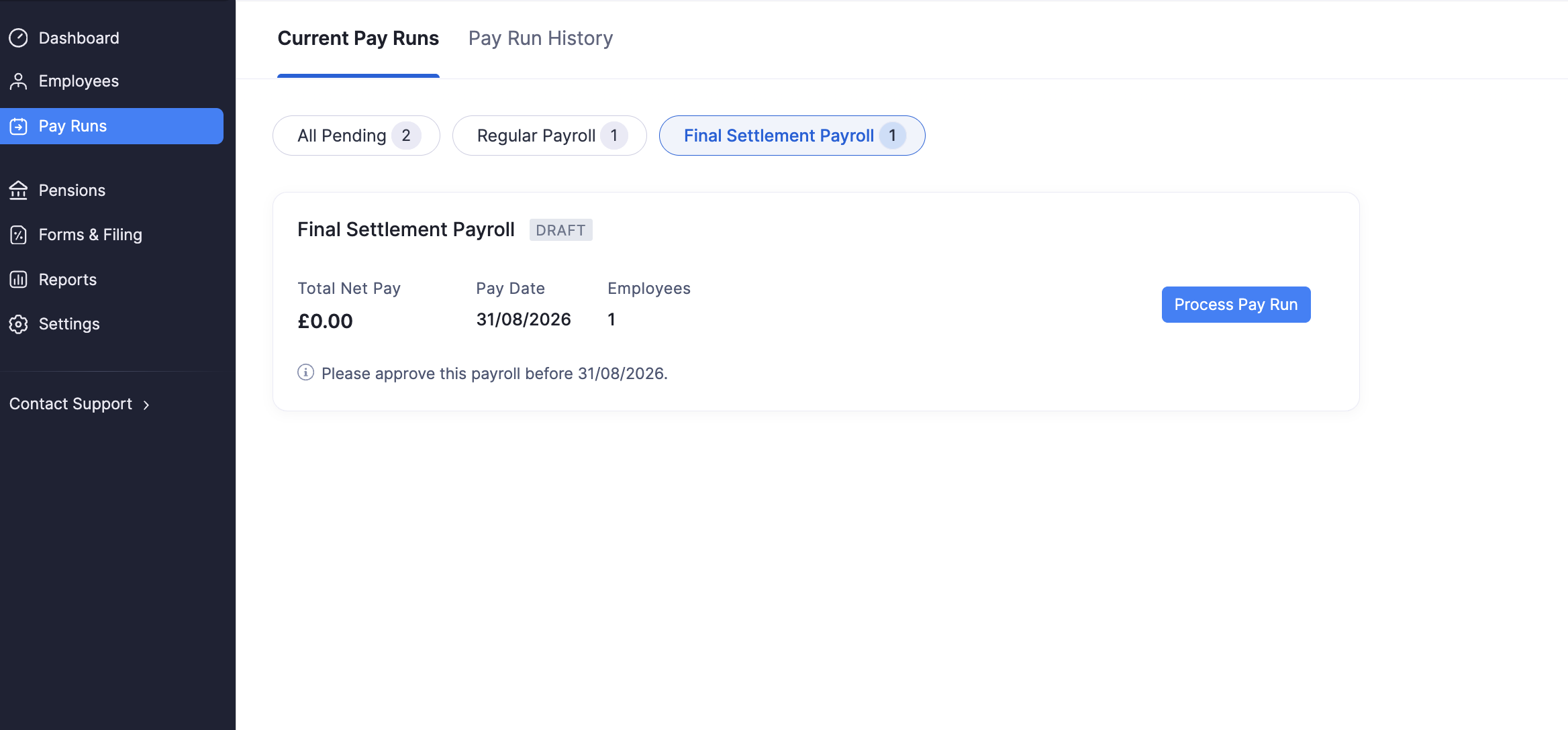
If you do not want to process it immediately, leave the draft and return later from Pay Runs.
For how to approve the pay run, submit the FPS to HMRC, and record payment, refer to Final Settlement Payroll.
After the Final Settlement Payroll is paid, the employee appears under Former Employees in the Employees list.