Work Locations

In Zoho Payroll, a work location refers to the physical address from which an employee operates.
Recording work locations helps you keep an accurate register of where your people are based, whether they work from a company office or remotely. You can then assign the right work location to each employee and use these addresses across your payroll records.
The following scenario will help you better understand how to set up work locations:
Scenario: Zylker has offices in London and Cambridge. You can add each office as a separate work location, then assign each employee to the office they work from.
Insight: Your organisation’s registered office address is used as your filing address on forms and payslips. Work locations are separate and represent where your employees are based.
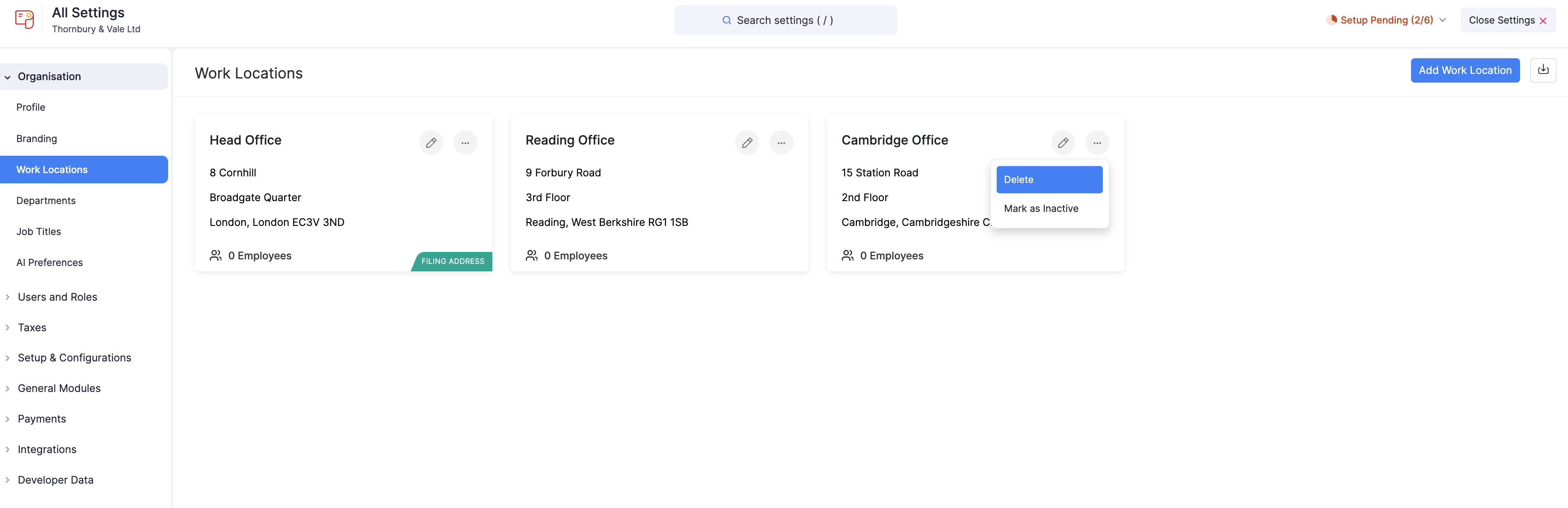
Each work location appears as a card showing its address and the number of employees assigned to it. Your filing address is marked with a Filing Address badge.
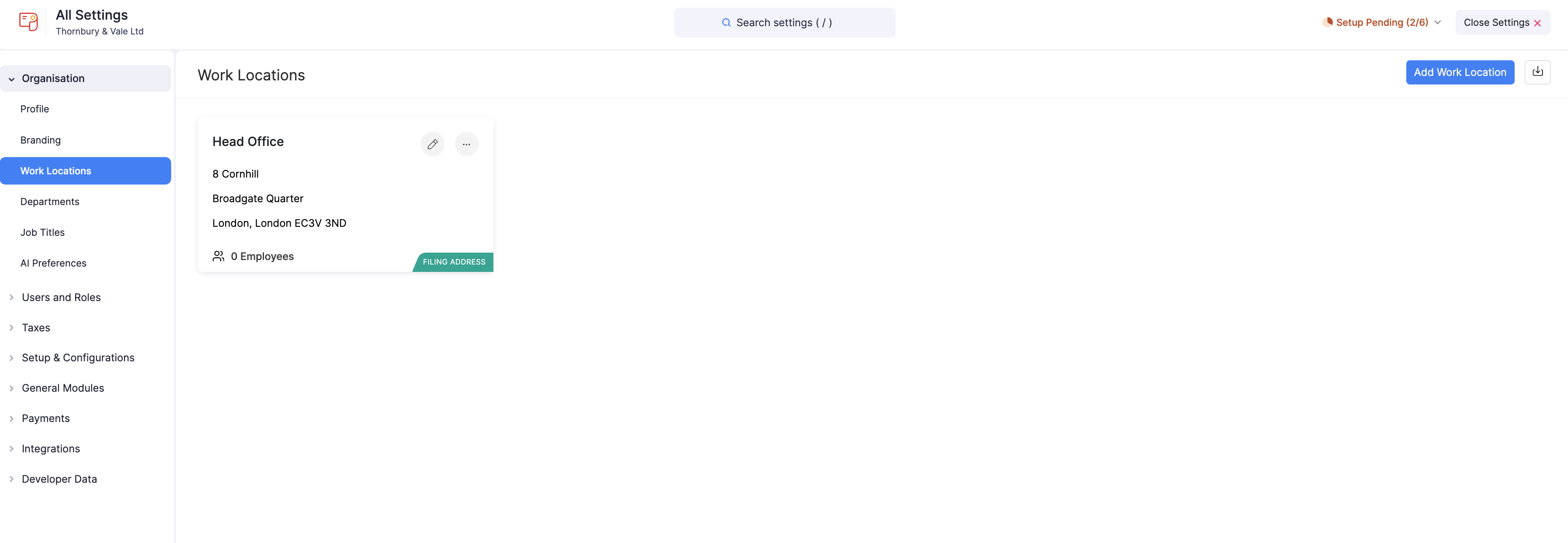
Add a Work Location
To add a new work location:
- Go to Settings and click Work Locations.
- Click + Add Work Location.
- Enter the following details:
- Work Location Name
- Address
- City
- County (select from the dropdown)
- Postcode
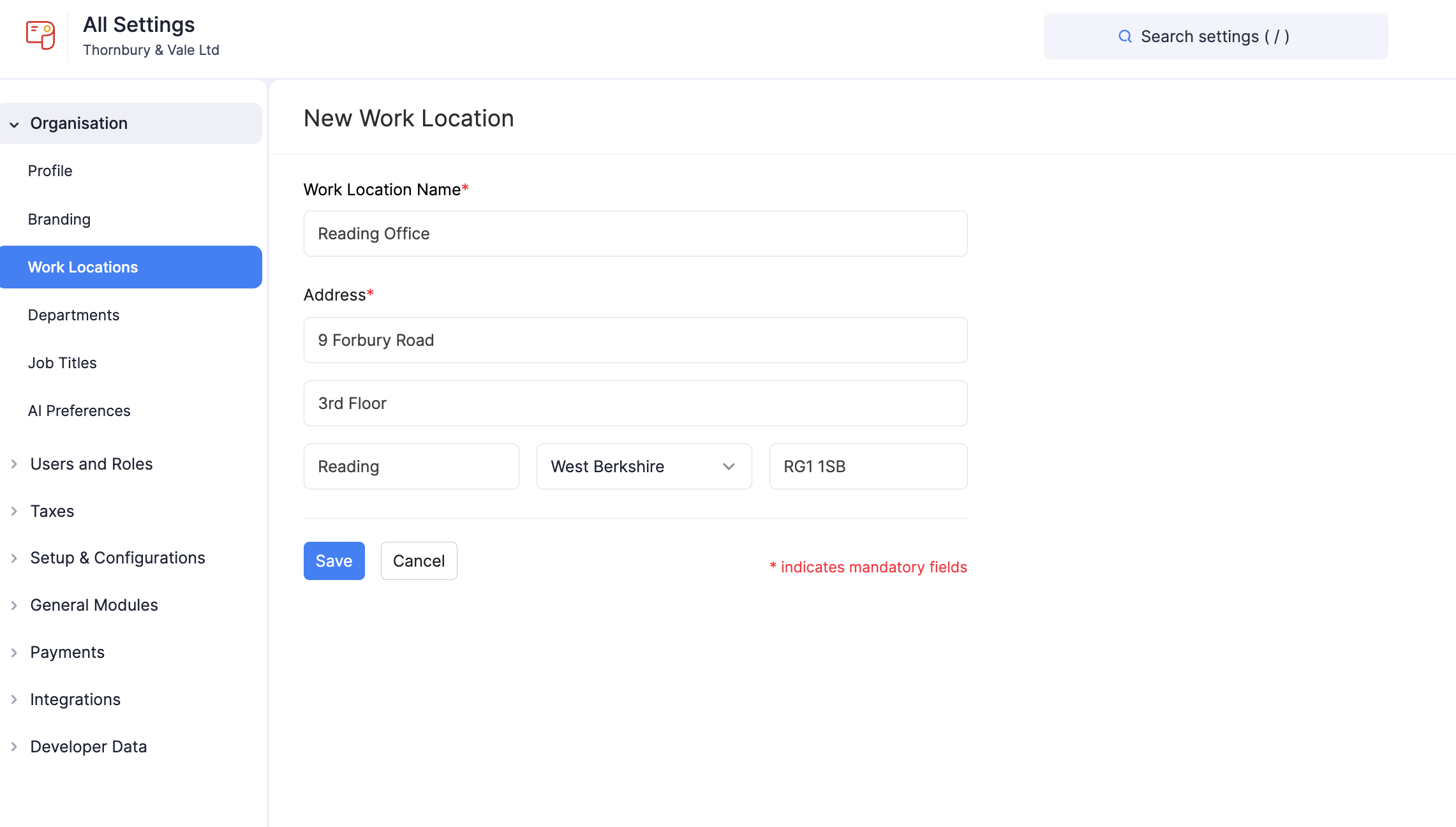
- Click Save.
Once added, you can assign this work location to employees when setting up or editing their profile.
Manage Work Locations
Edit a Work Location
If you misspelled the work location’s name or entered an incorrect address, you can update it easily.
To edit a work location:
- Go to Settings and click Work Locations.
- Click the Edit icon next to the location you want to update.
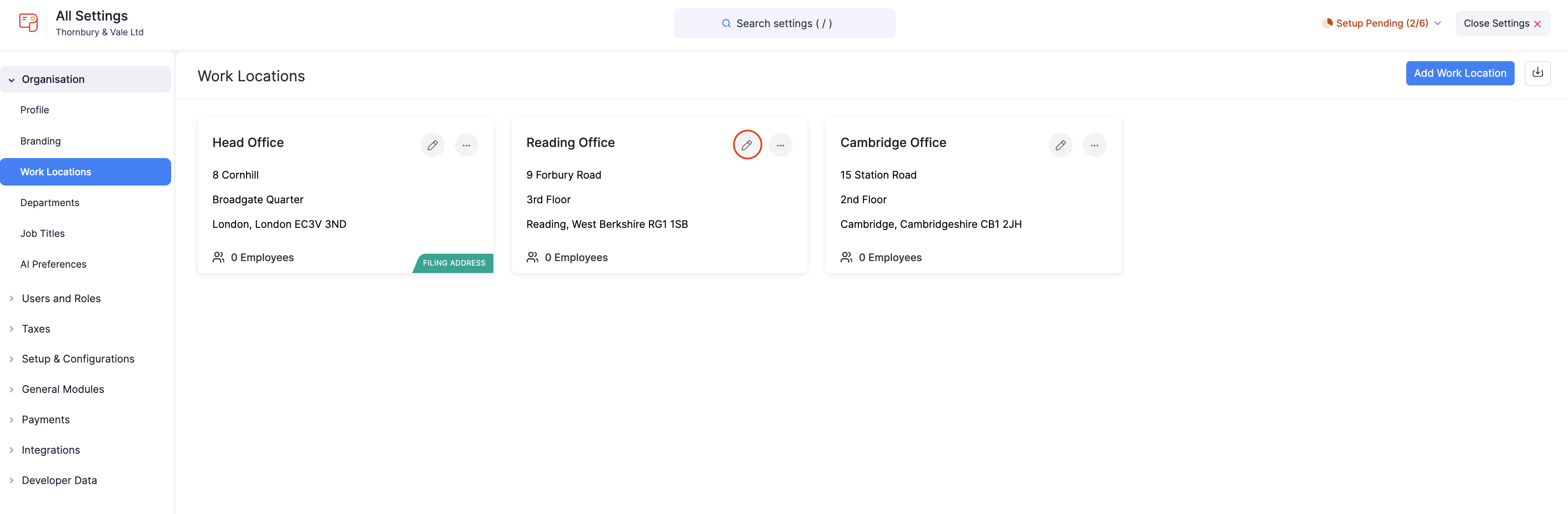
- Make the necessary changes.
- Click Save.
Mark a Work Location as Inactive
If a work location is no longer in use but may be needed later, you can mark it as inactive instead of deleting it permanently.
To mark a location as inactive:
- Go to Settings and click Work Locations.
- Click the More icon next to the work location.
- Select Mark as Inactive.
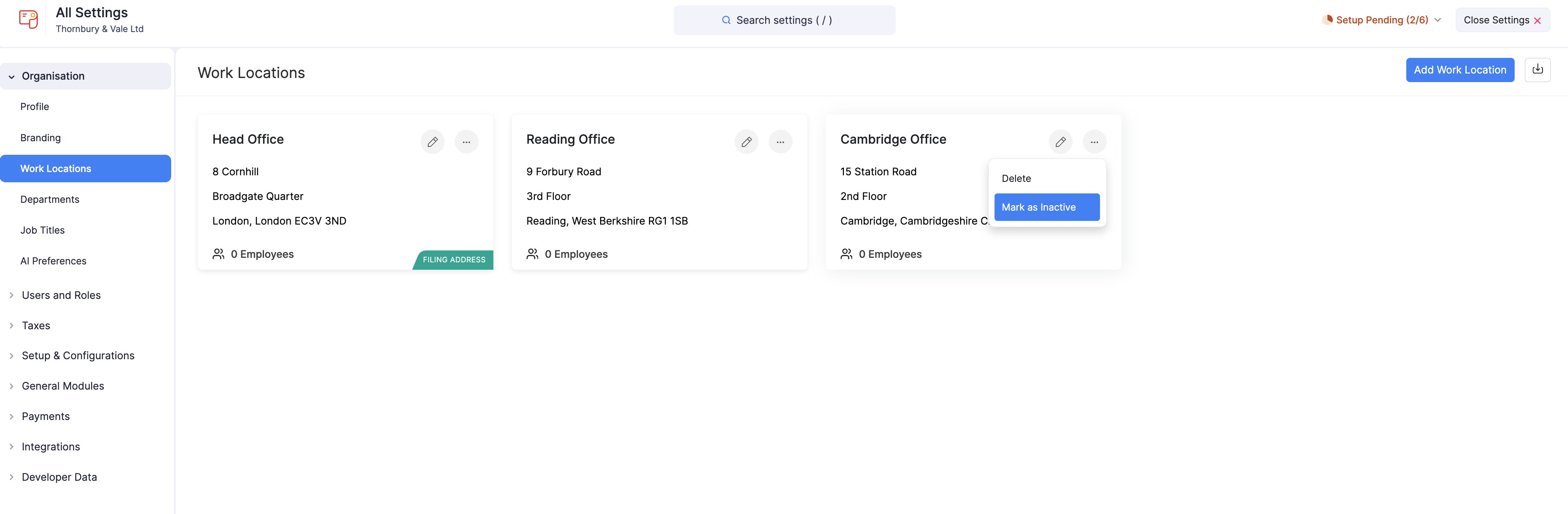
Once marked inactive, the location can no longer be assigned to employees. You can reactivate it at any time.
Delete a Work Location
To delete a work location:
- Go to Settings and click Work Locations.
- Click the More icon on the work location’s card.
- Select Delete.