
Set Up Pension Providers

Before Zoho Payroll can calculate pension contributions, set your duties dates and add at least one pension provider with a contribution group.
Set Your Duties Dates
The first time you add a pension provider, Zoho Payroll asks when your workplace pension duties begin. It uses these dates to assess your employees and enrol those who are eligible.
- Go to Pensions and click Add Pension Provider.
- Enter the following:
| Field | Description |
|---|---|
| Duties Start Date* | The date your workplace pension responsibilities begin. Zoho Payroll uses it to assess all your employees and automatically enrol those who are eligible. If you are unsure when duties start, refer to The Pensions Regulator guidance for employers. |
| Last Enrolment Date | The date of your last re-enrolment cycle. Every three years, the law requires you to re-enrol eligible employees who had previously opted out, even if they left the scheme by choice. Leave blank if you have not had one yet. Refer to The Pensions Regulator guidance on re-enrolment. |
- Click Save and Continue.
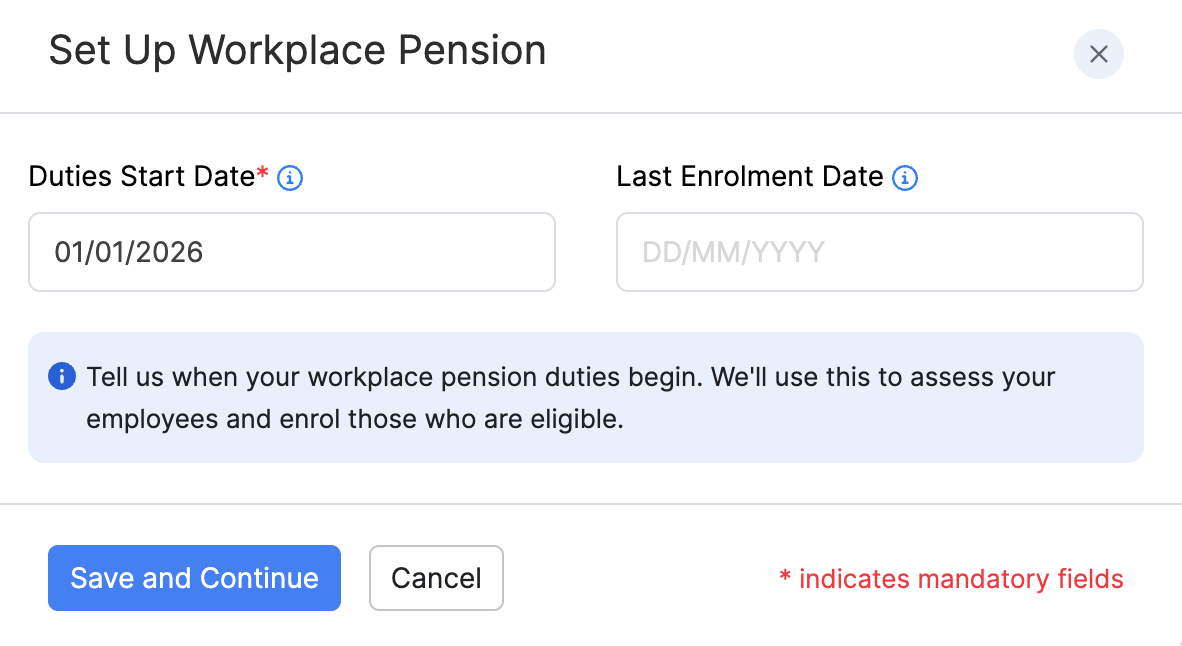
Note: After setup, you can edit Duties Start Date and Last Enrolment Date from the Pensions summary bar using the edit icon next to each date.
Add a Pension Provider
Adding a provider connects the company that holds and invests your employees’ pension savings. You send contributions each pay run; the provider looks after them.
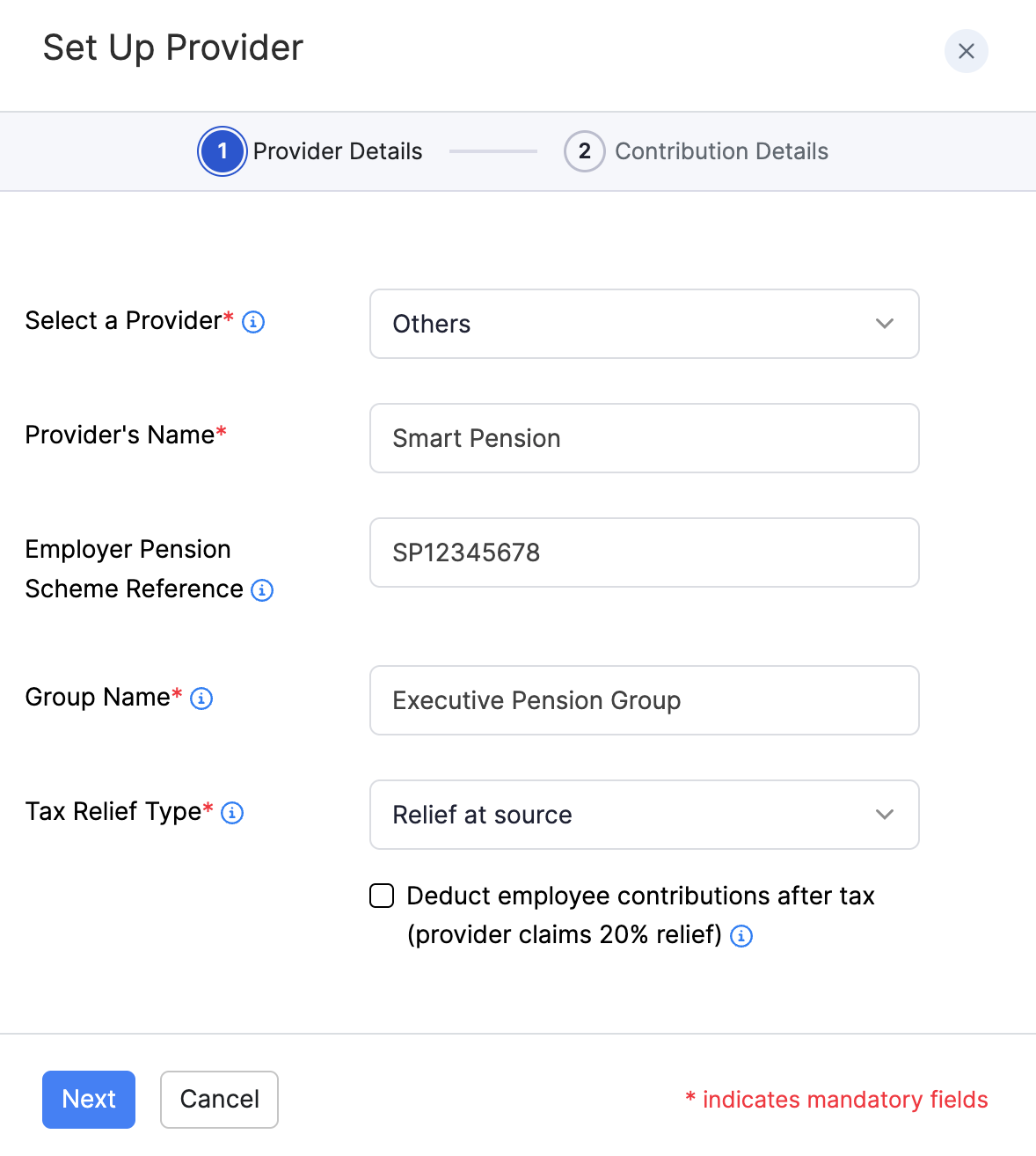
The setup wizard has two steps: Provider Details, then Contribution Details.
Step 1: Provider Details
- Go to Pensions.
- Click Add Pension Provider, or click Set Up Now next to Add another pension provider? if you already have providers.
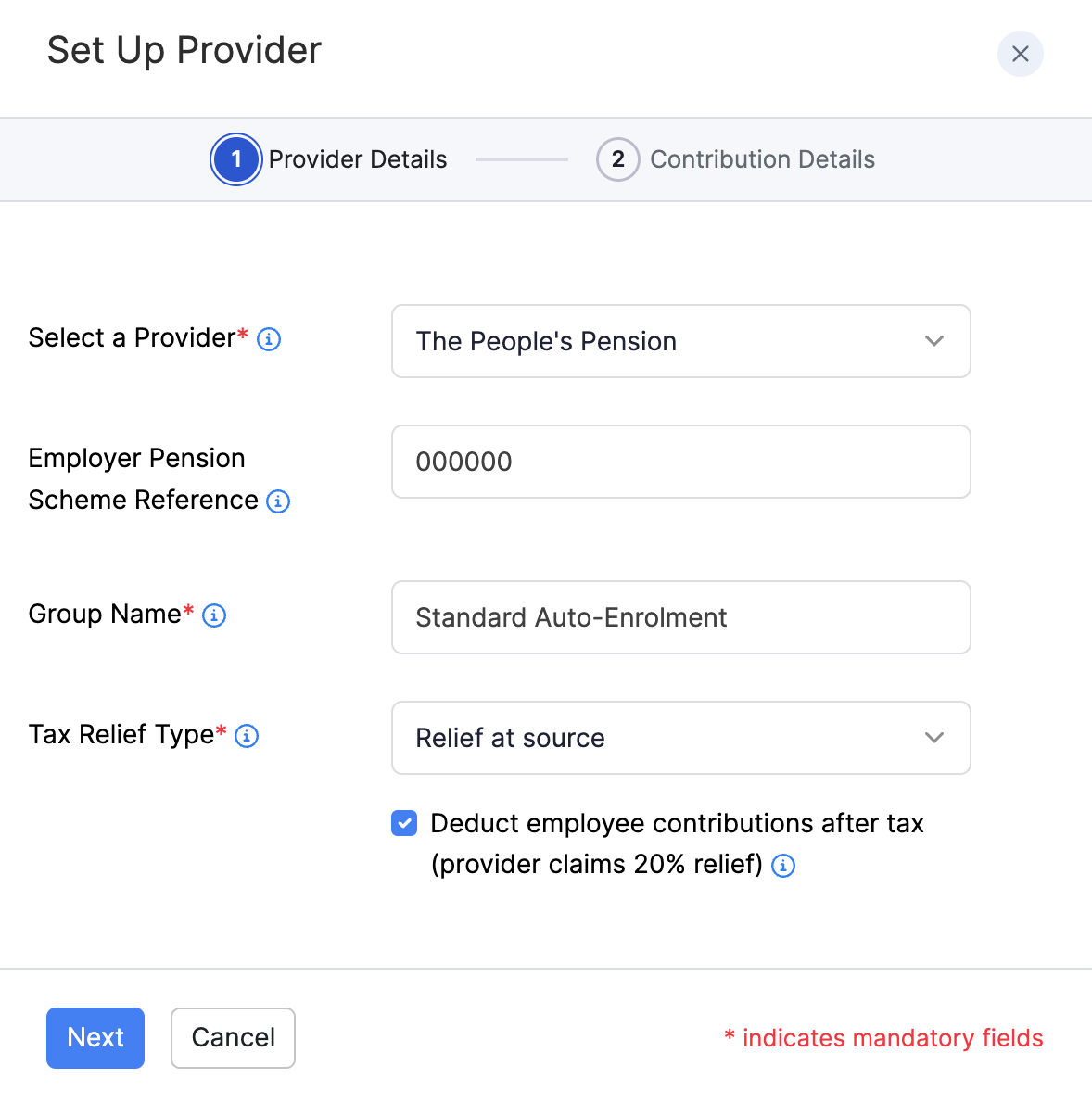
- Enter the following details:
| Field | Description |
|---|---|
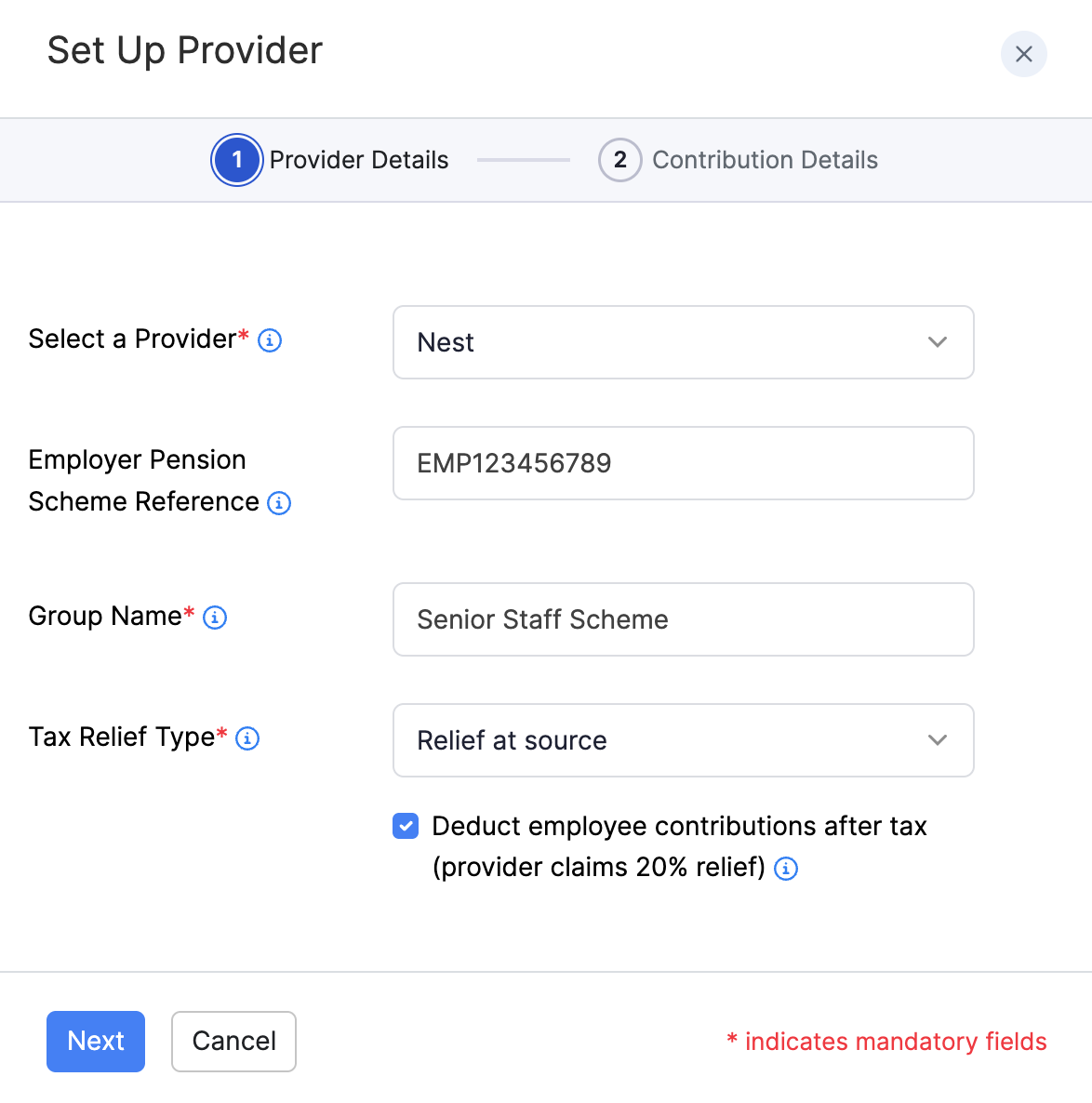
| Select a Provider* | Choose a provider such as Nest or The People’s Pension. Select Others if your provider is not listed, then enter the Provider’s Name. |
| Employer Pension Scheme Reference | The reference your pension provider gave you when you set up your scheme. In Nest, this is your Employer ID (starts with EMP). In The People’s Pension, this is your Account Number. You’ll find it in your online account with the provider. |
| Group Name* | A name for this contribution group. Employees in the same group share the same tax relief method and contribution rates. |
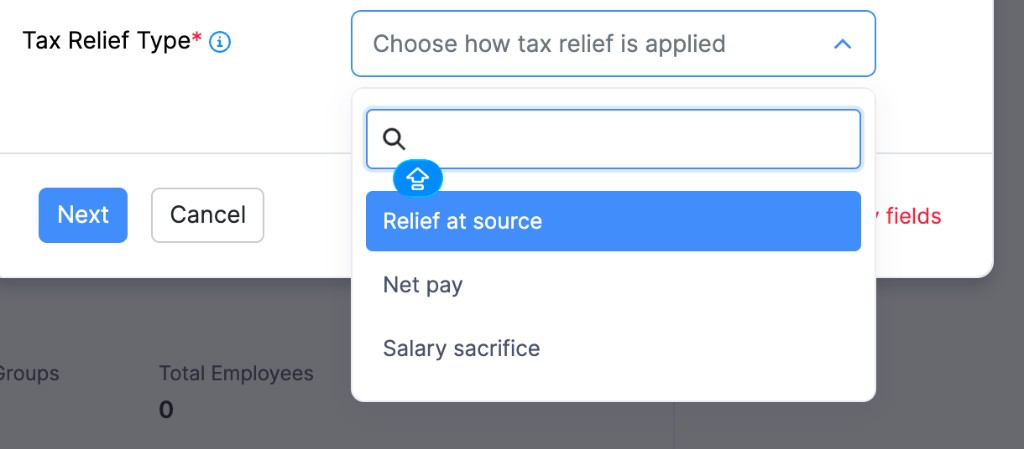
| Tax Relief Type* | How pension contributions are handled for tax. Choose Relief at Source, Net Pay Arrangement, or Salary Sacrifice. |
| Deduct employee contributions after tax (provider claims 20% relief) | Shown for Relief at Source. Under Relief at Source, you deduct 80% of the employee’s contribution from their pay after tax. The provider claims the remaining 20% from HMRC and adds it to their pension. |
- Click Next.
Tax Relief Types
Zoho Payroll supports three tax relief types. Choose the one that matches your scheme:
| Tax Relief Type | How it works |
|---|---|
| Relief at Source | Contributions are taken after tax. The provider claims 20% basic-rate relief from HMRC and adds it to the employee’s pot. For example, a £100 contribution means £80 is taken from pay and £20 comes from tax relief. Higher-rate or additional-rate taxpayers may need to claim any extra relief themselves. |
| Net Pay Arrangement | Contributions are taken before tax, so the employee gets tax relief straight away through payroll. |
| Salary Sacrifice | Employees give up part of their gross salary in exchange for pension contributions. This reduces Income Tax and National Insurance. |
Note: Use the tax relief type your pension provider and scheme rules require. If you’re unsure, check with your provider before you save.
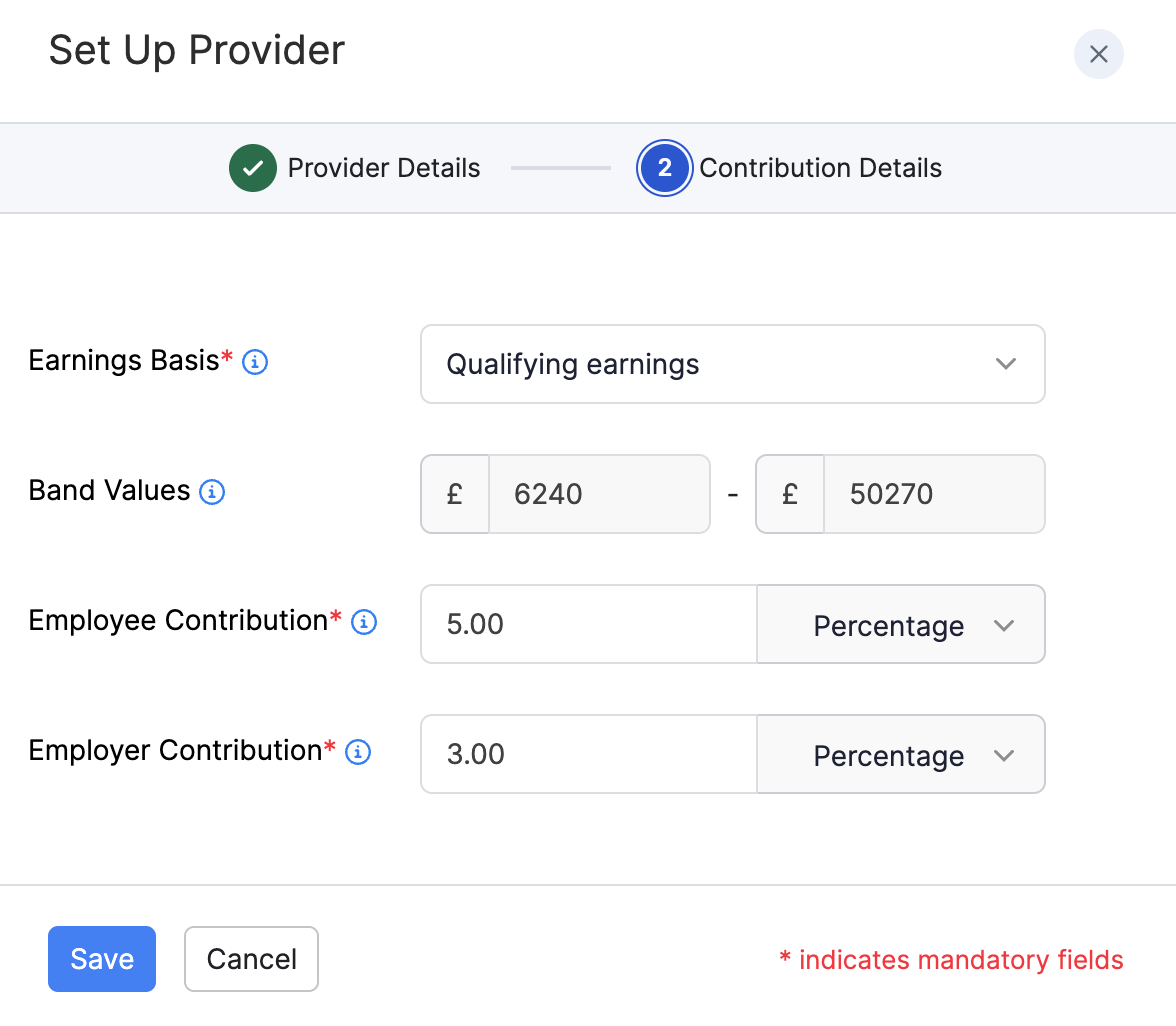
Step 2: Contribution Details
Set how much goes into your employees’ pensions and which pay it’s calculated on.
- Select the Earnings Basis*. This is which pay the contribution percentages apply to.
- Review or set the Qualifying Earnings Band when it appears.
- Enter the Employee Contribution*. This is the percentage the employee pays into their pension, calculated on the earnings basis you selected.
- Enter the Employer Contribution*. This is the percentage you pay as the employer, calculated on the same earnings basis.
- Click Save.
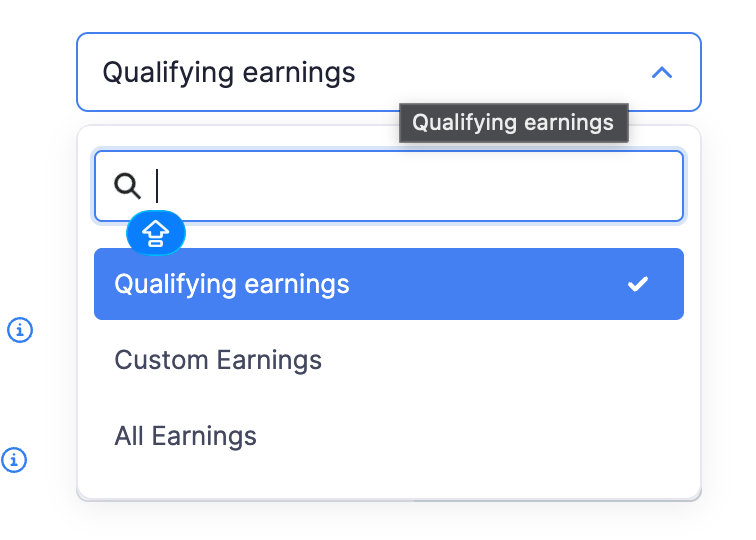
Earnings Basis
Zoho Payroll supports three earnings bases. In the app these appear as Qualifying earnings, Custom Earnings, and All Earnings:
| Earnings Basis | How it works |
|---|---|
| Qualifying earnings | Uses only pay between the lower and upper earnings limits for the tax year (for example £6,240 to £50,270). |
| Custom Earnings | Lets you set your own lower and upper limits (custom qualifying earnings). To stay a qualifying scheme, keep the band at least as wide as the statutory range (£6,240 to £50,270 for 2025/26). |
| All Earnings | Uses everything the employee earns (total pay). |
Qualifying Earnings Band
The pay range used to calculate contributions. Earnings between the lower and upper limits count towards the pension.
- For standard Qualifying earnings, these limits are fixed by HMRC and update each tax year.
- For Custom Earnings, you can set your own limits, but keep the band at least as wide as the statutory range to stay a qualifying scheme.
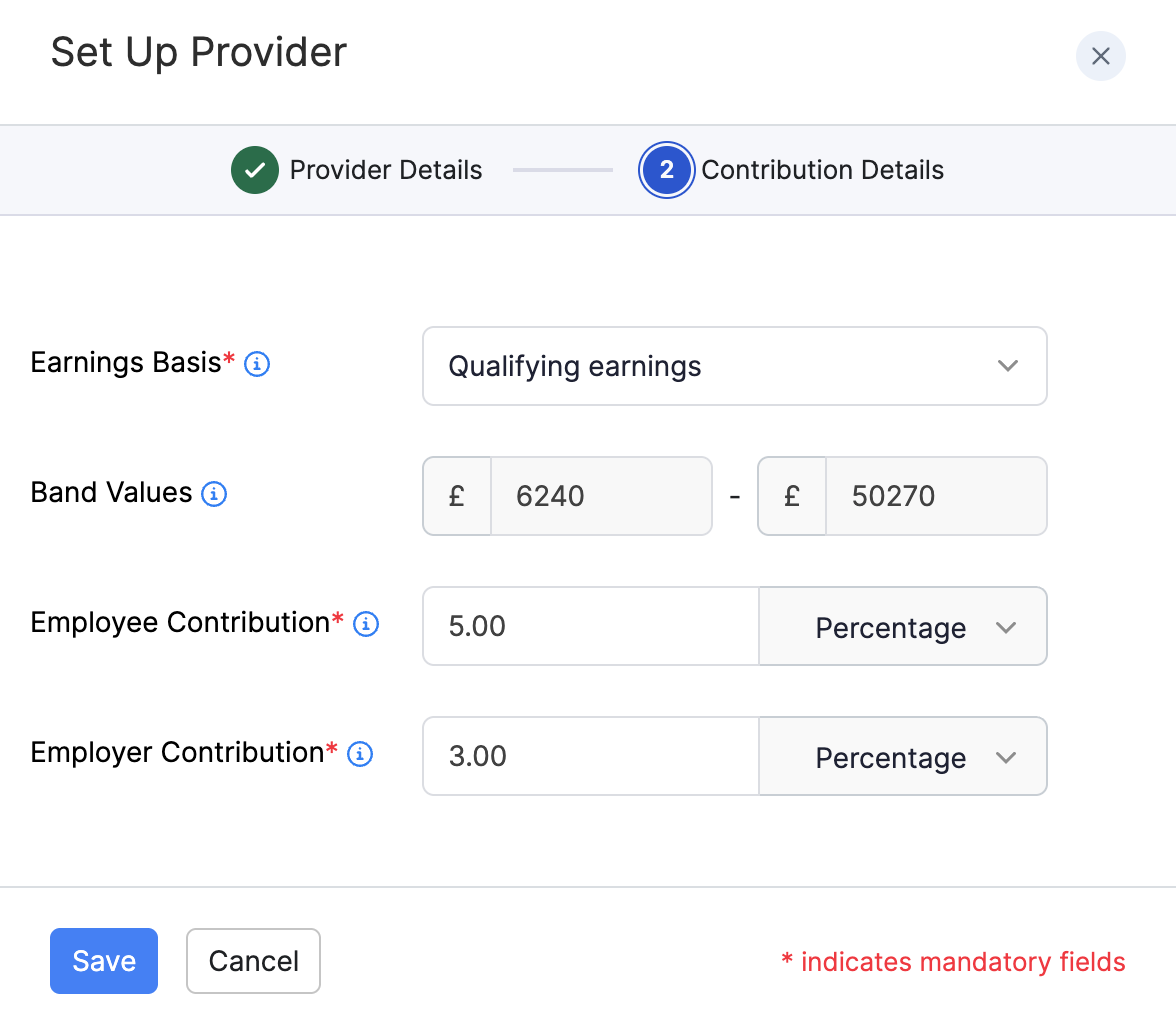
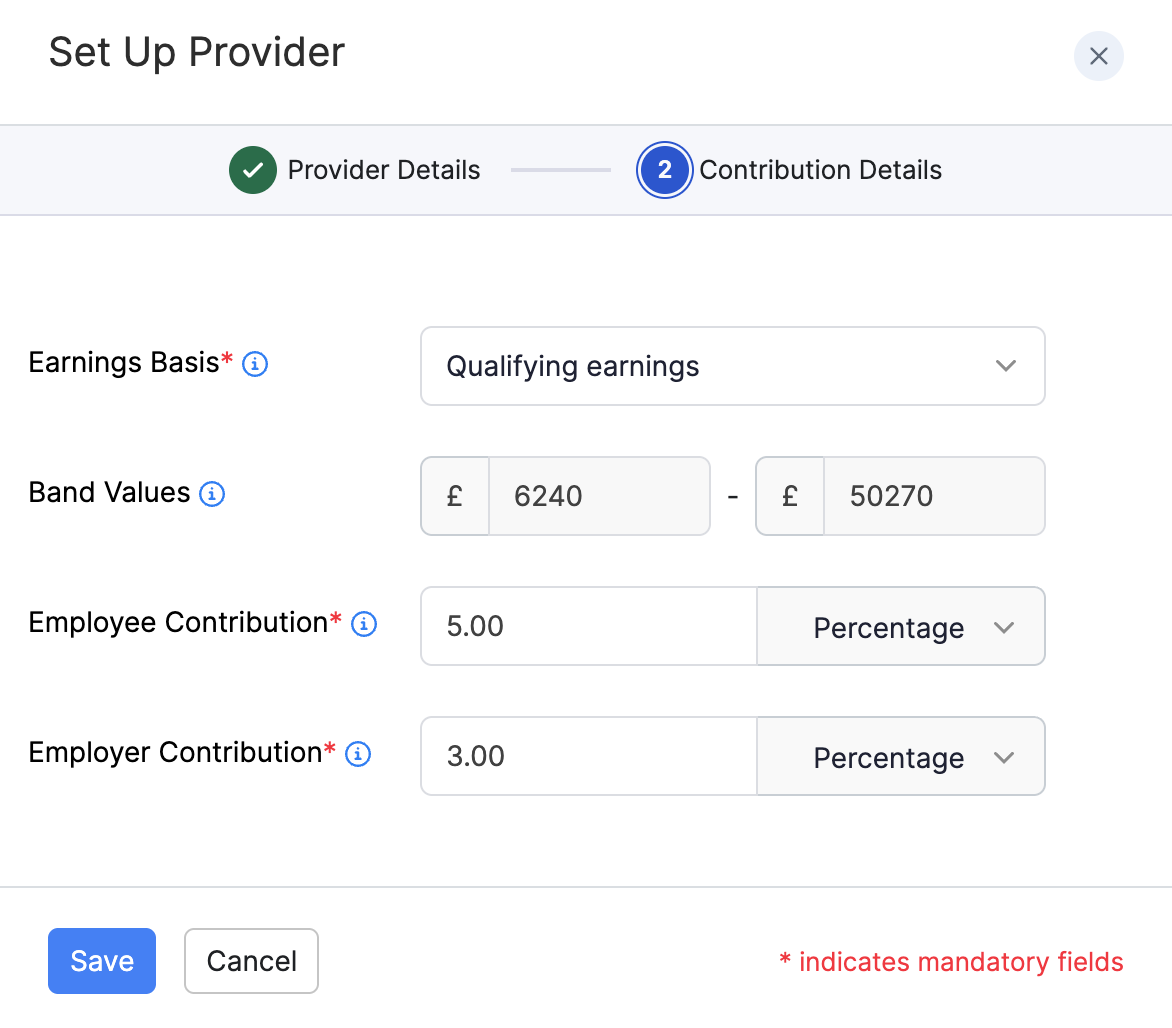
Scenario: Zylker has an employee who earns £30,000 a year. How contributions are calculated depends on the earnings basis:
- Qualifying earnings: Contributions are worked out on the portion between the lower and upper earnings limits. For example, £30,000 minus £6,240 = £23,760, not the full salary.
- Custom Earnings: Contributions are worked out on the band Zylker sets. For example, if Zylker sets £6,240 to £40,000, contributions apply to £30,000 minus £6,240 = £23,760. The band must stay at least as wide as the statutory range.
- All Earnings: Contributions are worked out on the full £30,000.
In each case, Zoho Payroll applies the employee and employer contribution rates set for the group.
Note: Use the earnings basis your pension provider and scheme rules require. Thresholds for qualifying earnings can change each tax year.
The provider appears under Configured Providers on the Pensions page. You can open View Details for that provider, or add another provider with Set Up Now.
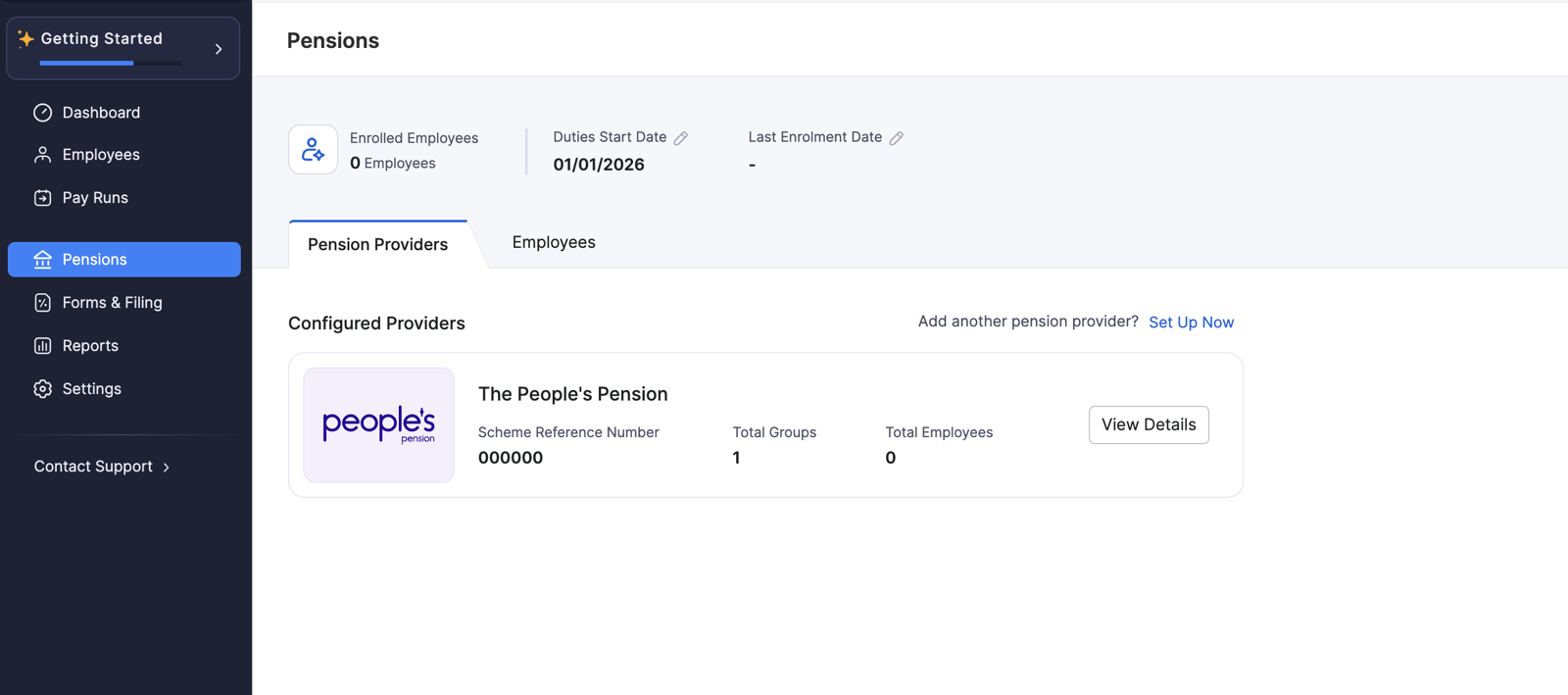
Note: You can connect more than one pension provider. Each provider can have its own employer pension scheme reference and contribution groups.