Activity Logs

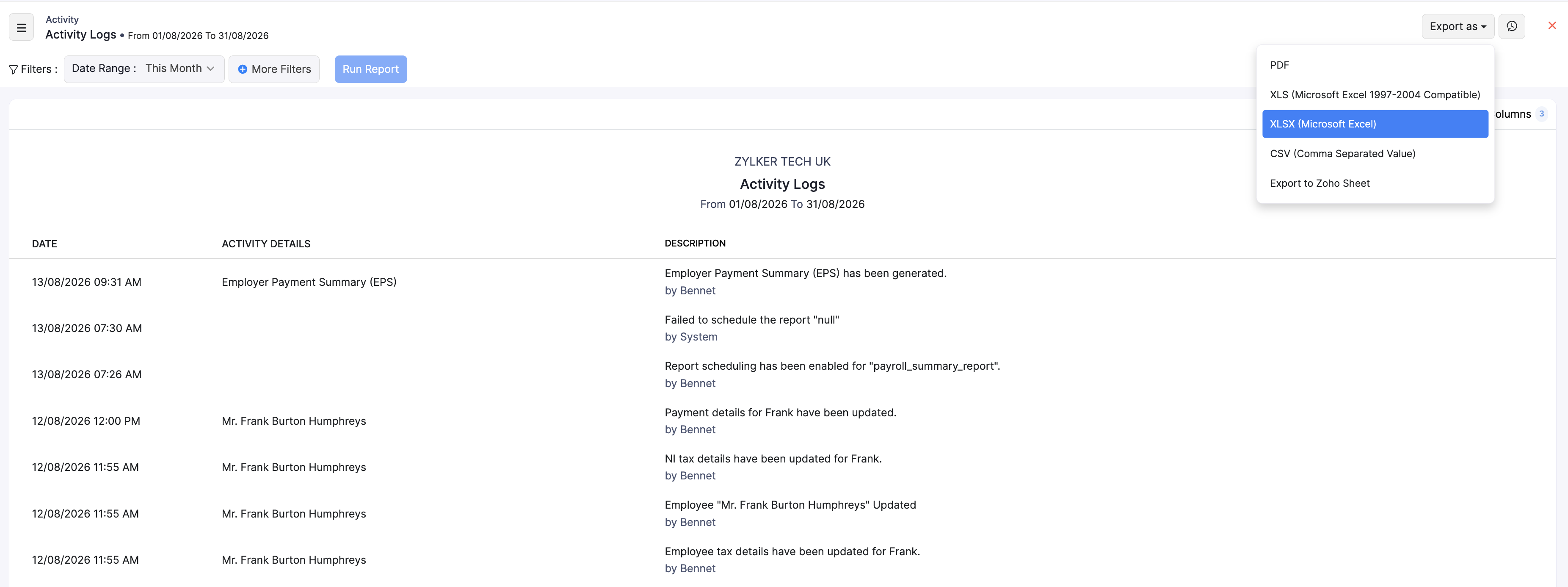
The Activity Logs report lists actions taken in your Zoho Payroll organisation for a selected period. Use it to see who changed employee or tax details, when filings or reports were generated, and other system events.
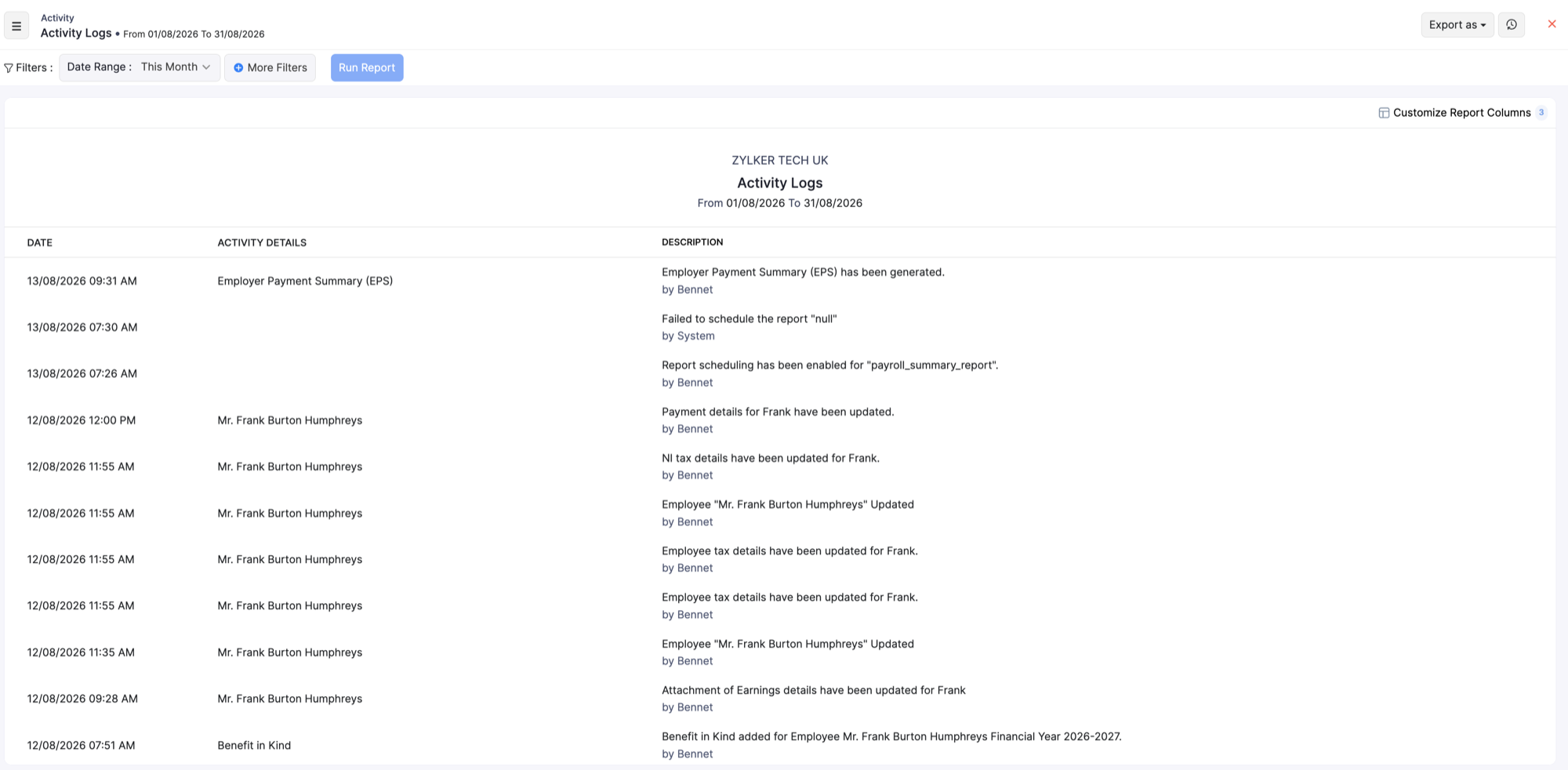
View Activity Logs
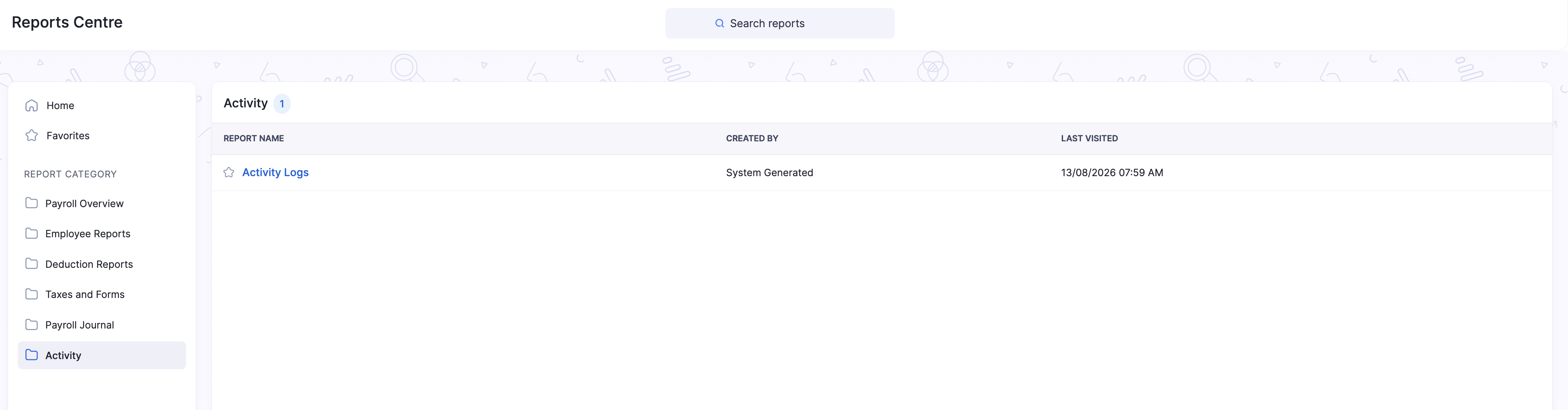
- Go to Reports on the left sidebar.
- Under Activity, open Activity Logs.
- Set the Date Range, then click Run Report. Use the filter, customise, schedule, and export options described below.
What the report shows
| Column | Description |
|---|---|
| Date | When the activity occurred. |
| Activity Details | The related record or area (for example an employee name, Benefit in Kind, or Employer Payment Summary (EPS)). |
| Description | What changed and who made the change (user name or System). |
Examples of activity you may see include EPS generation, updates to employee tax or National Insurance details, Benefit in Kind changes, Attachment of Earnings updates, and report scheduling events.
Filter, customise, schedule, and export
After you open this report, you can refine the period, narrow results, schedule report emails, or download the data. For a list of all the reports, see Reports Centre.
Date range and more filters
- Choose a Date Range preset, or select Custom and pick start and end dates.
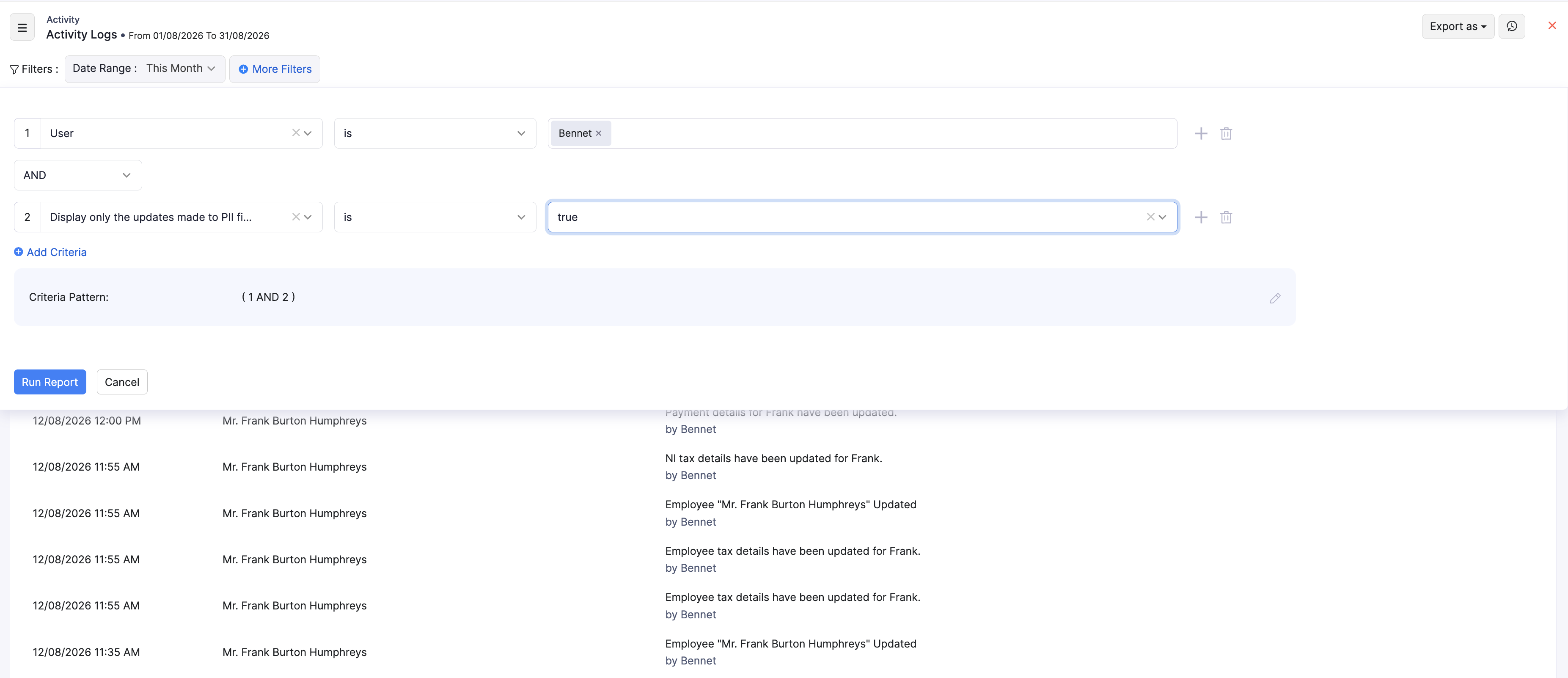
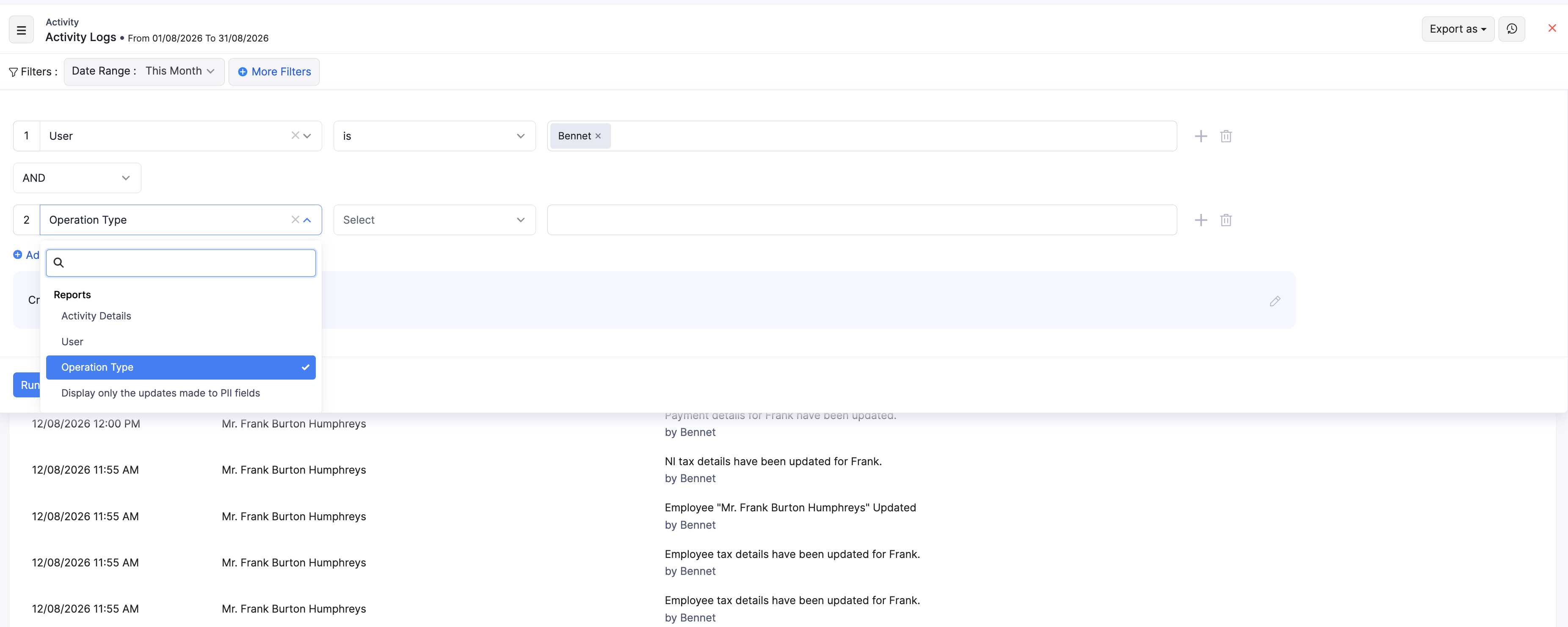
- Optional: click + More Filters to narrow the log (for example by User, Activity Details, Operation Type, or whether only PII field updates are shown).
- Click Run Report to refresh the results.
Customise columns
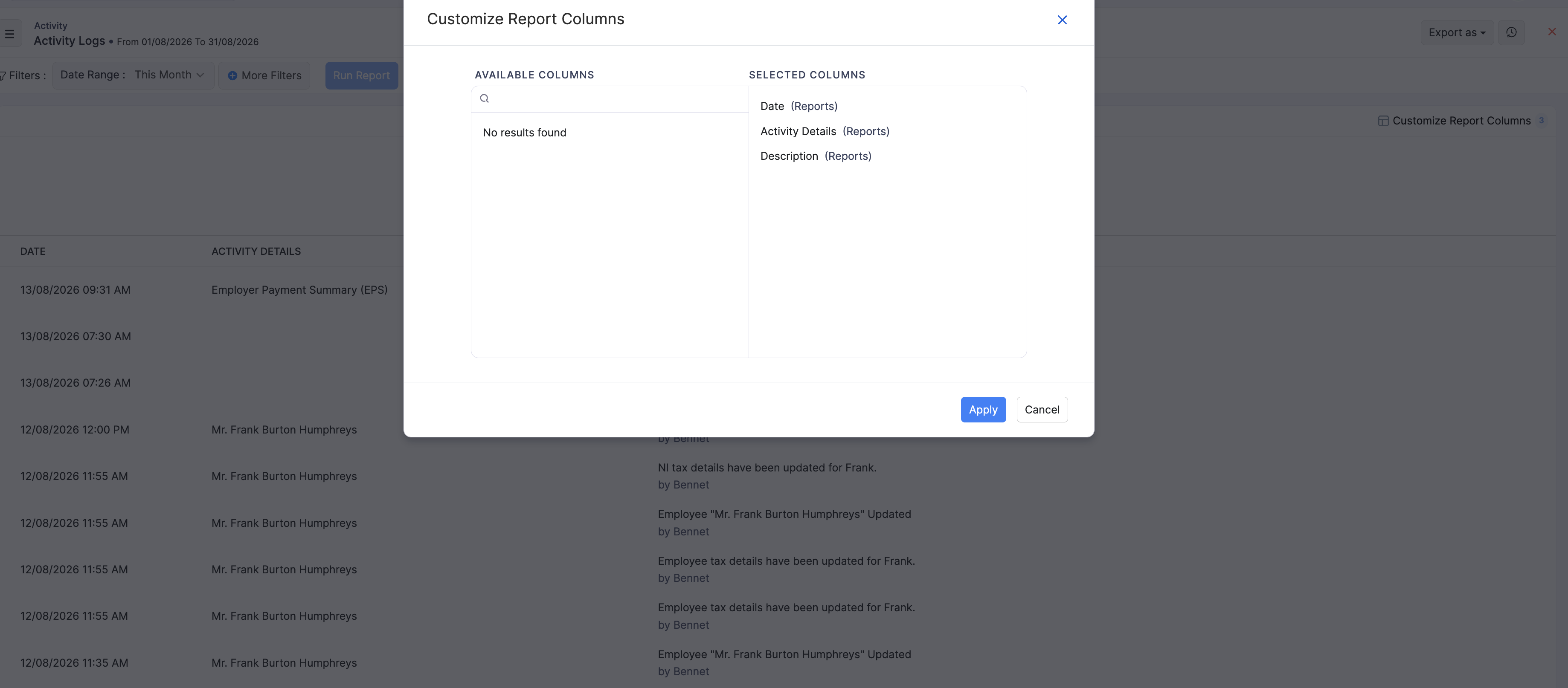
Click Customize Report Columns to choose which columns appear.
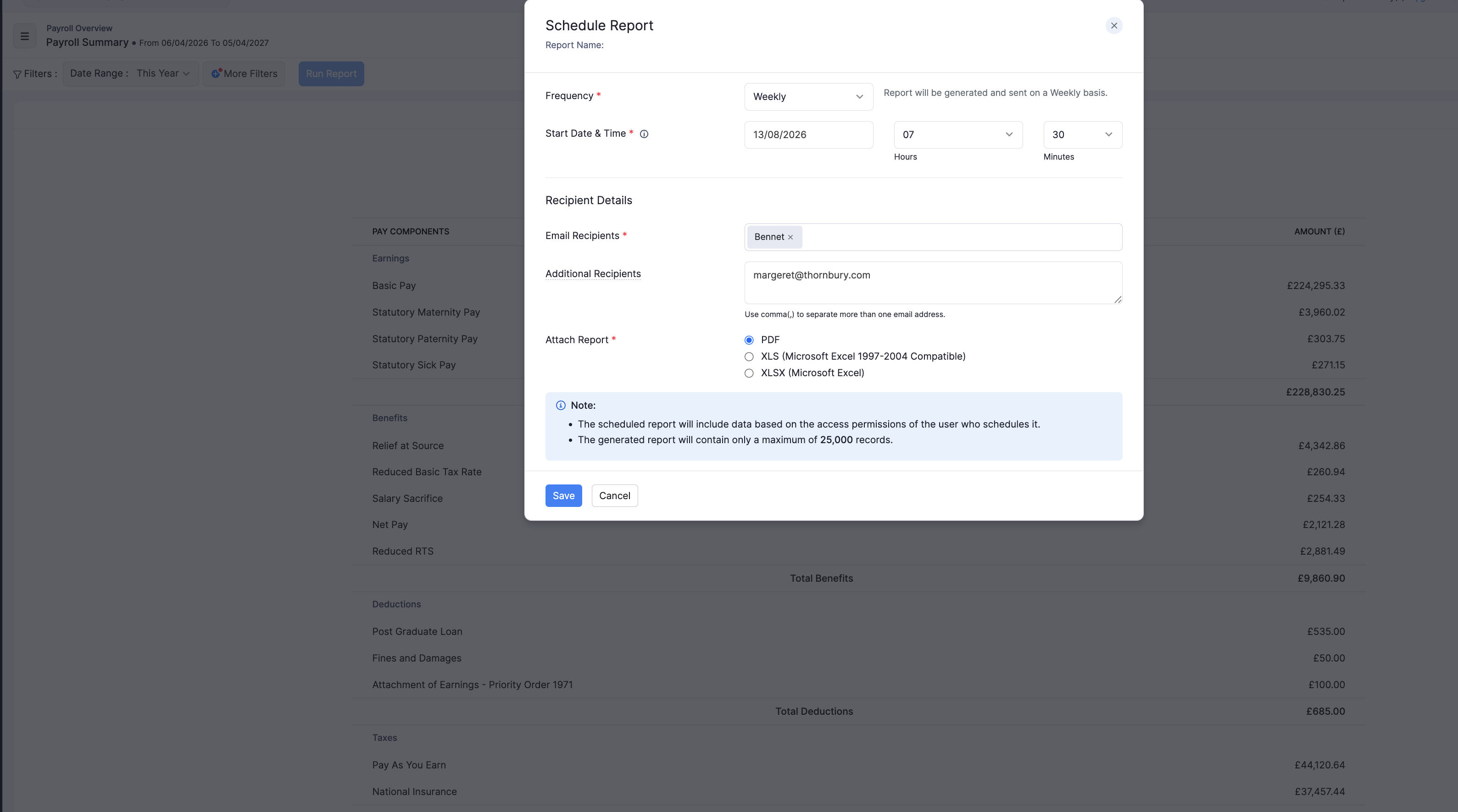
Schedule the report
- Open the schedule option on the report if available.
- Choose how often to send it (Weekly, Monthly, Quarterly, or Yearly).
- Add recipients and the file format (PDF, XLS, XLSX, or CSV where available).
- Save the schedule.
Export the report
- Click Export as.
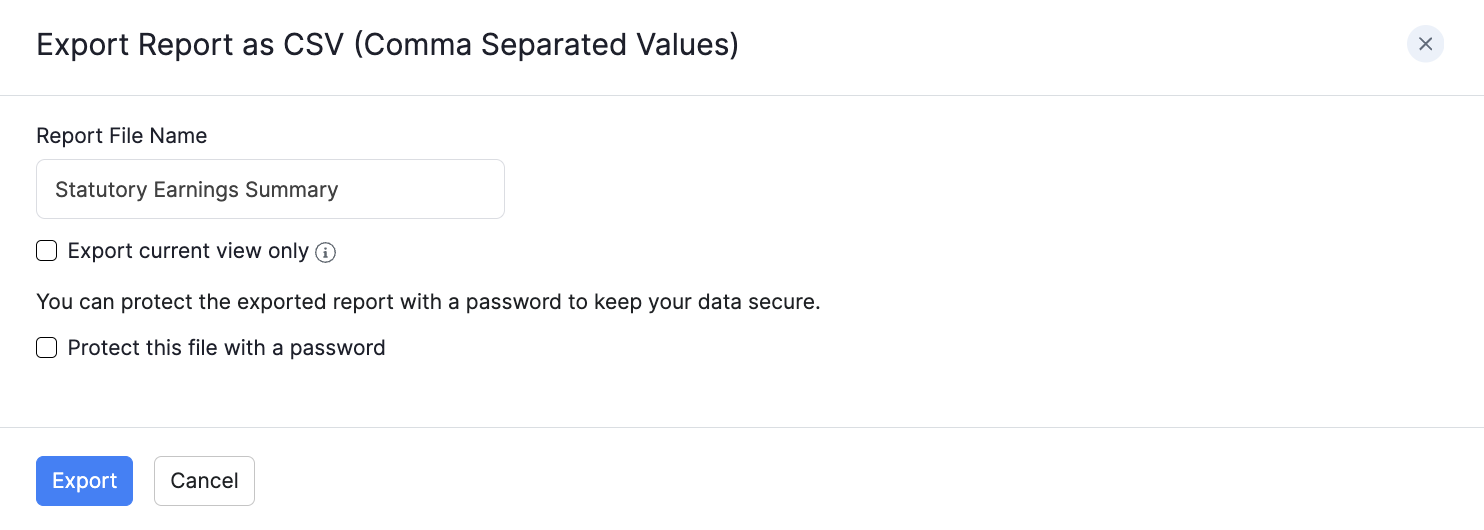
- Choose PDF, CSV (where available), XLS, XLSX, or Zoho Sheet.
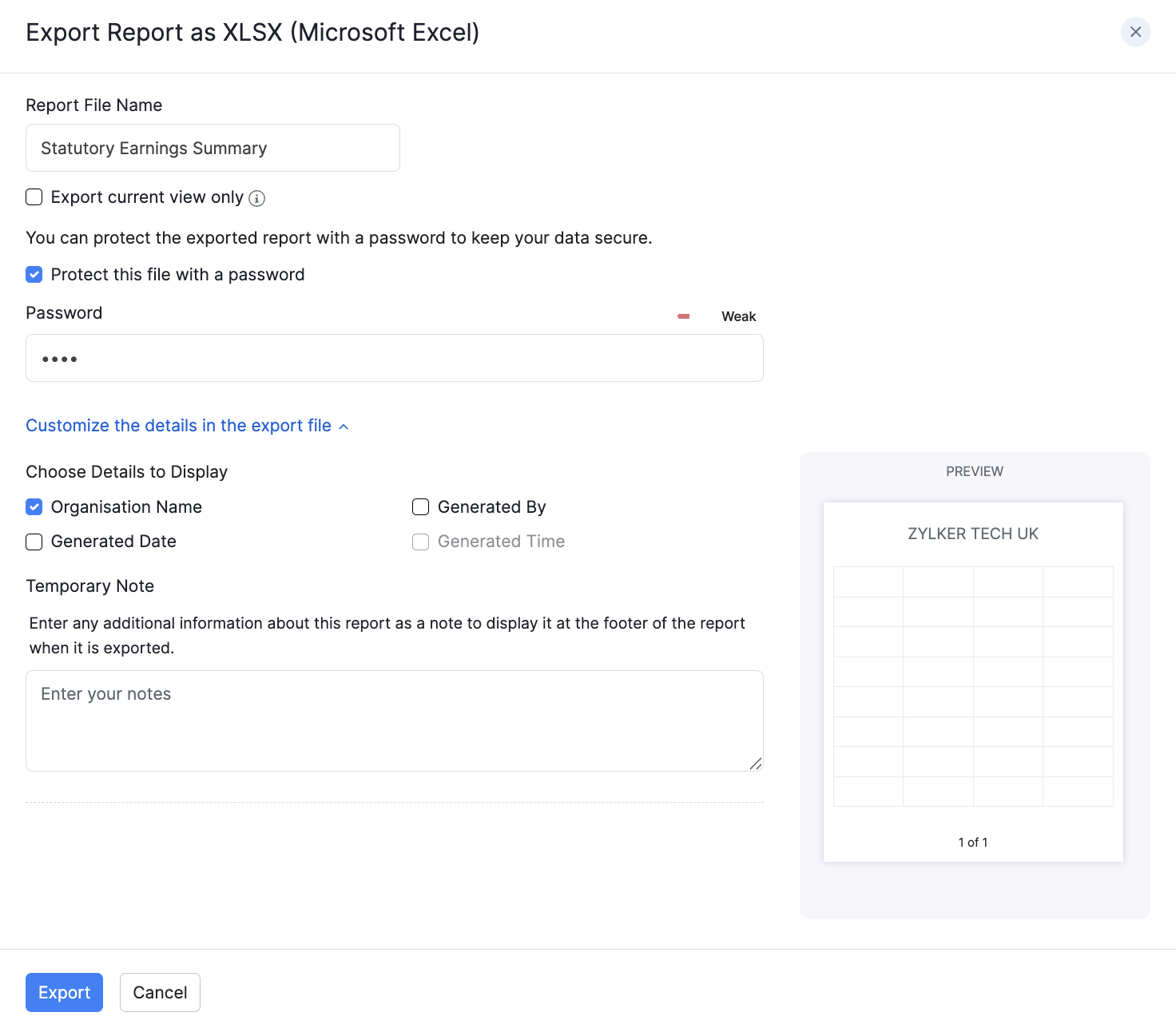
- Optional: select Protect this file with a password and enter a password of at least 6 characters.
- Click Export.