
Add Employees

Adding employees is how you get payroll ready to run. Zoho Payroll uses each employee’s details to calculate pay, deduct PAYE tax and National Insurance, and generate payslips.
You can add employees one by one, or import several at once from the Employees empty state or the More menu.
To add an employee manually:
- Go to Employees.
- Click Add Employee, or click + Add at the top right.
- Complete each step in the Add Employee flow:
Basic Details
Basic Details is the first step in the Add Employee flow. Use it to record who the employee is, when they start, where they work, and whether they should get Employee Portal access. Zoho Payroll uses these details across payslips, reporting, and the employee profile.
Enter the employee’s identity and work details, then click Save and Continue.
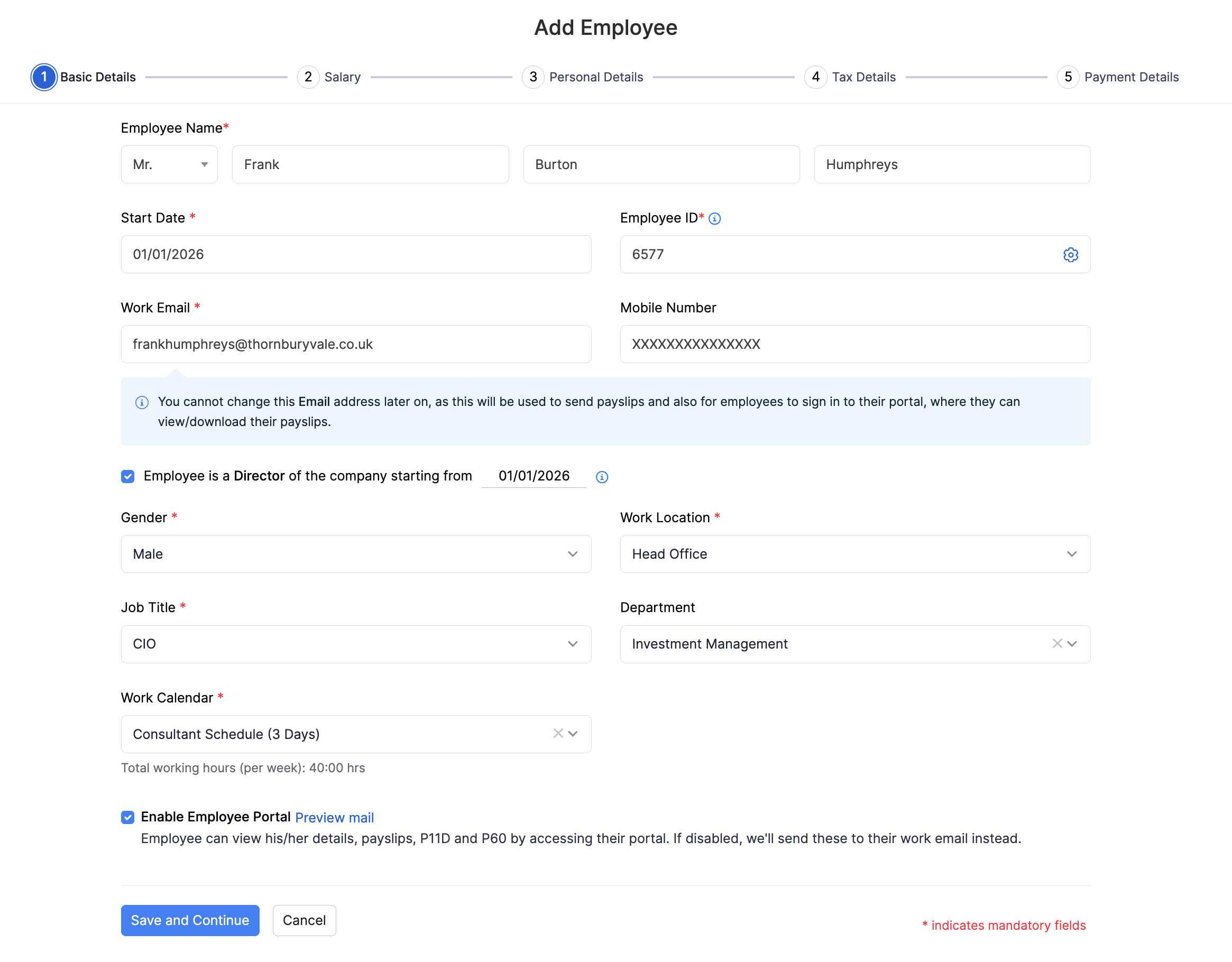
| Field | Description |
|---|---|
| Employee Name | Enter the employee’s title, first name, middle name (optional), and last name. |
| Start Date | The employee’s first day of work. |
| Employee ID | A unique ID for the employee. This may be auto-generated or entered manually, depending on your Employee Preferences. |
| Work Email | The employee’s work email. Zoho Payroll uses this for payslips and for Employee Portal sign-in if you enable portal access. You cannot change this email later once it is set. |
| Mobile Number | The employee’s mobile number. |
| Gender | Select the employee’s gender. |
| Work Location | Where the employee primarily works. You can add a new location from the dropdown. Refer to Work Locations. |
| Job Title | The employee’s job title. You can add a new title from the dropdown. Refer to Job Titles. |
| Department | The employee’s department. You can add a new department from the dropdown. Refer to Departments. |
| Work Calendar | The work calendar that sets their working days and weekly hours. Zoho Payroll shows the total working hours per week for the calendar you select. Refer to Work Calendars. |
Also choose:
- Employee is a Director of the company starting from: Select this if the employee is a company director, and enter the director start date.
- Enable Employee Portal: Select this to invite the employee to the Employee Portal. In the portal, employees can view their details, payslips, P11D, and P60. If portal access is disabled, Zoho Payroll sends these to their work email instead. You can preview the invite email before you continue.
Click Save and Continue to move to Salary.
Salary
The Salary step defines how the employee is paid. At minimum, you enter their basic pay. You can also record Benefits in Kind and Deductions here so they are ready before the first pay run. You can change these later from the employee’s Salary tab.
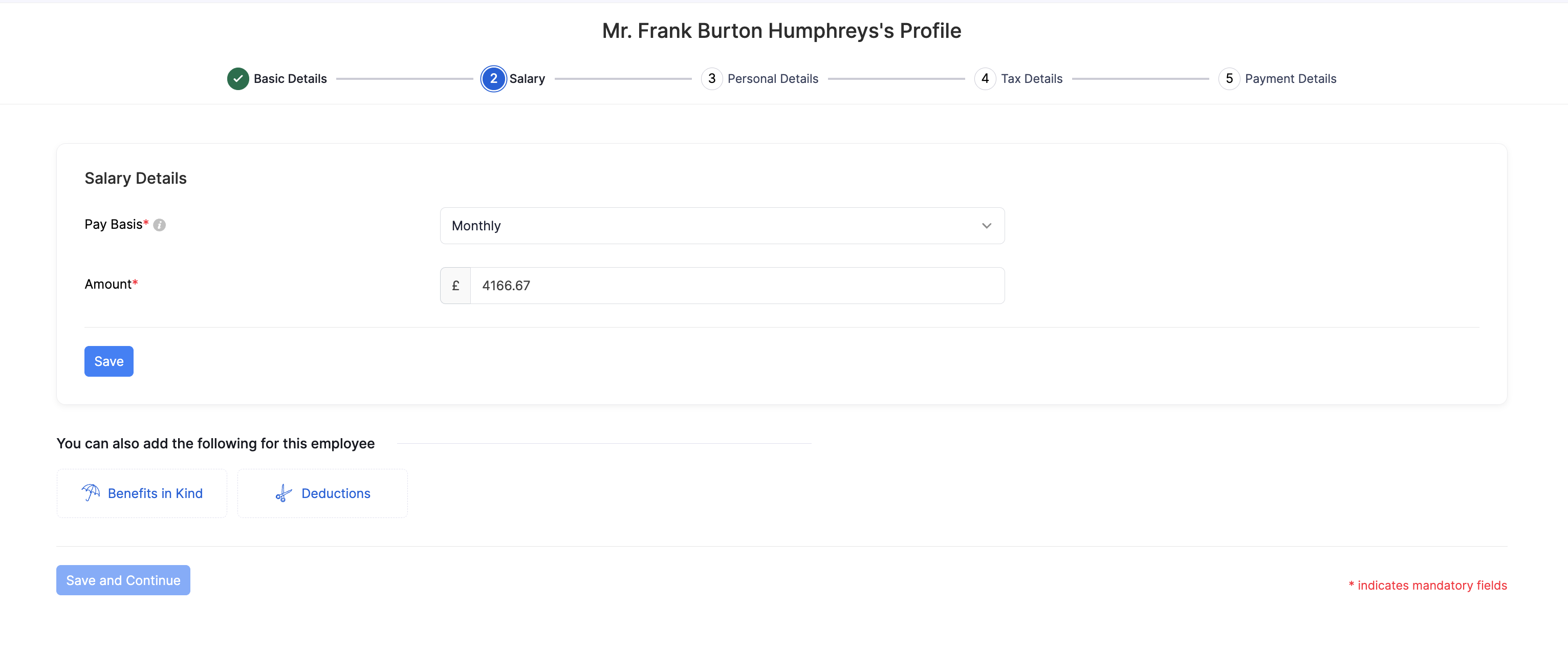
Basic pay is the employee’s regular wage or salary. Choose how often it is paid and the amount for that frequency.
- Select the Pay Basis (Yearly, Monthly, Weekly, or Hourly).
- Enter the Amount.
- Click Save on the Salary Details card.
After basic pay is saved, Zoho Payroll shows the Basic Pay summary. You can then add Benefits in Kind or Deductions, or click Save and Continue.
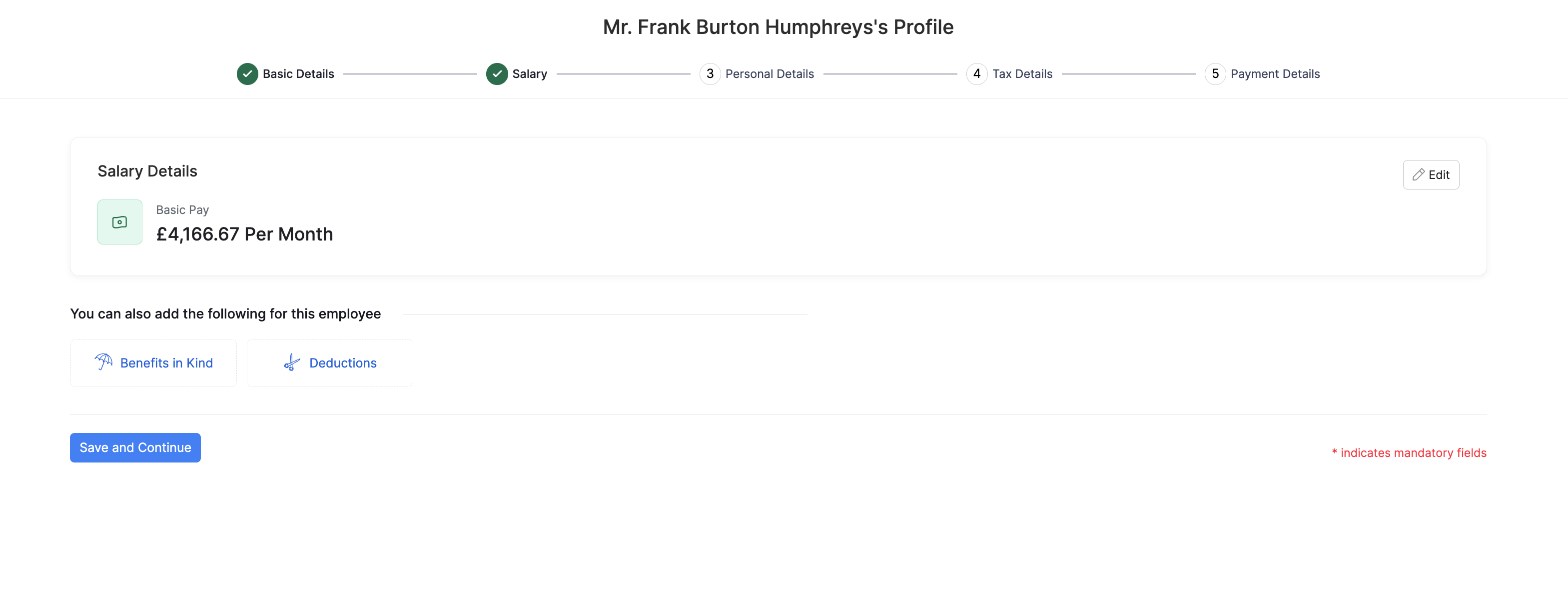
Benefits in Kind
Benefits in Kind are non-cash benefits you provide to an employee, such as a company car, private medical cover, or living accommodation. Many of these are taxable and must be reported to HMRC. In Zoho Payroll, you record each benefit against the employee and choose whether it is reported on a P11D or through payroll (PAYE).
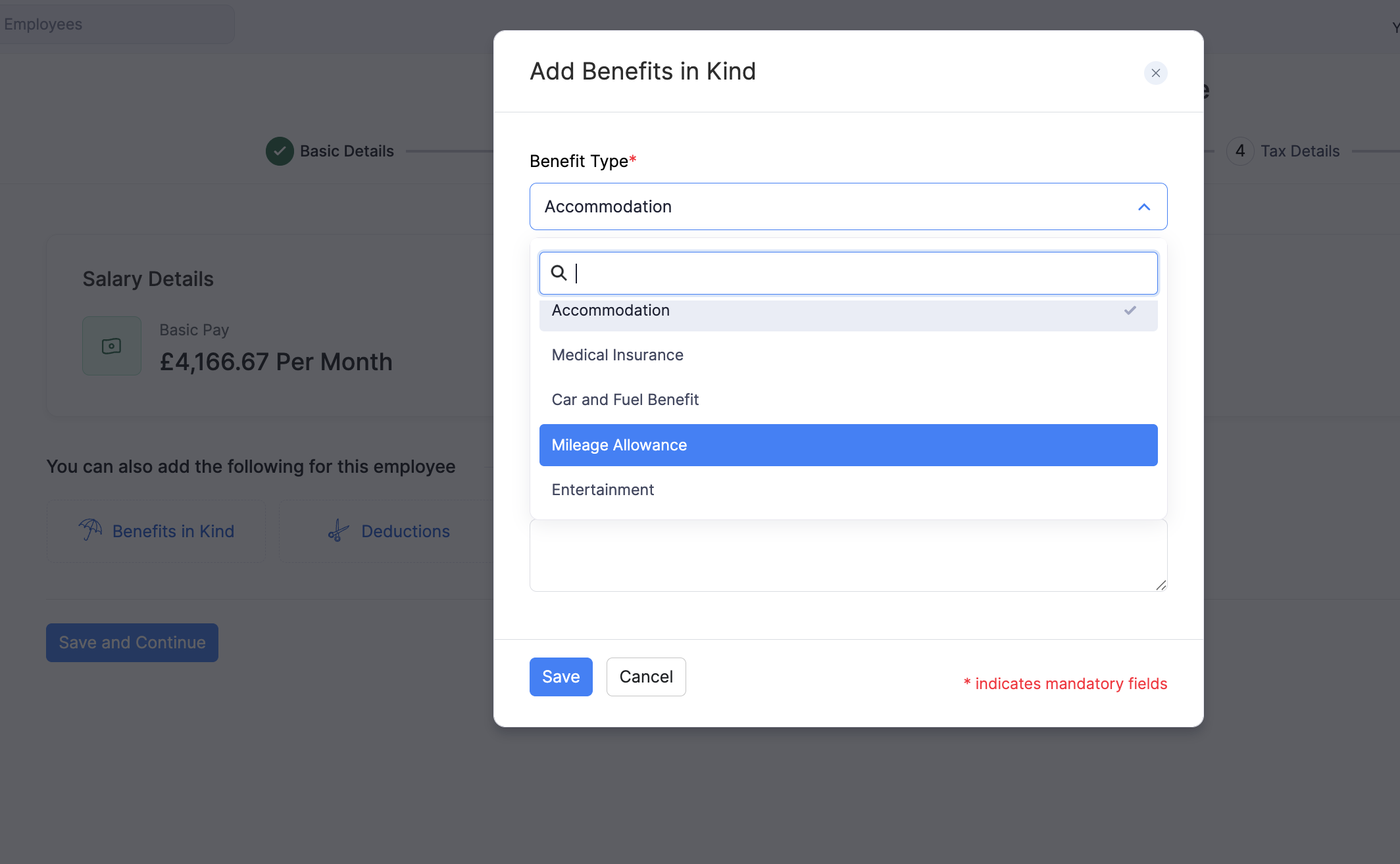
Click Benefits in Kind to open Add Benefits in Kind. Select the Benefit Type, choose the Reporting Type (P11D or PAYE), enter the fields for that benefit, then click Save.
Reporting type: P11D or PAYE
Reporting type controls how the benefit is sent to HMRC:
- P11D: Report the benefit on the employee’s P11D (and related Class 1A NIC where applicable) rather than through payrolling.
- PAYE: Report the benefit through payroll (payrolling benefits in kind), so the taxable amount is included in the employee’s pay and FPS as required.
Use the option that matches how you report that benefit to HMRC. Refer to the GOV.UK guidance on expenses and benefits for employers for when and how to report benefits.
Benefit types
Zoho Payroll supports the benefit types below. The fields you complete depend on the type. Use the FAQs for the full walkthrough and screenshots for each one.
| Benefit in Kind | Description | FAQ |
|---|---|---|
| Accommodation | Living accommodation provided by the employer | How to add Accommodation as a Benefit in Kind? |
| Medical Insurance | Private medical or health insurance cover | How to add Medical Insurance as a Benefit in Kind? |
| Car and Fuel Benefit | Company car and any free fuel for private use | How to add Car and Fuel Benefit as a Benefit in Kind? |
| Mileage Allowance | Mileage payments that need reporting, such as amounts above the HMRC approved rate | How to add Mileage Allowance as a Benefit in Kind? |
| Entertainment | Corporate hospitality or entertainment provided to the employee | How to add Entertainment as a Benefit in Kind? |
| Vouchers | Retail or gift vouchers that can be exchanged for goods or services | How to add Vouchers as a Benefit in Kind? |
| Payments made on behalf of employee | Non-expense payments you make for the employee | How to add Payments made on behalf of employee as a Benefit in Kind? |
| Assets Transferred | Assets transferred from the employer to the employee | How to add Assets Transferred as a Benefit in Kind? |
| Services | Services provided to the employee | How to add Services as a Benefit in Kind? |
| Other Items (Class 1A) | Other taxable benefits that attract Class 1A NIC | How to add Other Items (Class 1A) as a Benefit in Kind? |
| Other Items (Non-Class 1A) | Other taxable benefits that do not attract Class 1A NIC | How to add Other Items (Non-Class 1A) as a Benefit in Kind? |
| Telephone | Employer-provided telephone benefits | How to add Telephone as a Benefit in Kind? |
| Expenses Payments Made on Behalf of the Employee | Expenses you pay on the employee’s behalf | How to add Expenses Payments Made on Behalf of the Employee as a Benefit in Kind? |
| Qualifying Relocation Expenses | Qualifying relocation expenses for the employee | How to add Qualifying Relocation Expenses as a Benefit in Kind? |
| Van | Company van available for private use | How to add Van as a Benefit in Kind? |
| Van Fuel | Free fuel for private use of a company van | How to add Van Fuel as a Benefit in Kind? |
| Assets Placed at Employees Disposal | Assets made available for the employee’s private use | How to add Assets Placed at Employees Disposal as a Benefit in Kind? |
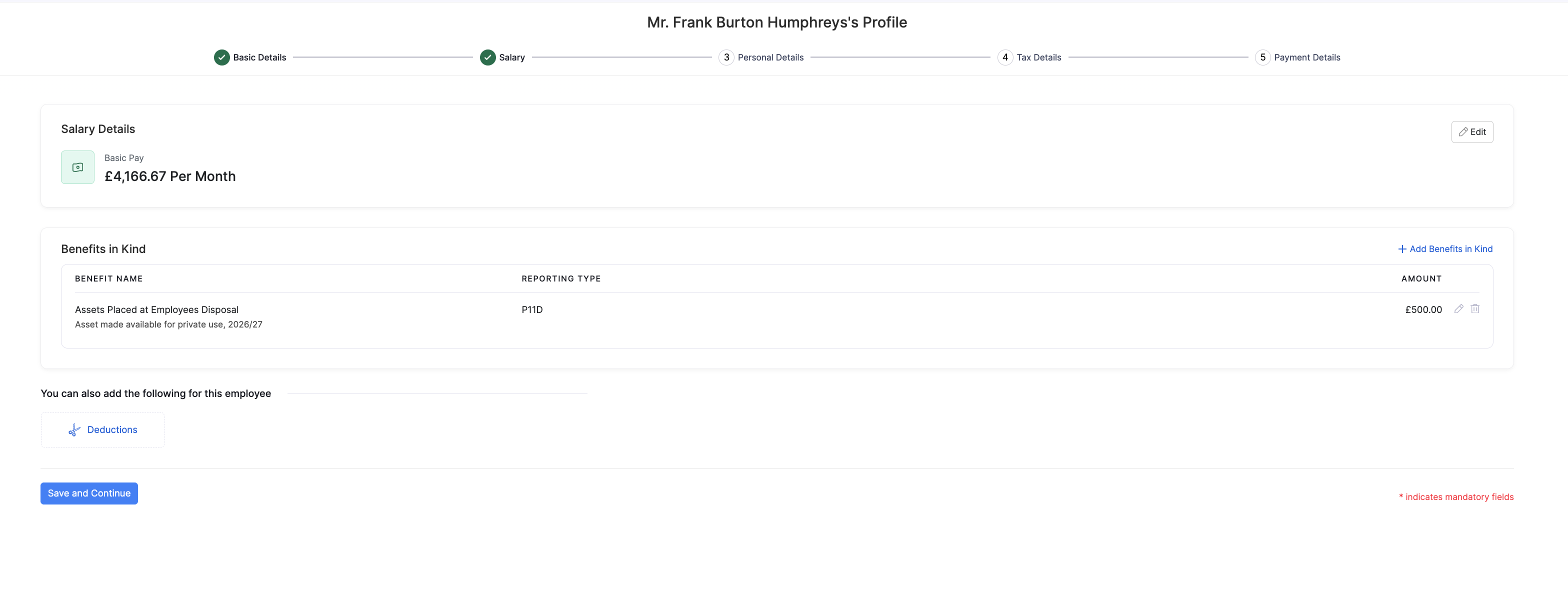
Saved benefits appear under Benefits in Kind on the Salary step.
Deductions
Deductions are amounts taken from an employee’s pay before or when you run payroll. In the UK edition, this includes student and postgraduate loan repayments collected for HMRC, court or government Attachment of Earnings Orders / Arrestments, and other recurring deductions you configure.
Click Deductions to open Add Deduction, then select a deduction type.
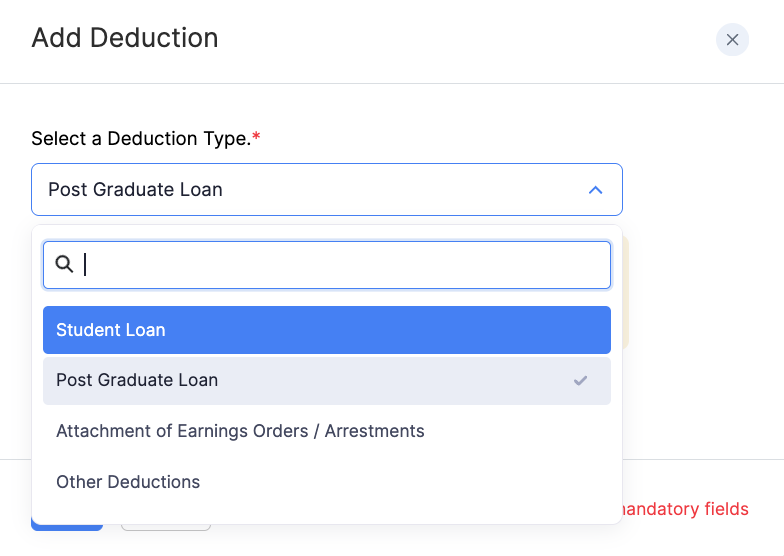
The fields differ by deduction type. Use the FAQs below for the full walkthrough and screenshots for each type.
Student and postgraduate loans
Student and postgraduate loan deductions are statutory repayments collected through PAYE. When an employee’s earnings go above the threshold for their plan, Zoho Payroll calculates the repayment and includes it in the pay run for HMRC.
| Deduction | Description | FAQ |
|---|---|---|
| Student Loan | Student loan repayments collected through payroll for HMRC when earnings exceed the plan threshold. | How to add a Student Loan deduction? |
| Post Graduate Loan | Postgraduate loan deductions collected through payroll for HMRC for a master’s or doctoral loan. | How to add a Postgraduate Loan deduction? |
Attachment of Earnings Orders / Arrestments
An Attachment of Earnings Order (or a Scottish arrestment) is a legal instruction that requires you, as the employer, to deduct money from an employee’s pay and send it to the collecting authority. Different order types exist for council tax, child support, fines, Direct Earnings Attachments, and related Scottish orders.
Select Attachment of Earnings Orders / Arrestments, choose the attachment type, enter the order details, then click Save.
Protected earnings is the amount of pay the employee must be left with after the deduction. If the deduction is reduced to the protected earnings rate, any shortfall can carry forward to the next pay period.
Scenario: Sam has a council tax attachment that should take £120 from this month’s pay. The order also says Sam must be left with at least £1,100 (protected earnings). If deducting the full £120 would leave Sam with only £1,040, Zoho Payroll takes a smaller amount so Sam still has £1,100, and carries the unpaid balance forward to the next pay period.
| Attachment type | Description | FAQ |
|---|---|---|
| Attachment of Earnings - Priority Order 1971 | A priority attachment of earnings order under the 1971 rules. | How to add Attachment of Earnings - Priority Order 1971? |
| Attachment of Earnings - Non-Priority Order 1971 | A non-priority attachment of earnings order under the 1971 rules. | How to add Attachment of Earnings - Non-Priority Order 1971? |
| Attachment of Earnings - Fines 2006 | An attachment of earnings order for fines under the 2006 rules. | How to add Attachment of Earnings - Fines 2006? |
| Child Support (Pre-2012) - Deduction from Earnings | A child support deduction from earnings order under the pre-2012 scheme. | How to add Child Support (Pre-2012) - Deduction from Earnings? |
| Child Support (2012) - Deduction from Earnings | A child support deduction from earnings order under the 2012 scheme. | How to add Child Support (2012) - Deduction from Earnings? |
| Pre-92 Community Charge | A community charge attachment of earnings order from before 1992. | How to add Pre-92 Community Charge? |
| Post-92 Community Charge | A community charge attachment of earnings order from 1992 onwards. | How to add Post-92 Community Charge? |
| Council Tax Attachment of Earnings Order | A council tax attachment of earnings order. | How to add Council Tax Attachment of Earnings Order? |
| Council Tax Attachment of Earnings Order - Wales | A council tax attachment of earnings order for Wales. | How to add Council Tax Attachment of Earnings Order - Wales? |
| Earnings Arrestment Order (Scotland) | An earnings arrestment order used in Scotland. | How to add Earnings Arrestment Order (Scotland)? |
| Earnings Arrestment Order - Pre-2006 | An earnings arrestment order under the pre-2006 rules. | How to add Earnings Arrestment Order - Pre-2006? |
| Current Maintenance Arrestment (Scotland) | A current maintenance arrestment used in Scotland. | How to add Current Maintenance Arrestment (Scotland)? |
| Conjoined Arrestment Order (Scotland) | A conjoined arrestment order used in Scotland. | How to add Conjoined Arrestment Order (Scotland)? |
| Direct Earnings Attachment - Normal Rate | A Direct Earnings Attachment deducted at the normal rate. | How to add Direct Earnings Attachment - Normal Rate? |
| Direct Earnings Attachment - Higher Rate | A Direct Earnings Attachment deducted at the higher rate. | How to add Direct Earnings Attachment - Higher Rate? |
| Income Support Deduction - Claims and Payments | An income support deduction for claims and payments. | How to add Income Support Deduction - Claims and Payments? |
| Income Support Deduction - Overpayments and Recovery | An income support deduction for overpayments and recovery. | How to add Income Support Deduction - Overpayments and Recovery? |
Other Deductions
Other Deductions covers recurring deductions that are not loans or attachments of earnings, for example a workplace benefit the employee pays for through payroll.
| Deduction | Description | FAQ |
|---|---|---|
| Other Deductions | Other recurring deductions configured for the employee, such as a workplace gym membership. | How to add Other Deductions? |
When Benefits in Kind and Deductions are in place, review the Salary step, then click Save and Continue.
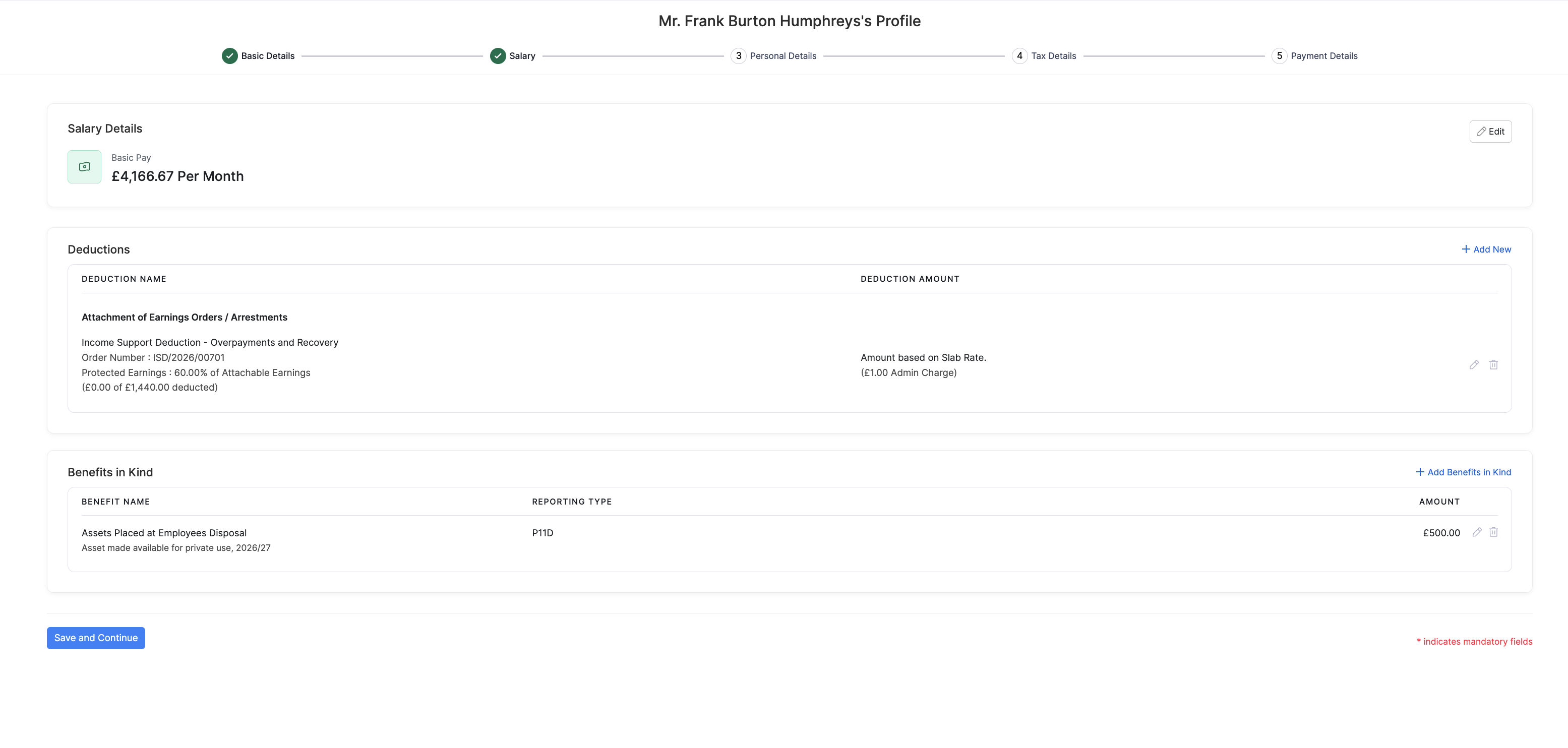
You can also add or edit salary items later from the employee’s Salary tab.
Personal Details
Personal Details captures information about the employee outside their job role, such as date of birth and home address. Zoho Payroll stores these on the employee profile and may use them for contact, records, and statutory processes.
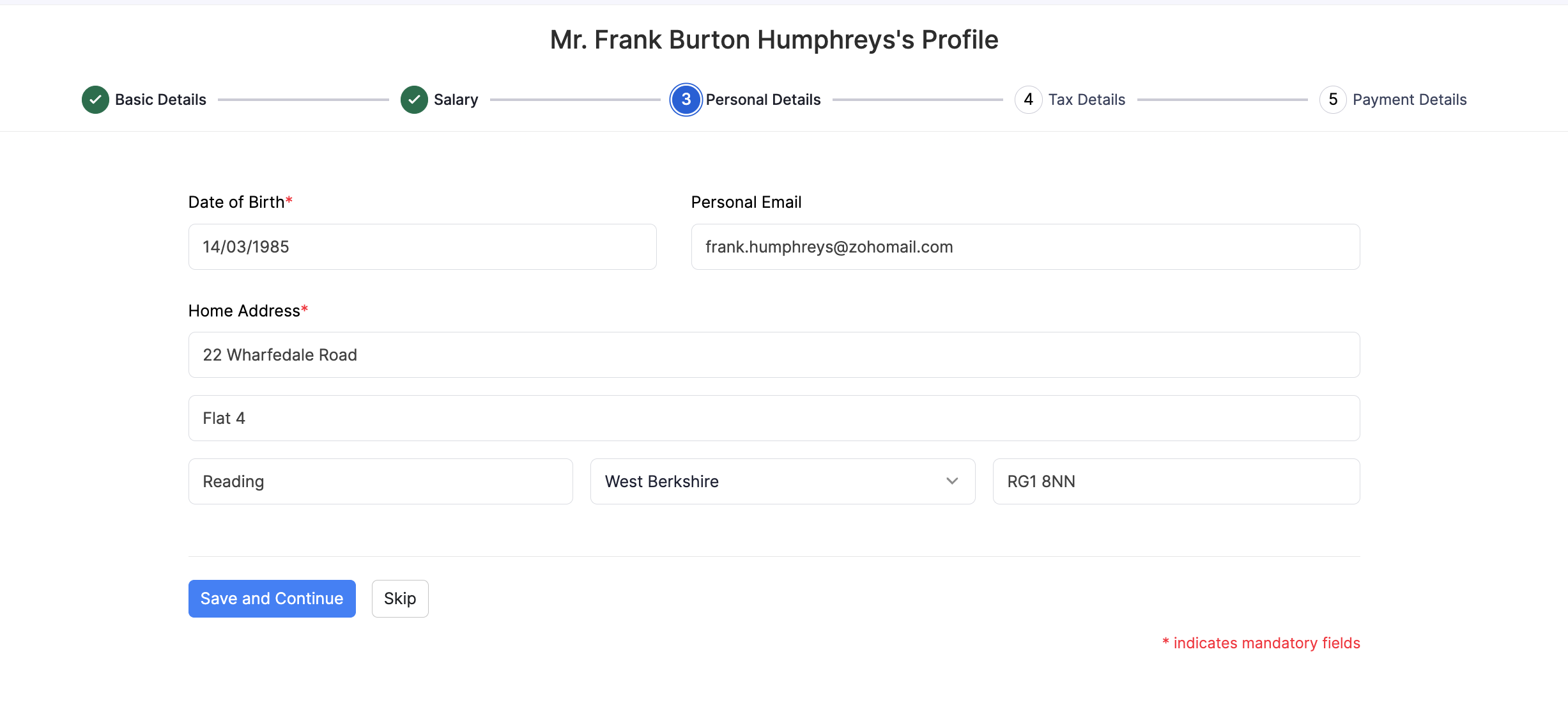
| Field | Description |
|---|---|
| Date of Birth | The employee’s date of birth. |
| Personal Email | An email address for contact outside work, if needed. |
| Home Address | The employee’s home address, including postcode. |
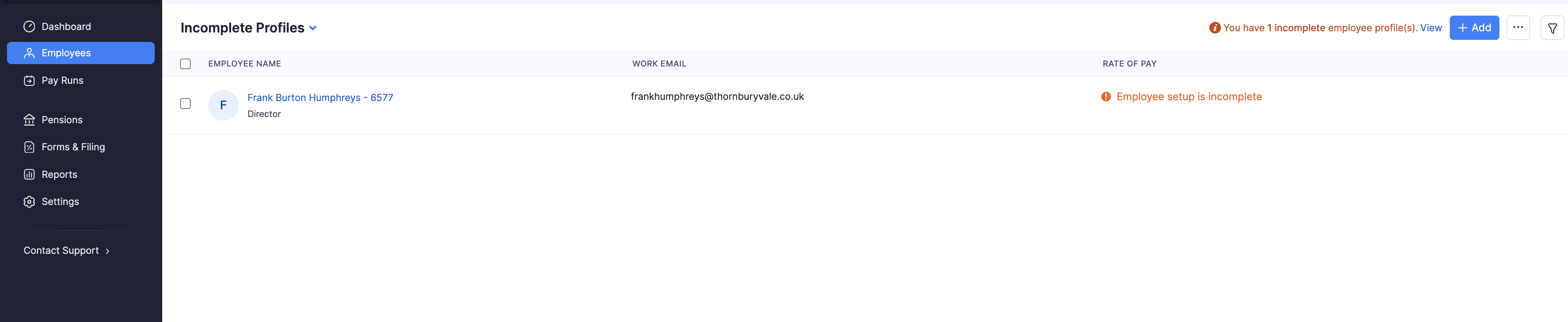
Click Save and Continue to move to Tax Details. You can click Skip if you need to finish this later; the employee then appears under Incomplete Profiles until the setup is complete.
Tax Details
Tax Details tells Zoho Payroll how to calculate PAYE income tax and National Insurance for the employee. These values usually come from the employee’s P45, starter checklist, or notices from HMRC, and they drive the tax and NI figures on each payslip and Full Payment Submission (FPS).
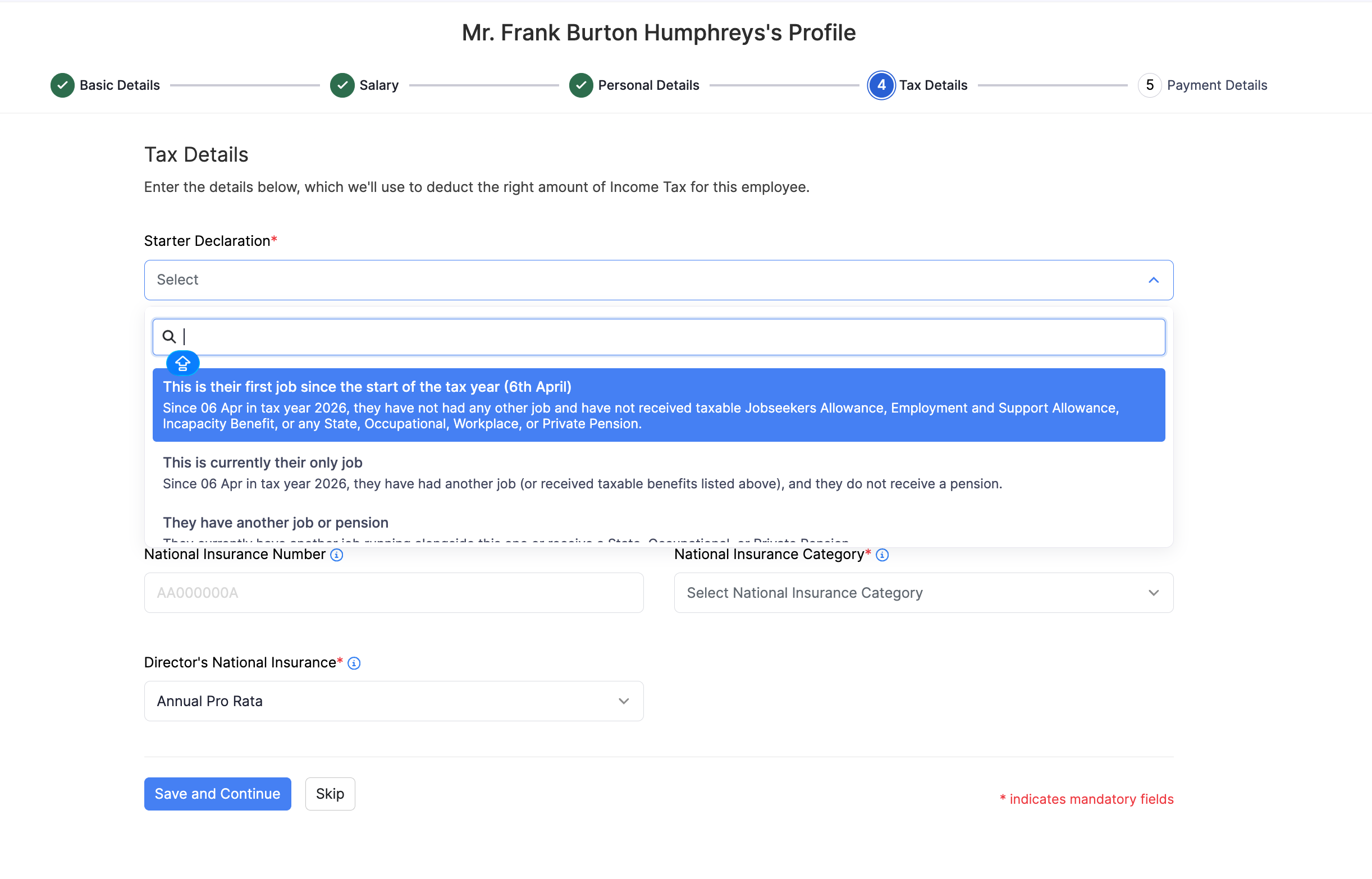
Starter Declaration
The Starter Declaration is the statement the employee makes when they join, so you know which tax treatment to use until HMRC issues a tax code. Choose the option that matches their situation since 6 April of the current tax year:
| Option | When to use it |
|---|---|
| This is their first job since the start of the tax year (6th April) | They have not had another job since 6 April, and have not received taxable Jobseeker’s Allowance, Employment and Support Allowance, Incapacity Benefit, or a state, occupational, workplace, or private pension. |
| This is currently their only job | Since 6 April they have had another job (or received one of the taxable benefits above), and they do not receive a pension. |
| They have another job or pension | They still have another job, or they receive a pension, alongside this role. |
Scenario: Sam joins your organisation in July as their first paid role since 6 April. They have not claimed taxable Jobseeker’s Allowance or a pension. You select This is their first job since the start of the tax year (6th April). Zoho Payroll uses that starter statement until HMRC issues an updated tax code.
Income tax and National Insurance
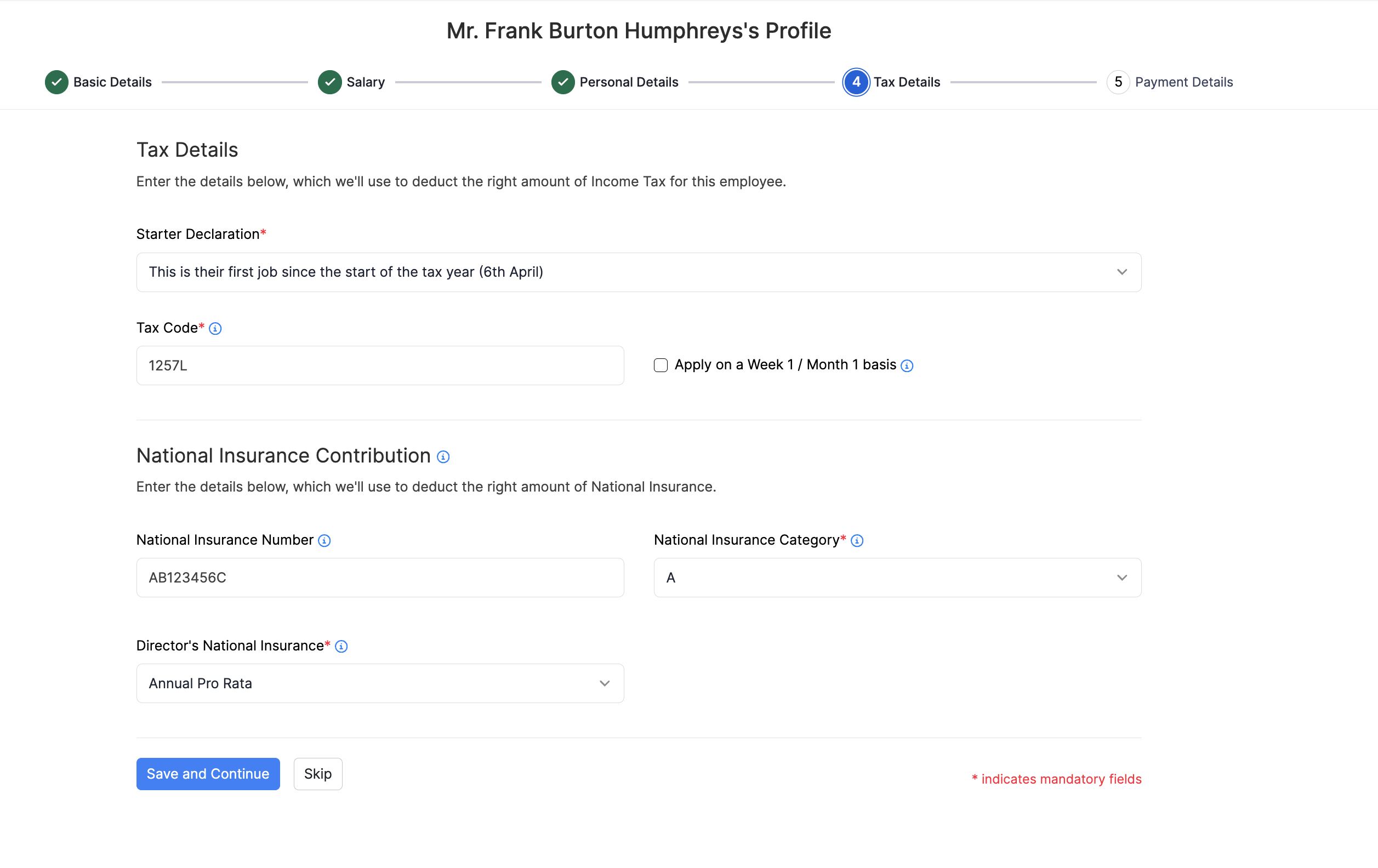
| Field | Description |
|---|---|
| Tax Code | The employee’s PAYE tax code from HMRC (for example 1257L). Refer to the GOV.UK guidance on tax codes if you need to check a tax code, and the GOV.UK guidance on starting employment for starter checklist rules. |
| Apply on a Week 1 / Month 1 basis | Select this if HMRC or the starter information says tax should be calculated on a non-cumulative Week 1 / Month 1 basis. |
| National Insurance Number | The employee’s National Insurance number. |
| National Insurance Category | The NI letter that sets how National Insurance is calculated (for example A). Most employees use category A. Refer to the GOV.UK guidance on National Insurance category letters to choose the right letter for age, apprenticeship, State Pension age, or other cases. |
| Director’s National Insurance | Shown when the employee is a director. Choose Annual Pro Rata or Alternative. See Director’s National Insurance below. |
Director’s National Insurance
Company directors are employees for National Insurance, but HMRC assesses their Class 1 contributions against annual earnings for the tax year (6 April to 5 April), not against each pay period on its own. Salary and bonuses count; dividends do not.
In Zoho Payroll, Director’s National Insurance is the calculation method used during the year. Both options aim for the same annual Class 1 position under HMRC’s director rules. What changes is when employee (and employer) National Insurance is deducted from each pay.
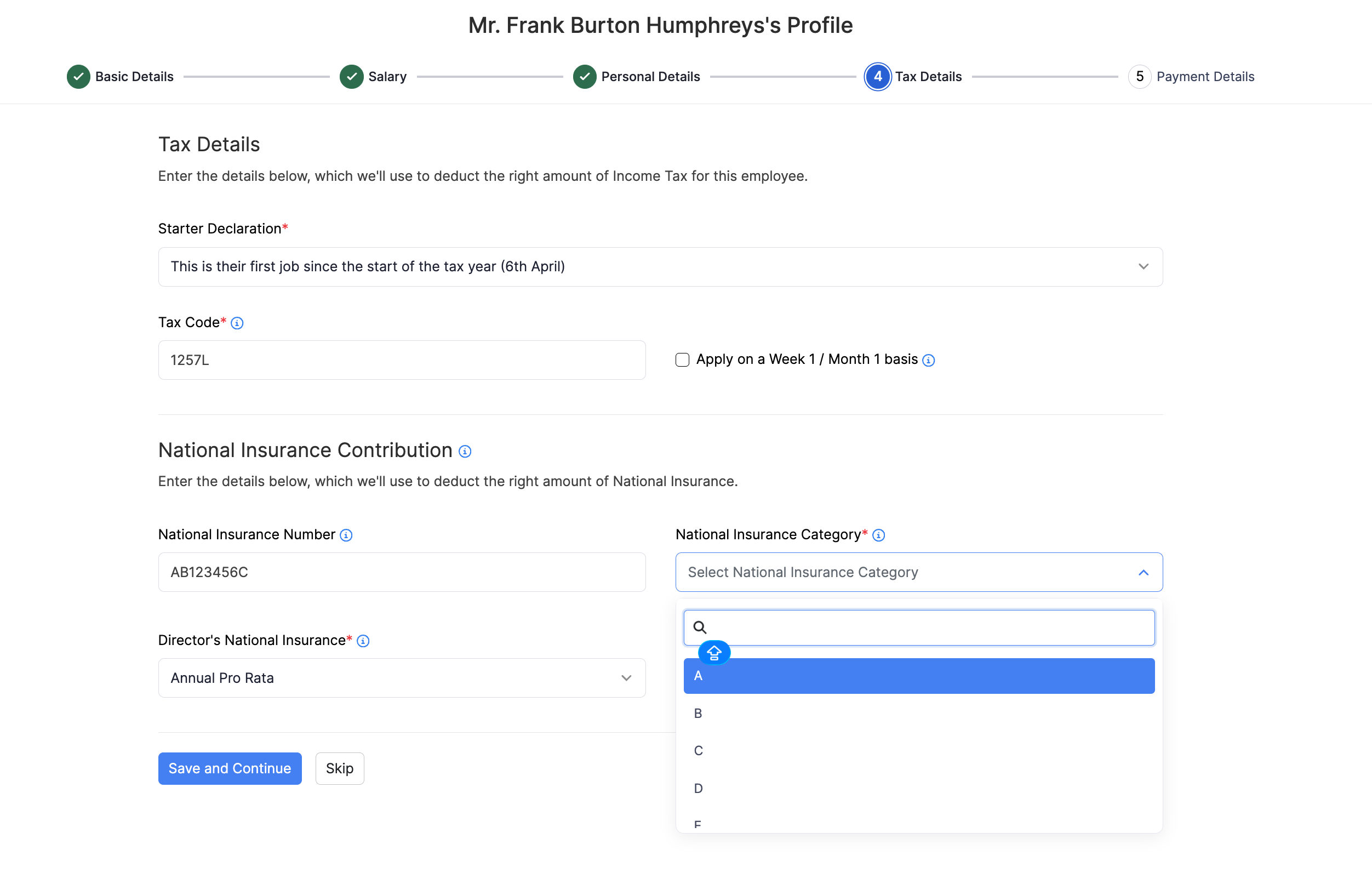
| Option in Zoho Payroll | HMRC method | How Zoho Payroll calculates each pay | When it is often used |
|---|---|---|---|
| Annual Pro Rata | Standard annual earnings period method (FPS code AN) | On every pay run, Zoho Payroll totals the director’s taxable pay for the tax year so far (salary and bonuses) and works out the Class 1 National Insurance due on that year-to-date total using HMRC’s annual Class 1 earnings limits and rates. It then subtracts the Class 1 National Insurance already deducted in earlier pays this tax year. What remains is deducted in the current pay. Early pays can show little or no employee National Insurance until year-to-date pay goes above the annual Primary Threshold; a later bonus or higher pay can then produce a larger deduction in that period. | Directors paid irregularly, or who receive large one-time bonuses. |
| Alternative | Alternative method (FPS code AL) | During the year, each pay is calculated much like a regular employee’s (using that period’s pay and the weekly or monthly Class 1 thresholds). At the end of the tax year, Zoho Payroll reconciles the total against the annual director rules and adjusts the final pay period if more National Insurance is due. | Directors with regular, predictable pay who want steadier deductions each period. |
Insight: Under Annual Pro Rata, Zoho Payroll calculates the Class 1 National Insurance by comparing the director’s pay so far in the tax year with HMRC’s annual earnings limits (Lower Earnings Limit, Primary Threshold, Secondary Threshold, and Upper Earnings Limit). For a regular employee, those limits are usually applied to that week’s or month’s pay alone. Zoho Payroll uses the current tax year’s amounts automatically. Refer to the Class 1 National Insurance thresholds in the GOV.UK rates and thresholds for employers for the figures that apply this tax year.
Refer to the GOV.UK guidance on National Insurance for company directors for the standard annual earnings period method and the alternative method, including when each is appropriate.
Previous Employment Details
If you select This is currently their only job or They have another job or pension as the Starter Declaration, Zoho Payroll asks for what the employee earned and paid in tax in their previous job this tax year. You’ll find these figures on the employee’s P45.
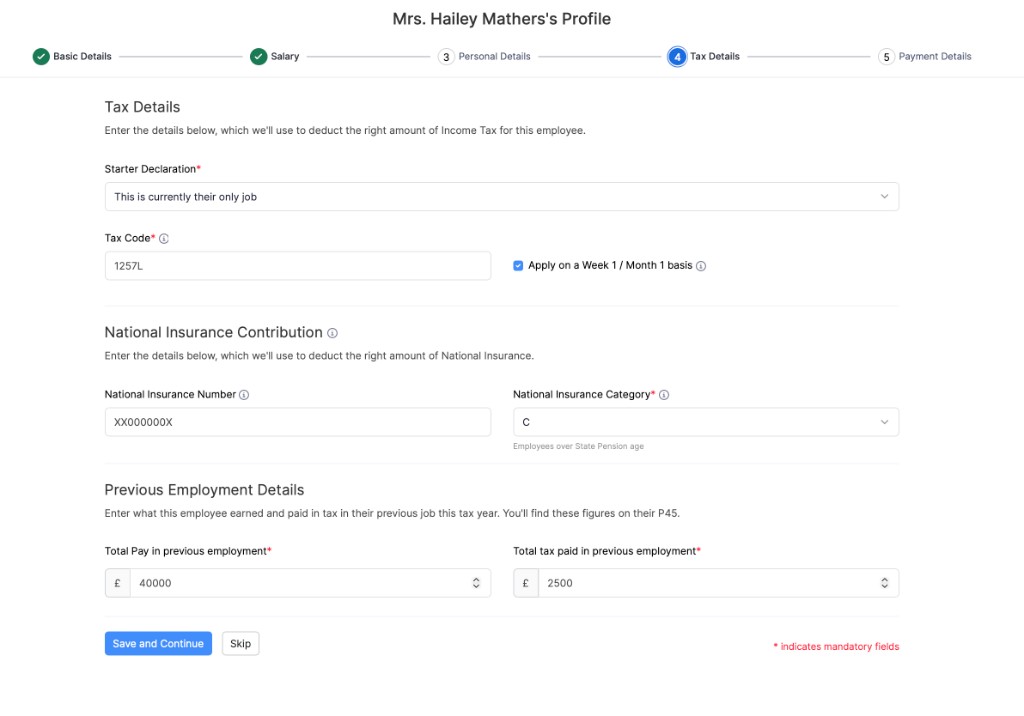
| Field | Description |
|---|---|
| Total Pay in previous employment* | The total pay the employee received from their previous employer in the current tax year. |
| Total tax paid in previous employment* | The total Income Tax deducted by their previous employer in the current tax year. |
Note: Previous employment details are not the same as prior payroll. Previous employment details cover pay from the employee’s last employer. Prior payroll covers pay your own organisation already made to employees this tax year, before you started using Zoho Payroll.
- Click Save and Continue to move to Payment Details.
Payment Details
Payment Details records how you pay the employee and, for bank transfer, the UK bank account that should receive net pay. Zoho Payroll uses these details when you process pay runs and record or make payments.
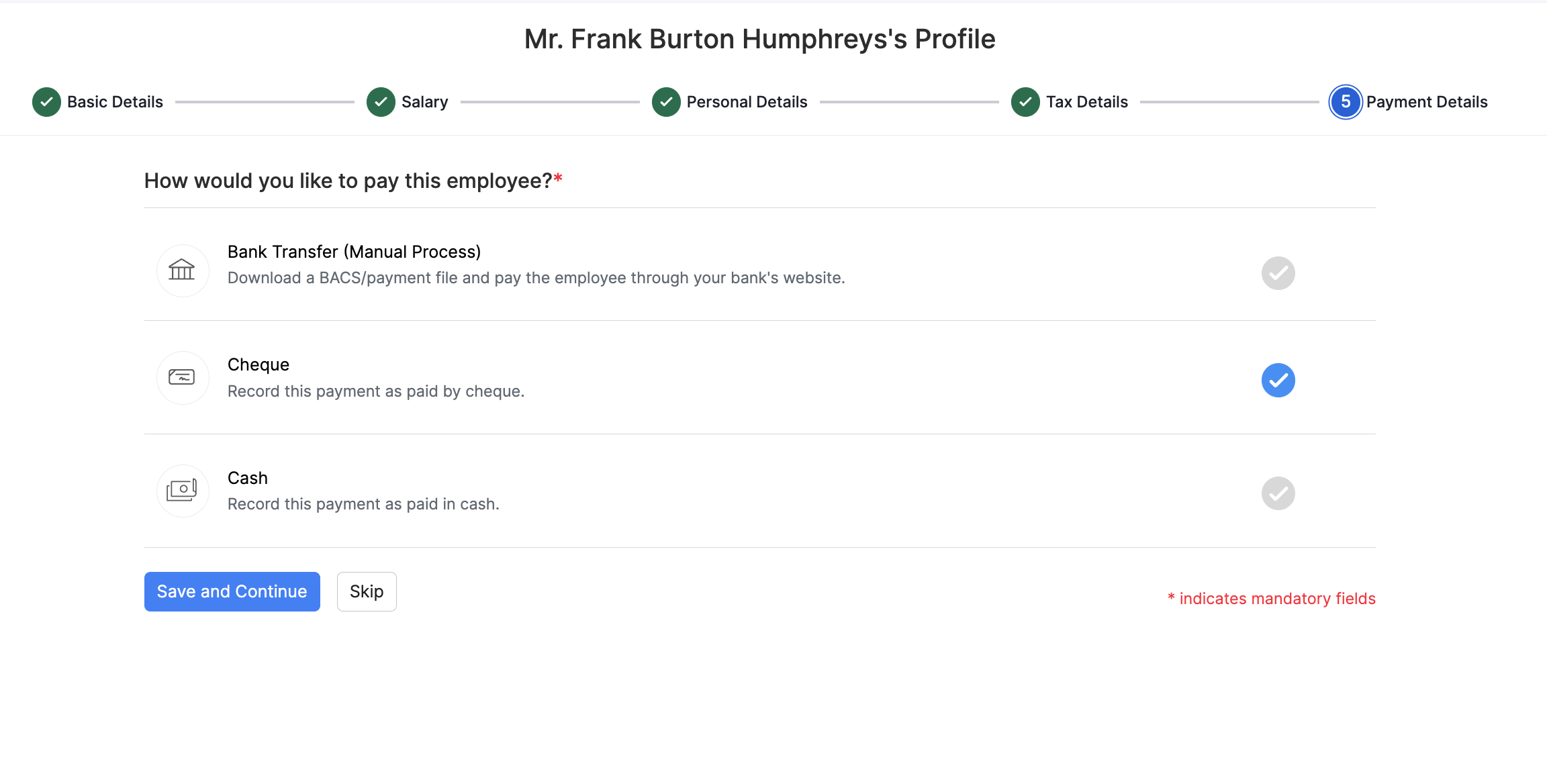
Select how you want to pay the employee:
| Payment mode | Description |
|---|---|
| Bank Transfer (Manual Process) | Download a BACS or payment file and pay the employee through your bank. |
| Cheque | Record the payment as paid by cheque. |
| Cash | Record the payment as paid in cash. |
For Bank Transfer (Manual Process), enter the bank information:
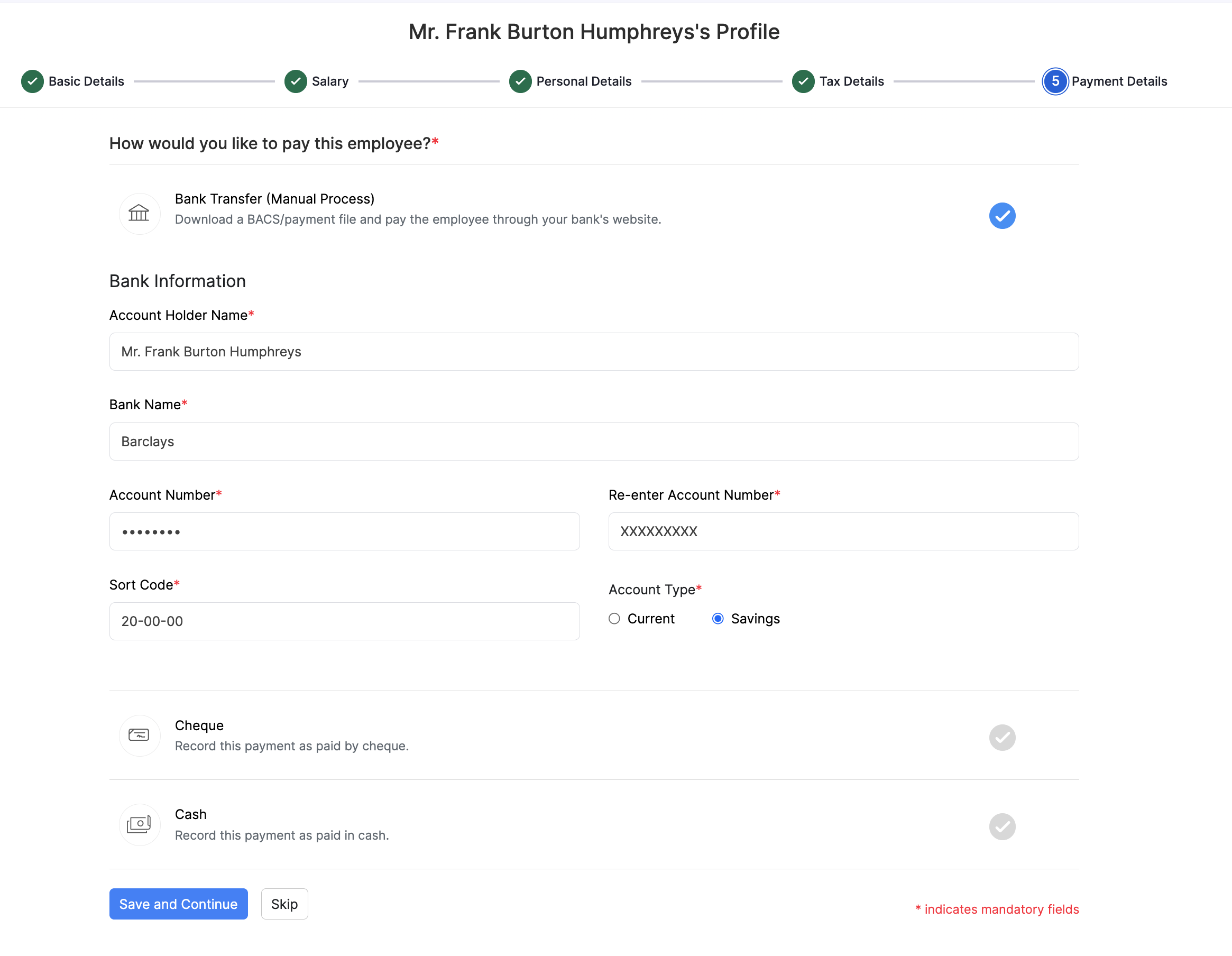
| Field | Description |
|---|---|
| Account Holder Name | The name on the bank account. |
| Bank Name | The name of the employee’s bank. |
| Account Number | The employee’s bank account number. Re-enter it to confirm. |
| Sort Code | The sort code for the employee’s bank. |
| Account Type | Current or Savings. |
Click Save and Continue to finish adding the employee.
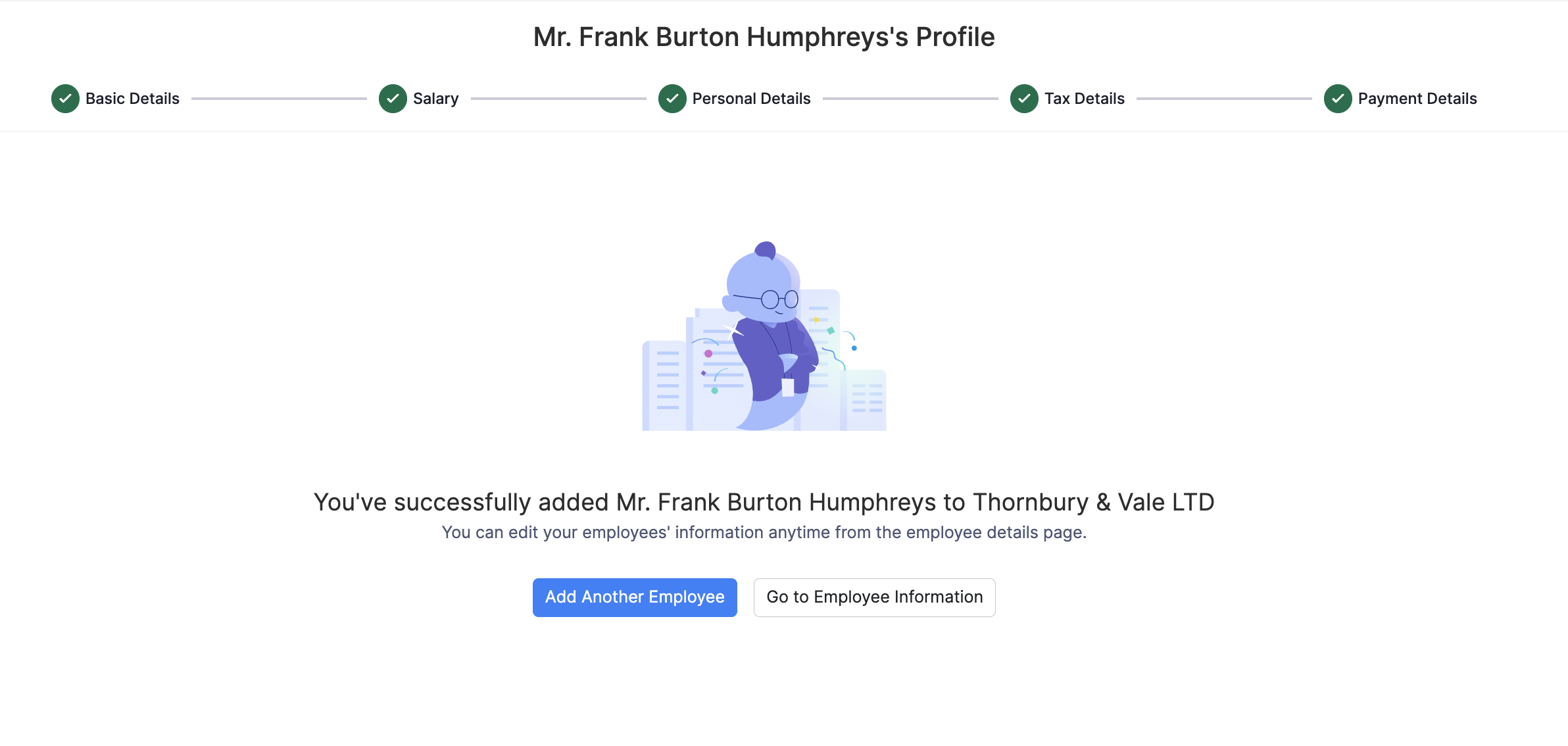
After you complete Payment Details, the employee profile is created. You can add another employee, or open the employee to review their details.
If you skipped any step, the employee appears under Incomplete Profiles until you finish setup. Open the employee and click Complete now on the incomplete profile banner.
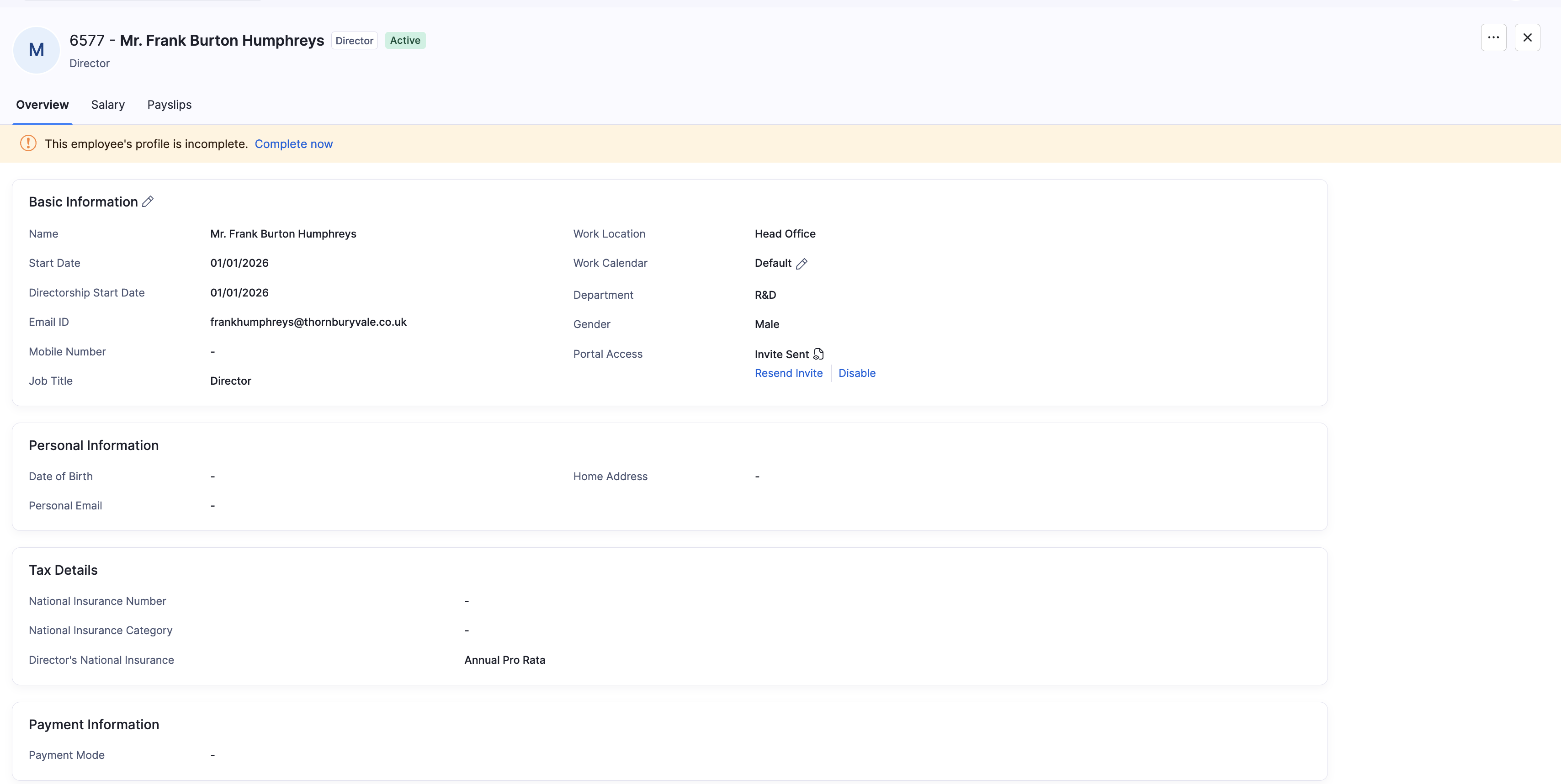
You can review and edit details later from the employee’s profile and Salary tabs.