
Prior Payroll

Prior payroll is pay you have already processed outside Zoho Payroll earlier in the same tax year (6 April to 5 April), for example with another payroll provider.
You need it only if you have already paid employees this tax year outside Zoho Payroll. Record those year-to-date figures before your first pay run in Zoho Payroll. Zoho Payroll uses them to:
- Calculate PAYE tax and National Insurance for the rest of the tax year, on top of what employees have already paid.
- Keep pension contributions and other deductions in line with amounts already taken.
- Submit accurate Full Payment Submission (FPS) reports to HMRC.
- Produce year-end forms, such as the P60 and P11D, for the full tax year.
You do not need prior payroll if this is your first payroll of the tax year. Getting Started still shows Configure prior payroll. Click Disable Prior Payroll on that step.
Warning: If you need prior payroll, finish it before you process a pay run.
Scenario: Zylker paid employees from April to August with another provider, then moved to Zoho Payroll in September. The team imports the latest FPS file before the first pay run so year-to-date pay, tax, and National Insurance stay correct.
Configure prior payroll from Getting Started
Getting Started always includes Configure prior payroll, whether you answered Yes or No when you created the organisation.
To configure prior payroll:
- On the Getting Started page, click Complete Now next to Configure prior payroll. If you do not need prior payroll, click Disable Prior Payroll on the page that opens.
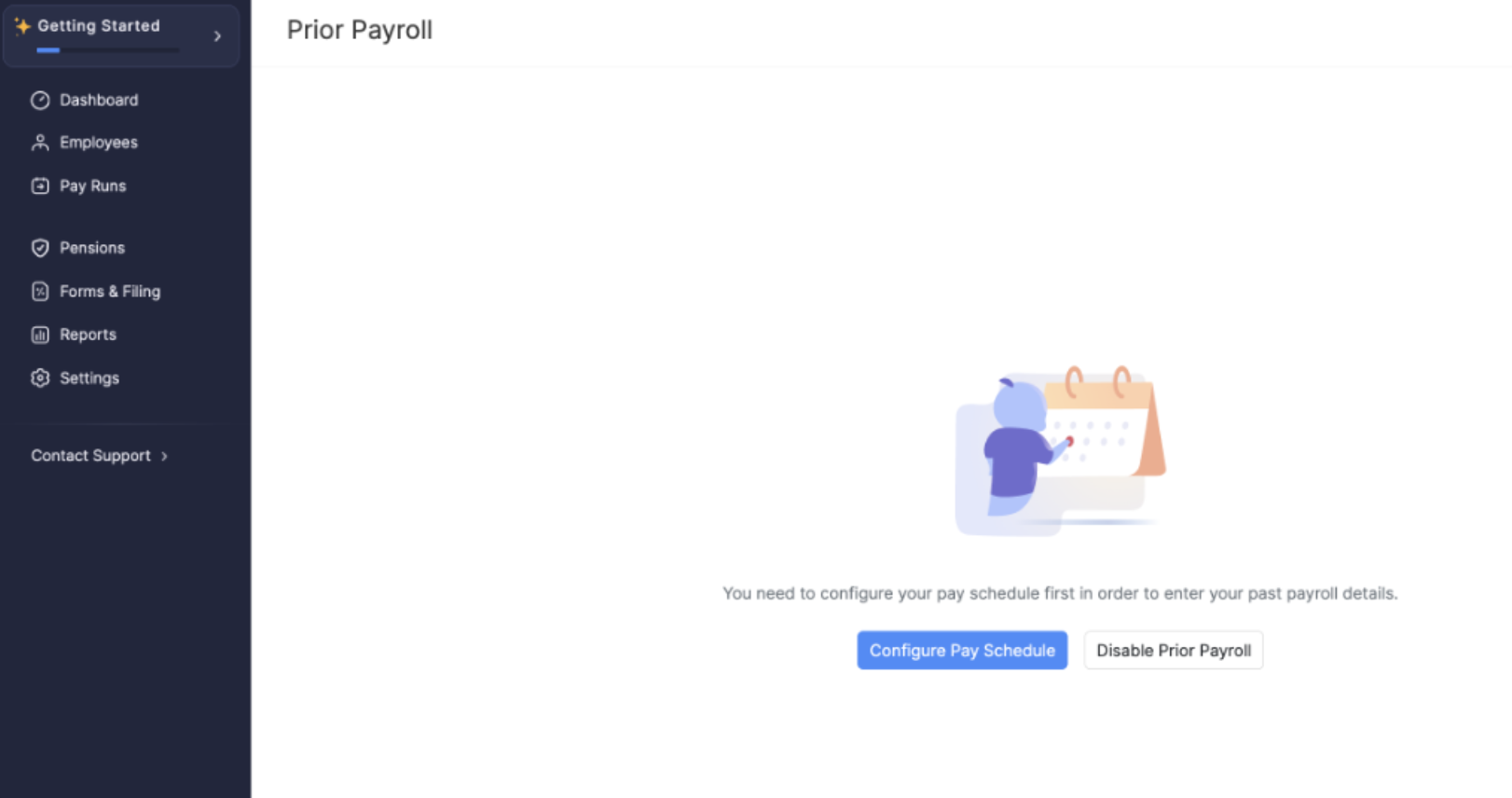
- If you have not saved a pay schedule, click Configure Pay Schedule and complete Pay Schedule.
If you do not need prior payroll, click Disable Prior Payroll.
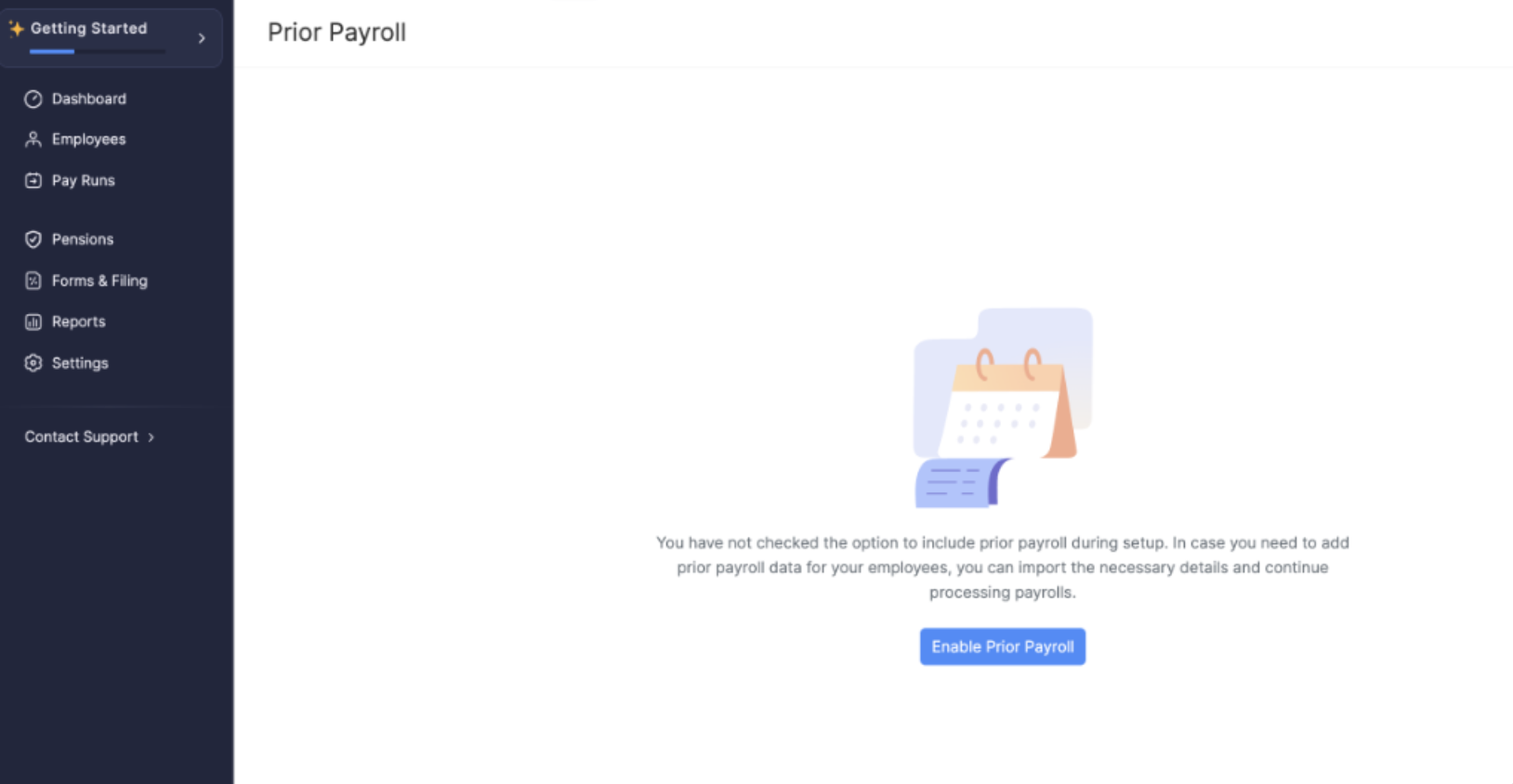
- If you chose No when you created the organisation, click Enable Prior Payroll if you have already paid employees this tax year.
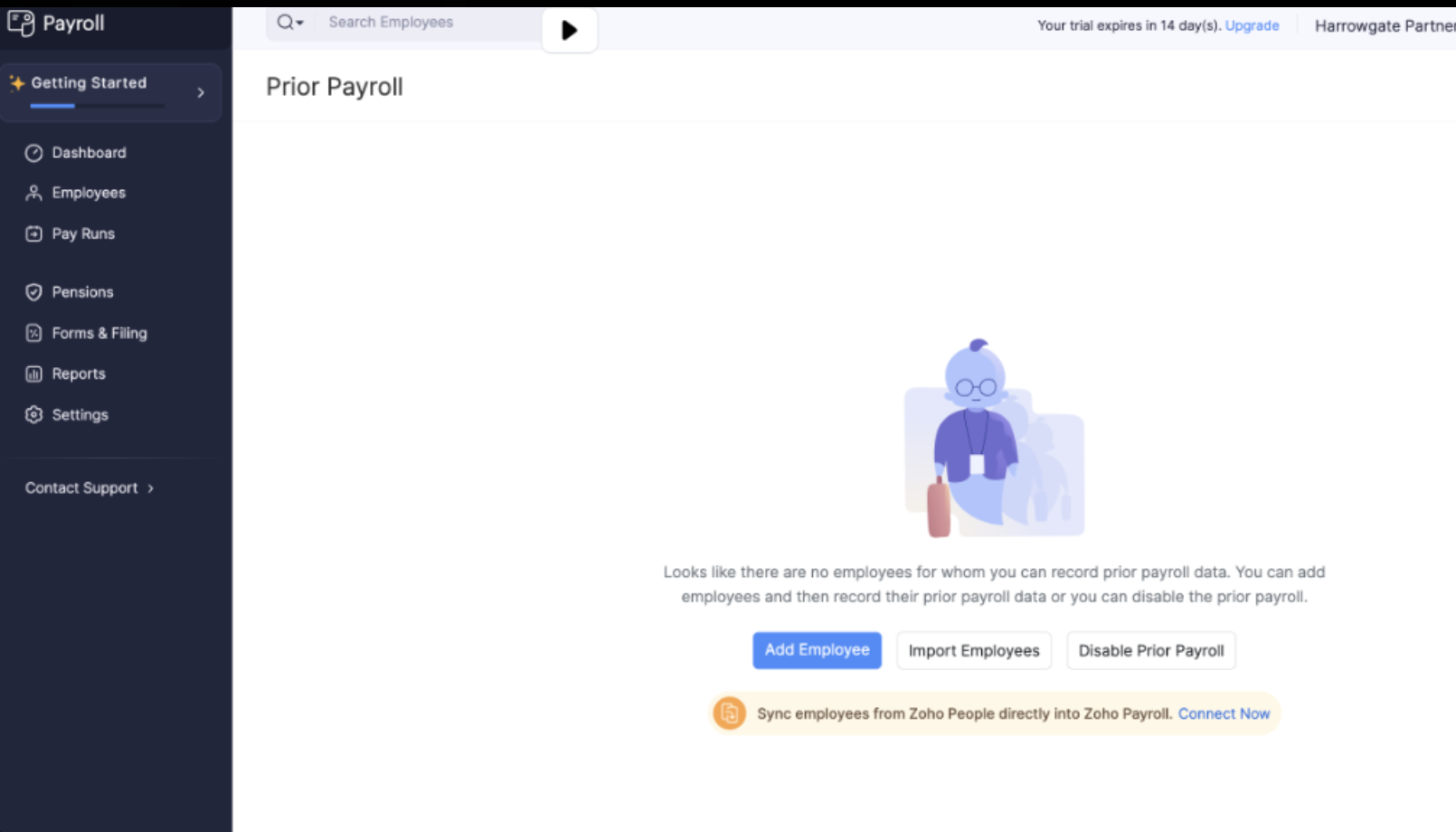
- If no employees have been added to Zoho Payroll yet, add the employees you paid this tax year before you import prior payroll. Include current employees and employees who have left.
- Click Add Employee to add one employee. Learn more in Add Employees.
- Click Import Employees to import several employees from a file. Learn more in Import employee data.
- Click Disable Prior Payroll if you do not need to record prior payroll.
Information you need
Once the pay schedule and employees are in place, Prior Payroll lists what it needs from payroll you have already run this tax year.
Note: The message on this page refers to the current calendar year. For UK payroll, record pay from the current tax year (6 April to 5 April).
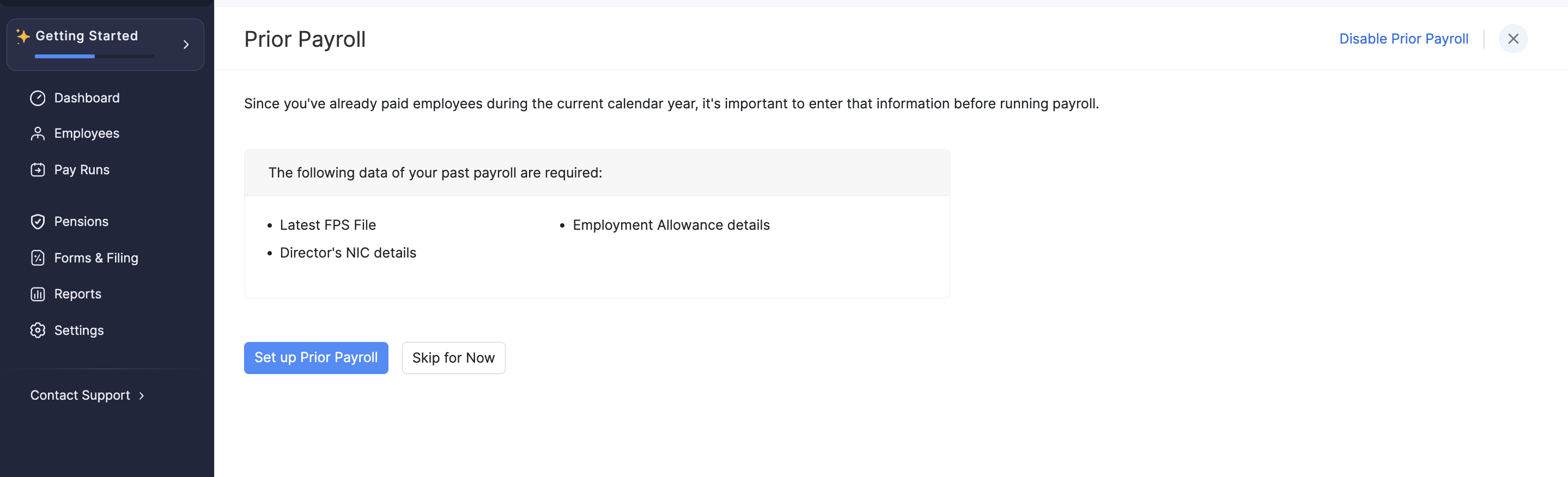
- Latest FPS file. The XML you submitted to HMRC, or that your previous payroll software produced. Use the latest file for this tax year.
- Employment Allowance details, if your organisation claims Employment Allowance.
- Director’s NIC details, if you have directors on the payroll.
Click Set up Prior Payroll to continue. Skip for Now leaves the step so you can finish it later.
Import prior payroll
Prior Payroll Details opens on the Employee Information tab. Use the Summary tab to review the figures before you continue.
Check that the list includes current and former employees you paid this tax year. The counts at the top show Total Employees, Active Employees, and Former Employees.
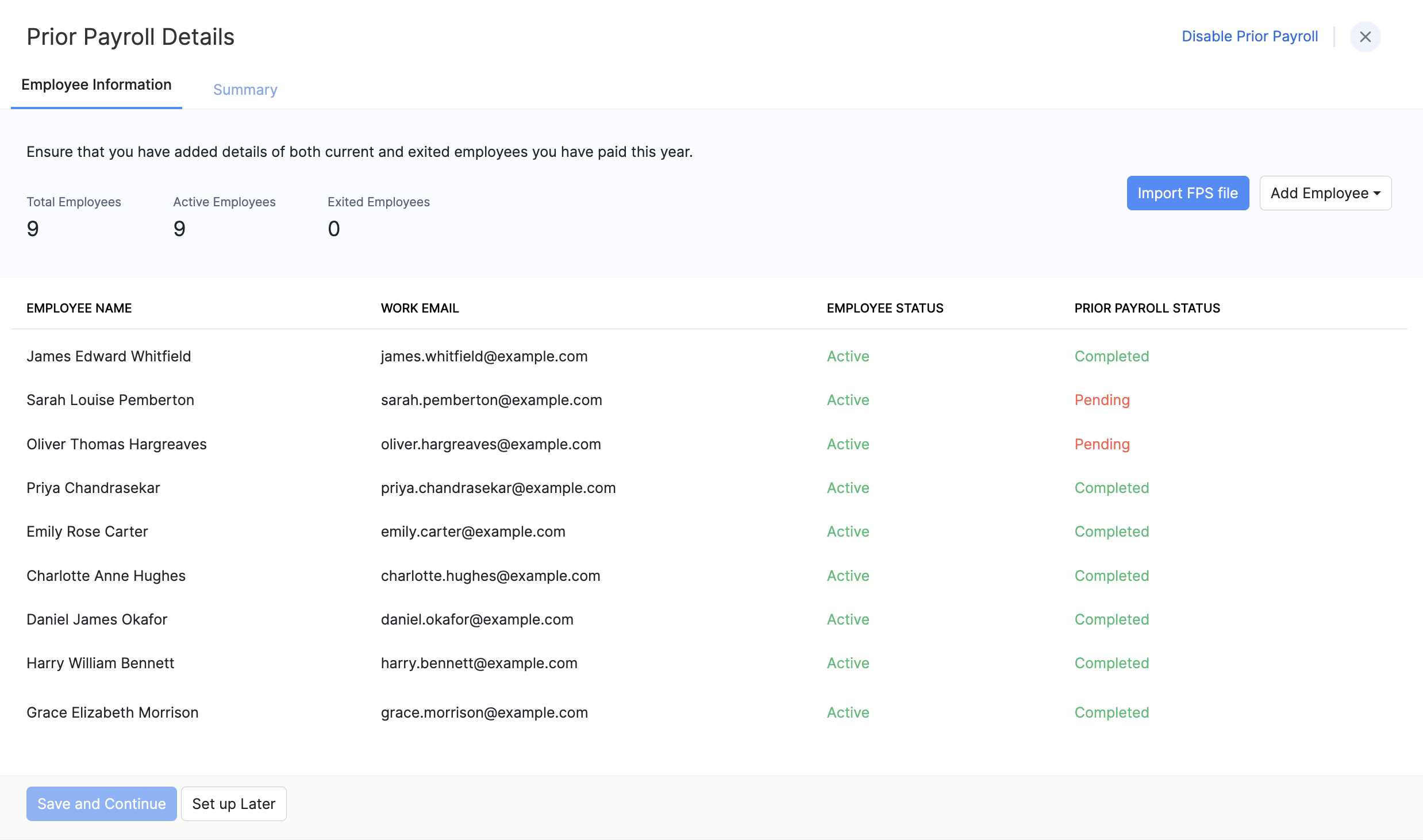
Prior Payroll Status on each row means:
| Status | What it means |
|---|---|
| Not Applicable | Shown before you import the FPS file. |
| Pending | The FPS import did not bring in that employee’s details. |
| Completed | That employee’s prior payroll details were imported. |
Click Add Employee if someone you paid this tax year is missing from the list.
Import the latest FPS file
To import the file:
- Click Import FPS file.
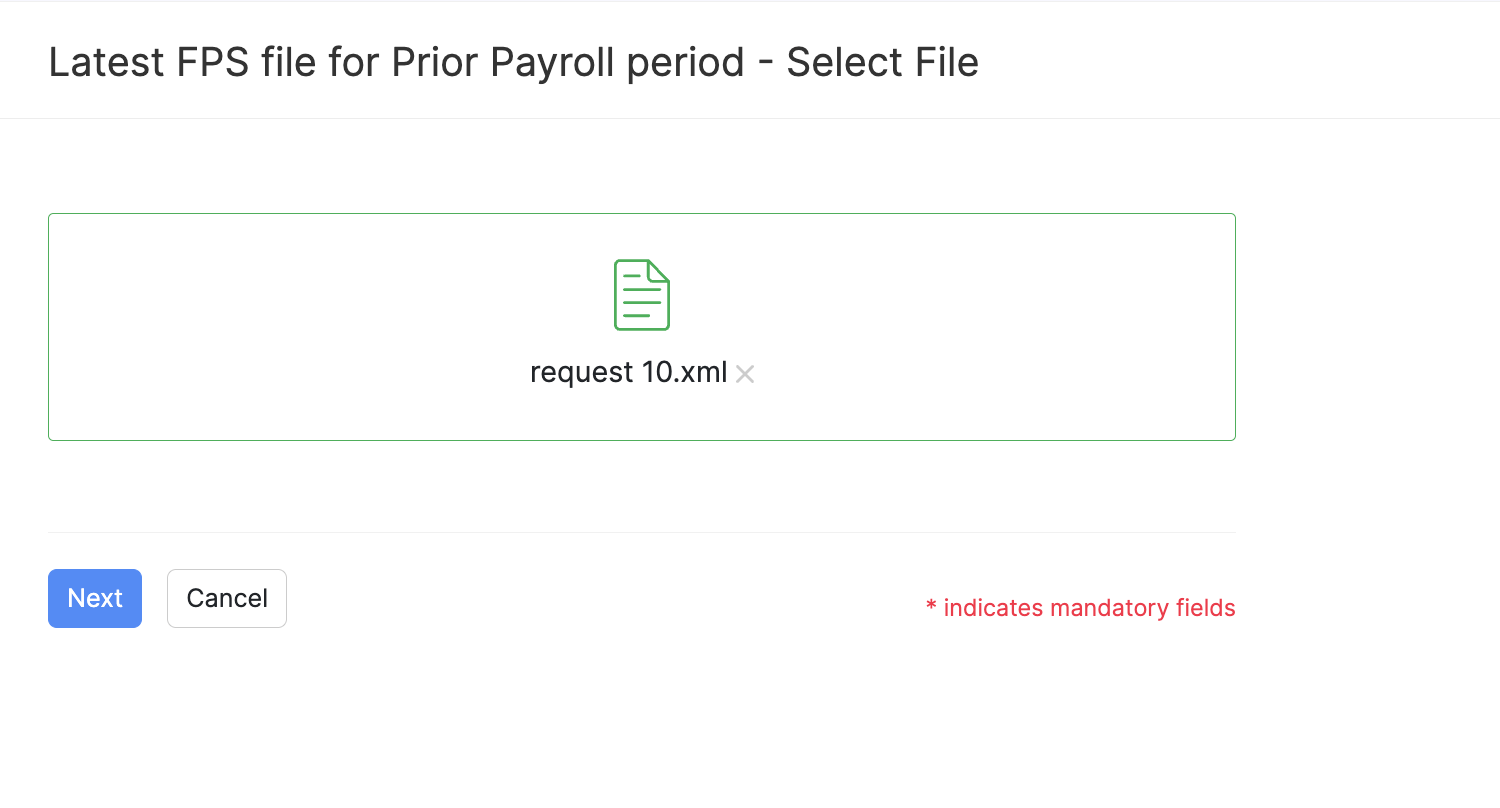
- Upload the latest FPS file for the prior payroll period.
- Click Next.
- On FPS Import Preview, check how many employees were imported and how many were skipped because of errors.
- Click Finish.
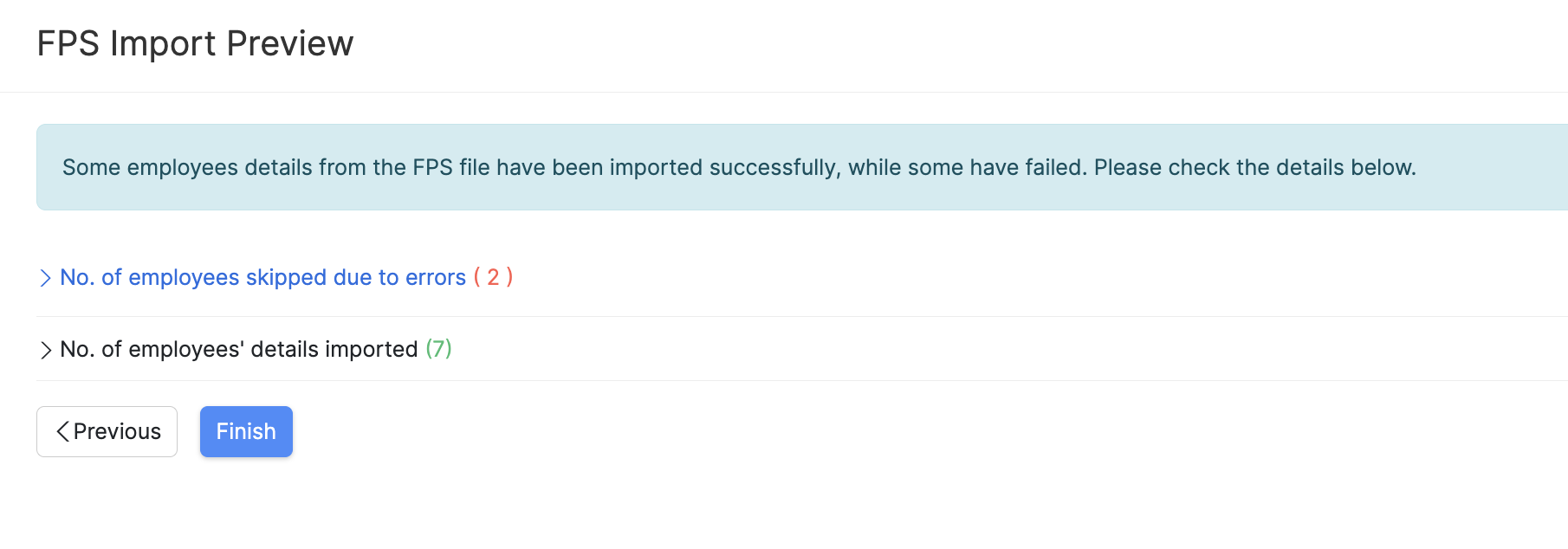
Open the skipped-employees row on the preview if any employees were skipped. Correct the FPS file or the employee record, then import again. Employees who still need details stay Pending on Employee Information.
When the list is complete, click Save and Continue. Set up Later keeps what you have entered so you can finish before the first pay run.
Review the summary
Open the Summary tab and review the prior payroll figures before you move on.
If you have already processed a pay run and the figures are wrong, email support.uk@eu.zohopayroll.com.
Learn more in Can I import prior payroll details after processing my first pay run in Zoho Payroll? and Can I edit or disable prior payroll after I’ve processed a few pay runs?.