
Pay Schedule

A pay schedule is the fixed, recurring pattern you follow to pay your employees. It defines two things: how often you pay them and which day they’re paid.
Once you set up a pay schedule, Zoho Payroll automatically generates each pay run on time. You only need to review the details and approve it. This section explains the pay schedules available and how to set one up.
Insight: Choose a pay schedule that suits your business and meets your employees’ expectations. You set your pay schedule once, and every regular pay run follows it automatically.
Pay Schedules in Zoho Payroll
Zoho Payroll supports three pay schedules:
| Frequency | How it works |
|---|---|
| Every Week | Employees are paid on a set weekday every week, such as every Friday. |
| Fortnightly | Employees are paid on a set weekday every other week, such as every other Friday. |
| Every Month | Employees are paid once a month, either on the last day of the month or on a set date. |
Configure Pay Schedule
Warning: Your pay schedule cannot be edited once you process the first pay run — including the pay day — so set it up carefully.
To configure your pay schedule:
1. Choose how often you pay your employees.
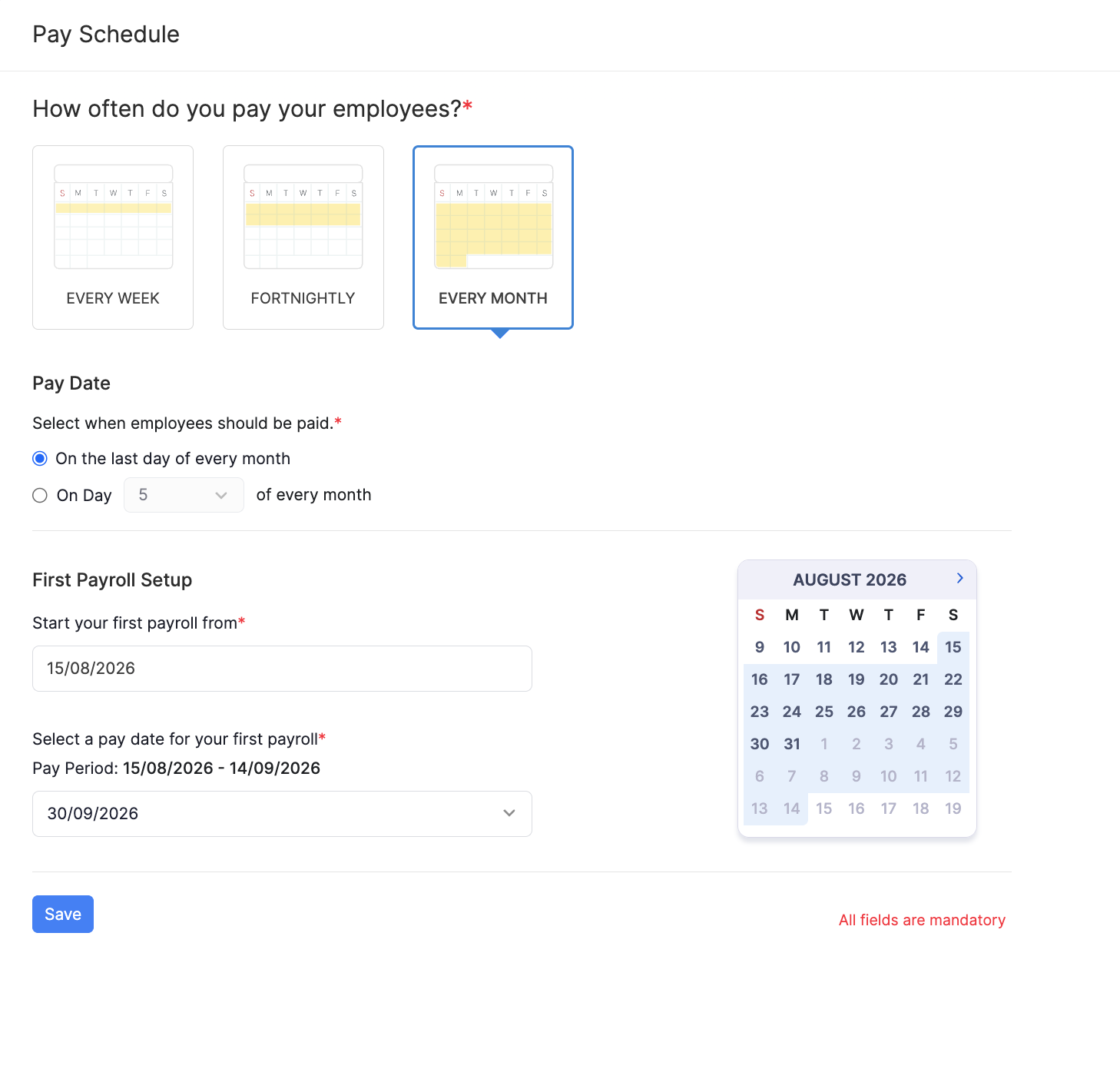
Go to Settings and click Pay Schedule under Setup & Configurations. Under How often do you pay your employees?, select Every Week, Fortnightly, or Every Month.
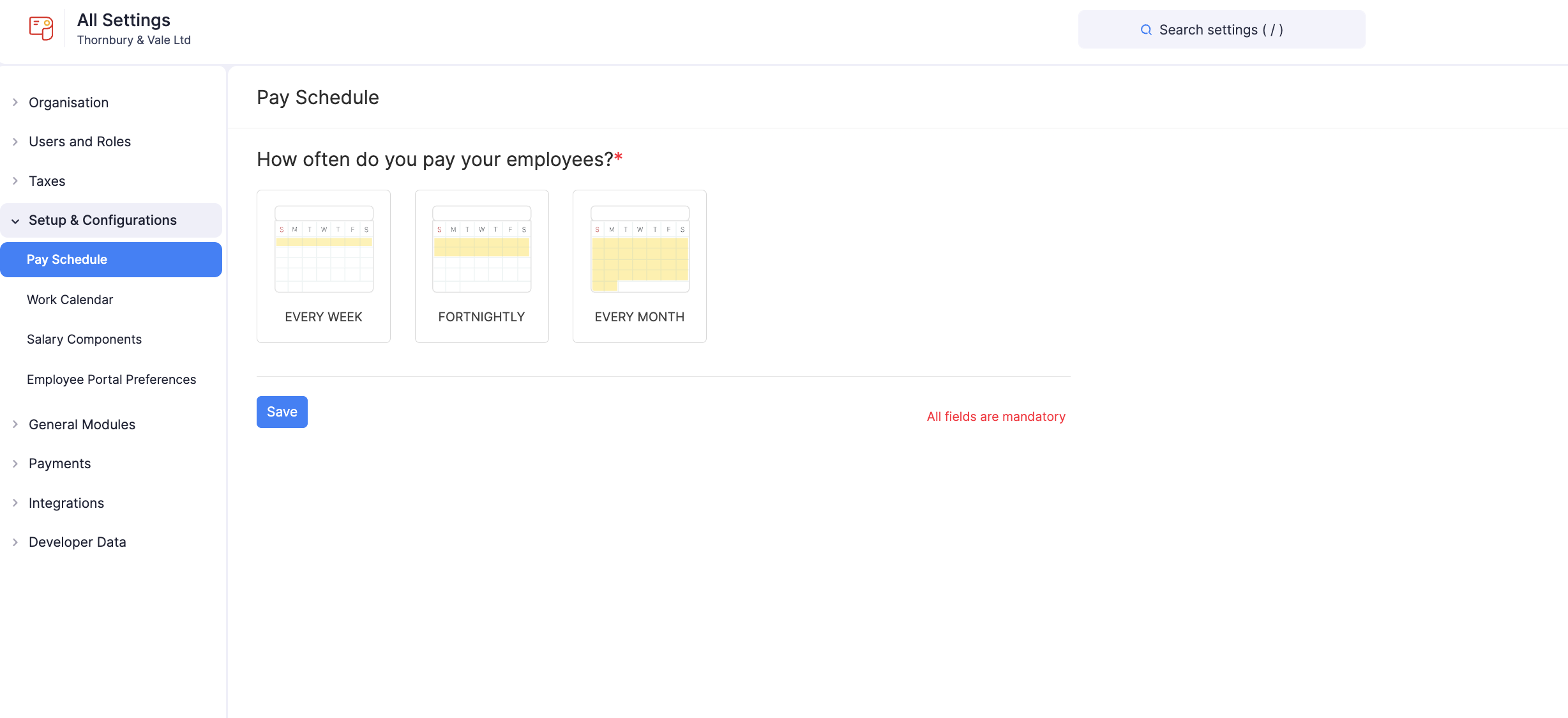
2. Set the payday.
Set the payday for the frequency you selected:
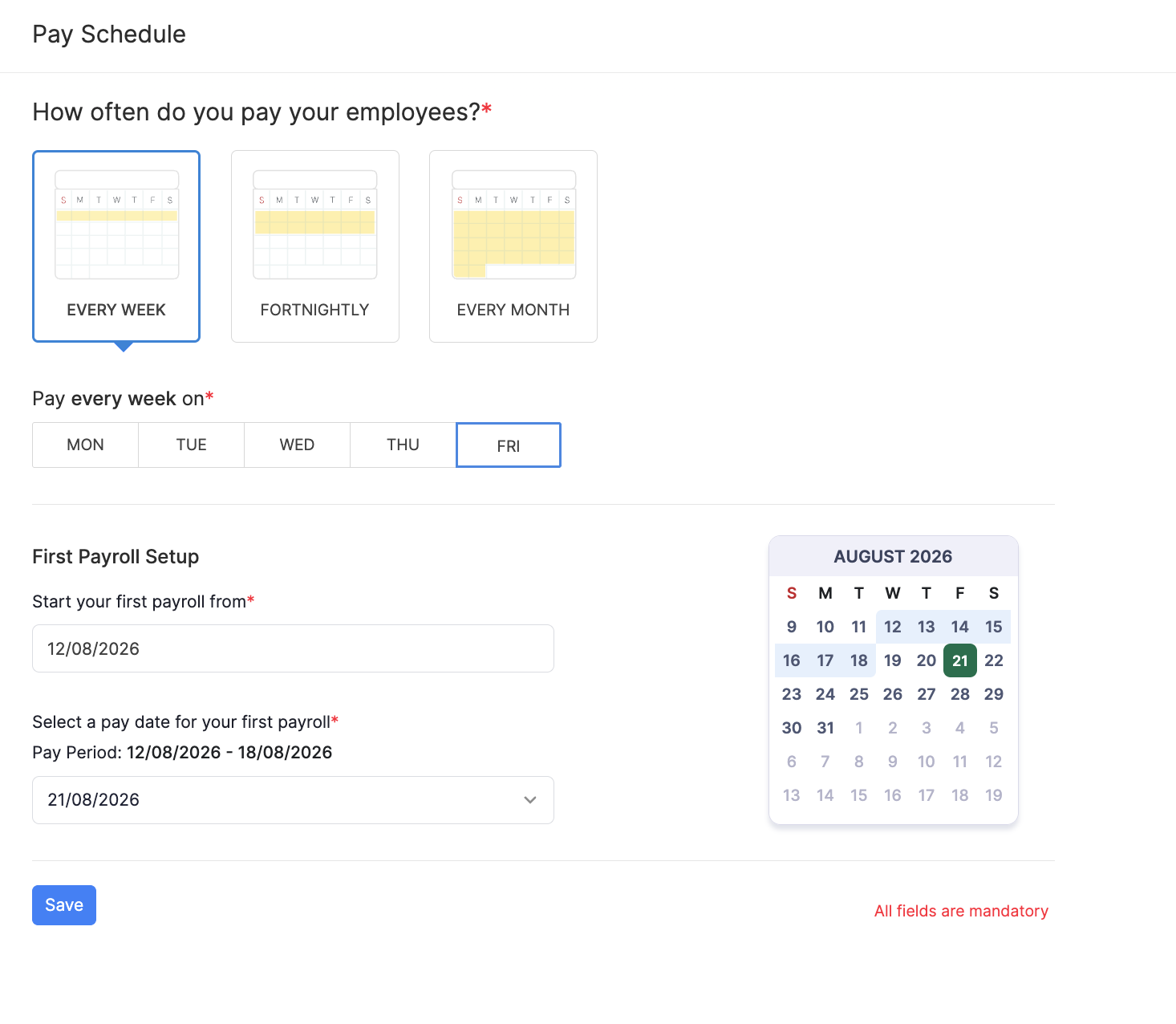
- For Every Week, select a weekday (Monday to Friday) under Pay every week on.
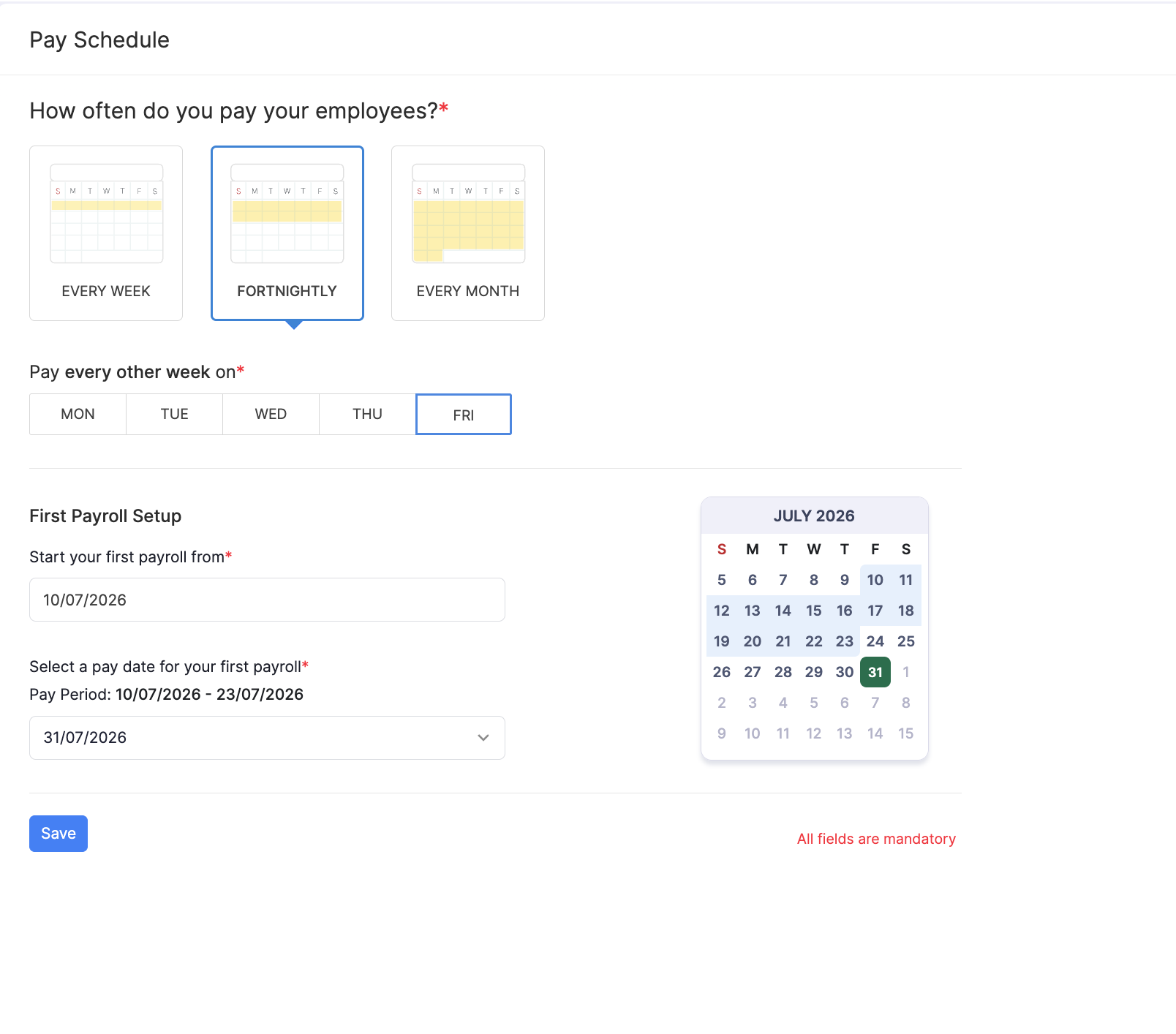
- For Fortnightly, select a weekday (Monday to Friday) under Pay every other week on.
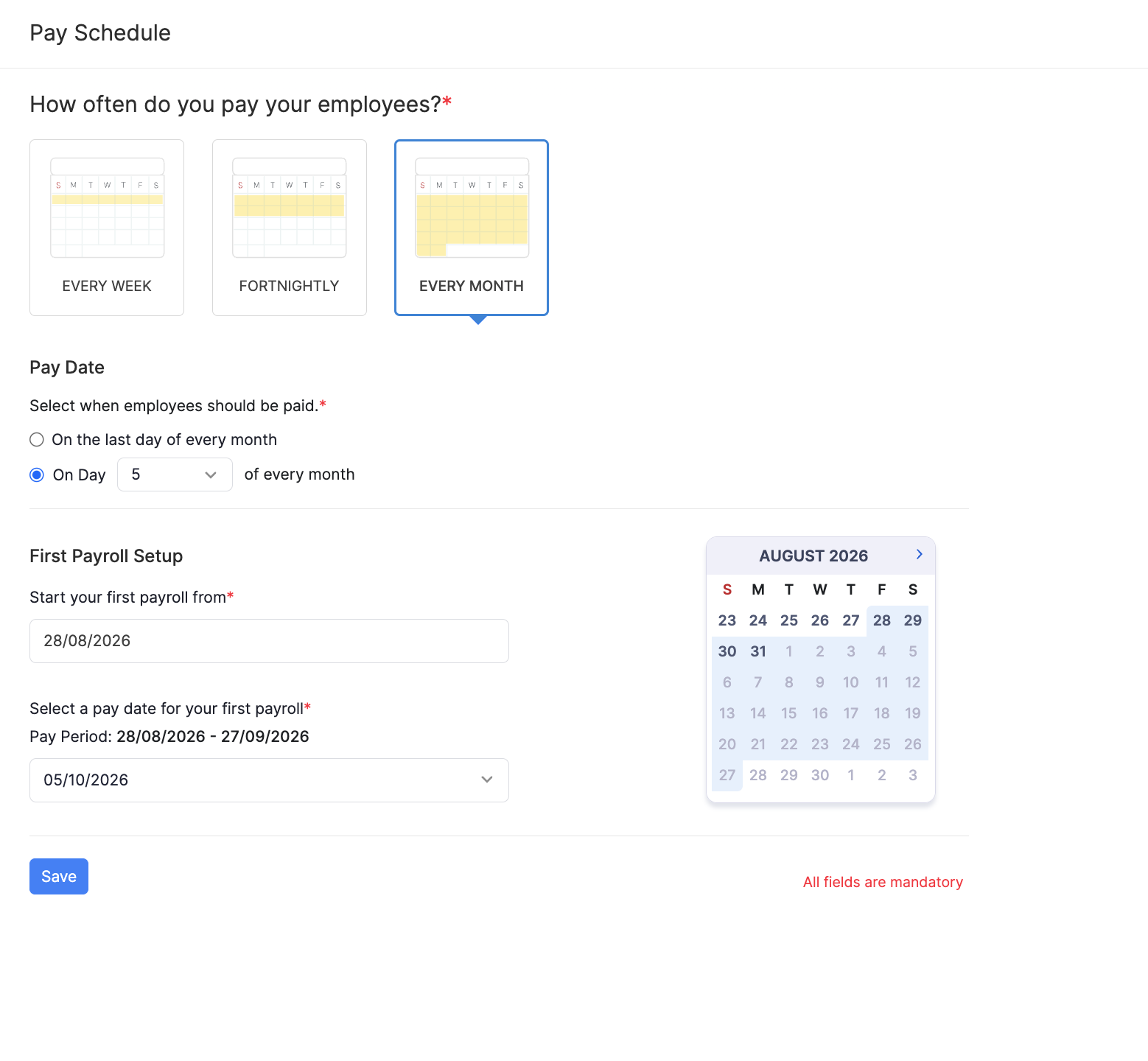
- For Every Month, under Pay Date, select when employees should be paid:
- On the last day of every month, or
- On Day a set date of every month, for example the 5th.
3. Set up your first pay run.
Under First Payroll Setup:
- In Start your first payroll from, select the date your first pay period begins.
- In Select a pay date for your first payroll, choose the pay date for that first run.
Zoho Payroll shows the Pay Period covered by your selection. A calendar on the page highlights the pay period and the pay date so you can check the dates before you save.
4. Click Save.
All fields on this page are mandatory. Zoho Payroll will now generate your regular pay runs automatically, based on this schedule.
Learn how to process regular payrolls.
View or Update Pay Schedule
After you save your pay schedule, the Pay Schedule page shows a summary: pay frequency, pay date, first pay period, first pay date, and your Upcoming Payrolls.
You can update the pay schedule only before you process your first pay run. After that, you cannot edit the schedule or change the pay day.
Before you process your first pay run
You can edit the full pay schedule.
- Go to Settings and click Pay Schedule under Setup & Configurations.
- Click the Edit icon next to Your Organisation’s payroll runs on this schedule.
- Make the necessary changes and click Save.
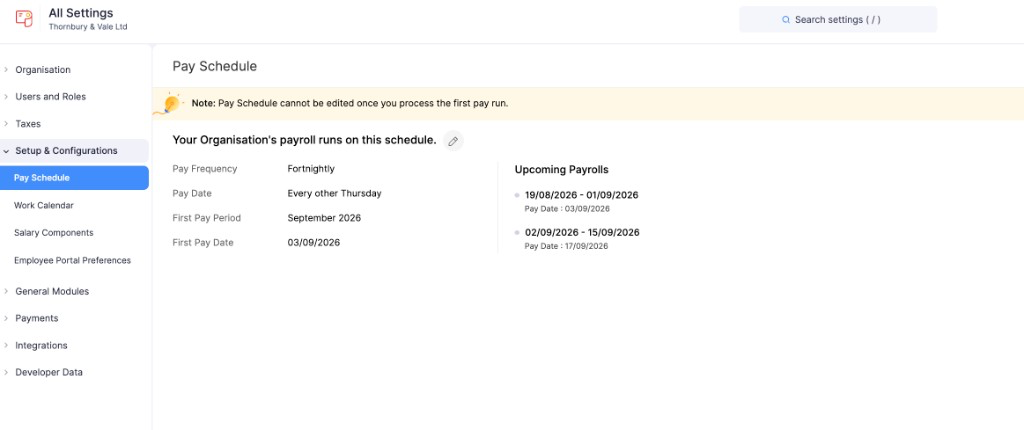
Note: Pay Schedule cannot be edited once you process the first pay run.
Change pay day
To change only the pay day before you process your first pay run:
- Go to Settings and click Pay Schedule under Setup & Configurations.
- Click Change next to Pay Date.
- Select the new pay day and save.
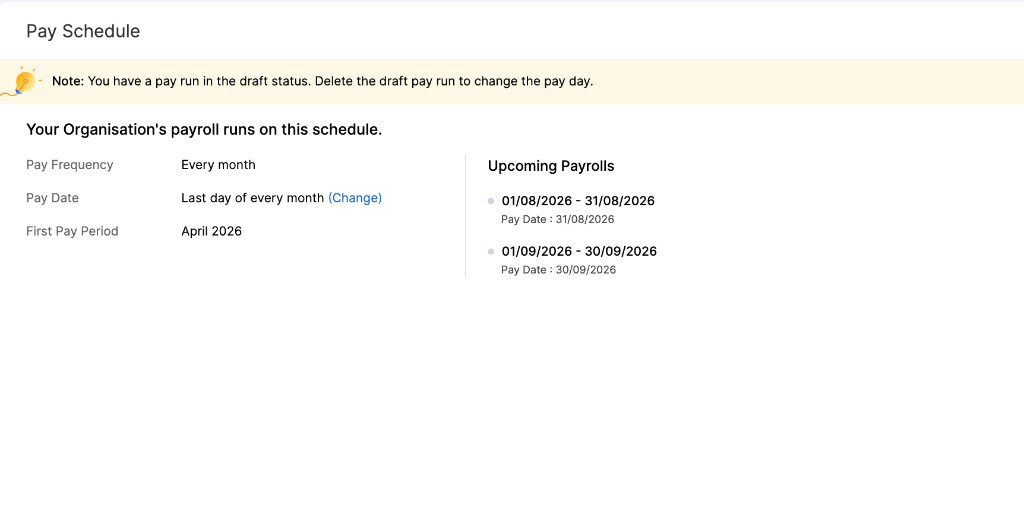
Note: If you have a pay run in the draft status, delete the draft pay run to change the pay day.
Your regular pay runs will follow the updated schedule.