
Employer Bank Accounts

Employer Bank Accounts are the bank accounts your organisation uses to pay employees. You record them in Zoho Payroll so pay can be paid from the right account. You can add more than one bank account and mark one as primary.
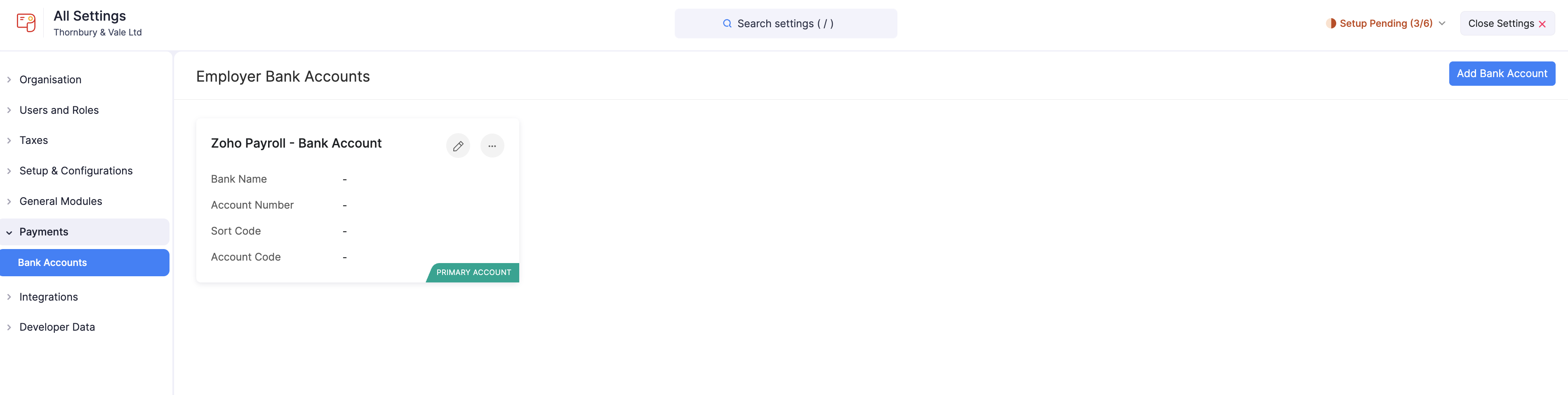
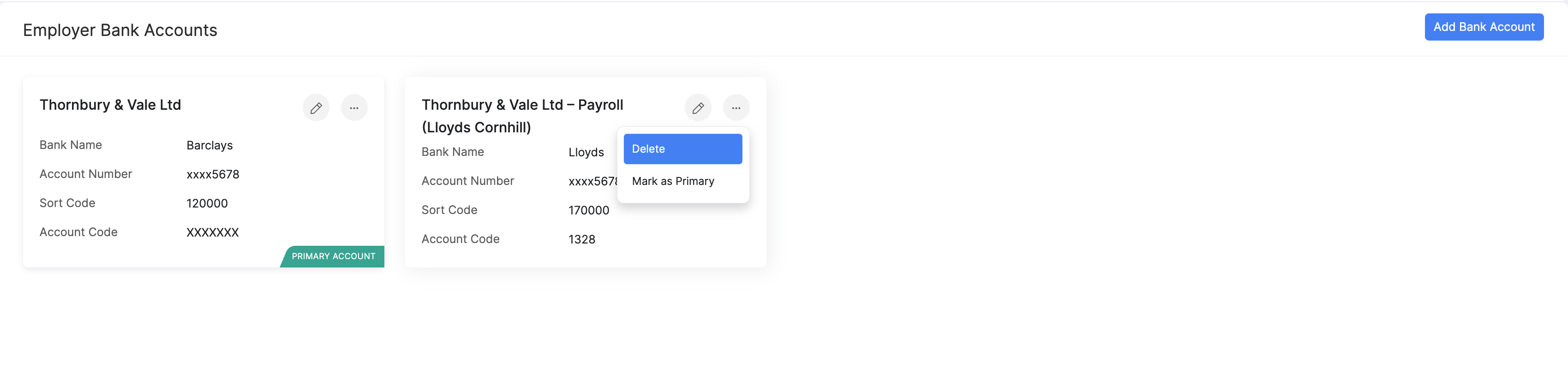
Each account appears as a card showing the bank name, account number, sort code, and account code. The account you use by default is marked with a Primary Account badge. Account numbers are partially masked for security.
Add a Bank Account
To add a bank account:
- Go to Settings and click Bank Accounts under Payments.
- Click + Add Bank Account.
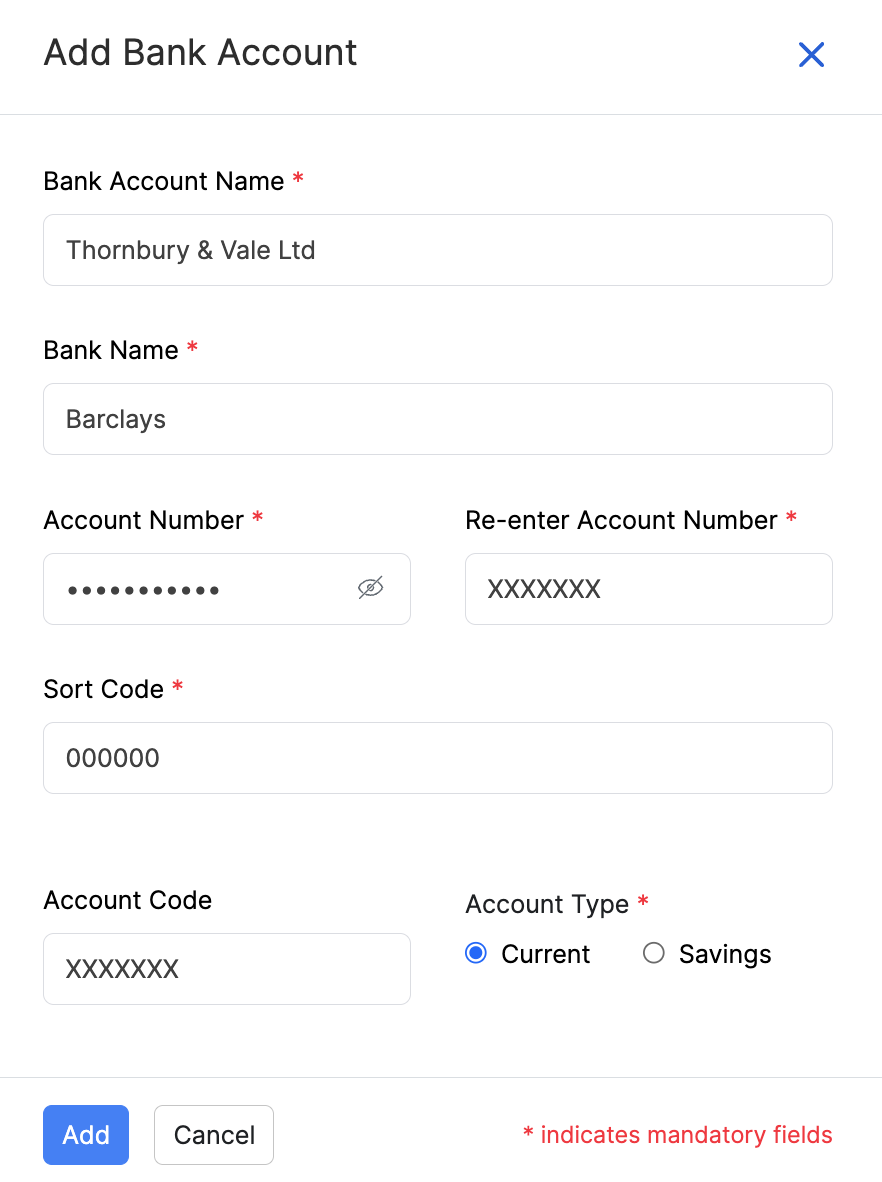
- Enter the bank account details:
| Field | Description |
|---|---|
| Bank Account Name* | The name on the account, as your bank holds it. This is usually your business name. |
| Bank Name* | The bank where this account is held, for example Barclays or NatWest. |
| Account Number* | Your 8-digit account number. You’ll find it on your statement, cheque book, or online banking. You can show or hide the digits using the visibility icon. |
| Re-enter Account Number* | Enter the account number again to confirm it’s correct. |
| Sort Code* | The 6-digit code that identifies your bank branch, for example 12-34-56. |
| Account Code | An optional reference you can use to identify this account within Zoho Payroll. |
| Account Type* | Select whether this is a Current or Savings account. |
Note: Fields marked with an asterisk (*) are mandatory.
- Click Add.
You’ve now added a new bank account.
Mark a Bank Account as Primary
The primary account is the one Zoho Payroll treats as your organisation’s default employer bank account. Once you’ve added more than one account, you can change which one is primary.
- Go to Settings and click Bank Accounts under Payments.
- Click the More icon on the bank account you want to mark as primary.
- Click Mark as Primary.
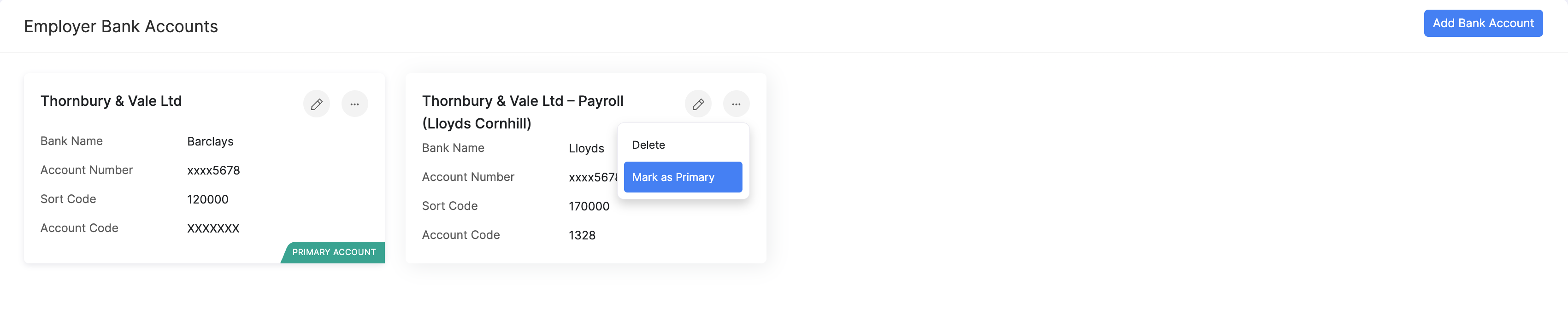
The Primary Account badge moves to that account.
Edit a Bank Account
To update the details of a bank account you’ve added:
- Go to Settings and click Bank Accounts under Payments.
- Click the Edit icon on the bank account you want to update.
- Update the details and click Save.
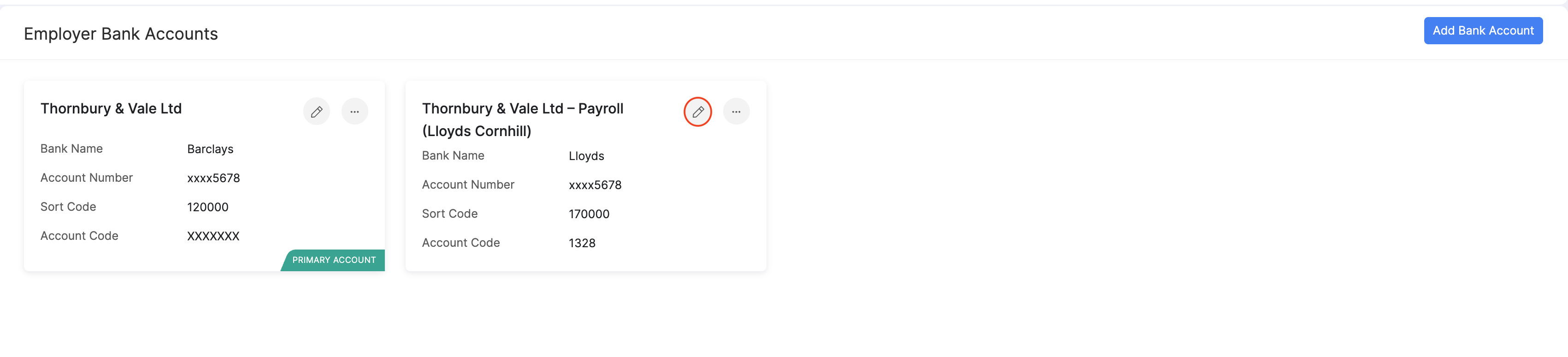
You’ve now updated the bank account details.
Delete a Bank Account
To permanently remove a bank account you’ve added:
- Go to Settings and click Bank Accounts under Payments.
- Click the More icon on the bank account you want to delete.
- Click Delete.
Note: You cannot delete a bank account if it is associated with Zoho Books.
You’ve now permanently deleted the bank account details.