
Salary Components

Salary components are the different parts that make up an employee’s total salary. These include earnings, deductions, and attachment of earnings orders / arrestments, which together determine the gross pay and the final take-home pay of your employees.
Go to Settings and click Salary Components under Setup & Configurations. The page has three tabs: Earnings, Deductions, and Attachment of Earnings Orders / Arrestments.
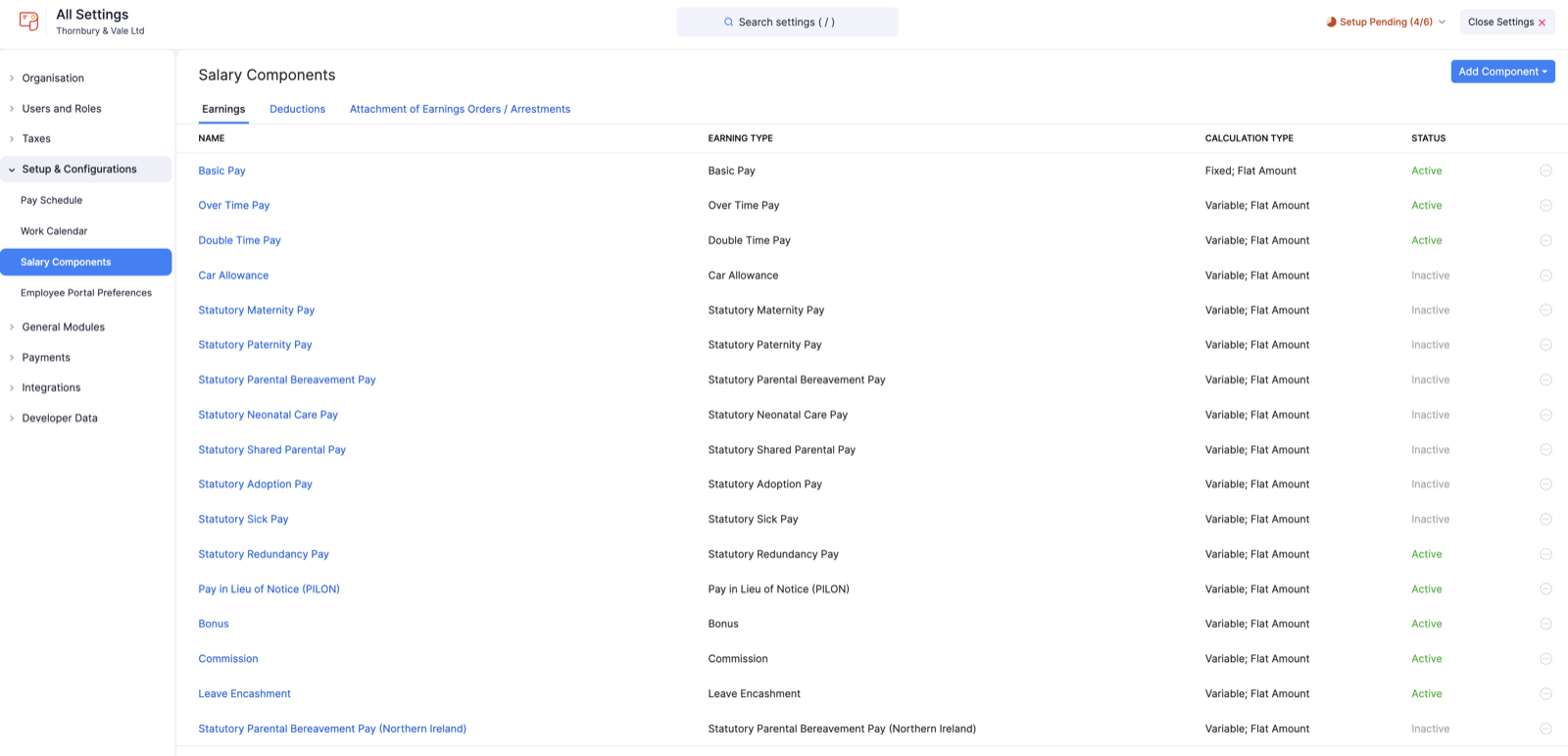
Earnings
Earnings refer to any type of pay an employee receives during a pay period (such as weekly, fortnightly, or monthly). Earnings may be taxable or non-taxable, depending on the earning type and the applicable regulations.
By default, Zoho Payroll includes common UK earnings such as Basic Pay, overtime and double time pay, Bonus, Commission, Leave Encashment, Pay in Lieu of Notice (PILON), Statutory Redundancy Pay, and statutory payments (for example Statutory Sick Pay and Statutory Maternity Pay). Pre-configured default earnings cannot be deleted.
In addition to the default earnings, you might need to create custom earnings specific to your organisation. For example, if you offer a unique allowance or a performance-based incentive, you can add new earnings to Zoho Payroll. Once added, these custom earnings can be assigned to employees, and you can edit, mark as inactive, or delete them as needed.
Add an Earning
To add a new earning:
- Go to Settings and click Salary Components under Setup & Configurations.
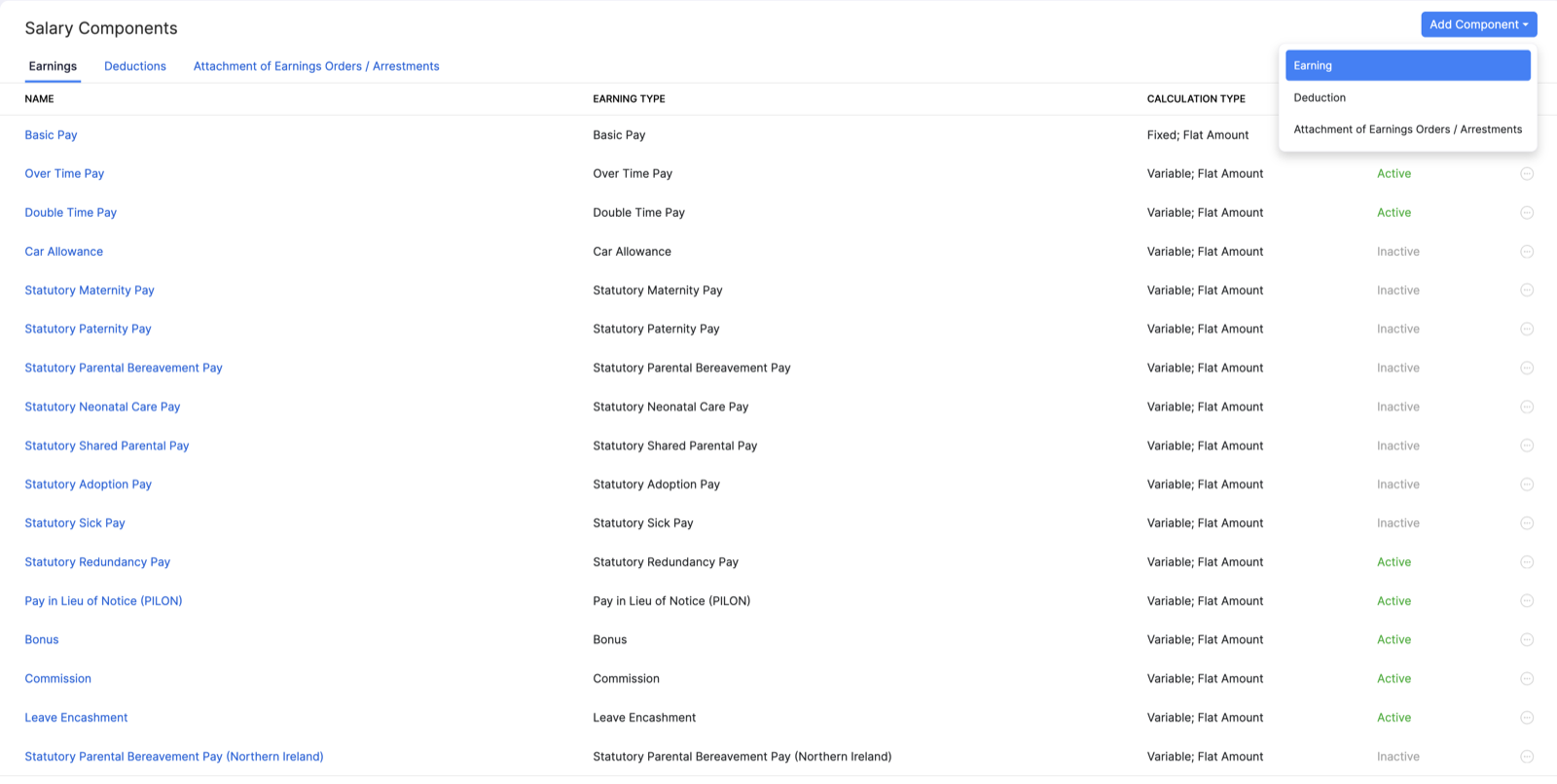
- Click the Add Component dropdown at the top right and select Earning.
- Select the Earning Type.
- Enter the Earning Name. This name must be unique from other earnings.
- Enter the Payslip Label. This is how the earning will appear on the employee’s payslip.
- Select or deselect This is a taxable earning based on your preference.
- Select Mark this as Active if you want to make the earning available for upcoming payrolls.
- Click Save.
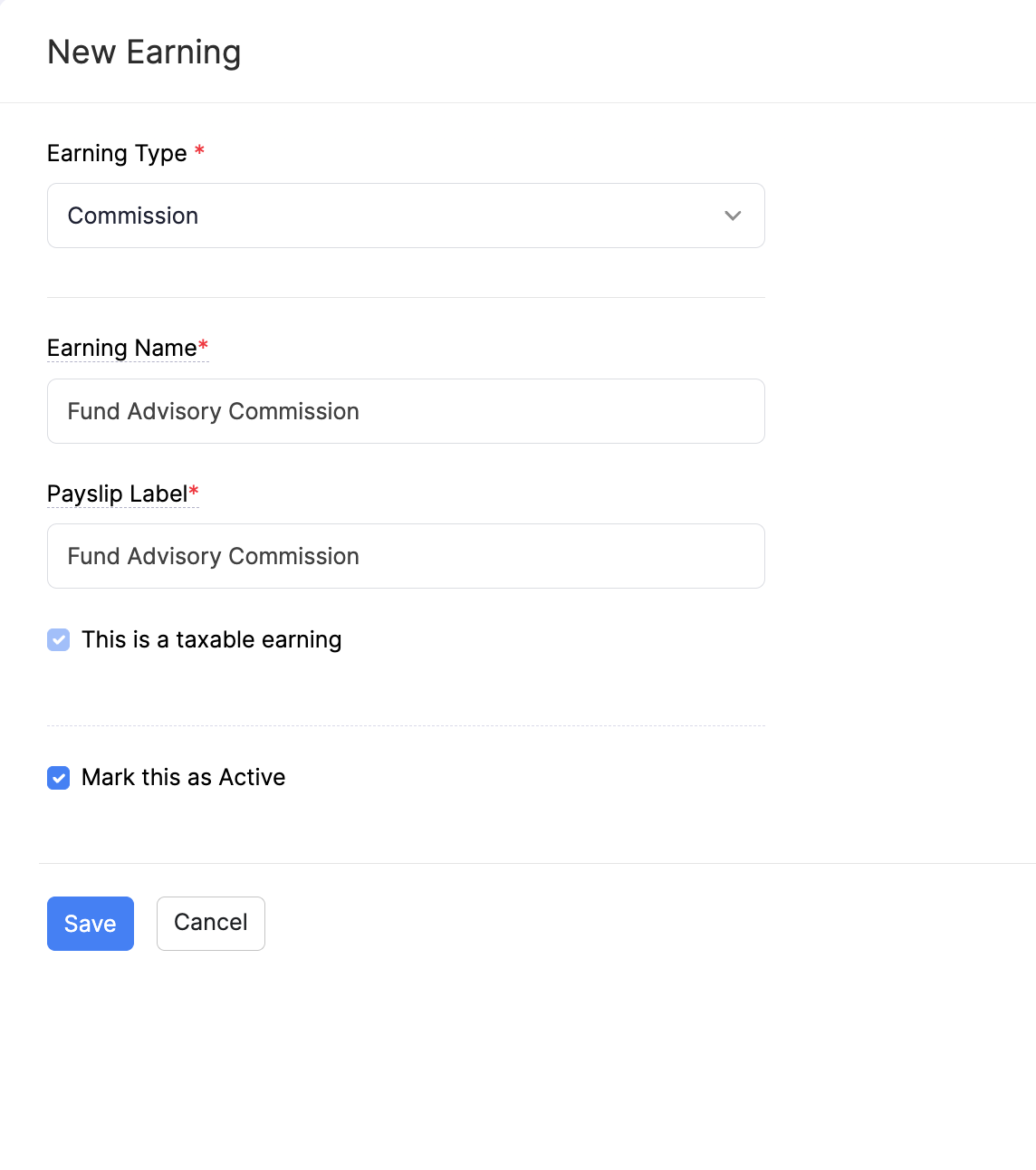
Once saved, this earning can be used in payrolls and assigned to employees.
Edit an Earning
Note: You can edit only the custom earnings you’ve added.
To edit an earning:
- Go to Settings and click Salary Components under Setup & Configurations.
- Click the More icon next to the earning and select Edit. You can also click the earning name.
- Make the necessary changes.
- Click Save.
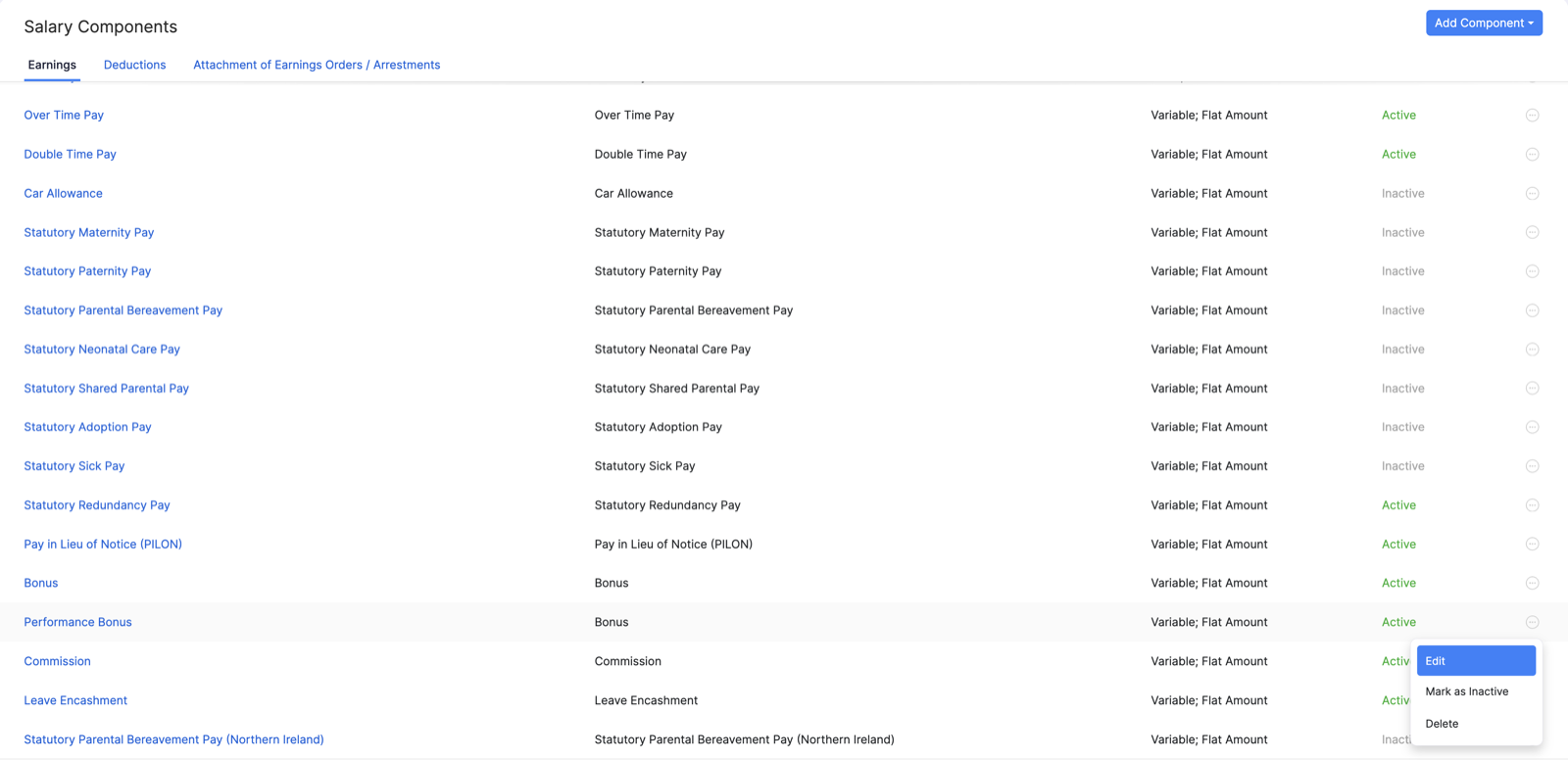
The earning will be updated.
Mark an Earning as Inactive
When an earning is no longer relevant but you want to retain its history or reuse it later, you can mark it as inactive instead of deleting it. This keeps the record while preventing its use in new payrolls.
Note: You can mark an earning as inactive only if it is a custom earning you’ve added.
To mark an earning as inactive:
- Go to Settings and click Salary Components under Setup & Configurations.
- Click the More icon next to the earning.
- Select Mark as Inactive.
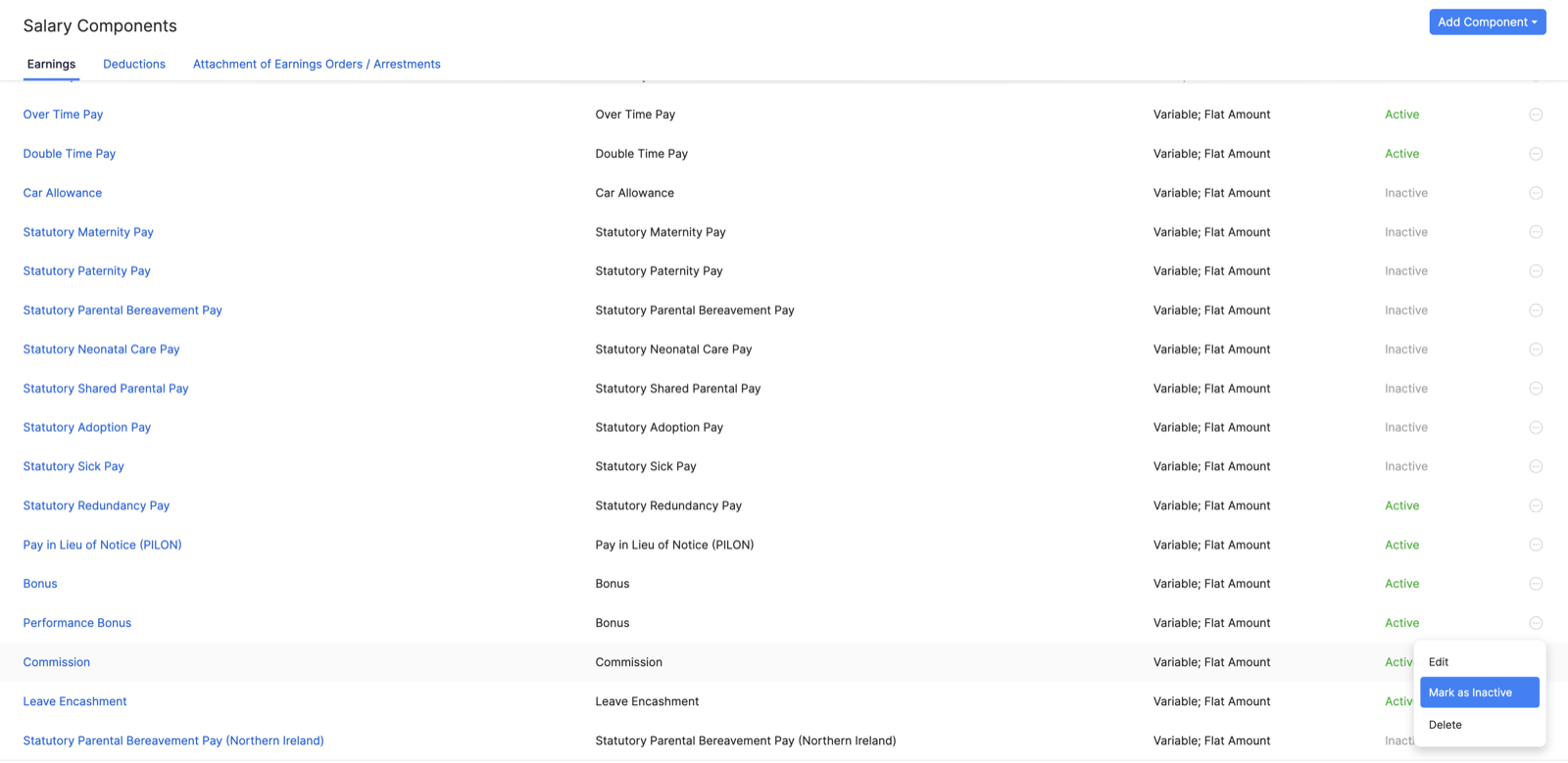
The earning will be marked as inactive, and you won’t be able to associate it with employees in future payrolls.
Delete an Earning
Note: You can delete only the custom earnings you’ve added.
Prerequisites: The earning must not be associated with any employees in any payrolls.
Warning: Deleting an earning is permanent and cannot be undone.
To delete an earning:
- Go to Settings and click Salary Components under Setup & Configurations.
- Click the More icon next to the earning.
- Select Delete.
- In the popup that appears, click Yes.
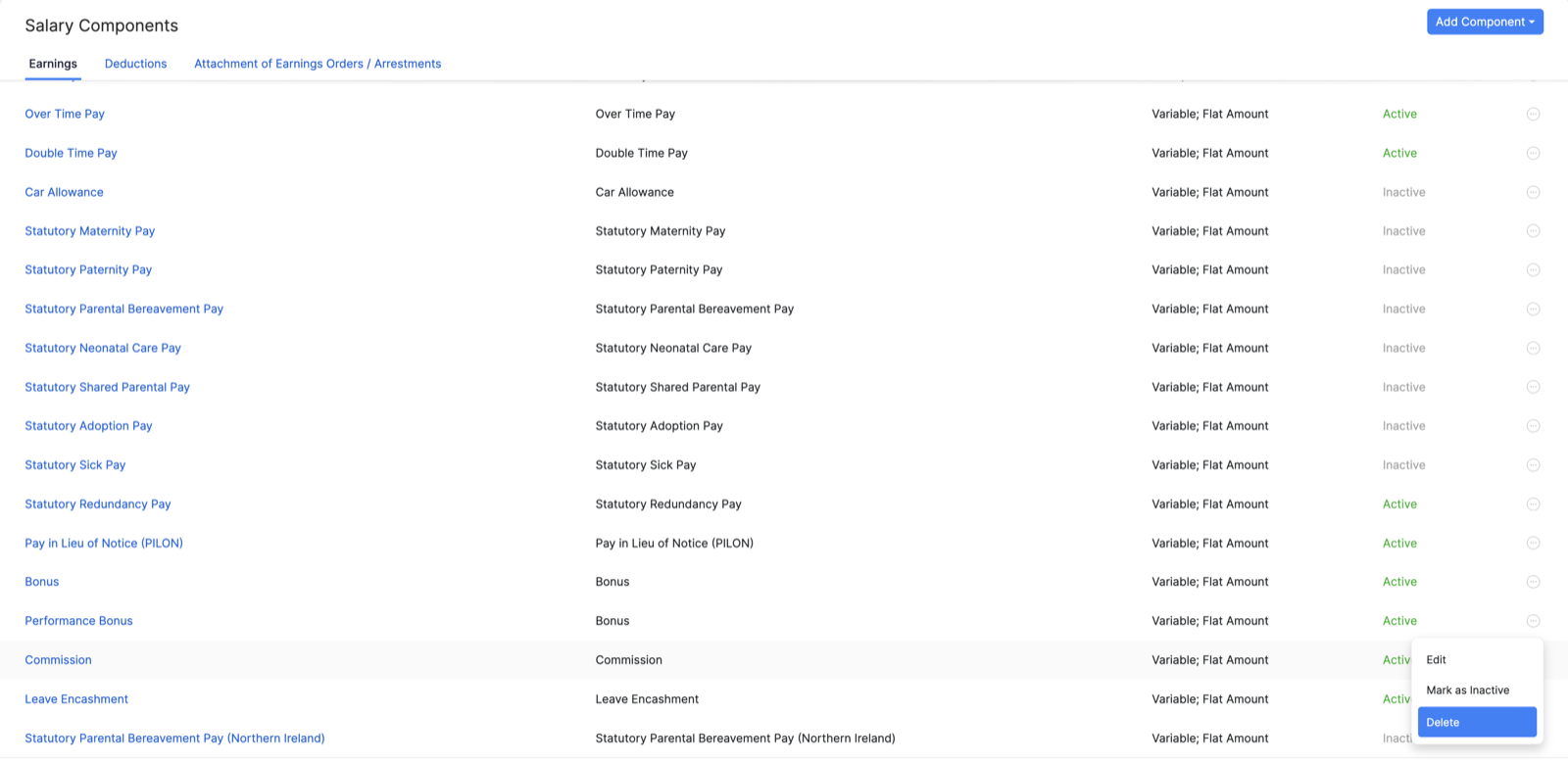
The earning will be deleted.
Deductions
Deductions refer to amounts subtracted from an employee’s pay to arrive at their final take-home pay. These can be for pension contributions, salary sacrifice arrangements, repayment of an advance, or other employee-related items.
Court-ordered deductions, such as an Attachment of Earnings Order (or an arrestment in Scotland), are set up separately under Attachment of Earnings Orders / Arrestments. All deductions must be applied in line with the relevant UK regulations.
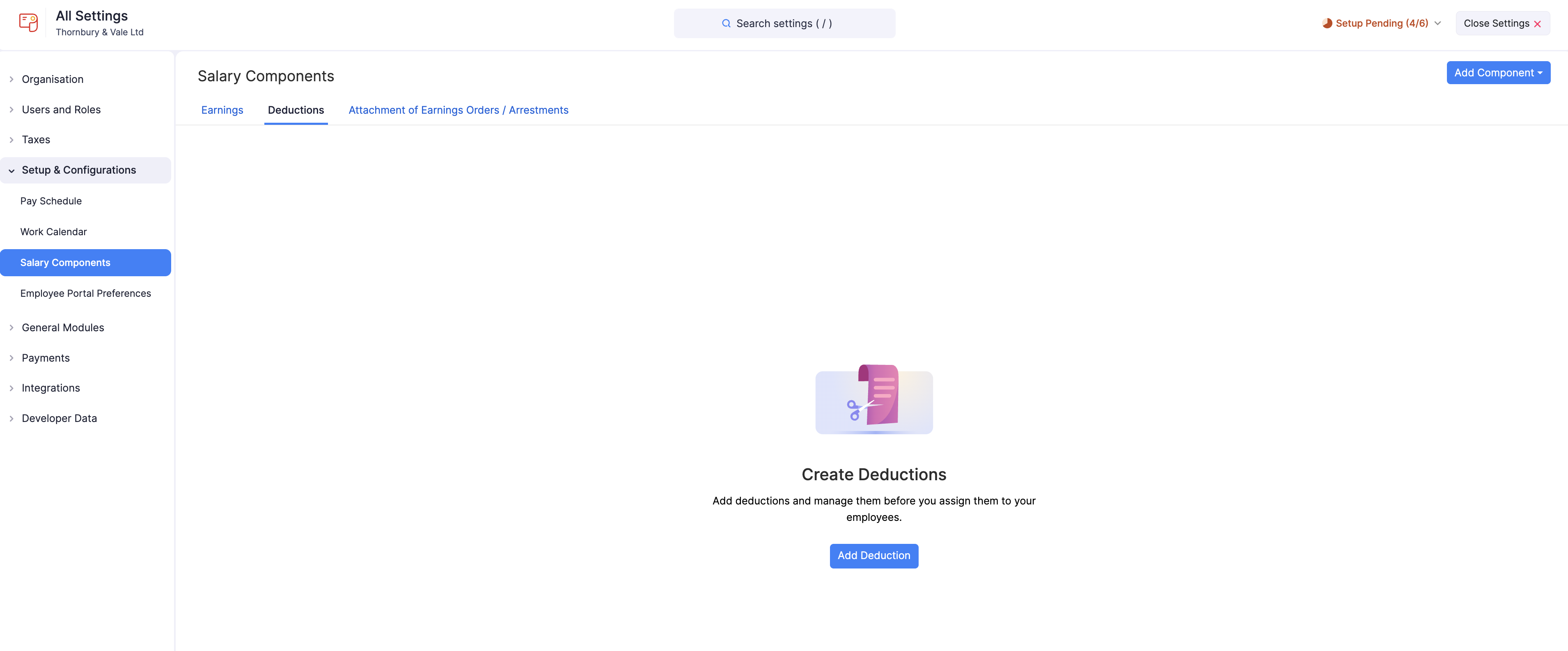
In Zoho Payroll, you can add new deductions, assign them to employees, and manage the following actions:
Add a Deduction
To add a new deduction:
- Go to Settings and click Salary Components under Setup & Configurations.
- Click the Add Component dropdown at the top right and select Deduction.
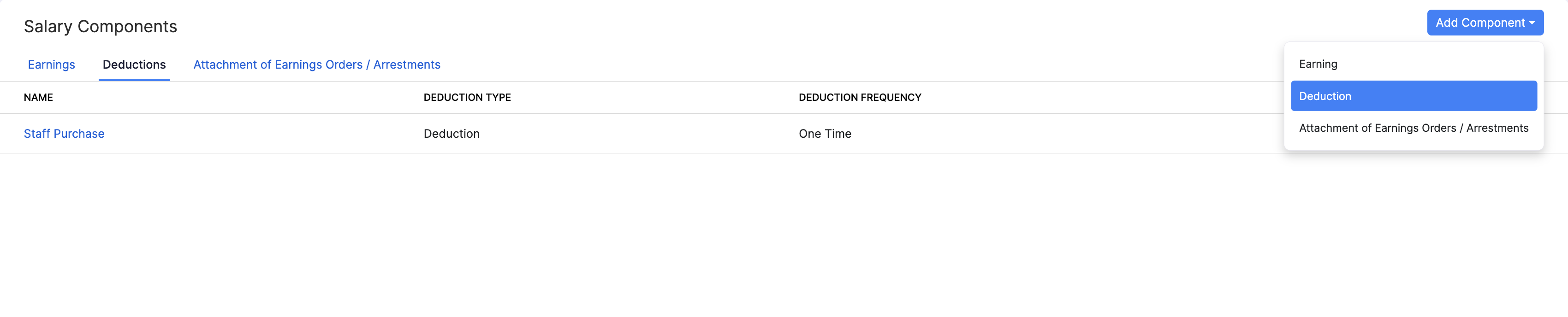
- Enter the Payslip Label. This is how the deduction will appear on the employee’s payslip.
- Under Select the deduction frequency, choose:
- One-time deduction, or
- Recurring deduction for subsequent Payrolls
- Select Mark this as Active to make the deduction available for payrolls.
- Click Save.
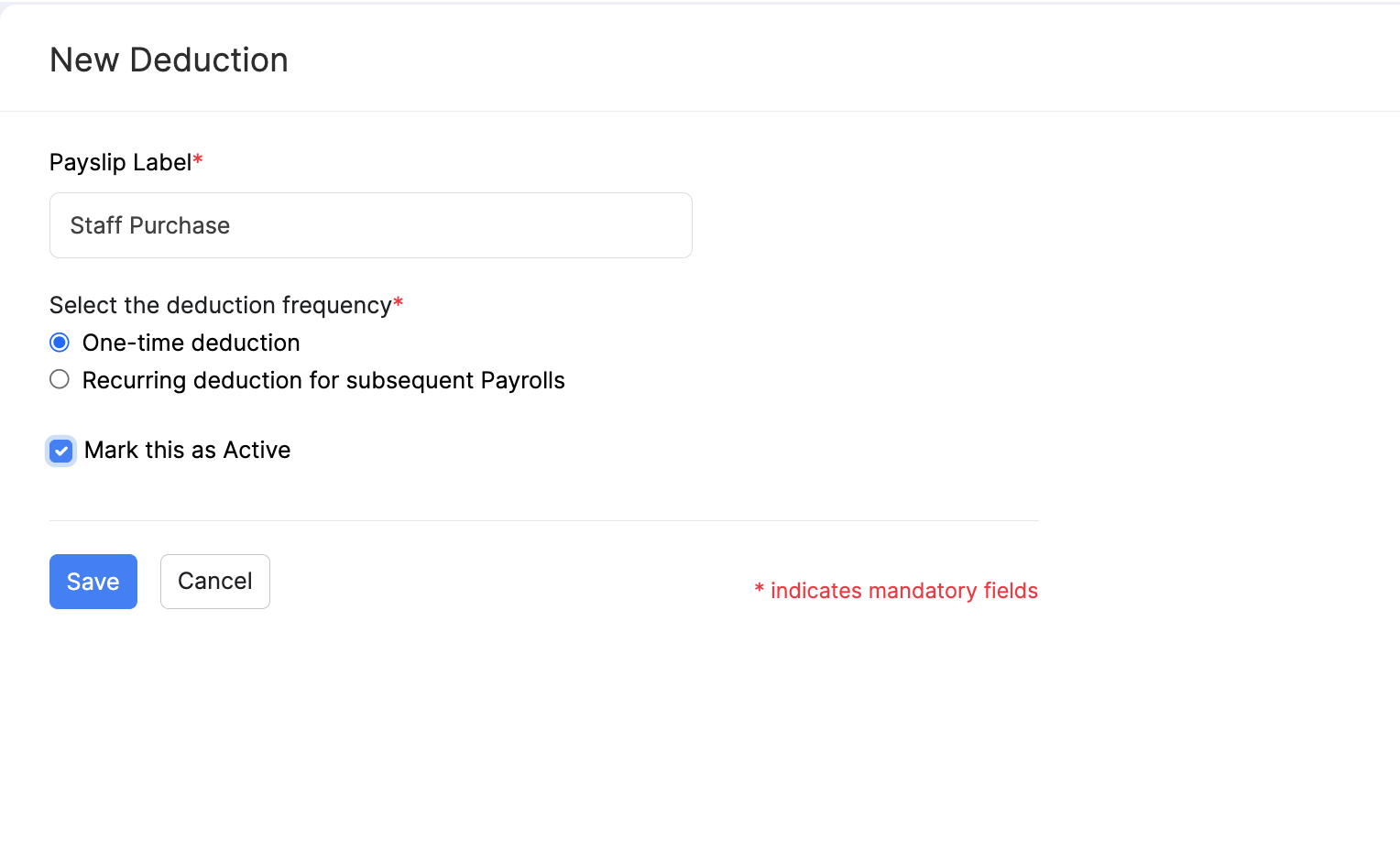
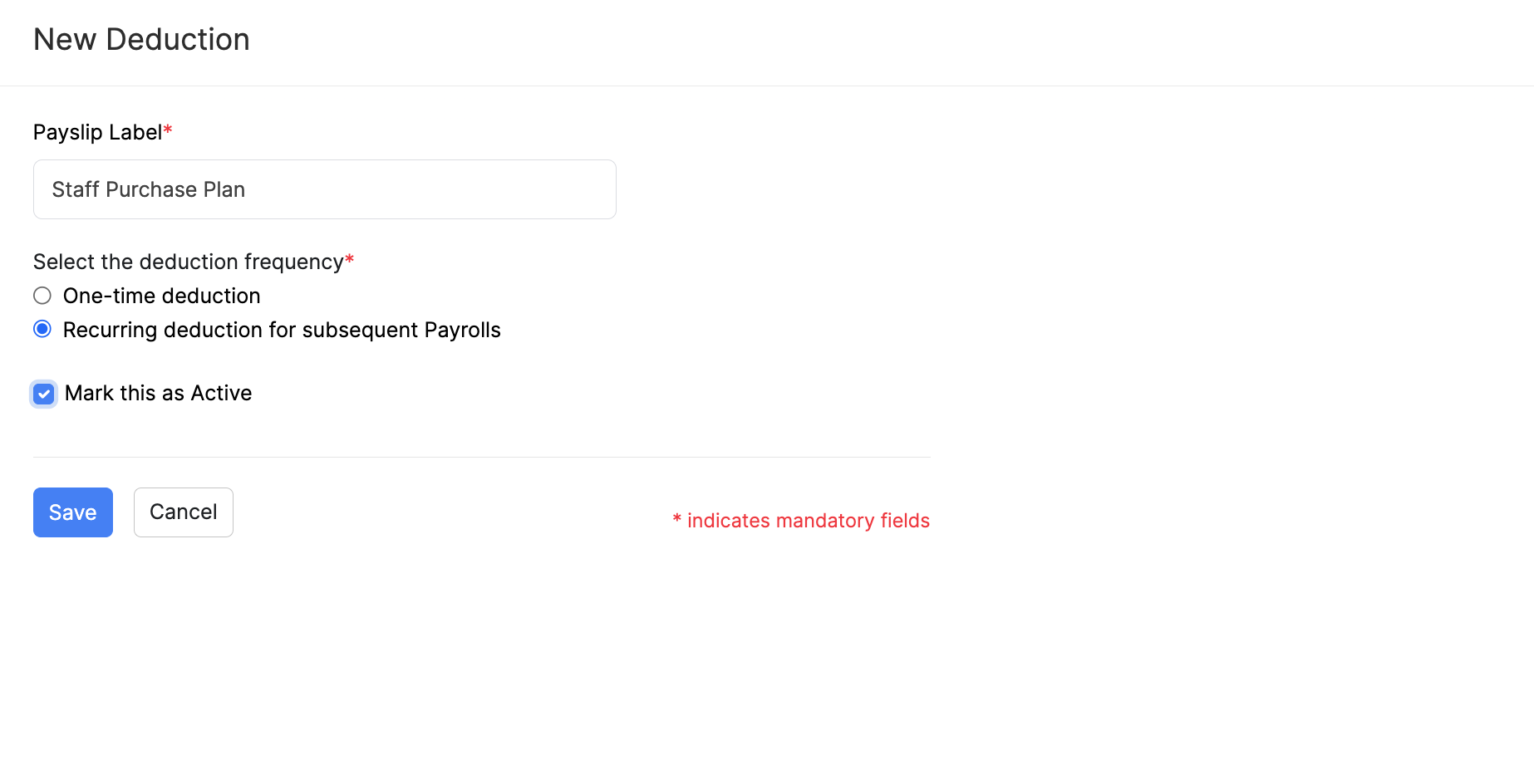
The deduction will be created, and you can assign it to employees as needed.
Edit a Deduction
Note: If you’ve assigned the deduction to employees, you cannot edit the deduction frequency.
To edit a deduction:
- Go to Settings and click Salary Components under Setup & Configurations.
- Click the More icon next to the deduction and select Edit. You can also click the deduction name.
- Make the necessary changes.
- Click Save.
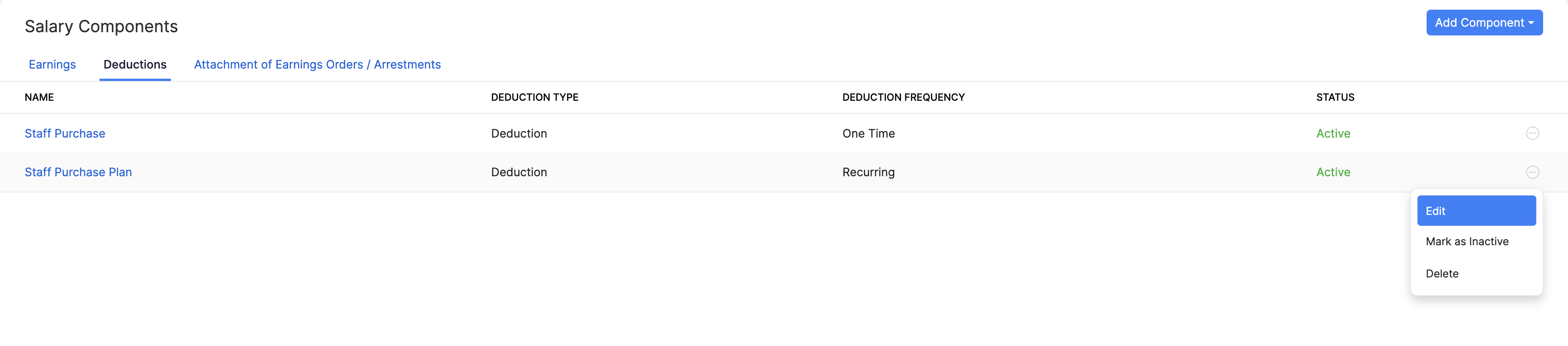
The deduction will be updated.
Mark a Deduction as Inactive
When a deduction is no longer relevant but you want to retain its history or reuse it later, you can mark it as inactive instead of deleting it. This keeps the record while preventing its use in future payrolls.
To mark a deduction as inactive:
- Go to Settings and click Salary Components under Setup & Configurations.
- Click the More icon next to the deduction.
- Select Mark as Inactive.
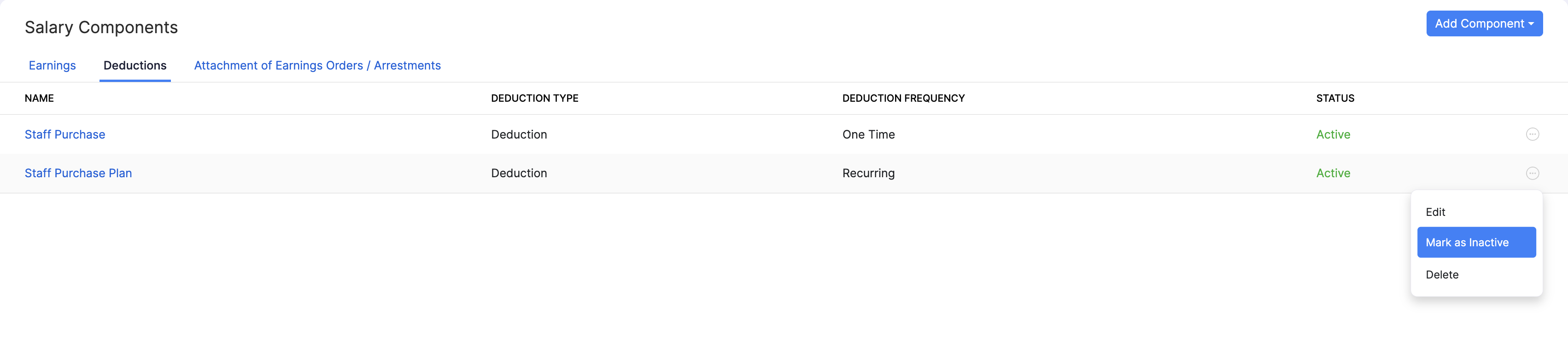
The deduction will be marked as inactive.
Delete a Deduction
Prerequisites: The deduction must not be assigned to any employees.
Warning: Deleting a deduction is permanent and cannot be undone.
To delete a deduction:
- Go to Settings and click Salary Components under Setup & Configurations.
- Click the More icon next to the deduction.
- Select Delete.
- In the popup that appears, click Yes.
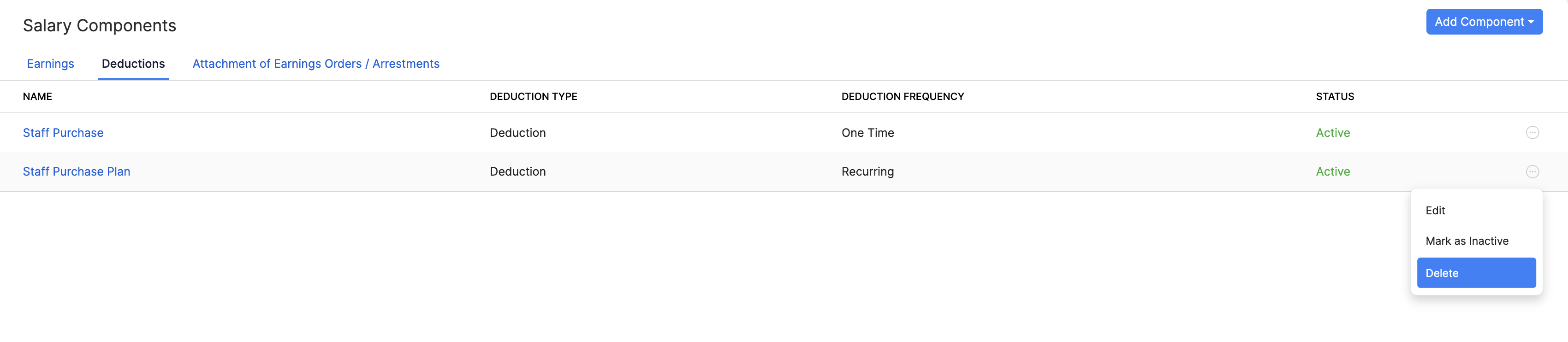
The deduction will be deleted.
Attachment of Earnings Orders / Arrestments
An attachment of earnings is a deduction you make from an employee’s pay when a court or agency instructs you to. It recovers money the employee owes directly from their wages. Once you receive an order, you’re legally required to make the deduction, apply it from the correct date, and pay it to the issuing body. You set these up under Salary Components, and Zoho Payroll applies them automatically each time you run payroll.
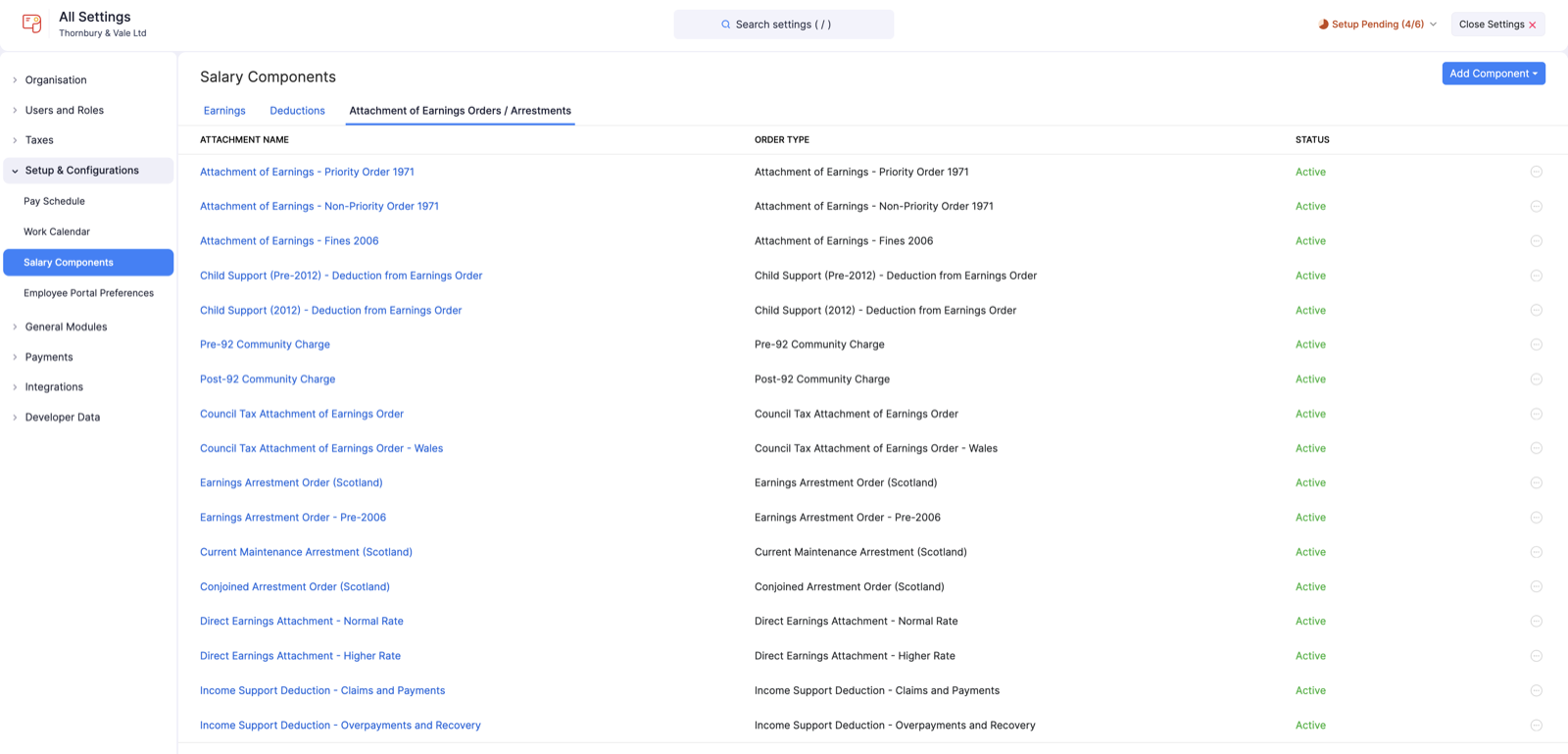
Note: In Scotland, these are called arrestments (for example, an Earnings Arrestment). England, Wales, and Northern Ireland use attachment of earnings orders.
When Is an Attachment of Earnings Used?
You’ll receive an order from a court or agency when an employee has a debt or obligation to repay. Common cases include:
| Order Type | When It Applies |
|---|---|
| Attachment of Earnings Order (AEO) | Issued by a court to recover a civil debt, such as an unpaid County Court Judgment (CCJ). |
| Council tax attachment of earnings | Issued by a local authority (council) to recover unpaid council tax arrears. |
| Fines (AEO) | Issued by a magistrates’ court to recover unpaid court fines. |
| Deduction from Earnings Order (DEO) | Issued by the Child Maintenance Service (CMS) to collect child maintenance. |
| Direct Earnings Attachment (DEA) | Issued by the Department for Work and Pensions (DWP) to recover overpaid benefits or Social Fund loans. |
| Earnings Arrestment / Current Maintenance Arrestment / Conjoined Arrestment Order | The Scottish equivalents, used to recover ordinary debts, ongoing maintenance, or multiple debts against the same employee. |
The Order Type you select tells Zoho Payroll how to calculate the deduction, for example a fixed amount or a percentage based on protected earnings. It also sets how the order ranks against any other orders the same employee already has.
Scenario:
Zylker gets an Attachment of Earnings Order from the court for its employee, Sam. It’s to recover an unpaid County Court Judgment of £600. The order tells Zylker to deduct the amount from Sam’s wages. Sam must still be left with a minimum take-home pay, known as their protected earnings.
The payroll team adds an attachment of earnings under Salary Components. They name it “Sam – CCJ”, set the Payslip Label to “Court Order”, and select the matching Order Type. From the next pay run, Zoho Payroll deducts the correct amount each period and respects Sam’s protected earnings. It stops automatically once the full £600 is recovered.
Add an Attachment of Earnings
To add an attachment of earnings:
- Go to Settings and click Salary Components under Setup & Configurations.
- Click the Add Component dropdown and select Attachment of Earnings Orders / Arrestments.
- Enter the following details:
| Field | Description |
|---|---|
| Attachment Name | A name to identify this attachment for your reference. It does not appear on the employee’s payslip. |
| Payslip Label | The name shown for this deduction on the employee’s payslip. |
| Order Type | Select the type of court or agency order. This determines how the deduction is calculated and how it ranks against any other orders for the same employee. |
- Select Mark this as Active if you want the attachment available for payrolls.
- Click Save.
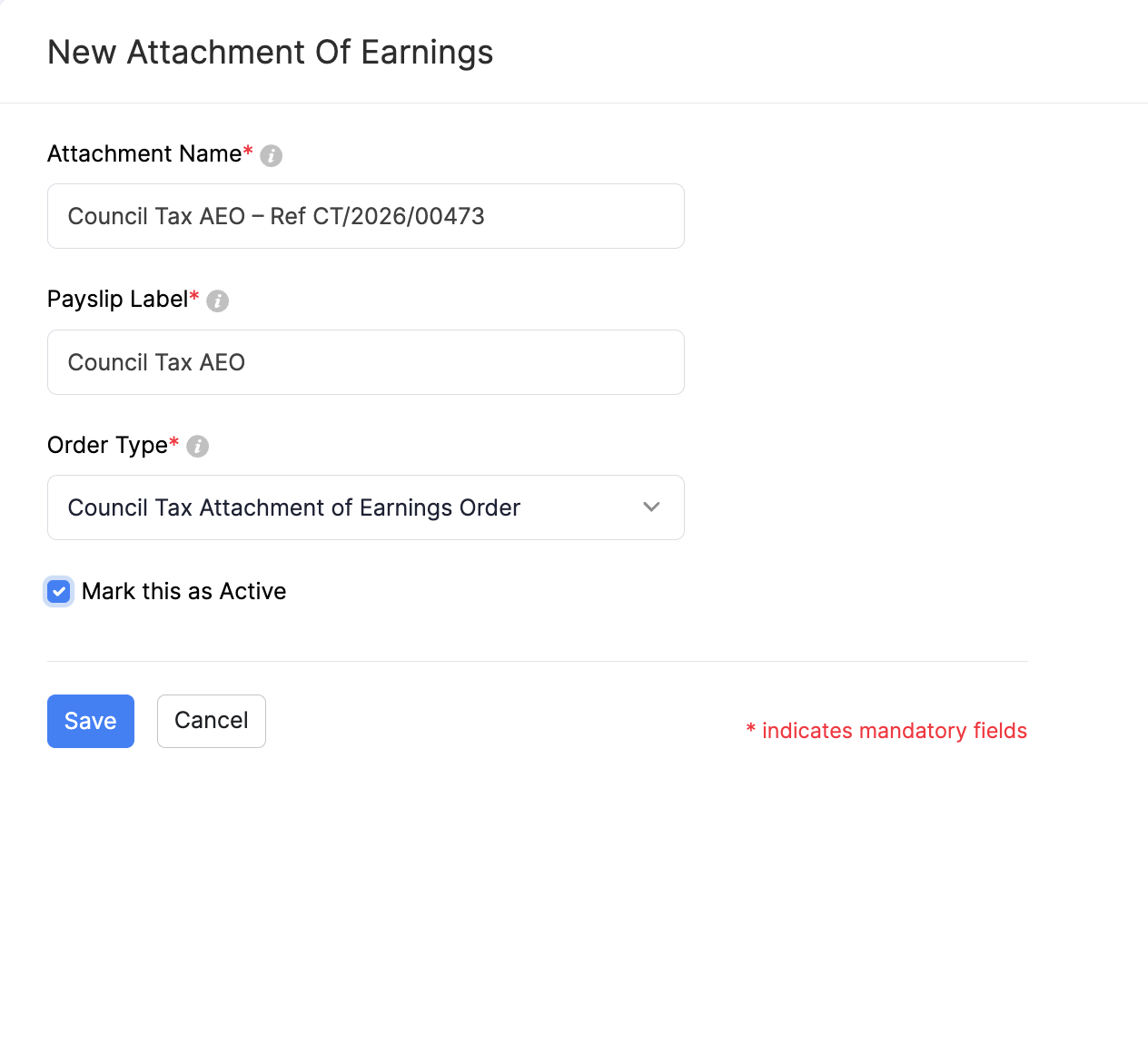
The attachment of earnings will be created, and you can assign it to the relevant employee.
Edit an Attachment of Earnings
To edit an attachment of earnings:
- Go to Settings and click Salary Components under Setup & Configurations.
- Under Attachment of Earnings Orders / Arrestments, click the More icon next to the attachment and select Edit. You can also click the attachment name.
- Make the necessary changes.
- Click Save.
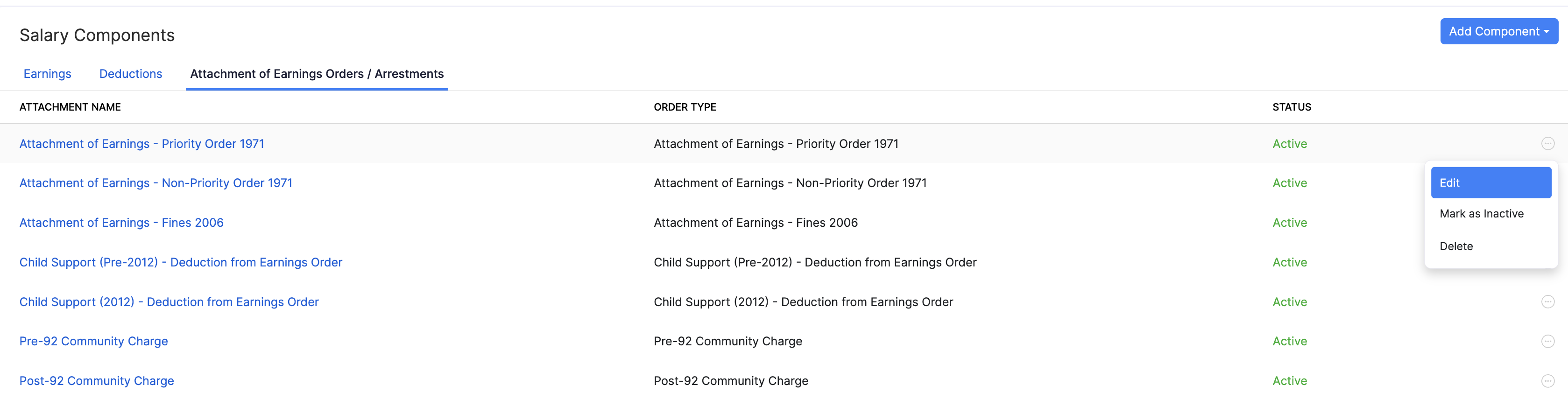
The attachment of earnings will be updated.
Mark an Attachment of Earnings as Inactive
When an attachment is no longer needed but you want to keep the record, you can mark it as inactive.
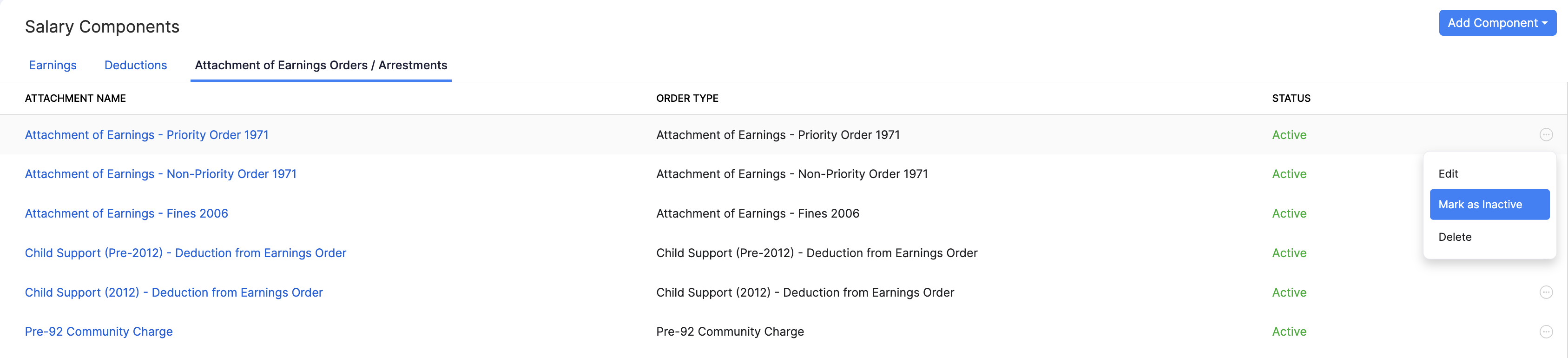
To mark an attachment of earnings as inactive:
- Go to Settings and click Salary Components under Setup & Configurations.
- Under Attachment of Earnings Orders / Arrestments, click the More icon next to the attachment.
- Select Mark as Inactive.
Delete an Attachment of Earnings
Warning: Deleting an attachment of earnings is permanent and cannot be undone.
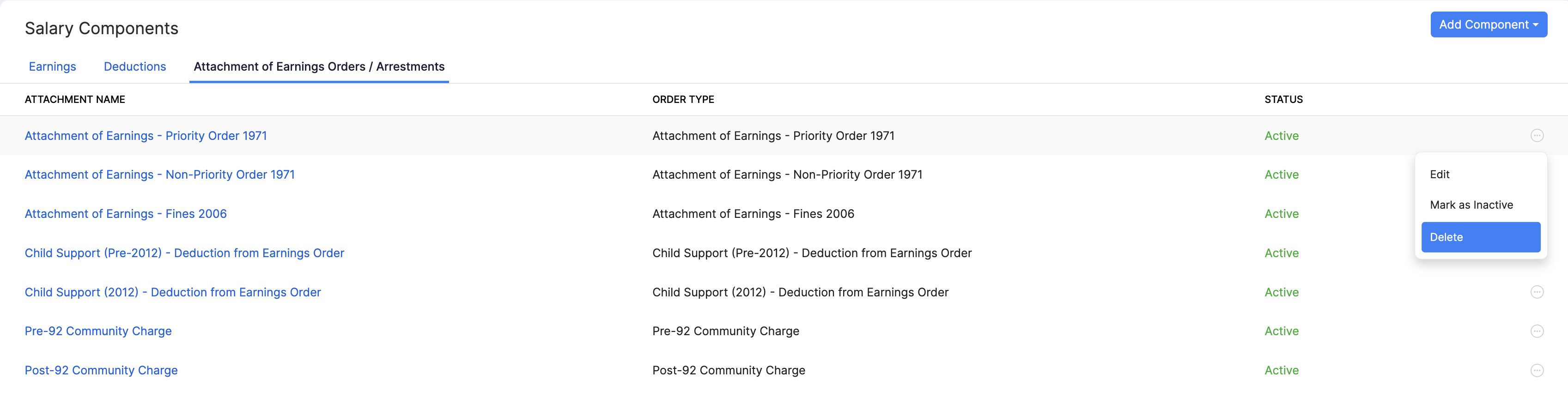
To delete an attachment of earnings:
- Go to Settings and click Salary Components under Setup & Configurations.
- Under Attachment of Earnings Orders / Arrestments, click the More icon next to the attachment.
- Select Delete.
- In the popup that appears, click Yes.
The attachment of earnings will be deleted.