
Employee Portal Preferences

The Employee Portal is a dedicated space where your employees can view their compensation details and access their payslips. Once you enable the Employee Portal for your organisation, you can:
- Configure portal access for your employees individually.
- Display the contact information of your payroll team on the Employee Portal.
- Display important announcements to your employees through a banner message.
- Enable Ask Zia so employees can get instant answers to payroll-related questions.
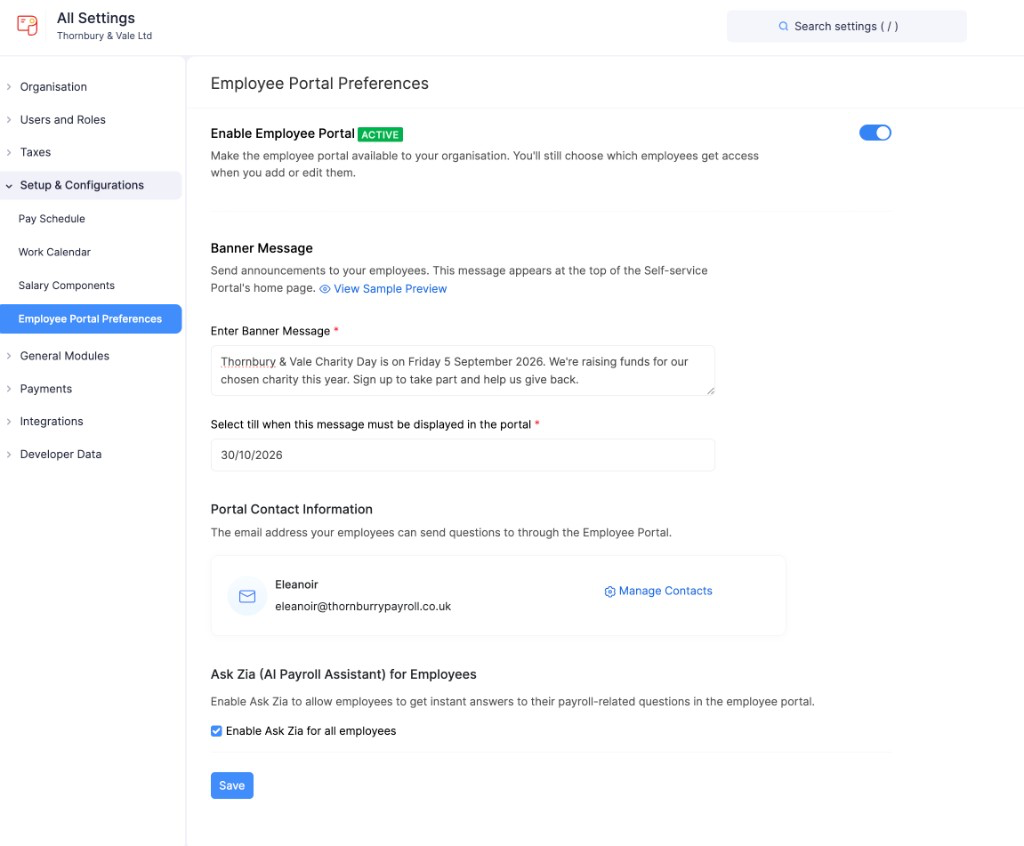
Enable the Employee Portal
Enabling the Employee Portal makes it available to your organisation. You’ll still choose which employees get access when you add or edit them.
To enable the Employee Portal:
- Go to Settings and click Employee Portal Preferences under Setup & Configurations.
- Toggle on Enable Employee Portal. The status shows as ACTIVE when it is on.
- Configure a Banner Message, Portal Contact Information, and Ask Zia, if required.
- Click Save.
The Employee Portal is now enabled for your organisation.
Configure Portal Access for Employees
Note: You must enable the Employee Portal at the organisation level in Settings before you can configure portal access for employees individually.
Enable Portal Access During Employee Creation
While adding a new employee in the Employees module, select the Enable Portal Access checkbox on the Basics page to give that employee access.
Enable Portal Access for an Existing Employee
To enable portal access for an existing employee:
- Click Employees on the sidebar.
- Click the employee you want to give portal access to.
- Click Enable under Basic Information.
- In the popup that appears, click Yes.
An email invitation will be sent to the employee. Once they accept the invite, they can access the Employee Portal.
Pro Tip: You can resend the invitation email by clicking Reinvite.
Disable Portal Access for an Existing Employee
To disable portal access for an existing employee:
- Click Employees on the sidebar.
- Click the employee you want to disable portal access for.
- Click Disable under Basic Information.
- In the popup that appears, click Yes.
The Employee Portal will be disabled for that employee.
Banner Message
Use a banner message to send announcements to your employees. The message appears at the top of the Self-service Portal’s home page.
Scenario: Zylker has revised salaries for all its employees and wants to let them know. The HR team adds a banner message in Zoho Payroll about the salary revision. It appears prominently on the Employee Portal’s home page, so all employees see it when they log in.
To display a banner message:
- Go to Settings and click Employee Portal Preferences under Setup & Configurations.
- Under Banner Message, enter your announcement in Enter Banner Message.
- In Select till when this message must be displayed in the portal, set the end date for the message.
- Click View Sample Preview to see how the message will appear to employees.
- Click Save.
The banner message will be displayed in the portal until the date you set.
Portal Contact Information
The Portal Contact Information is the email address your employees can send questions to through the Employee Portal. This gives them an easy way to reach your payroll team with any payroll-related queries.
To manage the portal contact:
- Go to Settings and click Employee Portal Preferences under Setup & Configurations.
- Under Portal Contact Information, click Manage Contacts.
- Click + Add Contact, enter the name and email address of the contact, and click Save.
- Hover over the contact you want to display and click Show in Portal.
Pro Tip: You can add multiple contacts, but only one contact can be displayed in the Employee Portal at a time. Use the Edit or Delete icon next to a contact to update or remove it.
Ask Zia
Ask Zia is an AI payroll assistant in the Employee Portal. When you enable it, employees can get instant answers to their payroll-related questions.
To enable Ask Zia:
- Go to Settings and click Employee Portal Preferences under Setup & Configurations.
- Under Ask Zia, select Enable Ask Zia for all employees.
- Click Save.
Disable the Employee Portal
To disable the Employee Portal for your organisation:
- Go to Settings and click Employee Portal Preferences under Setup & Configurations.
- Toggle off Enable Employee Portal.
- Click Save.
- In the popup that appears, click Disable.
The Employee Portal will be disabled for all your employees, regardless of the individual preferences configured in their profiles. You can re-enable it at any time.