
Final Settlement Payroll

A Final Settlement Payroll is the pay run for an employee’s last pay when they leave your organisation. It can include remaining salary, Pay in Lieu of Notice (PILON), bonus, commission, statutory redundancy pay, and other final amounts.
You create it when you end employment for an employee. After you save final pay details, Zoho Payroll opens the Final Settlement Payroll so you can process it straight away. If you leave it for later, it stays under Pay Runs as a draft.
Open a Final Settlement Payroll
From End Employment
After you complete End Employment and click Save and Continue on final pay details, Zoho Payroll opens the Final Settlement Payroll for that employee.
From Pay Runs
- Go to Pay Runs.
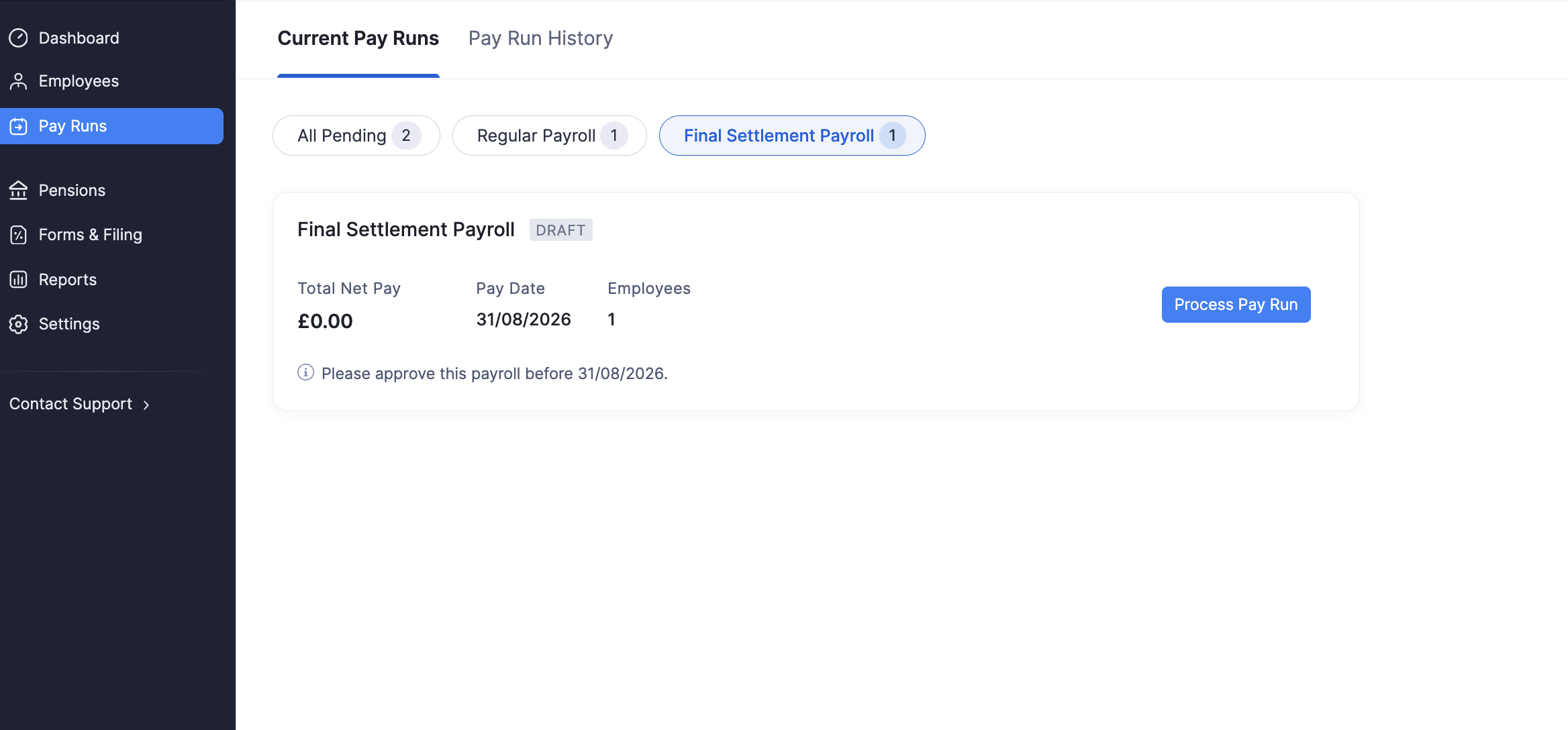
- Open the Current Pay Runs tab.
- Filter by Final Settlement Payroll, or find the draft card for the employee.
- Click Process Pay Run.
Review Final Pay
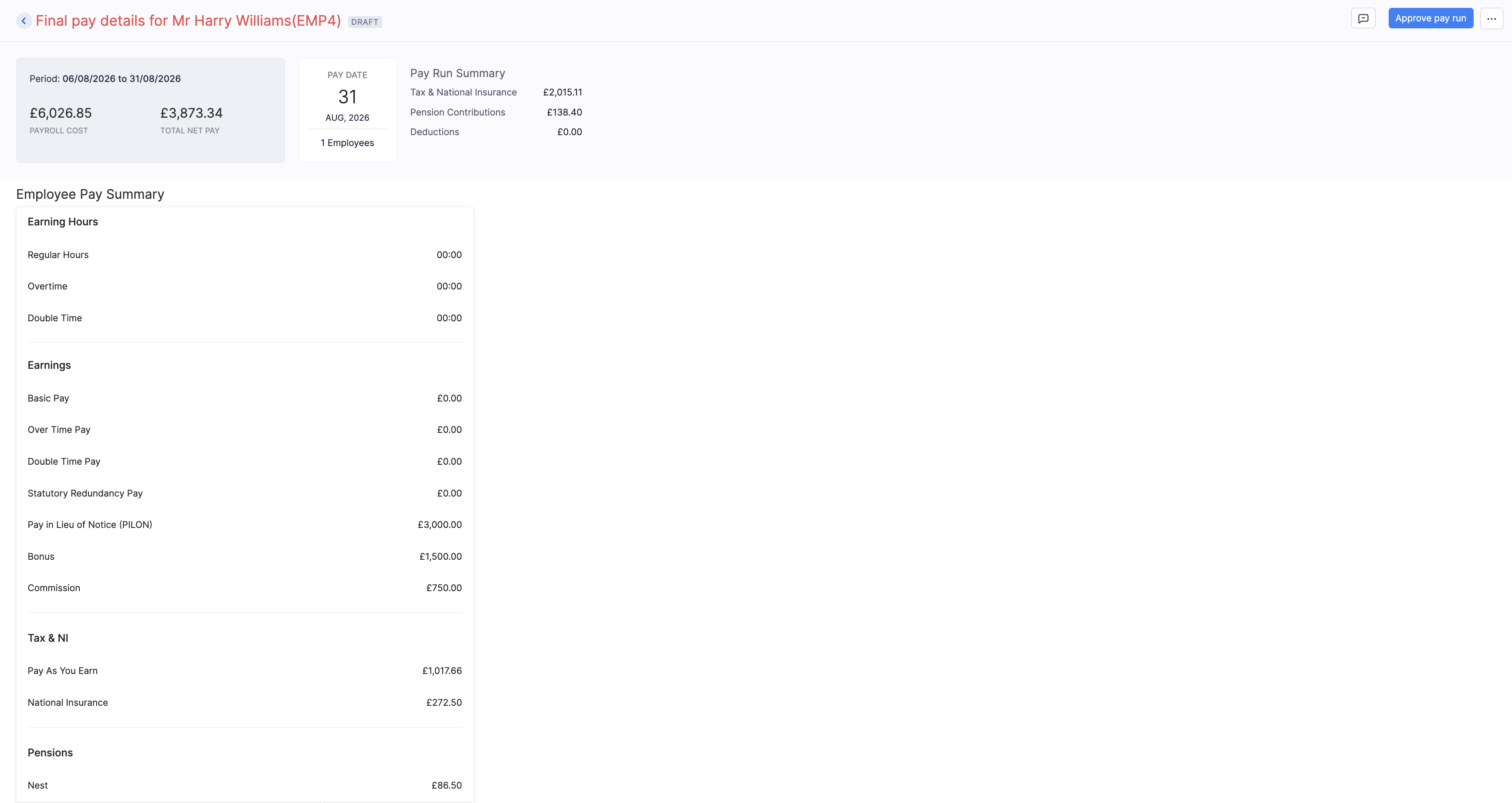
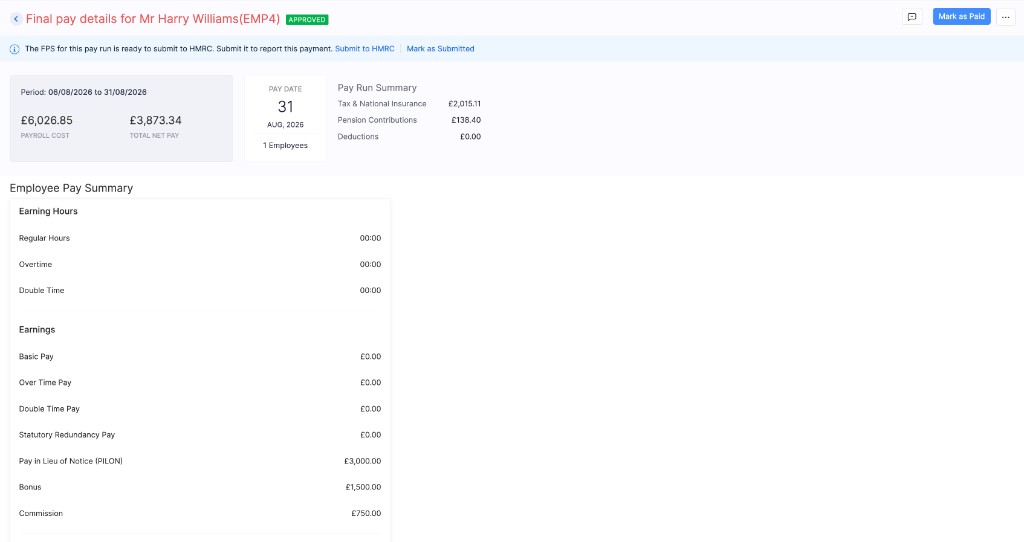
On the Final Settlement Payroll, check the period, pay date, payroll cost, and net pay. Open the employee pay summary to confirm earnings such as PILON, bonus, or commission, and the tax, National Insurance, and pension amounts.
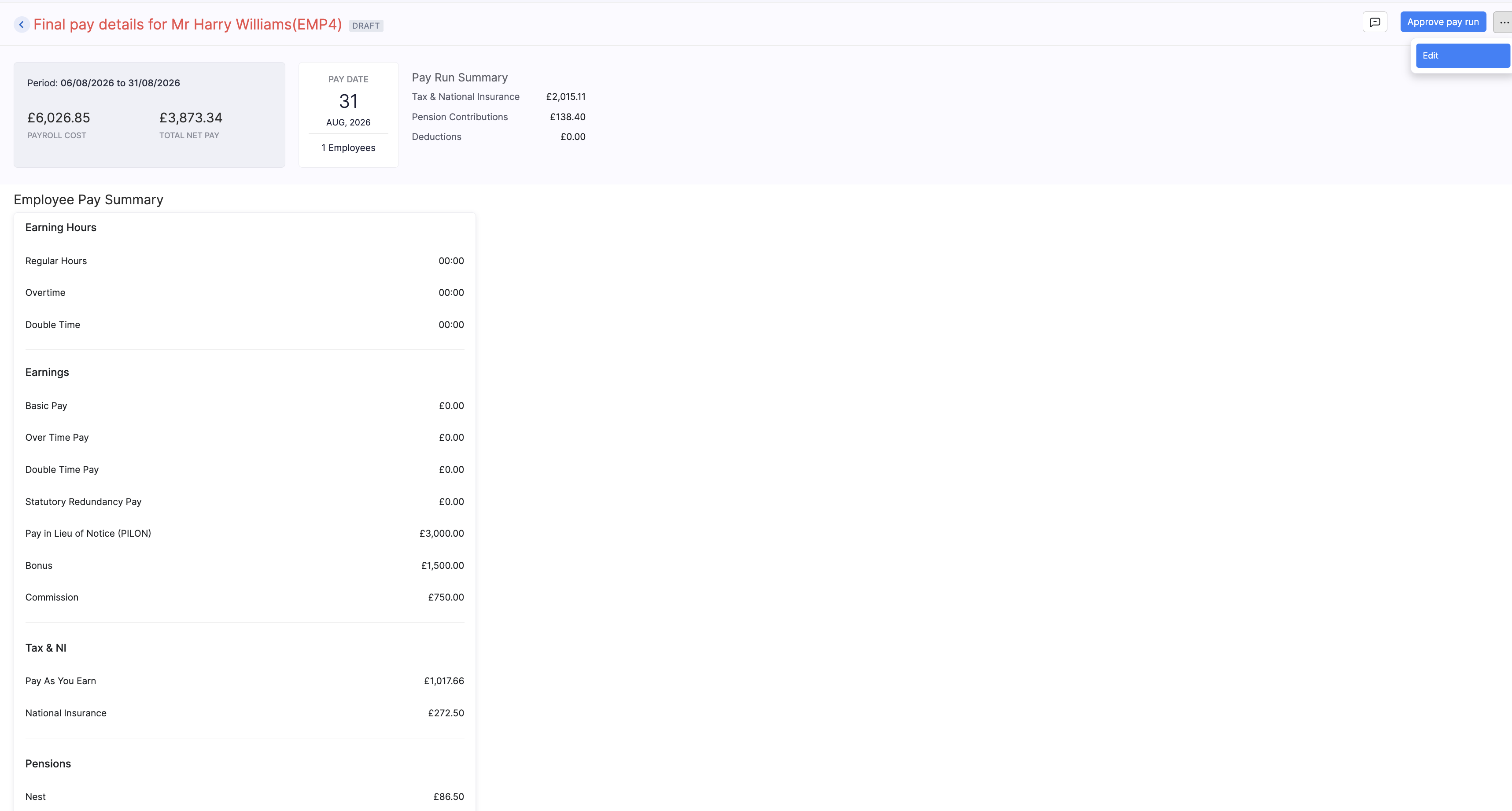
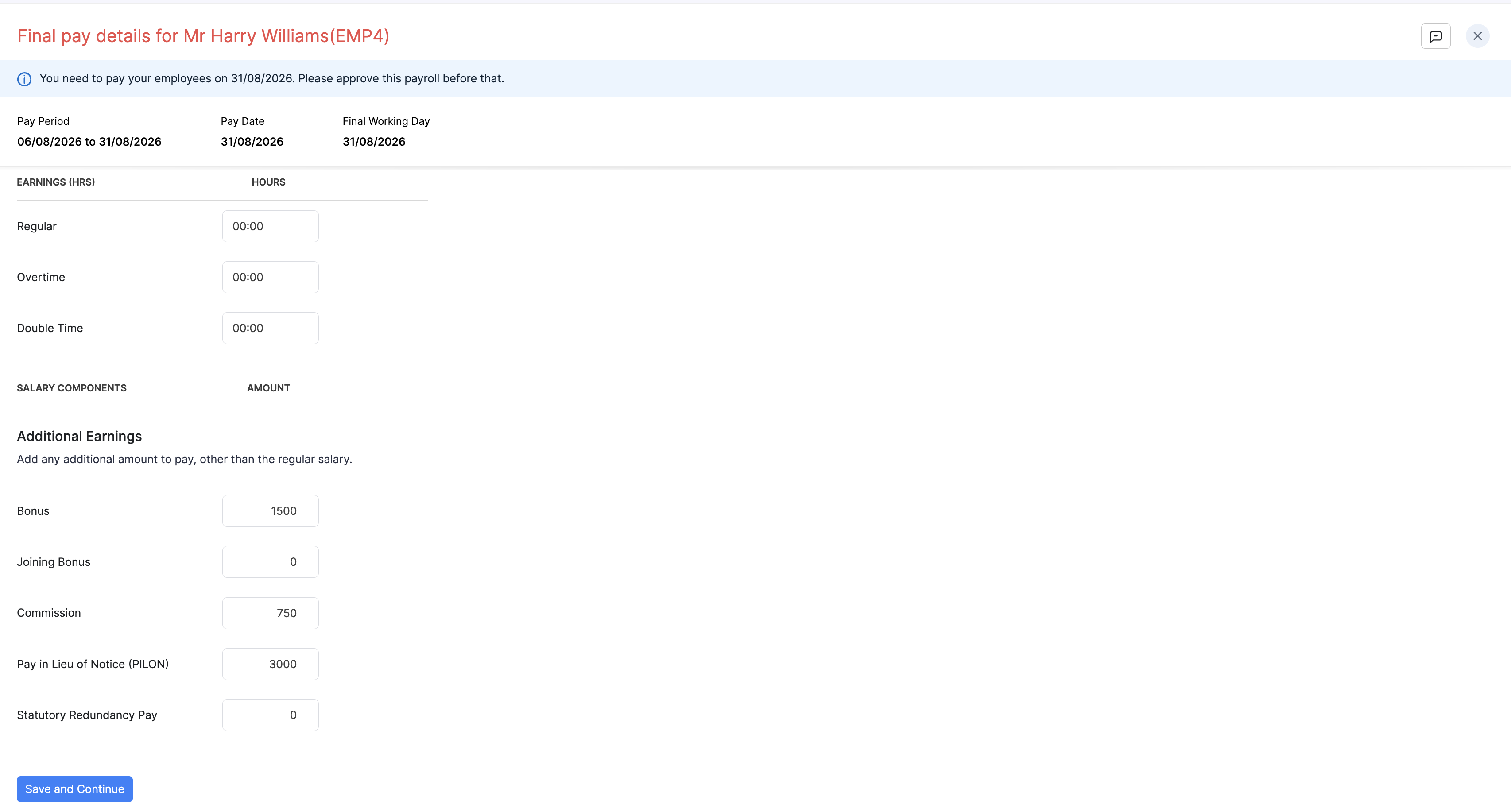
If something needs changing before approval, click Edit and update the final pay details.
Approve the Pay Run
- Review the Final Settlement Payroll.
- Click Approve pay run (or submit it for approval if your role requires that).
Once approved, Zoho Payroll shows that the FPS is ready to submit to HMRC, and Mark as Paid becomes available.
Note: Approve the Final Settlement Payroll before the pay date shown on the draft. A late FPS may incur an HMRC penalty.
Submit the FPS to HMRC
Zoho Payroll submits the FPS using the Government Gateway credentials saved in your organisation’s RTI Details.
- On the approved Final Settlement Payroll, click Submit to HMRC.
- In the Submit FPS to HMRC dialog, complete any options shown for this pay run, such as a reason for a late submission.
- Click Submit.
For each option in the dialog, refer to Submit the FPS to HMRC under Regular pay runs.
If you already submitted the FPS outside Zoho Payroll:
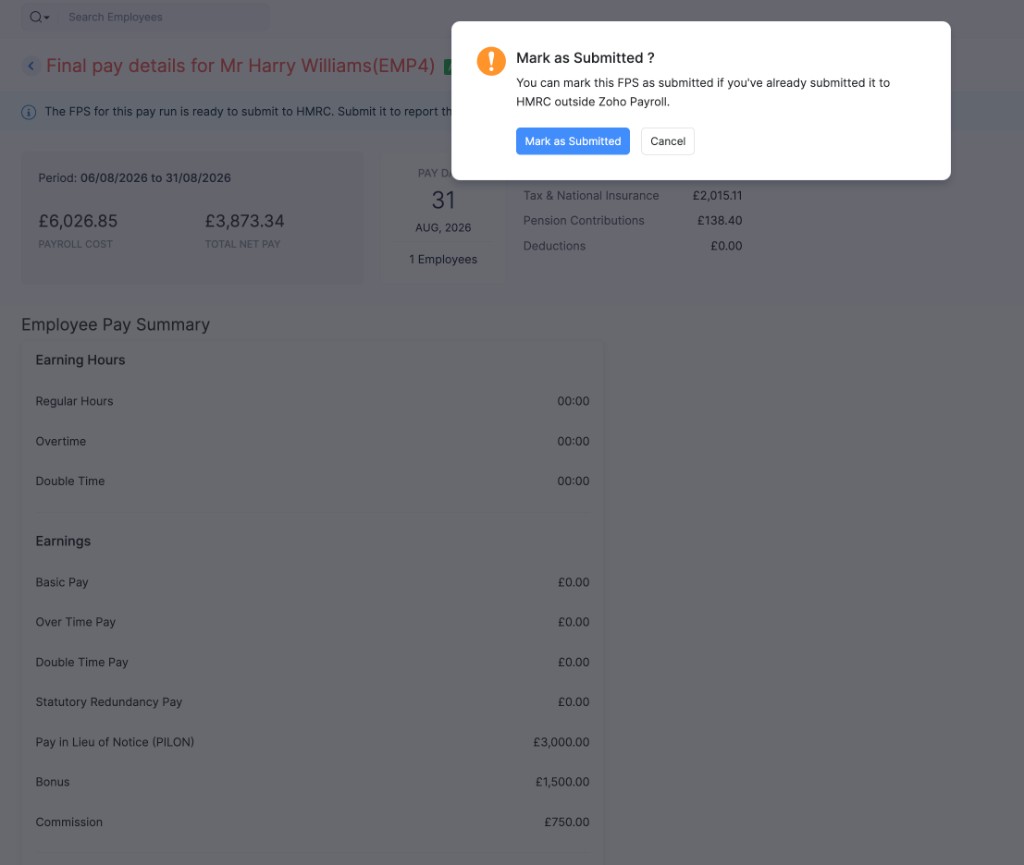
- Click Mark as Submitted.
- Confirm in the dialog.
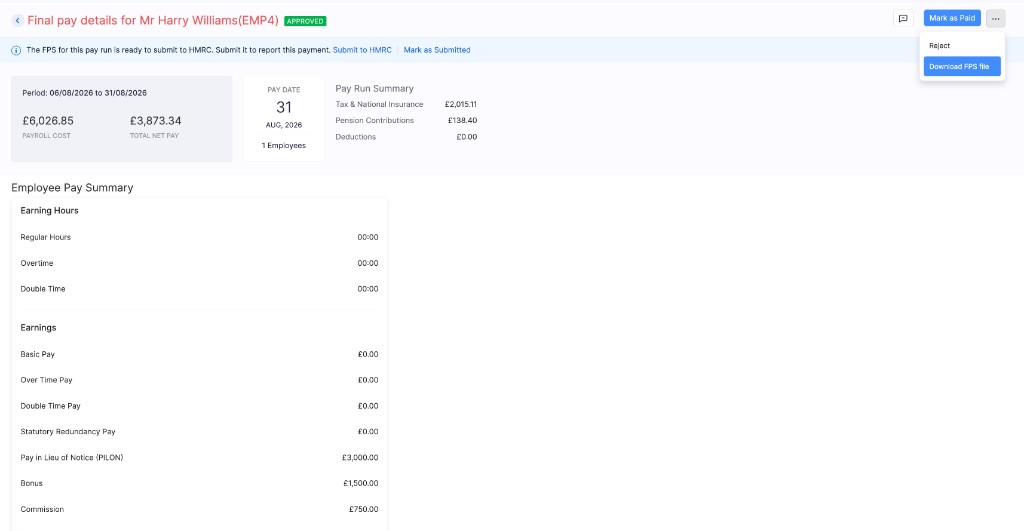
From the More menu you can also Download FPS file for your records, or Reject the pay run if it should not go ahead.
For FPS timing and what to report, refer to the GOV.UK guidance on payroll information to report to HMRC.
Record Payment
After the FPS is submitted (or marked as submitted):
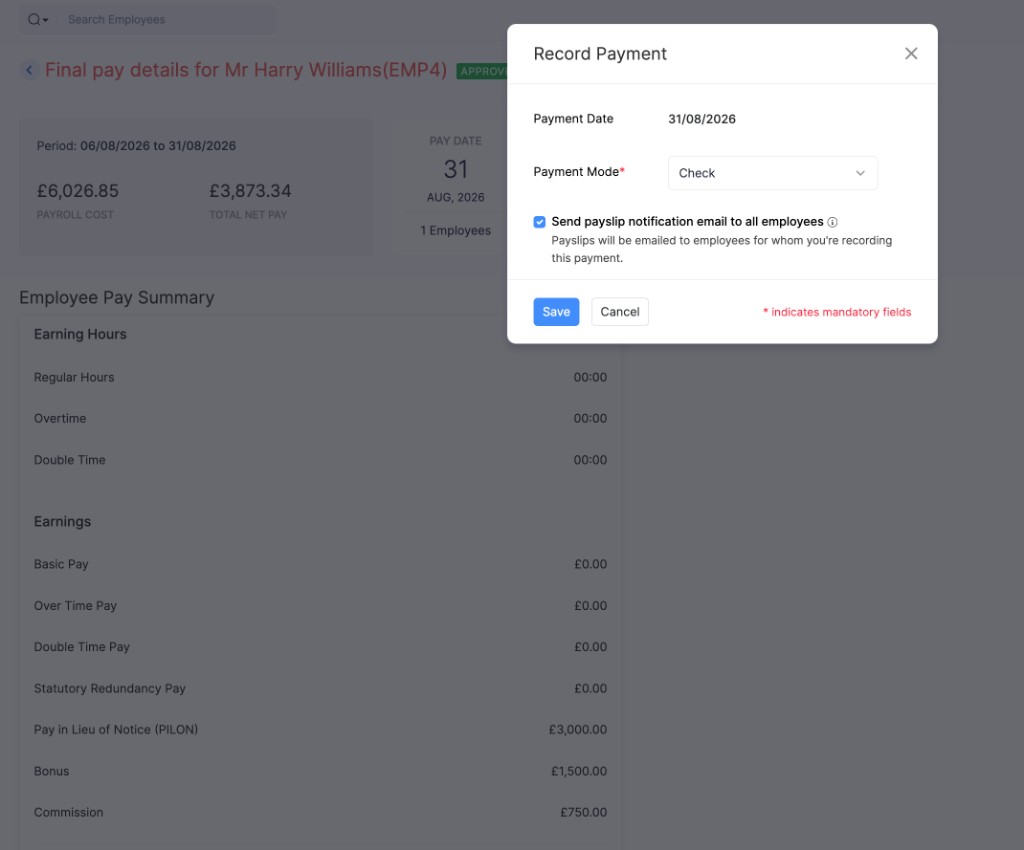
- Click Mark as Paid.
- Check the Payment Date.
- Select the Payment Mode.
- Optionally keep Send payslip notification email to all employees selected.
- Click Save.
After You Pay
- The employee appears under Former Employees in Employees.
- The Final Settlement Payroll appears in Pay Run History, with payrun type Final Settlement Payroll.