
Regular Pay Runs

A regular pay run follows your pay schedule. Zoho Payroll creates each pay period for you. You review the figures, approve the pay run, tell HMRC what you paid, then pay your employees.
For UK payroll, that usually means:
- Checking earnings, tax, National Insurance, pensions, and other deductions.
- Approving the pay run (or submitting it for someone else to approve).
- Submitting the Full Payment Submission (FPS) to HMRC. Zoho Payroll prepares this RTI report automatically from the approved pay run; you confirm the send to HMRC.
- Paying employees, for example by bank transfer using a Bacs file, or by recording a payment you’ve already made.
Process a Pay Run
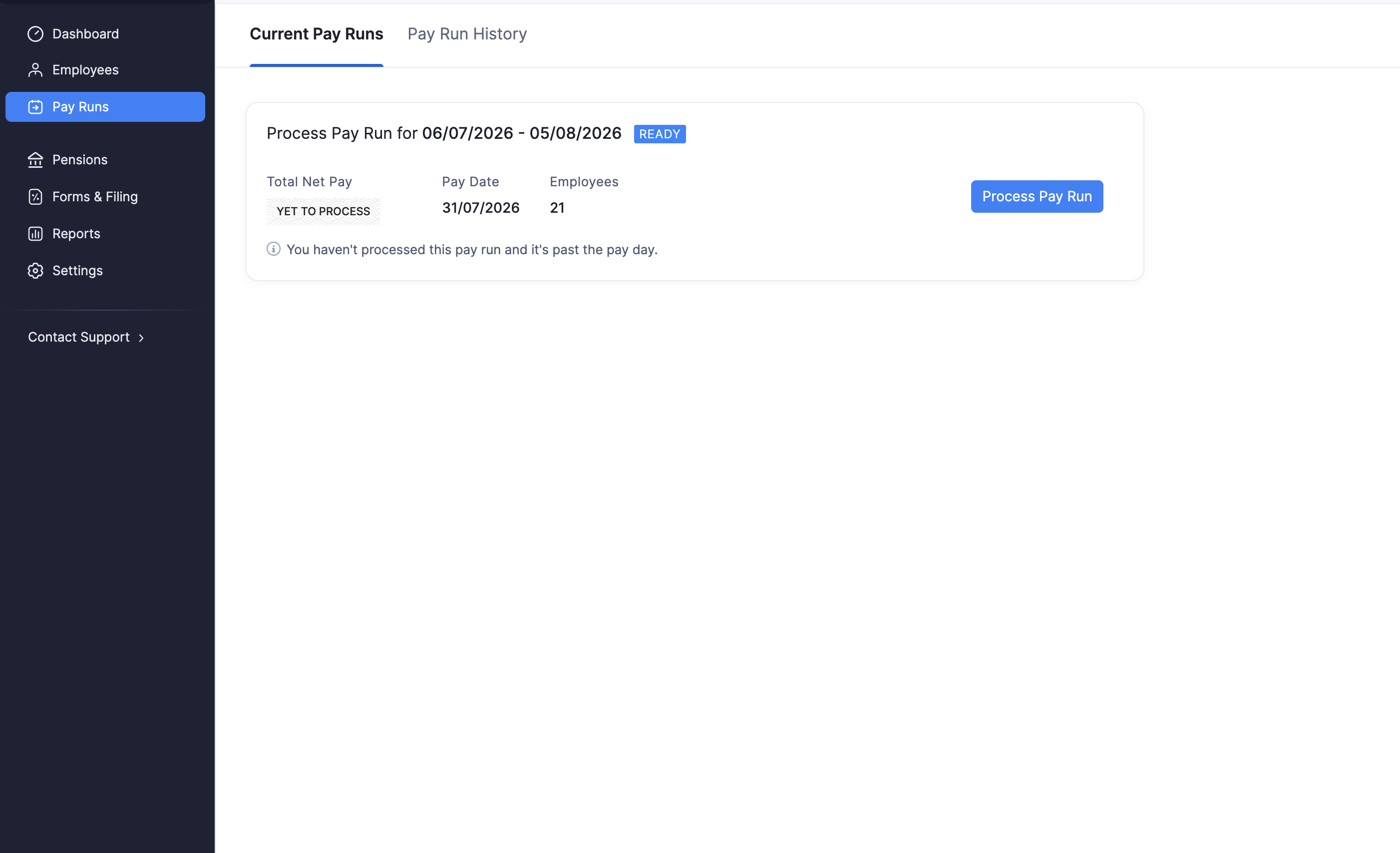
- Go to Pay Runs.
- Under Current Pay Runs, open the pay run that is ready to process.
- Click Process Pay Run for the period shown.
The pay run opens in Draft so you can review it. Complete approval before the pay date, which is the day employees should receive their pay. You can edit the pay date from the summary if needed.
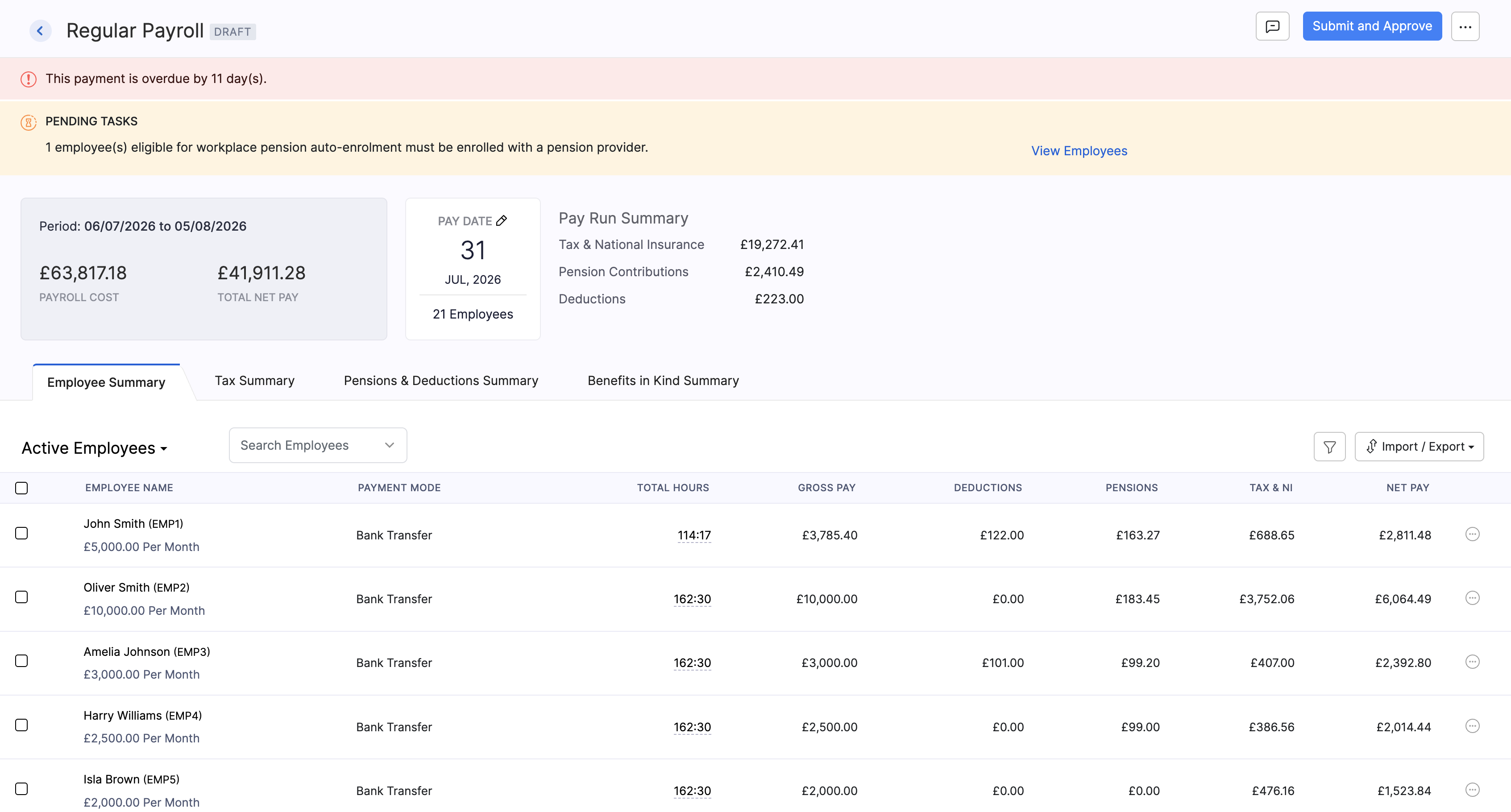
If the pay date has passed, Zoho Payroll shows that the payment is overdue. A late FPS may incur an HMRC penalty, so approve and submit as soon as you can.
Review a Pay Run
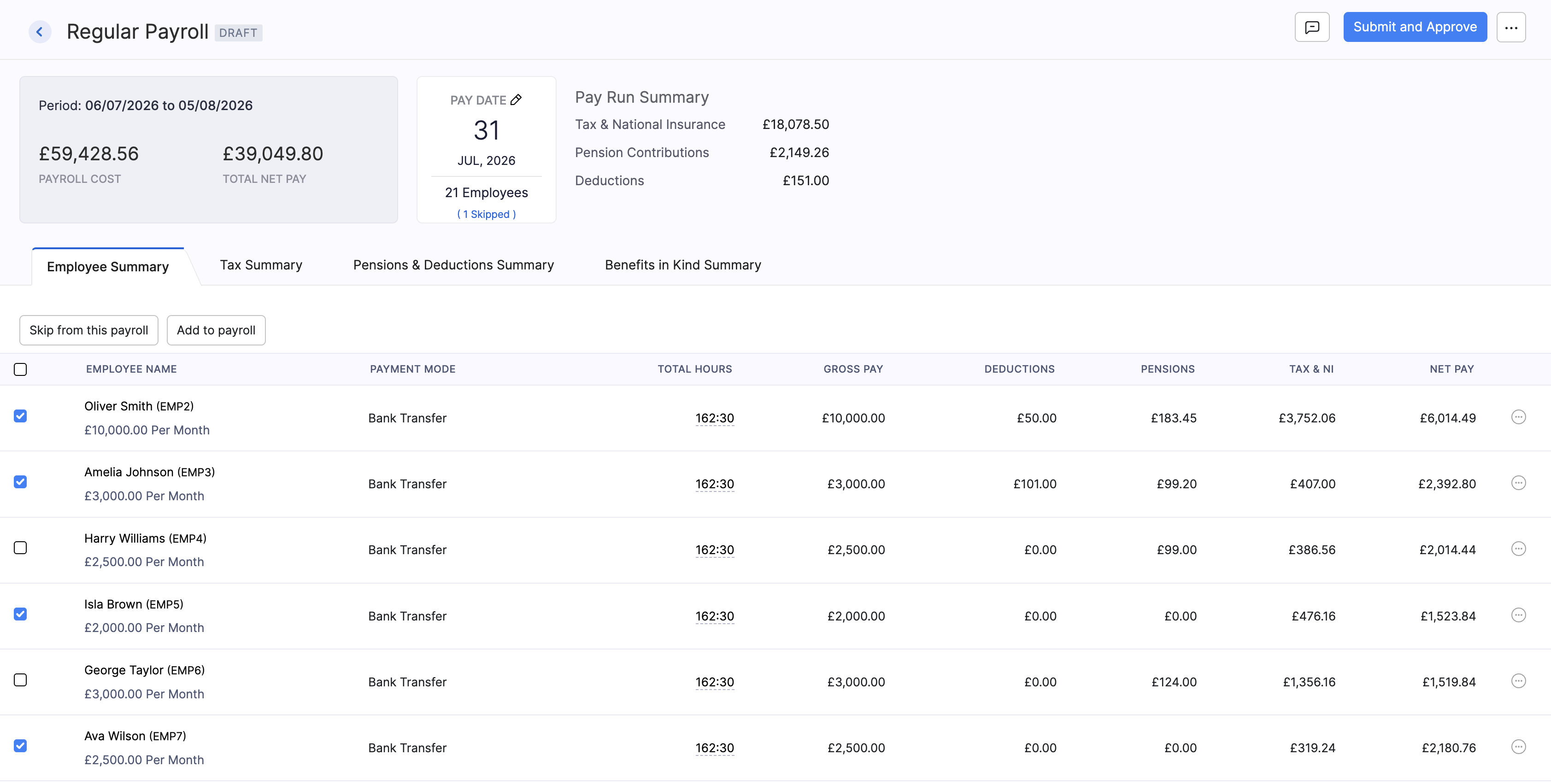
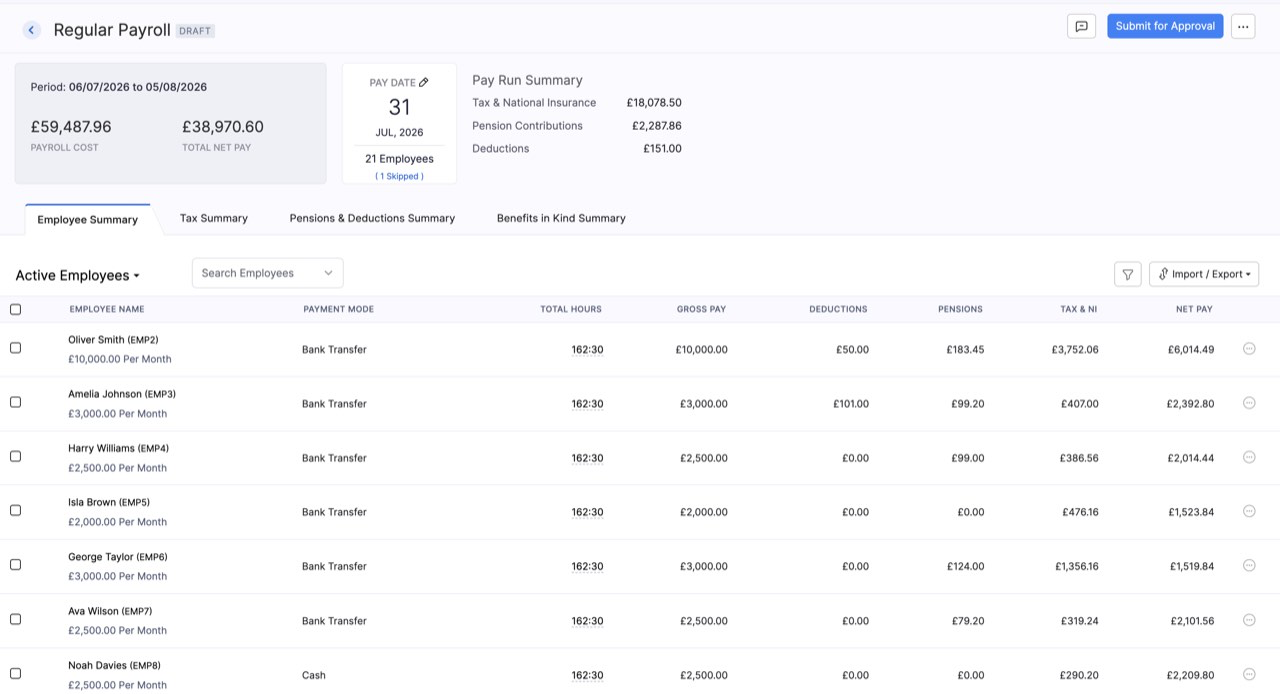
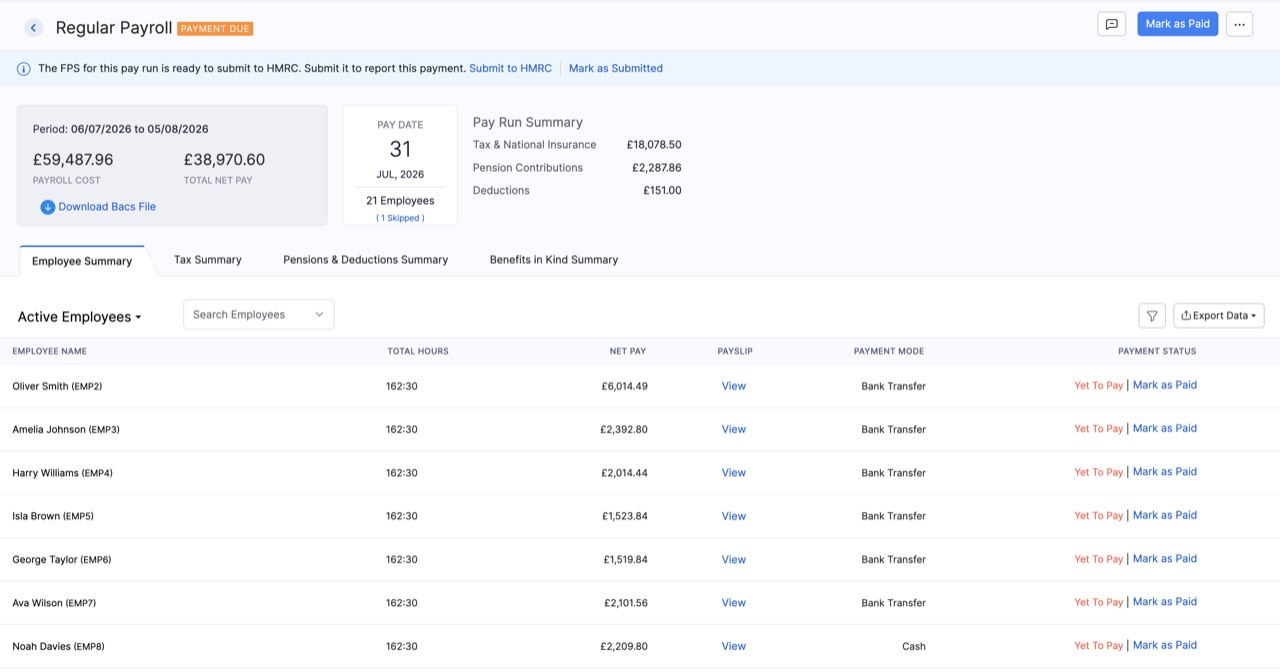
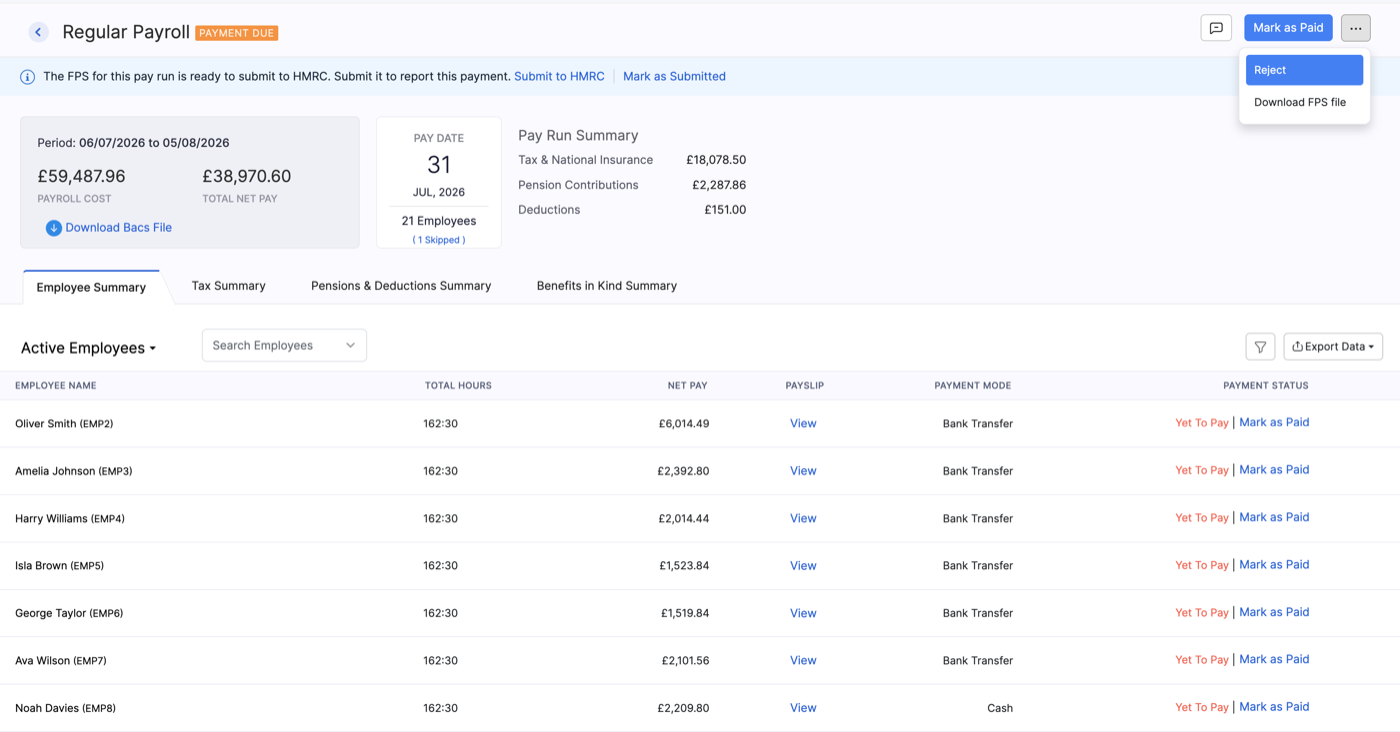
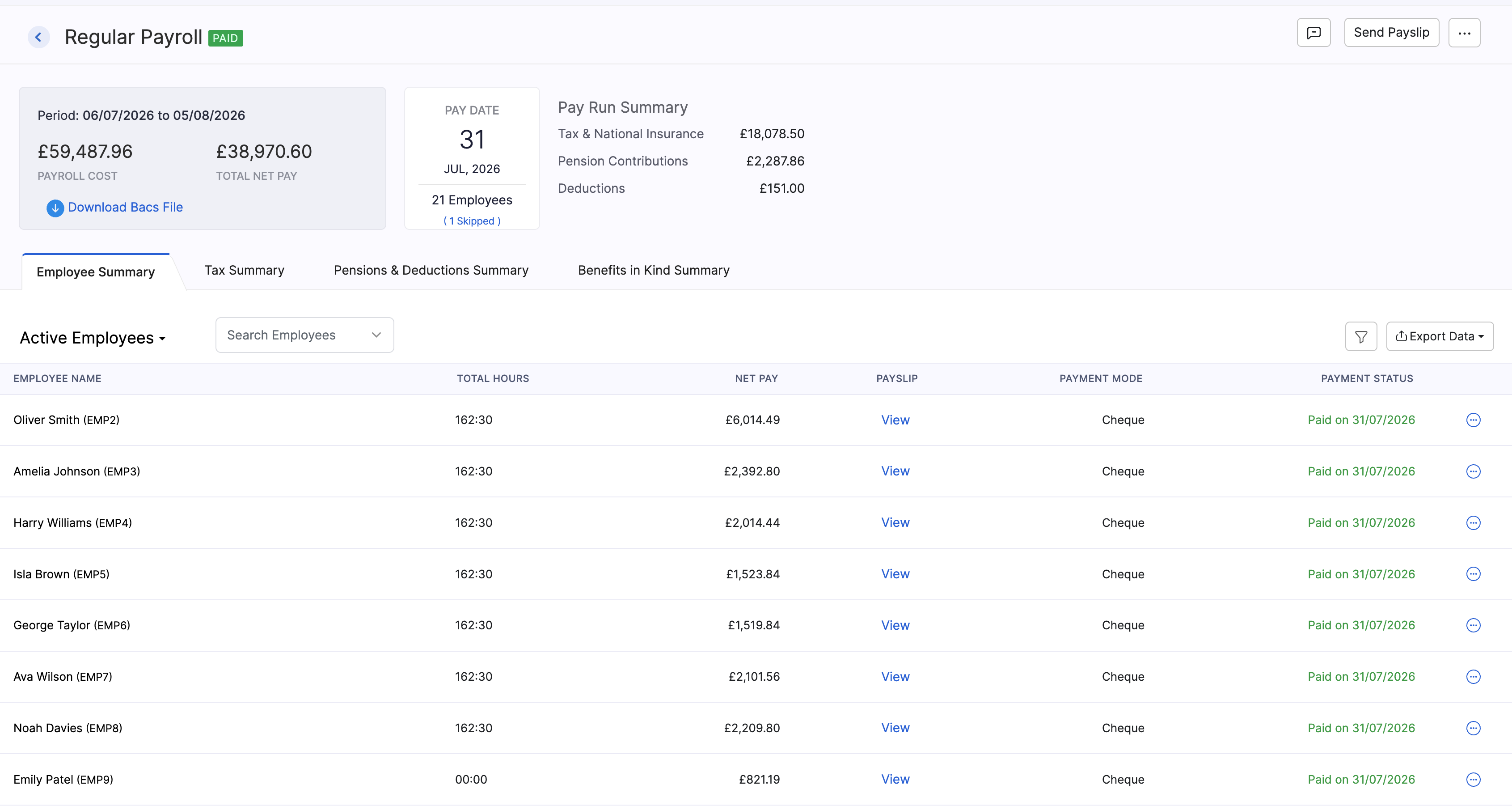
Check the summary at the top of the pay run:
| Item | What it shows |
|---|---|
| Payroll Cost | The overall cost of the pay run before you focus on take-home pay. |
| Total Net Pay | The total take-home pay for all employees in this period, after tax, National Insurance, pensions, and other deductions. |
| Pay Date | The date employees are paid. |
| Pay Run Summary | A breakdown including Tax & National Insurance, Pension Contributions, and Deductions. |
Use the tabs under the summary to move between Employee Summary, Tax Summary, Pensions & Deductions Summary, and Benefits in Kind Summary.
Tax & National Insurance covers Income Tax under Pay As You Earn (PAYE) and National Insurance contributions. PAYE is how you deduct Income Tax from employees’ pay and pay it to HMRC. National Insurance funds state benefits such as the State Pension.
Pension Contributions are the workplace pension amounts calculated for this pay run for employees and, where applicable, your organisation.
In the Employee Summary list you can:
- Review each employee’s hours, gross pay, deductions, pensions, Tax & NI, and net pay.
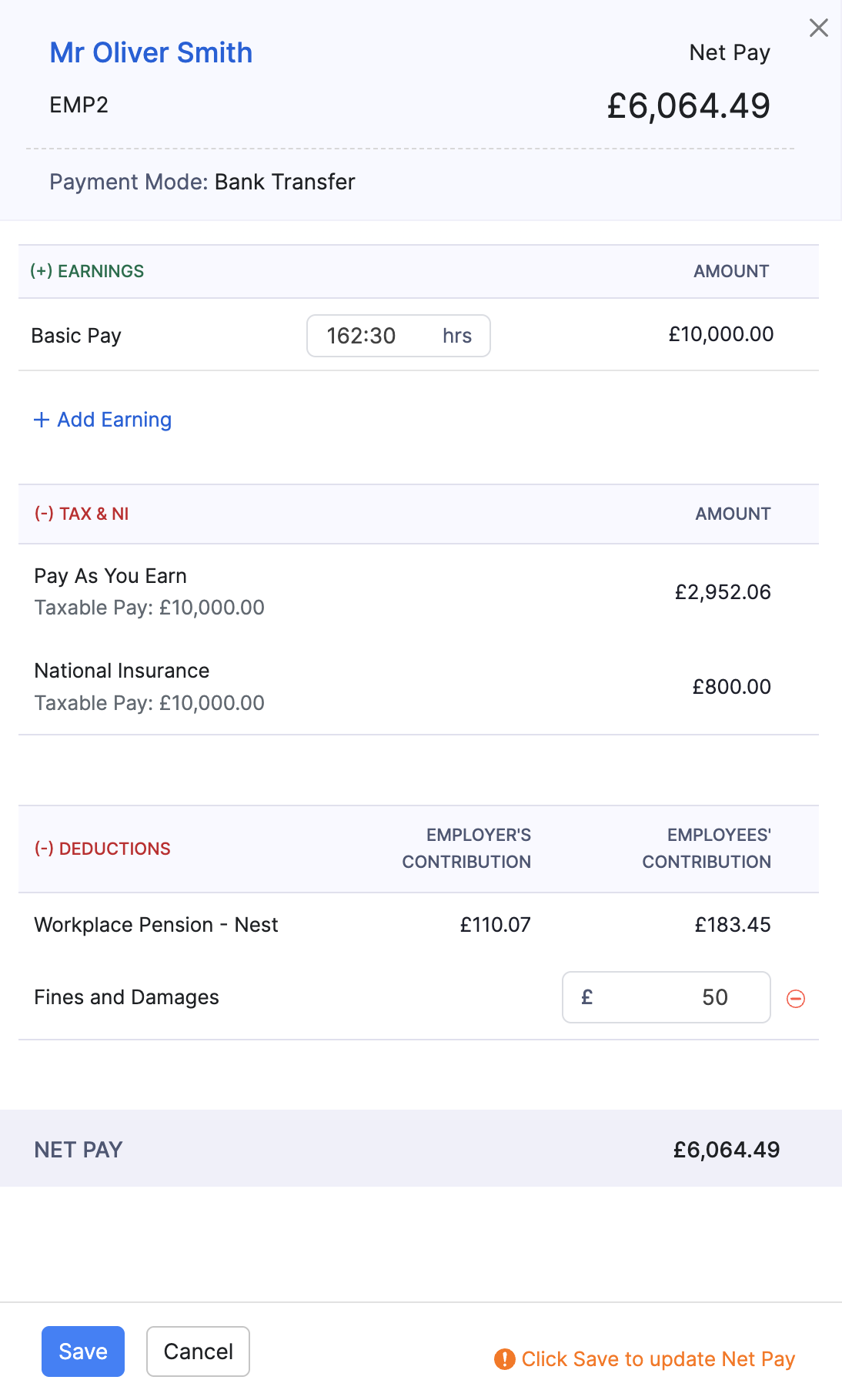
- Open an employee to see taxable pay, Income Tax (PAYE), National Insurance, pensions, student loans, and other deductions.
- Add earnings or deductions for that employee in this pay run, then save to update net pay.
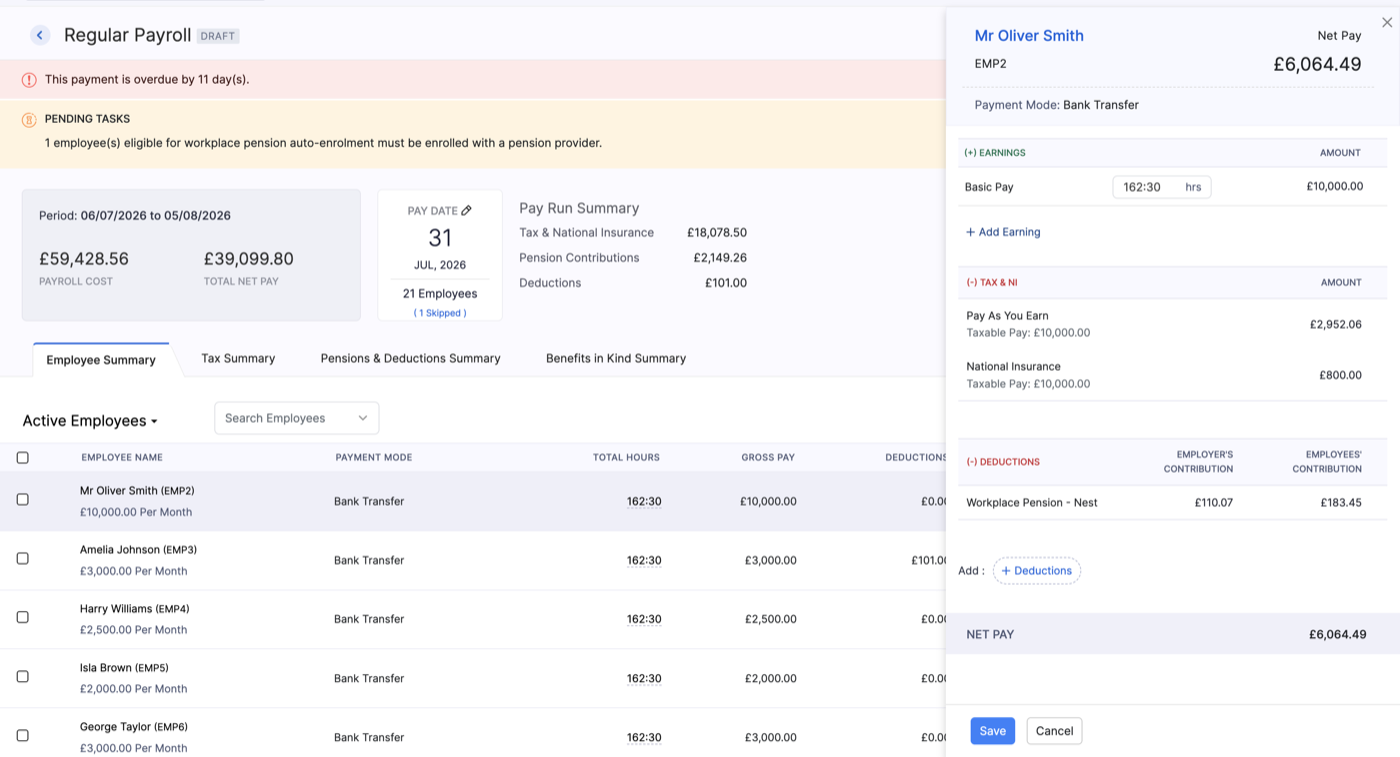
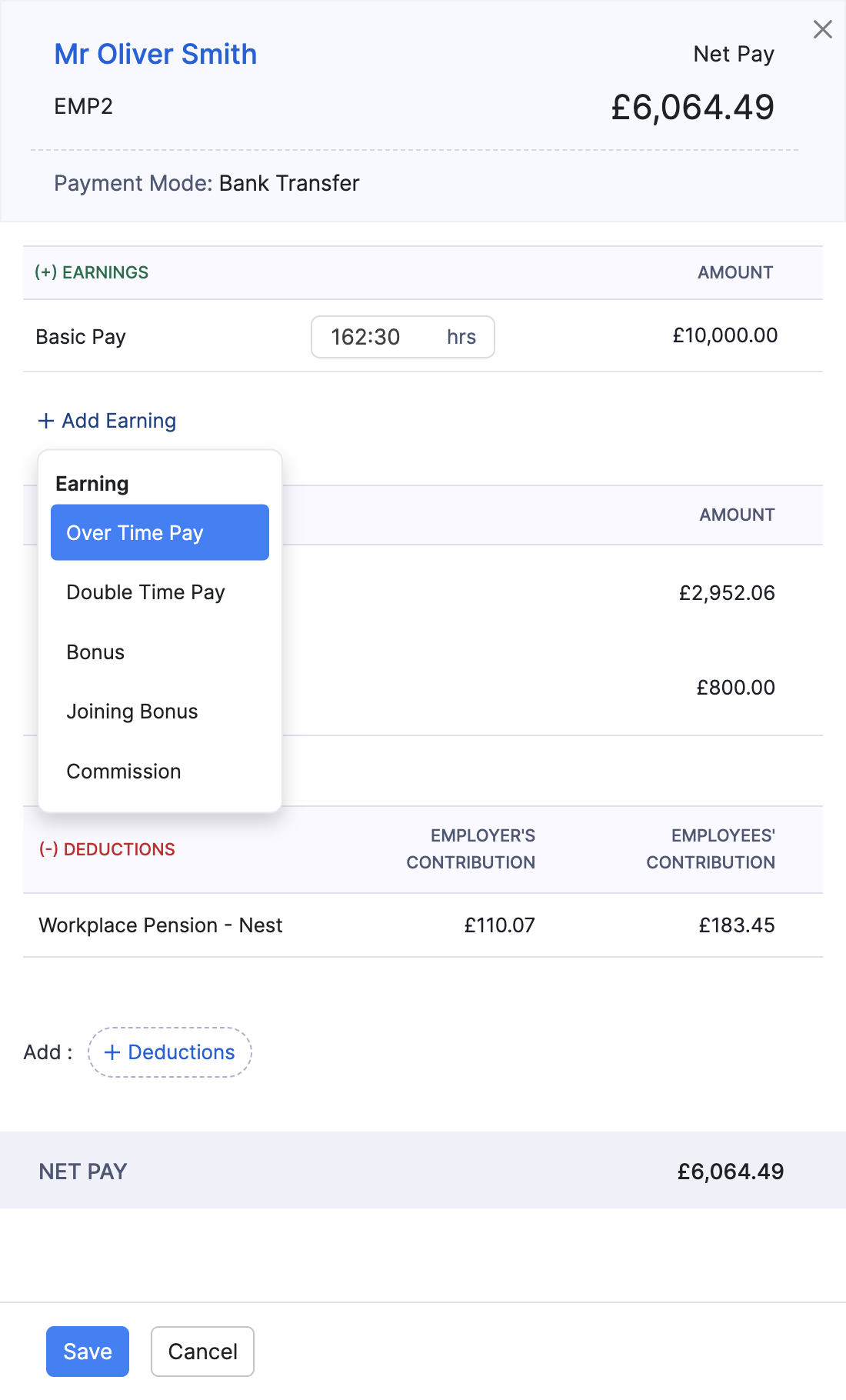
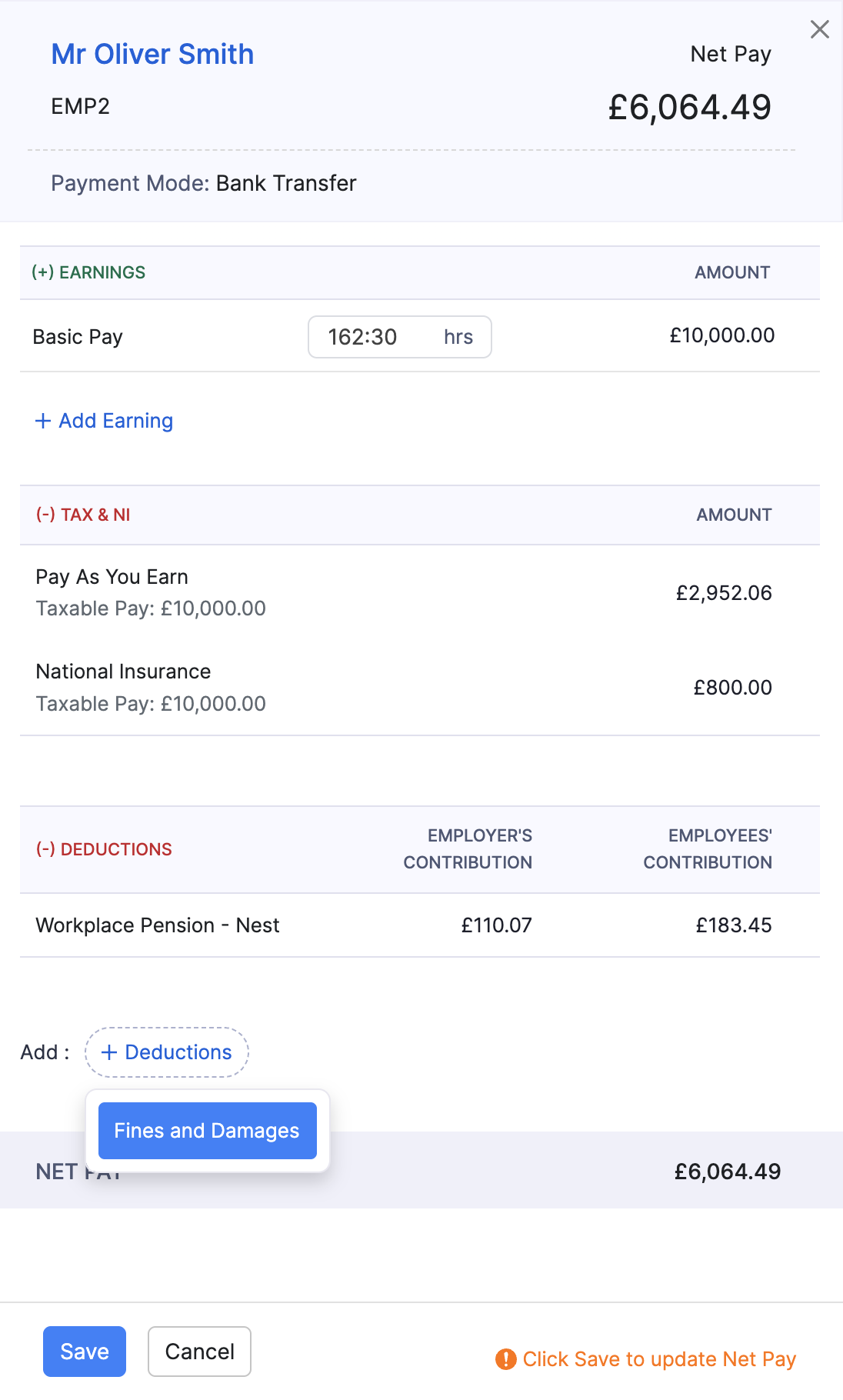
Pro Tip: After you add an earning or deduction in the employee pay drawer, click Save so Zoho Payroll recalculates net pay for that employee before you approve the pay run.
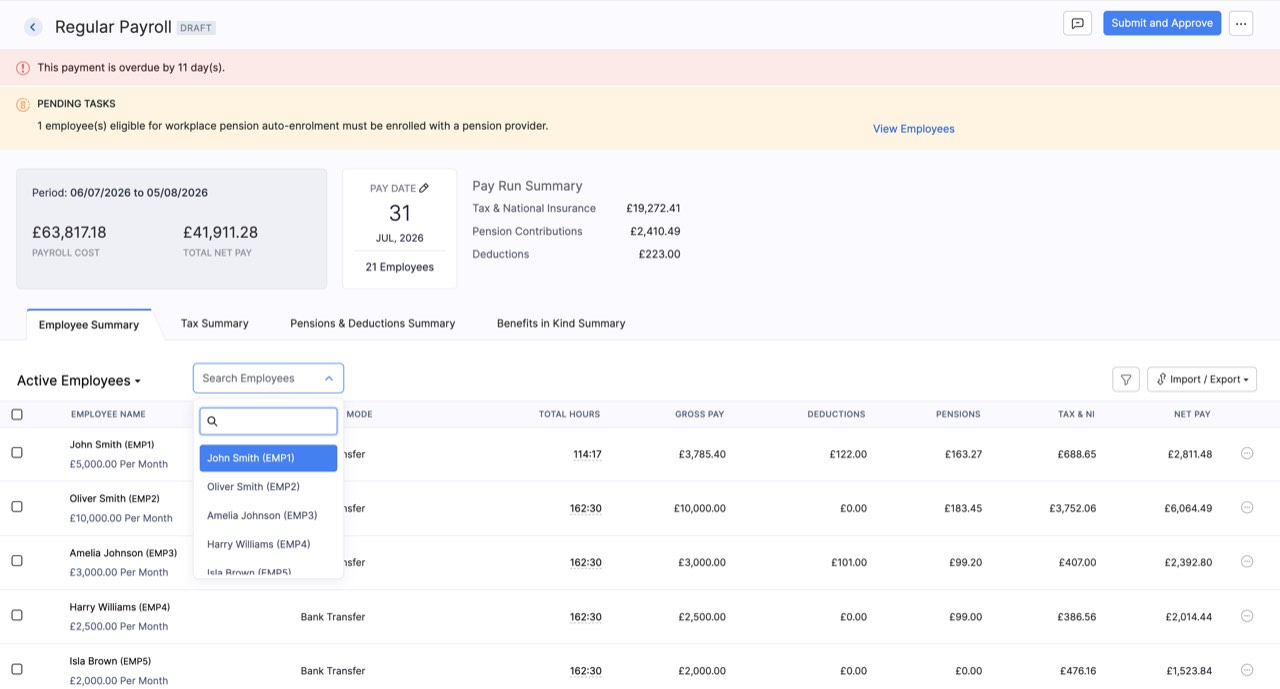
Pro Tip: Use Search Employees above the employee list to jump straight to someone when the pay run is large.
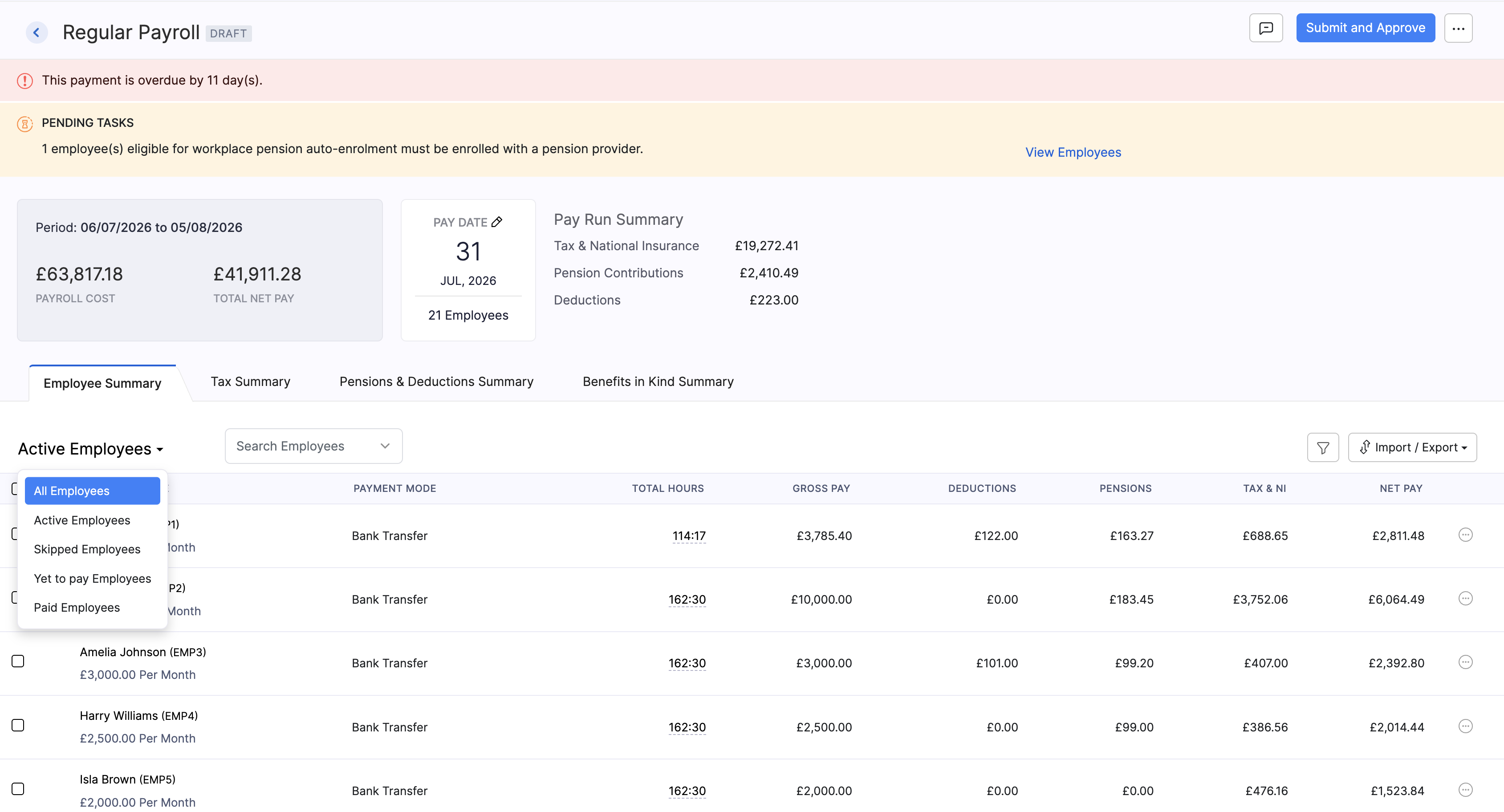
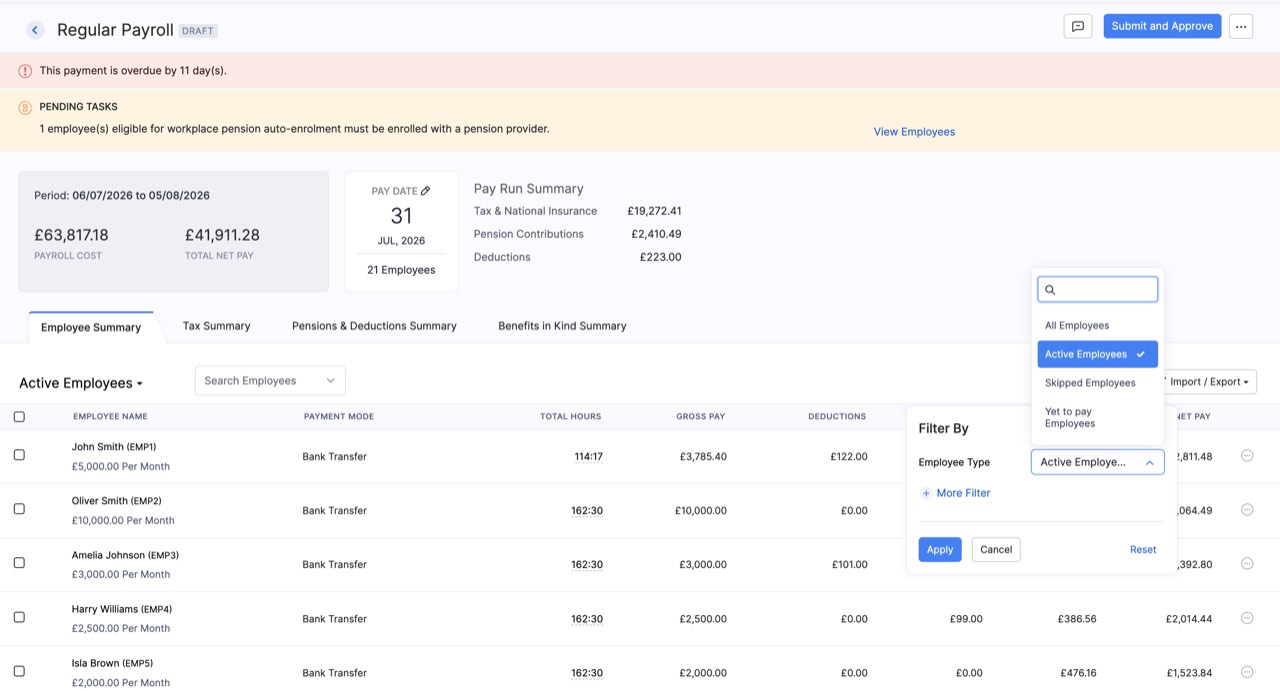
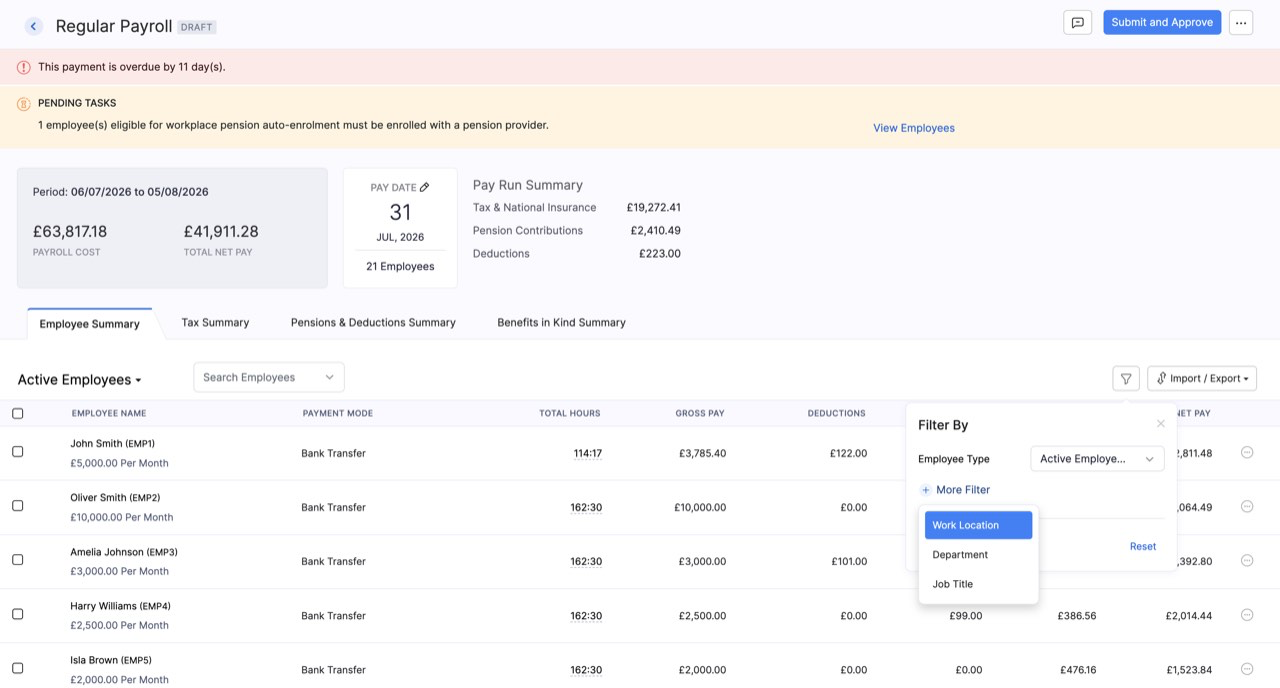
Pro Tip: Open the Active Employees dropdown to switch between views such as all employees, skipped employees, yet to pay, or paid. Use the filter to narrow by employee type, or open + More Filter for work location, department, or job title.
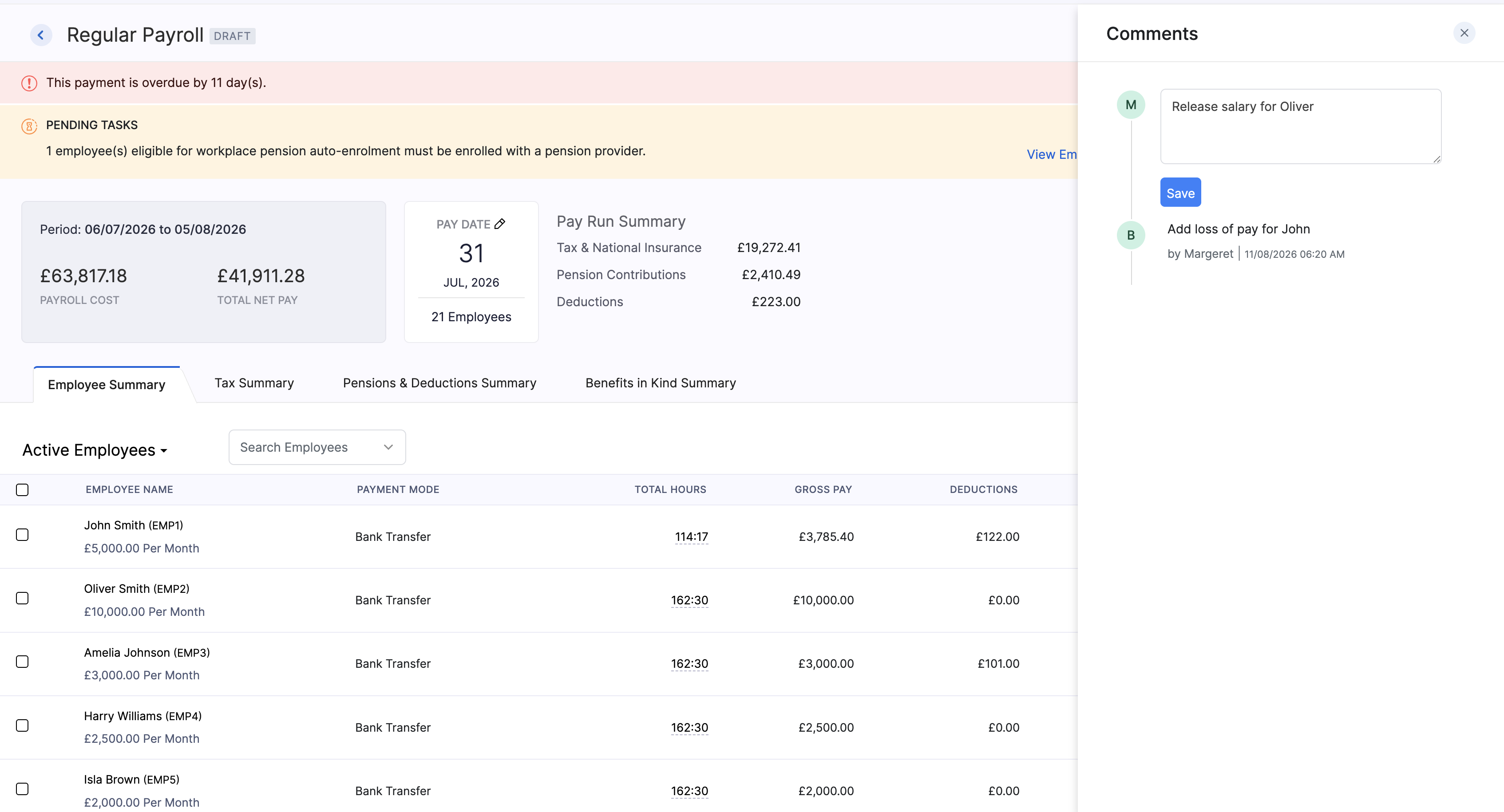
Pro Tip: Open Comments from the pay run toolbar when you need to leave a note for another approver or keep a record of why you changed someone’s pay.
Tax Summary
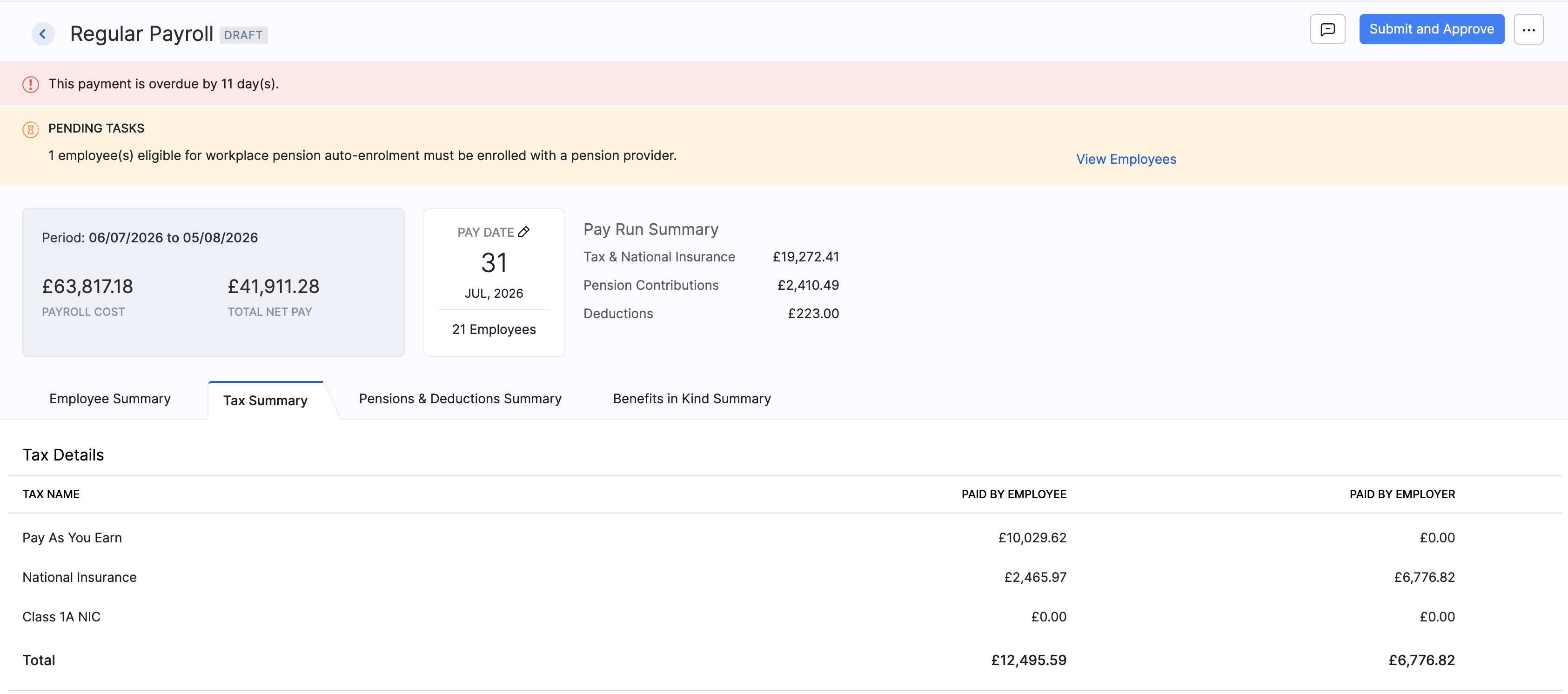
The Tax Summary shows Income Tax (PAYE), National Insurance, and related figures such as Class 1A NIC for the pay run. Use it to check totals before you approve.
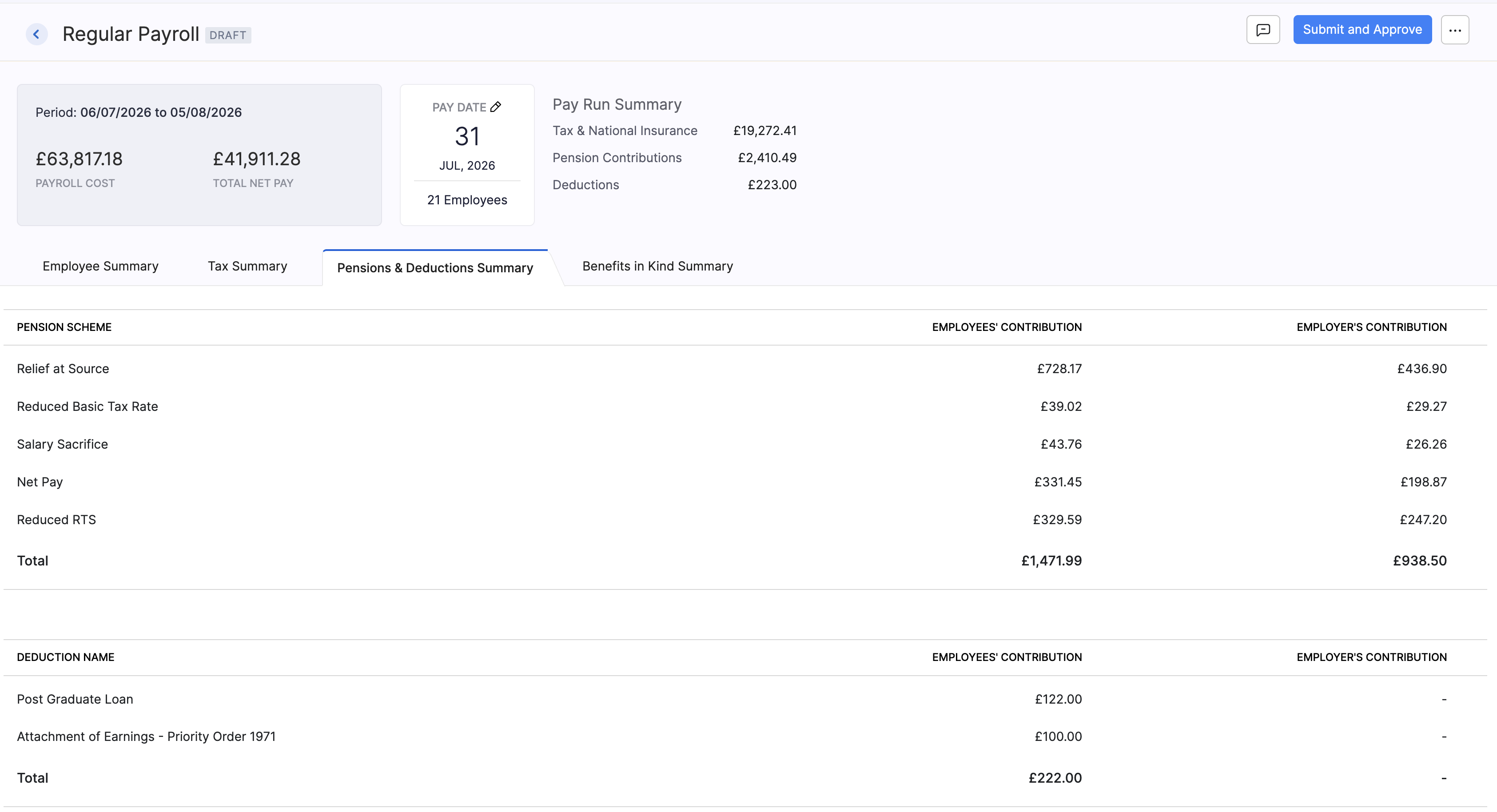
Pensions & Deductions Summary
This summary lists pension schemes and other amounts taken from pay, such as:
- Pension schemes: Workplace pension contributions for each scheme (for example Relief at Source or Salary Sacrifice groups).
- Student Loan (Plan 1) or Student Loan (Plan 2): Repayments through payroll when the employee’s pay is above the repayment threshold for their plan.
- Postgraduate Loan: Repayments of a postgraduate loan through payroll, where applicable.
- Attachment of Earnings or similar deductions: Court or agency orders that require you to deduct money from an employee’s pay.
Benefits in Kind Summary
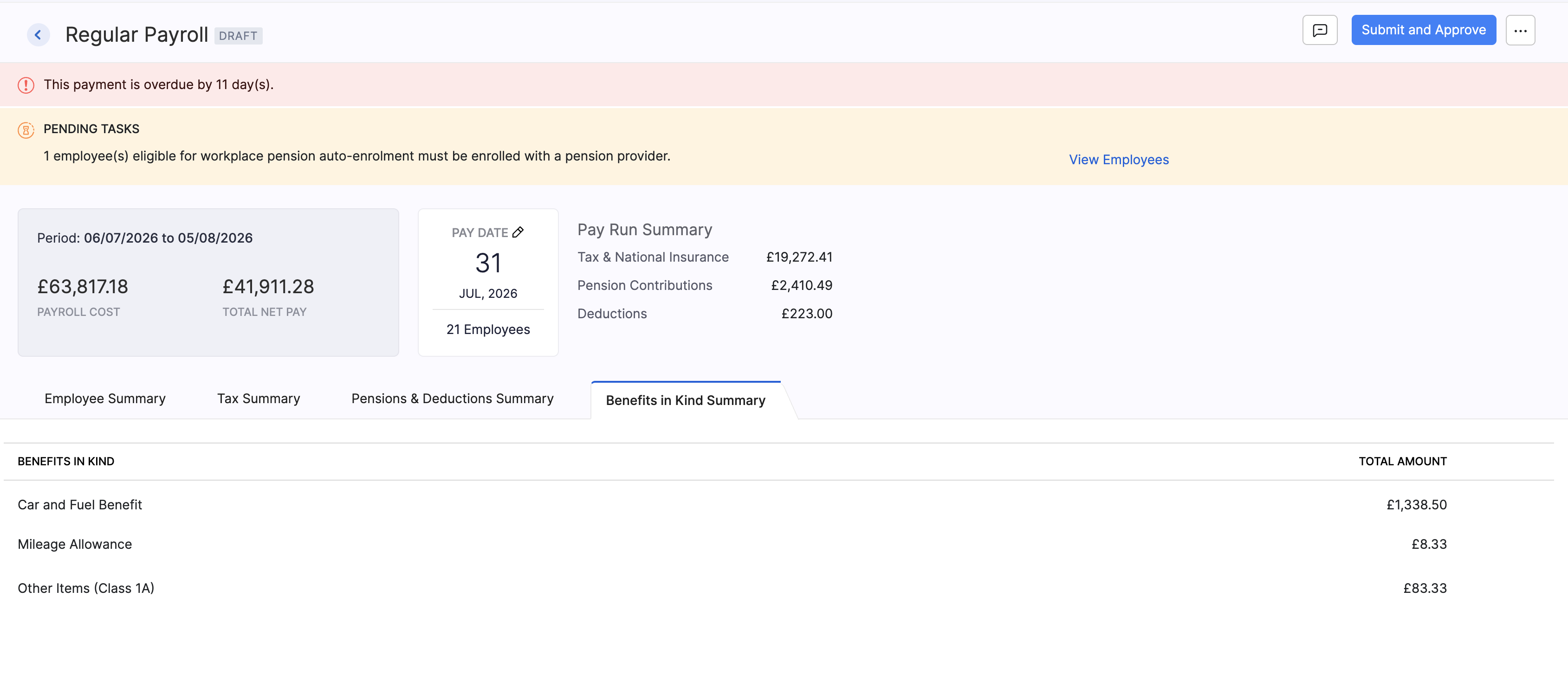
If your organisation reports benefits in kind through payroll, review the Benefits in Kind Summary. This can include items such as car and fuel benefit or mileage allowance, and related Class 1A NIC.
Apply Changes to Employee Pay
If you’ve changed an employee’s pay after this pay run was created, Zoho Payroll will not use those new figures until you apply them.
- Review the message that you’ve changed employee pay since this pay run was created.
- Click Apply Changes to recalculate and update this pay run.
Skip an Employee from This Pay Run
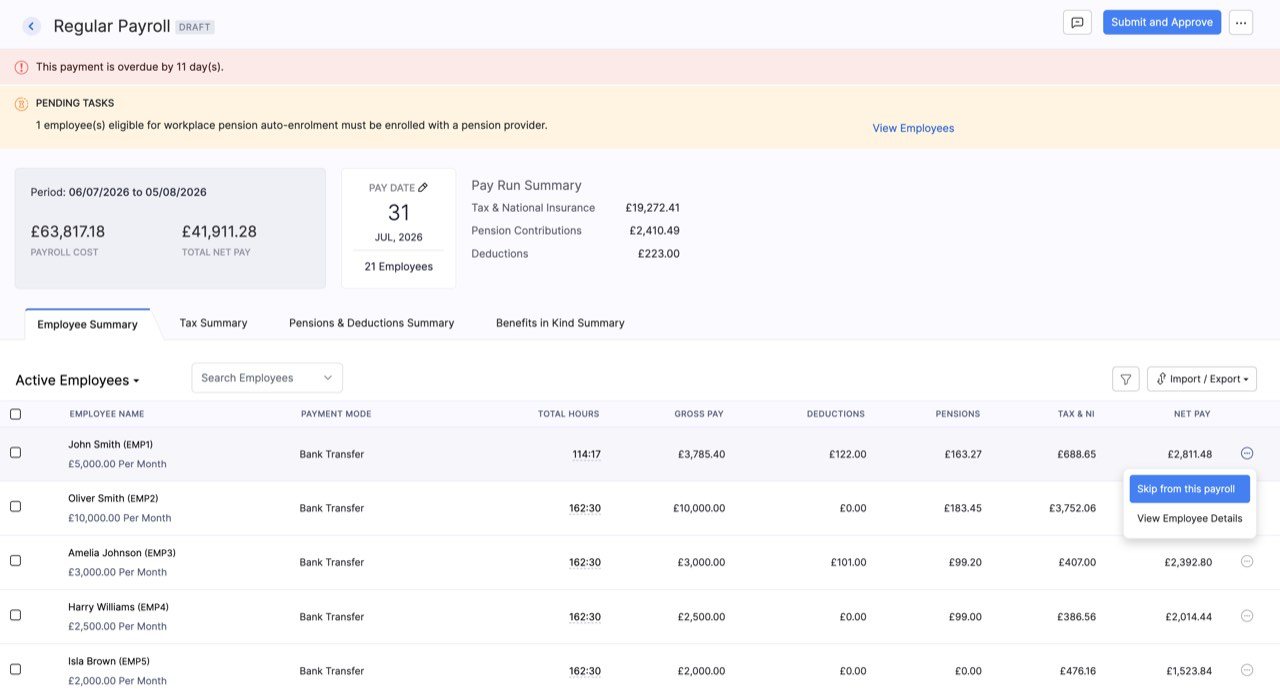
If someone should not be paid in this period:
- Click the action icon next to the employee.
- Select Skip from this payroll.
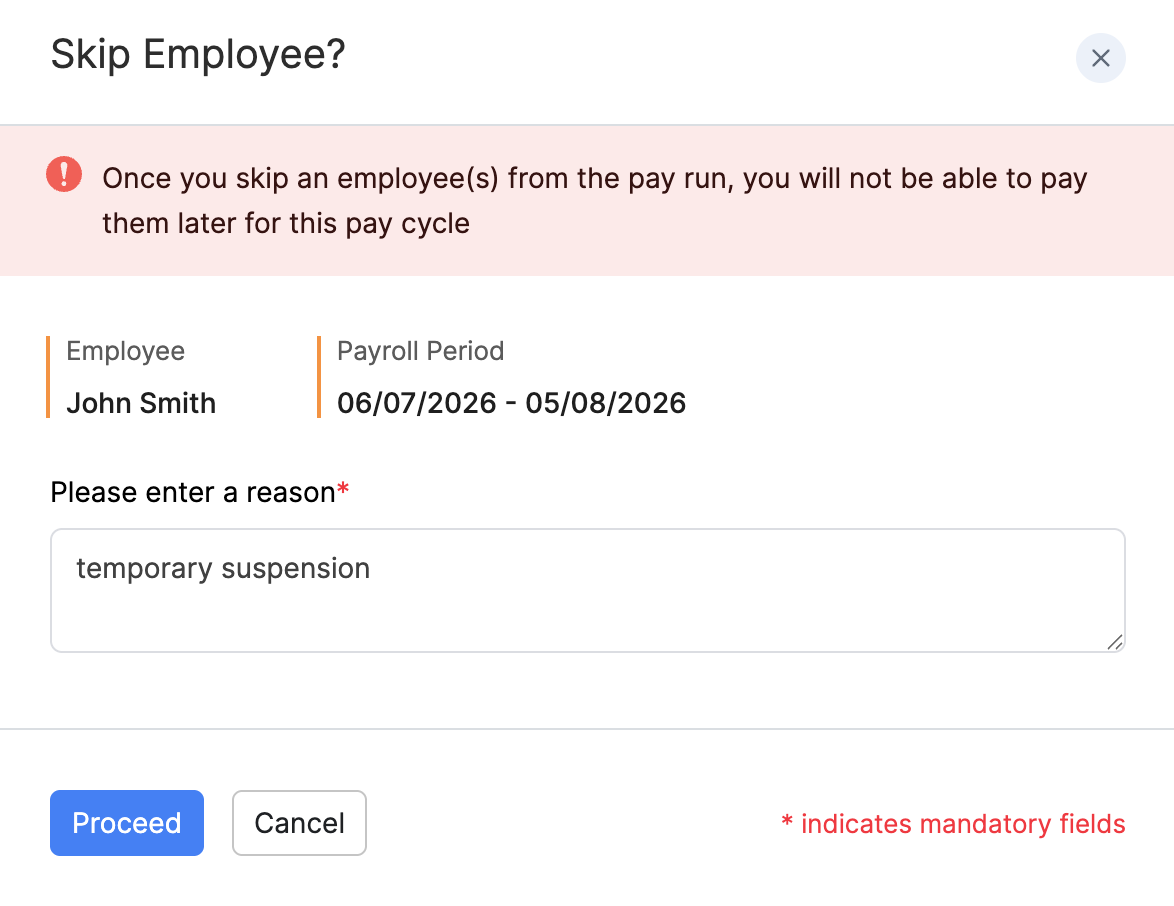
- Enter a reason, then confirm.
Pro Tip: To skip or add several people at once, select the employees in the list, then use Skip from this payroll or Add to payroll above the table.
Import and Export Pay Run Data
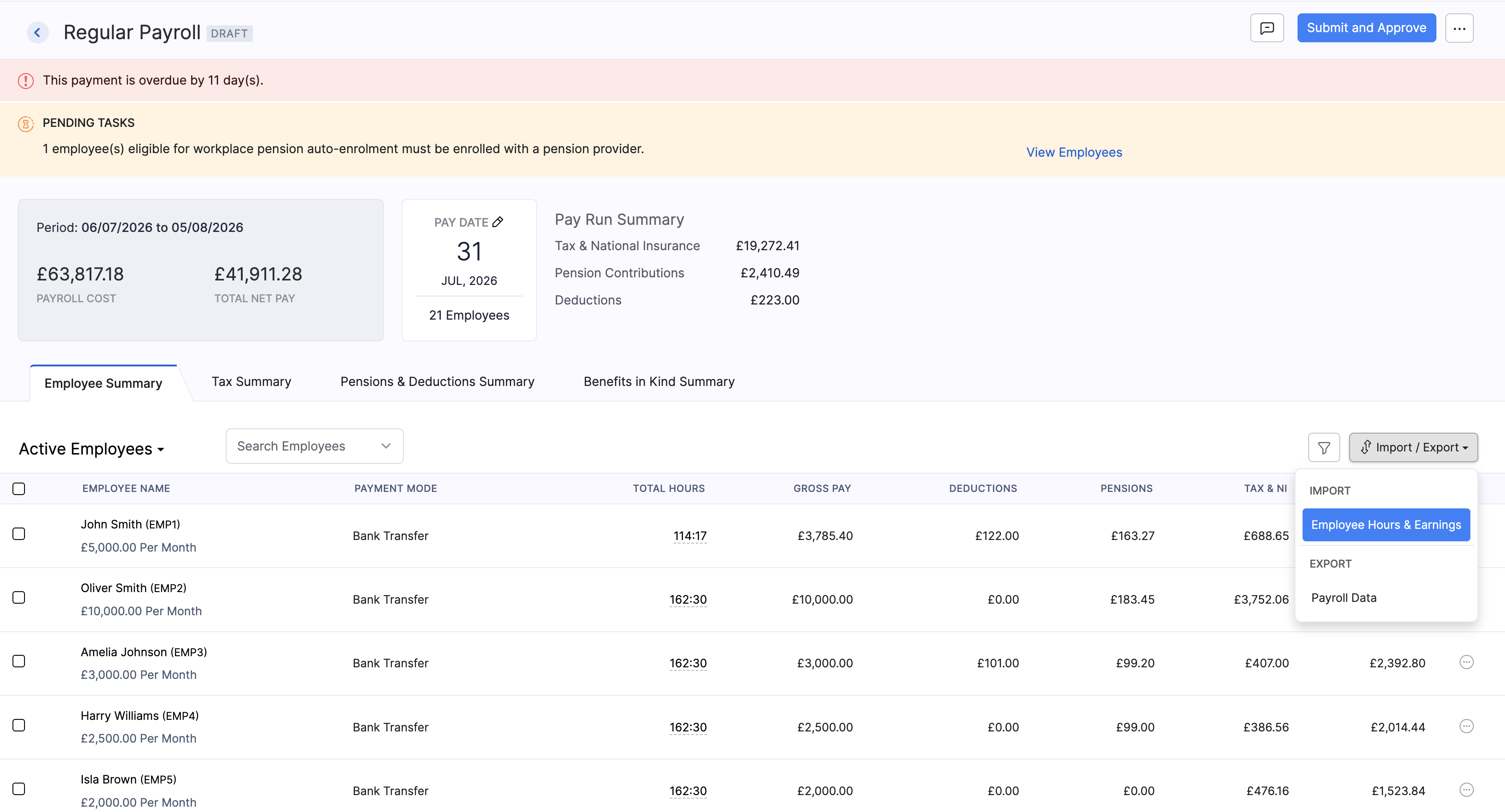
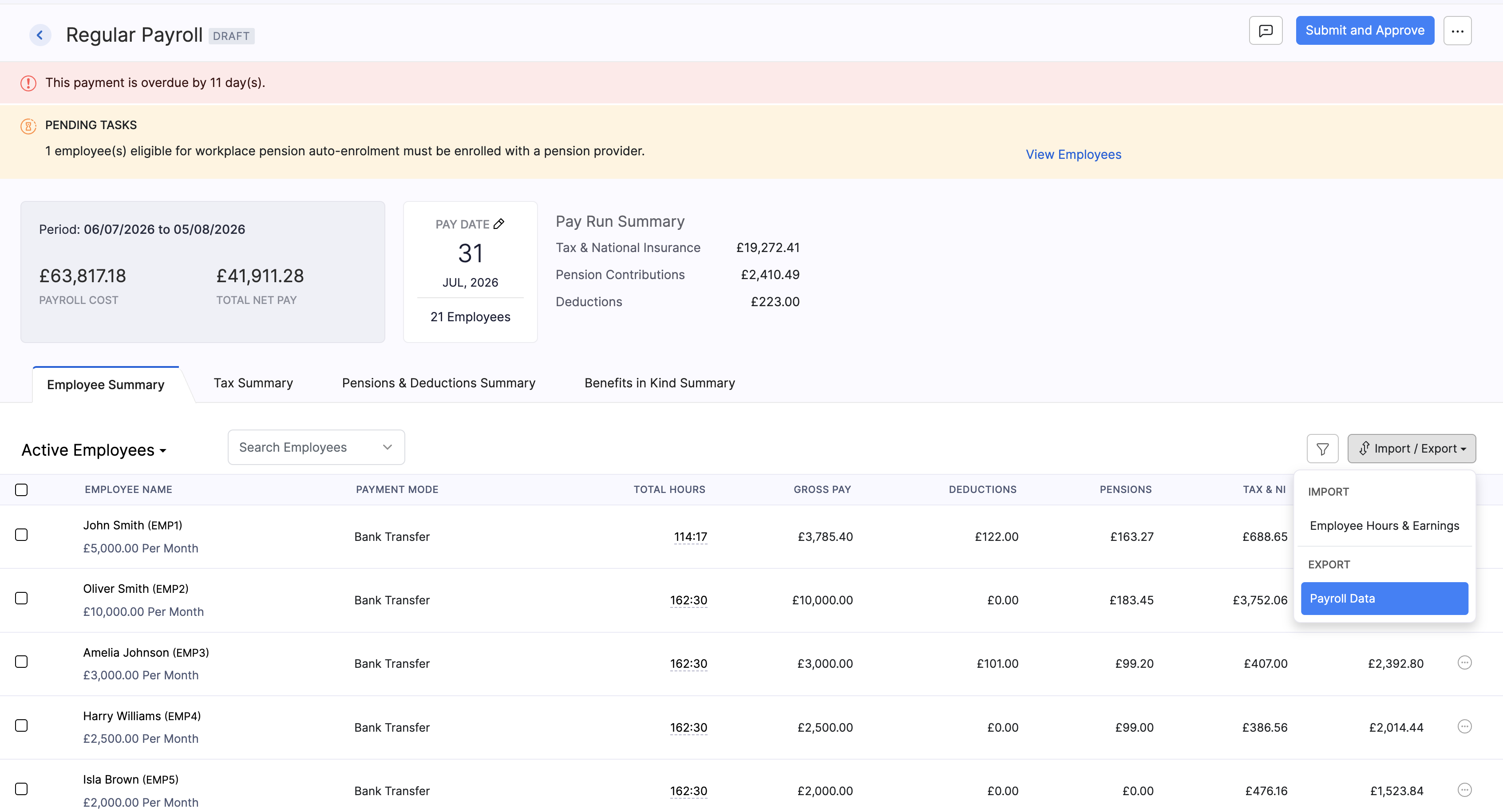
Use Import / Export above the employee list when you need to update hours and earnings in bulk, or download payroll data from the pay run.
Pro Tip: Choose Import > Employee Hours & Earnings when many employees have variable hours or earnings for the period. Export first if you want a template-style file to fill in.
Pro Tip: Choose Export > Payroll Data when you need a file of this pay run for checks outside Zoho Payroll, or before you make bulk edits.
Workplace Pension Tasks in a Pay Run
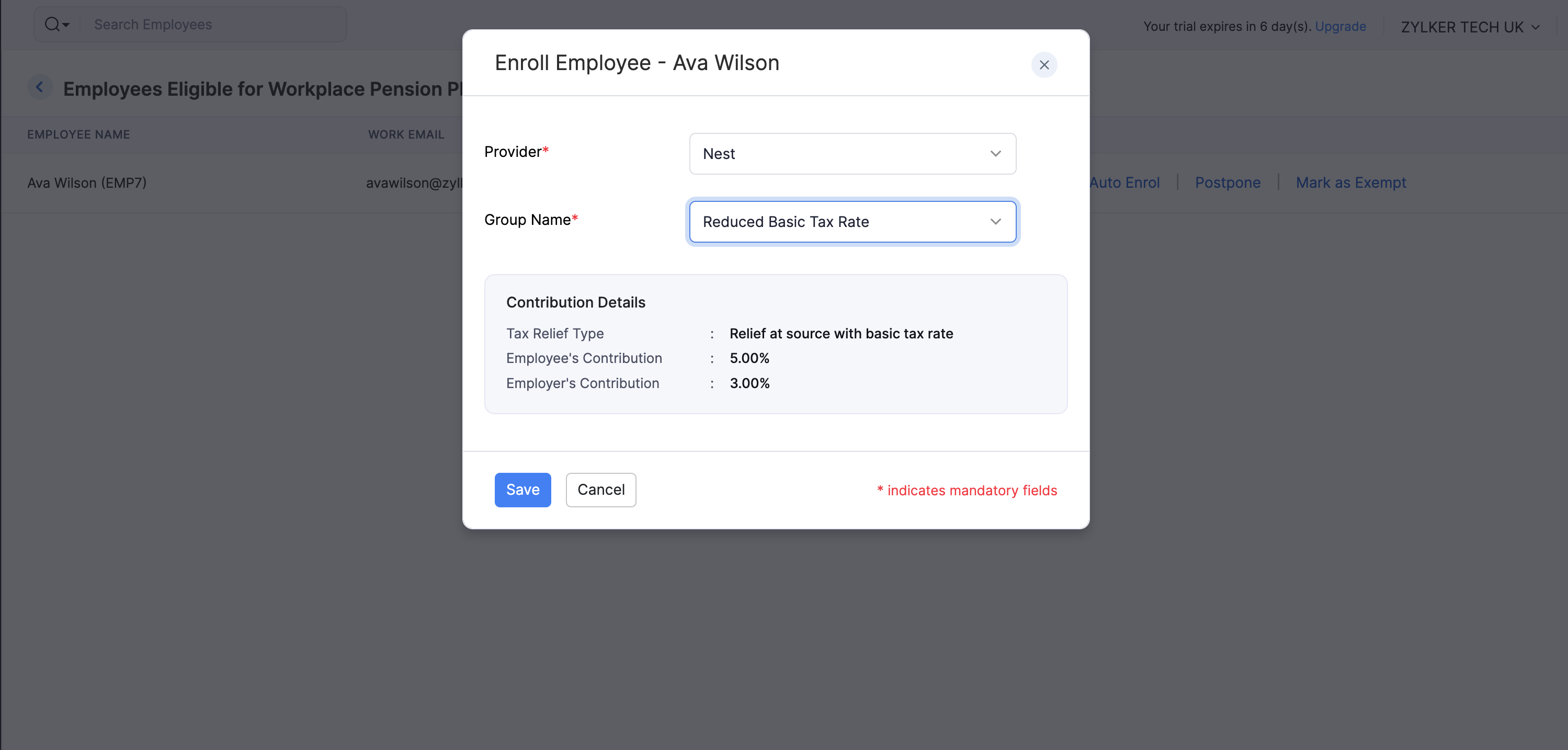
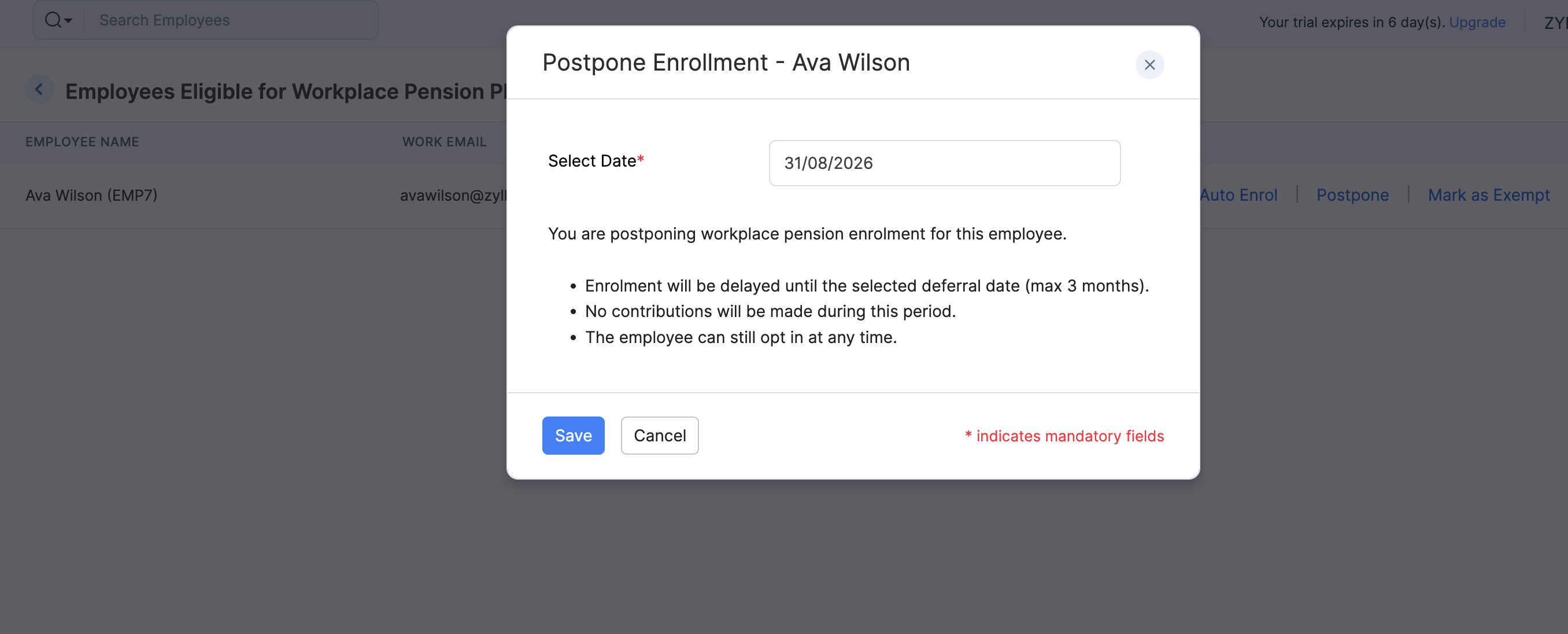
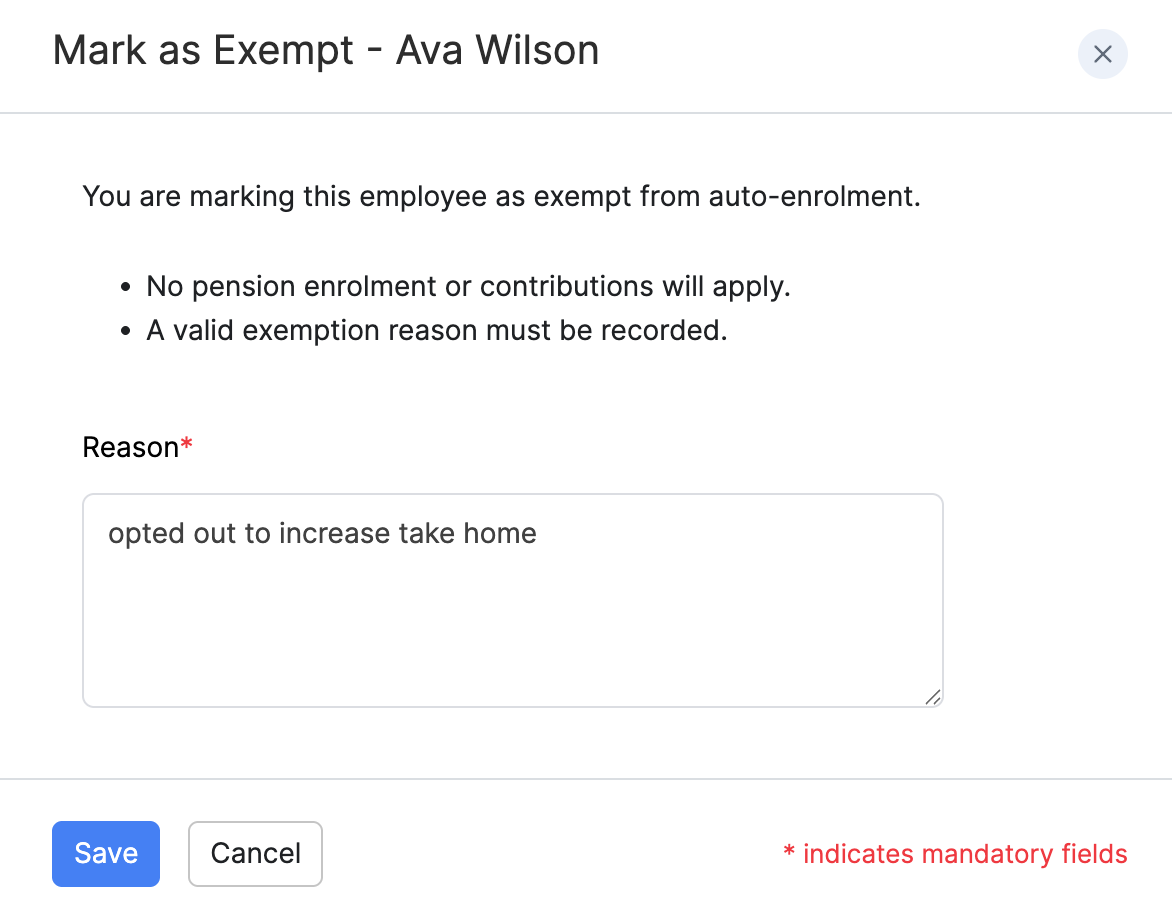
During a pay run, Zoho Payroll may show a task when employees are eligible for workplace pension auto-enrolment. Click View Employees, then:
- Enrol the employee into a contribution group with your pension provider.
- Postpone enrolment for up to three months.
- Mark as Exempt when the employee qualifies for an exception.

Approve a Pay Run
Approval locks in the pay run so you can move on to reporting and payment.
Depending on your role:
- If you can approve pay runs, click Approve or Submit and Approve.
- If you cannot approve pay runs, click Submit for Approval. An authorised user then reviews and approves it.
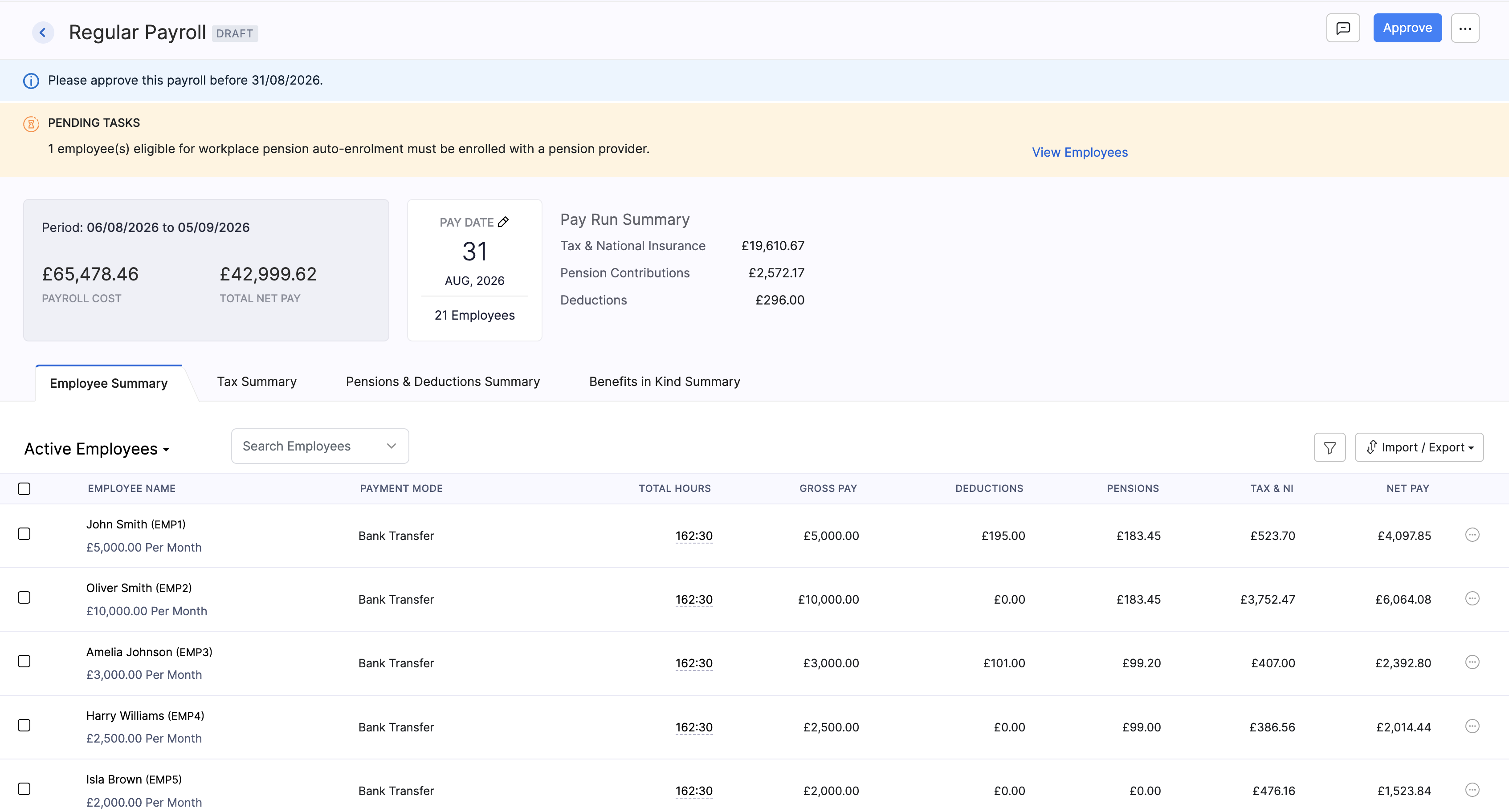
Before you confirm, Zoho Payroll asks you to make sure the pay details are correct. Once approved, you can pay your employees or record a payment.
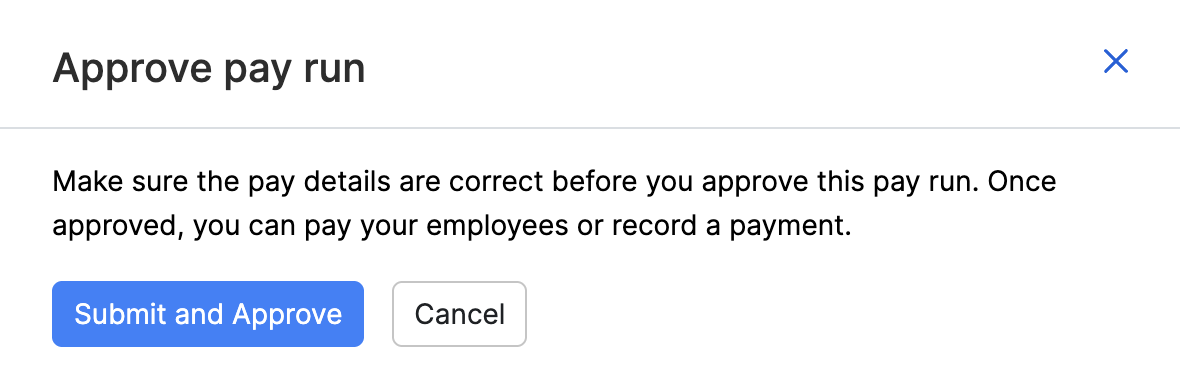
Warning: Once a pay run is approved, you cannot edit it in the usual way. Check the figures carefully before you approve.
Reject a Pay Run
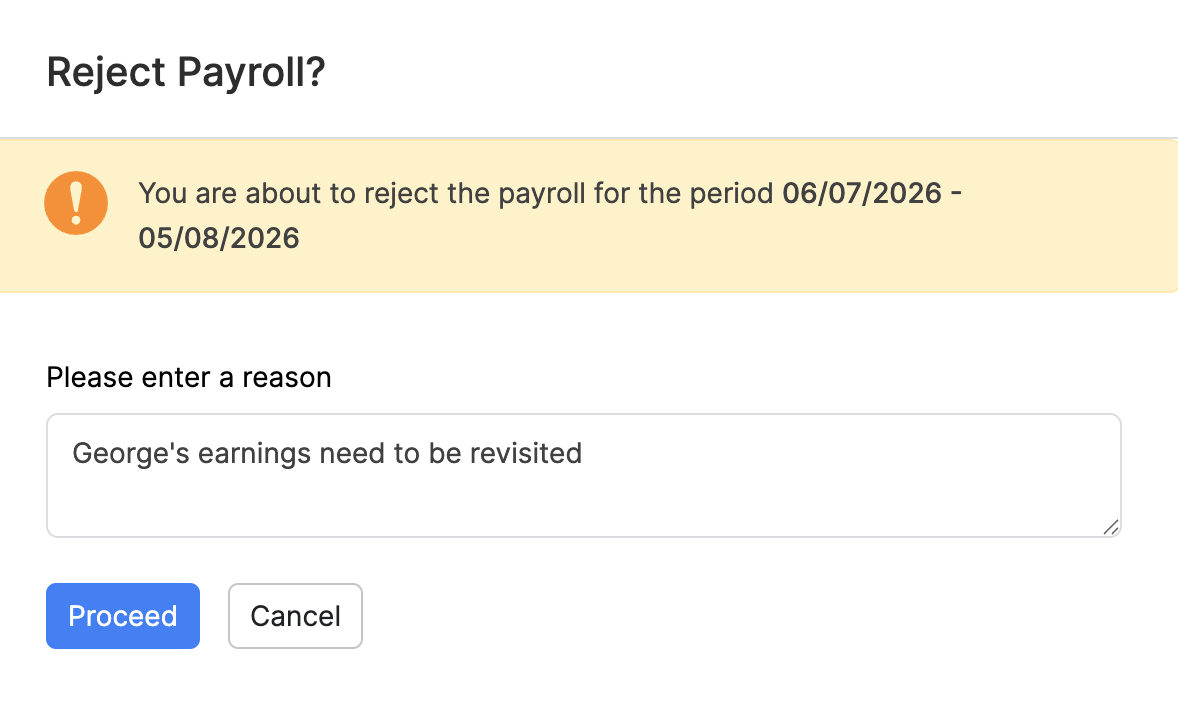
If a pay run was submitted for approval and should not go ahead, an authorised user can reject it. Open the More menu on the pay run, select Reject, enter a reason, and confirm.
Submit the FPS to HMRC
After approval, the pay run moves to Payment Due. Zoho Payroll has already prepared a Full Payment Submission (FPS) from that pay run. An FPS is part of Real Time Information (RTI). It tells HMRC, for each employee, what you paid and what you deducted on or before the pay date.
Next, submit that FPS to HMRC (or mark it as submitted if you sent it another way). You do not need to create the FPS file separately.
For what an FPS includes and when it is due, refer to the GOV.UK guidance on payroll information to report to HMRC. Employer-level claims and nil periods use an Employer Payment Summary (EPS) in Forms & Filing.
Zoho Payroll submits the FPS using the Government Gateway credentials saved in your organisation’s RTI Details. Make sure you’ve configured them before you submit.
- Open the approved pay run. Zoho Payroll shows that the FPS is ready to submit.
- Click Submit to HMRC.
- In the Submit FPS to HMRC dialog, review the message. Once you submit, the FPS becomes part of your official RTI record for this period.
- Complete any additional options the dialog shows for this pay run, described below.
- Click Submit.
Late FPS
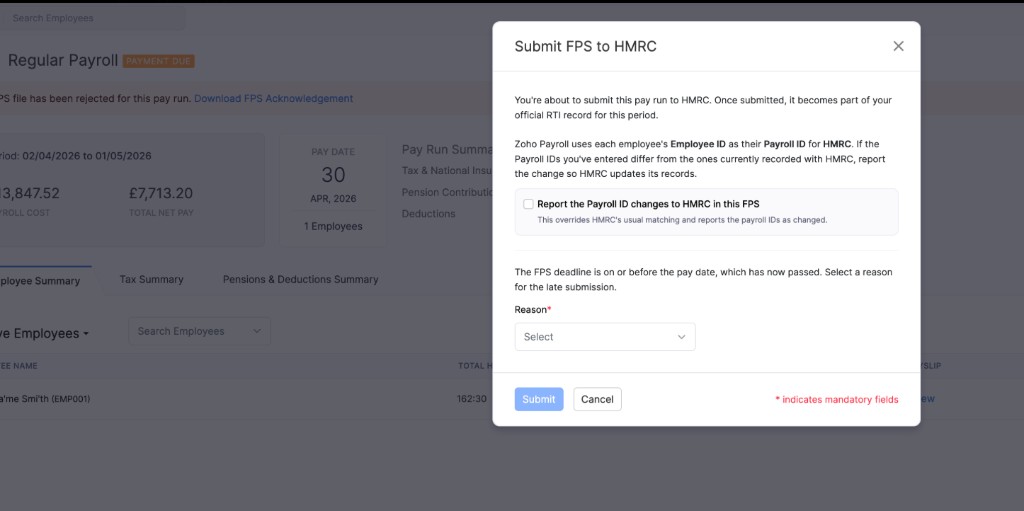
HMRC expects the FPS on or before the pay date. If that date has passed, Zoho Payroll asks you to select a Reason for the late submission before you continue.
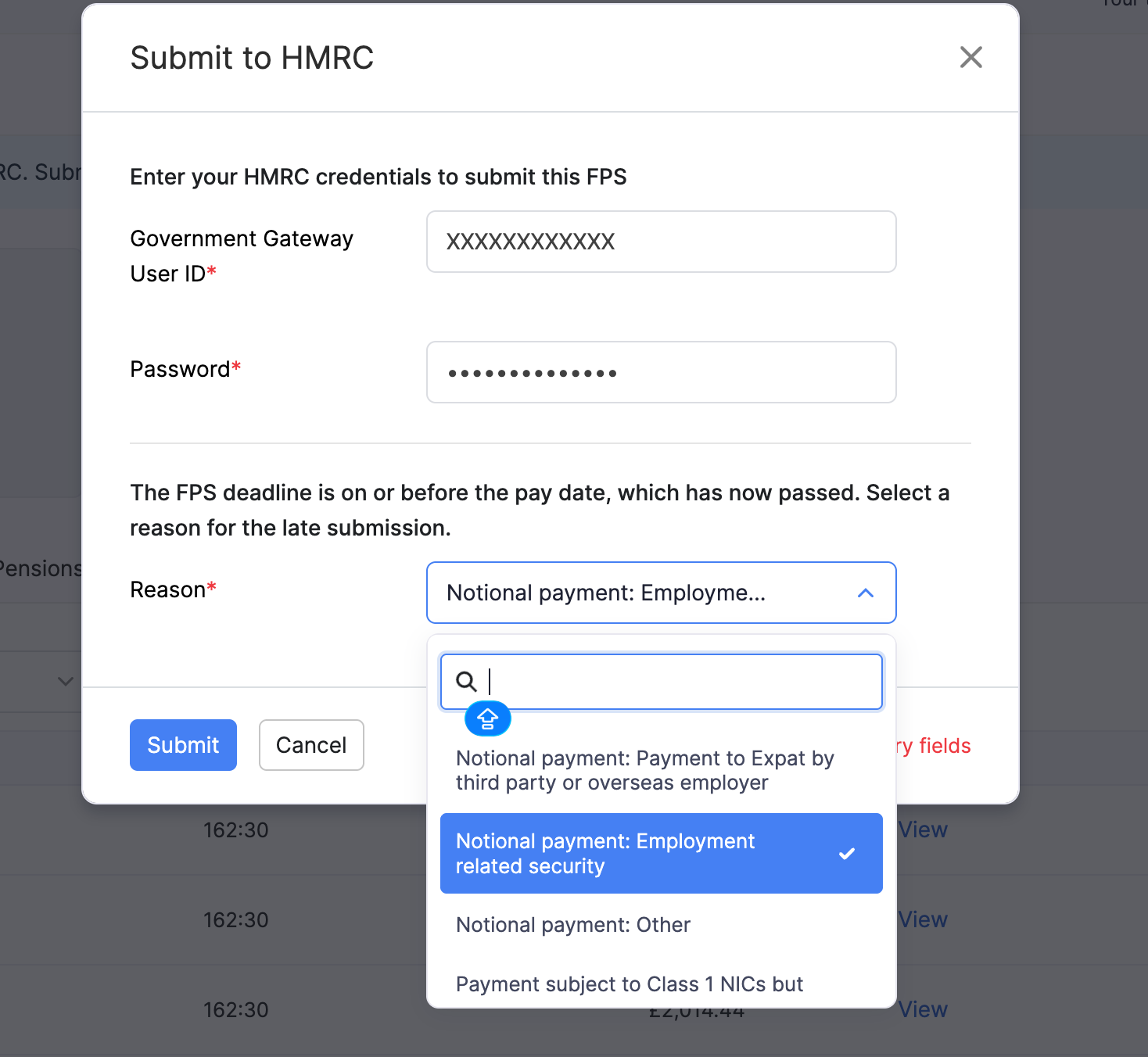
If a pay run is overdue, you may also see a warning that a late FPS may incur an HMRC penalty. Submit as soon as you can and keep the reason accurate. For official FPS timing, refer to the GOV.UK guidance on reporting to HMRC (FPS).
Report Payroll ID Changes
Zoho Payroll uses each employee’s Employee ID as their Payroll ID for HMRC. If the Payroll IDs you’ve entered differ from the ones HMRC currently has on record, report the change so HMRC can update its records.
To do this, select Report the Payroll ID changes to HMRC in this FPS before you submit. This overrides HMRC’s usual matching and reports the Payroll IDs as changed.
Submit an Additional FPS
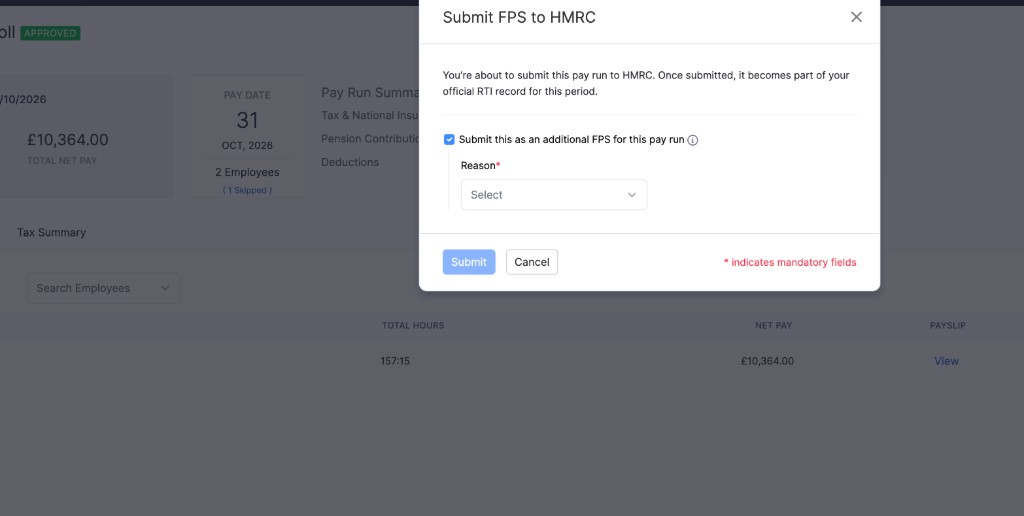
To send another FPS for the same pay run, select Submit this as an additional FPS for this pay run, then select a Reason.
Mark FPS as Submitted
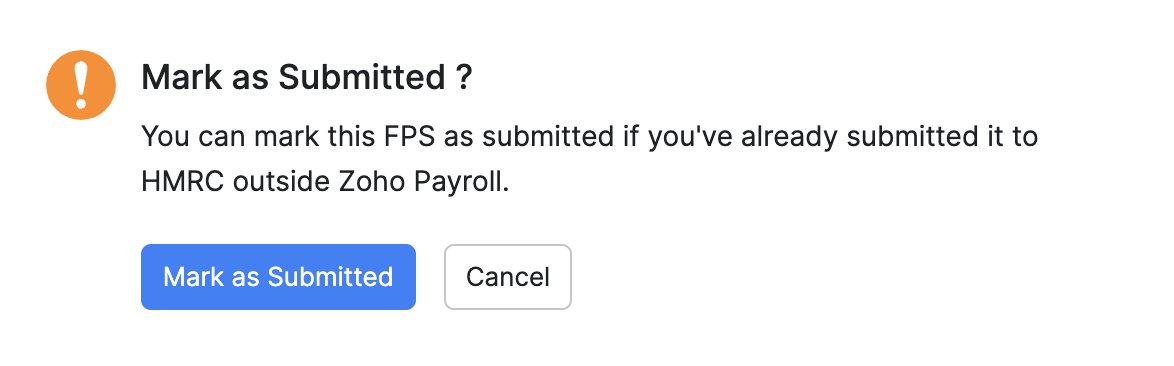
If you’ve already sent the FPS to HMRC outside Zoho Payroll (for example from another system):
- Click Mark as Submitted.
- Confirm in the dialog.
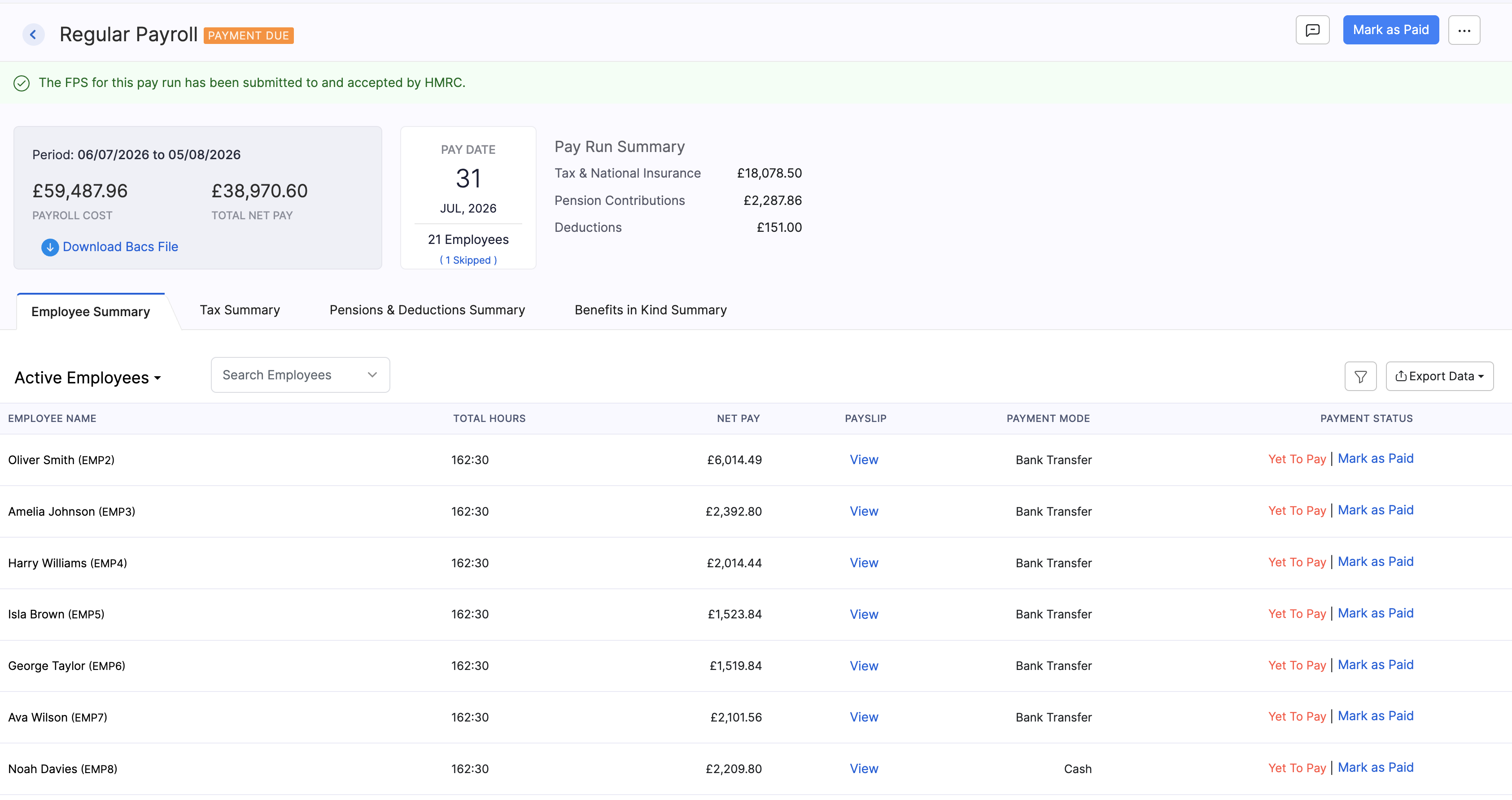
When HMRC has accepted the FPS, Zoho Payroll shows that the FPS for this pay run has been submitted to and accepted by HMRC.
Download or Undo the FPS
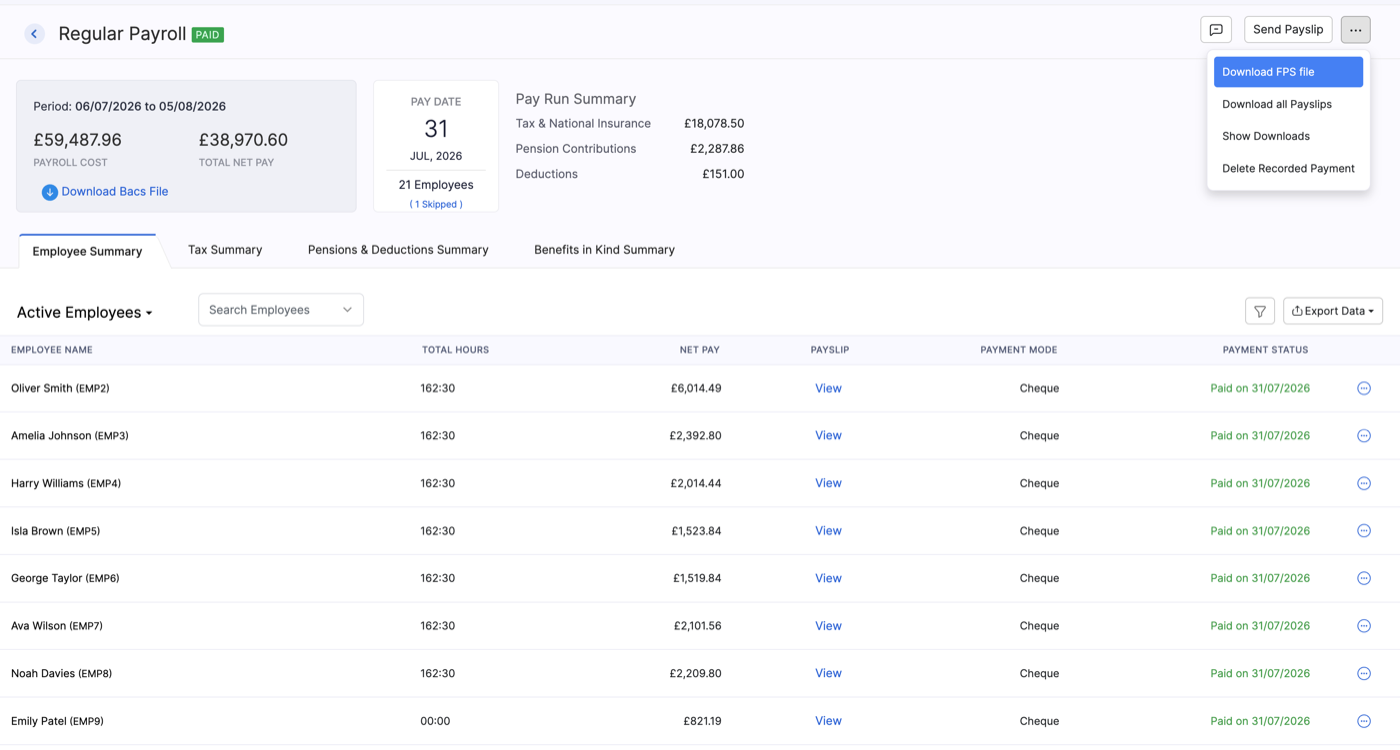
From the More menu on a payment-due or paid pay run, you can:
- Download FPS file for your records.
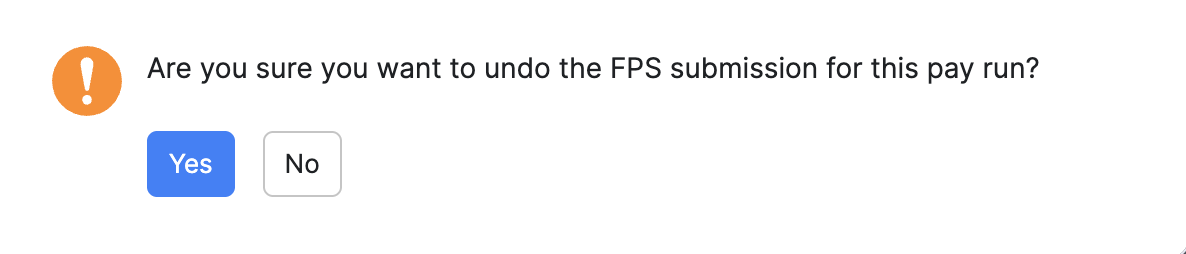
- Undo FPS Submission if you need to reverse a submission recorded in Zoho Payroll (confirm when prompted).
Record Payment
After the pay run is approved, you pay employees or record that you’ve already paid them. On a Payment Due pay run, use Mark as Paid. Employee rows can also show Yet To Pay with a line-level mark-as-paid action.
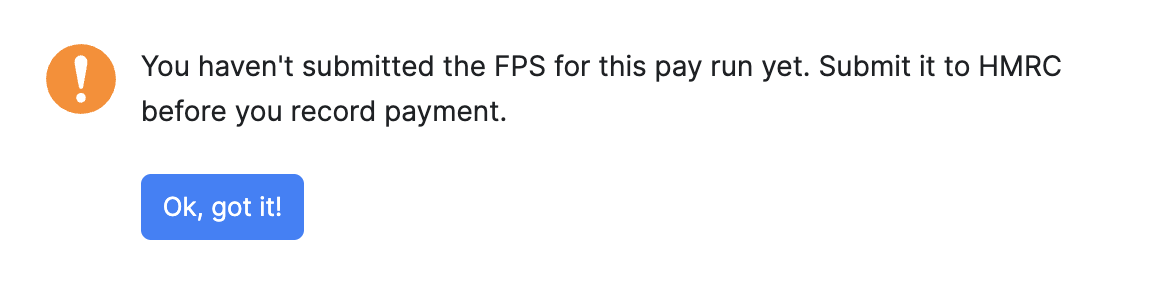
Note: If you haven’t submitted the FPS for this pay run yet, Zoho Payroll asks you to submit it to HMRC before you record payment. That keeps payment records aligned with what you’ve reported to HMRC.
Download a Bacs File
Bacs (Bankers’ Automated Clearing Services) is the UK system many employers use to pay salaries straight into employees’ bank accounts. Instead of paying each person manually, you upload a payment file to your bank.
If you pay by Bacs, click Download Bacs File from the pay run summary, then upload it through your bank or banking software so the net pay can be sent to each employee.
Mark as Paid / Record Payment
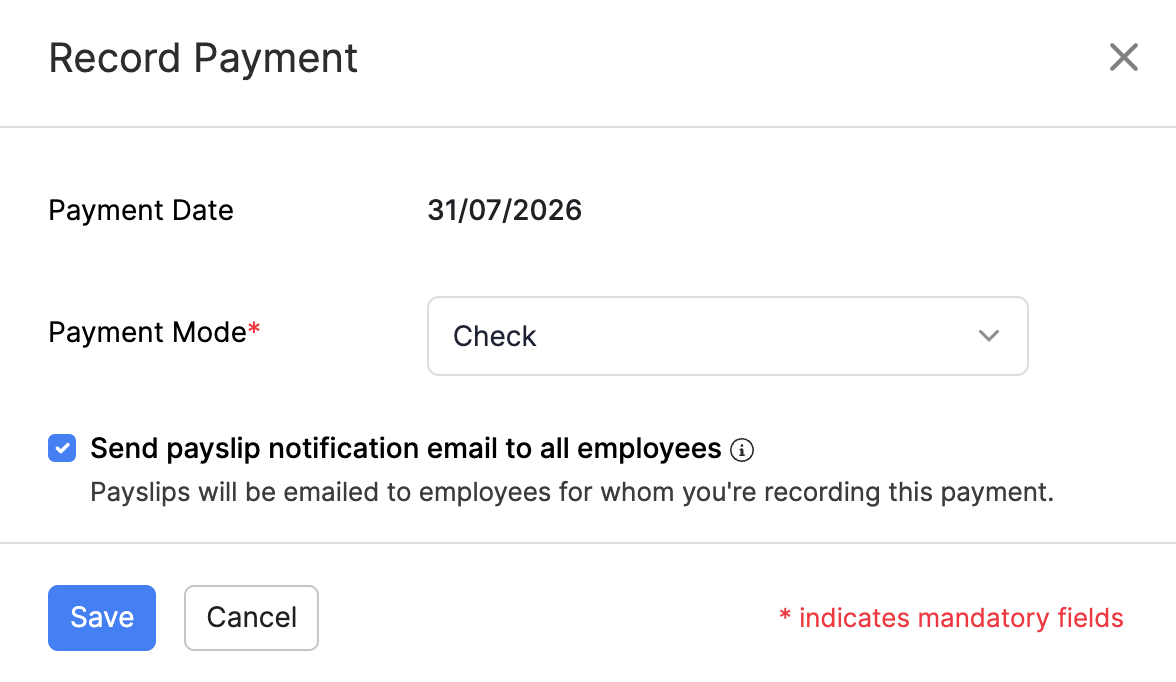
- Click Mark as Paid.
- Enter the payment date and payment mode.
- Choose whether to notify employees about their payslips, then confirm.
When payment is recorded, the pay run shows as Paid.
Delete a Recorded Payment
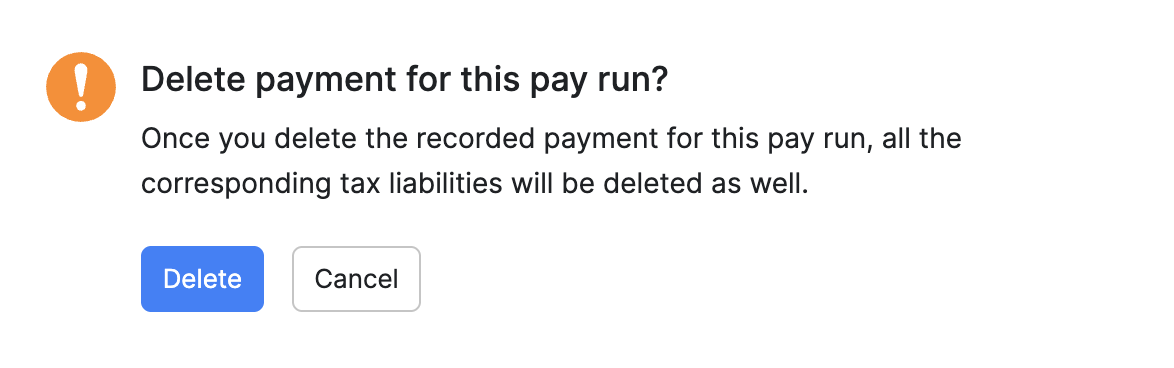
If you recorded a payment by mistake, open the More menu on the paid pay run, select Delete Recorded Payment, and confirm. Zoho Payroll warns that this can affect tax liabilities for the period.
Pay Run History
Processed pay runs appear under Pay Run History. Learn more in Pay run history.