
Work Calendars

Work calendars set the working days and weekly hours for your employees. Zoho Payroll uses this information to calculate pay accurately.
A work calendar tells Zoho Payroll:
- Which days of the week an employee is expected to work.
- The total hours an employee works each week.
Zoho Payroll uses these details to work out an employee’s payable days and working hours for each pay period. A default work calendar is assigned to every employee when you add them. You can create more work calendars to reflect different working patterns, then assign the right one to each employee.
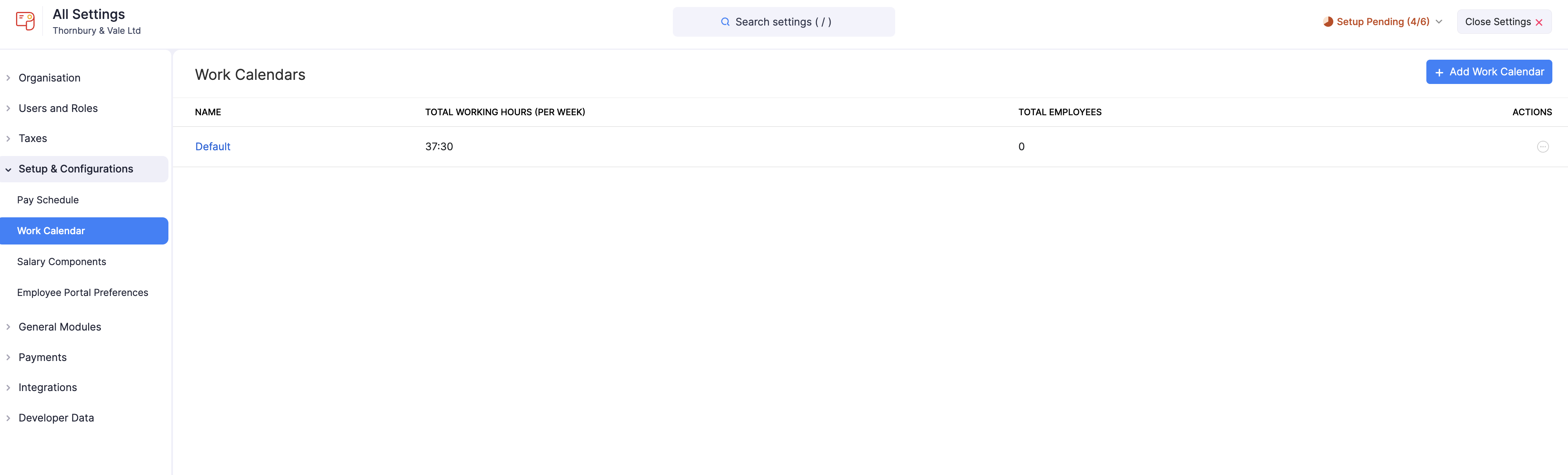
Once you’ve added work calendars, the list shows each calendar’s name, total working hours per week, and the Total Employees assigned to it.
Add a Work Calendar
To add a work calendar:
- Go to Settings and click Work Calendar under Setup & Configurations.
- Click + Add Work Calendar.
- Enter the following details:
| Field | Description |
|---|---|
| Name | A name to identify this calendar, for example “Standard week” or “Tue–Sat”. |
| Select the working days | Select the days of the week your employees work, from Sunday to Saturday. |
| Total working hours (per week) | The total hours worked across all your selected working days each week. Enter this in HH:MM format, for example 37:30 for 37 hours and 30 minutes. |
- Click Save.
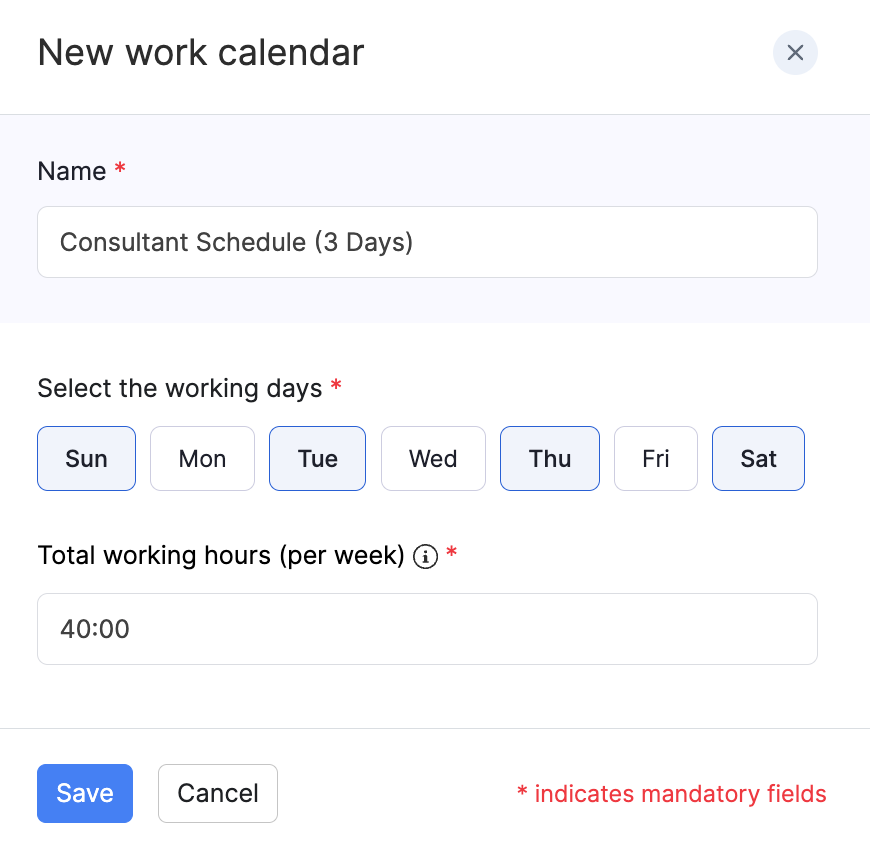
You can now assign this work calendar to employees when you add or edit them.
Scenario:
Zylker’s office team works Monday to Friday, 37 hours and 30 minutes a week. Its store team works Tuesday to Saturday for the same weekly hours.
Zylker creates a work calendar for each pattern and assigns it to the relevant employees. Zoho Payroll then uses each calendar’s working days and weekly hours to work out payable days correctly for both teams.
Edit a Work Calendar
To edit a work calendar:
- Go to Settings and click Work Calendar under Setup & Configurations.
- Click the More icon next to the calendar you want to update and select Edit. You can also click the calendar name.
- Make the necessary changes.
- Click Save.
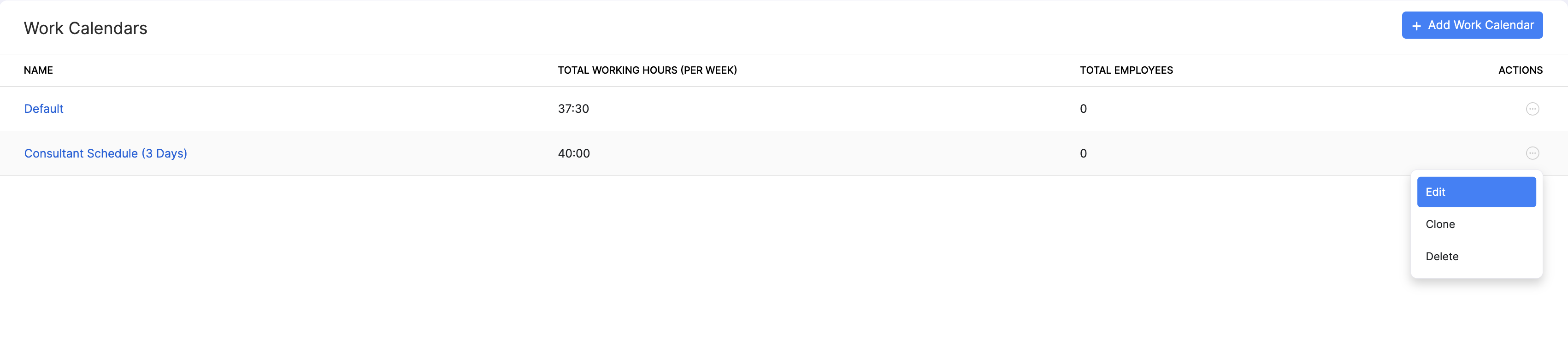
The work calendar will be updated.
Clone a Work Calendar
If you need a similar working pattern with a few changes, you can clone an existing work calendar.
To clone a work calendar:
- Go to Settings and click Work Calendar under Setup & Configurations.
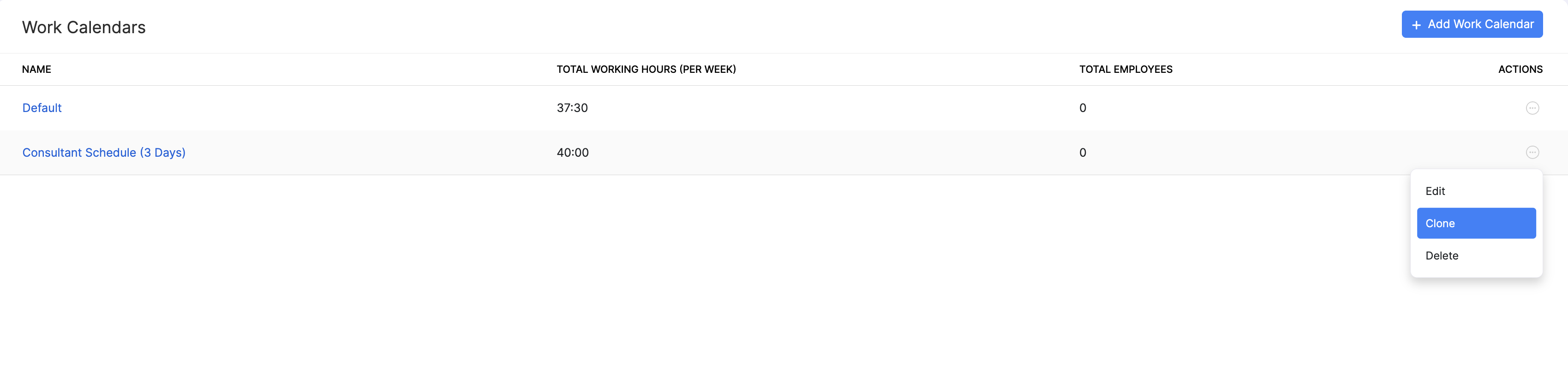
- Click the More icon next to the calendar you want to clone and select Clone.
- Update the name and any other details as needed.
- Click Save.
Delete a Work Calendar
Prerequisites: You can delete a work calendar only when no employees are assigned to it.
To delete a work calendar:
- Go to Settings and click Work Calendar under Setup & Configurations.
- Click the More icon next to the calendar you want to delete and select Delete.
- In the popup that appears, click Yes.
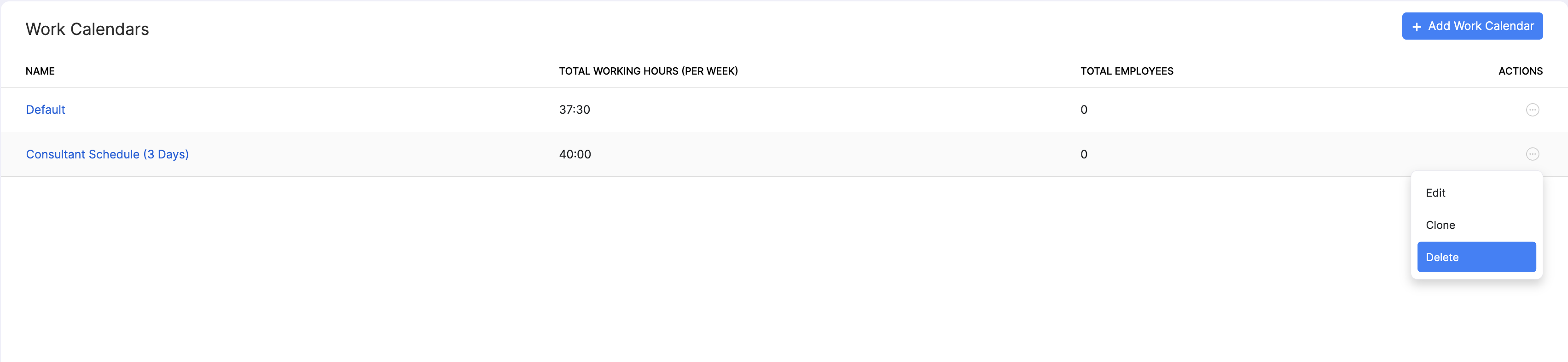
The work calendar will be permanently deleted.