Employees Pay Summary

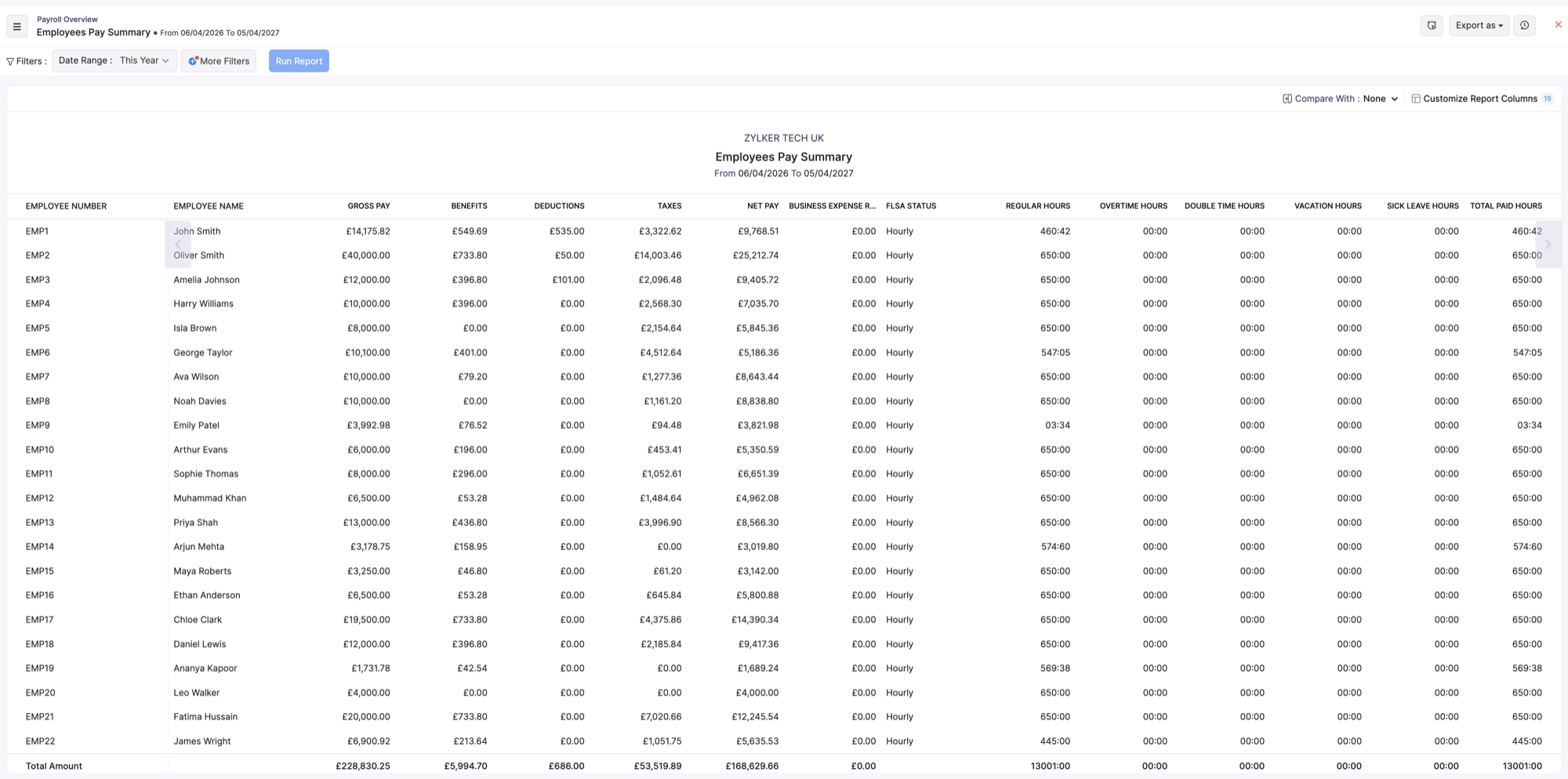
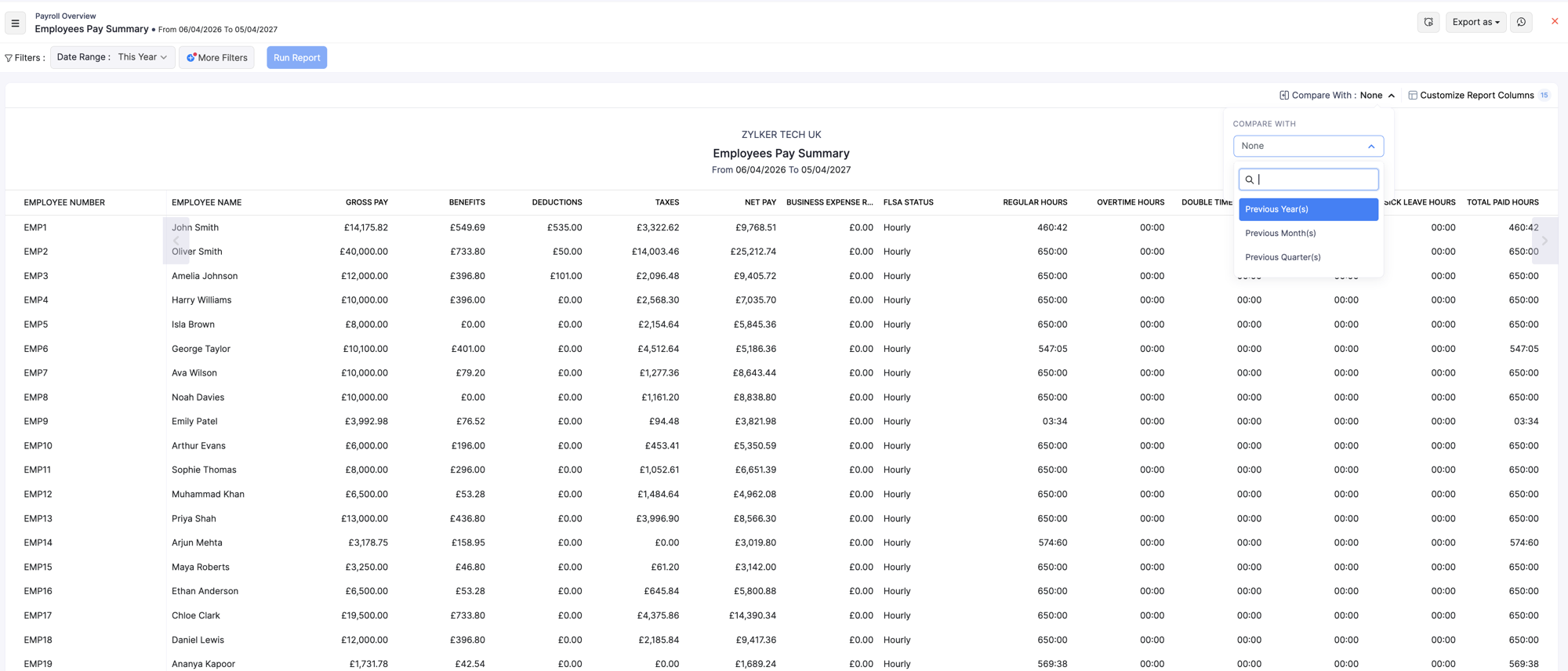
The Employees Pay Summary report lists pay totals for each employee over a selected period. Use it to compare gross pay, benefits, deductions, taxes, net pay, and paid hours across your workforce.
View the Employees Pay Summary
- Go to Reports on the left sidebar.
- Under Payroll Overview, open Employees Pay Summary.
- Set the Date Range, then click Run Report. Use the filter, compare, schedule, and export options described below.
Columns in the report
Typical columns include:
| Column | Description |
|---|---|
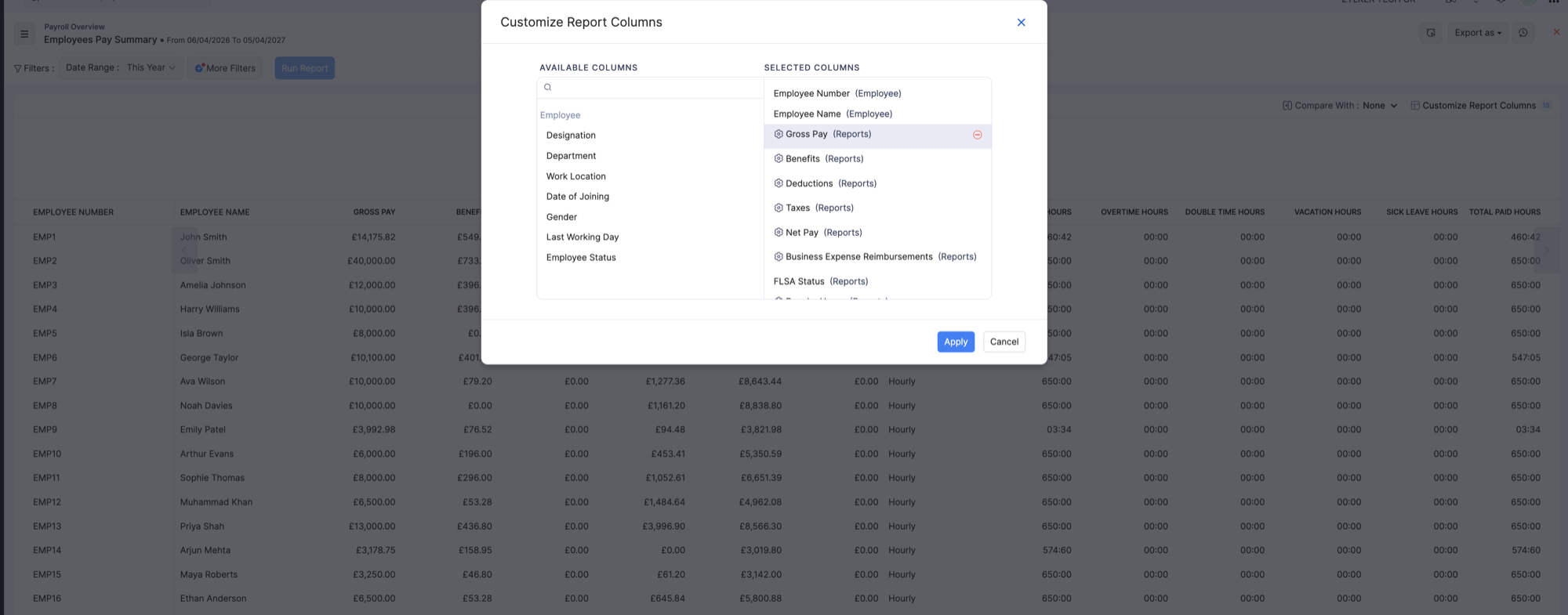
| Employee Number | The employee’s number in Zoho Payroll. |
| Employee Name | The employee’s name. |
| Gross Pay | Total pay before deductions and taxes for the period. |
| Benefits | Benefit amounts associated with the employee for the period. |
| Deductions | Deductions taken from pay for the period. |
| Taxes | Tax amounts for the period (including PAYE and related withholdings as shown in the report). |
| Net Pay | Amount paid to the employee after deductions and taxes. |
| Business Expense Reimbursements | Reimbursements paid in the period, if any. |
| Hours columns | Paid time breakdown such as regular hours and total paid hours, when those columns are included. |
Click Customize Report Columns to show or hide columns for your view, then run the report again if needed.
Filter, compare, schedule, and export
After you open this report, you can refine the period, narrow results, schedule report emails, or download the data. For a list of all the reports, see Reports Centre.
Date range and more filters
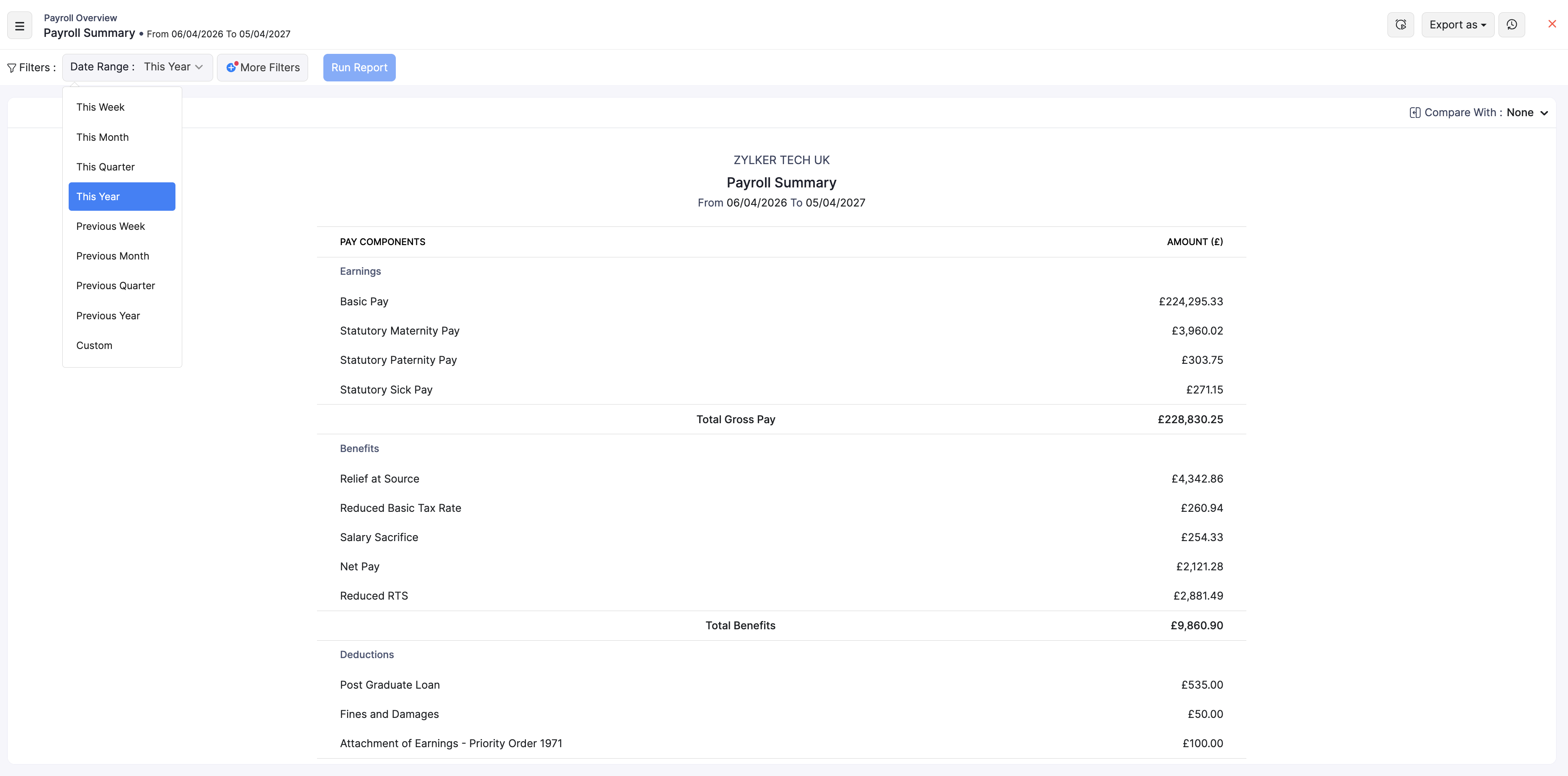
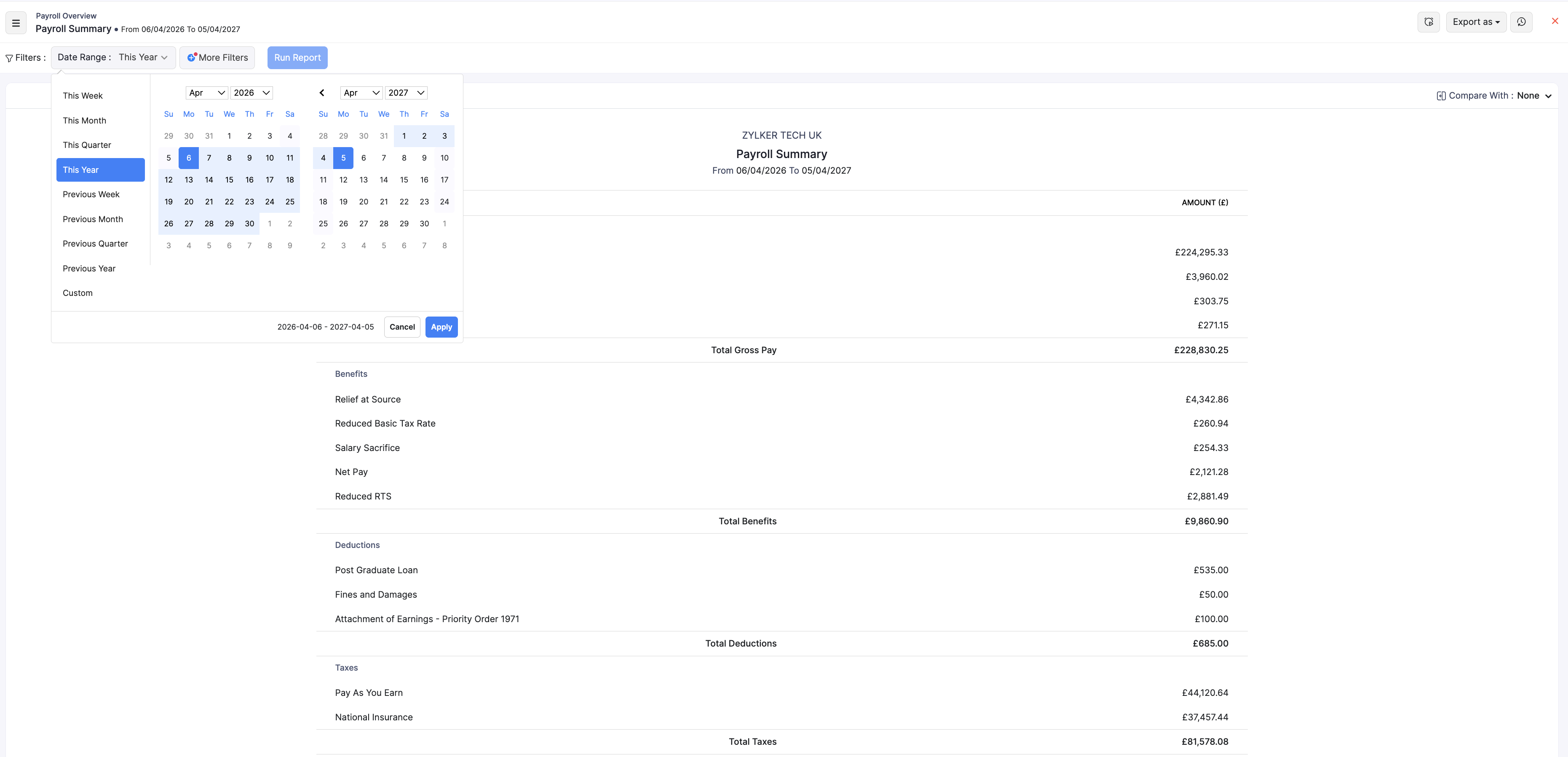
- Choose a Date Range preset (for example This Year, This Month, or Previous Month), or select Custom and pick start and end dates.
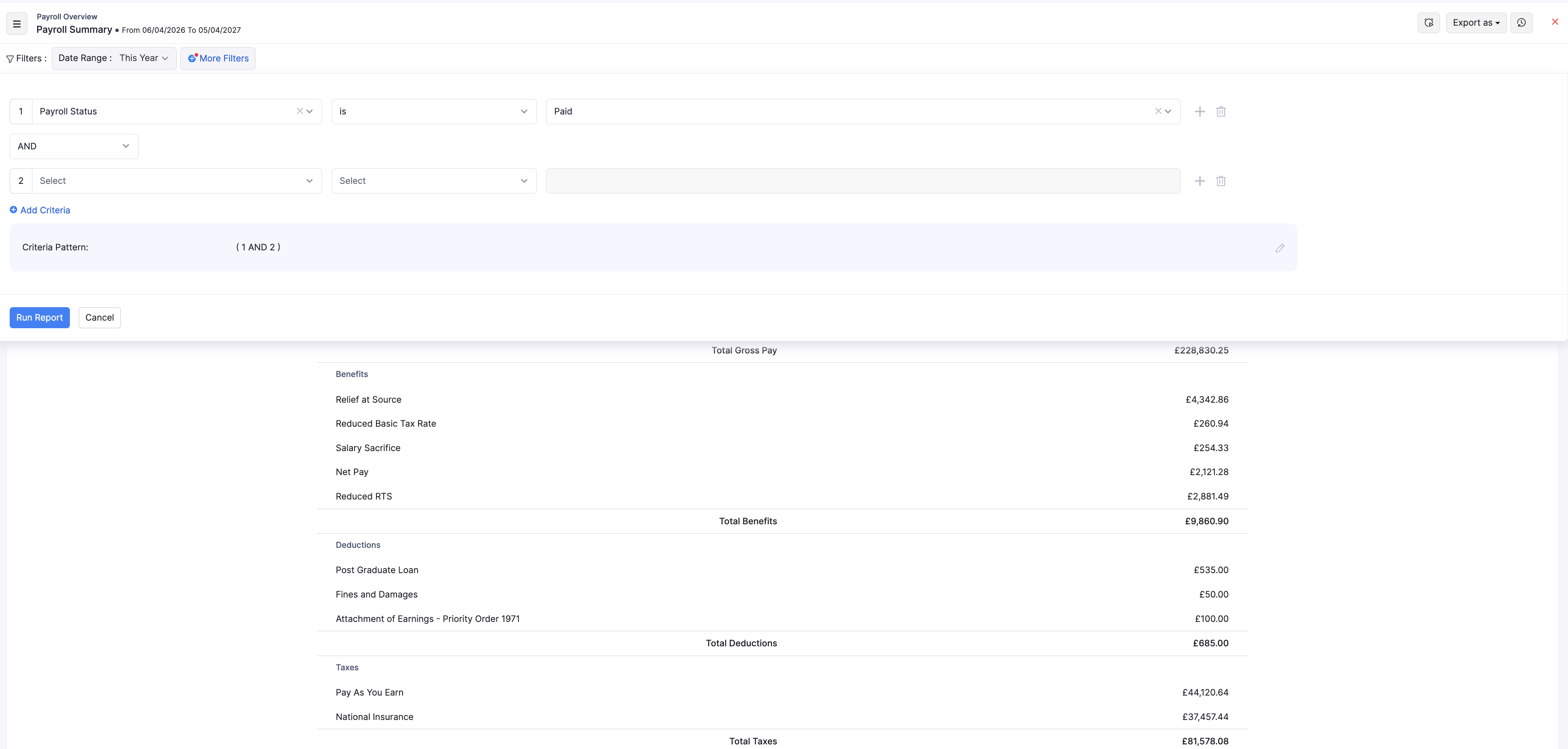
- Optional: click + More Filters to narrow by fields such as payroll status, department, or work location.
- Click Run Report to refresh the results.
Compare with
If the report shows Compare With, choose a previous year, month, or quarter to contrast with the current period, then click Run Report again.
Schedule the report
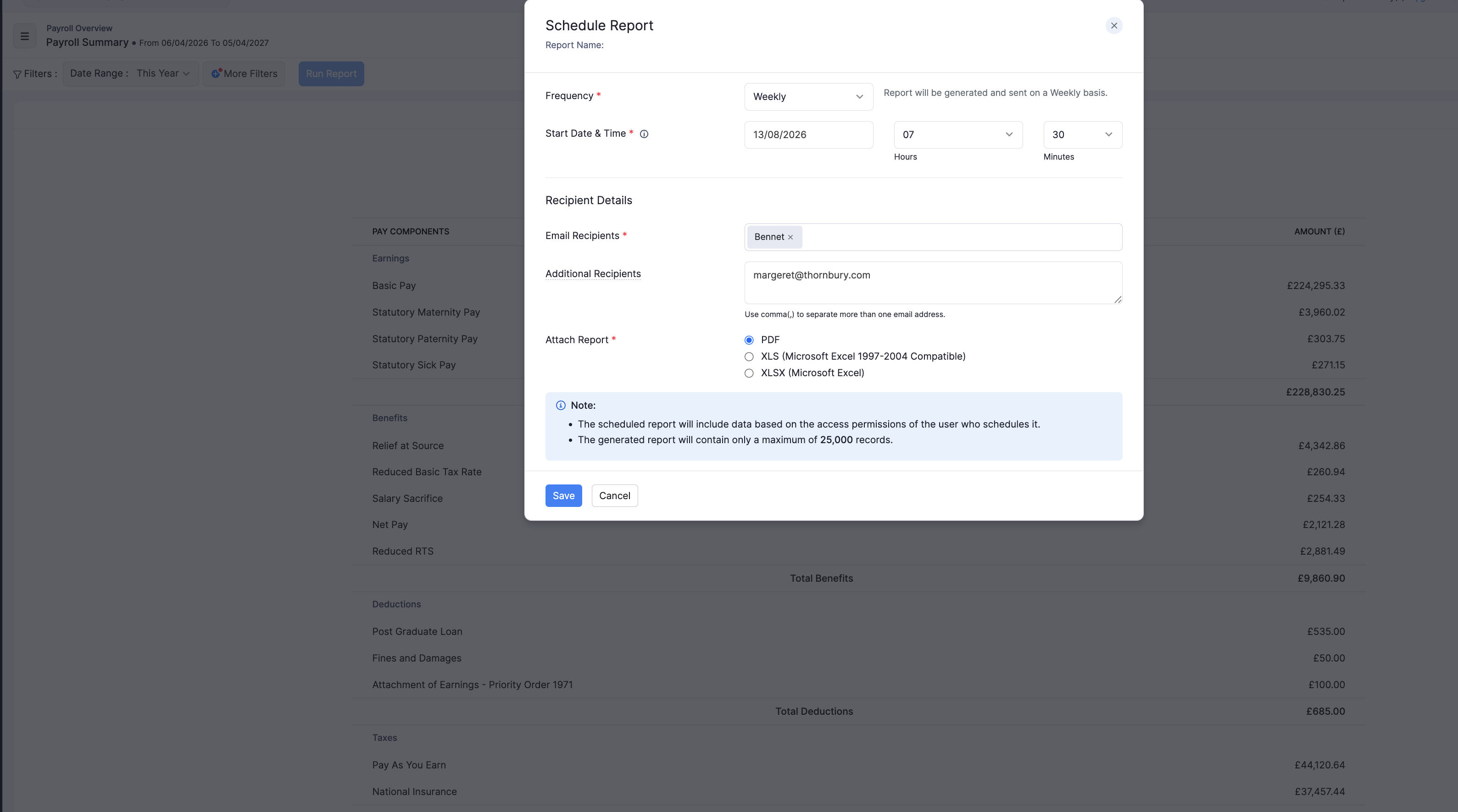
- Open the schedule option on the report.
- Choose how often to send it (Weekly, Monthly, Quarterly, or Yearly).
- Add recipients and the file format (PDF, XLS, XLSX, or CSV where available).
- Save the schedule.
Export the report
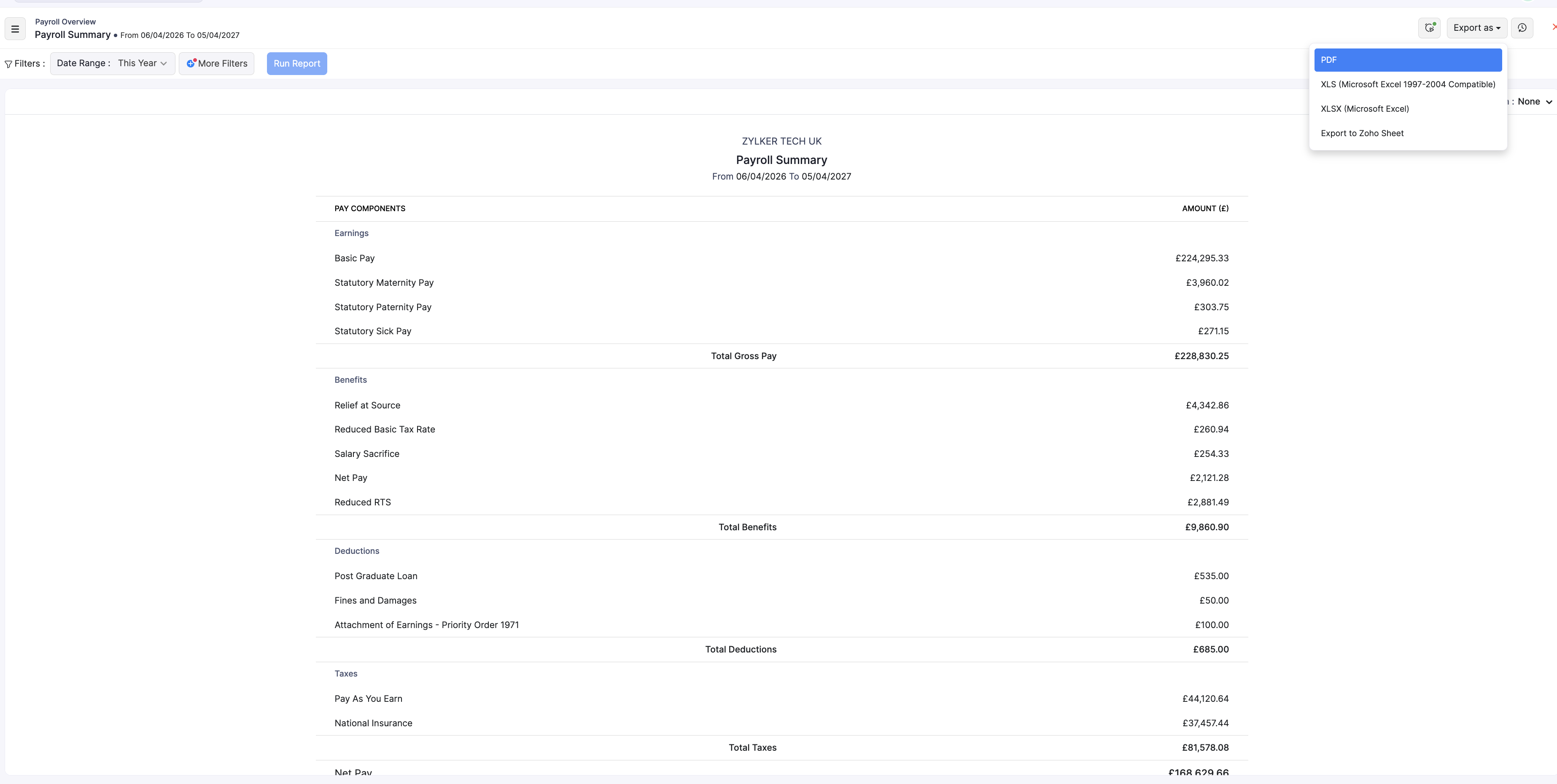
- Click Export as.
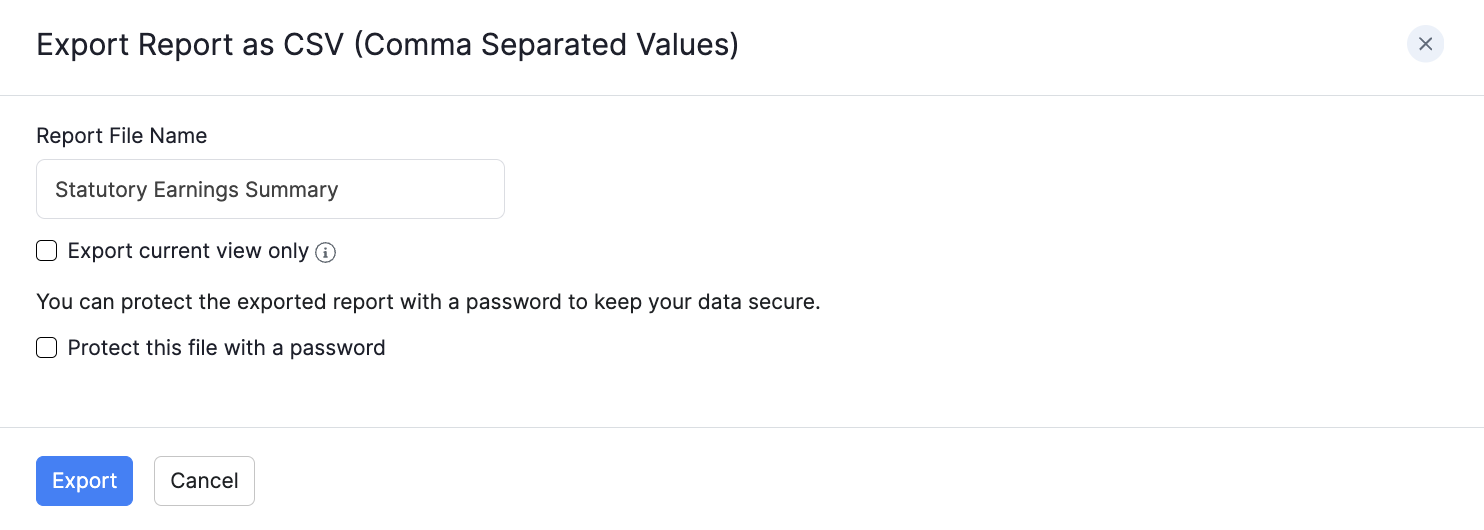
- Choose PDF, CSV (where available), XLS, XLSX, or Zoho Sheet.
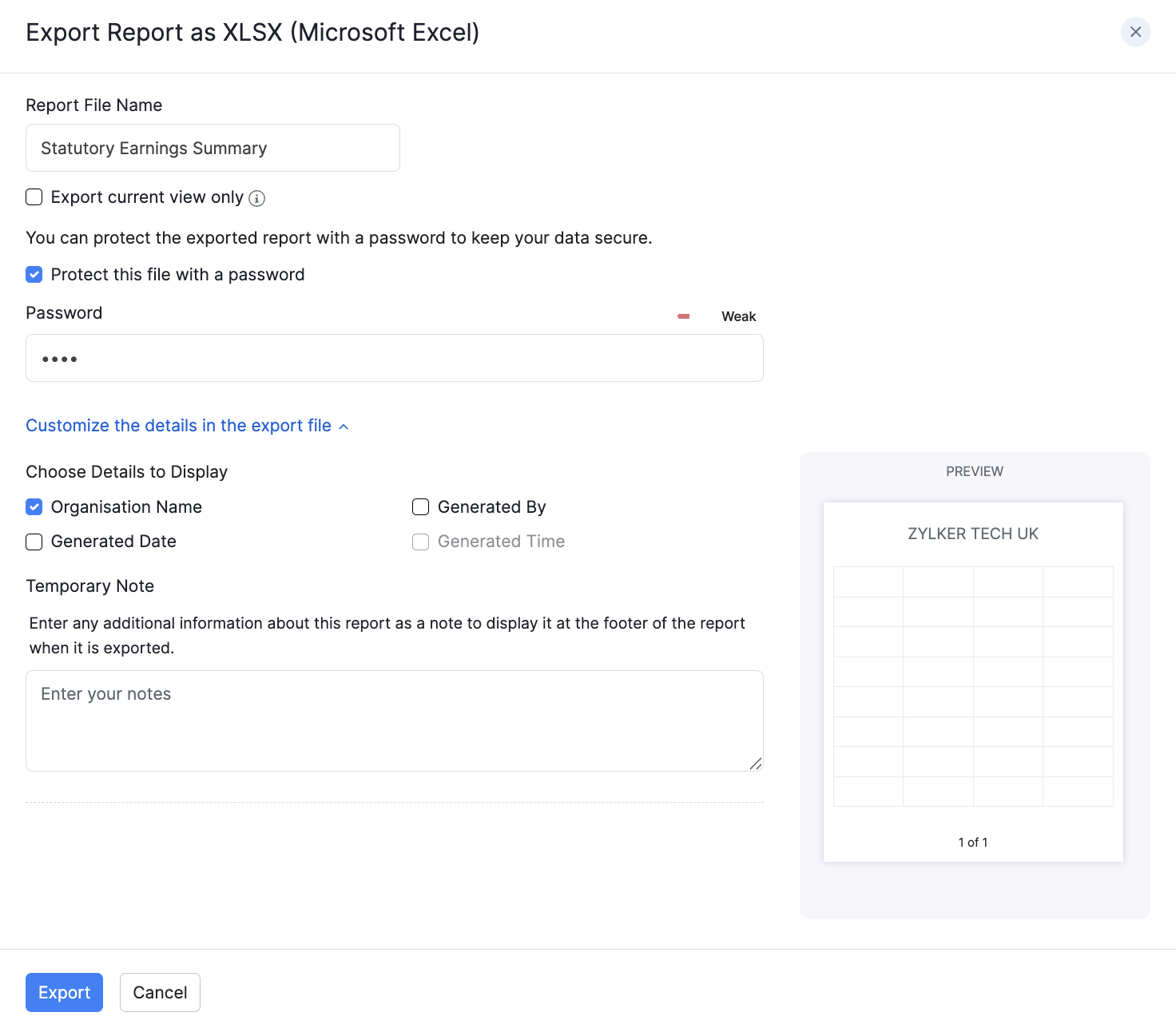
- Optional: select Protect this file with a password and enter a password of at least 6 characters.
- Click Export.