Navigate Zoho Payroll

The left sidebar is the main way you move around Zoho Payroll. The Dashboard, the home page after setup, is where you check upcoming pay runs and outstanding tasks. This page explains what each area is for, and where to go for common tasks.
Sidebar
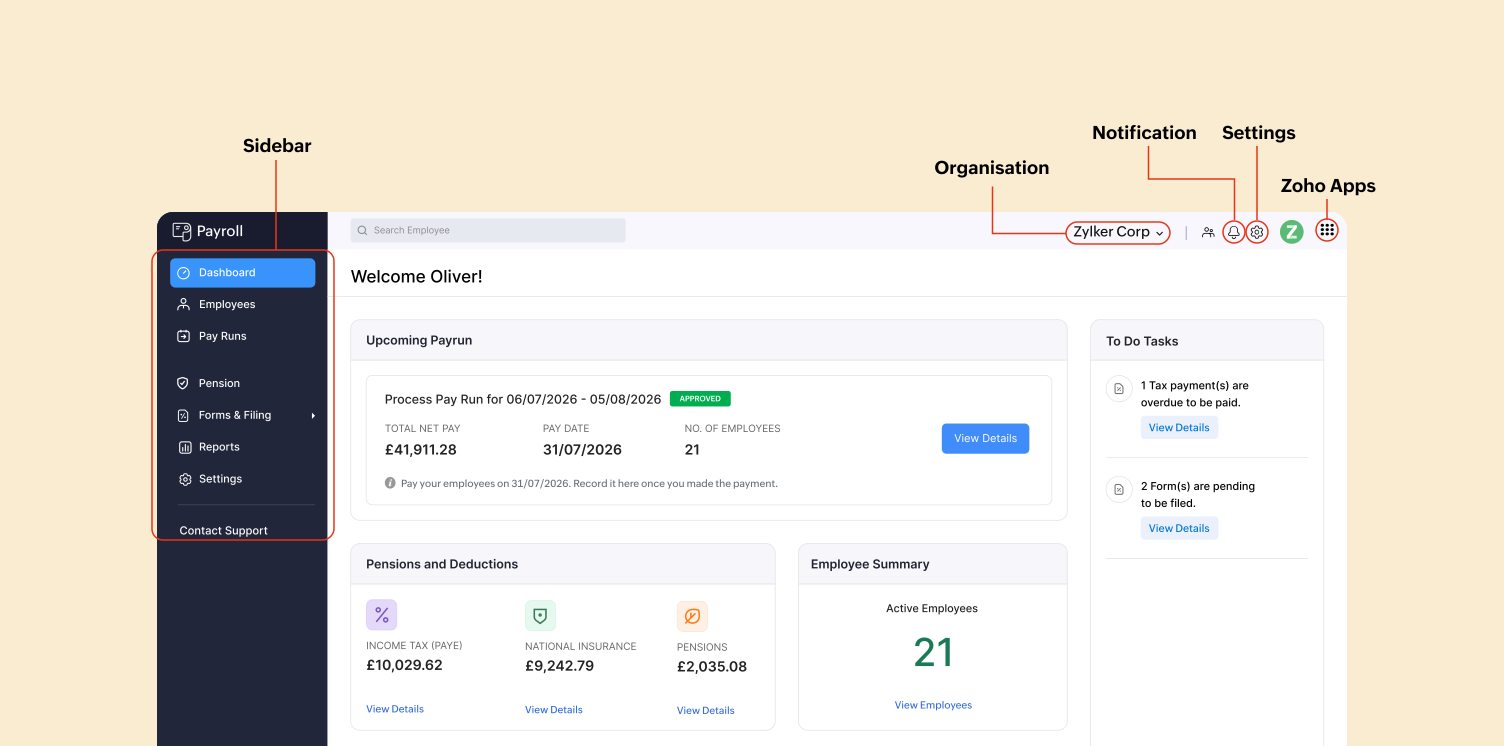
The Sidebar is your primary navigation hub. From here you can open:
- Dashboard
- Employees
- Pay Runs
- Pension
- Forms & Filing
- Reports
- Settings
- Contact Support
Where to go
| If you want to… | Open | Help |
|---|---|---|
| Finish setup before the first pay run | Getting Started | Getting Started |
| Check upcoming pay, PAYE, NI, and pensions | Dashboard | Covered below |
| Add or update employees, salary, tax details, or Benefit in Kind | Employees | Employees |
| Process, approve, or pay a regular payroll, or submit the FPS | Pay Runs | Regular Pay Runs |
| Process a leaver’s final pay | Pay Runs | Final Settlement Payroll |
| Manage EPS filings for HMRC | Forms & Filing | Forms & Filing |
| Set up or manage workplace pensions | Pensions | Pensions |
| Review pay, tax, NI, deductions, or journals | Reports | Reports Centre |
| Change HMRC references, Government Gateway credentials, pay schedule, bank accounts, or salary components | Settings (left sidebar or gear icon at the top right) | Settings |
| Find an employee by name, ID, or other details | Search Employees (top of the page) | Covered below |
| Email support.uk@eu.zohopayroll.com, request a demo, or schedule a call | Contact Support (bottom of the left sidebar) | Contact Support |
Getting Started
Getting Started is the checklist you complete before the first pay run: organisation details, tax details, pay schedule, pensions, employees, and prior payroll if you already paid employees this tax year.
While setup is incomplete, it appears in the left sidebar. After you start using the Dashboard, reopen it with Getting Started at the top right.
Learn more in Getting Started.
Dashboard
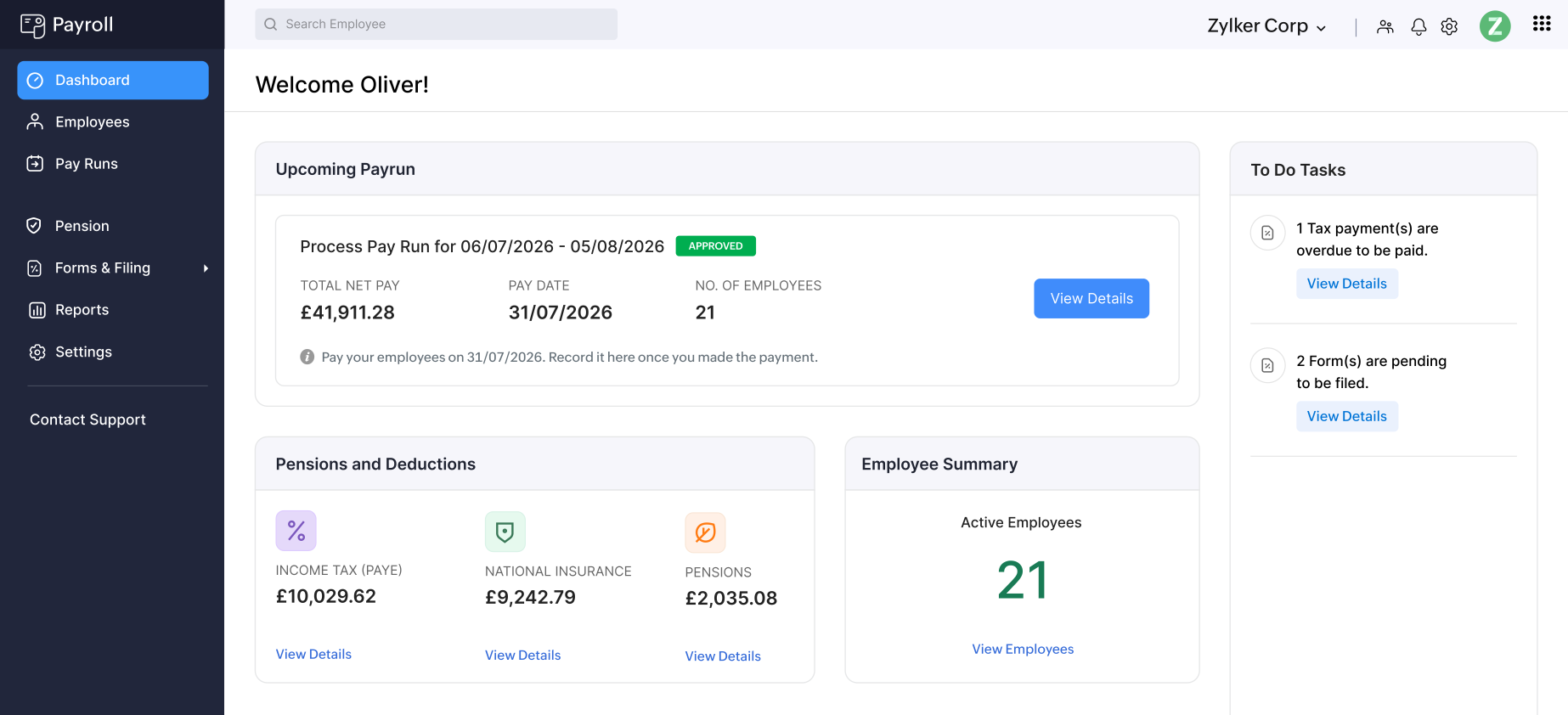
The Dashboard is the home page. Use it to see whether a pay run is due, what you owe for PAYE, National Insurance, and pensions, and whether any tasks are outstanding.
On the Dashboard, you can:
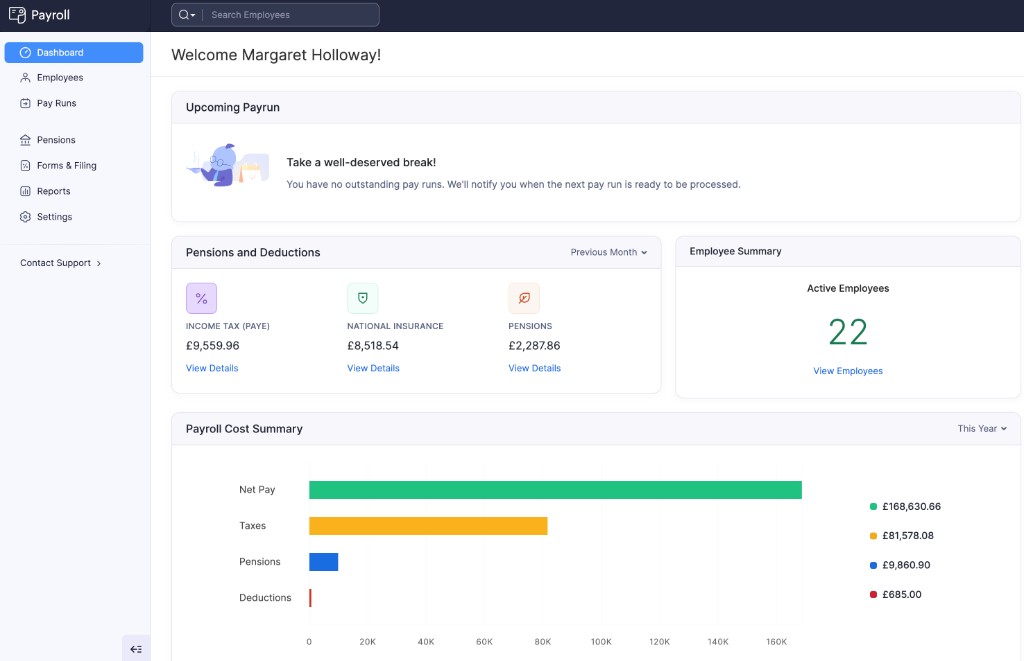
- See Upcoming Payrun status, or a message when there are no outstanding pay runs.
- Review Pensions and Deductions for a selected period, including Income Tax (PAYE), National Insurance, and Pensions.
- Check Employee Summary for active employees.
- View Payroll Cost Summary for net pay, taxes, pensions, and deductions for the selected year.
- Track To Do Tasks, or confirm when you have none.
Search Employees
Search Employees is the search bar at the top of the page. Use it when you need to find one employee or a group of employees without opening the Employees list and scrolling.
To search:
- Click Search Employees at the top of the page.
- The Search Employee window opens.
- Enter one or more of the fields below, then click Search.
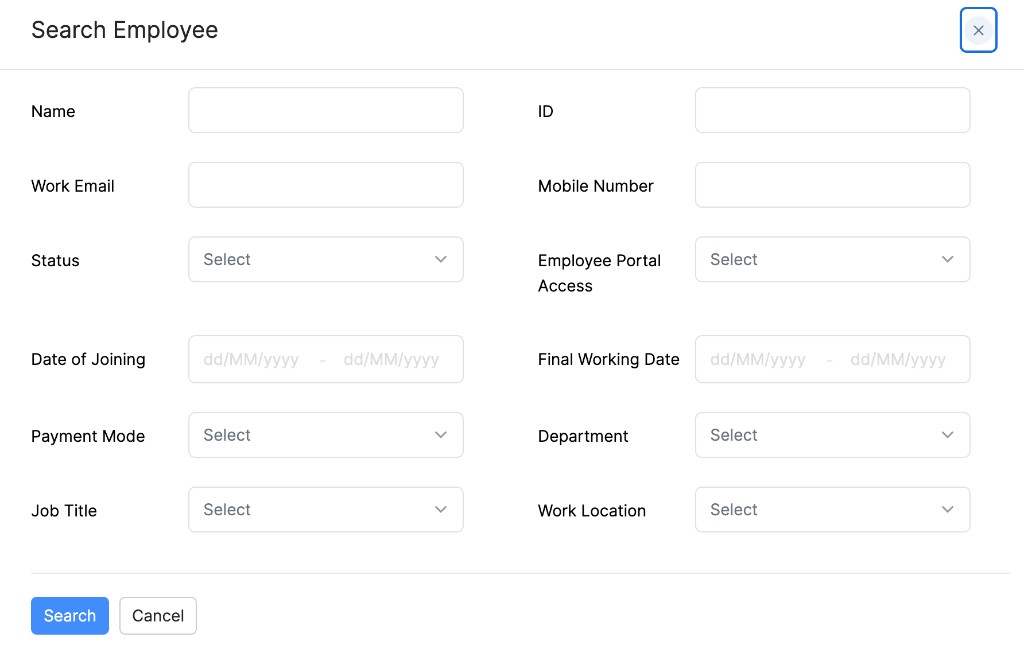
| Field | What you can search by |
|---|---|
| Name | The employee’s name. |
| ID | The employee’s number in Zoho Payroll. |
| Work Email | The employee’s work email address. |
| Mobile Number | The employee’s mobile number. |
| Status | Whether the employee is active, former, or another status shown in the list. |
| Employee Portal Access | Whether portal access is enabled. |
| Date of Joining | A joining date range. |
| Final Working Date | A final working date range, for employees who have left or are leaving. |
| Payment Mode | How the employee is paid. |
| Department | The employee’s department. |
| Job Title | The employee’s job title. |
| Work Location | The employee’s work location. |
You can fill one field or several. Click Cancel to close the window without searching.
Settings
Settings is where you configure the organisation for payroll. Open it from Settings in the left sidebar, below Reports, or from the gear icon at the top right.
Use Settings to set or update:
- Organisation profile, branding, work locations, departments, and job titles
- Users who can access Zoho Payroll
- Tax and National Insurance
- Pay schedule and work calendars
- Salary components
- Employee portal and employee preferences
- Bank accounts you use to pay employees
Learn more in Settings.
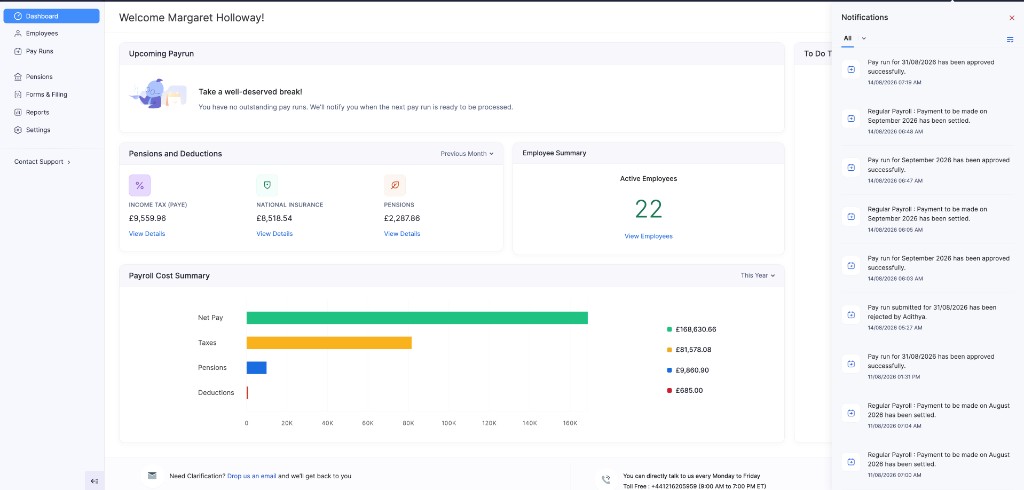
Notifications
The bell icon at the top right opens Notifications. Use it to see recent activity such as approved pay runs, payments, and other alerts.
Organisation switcher
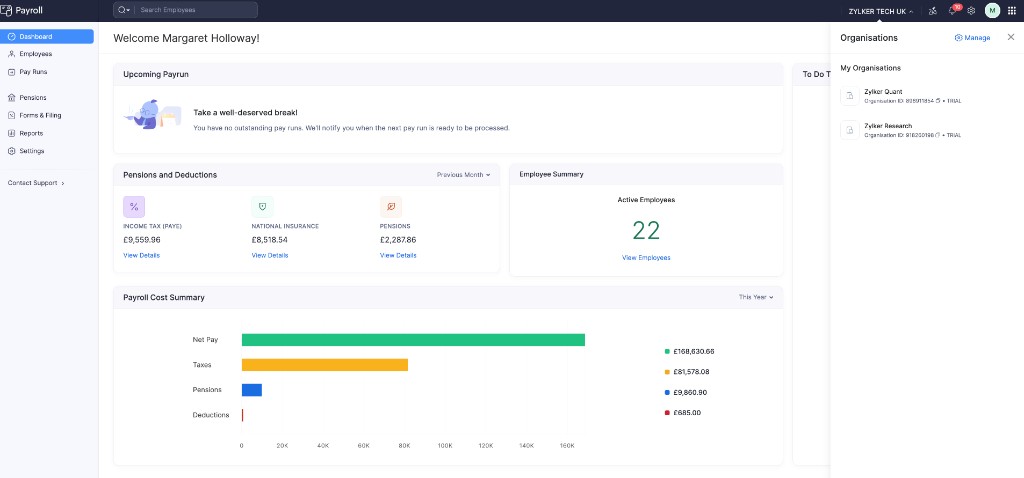
The organisation name at the top right opens the Organizations list. Use it when you work in more than one Zoho Payroll organisation.
You can switch to another organisation, open Manage to view or join organisations, or create a new one.
Your profile and help
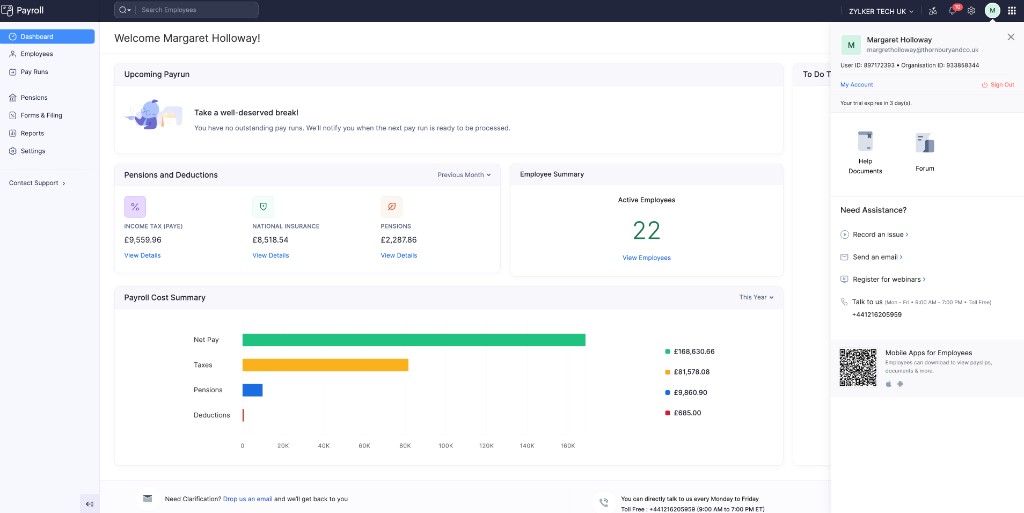
The user icon at the top right opens your profile. Your initial may also appear on the profile avatar. From here you can:
- See your email, user ID, and organisation ID
- Open Help Documents or the Forum
- Use Need Assistance? to record an issue, send an email, register for webinars, or call support
- Share the employee mobile app so employees can view payslips and documents on a phone
To submit a support request, request a demo, or schedule a call from the sidebar, see Contact Support. You can also email support.uk@eu.zohopayroll.com.
Zoho Apps
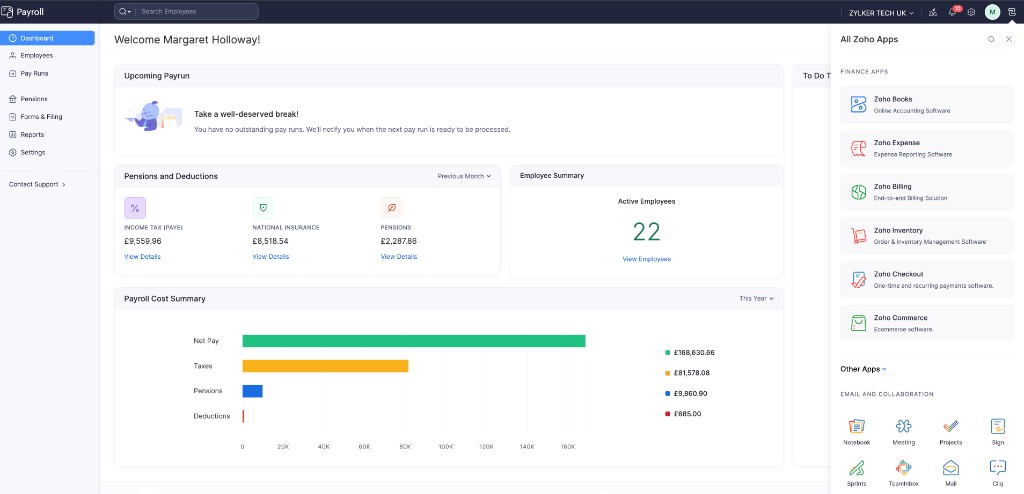
The grid icon at the top right opens All Zoho Apps. Use it to open other Zoho products in the same account, grouped by category (for example Finance Apps, or Email and Collaboration).