
Full and Final Settlement Report

The Full and Final Settlement Report lists employees with a final settlement in the selected period, including settlement amounts, dates, and payment status.
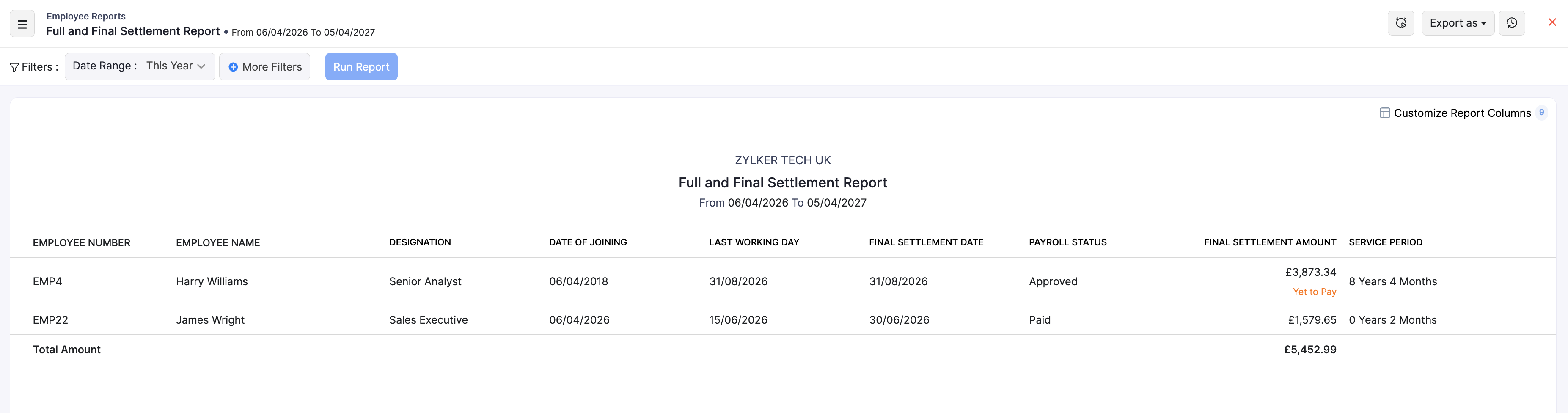
View the report
- Go to Reports on the left sidebar.
- Under Employee Reports, open Full and Final Settlement Report.
- Set the Date Range, then click Run Report. Use the filter, compare, schedule, and export options described below.
What the report shows
| Column | Description |
|---|---|
| Employee Number | The employee’s number in Zoho Payroll. |
| Employee Name | The employee’s name. |
| Designation | The employee’s job title. |
| Date of Joining | When the employee joined. |
| Last Working Day | The employee’s last working day. |
| Final Settlement Date | The date of the final settlement. |
| Payroll Status | Settlement payroll status (for example Approved or Paid). Payment tags such as Yet to Pay may also appear. |
| Final Settlement Amount | The settlement amount for the employee. |
| Service Period | Length of service shown in the report. |
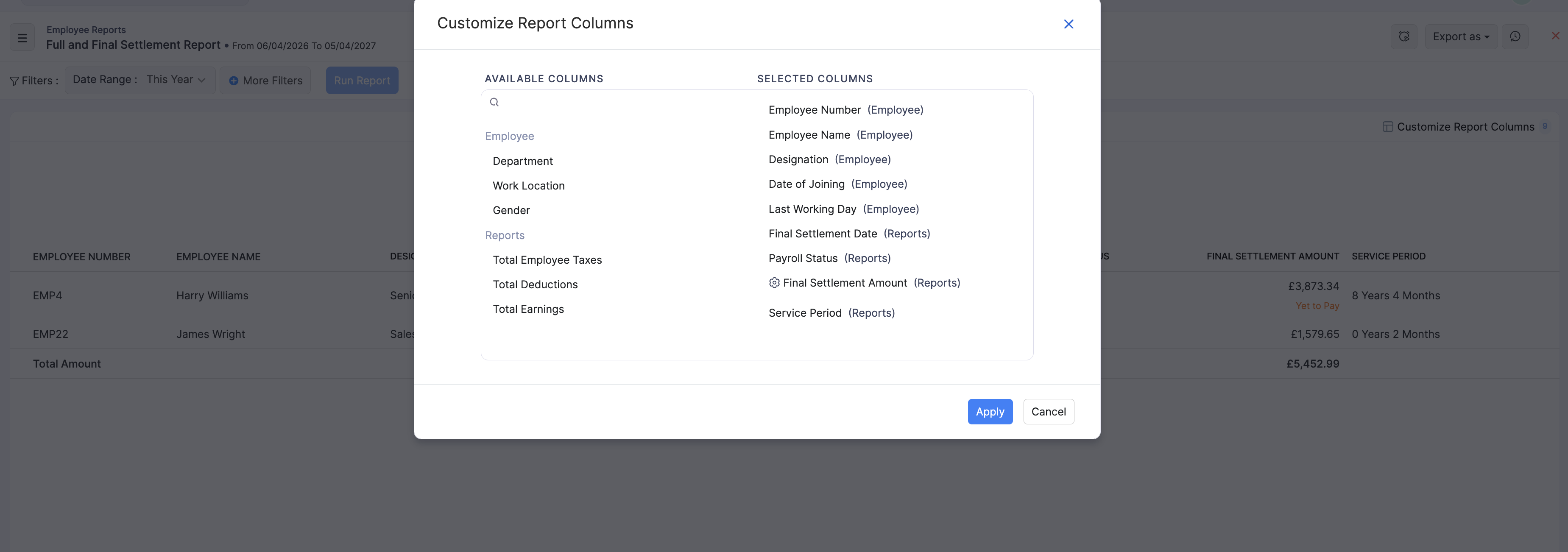
A Total Amount row sums final settlement amounts. Use Customize Report Columns to change visible columns. Export as can include a detailed export option where available.
Filter, compare, schedule, and export
After you open this report, you can refine the period, narrow results, schedule report emails, or download the data. For a list of all the reports, see Reports Centre.
Date range and more filters
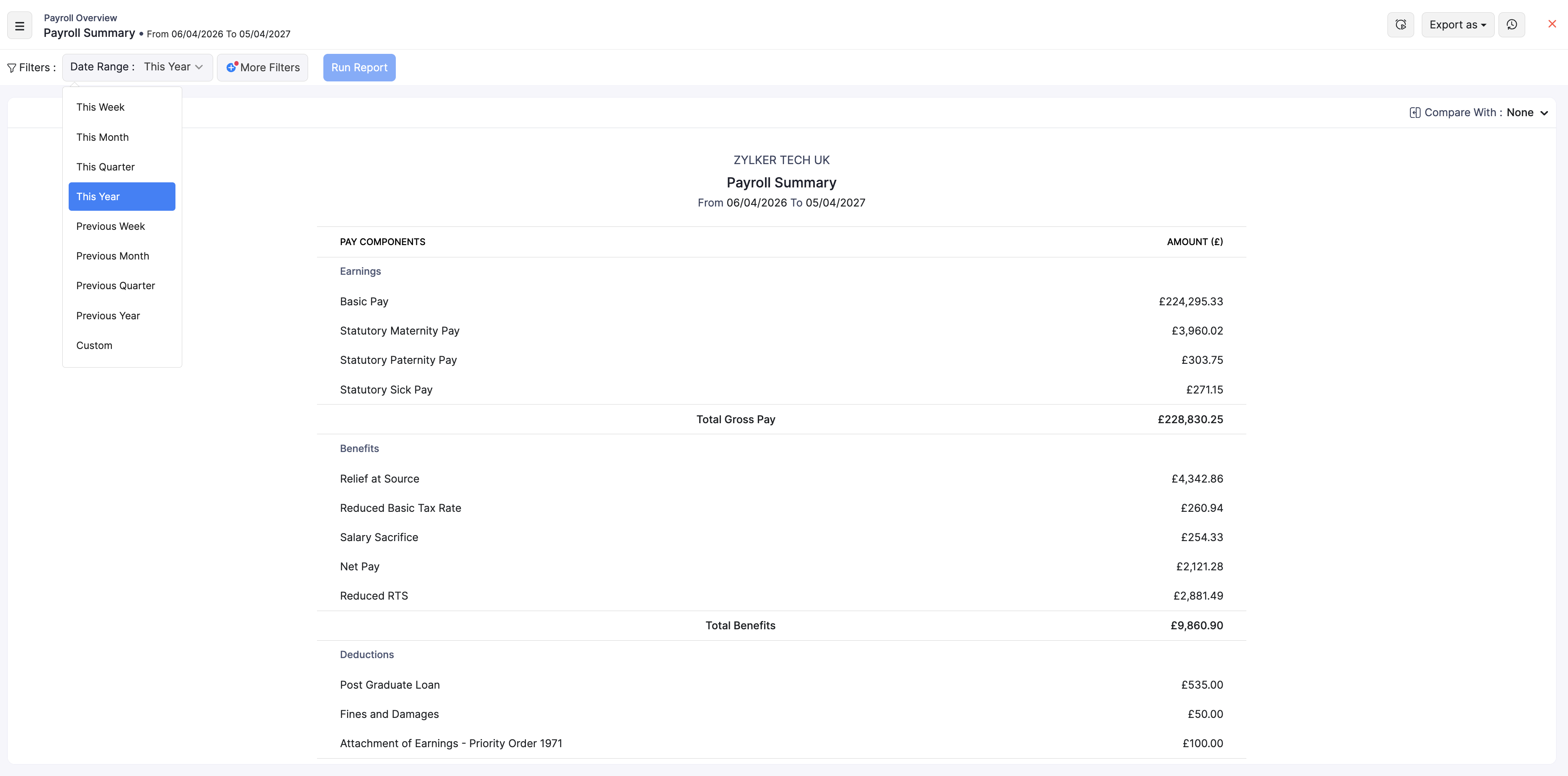
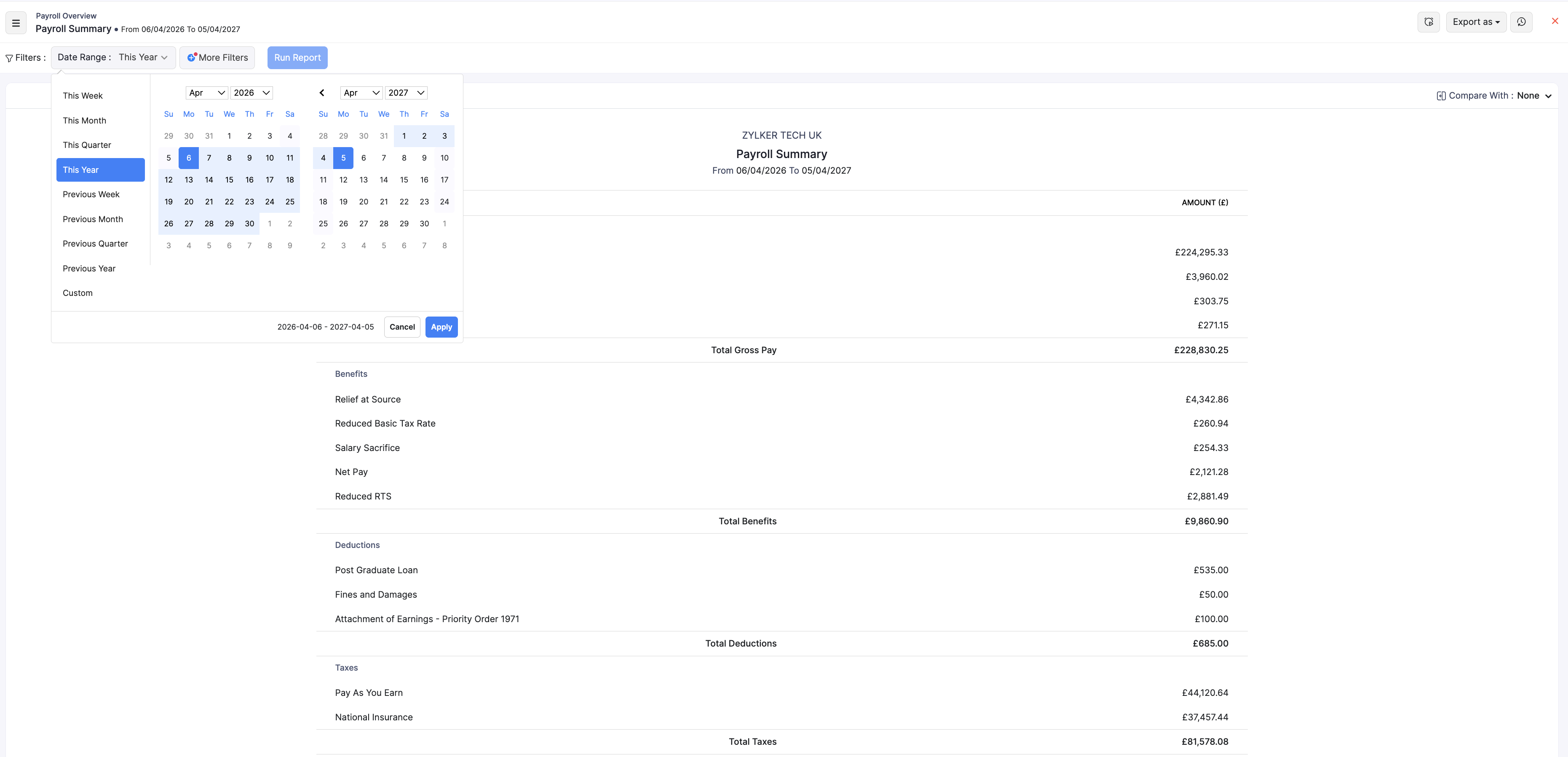
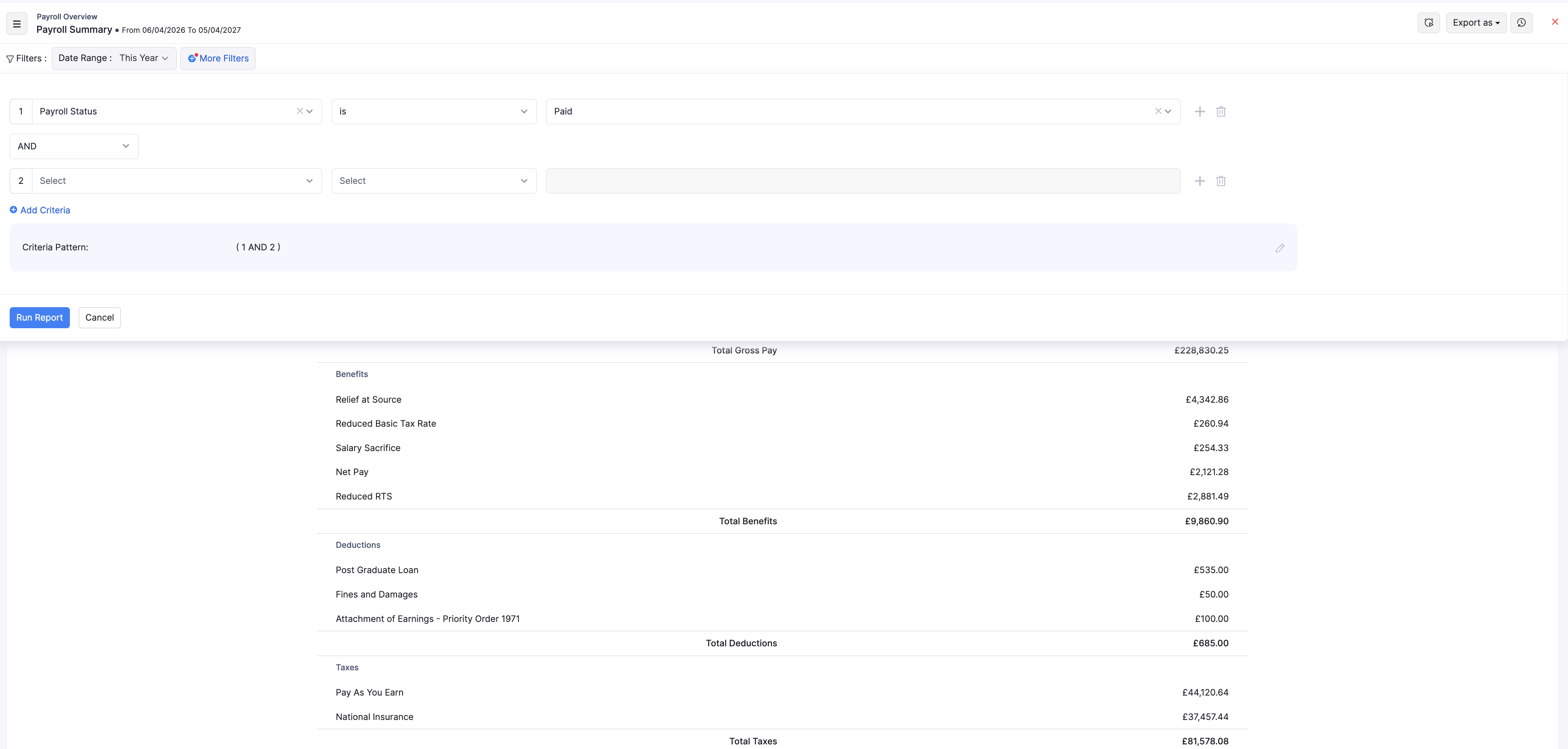
- Choose a Date Range preset (for example This Year, This Month, or Previous Month), or select Custom and pick start and end dates.
- Optional: click + More Filters to narrow by fields such as payroll status, department, or work location.
- Click Run Report to refresh the results.
Compare with
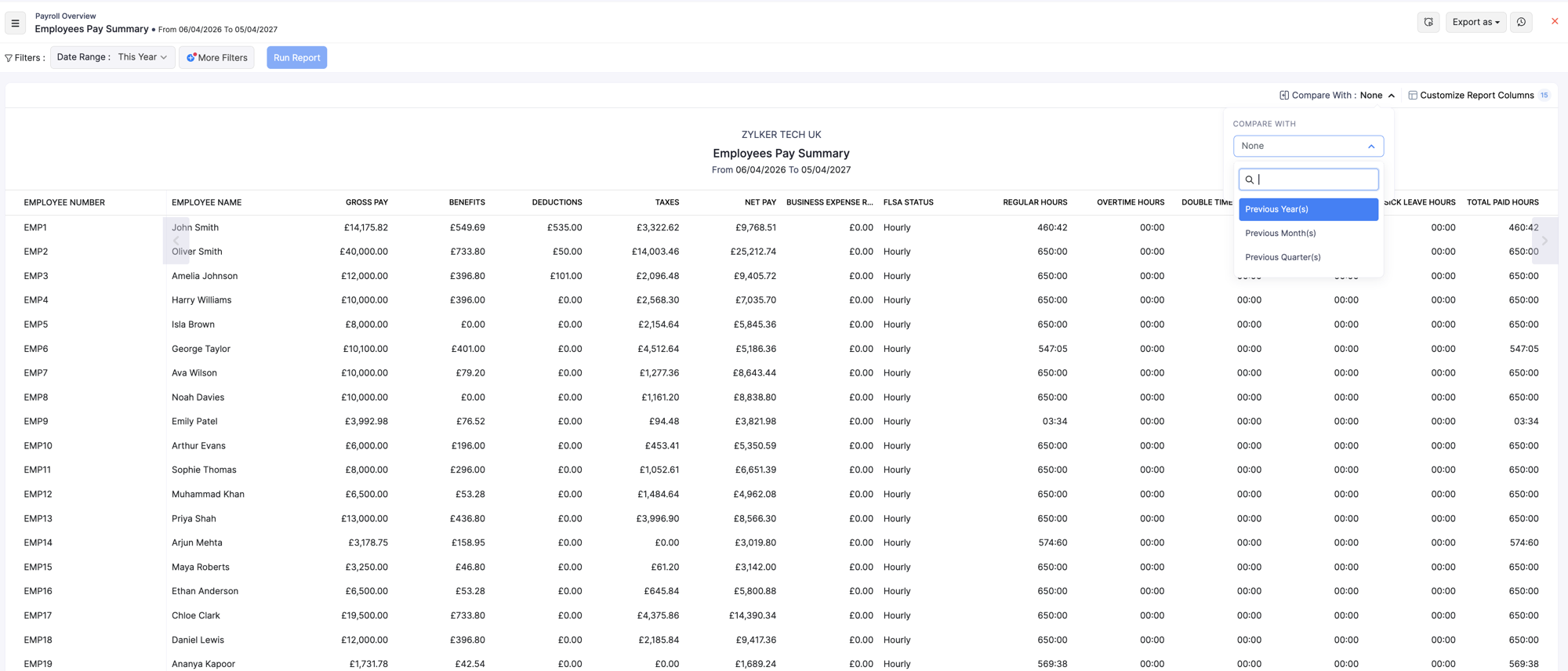
If the report shows Compare With, choose a previous year, month, or quarter to contrast with the current period, then click Run Report again.
Schedule the report
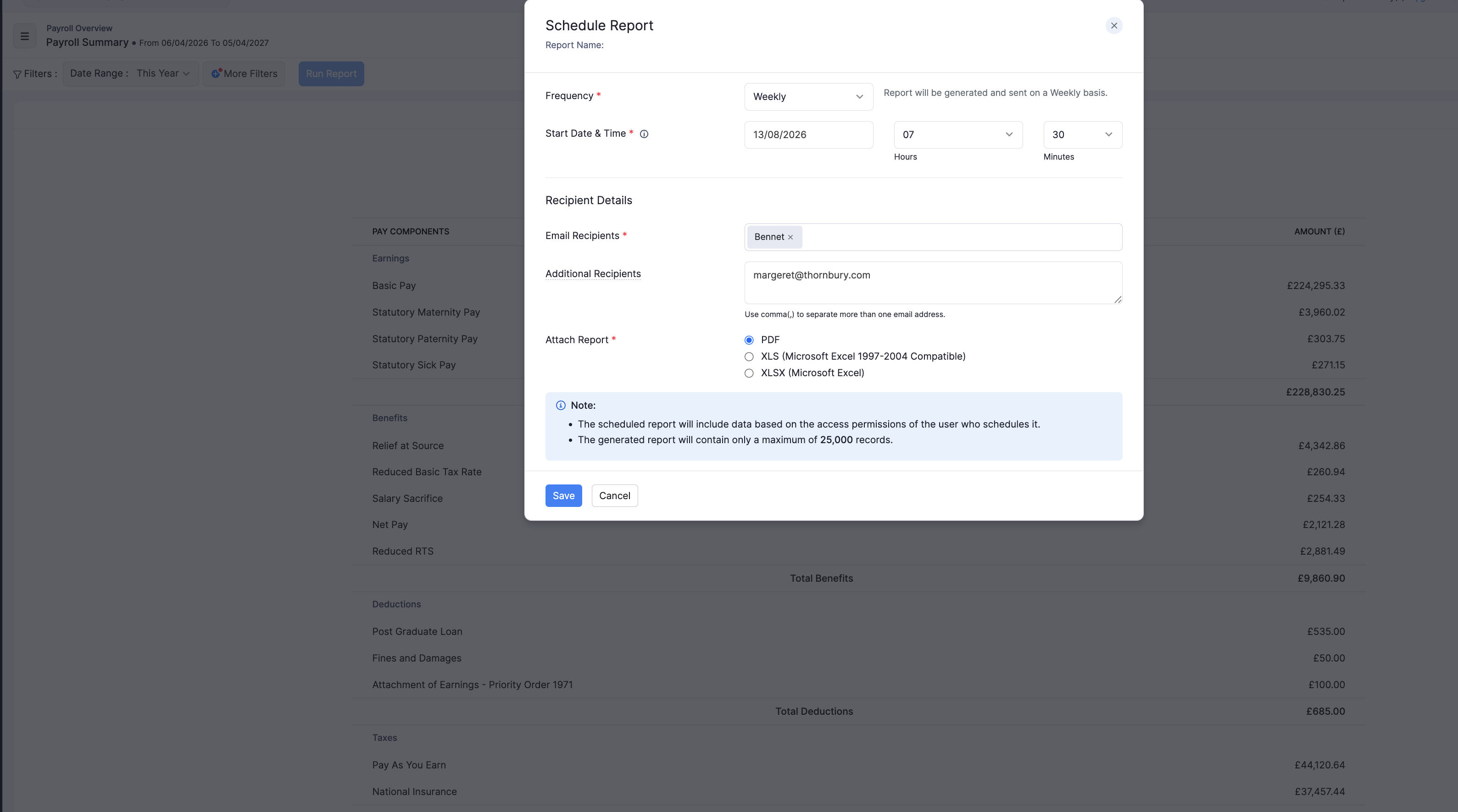
- Open the schedule option on the report.
- Choose how often to send it (Weekly, Monthly, Quarterly, or Yearly).
- Add recipients and the file format (PDF, XLS, XLSX, or CSV where available).
- Save the schedule.
Export the report
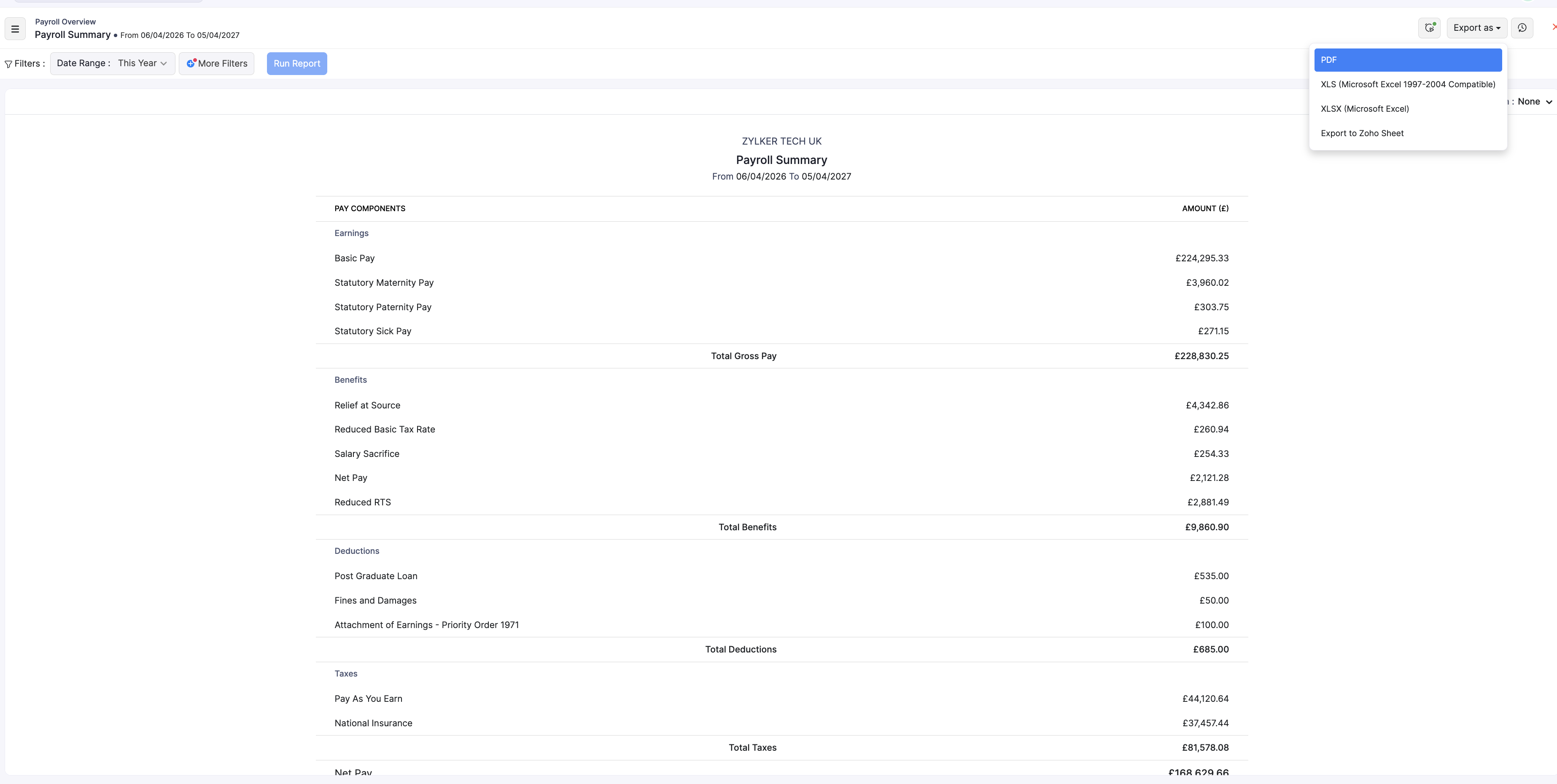
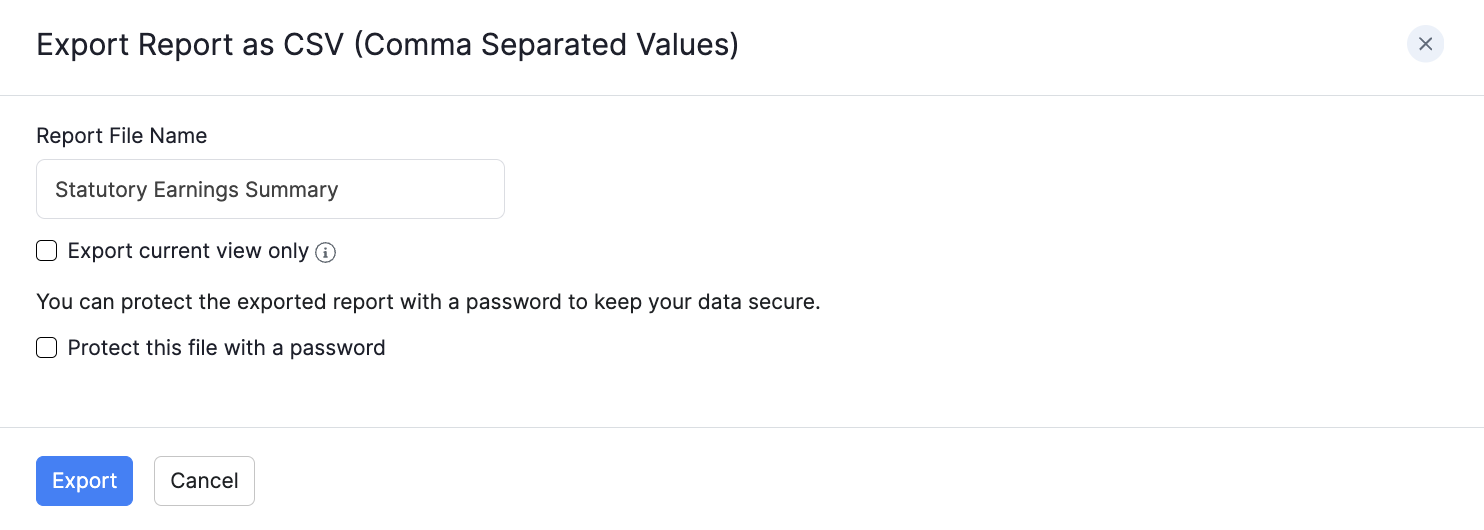
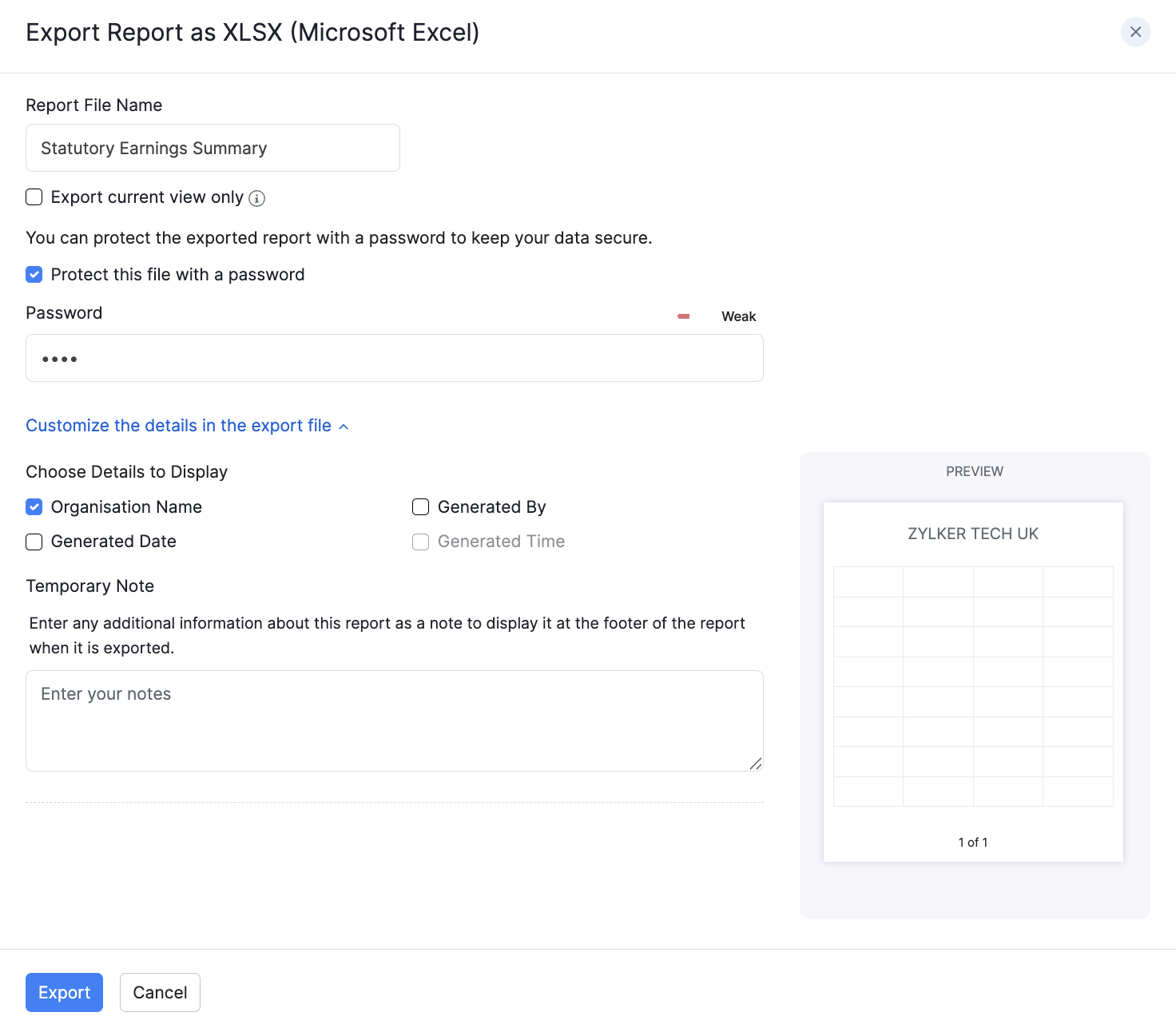
- Click Export as.
- Choose PDF, CSV (where available), XLS, XLSX, or Zoho Sheet.
- Optional: select Protect this file with a password and enter a password of at least 6 characters.
- Click Export.
For running final settlement pay runs, see Final Settlement Payroll.