Manage Pension Employees

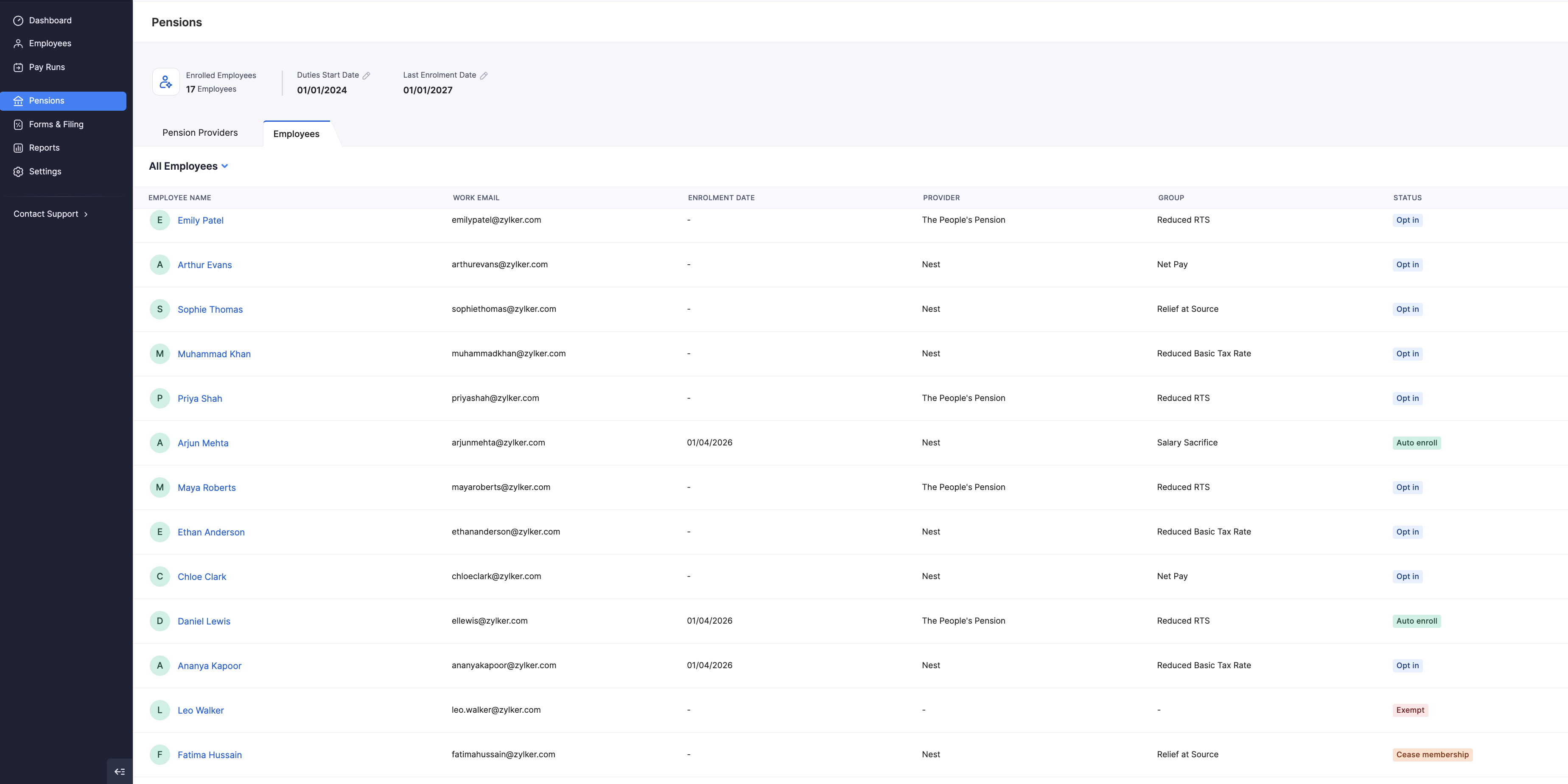
Pension employee records appear in two places:
- The Employees tab on the Pensions page shows all employees across providers, with enrolment date, provider, group, and status.
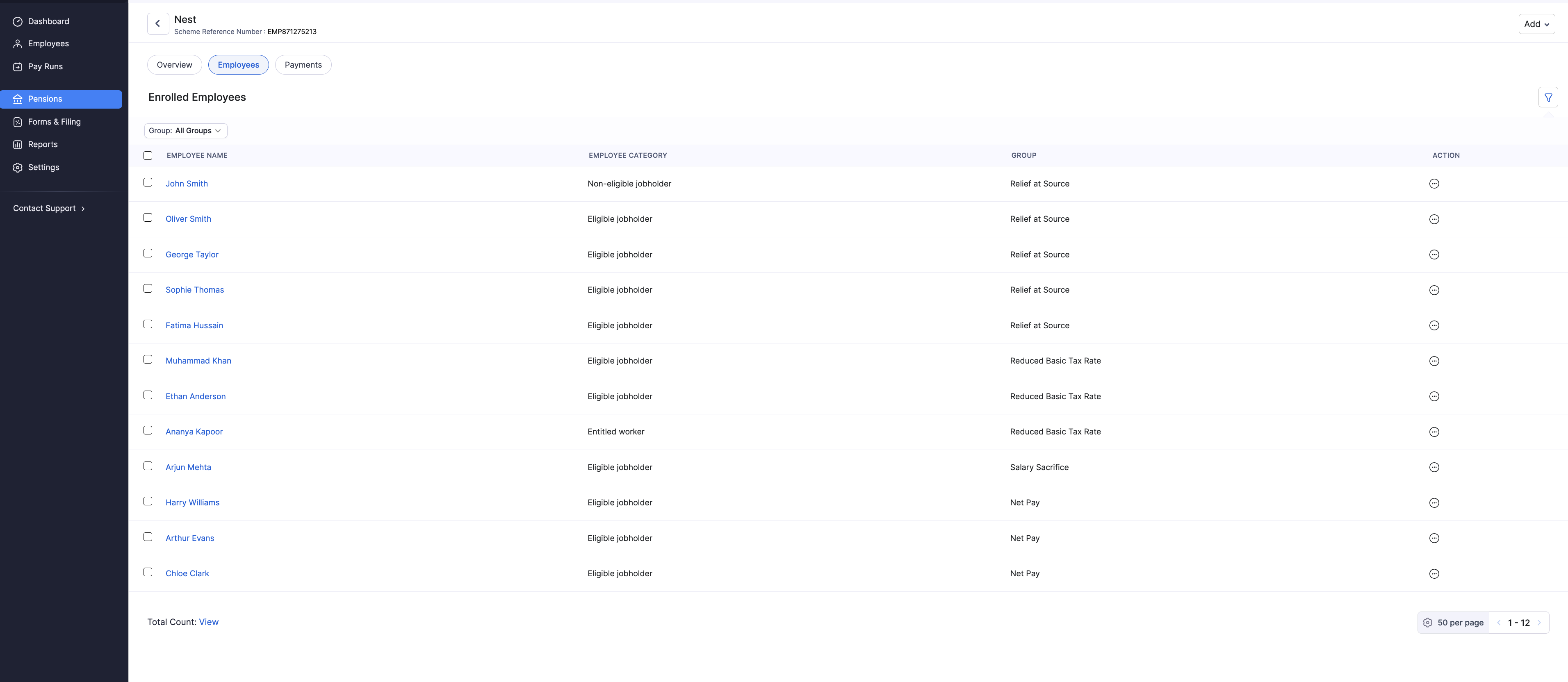
- Inside a provider, the Employees view lists Enrolled Employees for that scheme, including employee category, group, and actions.
Eligible employees are enrolled automatically and appear here after assessment.
Add an Employee to a Contribution Group
You can add employees to an existing group, or create a new group when some employees need different tax relief, earnings basis, or rates.
- Go to Pensions.
- Open the provider, or stay on the Employees tab.
- Click Add, then Employee.
- Select the employee and the Group Name.
- Enter the Effective From date. This is when the employee’s pension contributions start.
- Review the Contribution Details for that group, then click Save.
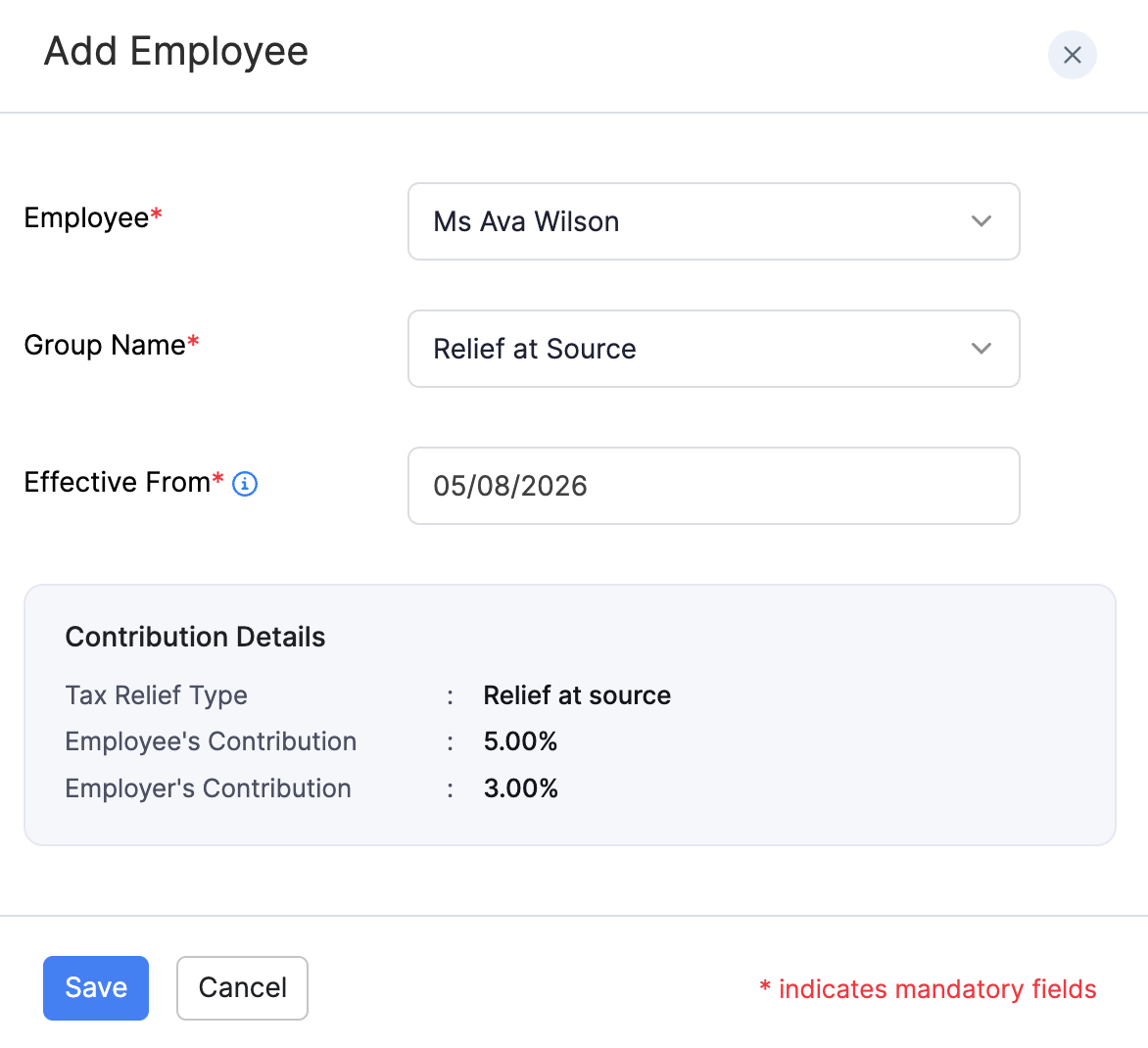
Contribution details update when you change the group, so you can confirm the tax relief type and rates before you save.
If there are no enrolled employees yet for the current filter, eligible employees are enrolled automatically and will appear as they’re assessed.
Employee Categories
On a provider’s Employees view, Employee Category shows how the employee was assessed for automatic enrolment:
| Category | What it means |
|---|---|
| Eligible jobholder | Meets the age and earnings criteria for automatic enrolment. |
| Non-eligible jobholder | Doesn’t meet all criteria for automatic enrolment, but can ask to opt in. You must enrol them and pay contributions if they do. |
| Entitled worker | Can ask to join the scheme. You must arrange membership, but you’re not required to contribute unless the scheme says so. |
Enrolment Statuses
Each employee has a status based on automatic enrolment rules. In the app these appear as badges such as:
| Status | What it means |
|---|---|
| Auto enroll | Automatically enrolled because they’re an eligible jobholder. They can opt out within one month for a full refund. |
| Opt in | A non-eligible jobholder who asked to join the scheme. You must enrol them and pay contributions. |
| Joined | An entitled worker who asked to join. You must arrange membership, but you’re not required to contribute unless the scheme says so. |
| Opted out | Left the scheme within the one-month opt-out period. Their contributions are refunded. |
| Cease membership | Left the scheme after the opt-out period. Contributions already paid are not refunded. |
| Postponed | Enrolment deferred for up to three months. You’ll need to assess them again at the end of the postponement period. |
| Re-enrolled | Automatically put back into the scheme as part of your three-yearly re-enrolment duty. |
| Exempt | This employee would normally be enrolled, but qualifies for an exception. For example, they have HMRC tax protection, are serving notice, or are a director of the company. In these cases you can choose not to enrol them. |
| Not eligible | Assessed but doesn’t currently meet the criteria for automatic enrolment. Reassess if their age or earnings change. |
Note: Use the group filter on the provider Employees view to narrow the list. If a filter shows no one enrolled yet, try another group or wait until eligible employees are assessed.
Opt Out, Cease Membership, or Remove an Employee
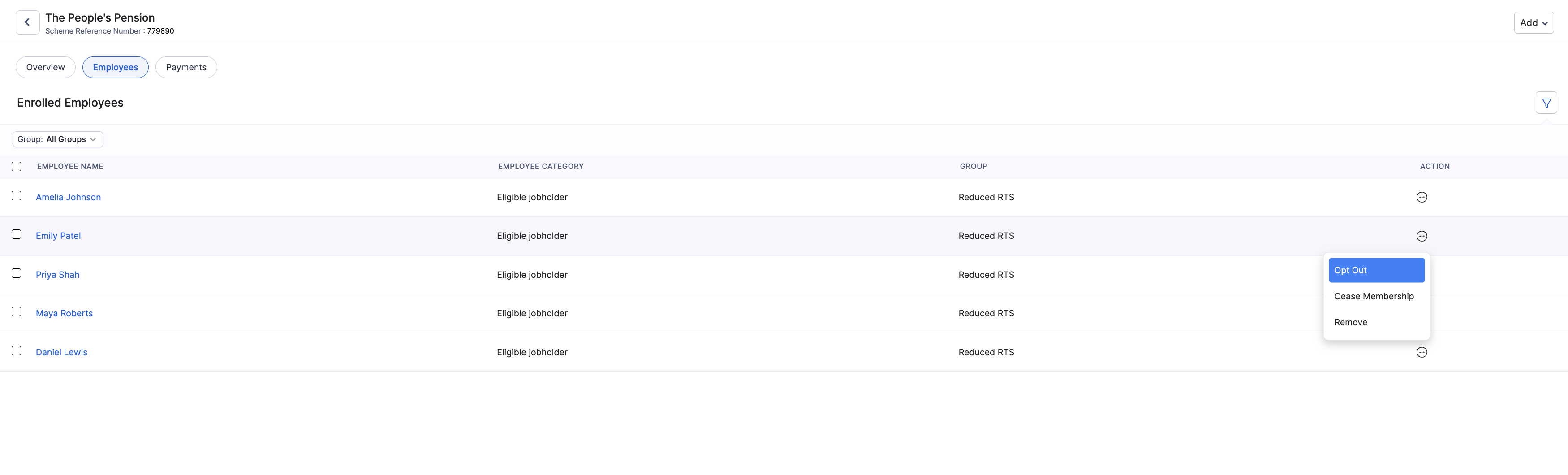
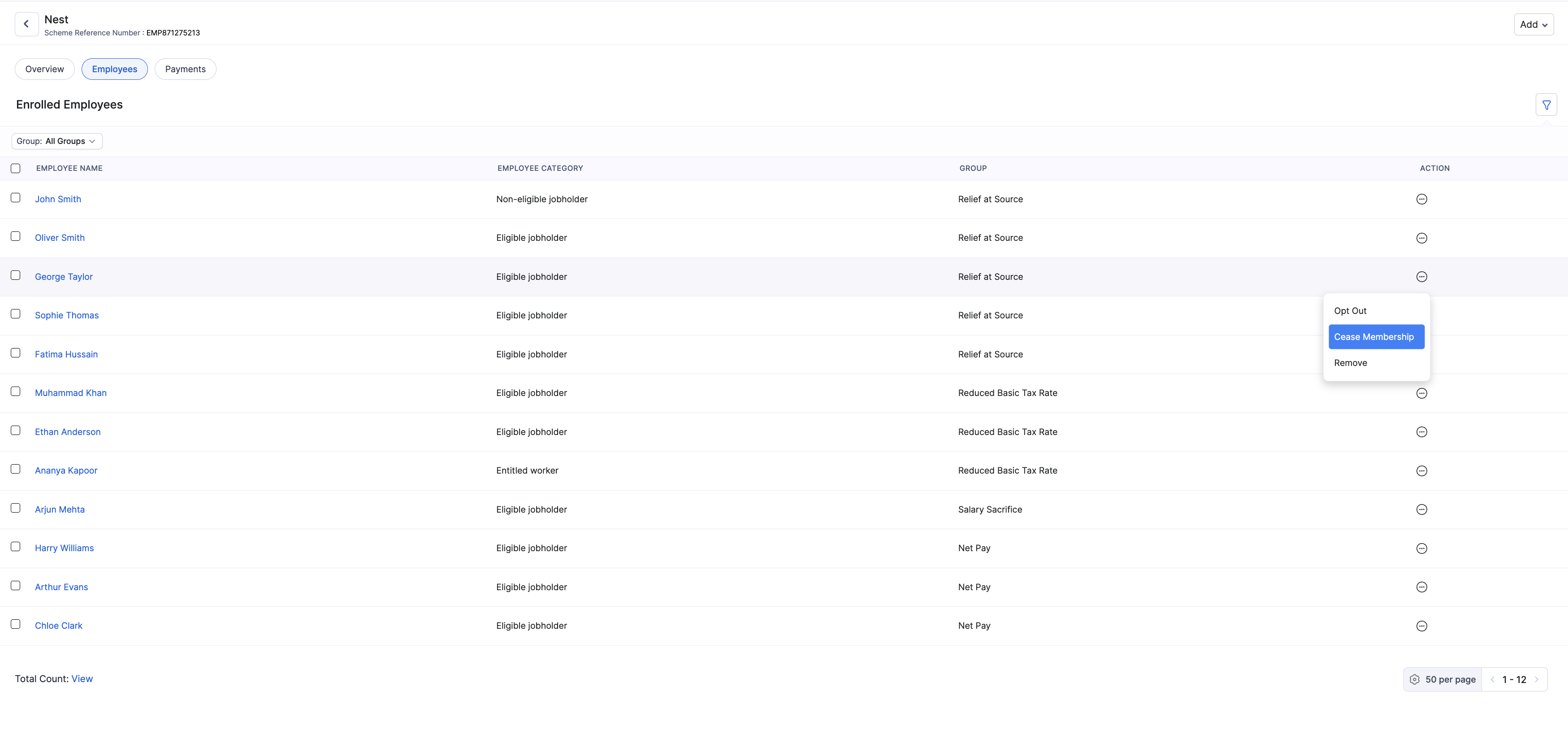
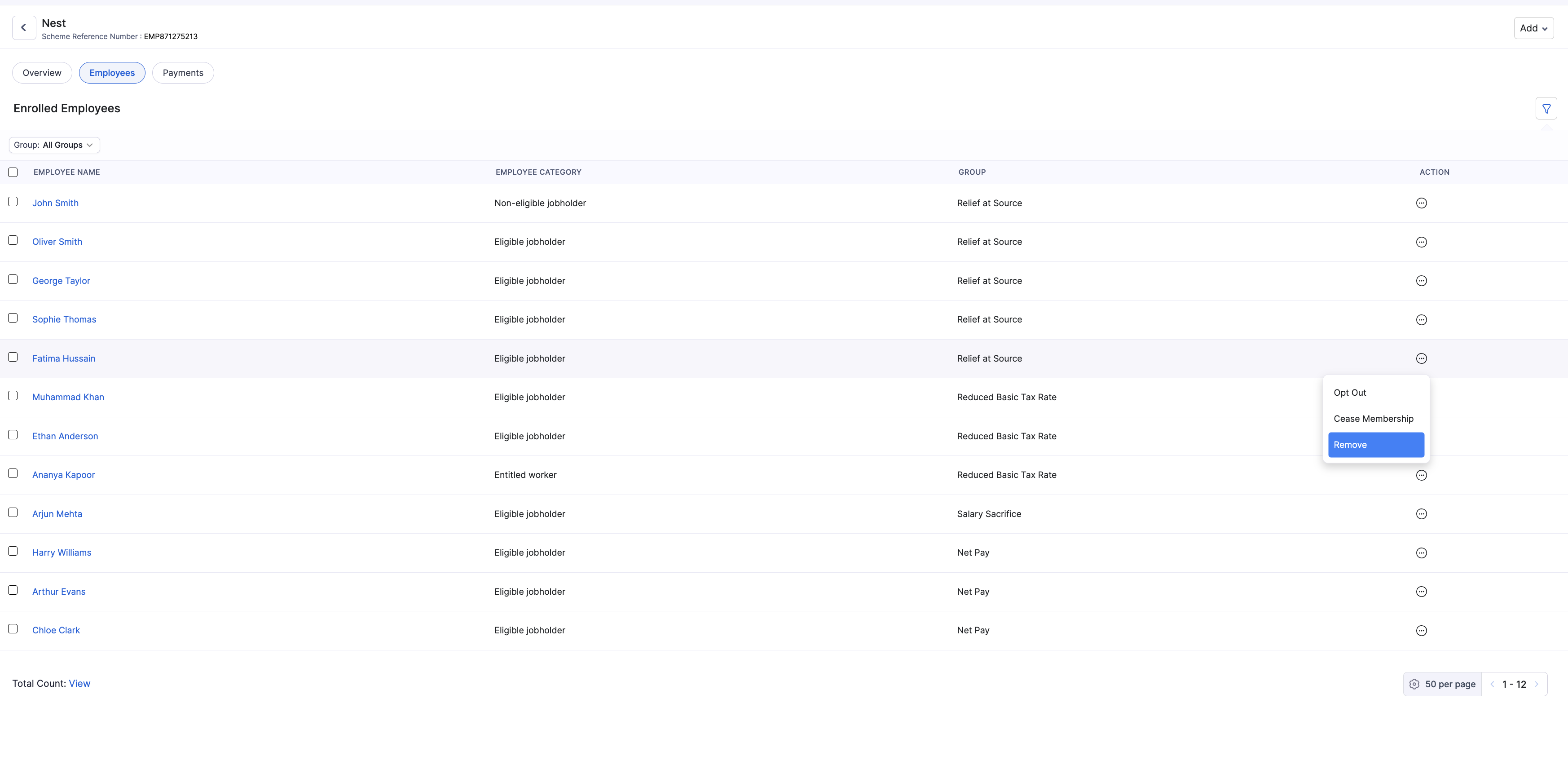
From an enrolled employee’s action menu on the provider Employees view, you can:
| Action | When to use it |
|---|---|
| Opt Out | The employee left within the one-month opt-out window. Contributions since enrolment are refunded. |
| Cease Membership | The employee left after the opt-out window. The employee is removed from the scheme in Zoho Payroll. Contributions already paid are not refunded. |
| Remove | Remove the employee from this pension scheme in Zoho Payroll. |
Opt Out an Employee
- Open the provider and go to Employees.
- Click the action icon next to the employee and select Opt Out.
- Enter the Effective From date.
- Review the impact, then click Confirm.
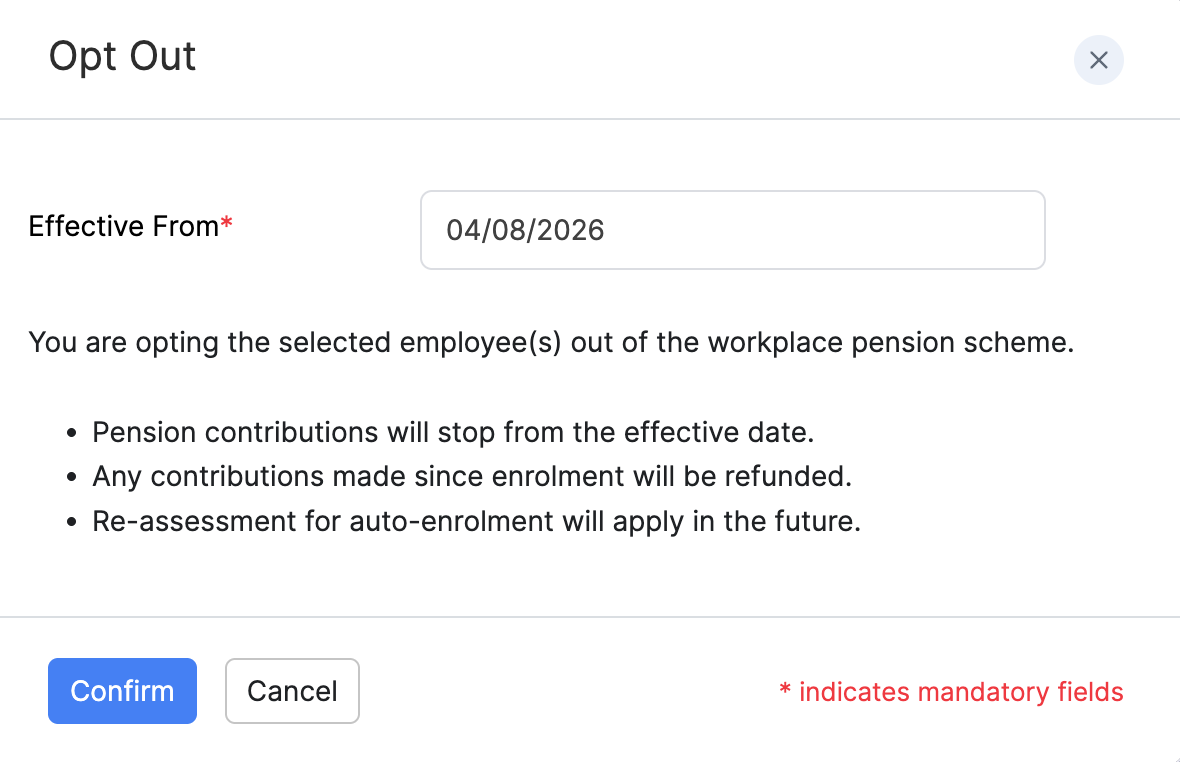
From the effective date:
- Pension contributions stop.
- Any contributions made since enrolment are refunded.
- Re-assessment for auto-enrolment will apply in the future.
Cease Membership
- Open the provider and go to Employees.
- Click the action icon next to the employee and select Cease Membership.
There is no further confirmation. The employee is removed from the scheme in Zoho Payroll. Contributions already paid are not refunded.
Remove an Employee
- Open the provider and go to Employees.
- Click the action icon next to the employee and select Remove.
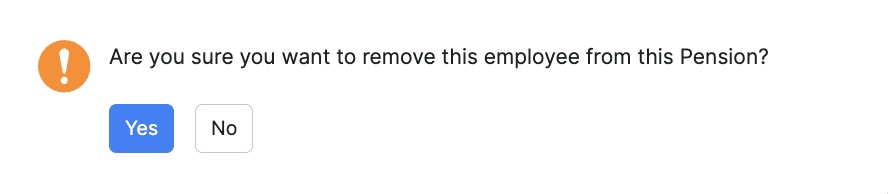
- In the confirmation popup, click Yes.