
Manage Pension Providers

After you add a pension provider, you can open it to view contribution groups, edit its details, add more groups, or delete the provider if you no longer need it.
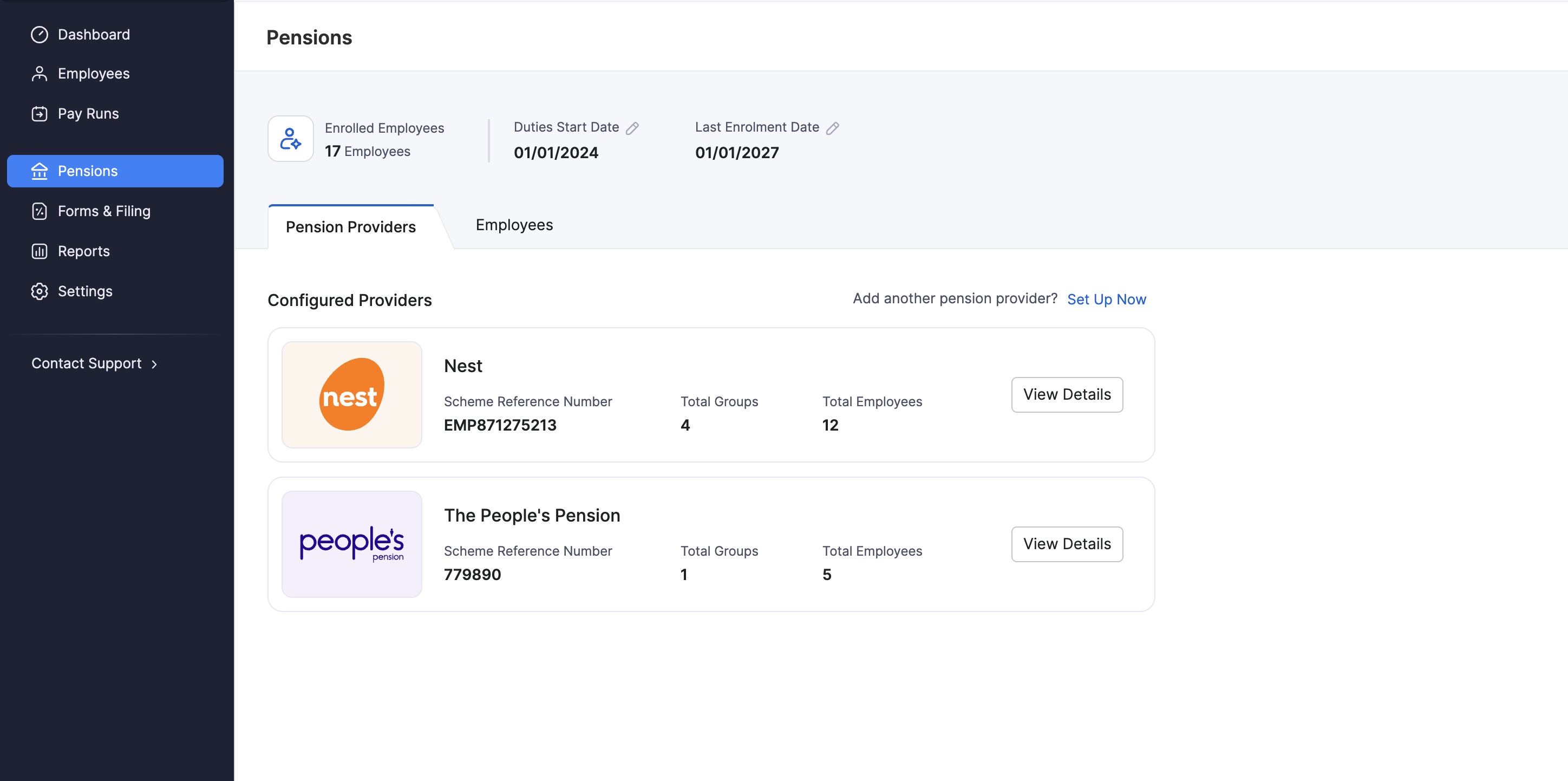
View a Provider
- Go to Pensions.
- Under Configured Providers, click View Details on the provider you want to open.
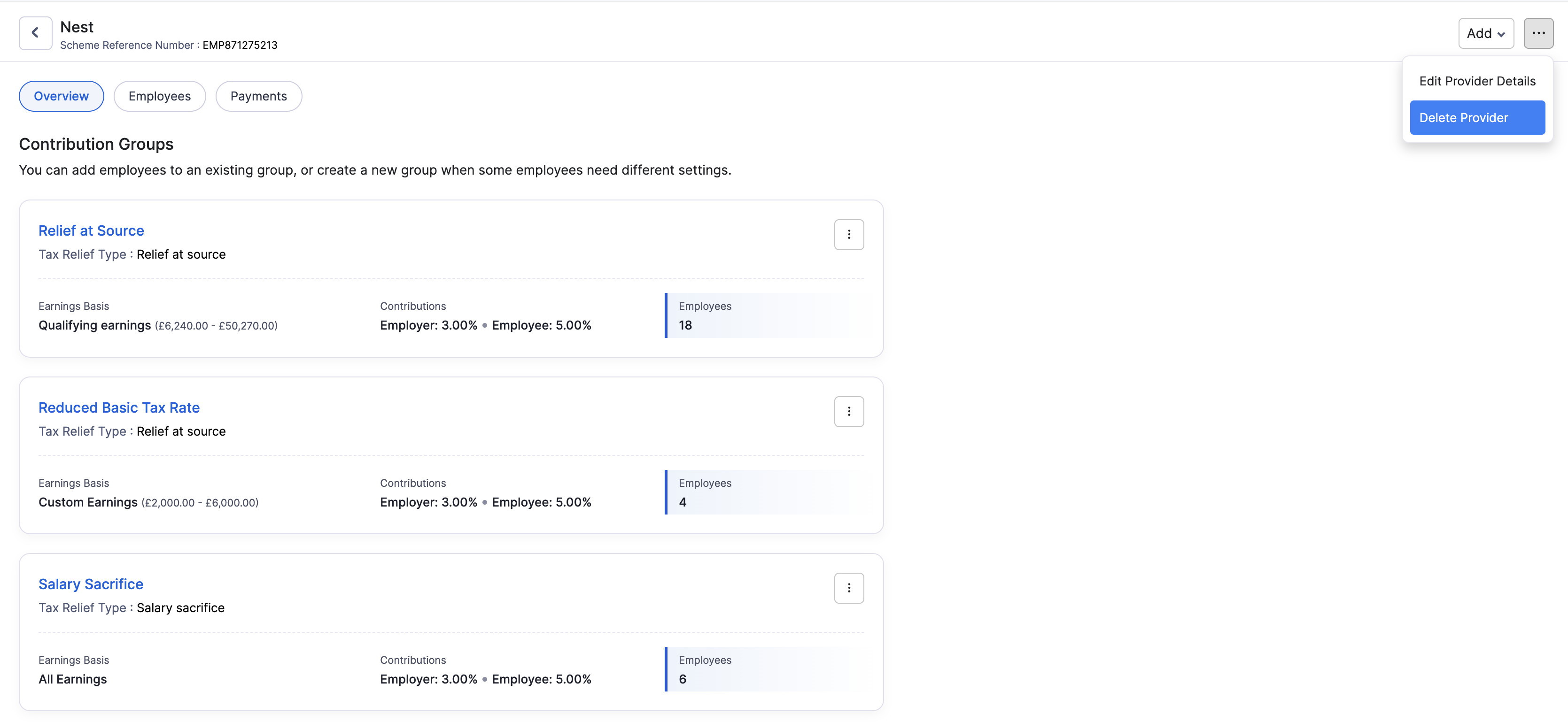
The provider Overview shows its Contribution Groups. Each group lists the tax relief type, earnings basis, contribution rates, and how many employees are in that group.
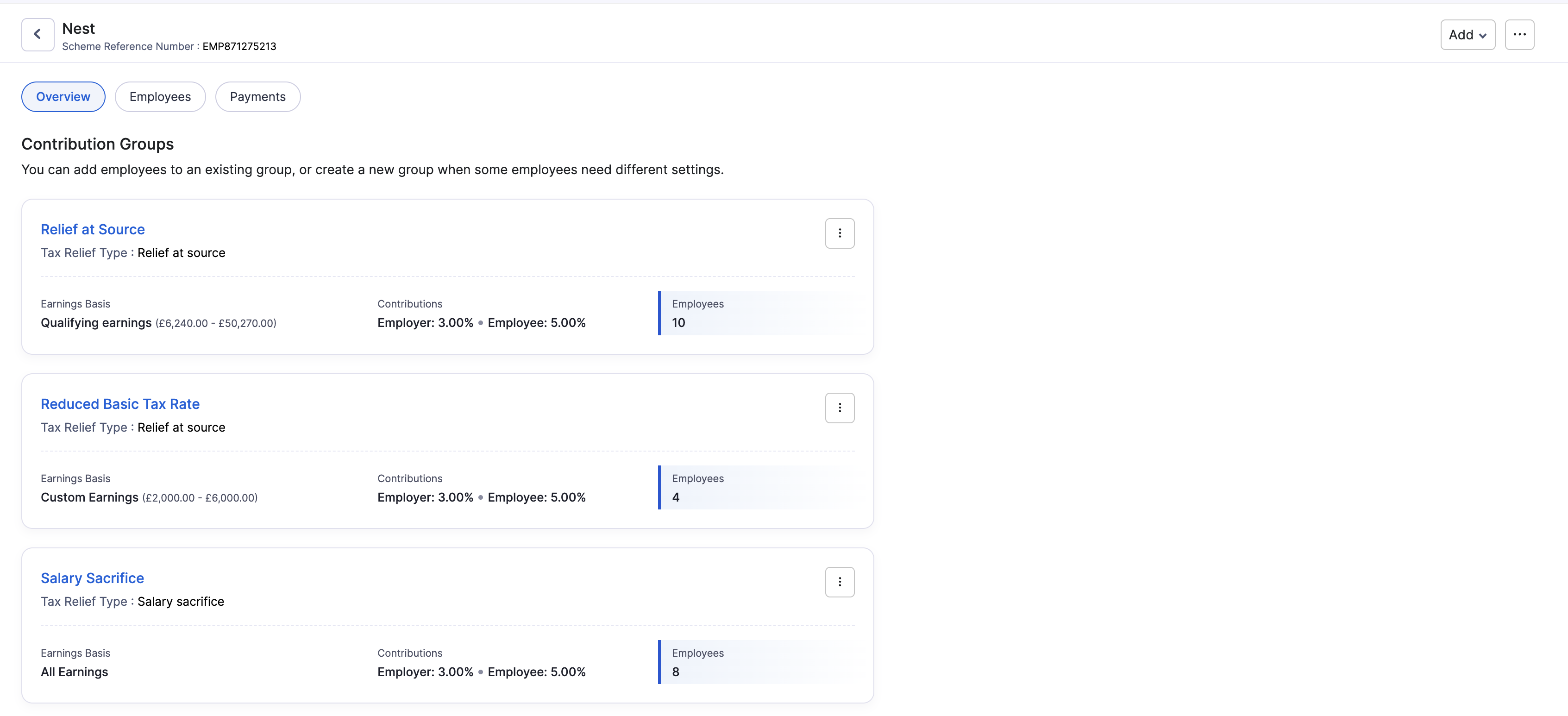
From the same provider page you can also open Employees (people enrolled with this provider) and Payments (contribution history for this provider).
Edit Provider Details
- Go to Pensions and open the provider.
- Click the More icon and select Edit Provider Details.
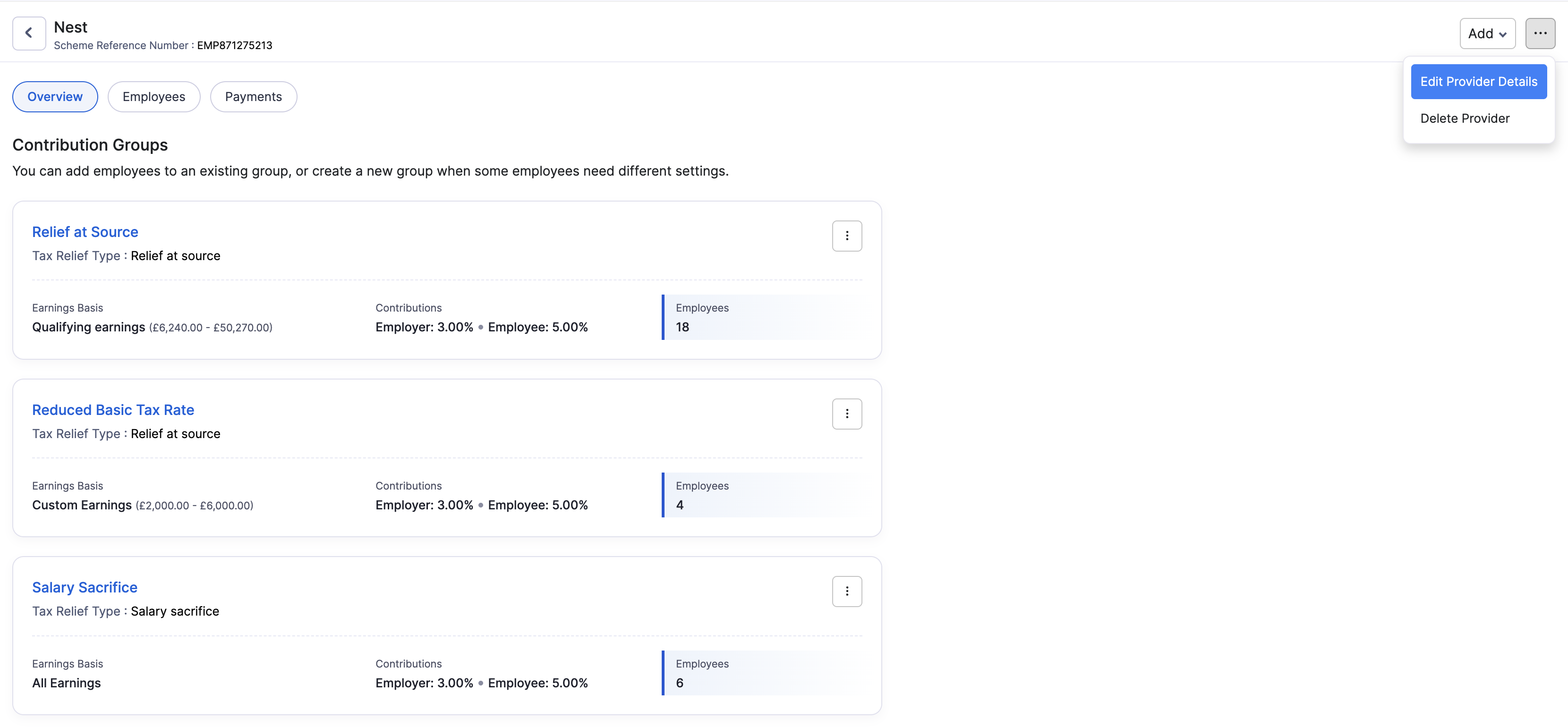
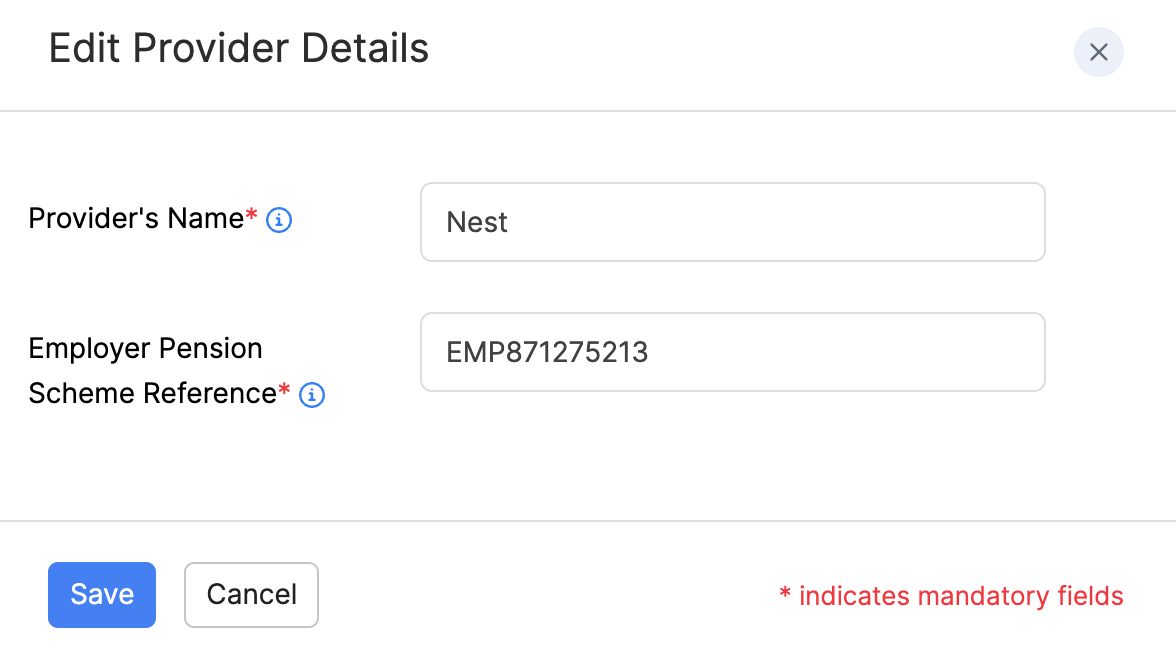
- Update Provider’s Name or Employer Pension Scheme Reference as needed.
- Click Save.
Add a Contribution Group
Employees in the same contribution group share the same tax relief method and contribution rates. You can add employees to an existing group, or create a new group when some employees need different settings.
- Go to Pensions and open the provider.
- Click Add, then New Contribution Group.
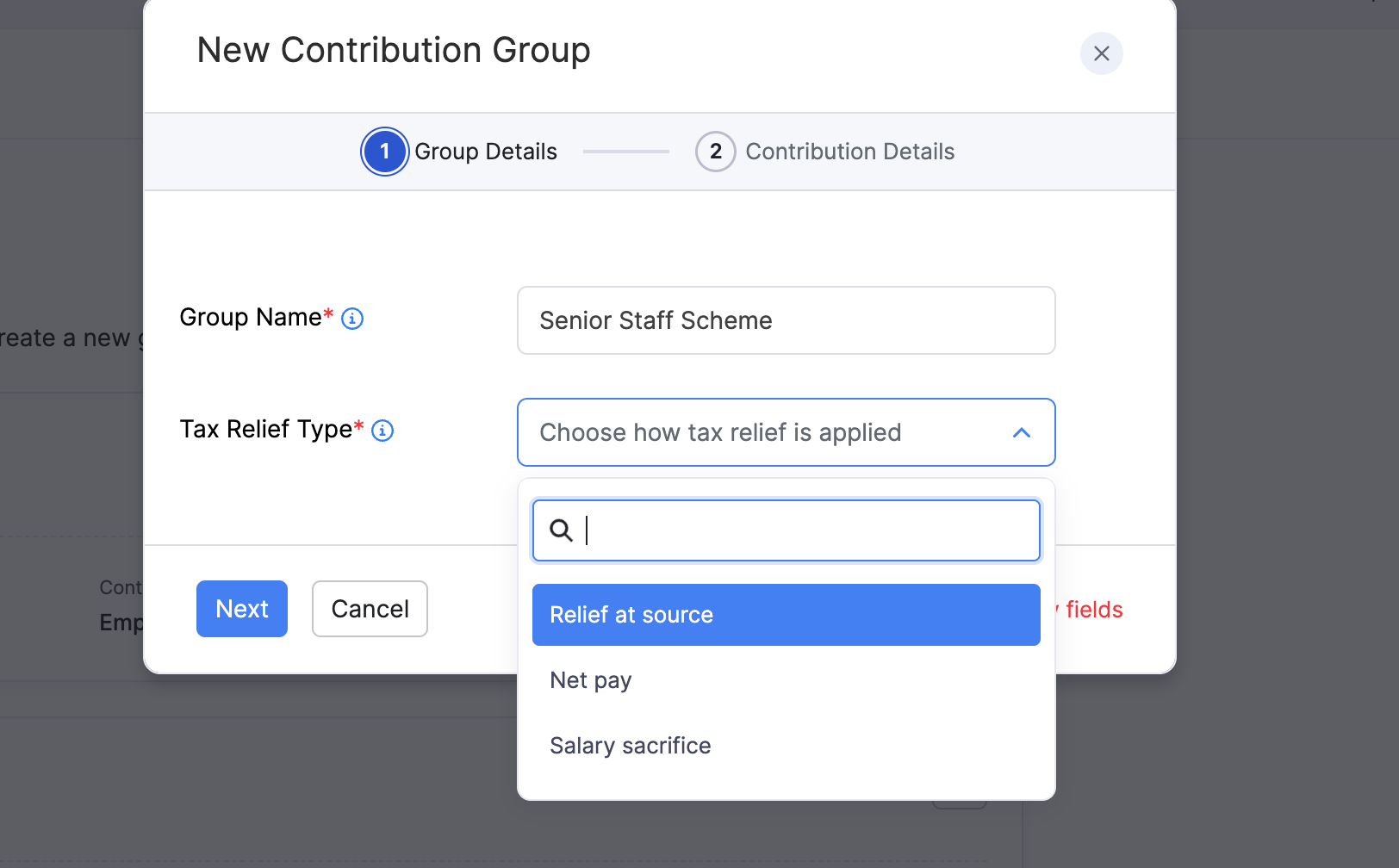
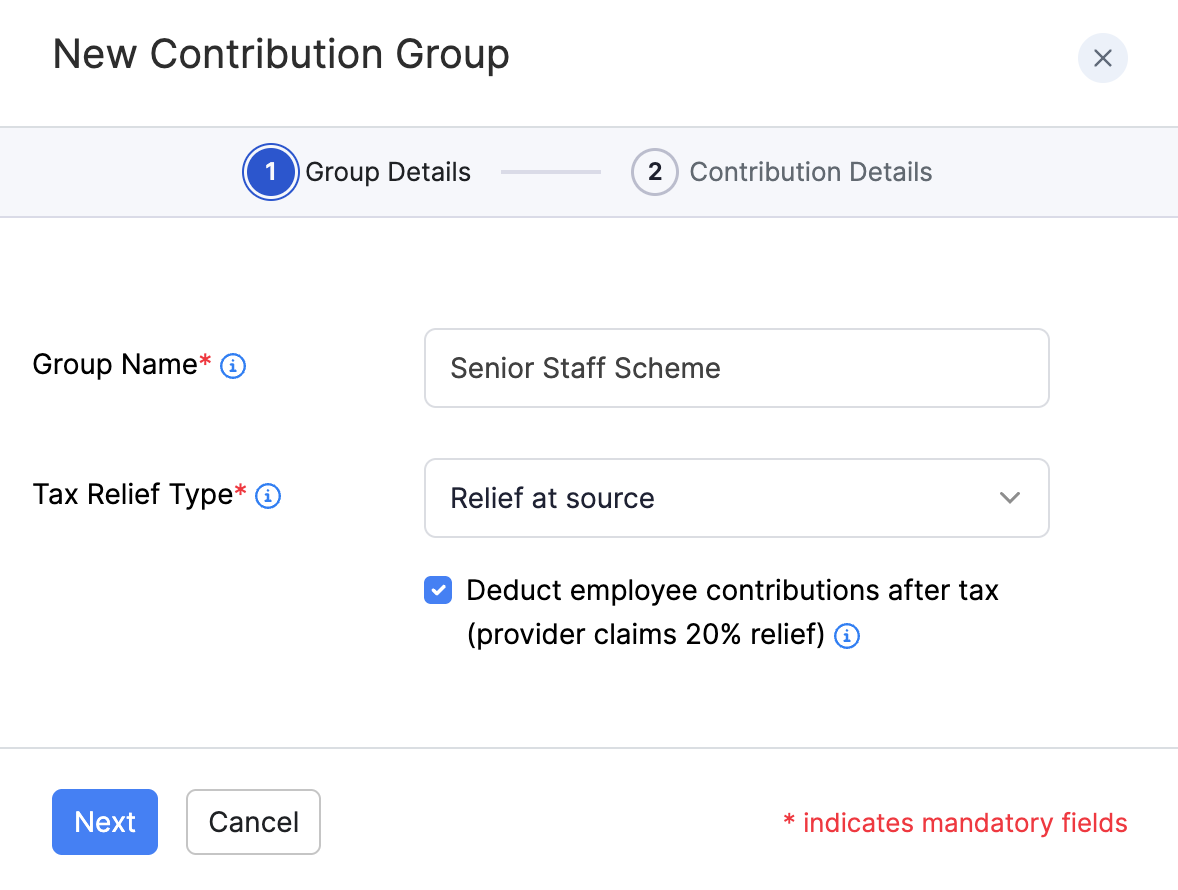
- On Group Details, enter the Group Name and select the Tax Relief Type (Relief at source, Net pay, or Salary sacrifice).
- If you select Relief at source, review the option to deduct employee contributions after tax (the provider claims 20% relief).
- Click Next.
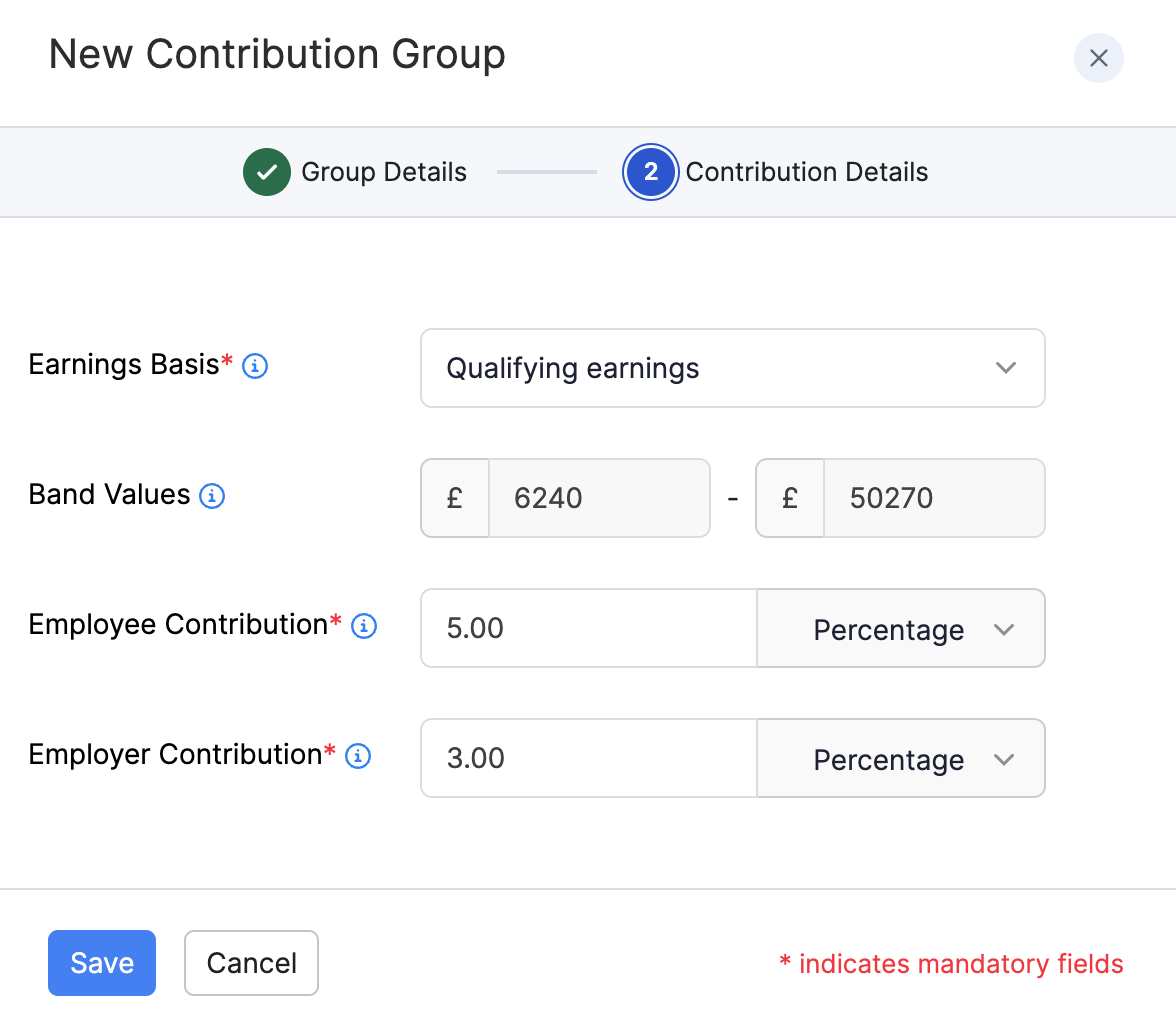
- On Contribution Details, select the Earnings Basis, review or set the earnings band if it appears, and enter the employee and employer contribution rates.
- Click Save.
You can then add employees to that group.
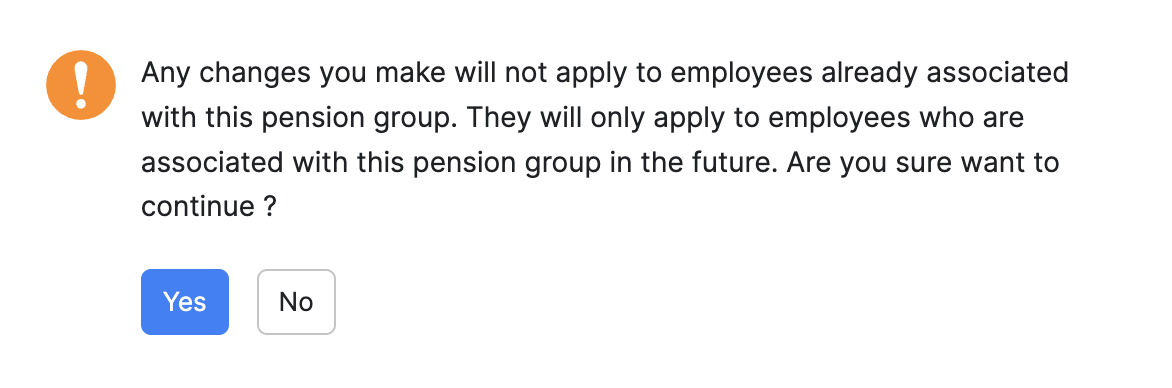
Warning: If you edit a contribution group’s settings later, Zoho Payroll warns that the changes apply only to employees associated with the group in future. Employees already in the group keep the settings that applied when they were added. Click Yes to continue, or No to cancel.
Delete a Provider
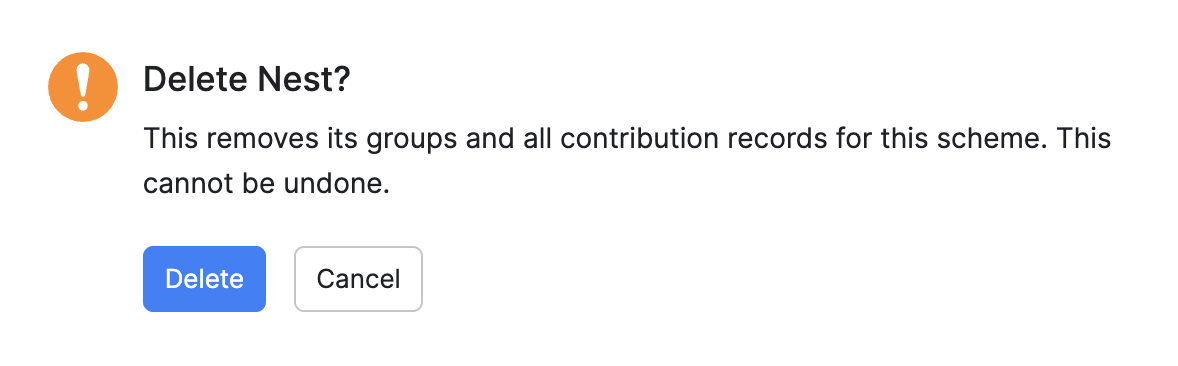
Warning: Deleting a provider removes its groups and all contribution records for that scheme. This cannot be undone.
To delete a provider:
- Go to Pensions and open the provider.
- Click the More icon and select Delete Provider.
- In the confirmation popup, click Delete.
The provider and its contribution groups will be removed from Zoho Payroll.