Payroll Journal Summary

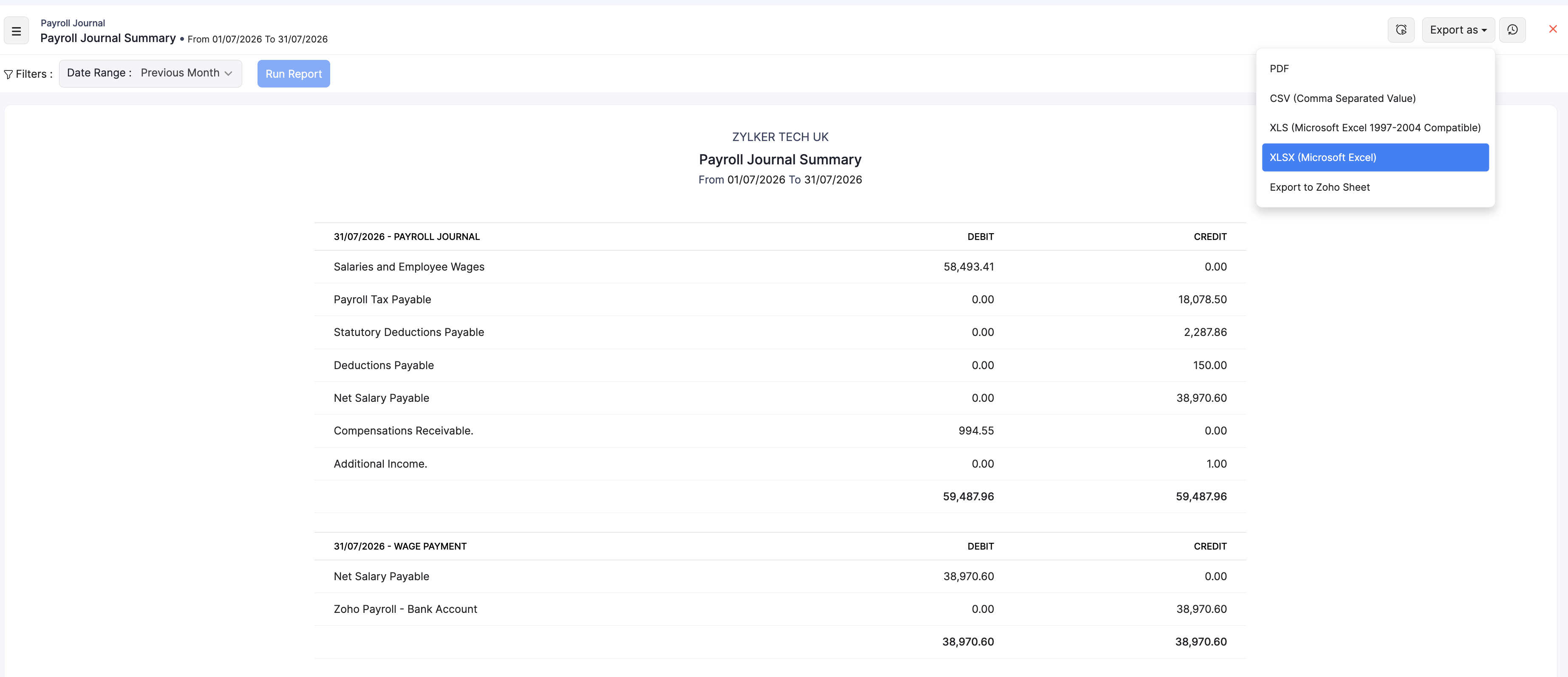
The Payroll Journal Summary report shows the accounting entries created when you process and pay payroll. Entries are grouped by event (for example PAYROLL JOURNAL and WAGE PAYMENT) with debit and credit amounts for each account.
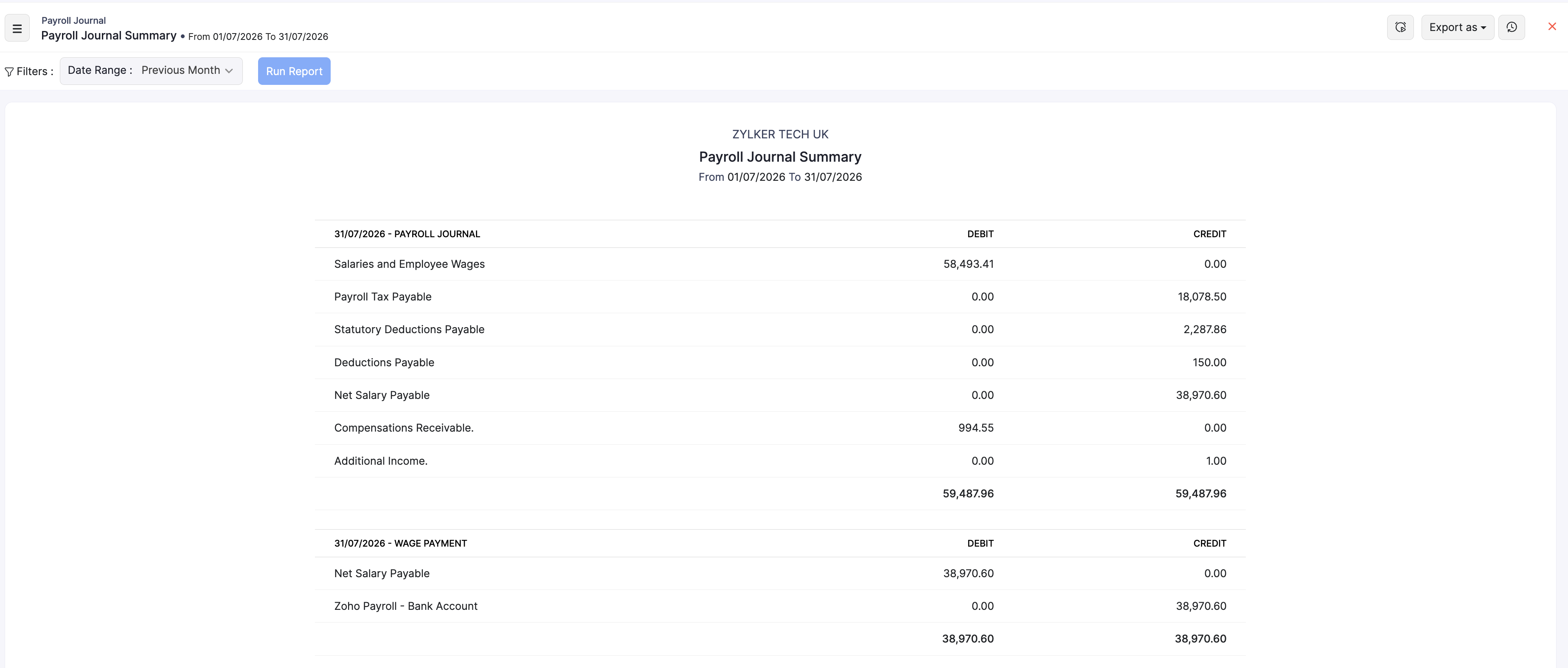
View the Payroll Journal Summary
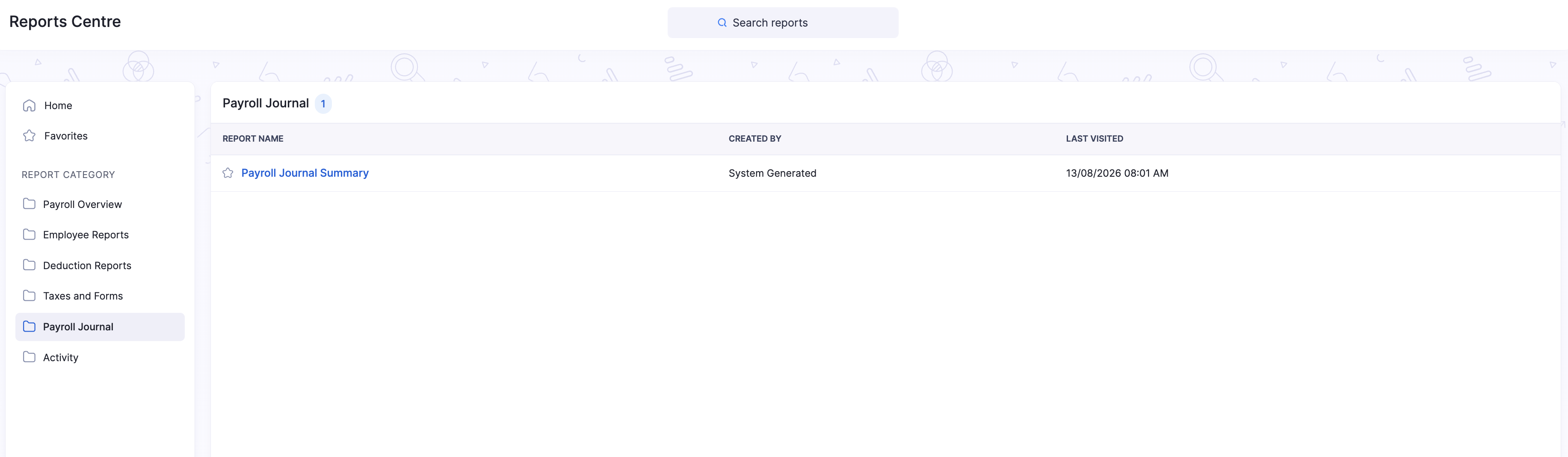
- Go to Reports on the left sidebar.
- Under Payroll Journal, open Payroll Journal Summary.
- Set the Date Range, then click Run Report. Use the filter, schedule, and export options described below.
What the report shows
Each journal block lists:
| Column | Description |
|---|---|
| Account Name | The ledger account affected by the payroll posting (for example Salaries and Employee Wages, Payroll Tax Payable, Statutory Deductions Payable, Deductions Payable, Net Salary Payable, or your Zoho Payroll bank account). |
| Debit | Debit amount for that account. |
| Credit | Credit amount for that account. |
Typical blocks include:
- PAYROLL JOURNAL — records payroll expense and liabilities (such as tax, statutory deductions, other deductions, and net salary payable). Debits and credits balance for the period.
- WAGE PAYMENT — records payment of net salary against your bank account. Debits and credits balance for the payment.
Filter, schedule, and export
After you open this report, you can refine the period, narrow results, schedule report emails, or download the data. For a list of all the reports, see Reports Centre.
Date range and more filters
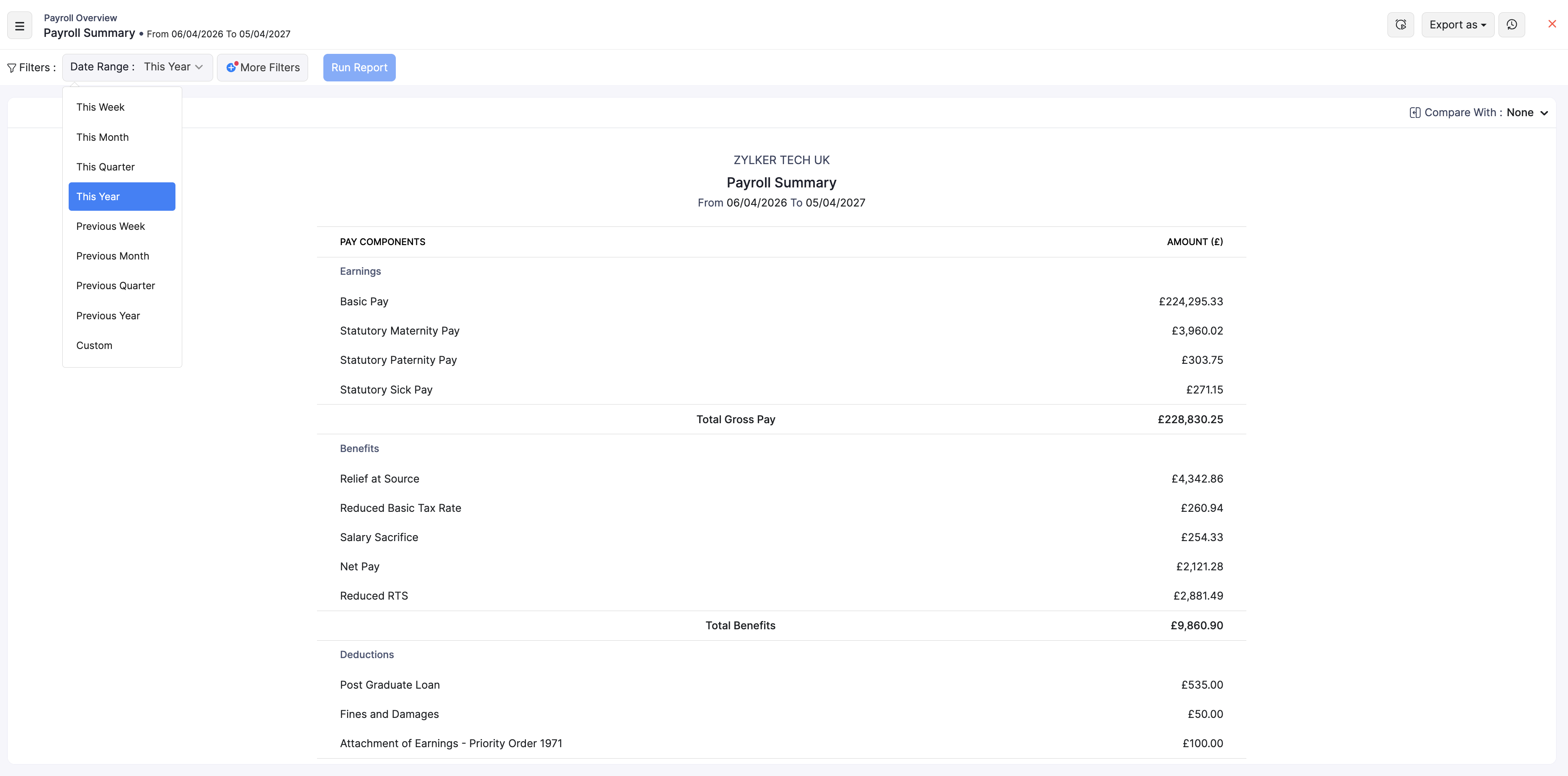
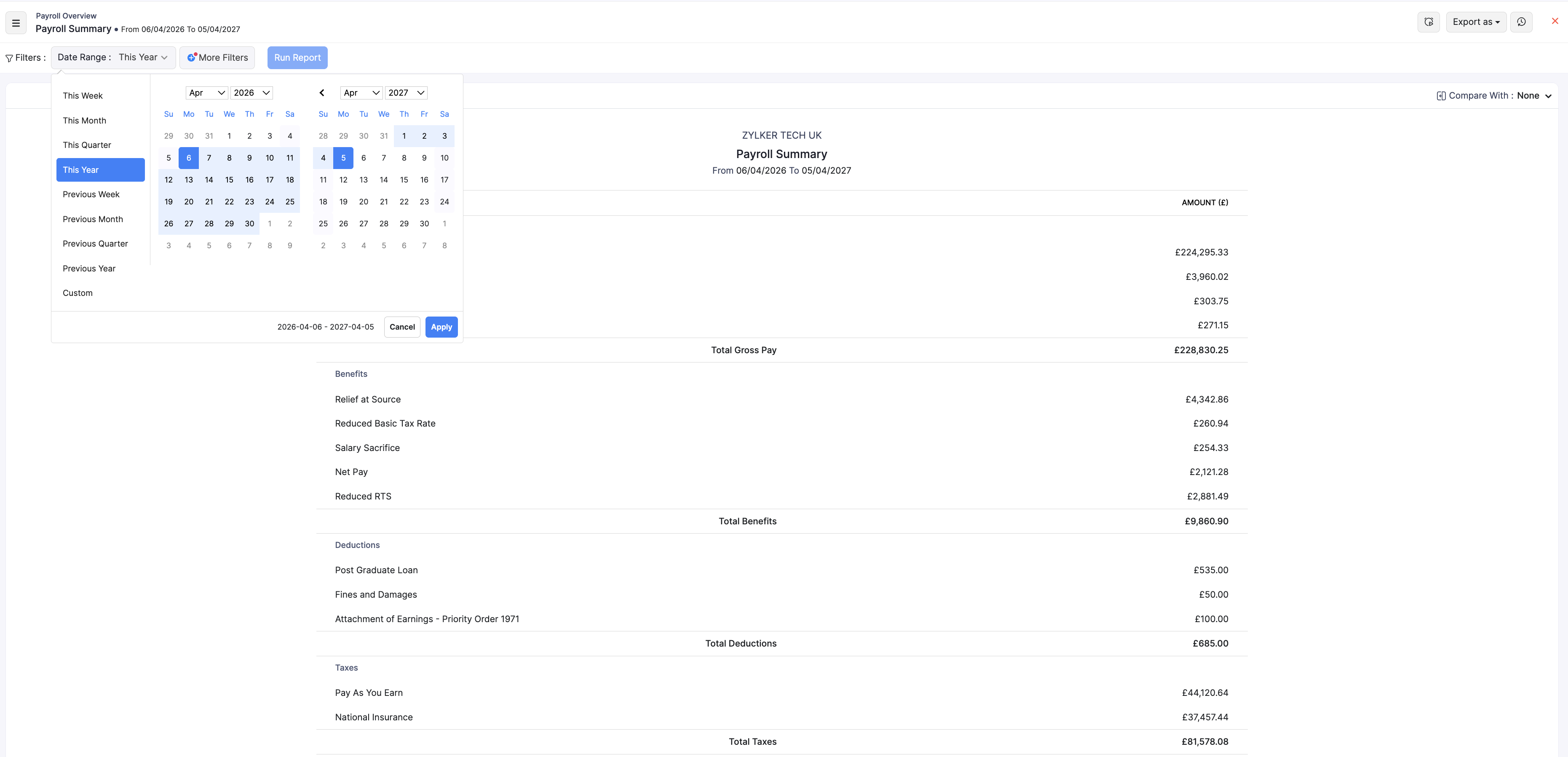
- Choose a Date Range preset (for example This Year, This Month, or Previous Month), or select Custom and pick start and end dates.
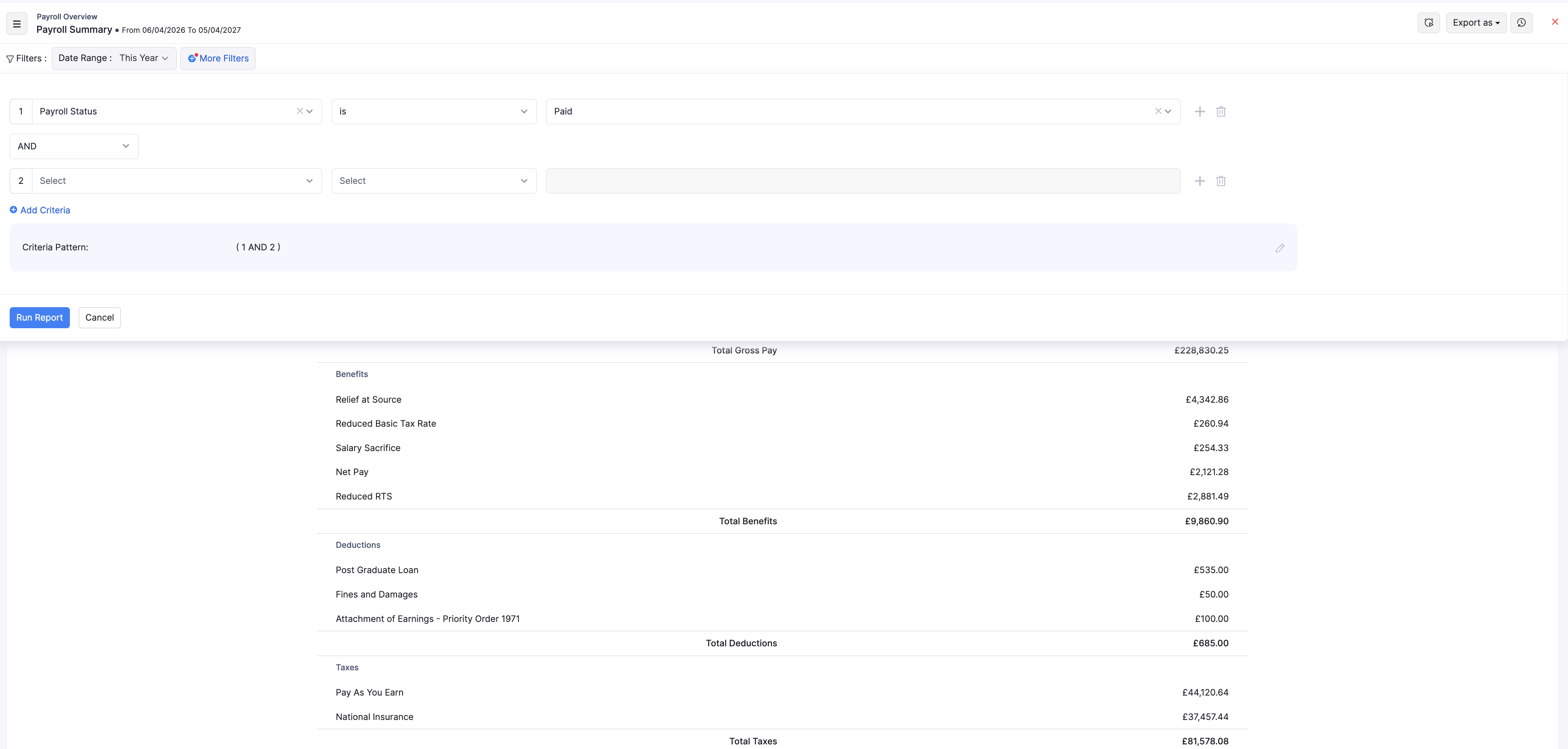
- Optional: click + More Filters if the report offers extra fields for this view.
- Click Run Report to refresh the results.
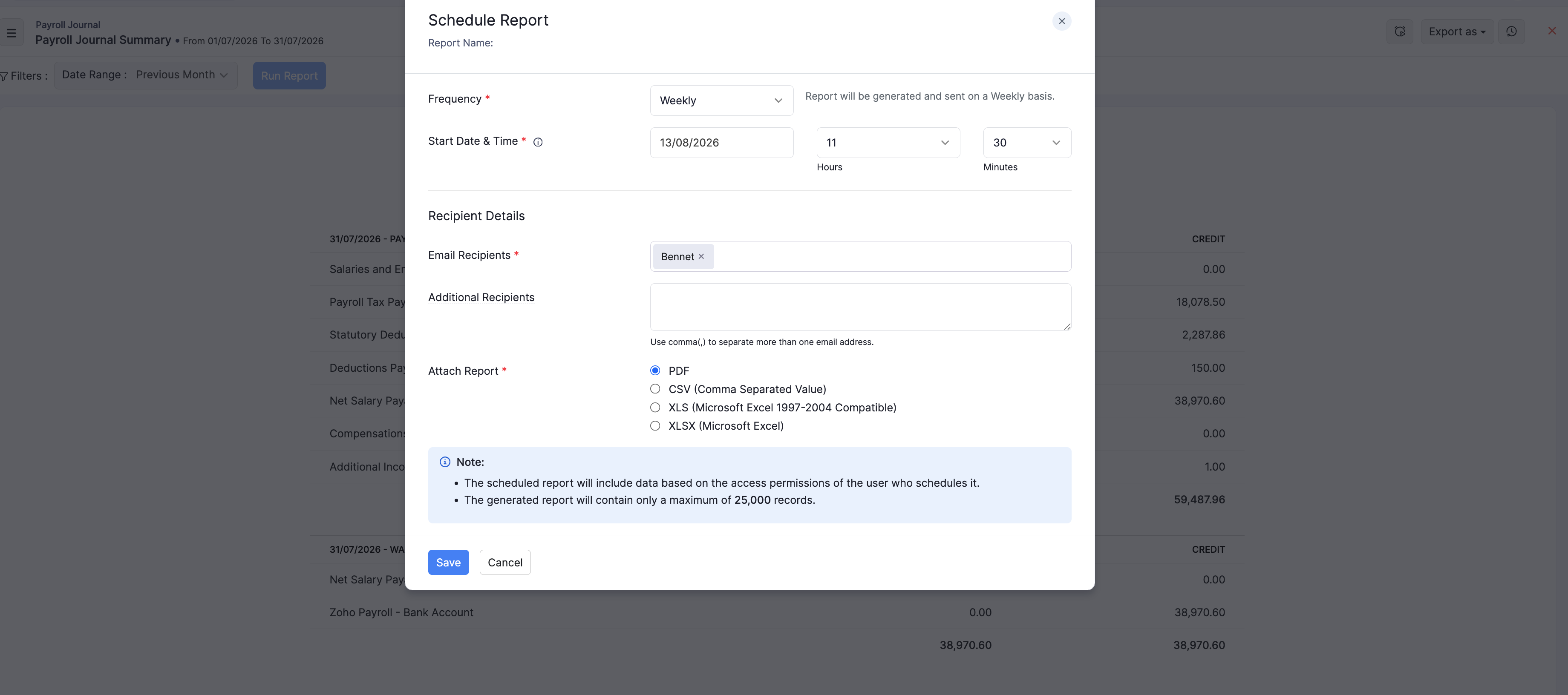
Schedule the report
- Open the schedule option on the report.
- Choose how often to send it (Weekly, Monthly, Quarterly, or Yearly).
- Add recipients and the file format (PDF, XLS, XLSX, or CSV where available).
- Save the schedule.
Export the report
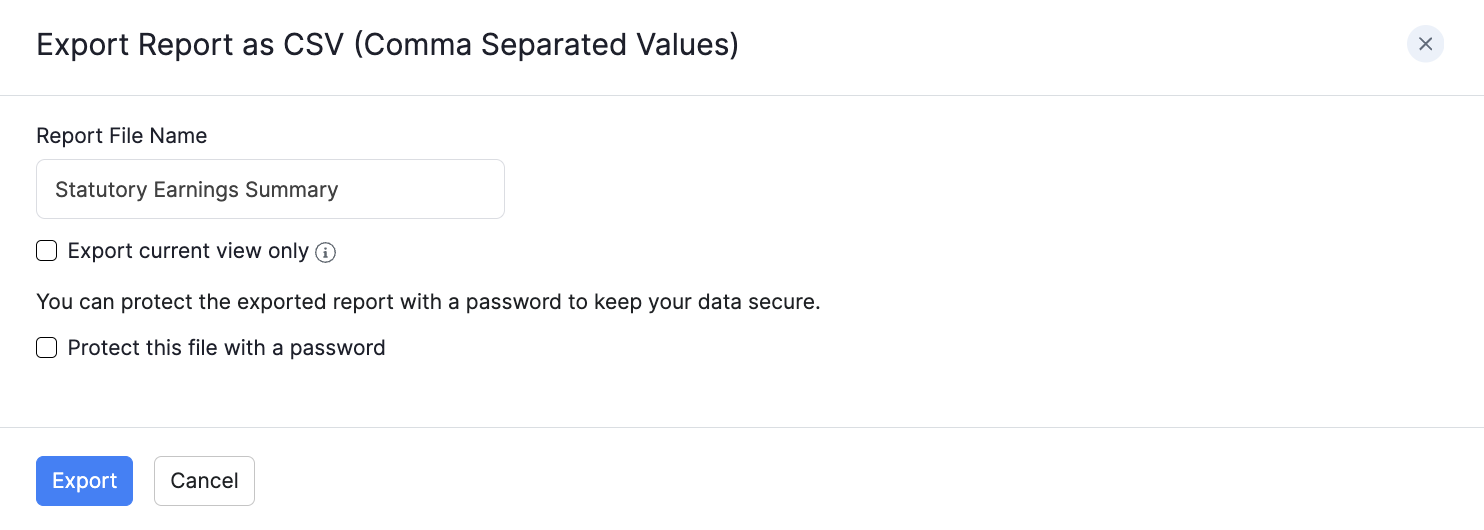
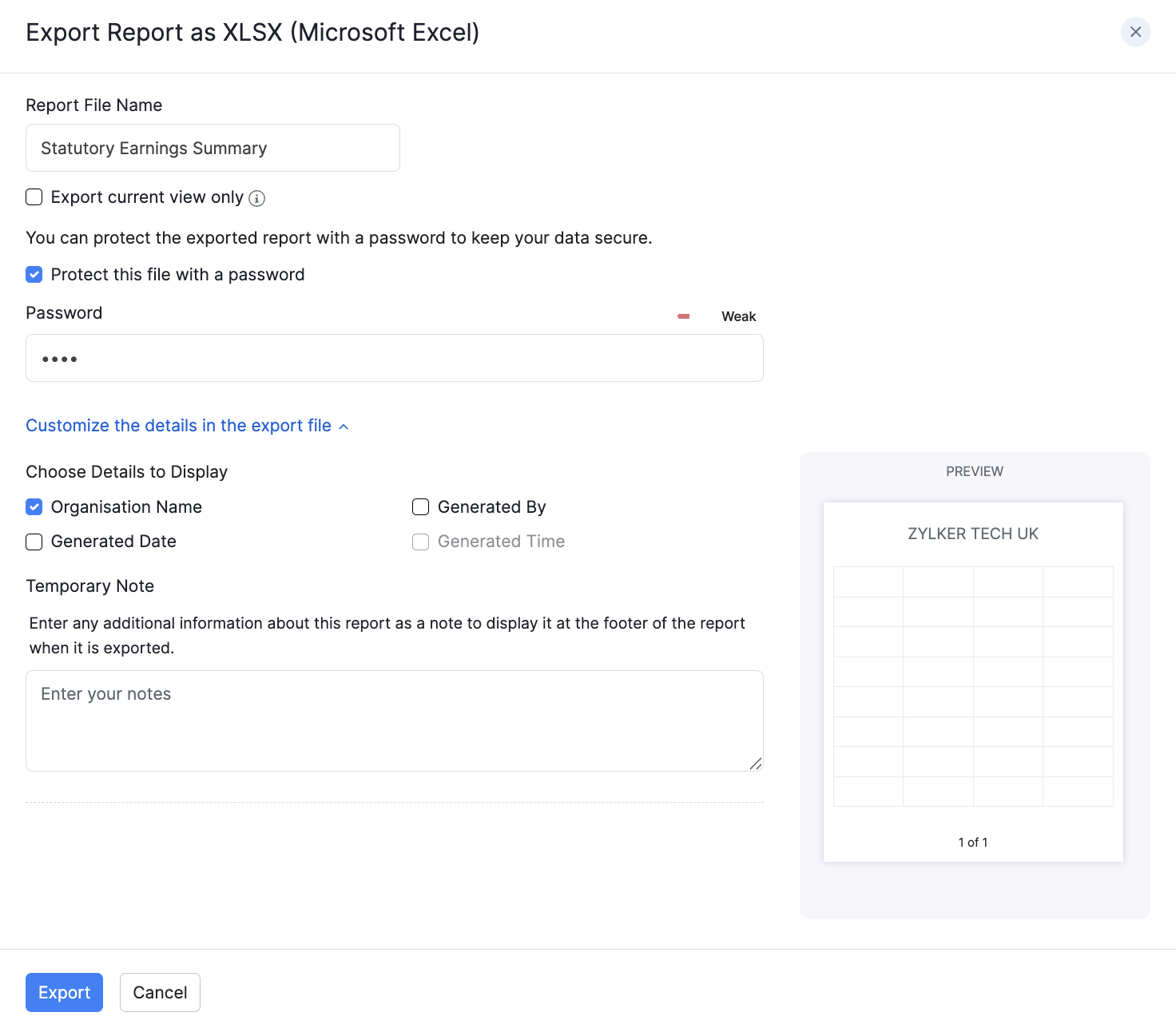
- Click Export as.
- Choose PDF, CSV (where available), XLS, XLSX, or Zoho Sheet.
- Optional: select Protect this file with a password and enter a password of at least 6 characters.
- Click Export.