
Manage Employee Profile

An employee’s profile holds the details Zoho Payroll uses to pay them and report to HMRC. Open an employee from Employees to review their Overview, Salary, and Payslips tabs.
On Overview, you can view and edit:
- Basic Information
- Personal Information
- Tax Details
- Payment Information
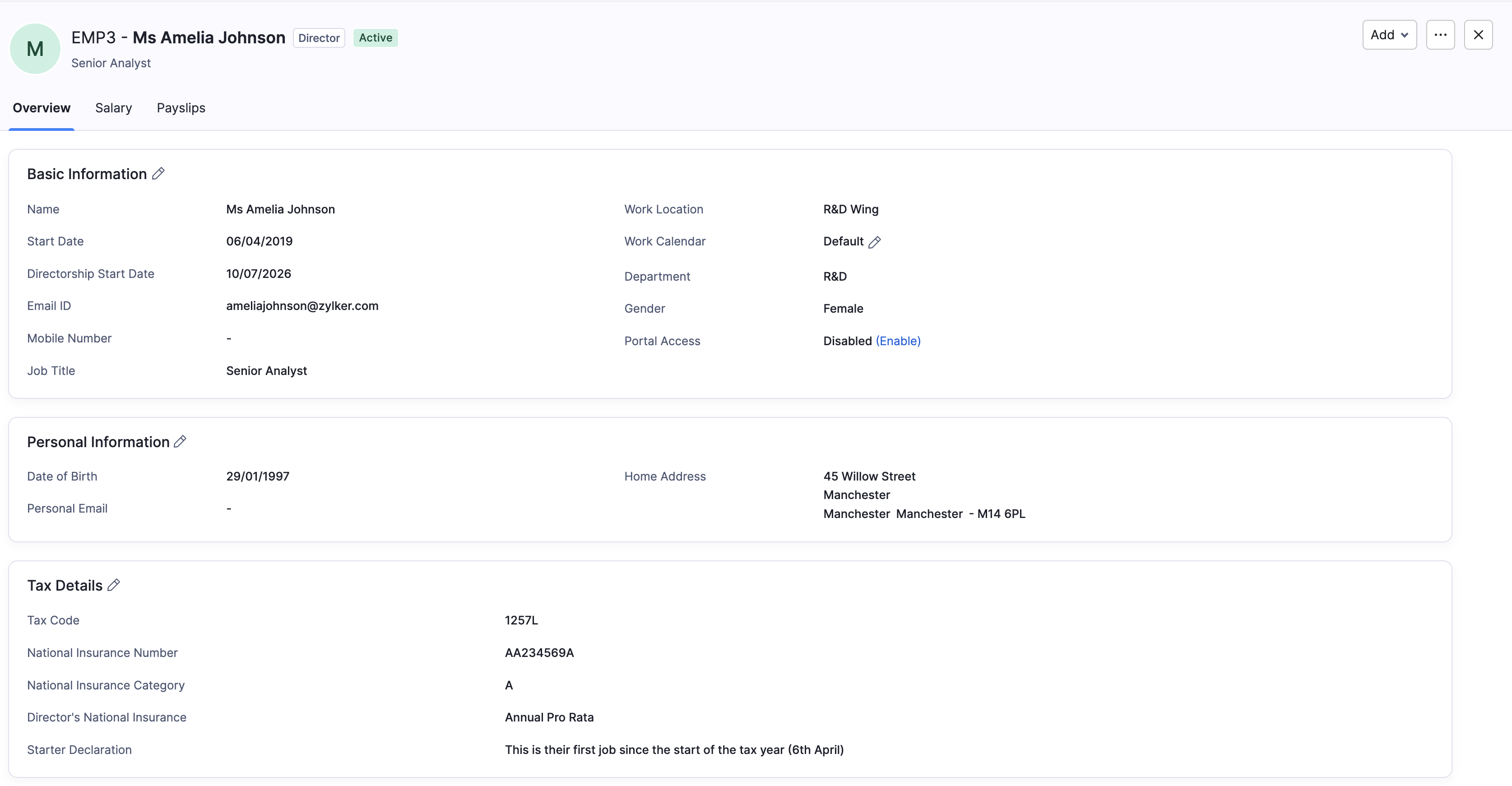
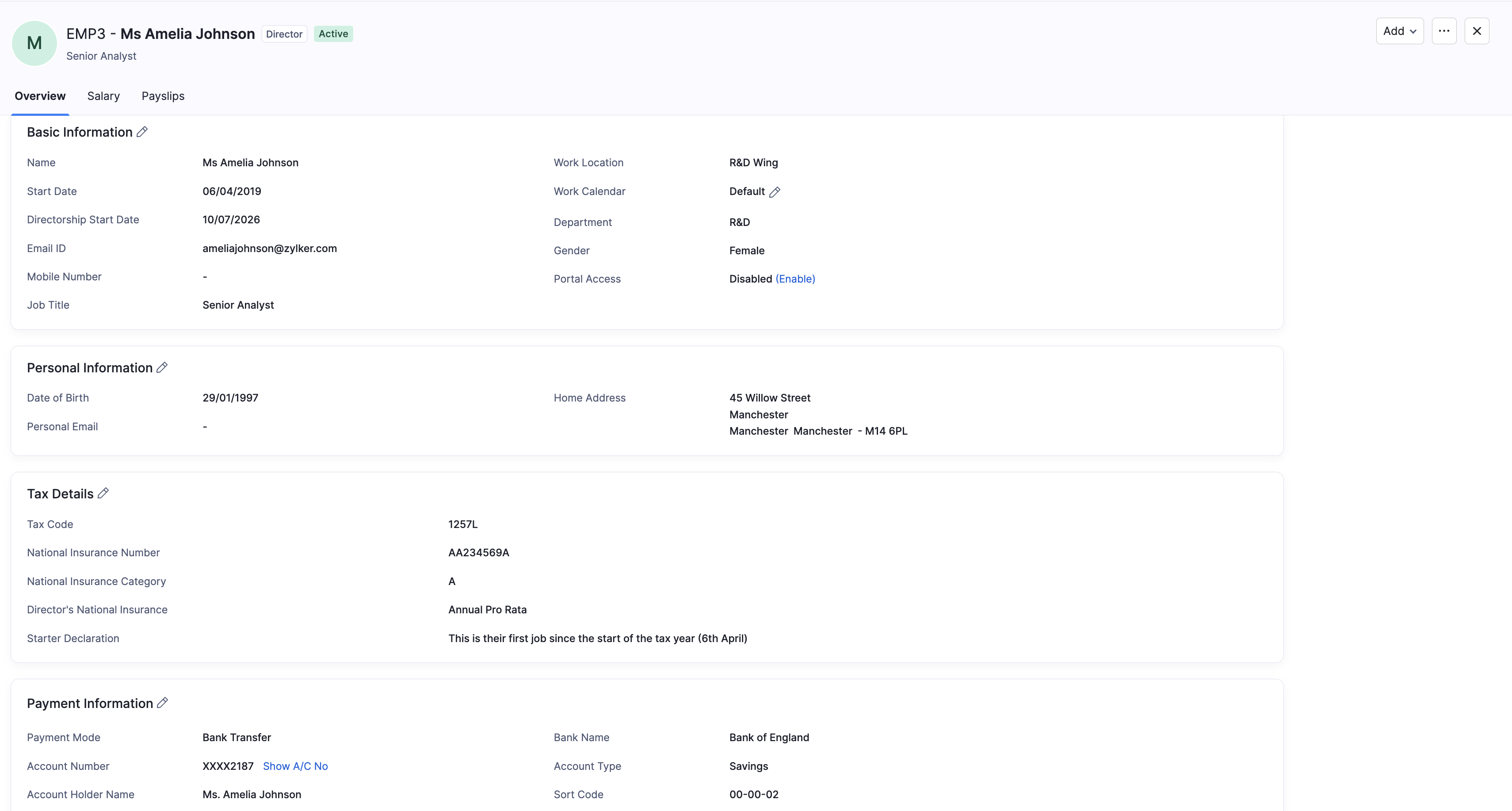
Basic Information
- Go to Employees and open the employee.
- On Overview, click the edit icon in Basic Information.
- Update the details you need, then click Save.
| Field | Description |
|---|---|
| Name | The employee’s title and name. |
| Start Date | The employee’s first day of work. |
| Directorship Start Date | Shown if the employee is a director. |
| Email ID | The employee’s work email. |
| Mobile Number | The employee’s mobile number. |
| Job Title | The employee’s job title. |
| Work Location | Where the employee primarily works. |
| Work Calendar | The calendar that sets working days and hours. |
| Department | The employee’s department. |
| Gender | The employee’s gender. |
| Portal Access | Whether the Employee Portal is enabled. You can enable it from here if it is disabled. |
Personal Information
- Open the employee and go to Overview.
- Click the edit icon in Personal Information.
- Update the details, then click Save.
| Field | Description |
|---|---|
| Date of Birth | The employee’s date of birth. |
| Personal Email | An email address for contact outside work, if needed. |
| Home Address | The employee’s home address. |
Tax Details
Tax details tell Zoho Payroll how to calculate PAYE tax and National Insurance for the employee. For the starter declaration options and field meanings when you first add someone, refer to Add Employees - Tax Details.
- Open the employee and go to Overview.
- Click the edit icon in Tax Details.
- Update the details, then click Save.
| Field | Description |
|---|---|
| Tax Code | The employee’s PAYE tax code from HMRC (for example 1257L). |
| National Insurance Number | The employee’s National Insurance number. |
| National Insurance Category | The NI letter that sets how National Insurance is calculated (for example A). Refer to the GOV.UK guidance on National Insurance category letters. |
| Director’s National Insurance | How director NI is calculated, if the employee is a director (Annual Pro Rata or Alternative). Refer to Director’s National Insurance when you add an employee. |
| Starter Declaration | Which starter statement applies when the employee joined. |
Refer to the GOV.UK guidance on tax codes if you need to check a tax code.
Payment Information
- Open the employee and go to Overview.
- Click the edit icon in Payment Information.
- Update the bank details or payment mode, then click Save.
| Field | Description |
|---|---|
| Payment Mode | How the employee is paid: Bank Transfer (Manual Process), Cheque, or Cash. |
| Account Holder Name | The name on the bank account. |
| Bank Name | The name of the employee’s bank. |
| Account Number | The employee’s bank account number. |
| Sort Code | The sort code for the employee’s bank. |
| Account Type | Current or Savings. |
Add Items from the Profile
From the employee profile, click Add to open shortcuts for:
- Benefits in Kind
- Deduction
- Statutory Pay
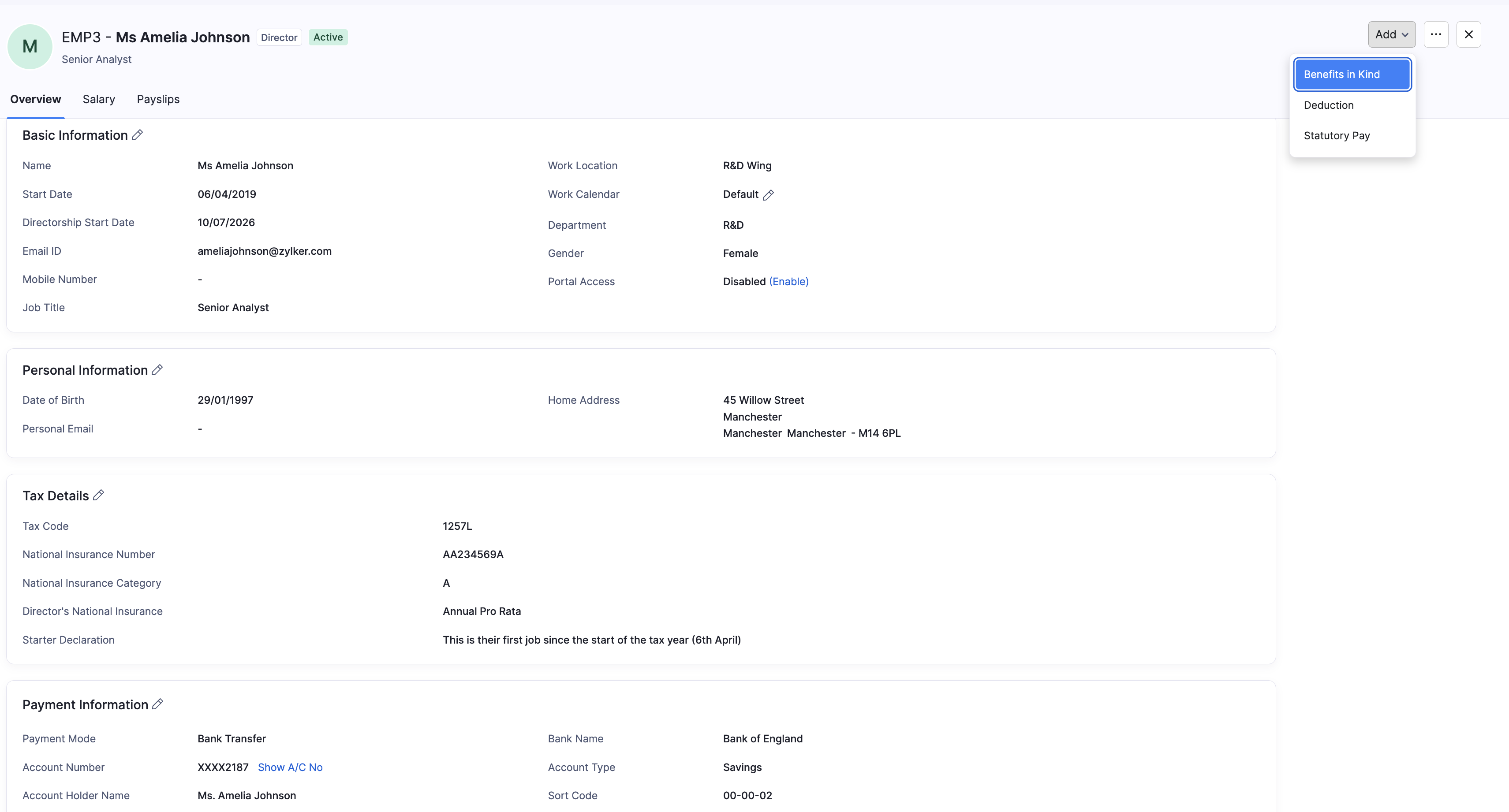
These open the same flows as on the Salary tab.