Users

Zoho Payroll lets you add users so that multiple people in your organisation can access the app and help run payroll. Because Zoho Payroll is cloud-based, users can work at the same time from any location.
Users List
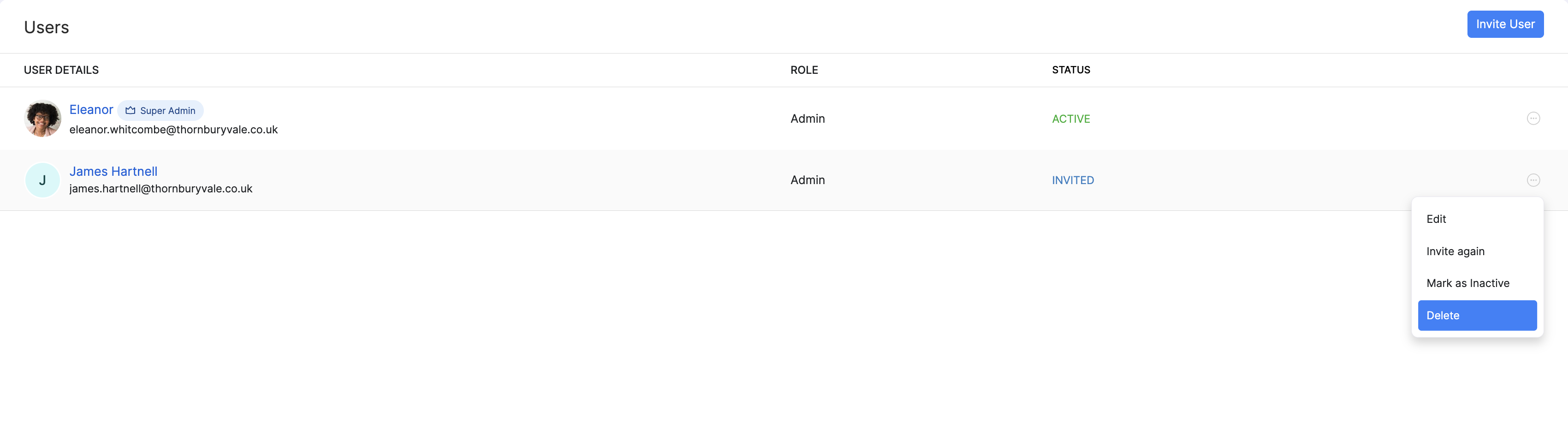
The Users page lists everyone who has access to your Zoho Payroll organisation. For each user, you can see their details and status (for example, Active or Invited). The organisation’s Super Admin is marked with a Super Admin badge.
Invite a User
You can add a new user by inviting them to your organisation.
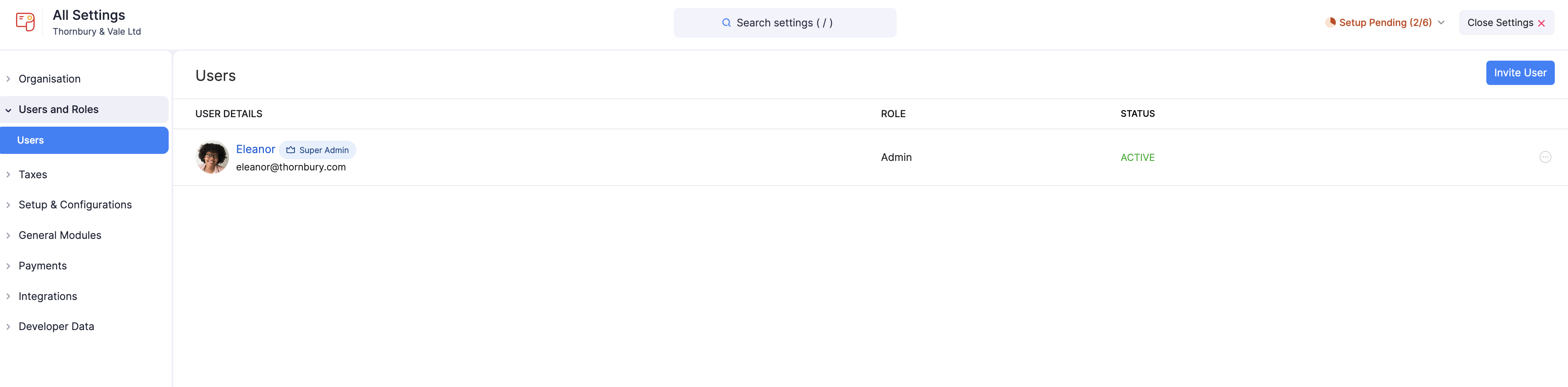
- Go to Settings and click Users.
- Click Invite User.
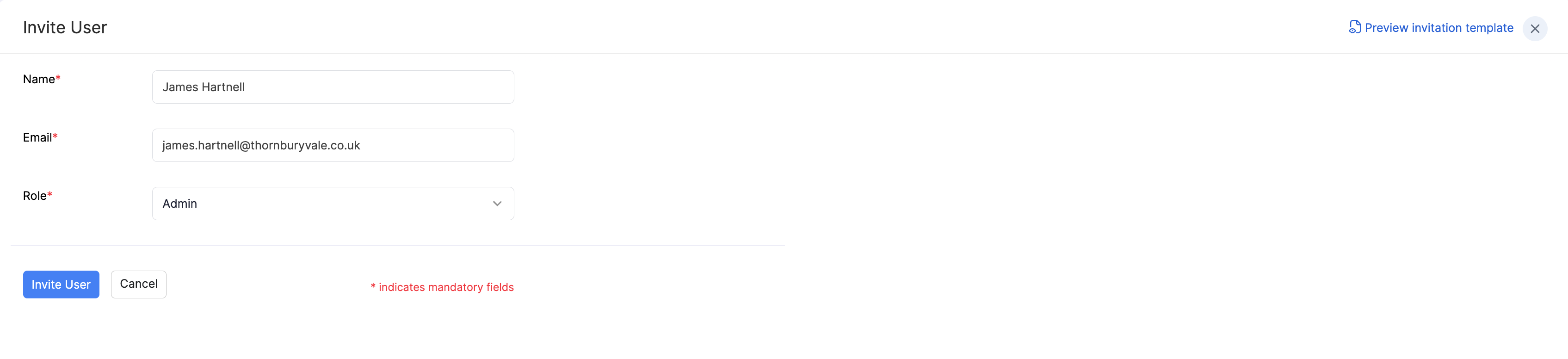
- Enter the user’s Name and Email.
- Optionally, click Preview invitation template to see the email they’ll receive.
- Click Invite User.
An invitation email is sent to the address you entered. The user can join the organisation by clicking the link in that email. Until they accept, their status shows as Invited.
Edit a User
To edit a user:
- Go to Settings and click Users.
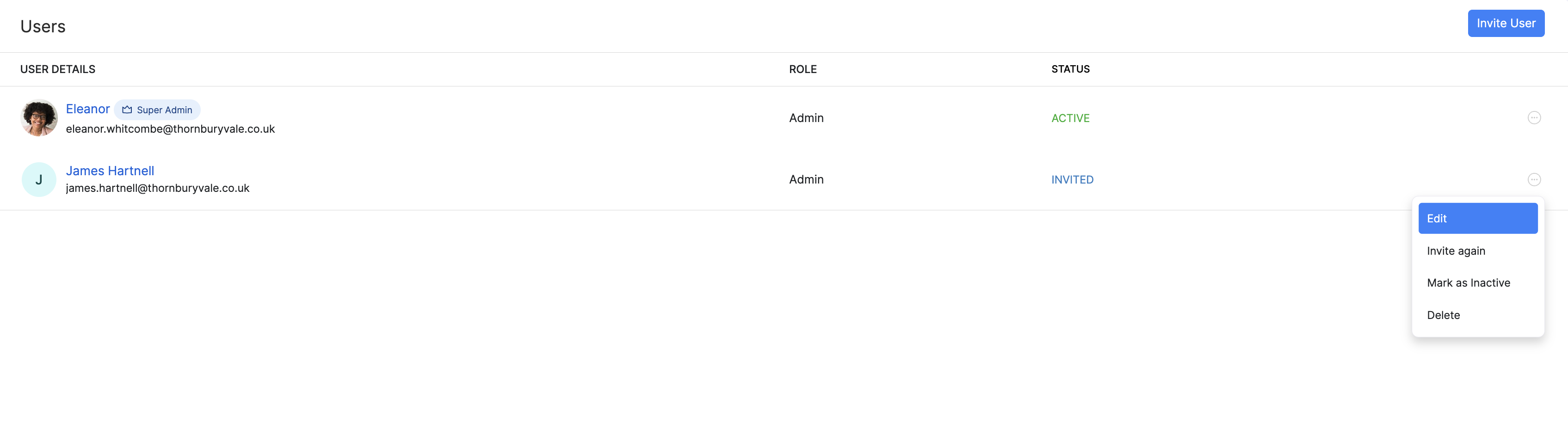
- Click the More icon next to the user and select Edit.
- Make the changes and click Save.
Invite a User Again
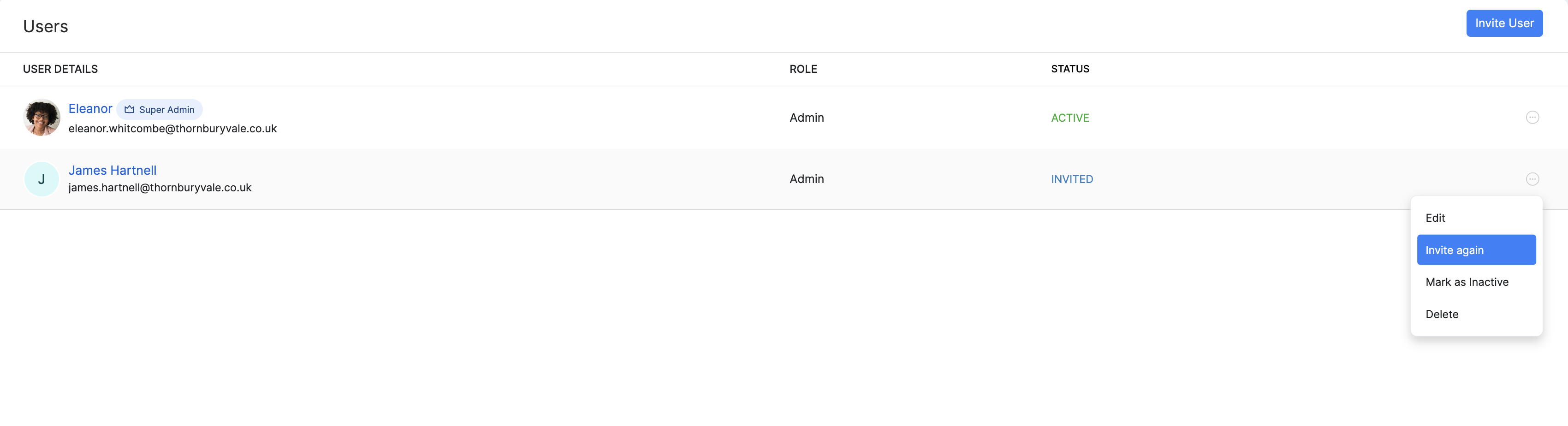
If a user hasn’t accepted their invitation, you can send it again.
- Go to Settings and click Users.
- Click the More icon next to the user and select Invite again.
Mark a User as Inactive
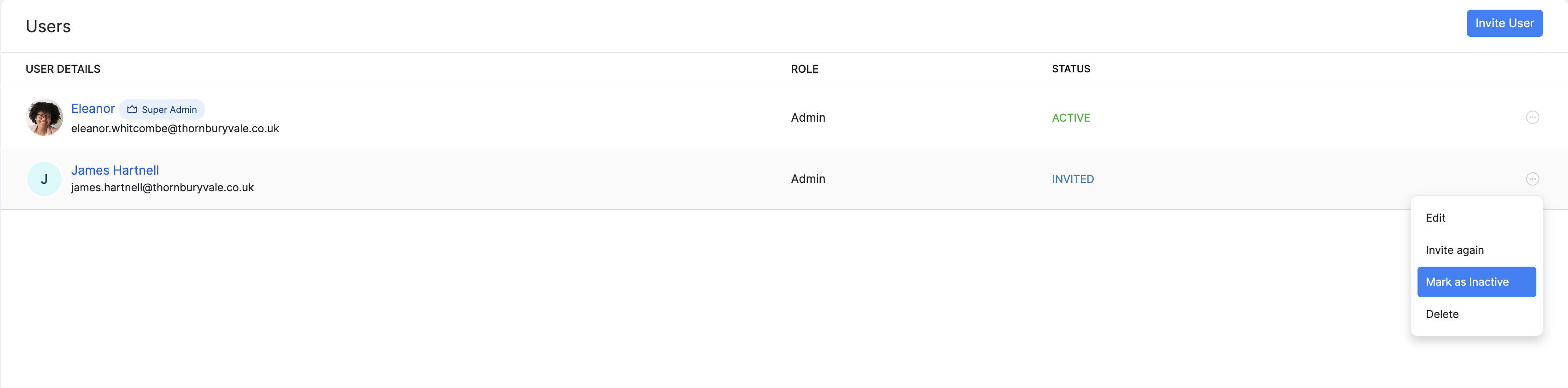
If you want to temporarily restrict a user’s access, you can mark them as inactive.
- Go to Settings and click Users.
- Click the More icon next to the user and select Mark as Inactive.
- Click Yes in the popup that appears.
You can mark the same user as active again by following the same steps.
Delete a User
To delete a user:
- Go to Settings and click Users.
- Click the More icon next to the user and select Delete.
- Click Yes in the popup that appears.