


Leave Types

A leave type sets the rules for leave your organisation offers, such as annual leave. It controls how much leave employees build up, when their balances reset, how much unused leave carries forward, and how leave can be requested.
Set up a leave type before you associate it with employees. You can then associate it with each employee and record leave against their balance.
Note: You do not need a leave type for statutory leave, such as statutory sick or paternity leave. You can record statutory leave for an employee directly.
View leave types
Go to Settings and click Leave under General Modules. The list shows each leave type’s Leave Name, Type (for example Paid), and Status.
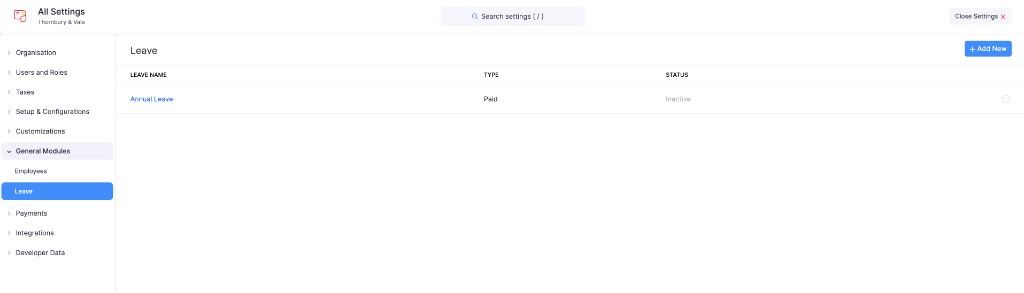
A leave type is Inactive until you configure and enable it. You can associate only active leave types with employees.
Set up annual leave
To set up annual leave:
- Go to Settings and click Leave under General Modules.
- Click Annual Leave.
- Enter the leave details, accrual and reset rules, leave request preferences, and validity. These are explained below.
- Click Save and Enable.
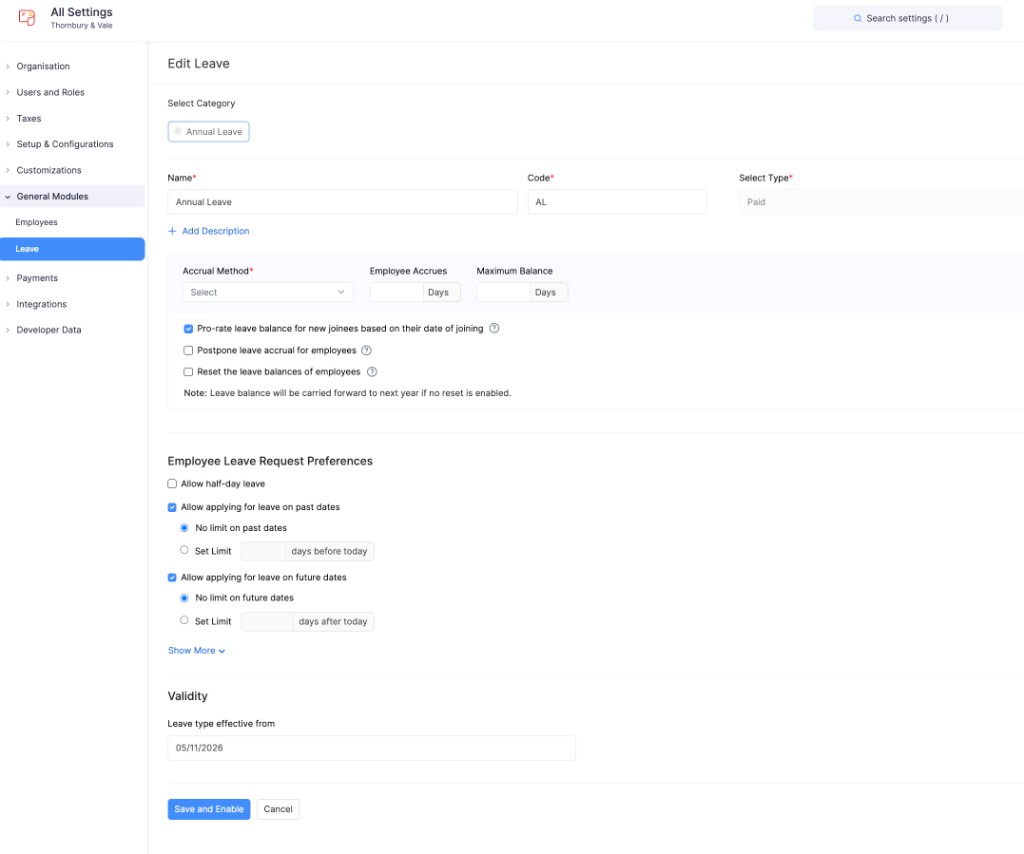
The leave type’s status changes to Active, and you can associate it with employees.
Leave details
| Field | Description |
|---|---|
| Select Category | The kind of leave, for example Annual Leave. |
| Name | The name employees and admins see, for example Annual Leave. |
| Code | A short code for the leave type, for example AL. |
| Select Type | Whether the leave is paid. Annual leave is Paid. |
| Add Description | An optional description of the leave type. |
Accrual
Accrual is how employees build up leave over time.
| Field | Description |
|---|---|
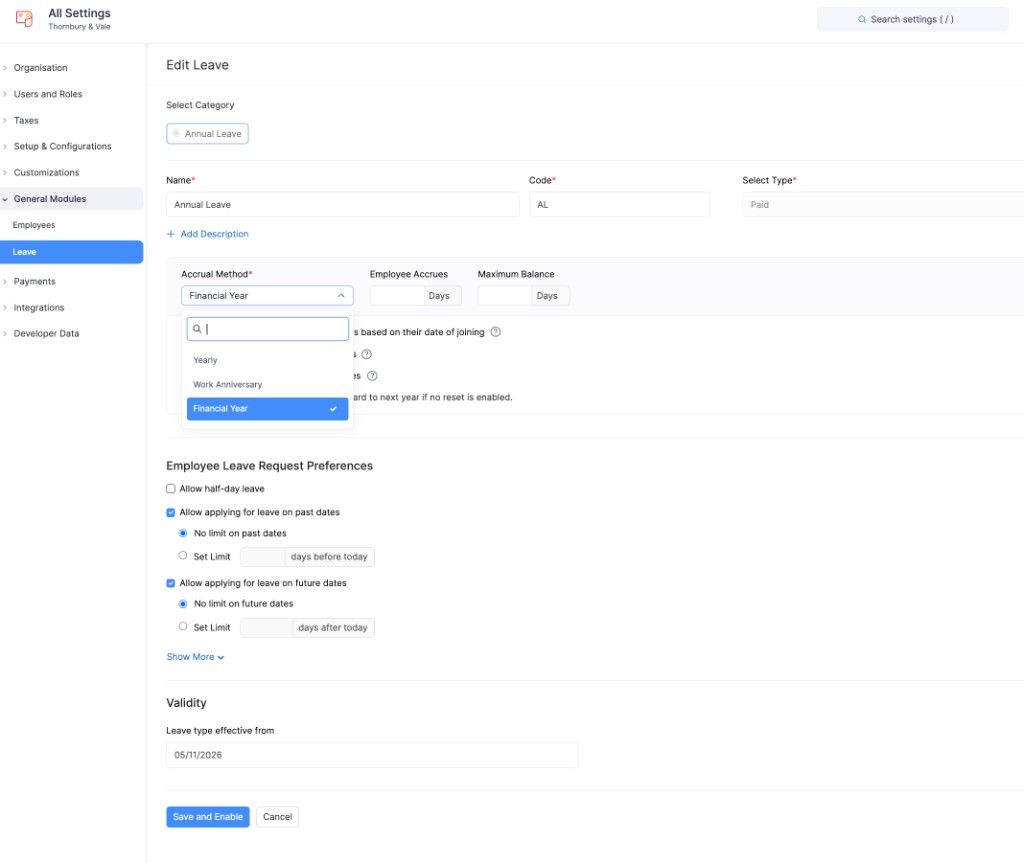
| Accrual Method | When employees are credited with leave: Yearly, Work Anniversary (each anniversary of the employee’s start date), or Financial Year. |
| Employee Accrues | The number of days credited each time leave accrues. |
| Maximum Balance | The most days an employee can hold at any time. |
You can also choose these options:
| Option | What it does |
|---|---|
| Pro-rate leave balance for new joinees based on their date of joining | Gives employees who join part-way through an accrual period a proportional amount of leave for that period. |
| Postpone leave accrual for employees | Makes the leave available only after employees complete a set number of months or years from their start date. Enter the number and select Month or Year. |
| Reset the leave balances of employees | Resets balances at a regular interval: Yearly, Work Anniversary, or Financial Year. If you do not reset balances, unused leave carries forward to the next year. |
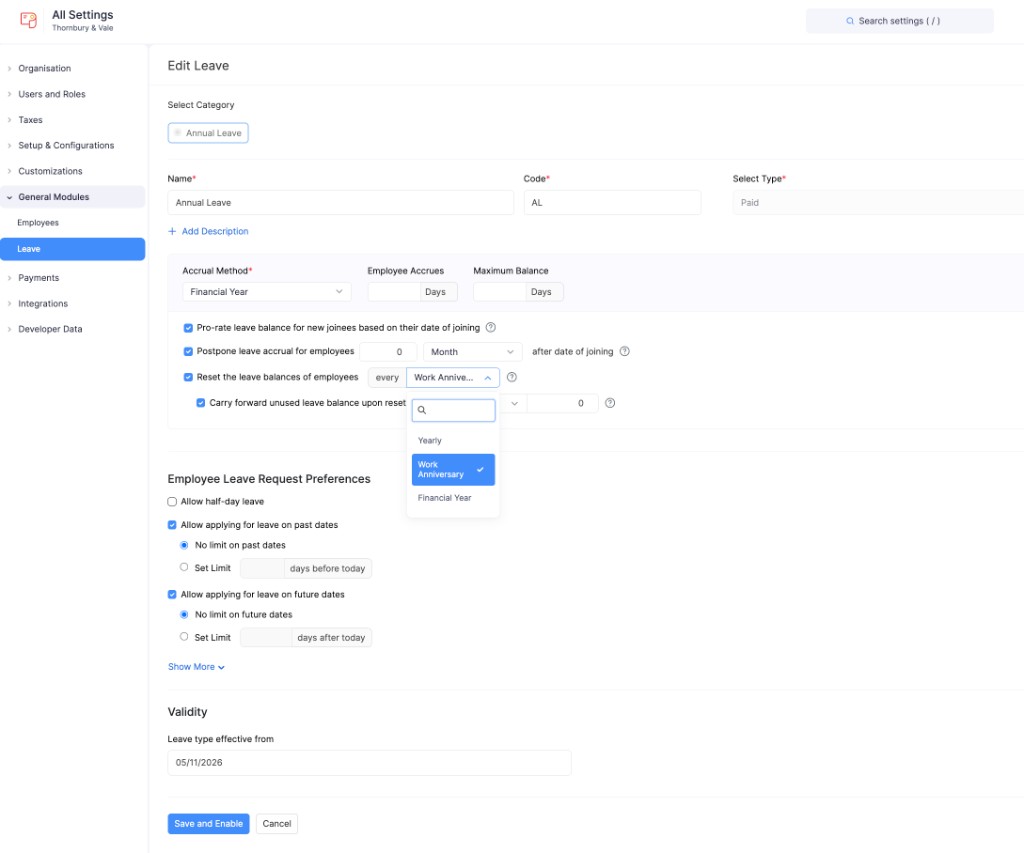
Carry forward unused leave
If you reset balances, select Carry forward unused leave balance upon reset? to let employees keep some of their unused leave. Choose how much they keep:
| Option | What it does |
|---|---|
| Reset by Units | Carries forward up to the number of days you enter. |
| Reset by Percentage | Carries forward the percentage of unused leave you enter. Click Add Max Limit to cap the number of days carried forward. |
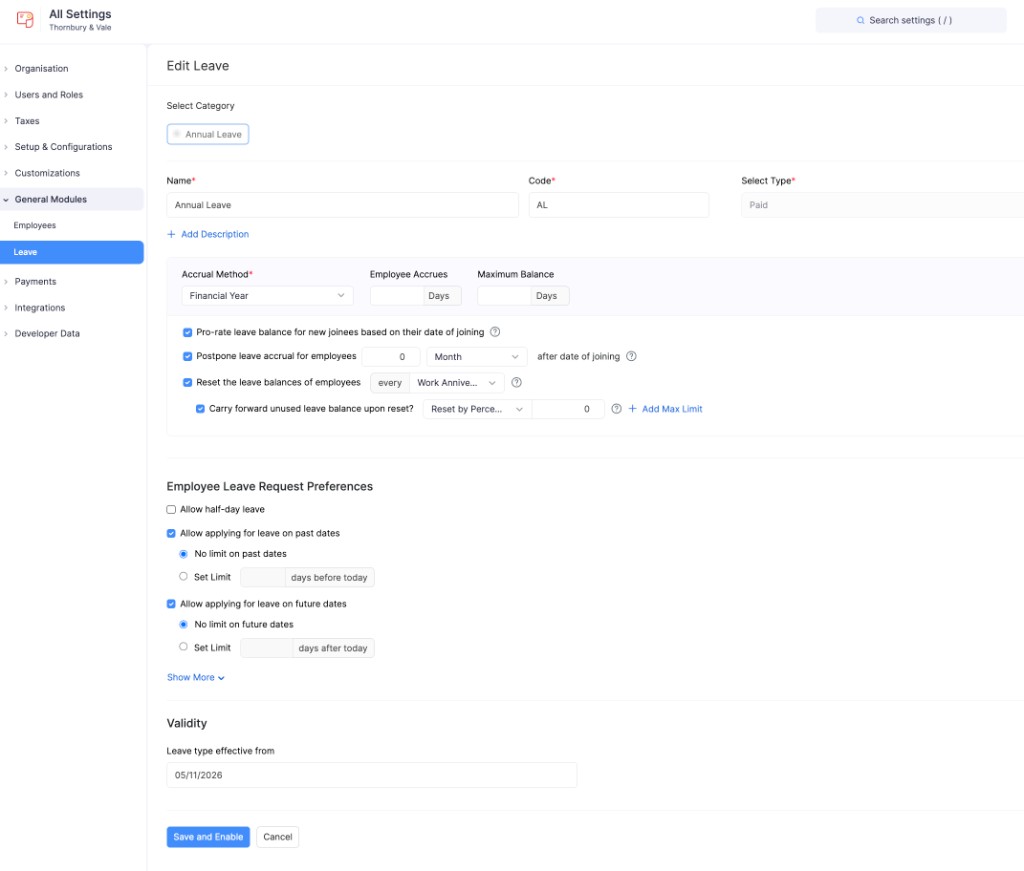
Scenario: Zylker resets annual leave on each employee’s work anniversary and carries forward 50% of unused leave, up to a maximum of 5 days. Sam has 12 days left on his anniversary. 50% of 12 is 6 days, so Sam carries forward the maximum of 5 days.
Employee leave request preferences
These rules apply when leave of this type is requested.
| Option | What it does |
|---|---|
| Allow half-day leave | Lets employees take half a day of this leave. |
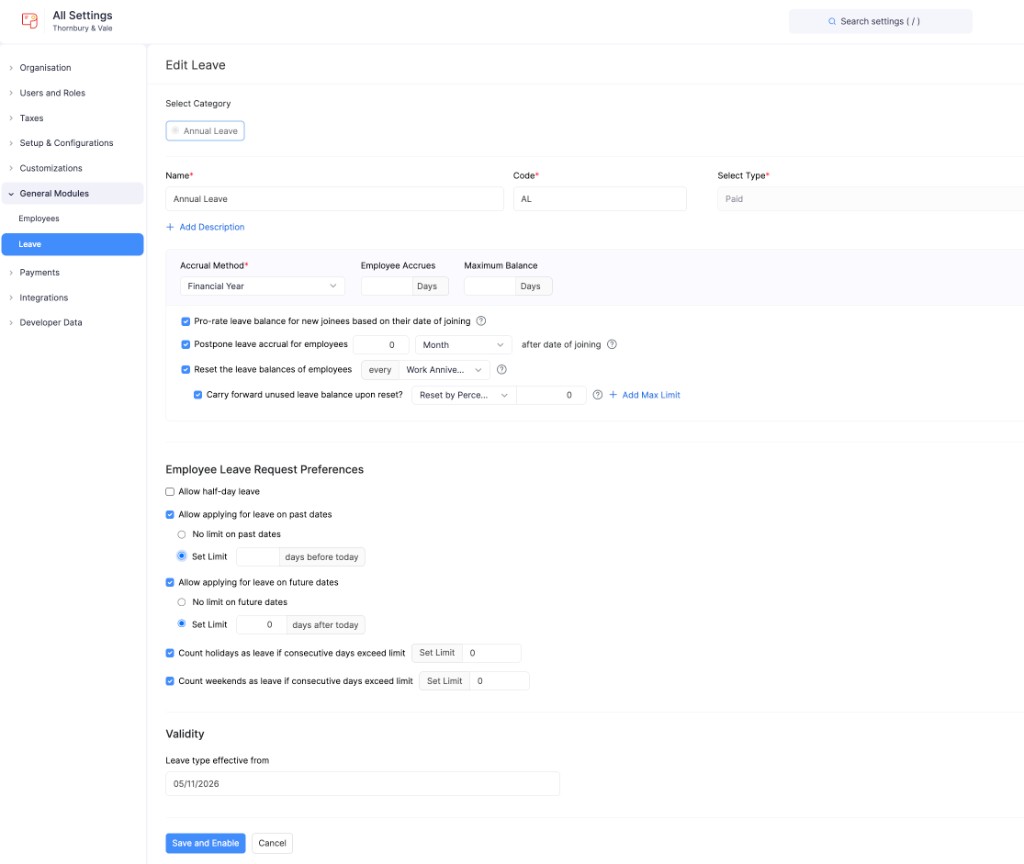
| Allow applying for leave on past dates | Lets leave be recorded for dates that have already passed. Select No limit on past dates, or Set Limit and enter how many days before today are allowed. |
| Allow applying for leave on future dates | Lets leave be booked ahead. Select No limit on future dates, or Set Limit and enter how many days after today are allowed. |
| Count holidays as leave if consecutive days exceed limit | Counts holidays that fall within a long leave period as leave days. Enter the number of consecutive leave days after which holidays are counted. |
| Count weekends as leave if consecutive days exceed limit | Counts weekends that fall within a long leave period as leave days. Enter the number of consecutive leave days after which weekends are counted. |
Click Show More to see the holiday and weekend options.
Validity
Enter the date in Leave type effective from. Leave starts to accrue under these rules from this date.