


Manage Employee Leave

Each employee’s profile has a Leave tab. Use it to associate leave types with the employee, keep their balances up to date, and record the leave they take.
To open it, go to Employees, select an employee, and click the Leave tab. It has two views:
| View | What it shows |
|---|---|
| Leave Balance | Each leave type associated with the employee and its balance, plus any statutory leave they have taken. Use Filter to view balances as of a date, for example As Of Today. |
| Leave Requests | The leave recorded for the employee. Use Filter to choose the year. |
Associate leave with an employee
Prerequisites: The leave type must be set up and active. Learn how in Leave Types.
To associate leave:
- Go to Employees, select an employee, and click the Leave tab.
- On Leave Balance, click + Annual Leave. If the employee already has leave associated, click + Associate Leave.
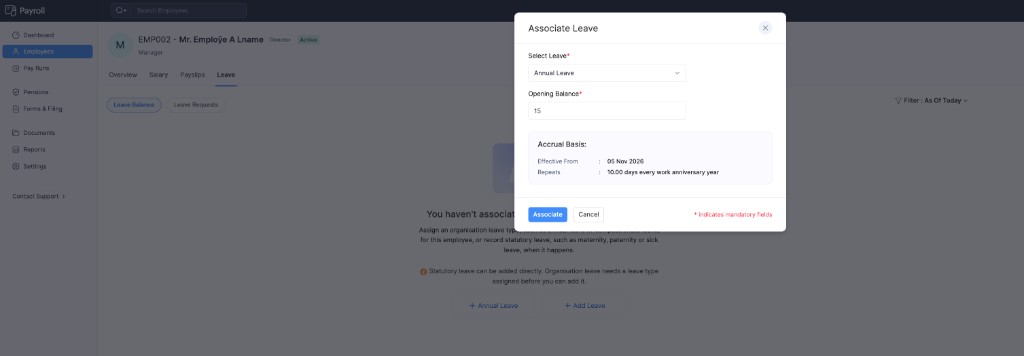
- In Associate Leave, select the leave in Select Leave.
- Enter the employee’s Opening Balance, the number of days they have when the leave is associated.
- Check the Accrual Basis: the date accrual starts from, and how much leave the employee builds up and how often.
- Click Associate.
If the leave type has not been set up, Zoho Payroll asks you to configure it first. Click Configure Now to open the leave type in Settings.
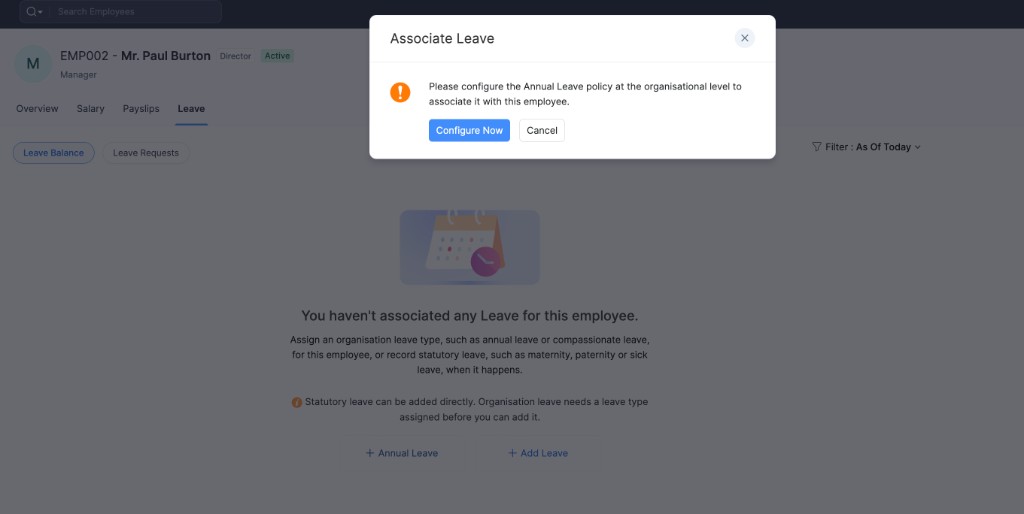
You also see this message if every active leave type is already associated with the employee.
View leave balances
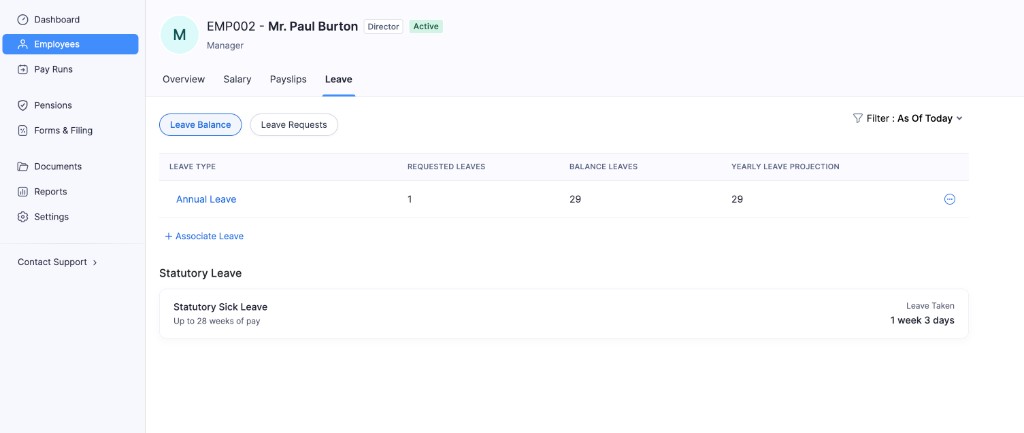
On Leave Balance, each associated leave type shows:
| Column | What it shows |
|---|---|
| Leave Type | The leave type, for example Annual Leave. |
| Requested Leaves | The days of this leave the employee has requested. |
| Balance Leaves | The days the employee has left. |
| Yearly Leave Projection | The balance the employee is expected to have for the year. |
If the employee has taken statutory leave, the Statutory Leave section lists each type with its entitlement (for example “Up to 28 weeks of pay” for statutory sick leave) and the Leave Taken so far.
Update or remove associated leave
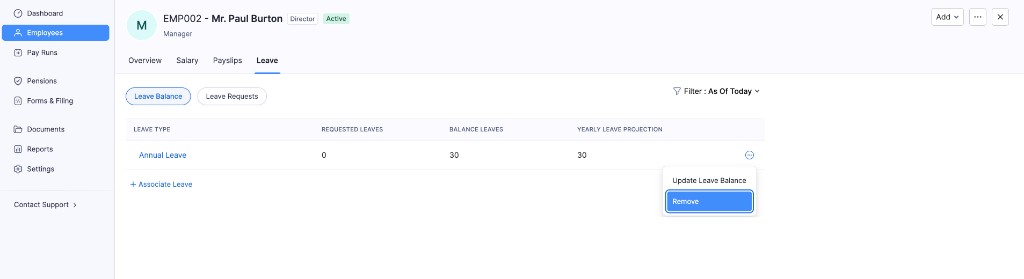
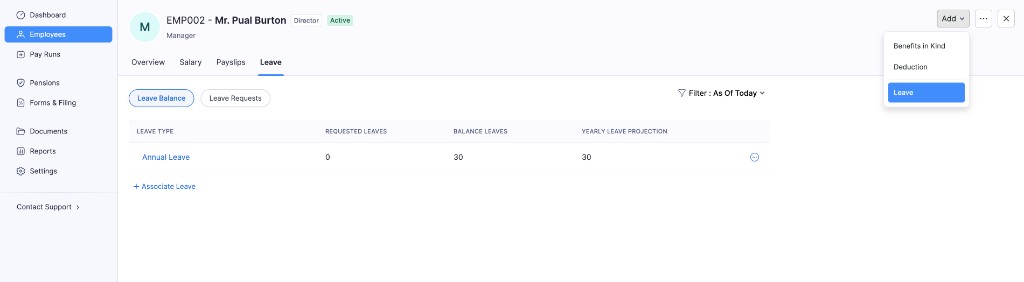
Click the More icon next to a leave type to:
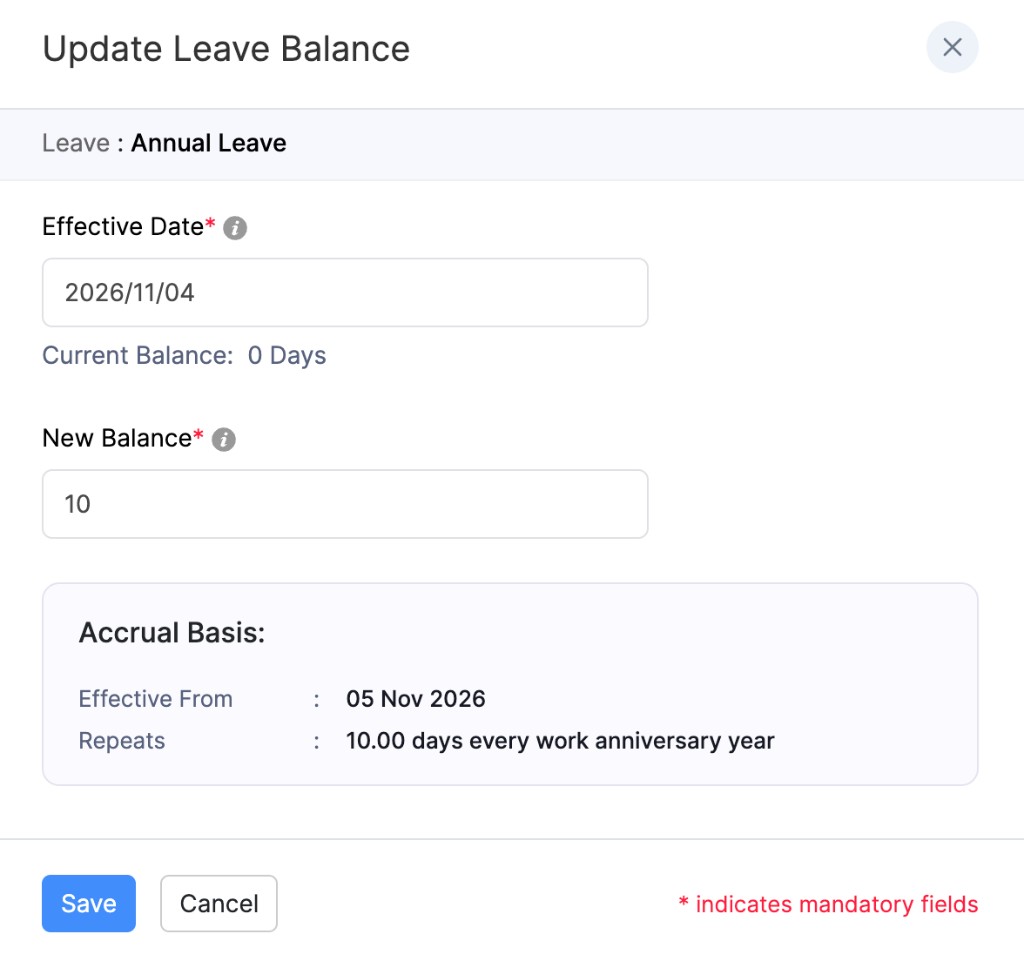
- Update Leave Balance: change the employee’s balance from a date.
- Remove: remove the leave type from the employee.
To update a leave balance:
- Click the More icon next to the leave type and select Update Leave Balance.
- Enter the Effective Date for the new balance. The Current Balance on that date is shown below it.
- Enter the New Balance in days.
- Click Save.
Add leave for an employee
You can record organisation leave, such as annual leave, and statutory leave from the same place.
To add leave:
- Go to Employees, select an employee, and click Add > Leave at the top right. You can also click Add Leave on the Leave tab.
- Select the Leave type. For statutory leave, refer to Statutory Leave for the details each type needs.
- Enter the From Date and To Date. Zoho Payroll lists each day in the period and marks weekends and holidays, then shows the Total Applied Leave.
- Enter a Reason, if needed.
- Click Save.
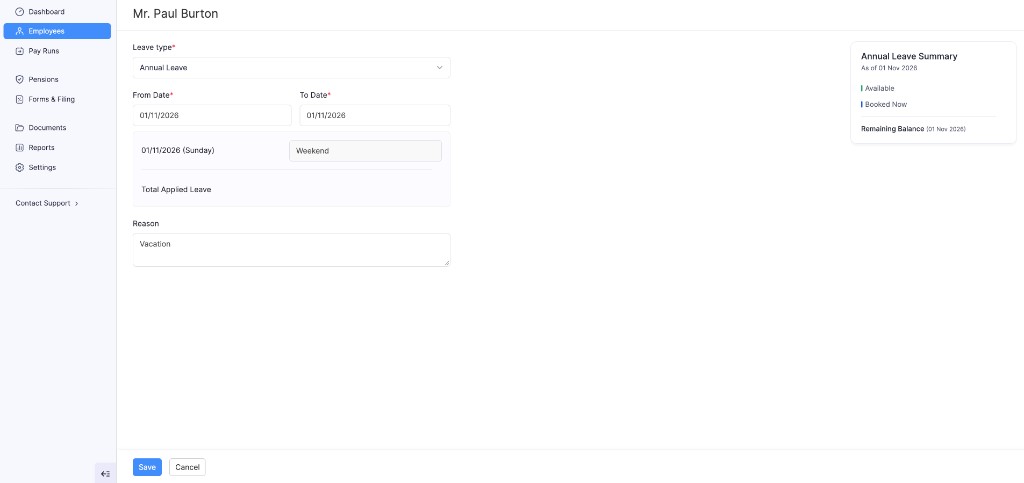
The Annual Leave Summary on the right shows the days Available, the days Booked Now, and the Remaining Balance after this leave.
What you can book depends on the leave type’s leave request preferences, such as half days and how far in the past or future leave can be recorded.
View and manage leave requests
On Leave Requests, select the year in Filter. Leave is listed in two tables, Leave and Statutory Leave, with these columns:
| Column | What it shows |
|---|---|
| Leave Date | The start and end dates. Click it to open the leave. |
| Leave Type | The type of leave. |
| Units | The number of days. |
| Reason | The reason entered for the leave. |
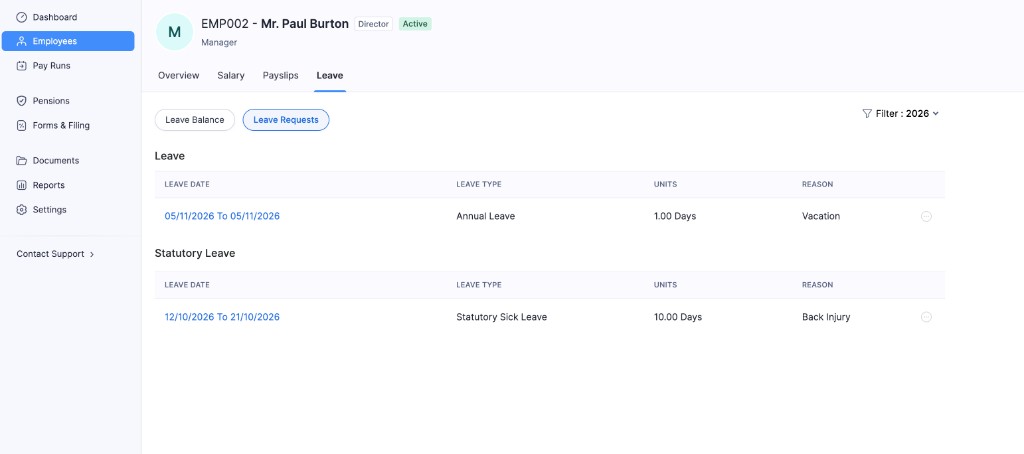
To change or delete leave, click the More icon next to it and select Edit or Delete.